

Prerequisites
Before starting the setup, ensure you have:- A portal configured with a custom domain, running HTTPS protocol, and publicly accessible.
- A TikTok Business Account registered in a supported region (personal TikTok accounts are not supported).
- Direct messages set to Everyone in your TikTok app settings.
- A TikTok Developer Account created at developers.tiktok.com.
- Super Admin access to your portal to set up Credentials.
Step 1: Create a TikTok Developer Account
To get started, you must register a developer account on TikTok to create and manage the connection app.Register as a developer
Go to developers.tiktok.com and sign up.
Step 2: Register Your App
Registering your application in the developer portal provides you with the key credentials (App ID and App Secret) needed to securely link the portal to TikTok.Create a new app
Navigate to business-api.tiktok.com/portal/apps and click Create App.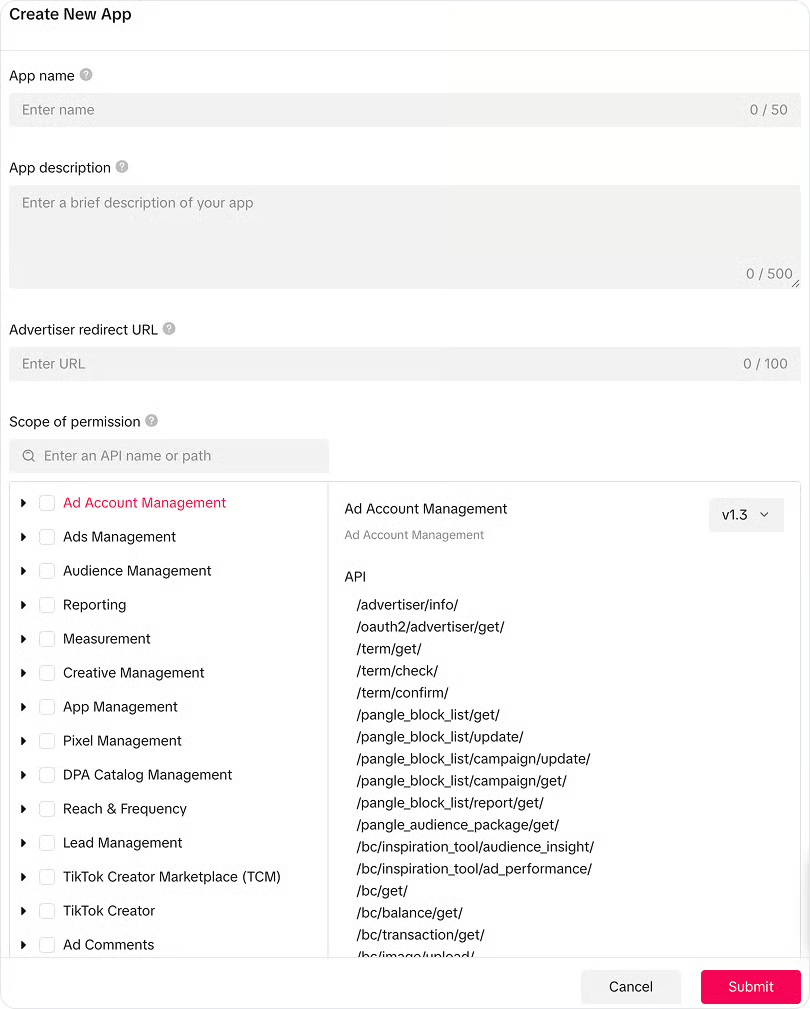
Fill in app details
Provide the required details:
- App Name: e.g.,
Your Brand - ChatconnectX - App Description: Explain your messaging and support use case.
- App Icon: Upload your company logo.
- Terms of Service URL: Your company’s ToS page.
- Privacy Policy URL: Your company’s privacy policy page.
Step 3: Apply for Business Messaging API Access
TikTok requires you to request access to the messaging endpoints. This is a security review step to ensure data is handled safely.Request Business Messaging product
Open your app in the TikTok Developer Portal and find the Business Messaging API product.
Submit the access application
Fill out the application form with:
- Your use case (e.g., providing automated customer support).
- Details on how you handle user data.
- Your business/organization details.
Step 4: Configure Credentials in the Admin Portal
After obtaining the security credentials from TikTok, save these settings in the Admin Portal.Open the TikTok configuration
Click the Edit button on the TikTok card to open the configuration modal and fill in your Client ID (App ID) and App Secret.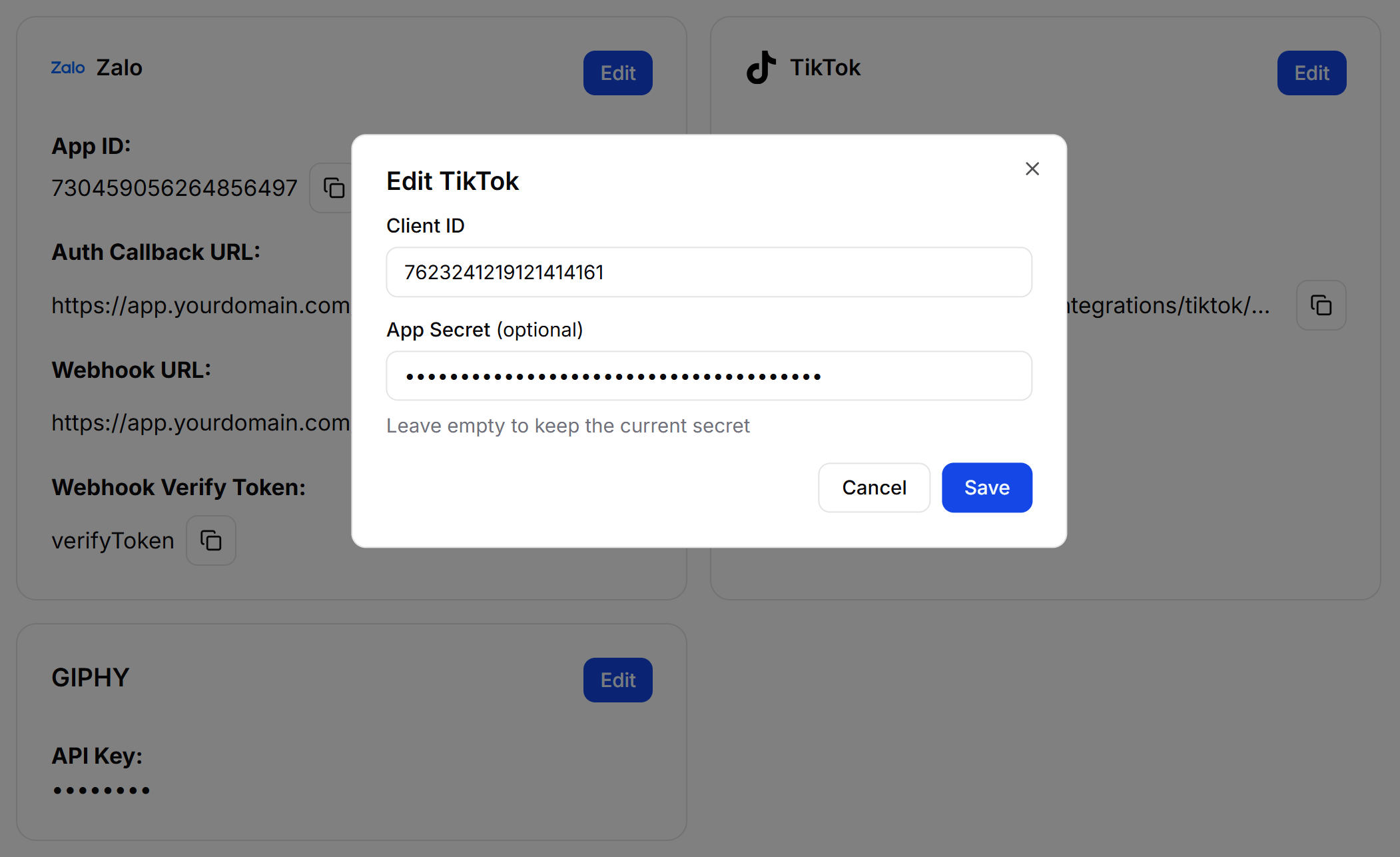
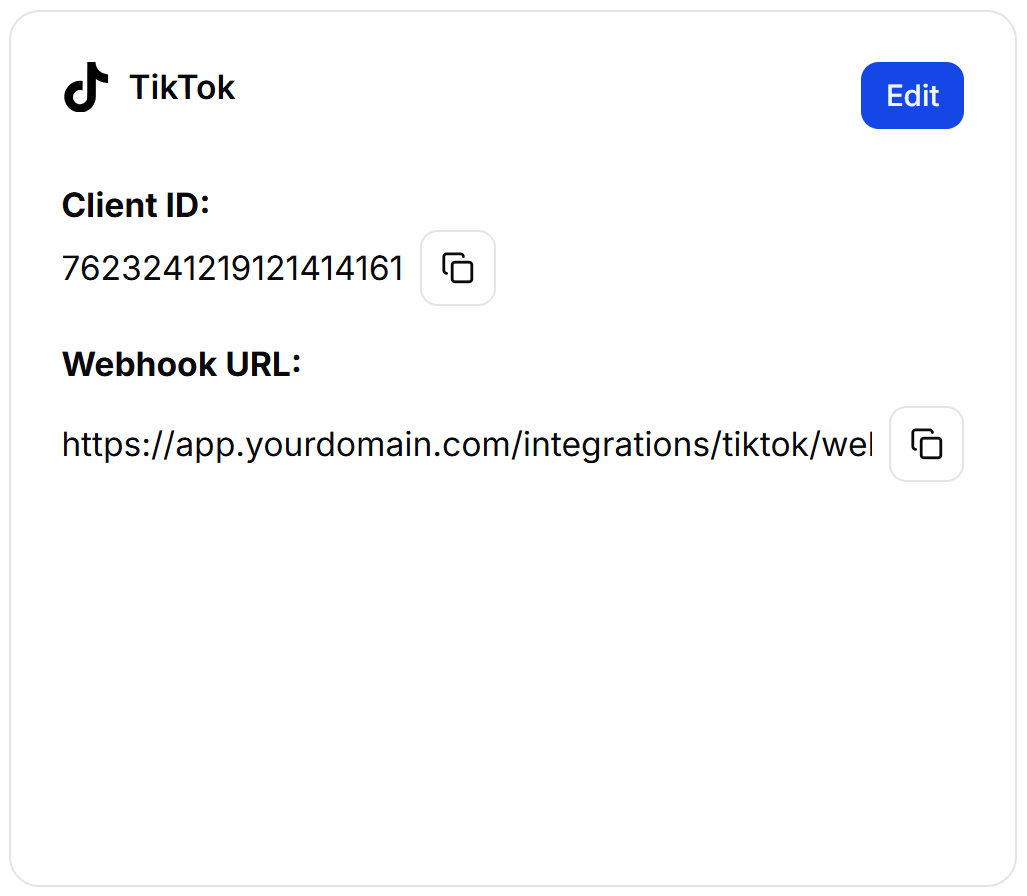
Step 5: Configure App Permissions and Redirect URLs
Once approved, you need to enable the specific account permissions and configure where TikTok redirects users after they log in (Redirect URL).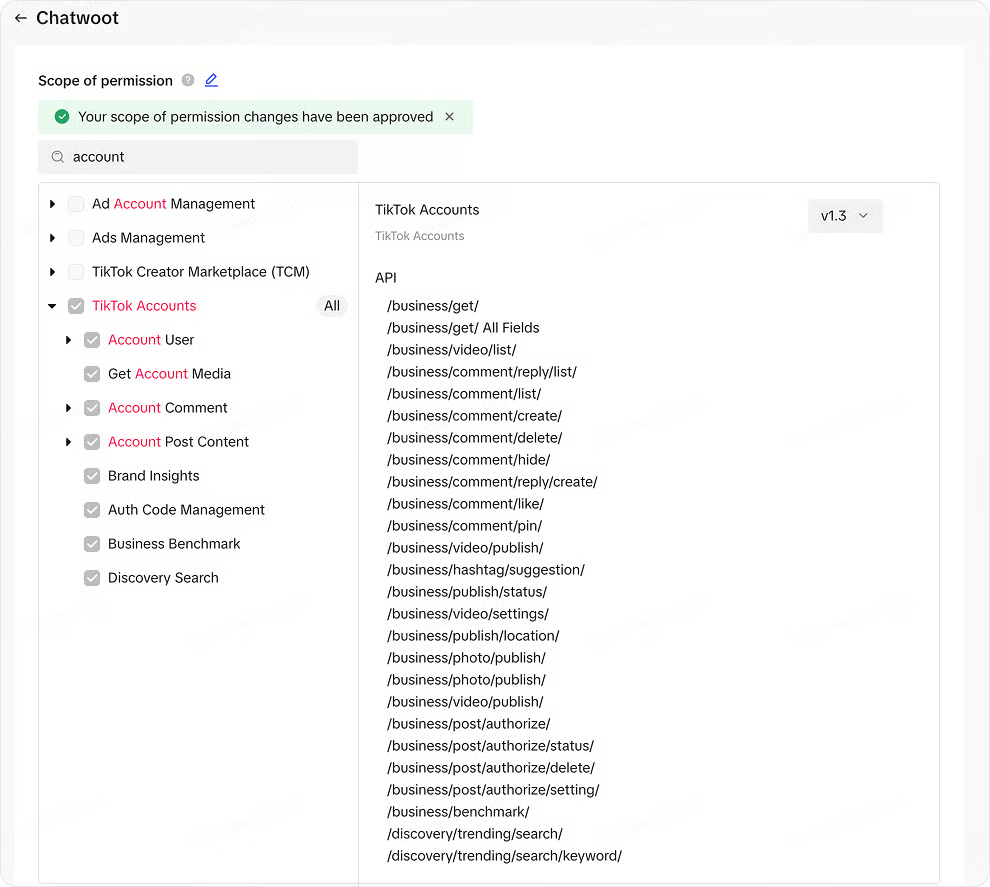
User Connection Guide
After completing the app configuration on the TikTok Developer Portal and entering the Credentials in the Admin Portal, your customers can connect their TikTok Business accounts. For step-by-step instructions, see the TikTok Connection Guide.Troubleshooting
TikTok Channel not appearing in dashboard
TikTok Channel not appearing in dashboard
Verify that you have enabled the TikTok feature for your account in the Super Admin panel, and confirm that the environment variables are saved and the server has been restarted.
Not receiving incoming messages
Not receiving incoming messages
Run
Tiktok::AuthClient.webhook_callback in the Rails console to verify that the webhook is registered. Check that your server can receive public HTTPS requests and that your business account is registered in a supported region.Messages failing to send
Messages failing to send
Ensure you are replying within the standard 48-hour window. Verify the channel is not requesting reauthorization due to expired access tokens.