

Prerequisites
Before you begin, make sure you have:- A valid Facebook account
- A WhatsApp Business account (or the ability to create one during setup)
- A portal configured with a custom domain, running HTTPS protocol, and publicly accessible.
- Super Admin access to your portal to set up Credentials.
If you are developing locally, you will need a tunneling tool such as ngrok to expose your local server to the internet to receive Facebook webhooks.
Step 1: Create a Facebook App
If you already have a Facebook App (for example, from your Messenger channel setup), you can reuse it and skip directly to Step 2.Create a new app
Go to the Facebook Developer Portal and click Create App.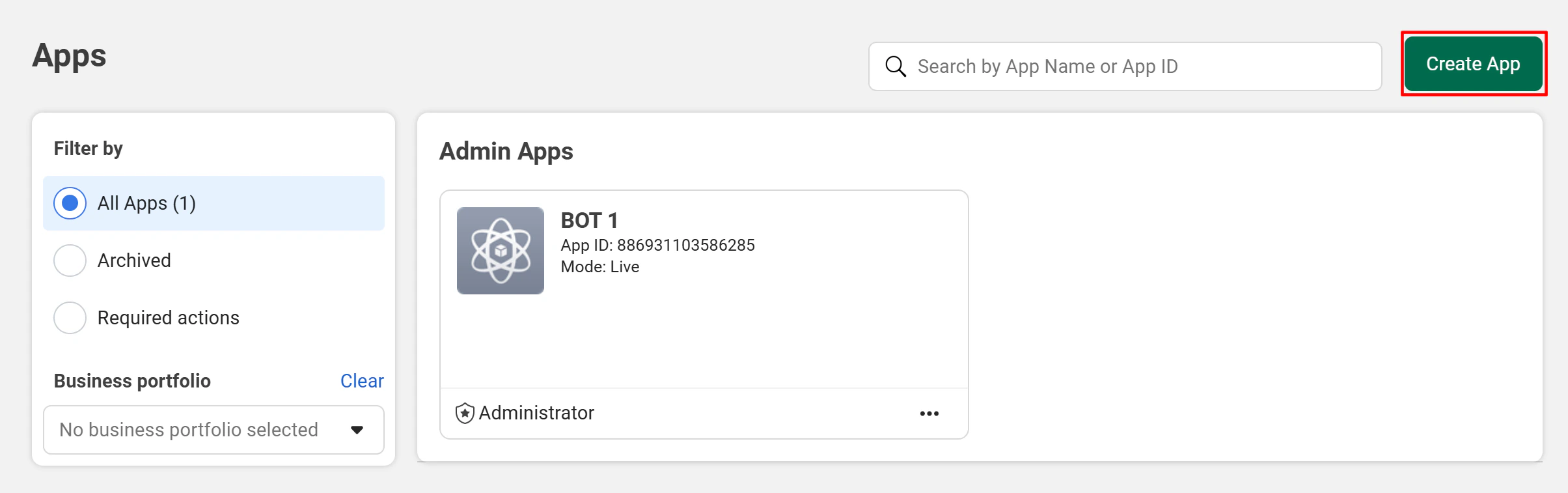
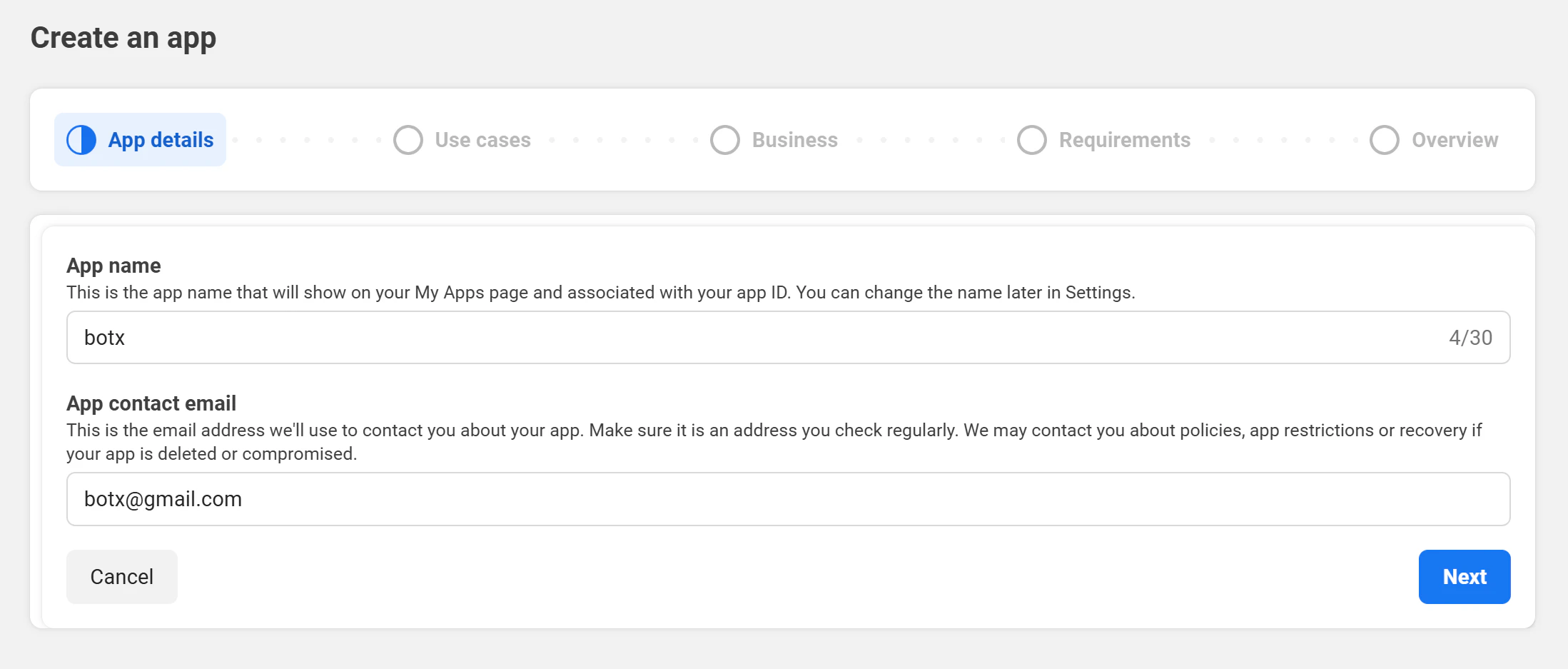
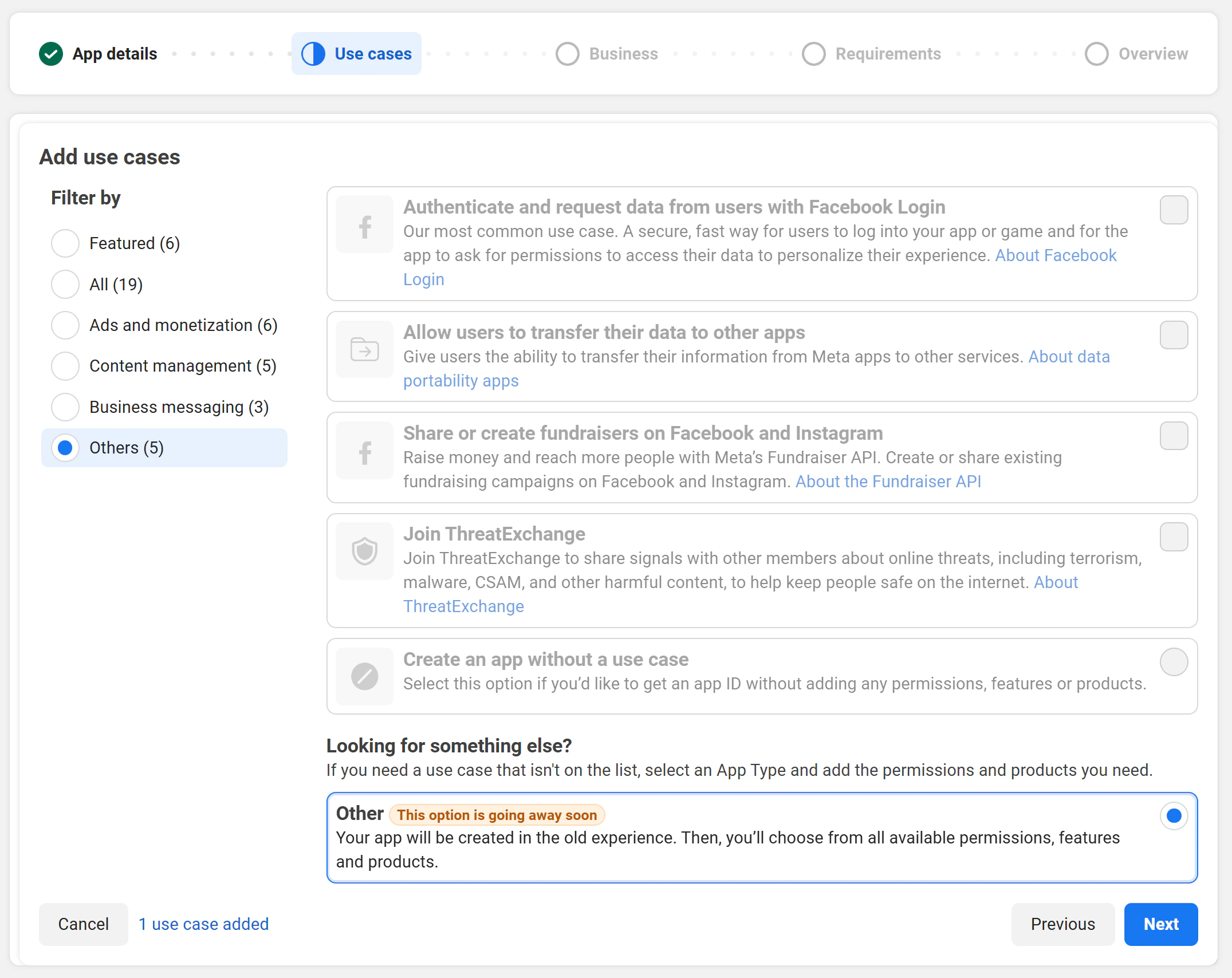
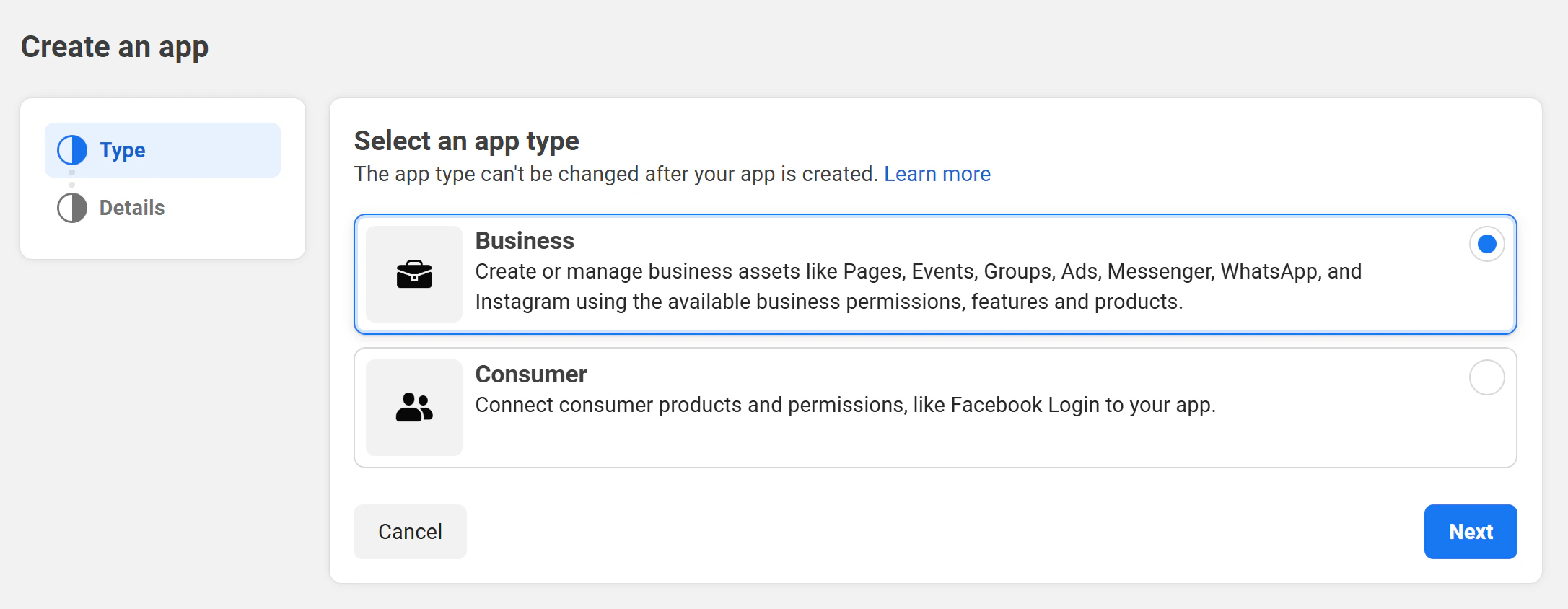
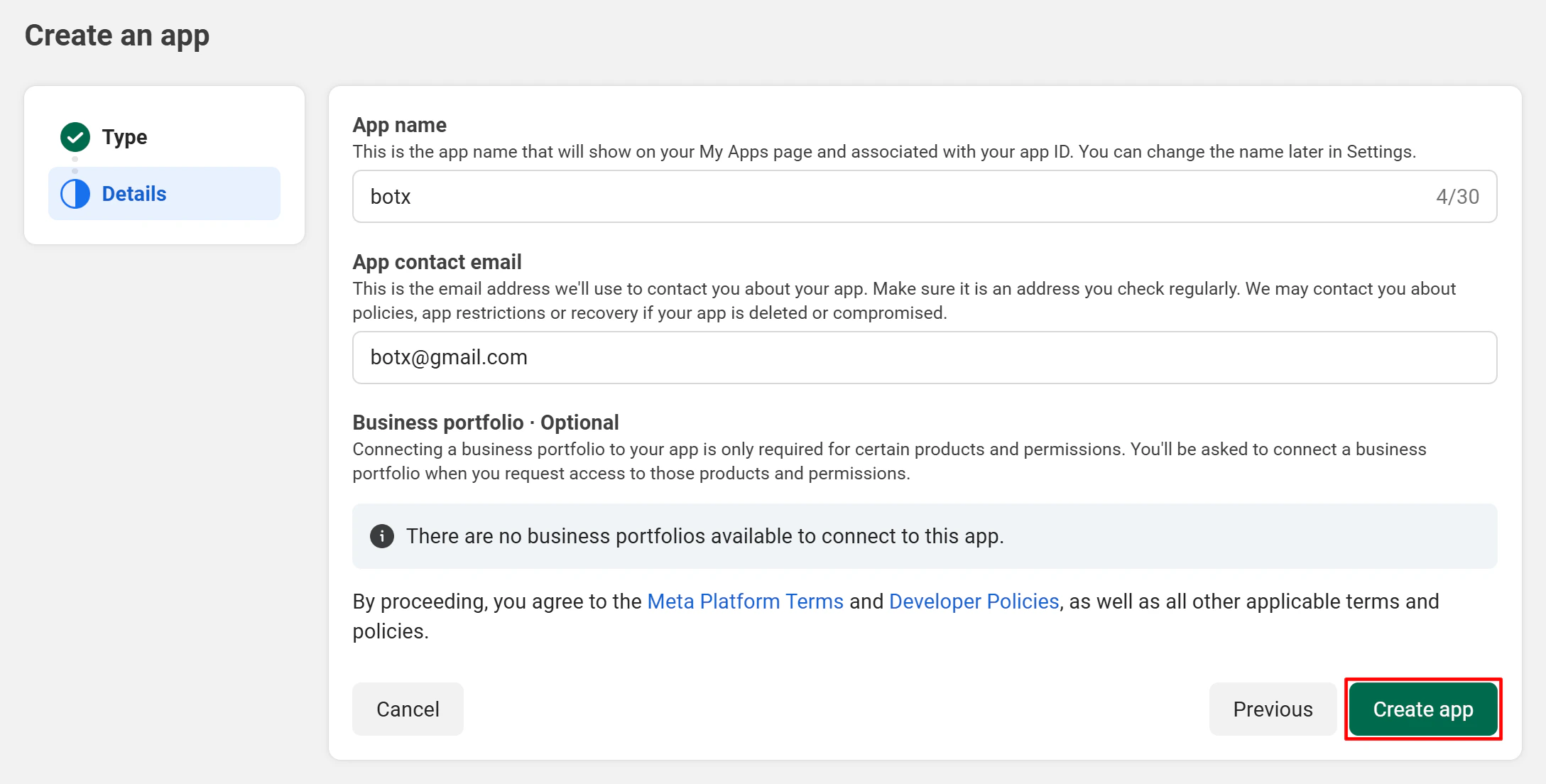
Step 2: Configure Credentials in the Admin Portal
You must enter the WhatsApp credentials in the Admin Portal under Super Admin access before the integration can work.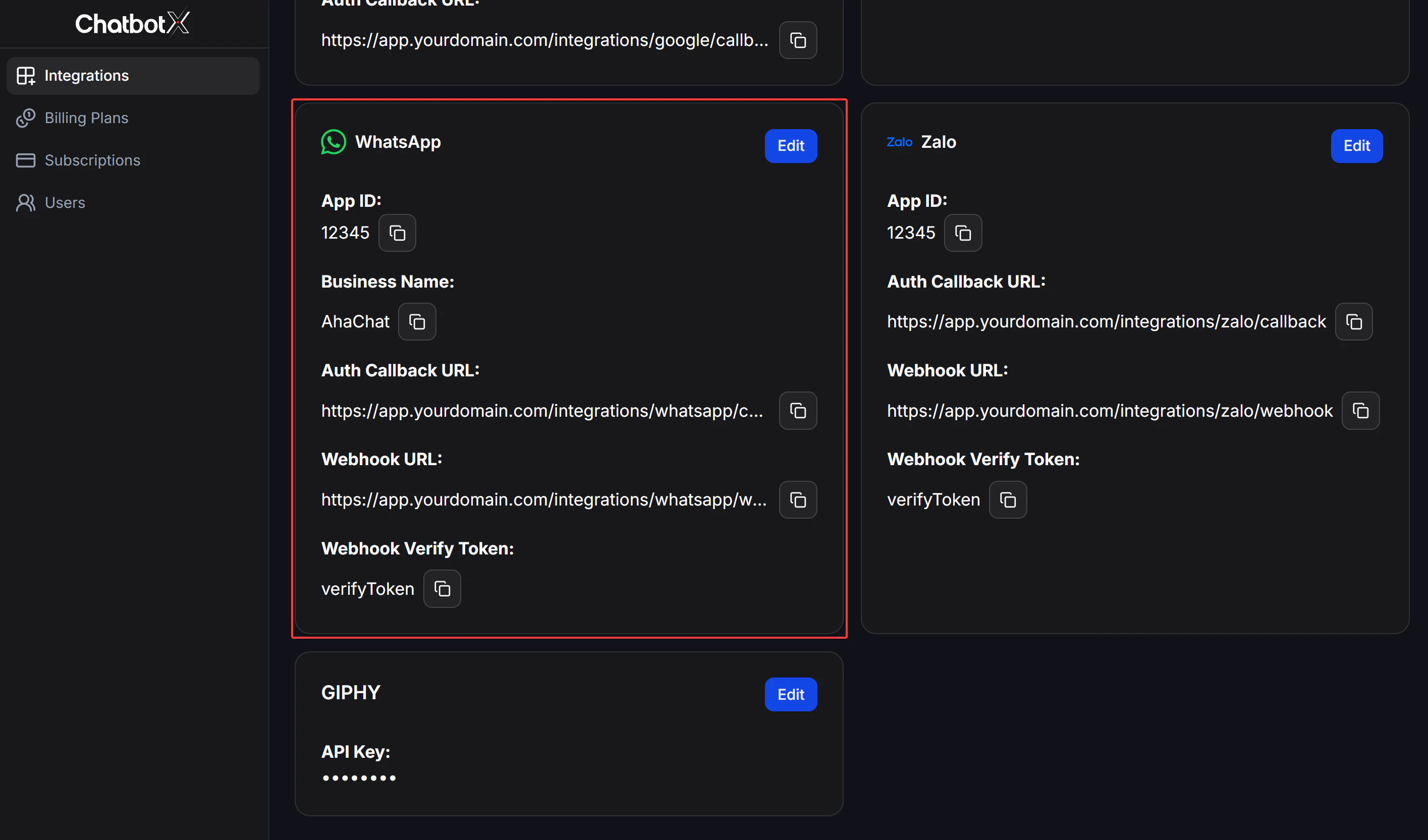
Open the WhatsApp configuration
Find the WhatsApp card and click the Edit button to open the configuration modal.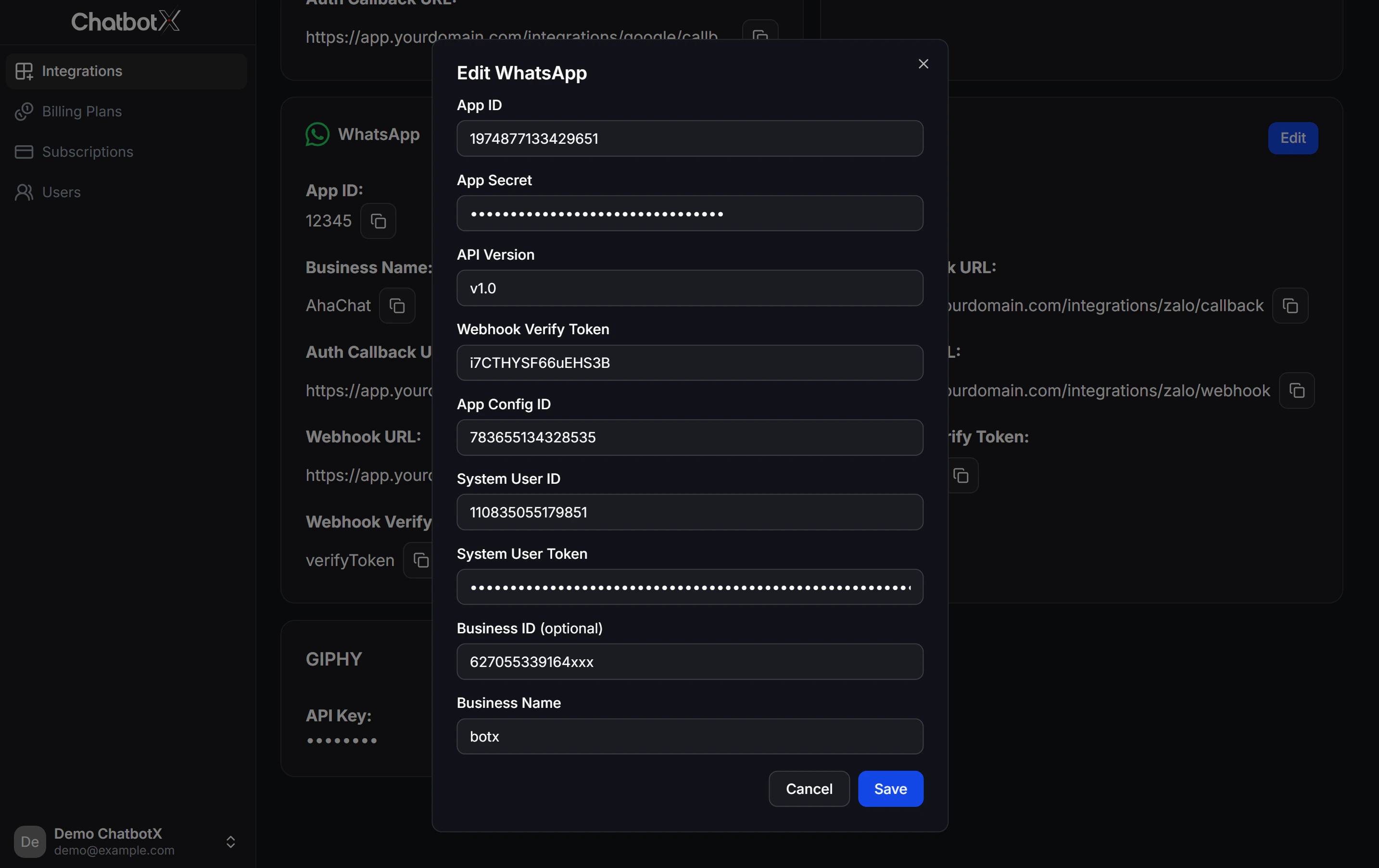
Fill in the WhatsApp credentials
In the Edit WhatsApp modal, fill in the fields:
| Field | Description | Where to find | Example |
|---|---|---|---|
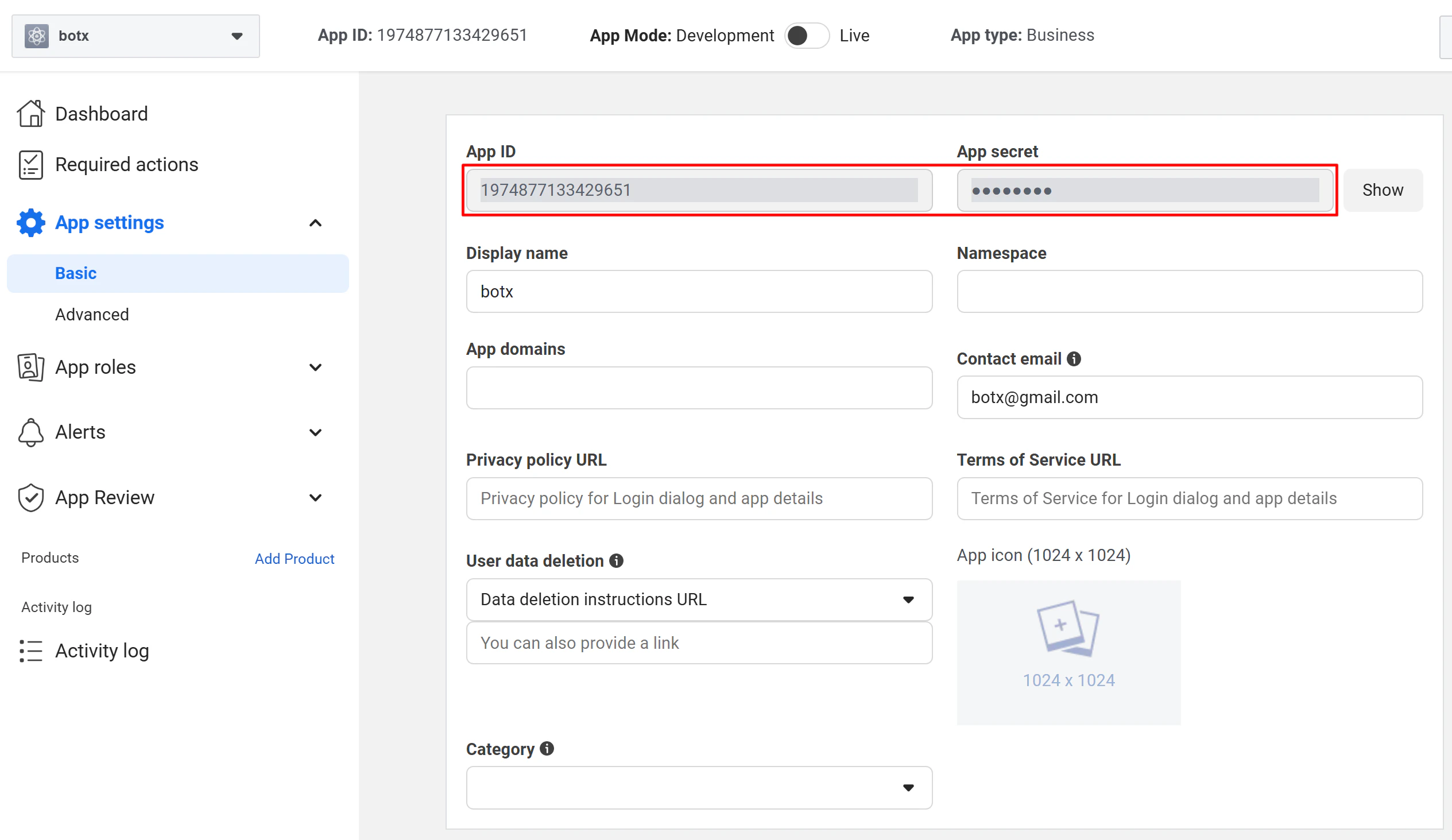
| Client ID | Facebook App ID | Meta Developer Portal → App → Settings → Basic | 1974877133429651 |
| Client Secret | Facebook App Secret | Same page → click Show | ●●●●●●●●●● |
| API Version | Graph API version | App → Settings → Advanced → API Version | v20.0 |
| Webhook Verify Token | Random string for webhook verification | Self-generated | i7CTHYSF66uEHS3B |
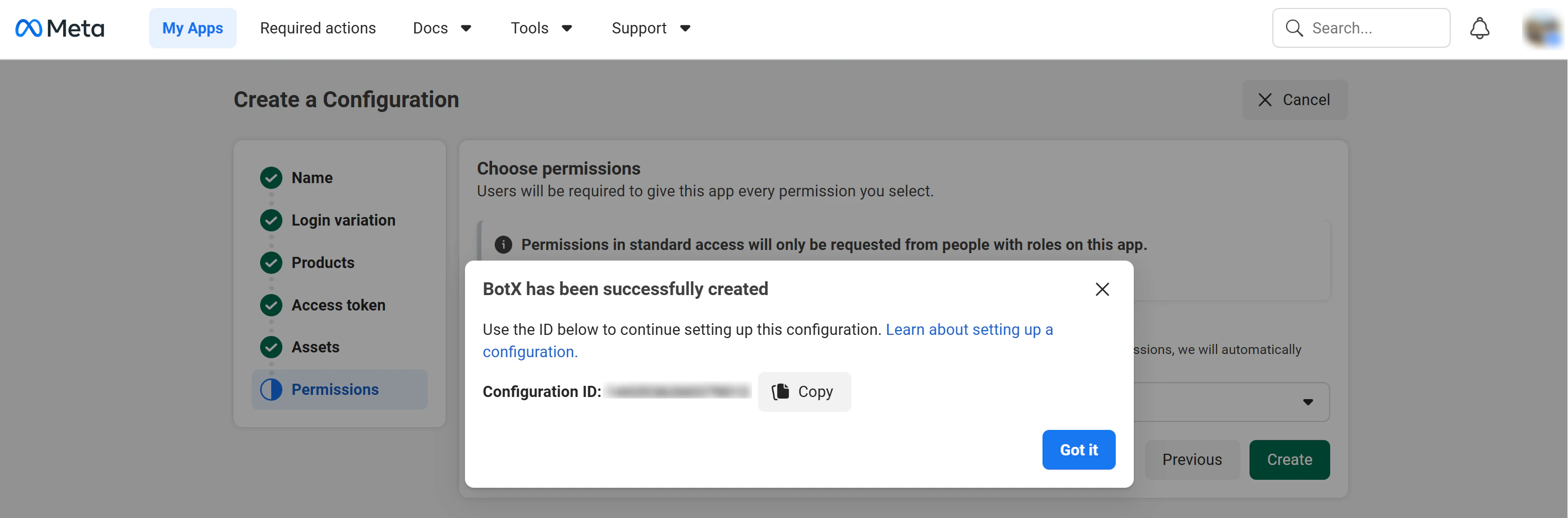
| App Config ID | Configuration ID from the Embedded Signup wizard | Facebook Login for Business → Configurations. See Step 4 | 783655134328535 |
| System User ID | System User’s ID, obtained via Graph API Explorer | Graph API Explorer. See Step 5 | 110835055179851 |
| System User Token | Access token generated for your System User | Meta Business Settings. See Step 5 | EAACanps... |
| Business ID*(optional)* | Meta Business Portfolio ID | Meta Business Settings → Business Info | 627055339164xxx |
| Business Name | Your business display name in the system | Your own brand name | chatconnectx |
Step 3: Configure the WhatsApp Product
Add WhatsApp product to your app
In your Facebook app dashboard, click Add Product in the left sidebar. Find WhatsApp in the product list and click Set Up.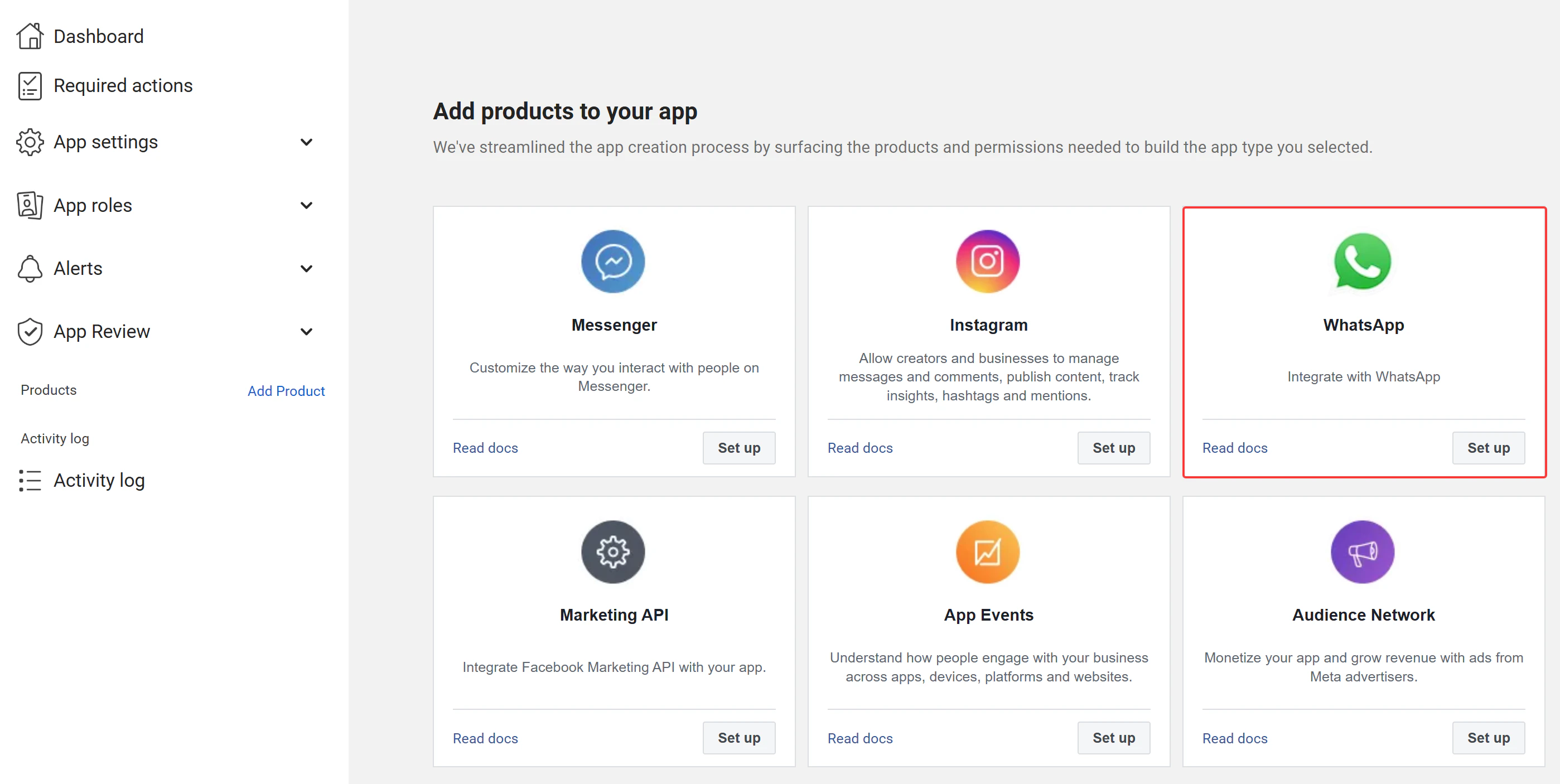
Confirm the WhatsApp Quickstart dashboard
After clicking Set Up, you will be redirected to the WhatsApp Quickstart dashboard. This confirms the WhatsApp product has been added successfully.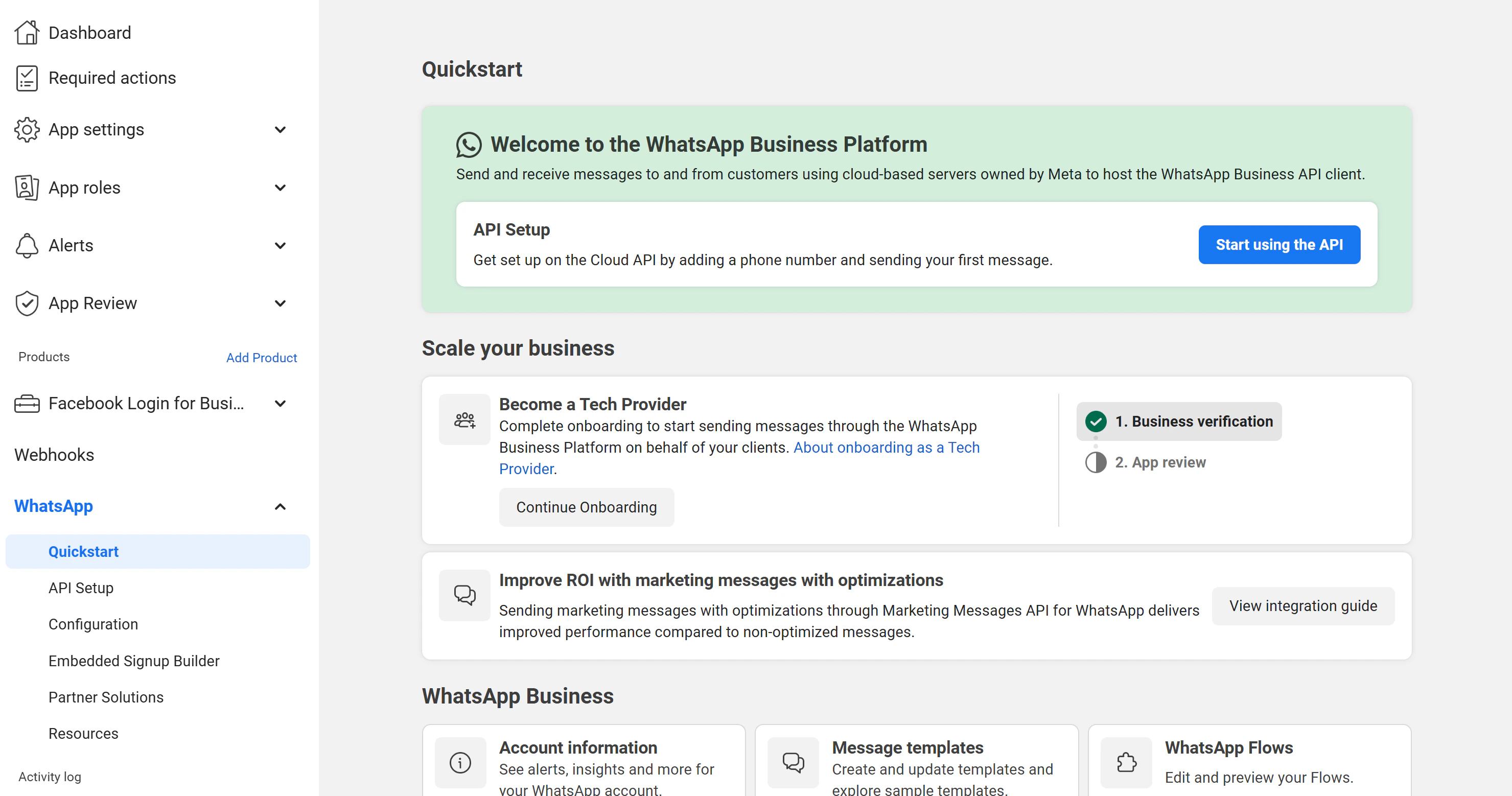
Do NOT click “Start using the API!”. This button is for direct Cloud API setup, which requires manual webhook and phone number configuration. ChatconnectX uses the Embedded Signup flow instead, which automates the entire process. Skip this section entirely.
Add Facebook Login for Business product
The Embedded Signup flow requires the Facebook Login for Business product. Go back to the app dashboard, click Add Product, find Facebook Login for Business, and click Settings.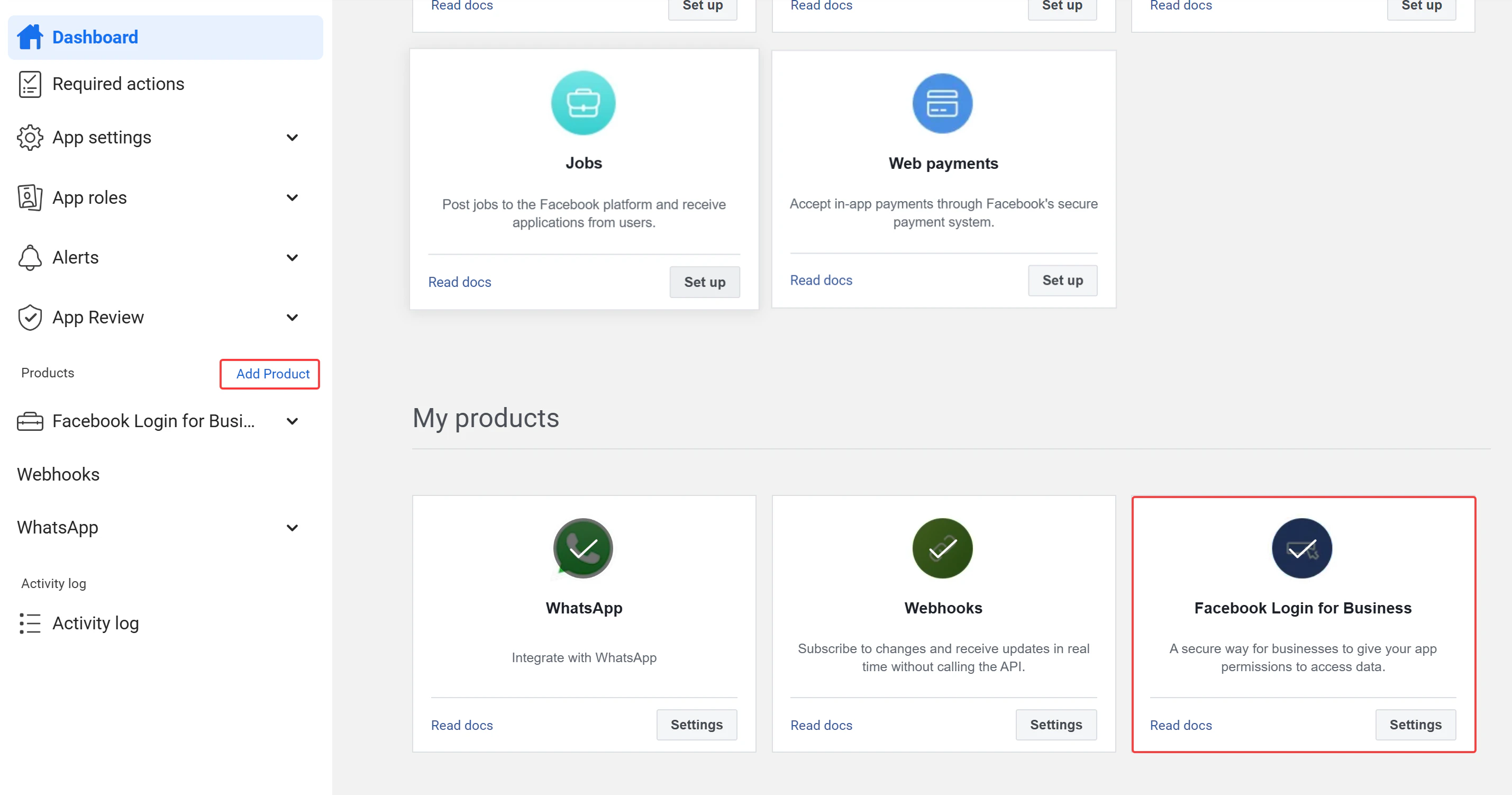
Step 4: Obtain Configuration ID
The Configuration ID is the critical value that enables the WhatsApp Embedded Signup flow in ChatconnectX. You obtain it from the Facebook Login for Business product settings through a 6-step configuration wizard.Navigate to Facebook Login for Business configurations
In your Facebook app left sidebar, expand Facebook Login for Business and click Configurations. Click the Create configuration button to start the wizard.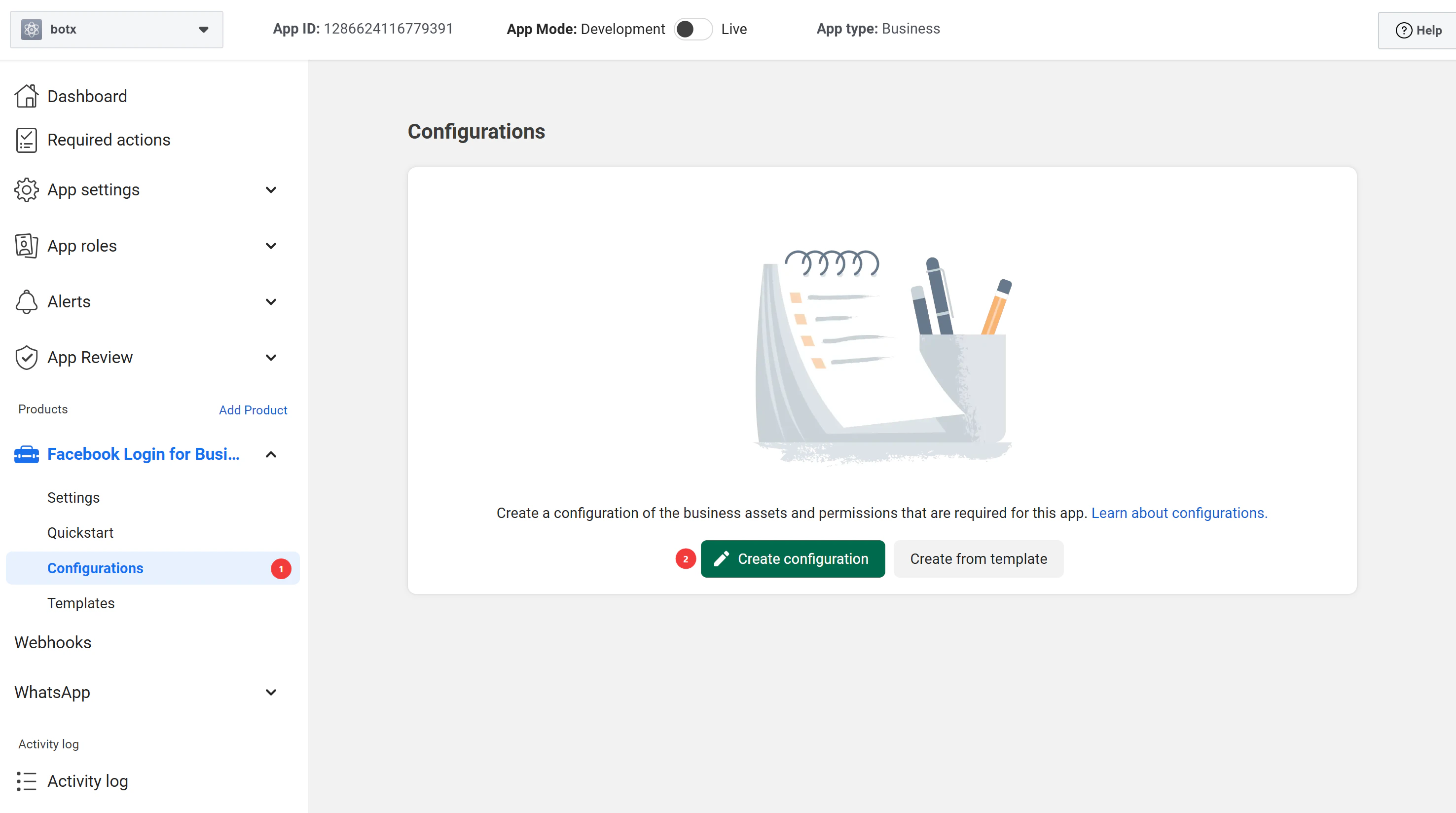
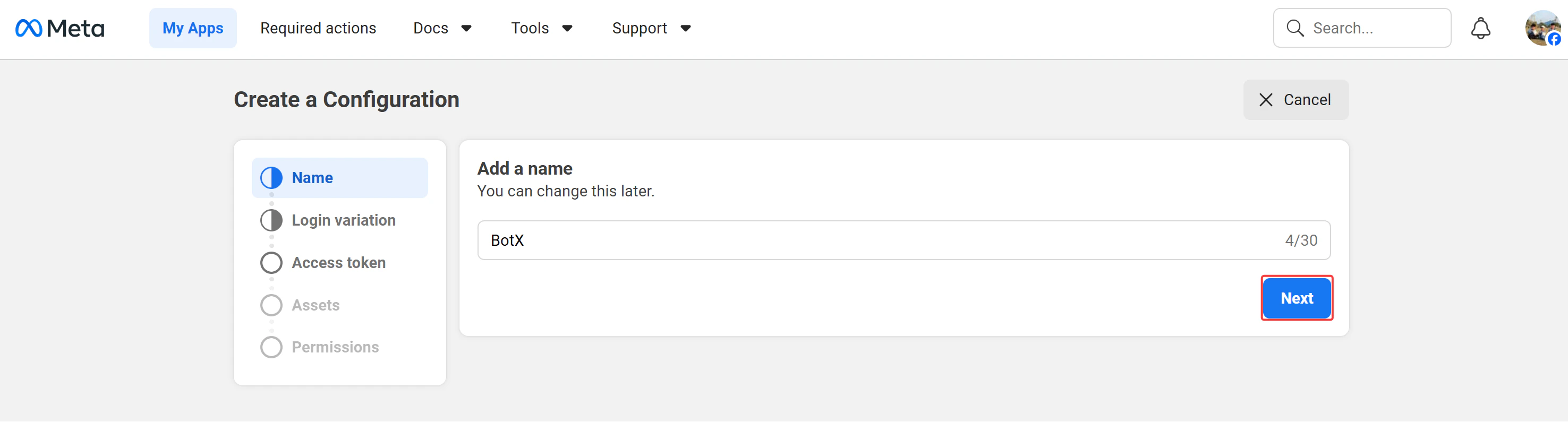
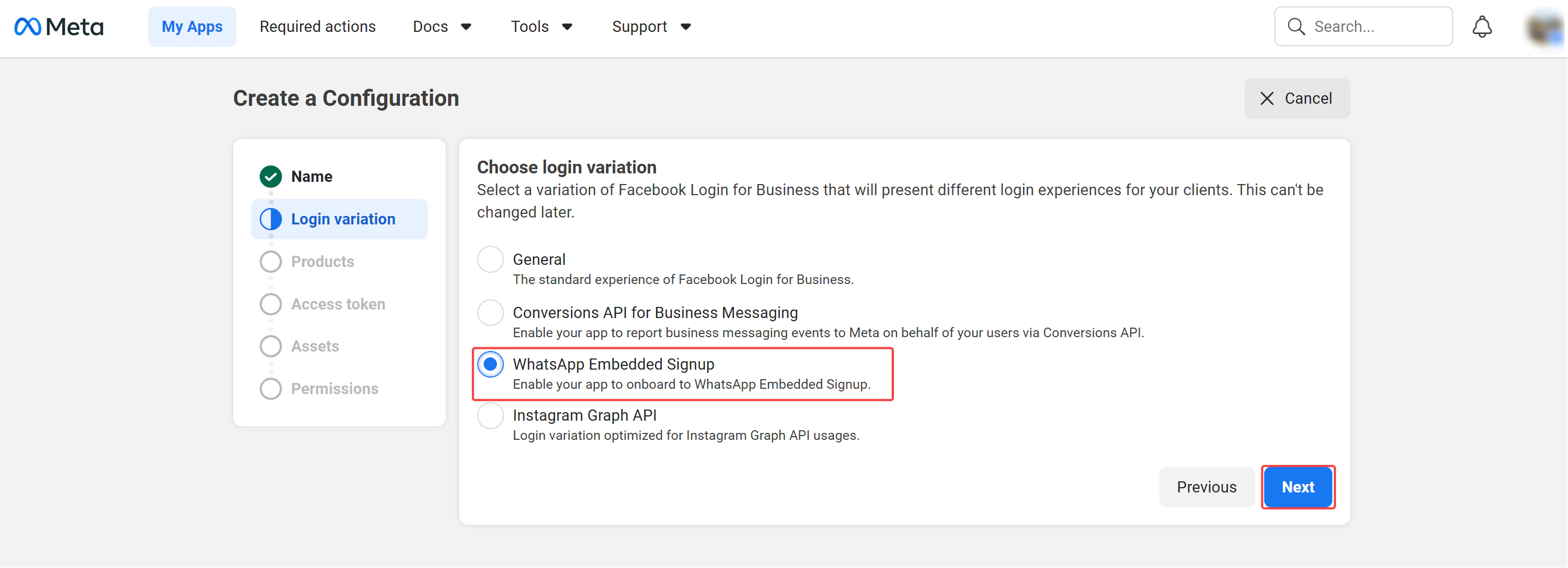
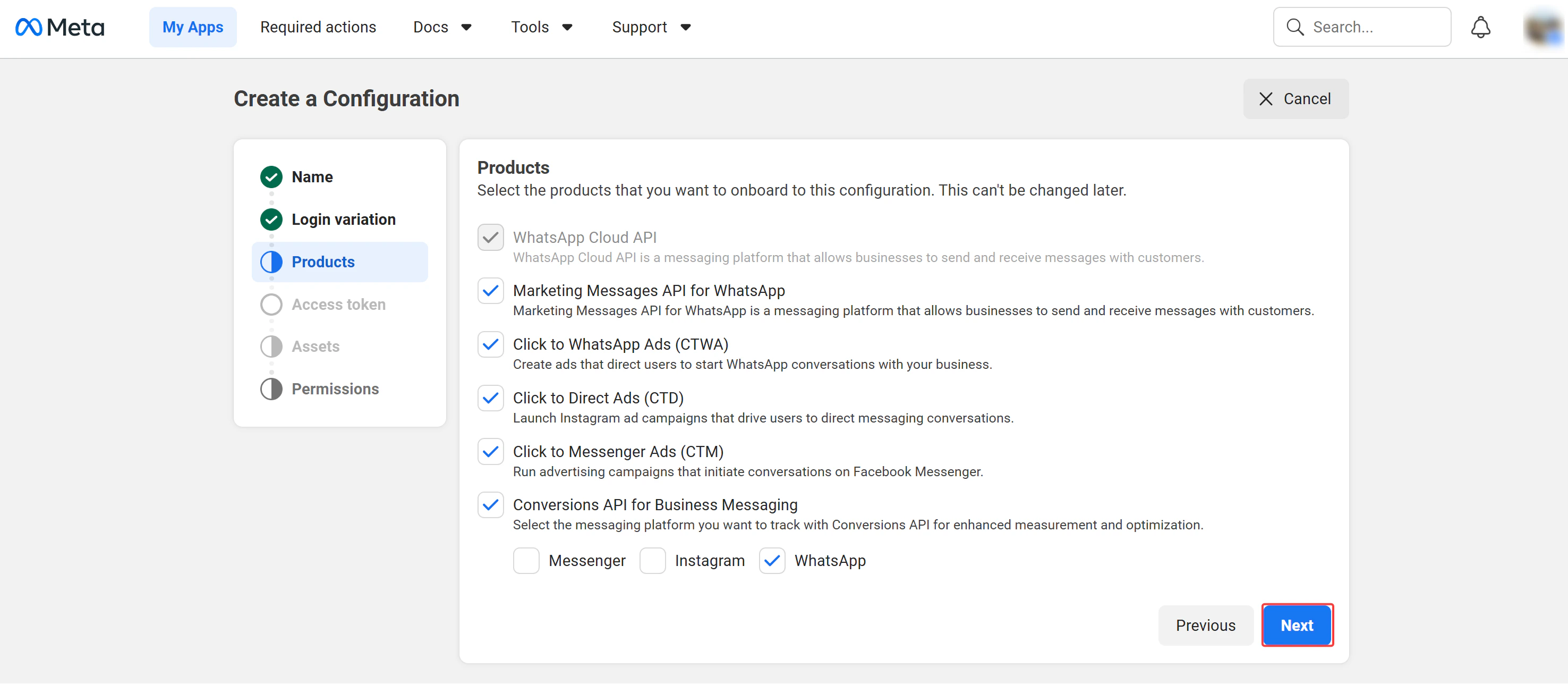
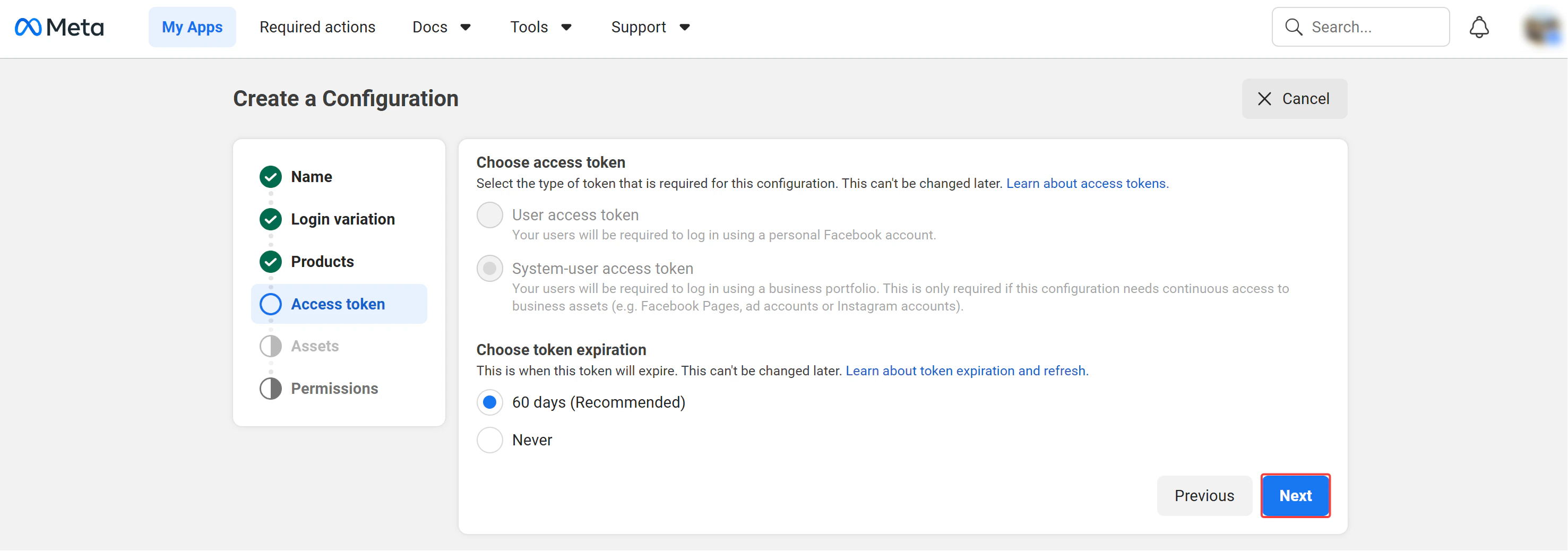
Assets
Leave the default selections as-is, as the wizard pre-selects the necessary assets based on your chosen products. Click Next.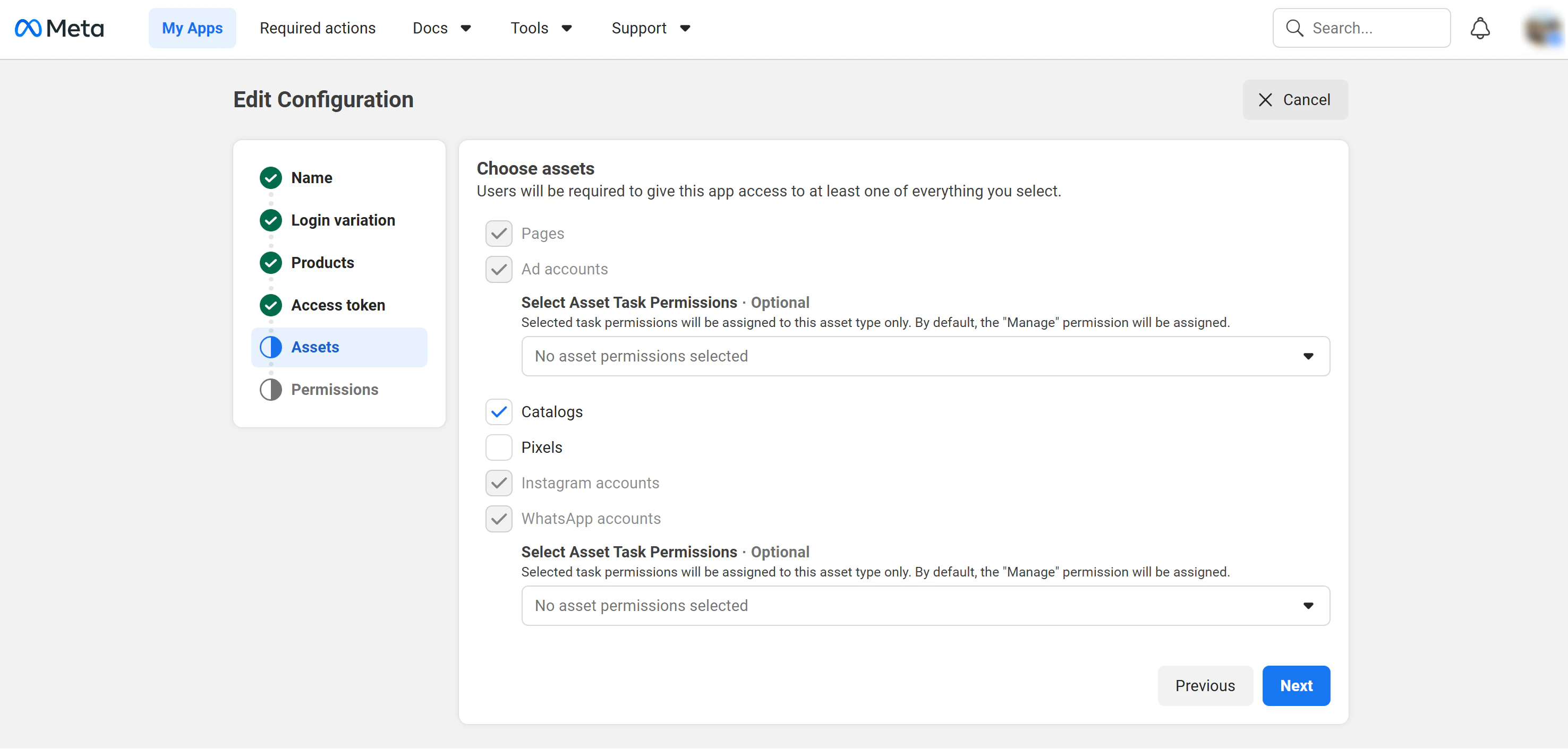
Permissions
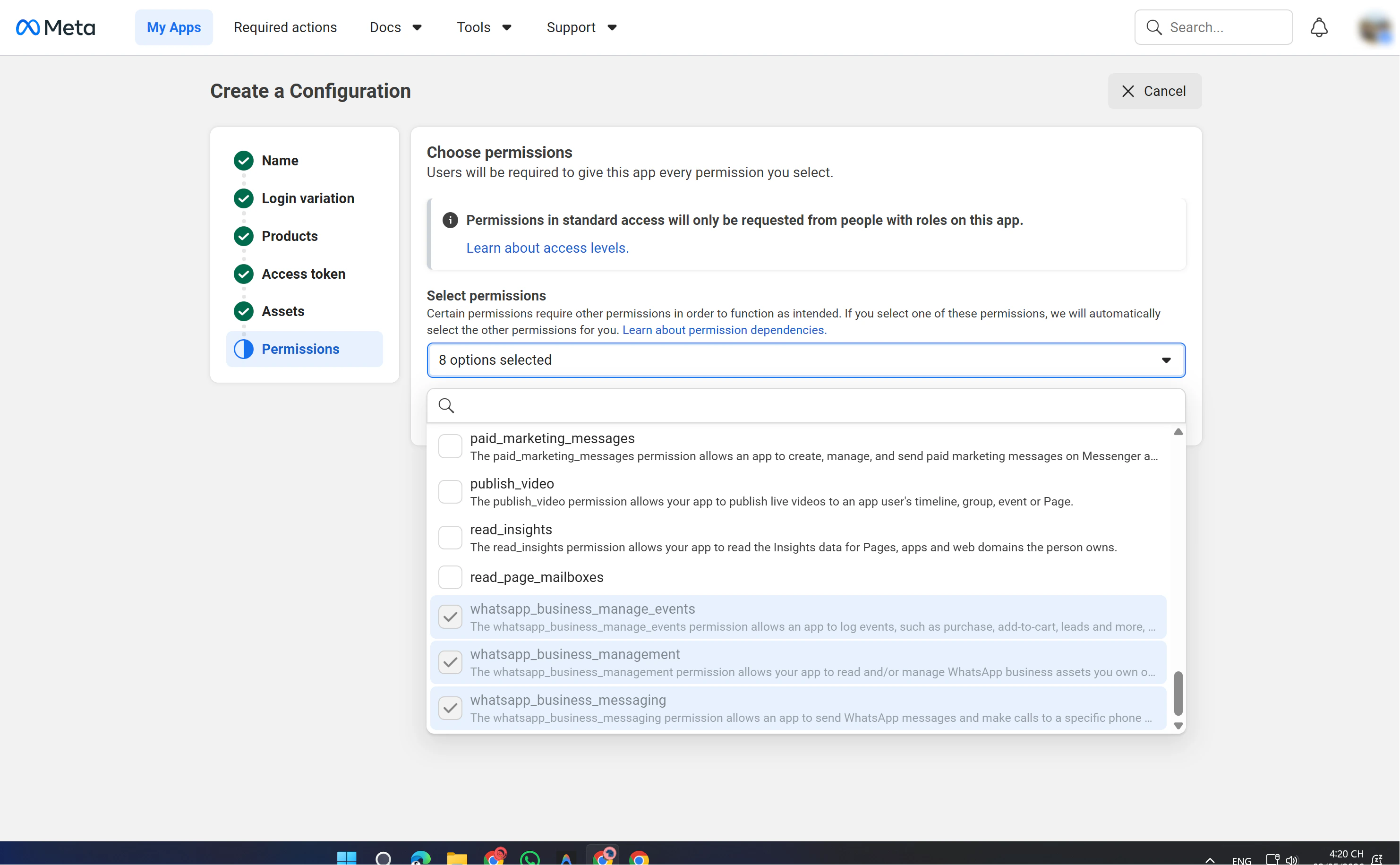
Review the permissions. Ensure at least these 3 WhatsApp permissions are included:
| Permission | Purpose |
|---|---|
whatsapp_business_management | Read and manage WhatsApp Business assets (phone numbers, profiles) |
whatsapp_business_messaging | Send and receive WhatsApp messages and make calls |
whatsapp_business_manage_events | Log events such as purchases, add-to-cart, and leads |
Step 5: Obtain System User ID and Token
Navigate to System Users
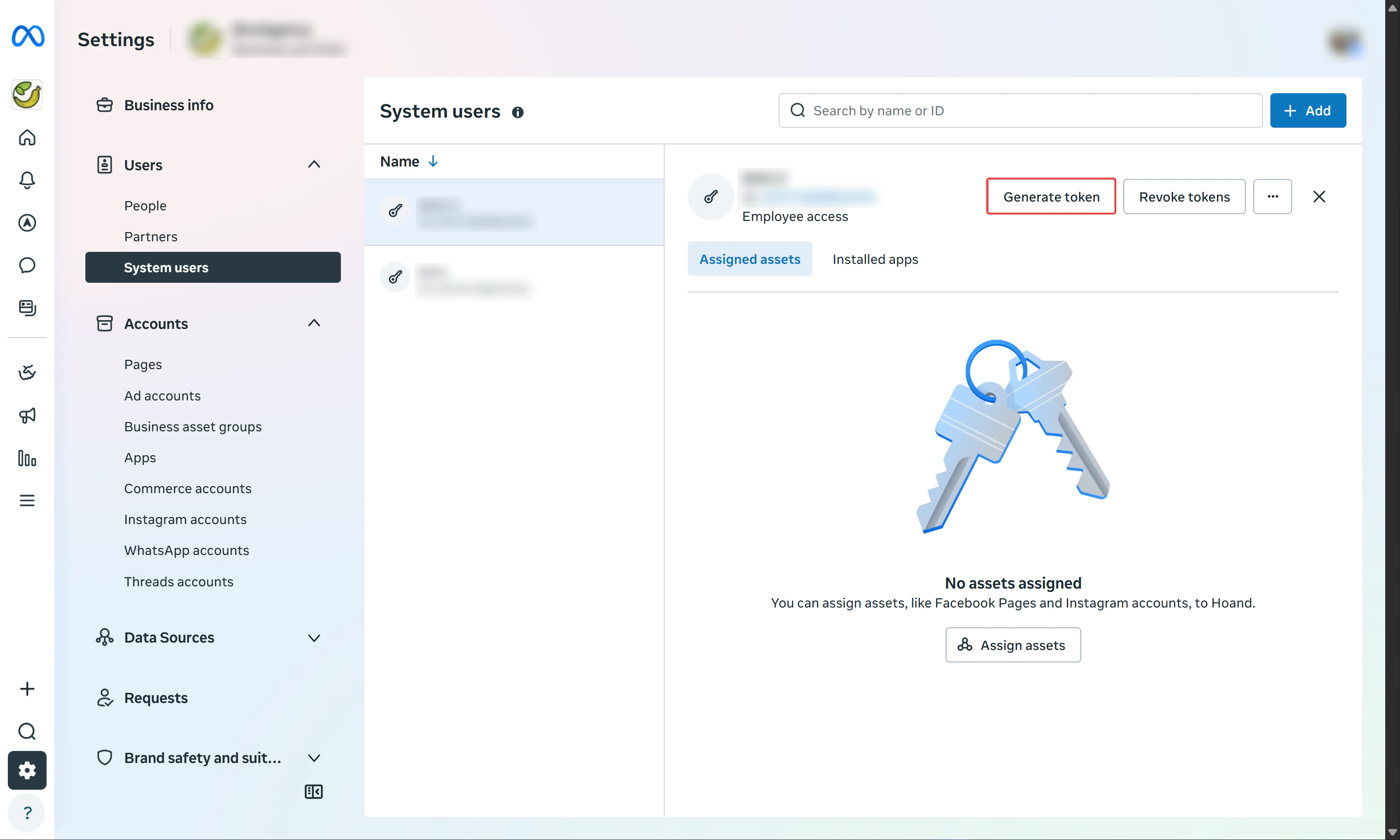
Go to Meta Business Settings and navigate to Users → System Users in the left sidebar. If you don’t have a System User yet, click Add, choose a name, and set the role to Admin.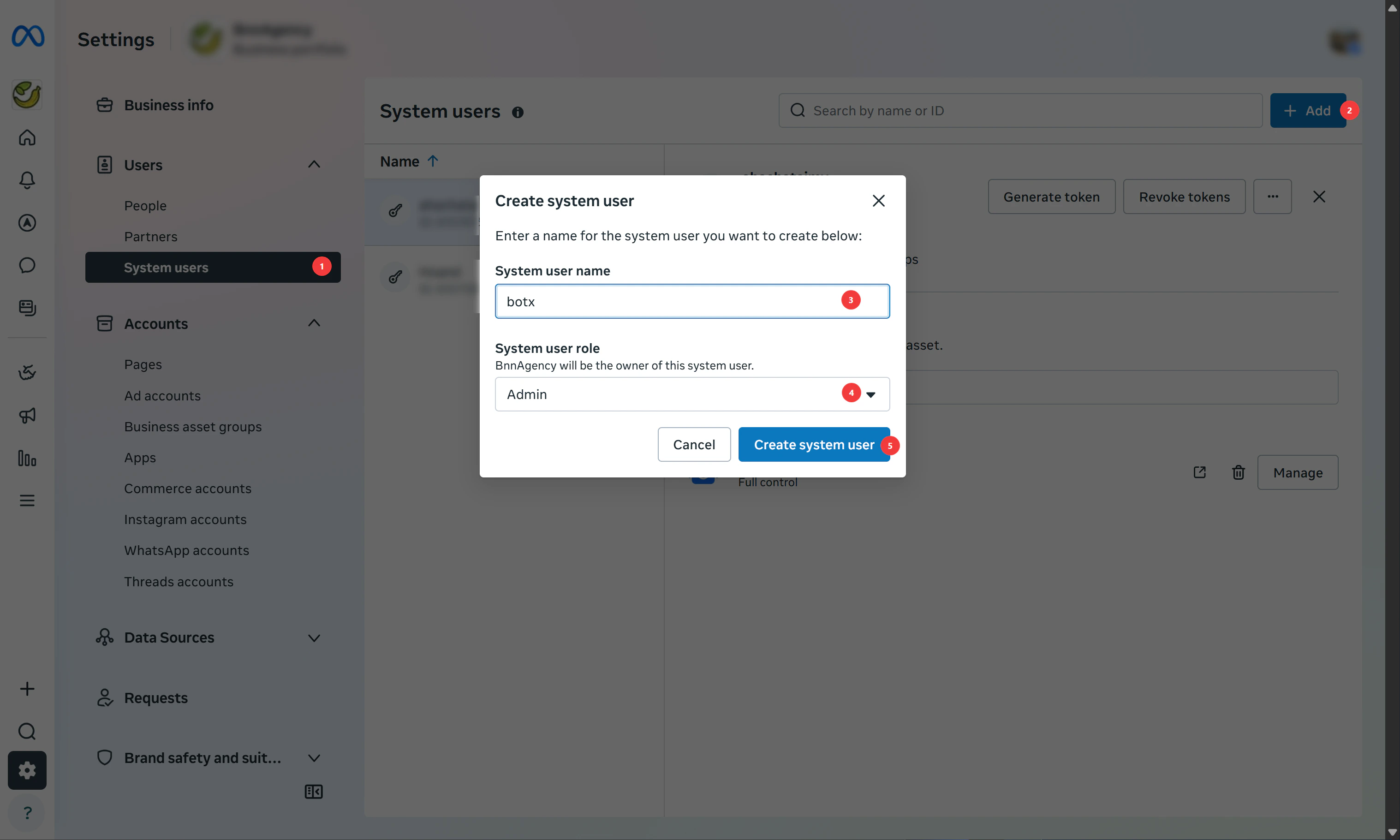
Generate Access Token
Select your System User and click Generate New Token. Configure the following:
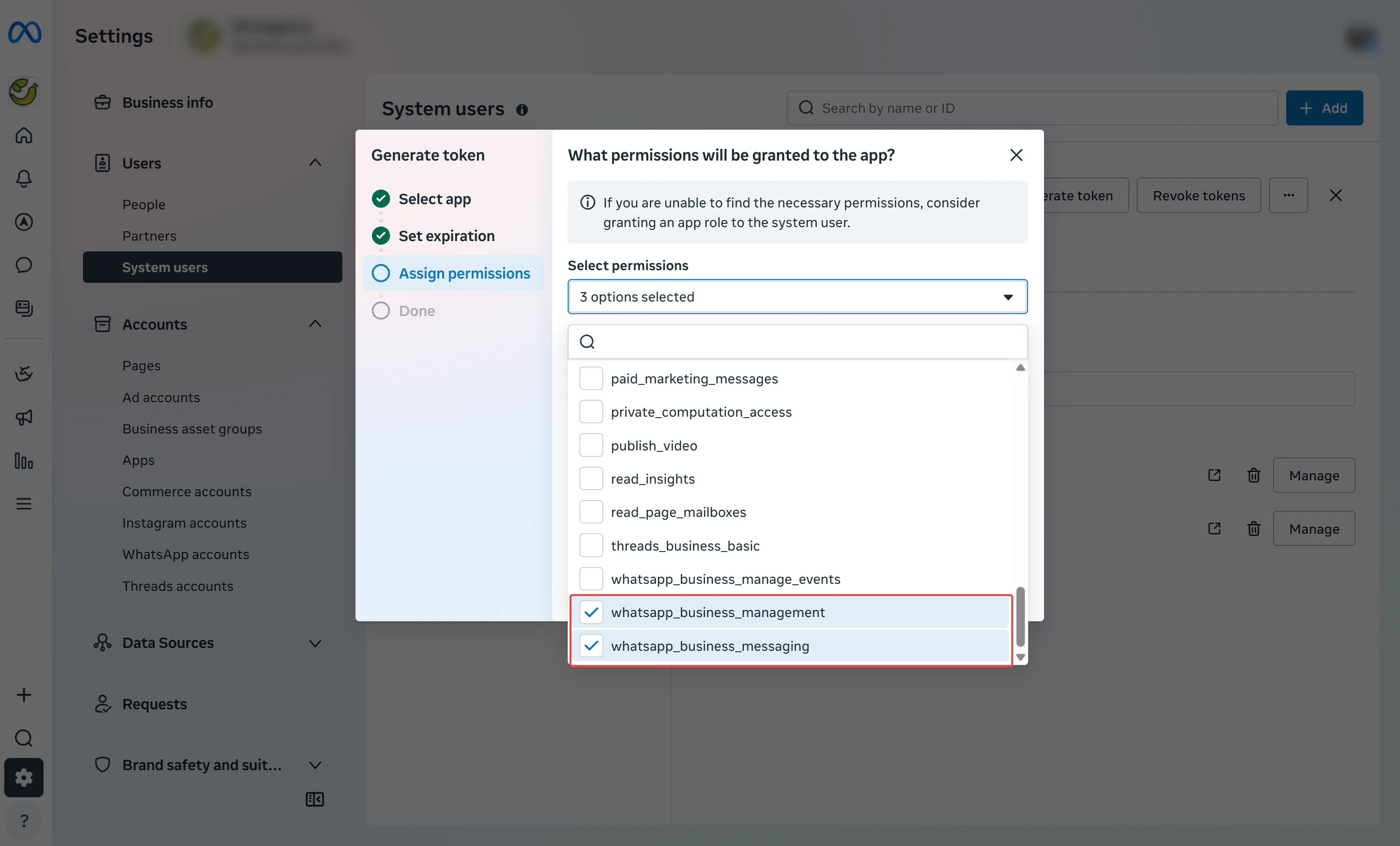
- Select App: choose your Facebook App
- Token Expiration: select Never to avoid disruptions
- Select Permissions: check these 3 permissions:
| Permission | Purpose |
|---|---|
business_management | Manage business assets and settings |
whatsapp_business_management | Read and manage WhatsApp Business assets |
whatsapp_business_messaging | Send and receive WhatsApp messages |
Get System User ID via Graph API Explorer
Go to the Meta Graph API Explorer, paste your System User Token into the Access Token field, set the request to
GET /me, and click Submit. Copy the id value from the response, this is your System User ID.User Connection Guide
After completing the app configuration on the Meta Developer Portal and entering the Credentials in the Admin Portal, your customers can connect their WhatsApp Business accounts through the Embedded Signup flow. For step-by-step instructions, see the WhatsApp Connection Guide.Commerce Policy Compliance
Meta will review your business to ensure it complies with WhatsApp’s Commerce Policy and will reach out within 24 hours if there’s an issue.Troubleshooting
WhatsApp Embedded Signup option is not available
WhatsApp Embedded Signup option is not available
This usually means the Super Admin configuration is incomplete.Checklist:
- Confirm the Super Admin has entered all required credentials (App ID, App Secret, Configuration ID) at
/manage/integrations
Error (#100) during webhook configuration
Error (#100) during webhook configuration
Your app must be subscribed to receive messages before overriding the callback URI.Fix:
- Go to your Facebook app in the Meta Developer Portal
- In the left sidebar, navigate to WhatsApp → Configuration
- Under Webhooks, subscribe to the
messagesfield for WhatsApp Business Account - Retry the Embedded Signup flow
Authentication errors during Embedded Signup
Authentication errors during Embedded Signup
Checklist:
- Ensure you are logged into a Facebook account with admin access to the Meta Business Portfolio
- Verify your app has the required permissions:
whatsapp_business_management,whatsapp_business_messaging,whatsapp_business_manage_events - Confirm the App ID and App Secret in the Super Admin panel match the values in Settings → Basic of the Meta Developer Portal
Business verification is pending or rejected
Business verification is pending or rejected
What to do:
- Ensure your business information is accurate and complete (legal name, website, address)
- Check that your business complies with WhatsApp’s Commerce Policy
- New accounts have a temporary message limit until verification is completed
- Verification typically takes up to 1 business day
App Review submission was rejected
App Review submission was rejected
Steps to resolve:
- Open the rejected submission in the Meta Developer Dashboard
- Review the rejection reason and feedback provided by the review team
- Use the Messenger support icon (bottom right corner) to contact the review team for clarification
- Provide clear documentation of your use case, test credentials, and step-by-step instructions for the reviewer
- Resubmit after addressing all feedback
How do I get help if the issue persists?
How do I get help if the issue persists?
- Check server logs: Look for error messages in both
railsandsidekiqservice logs - Verify Facebook/WhatsApp accounts: Confirm all prerequisites (business verification, permissions, billing) are met
- Contact Community Support: Visit the Community Discord with specific error messages and screenshots