

- Scale your support: Handle hundreds of conversations simultaneously without missing a beat.
- Boost Engagement: Send rich media, templates, and interactive messages directly to your customers’ favorite app.
- Unified Inbox: Manage WhatsApp alongside Messenger, Zalo, and Webchat in one organized dashboard.
Step 1: Navigate to Channel Selection
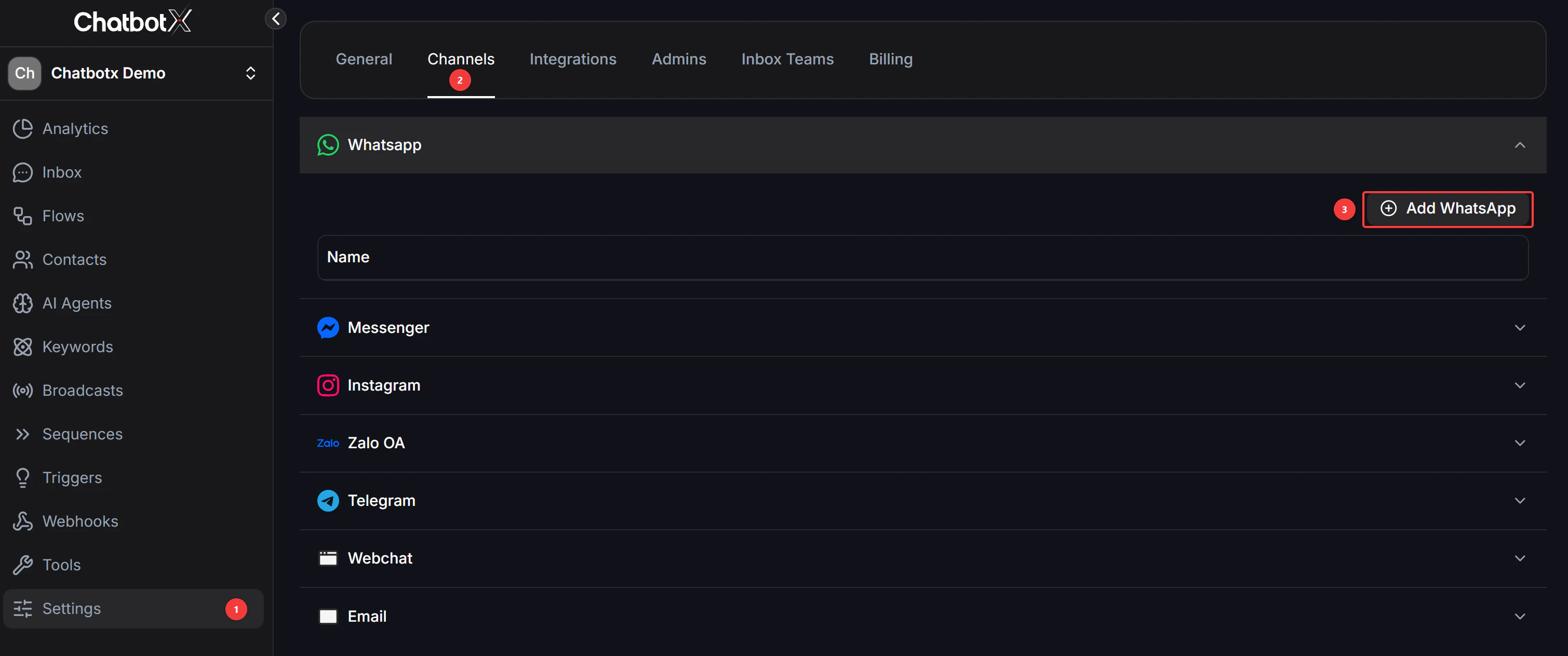
- Go to Settings → Channel
- Click on “Add WhatsApp”
Step 2: Choose your WhatsApp Connection
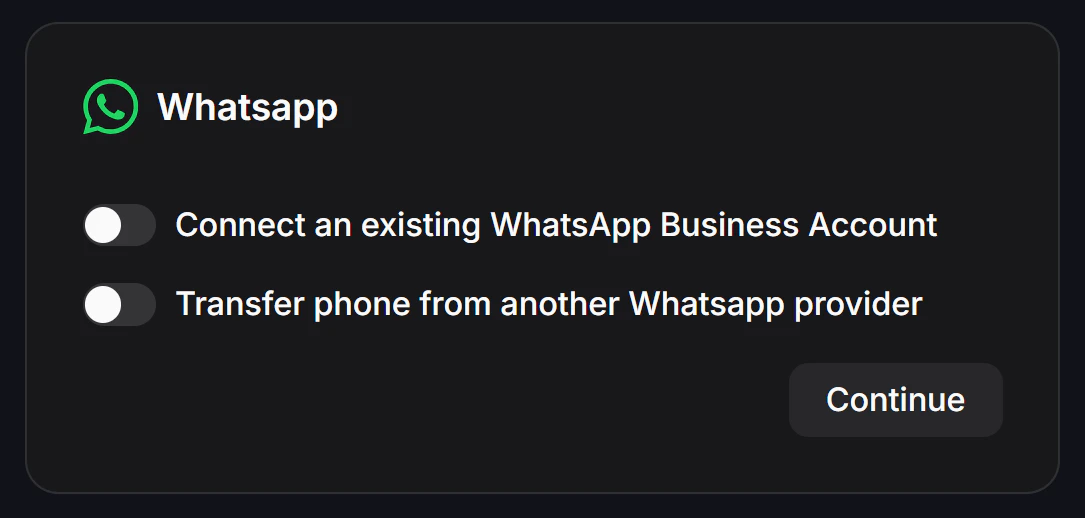
Please select the option that best fits your needs and click Continue:- Connect an existing WhatsApp Business Account: Use this if you already have a Meta Business account set up.
- Transfer phone from another WhatsApp provider: Choose this to migrate your current number from a different BSP (Business Solution Provider).
- Marketing Message Lite: Select this for a marketing messaging setup.
Step 3: Connect your account
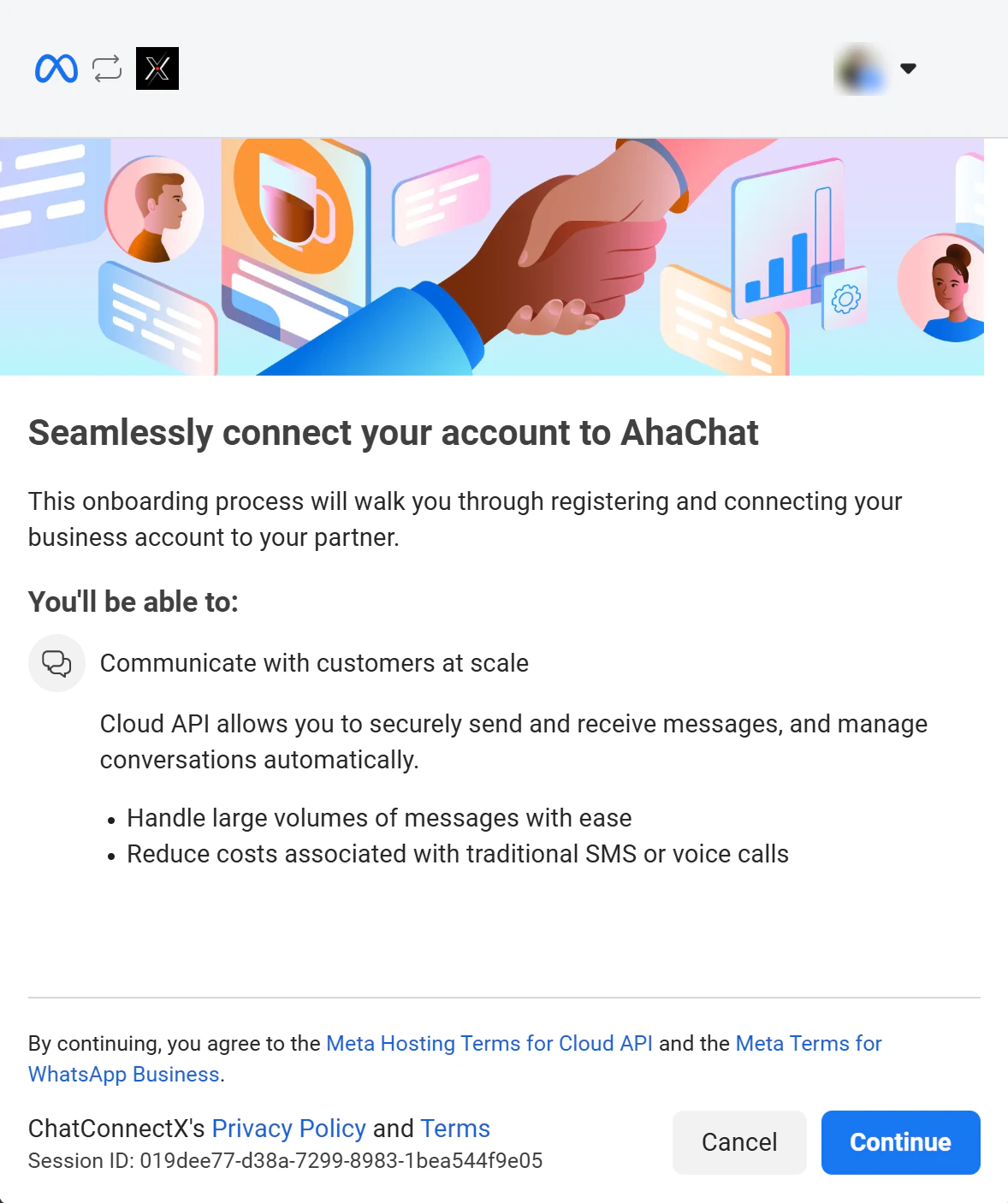
Follow the Meta embedded signup flow to link your WhatsApp Business account with the platform.- Review Permissions: This process allows you to handle large message volumes and reduce costs using the Cloud API.
- Accept Terms: By clicking continue, you agree to the Meta Hosting Terms for Cloud API and the Meta Terms for WhatsApp Business.
- Finalize: Ensure you are logged into the correct Facebook profile (shown in the top right corner) and click Continue.
Step 4: Select Business Assets
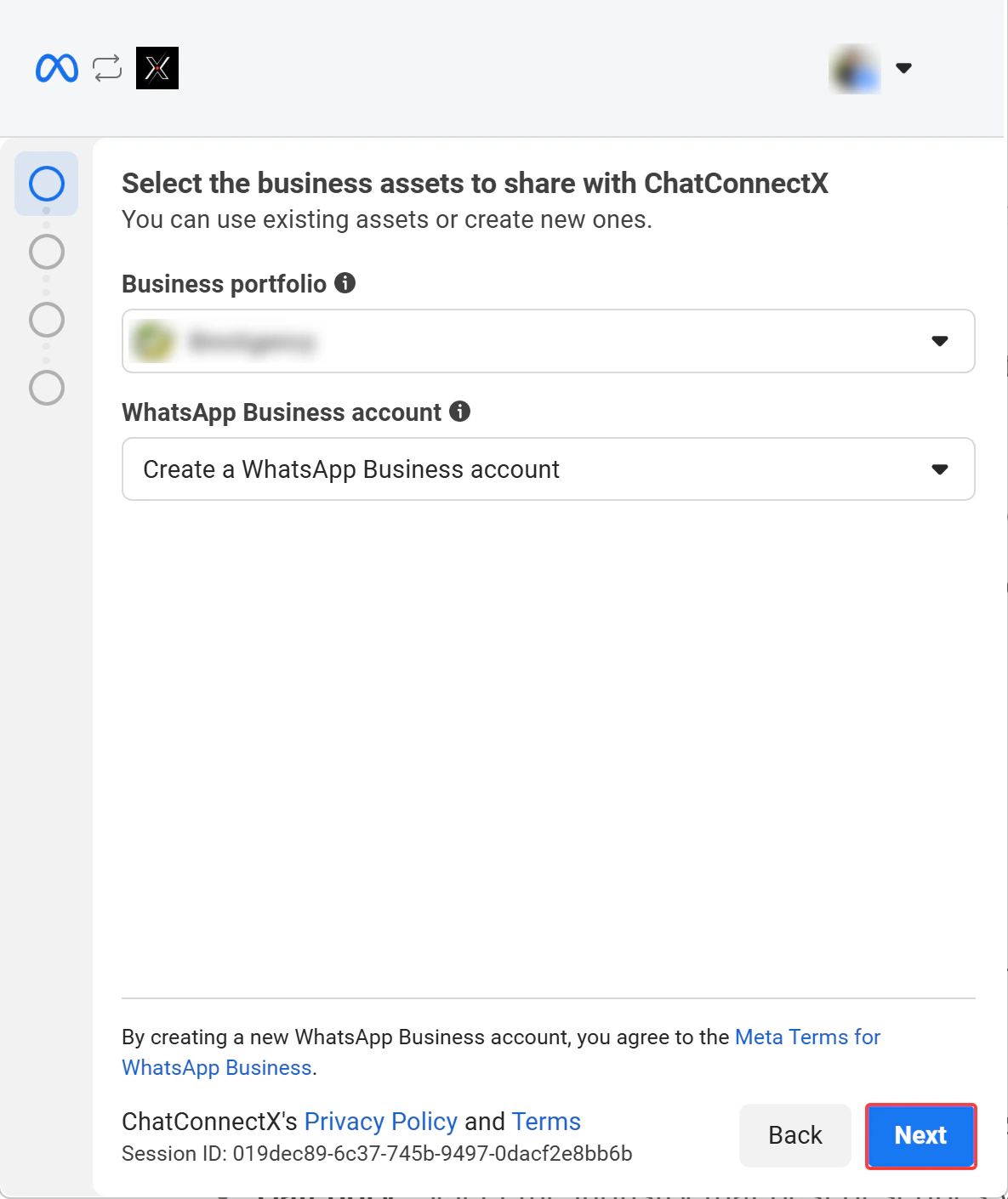
Choose the Meta business assets you want to connect to the platform. You can use existing assets or create new ones directly in this view.- Business portfolio: Select the Meta Business Account that owns your WhatsApp assets.
- WhatsApp Business account: Choose a specific account or select “Create a WhatsApp Business account” to start fresh.
- Click Next to proceed to the asset details.
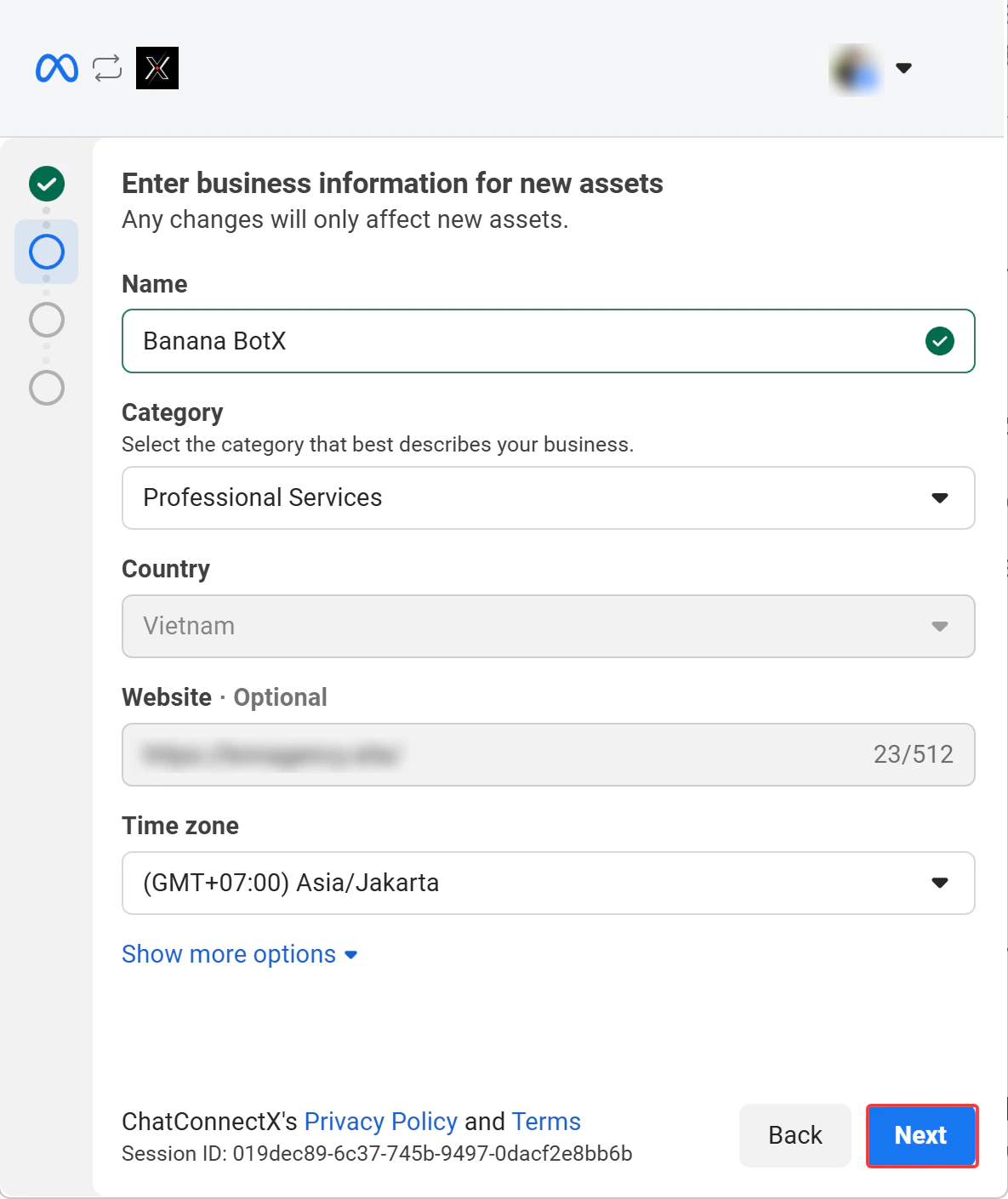
Step 5: Fill Business Information
Enter the public details for your WhatsApp Business Profile. This information will be visible to your customers on WhatsApp.- Name: Enter your official business name (e.g., Pizza Boss X).
- Category: Select the industry that best describes your business (e.g., Restaurant).
- Website & Time zone: Provide your business URL and ensure the time zone is set correctly for your region.
- Click Next to move to the final verification step.
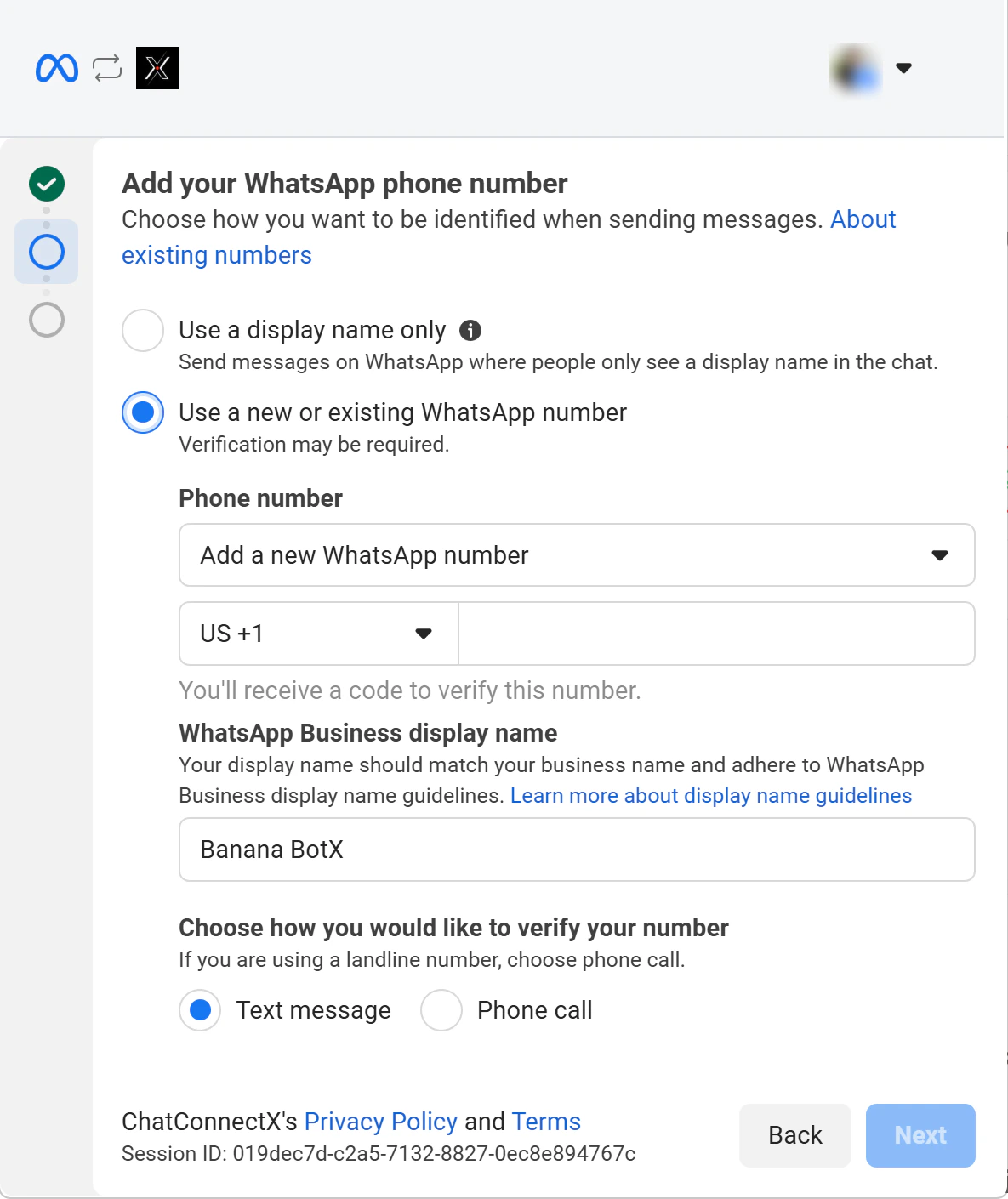
Step 6: Add your WhatsApp phone number
Decide how you want your business to be identified and provide the phone number for verification.- Display Name: Enter your WhatsApp Business display name (e.g., Pizza Boss X). Ensure it matches your business branding and adheres to WhatsApp’s guidelines.
- Verification Note: Meta will review your business and display name. This typically takes up to 1 business day. During this review period, you can send a limited number of test messages.
- Add Number: Choose to Add a new number and complete the verification process via SMS or Voice call.
- Click Next to finalize the setup.
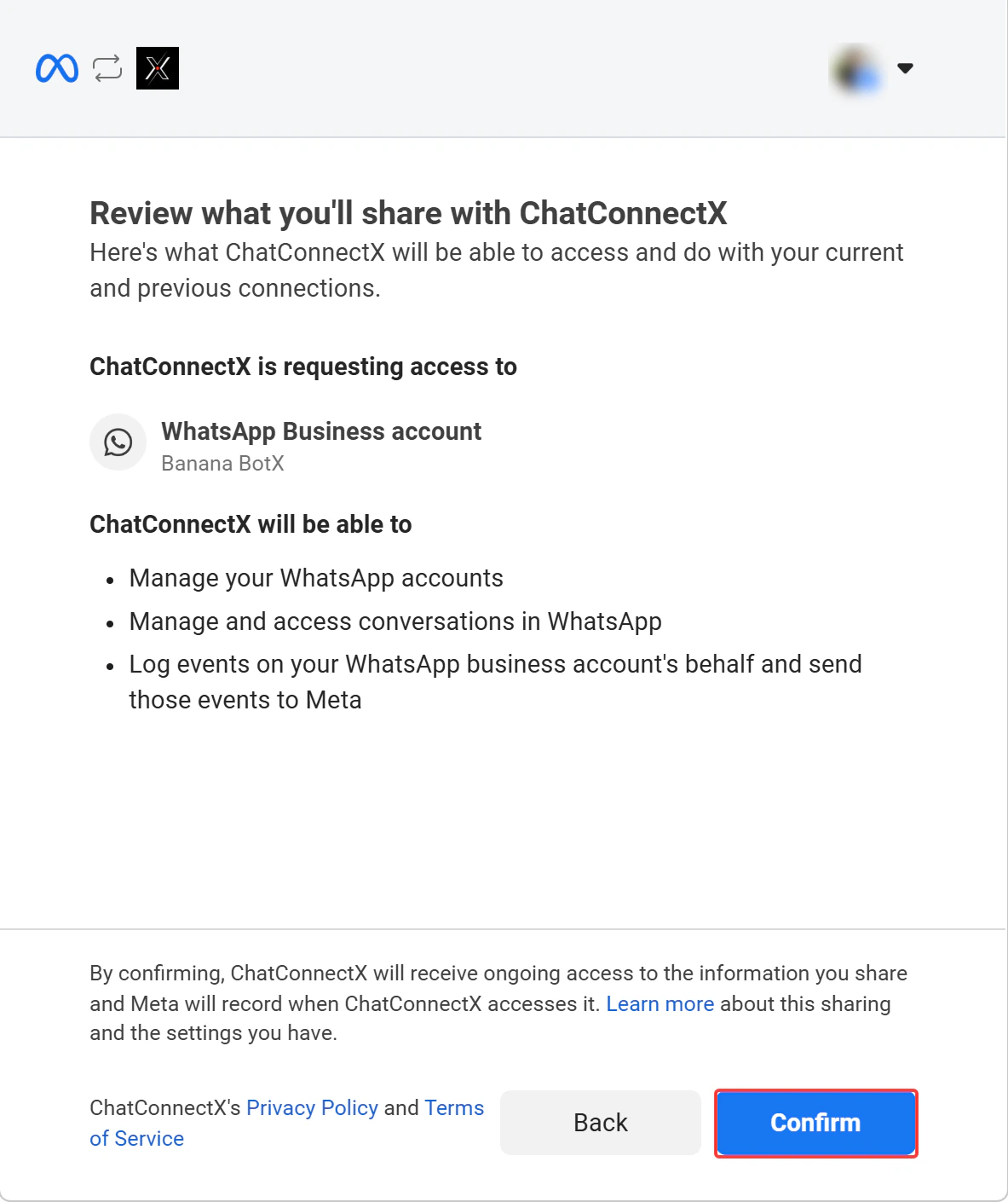
Step 7: Review and Confirm Permissions
Before finalizing the connection, review the specific access permissions you are granting to the platform to ensure everything is set up correctly.- Verify Selected Assets: Double-check that the correct Business Portfolio (e.g., Pizza Shop) and WhatsApp Business account (e.g., Pizza Boss X) are listed.
- Understand Access Levels: By confirming, you allow the platform to:
- Manage your business and WhatsApp accounts.
- Access and handle WhatsApp conversations.
- Log and send events to Meta on your behalf.
- Finalize Connection: Once you have reviewed the terms, click Confirm to complete the integration.
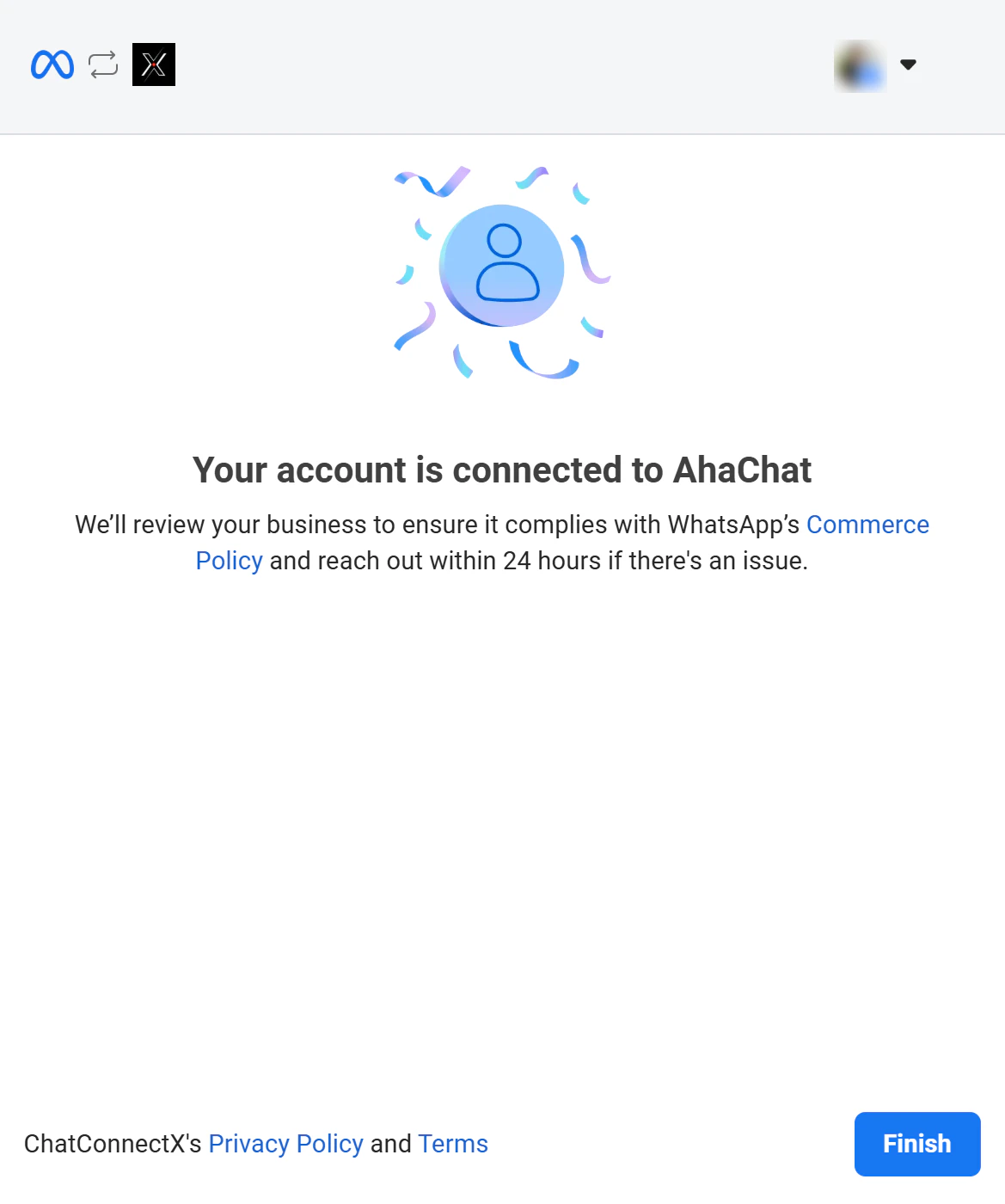
Step 8: Finalize Connection in Meta Window
- A confirmation message will appear verifying that your WhatsApp account has been successfully linked to ChatbotX.
- Click the Finish button on the Meta popup to close the registration flow and return to ChatbotX.
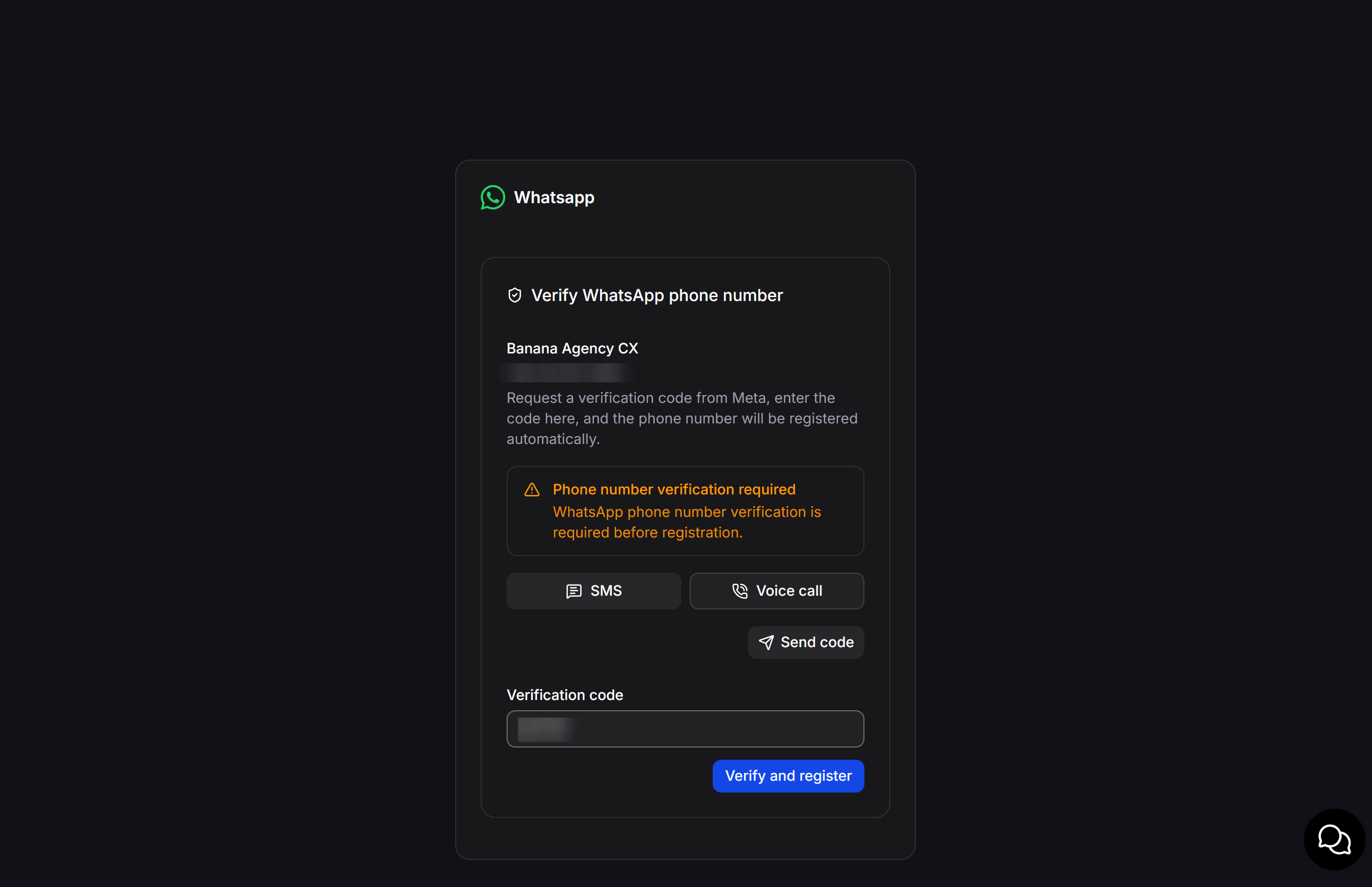
Step 9: Additional Phone Number Verification (Multi-Number Accounts)
If your WhatsApp Business Account (WABA) contains two or more registered phone numbers, ChatbotX requires an additional Verify WhatsApp phone number step to authenticate and register the specific phone number:- Select verification method: Choose between receiving the verification code via SMS or Voice call.
- Click Send code to request a 6-digit verification code from Meta.
- Enter code: Type the received code into the Verification code input field.
- Click Verify and register to finalize registration and activate the phone number in ChatbotX.
Step 10: Verify on Dashboard
Once completed, your newly connected WhatsApp channel will appear in your channel list on ChatbotX. You can click Test Now to send a test message and begin using the channel.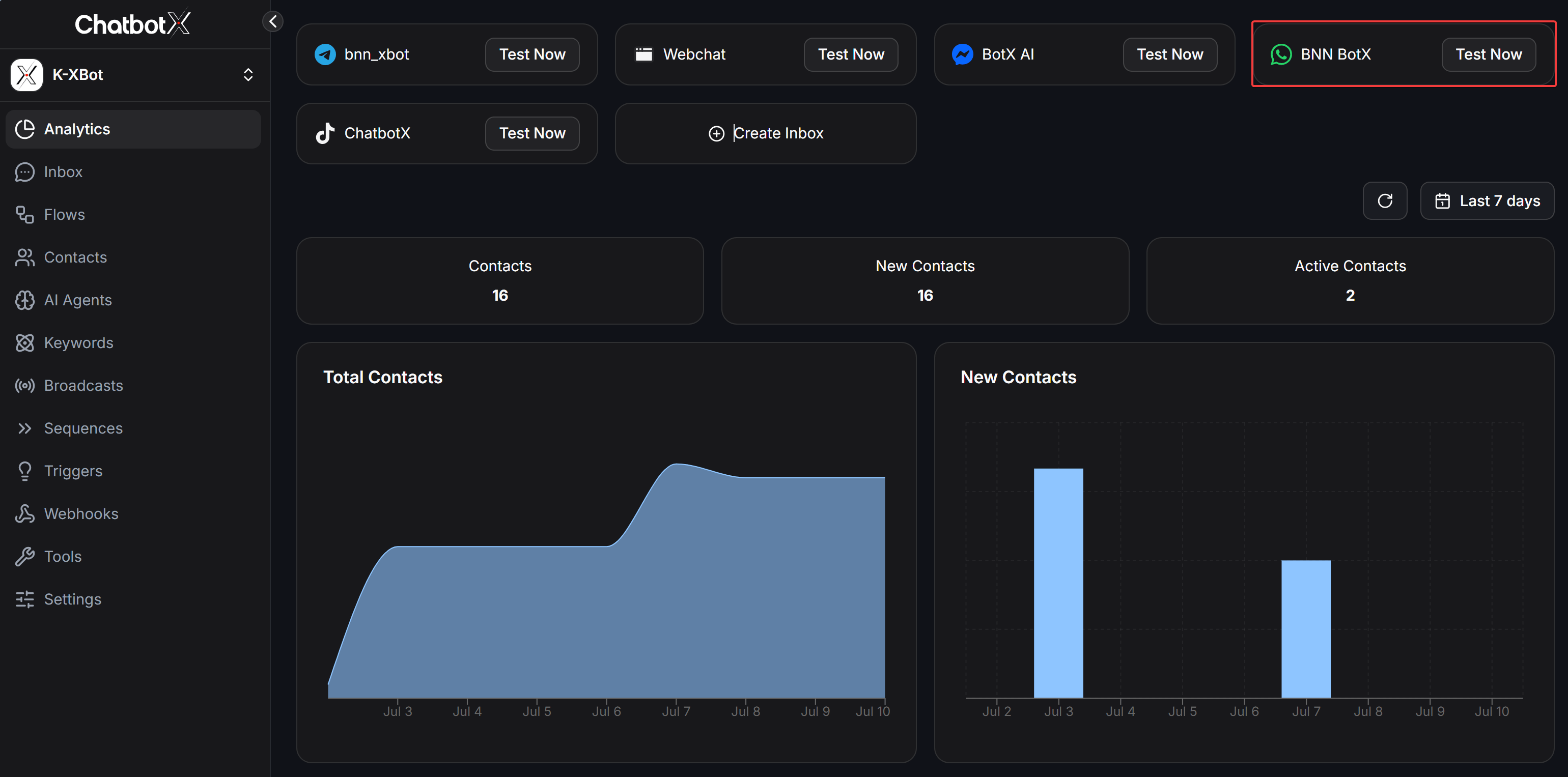
FAQ
Can I keep my existing phone number and data when switching from the WhatsApp App to ChatbotX?
Can I keep my existing phone number and data when switching from the WhatsApp App to ChatbotX?
Yes, absolutely. With the latest Meta Cloud API protocols released in early 2026, the migration process is now seamless.Keep Your Number
You can use the exact same phone number currently registered on the WhatsApp Business App to integrate with the ChatbotX Cloud API.Data Synchronization
The current system supports synchronizing contacts and chat history from your mobile app to the Cloud API during the integration process. This helps maintain continuous conversations with your customers without losing historical data.
You can use the exact same phone number currently registered on the WhatsApp Business App to integrate with the ChatbotX Cloud API.Data Synchronization
The current system supports synchronizing contacts and chat history from your mobile app to the Cloud API during the integration process. This helps maintain continuous conversations with your customers without losing historical data.
Why is my messaging limit restricted immediately after connecting?
Why is my messaging limit restricted immediately after connecting?
This is a standard security and quality control mechanism implemented by Meta for newly connected accounts.Initial Restriction
You may experience a trial limit (typically 5–10 messages) while Meta reviews and approves your business Display Name.
This process usually takes less than 24 hours.Upgrading Your Limit
If your business is already Meta Verified (blue checkmark) on Facebook or Instagram, your messaging capacity will automatically upgrade to Tier 1 (1,000 conversations per day) immediately after connection.Your messaging tier will continue to increase automatically to Tier 2 and Tier 3 based on consistent high-quality messaging activity.
You may experience a trial limit (typically 5–10 messages) while Meta reviews and approves your business Display Name.
This process usually takes less than 24 hours.Upgrading Your Limit
If your business is already Meta Verified (blue checkmark) on Facebook or Instagram, your messaging capacity will automatically upgrade to Tier 1 (1,000 conversations per day) immediately after connection.Your messaging tier will continue to increase automatically to Tier 2 and Tier 3 based on consistent high-quality messaging activity.