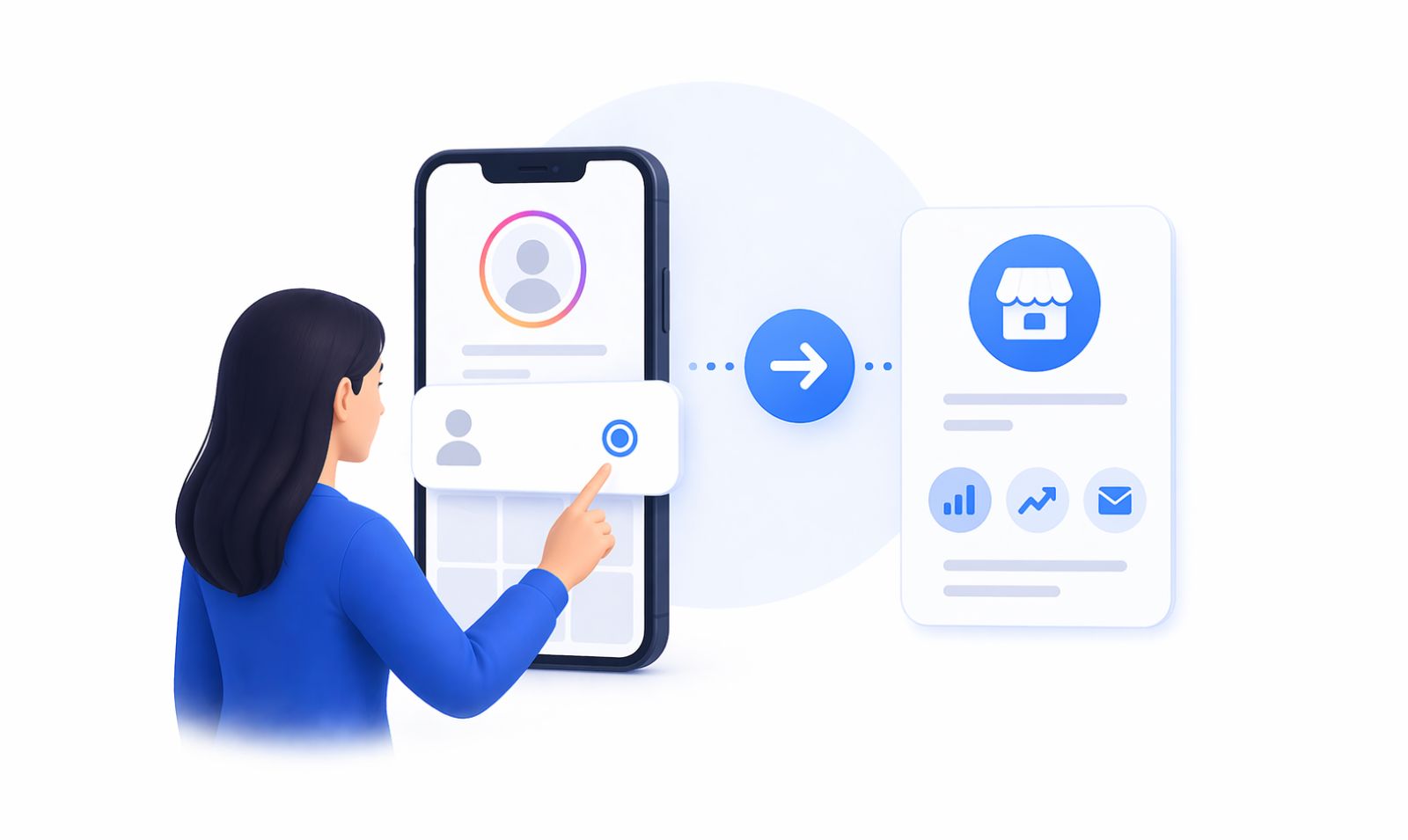
If you’re running a brand, selling products, offering services, or managing any kind of professional presence on Instagram – a personal account is quietly working against you. You can’t access audience analytics, you can’t add contact buttons, you can’t run ads properly, and you can’t connect most third-party tools.
Switching to an Instagram Business Account takes less than five minutes. But what that switch unlocks can reshape how you manage, measure, and grow your presence on one of the world’s most powerful discovery platforms.
This guide walks you through every step of the conversion process, the decisions you’ll need to make along the way, how to set things up correctly after the switch, and how to start building a real growth engine on top of your new account structure.
Launch agentic chat marketing in minutes with ChatbotX







1. Personal vs. Business: What’s Actually Different?
Instagram’s personal account is built for one thing: sharing moments with people you know. It does that job well. It does not do much for anyone trying to convert Instagram into a revenue-generating channel.
The table below shows the key functional differences you need to understand before making the switch:
| Feature | Personal Account | Business Account |
|---|---|---|
| Instagram Insights (analytics) | ❌ Not available | ✅ Full access |
| Contact buttons (email, phone, directions) | ❌ Not available | ✅ Available |
| Ad creation and promotion tools | ❌ Blocked | ✅ Full access |
| Meta Business Suite integration | ❌ Limited | ✅ Full integration |
| Scheduling via third-party tools | ❌ Restricted | ✅ Supported via API |
| Category label on profile | ❌ Not available | ✅ Available |
| Professional Dashboard | ❌ Not available | ✅ Available |
| Shopping and product tagging | ❌ Not available | ✅ Available |
| Branded content tools | ❌ Not available | ✅ Available |
| Instagram messaging API access | ❌ Not available | ✅ Available |
The Instagram Messaging API is particularly significant for businesses in 2026. It allows qualified Business Accounts to automate and manage DMs at scale – something completely inaccessible to personal profiles. If you plan to use AI-powered tools to handle customer inquiries via Instagram DMs, the Business Account is a prerequisite, not just a preference.
Key insight: A personal account limits what you can see, who you can reach, how people can contact you, and what tools you can connect. A Business Account removes those walls.
2. Who Should Switch to a Business Account?
The honest answer: almost anyone using Instagram for something beyond personal sharing.
Switch immediately if you are:
- A small business using Instagram to attract local customers
- An e-commerce brand promoting products
- A service provider (coach, consultant, agency, freelancer) generating inquiries through Instagram
- A restaurant, salon, clinic, gym, or brick-and-mortar business
- A nonprofit, educational institution, or community organization
- An agency managing Instagram accounts on behalf of clients
- A brand planning to run paid advertising at any point
The gray area – creators and influencers:
Instagram offers a Creator Account as a separate option. Creators who focus on personal brand content, sponsorships, and community building may find the Creator Account’s tools better aligned with their needs. We’ll cover the Business vs. Creator distinction more specifically in Section 4.
When staying personal might make sense:
If your Instagram is genuinely personal – family updates, travel photos with friends, no sales intent, no business goals – there is no reason to switch. Business Account analytics and tools are only useful when there is something to measure and optimize for.
3. Step-by-Step: How to Convert Your Instagram Account
Instagram has streamlined the conversion process in 2026. The whole thing takes about three to five minutes when you know where to navigate. Do this from the Instagram mobile app – the desktop version does not support all settings flows.
Step 1 – Open Your Profile Settings
Open Instagram and go to your profile tab (your profile picture icon at the bottom right). Tap the three horizontal lines (☰) in the top right corner to open the main menu.
Step 2 – Navigate to Account Type Settings
Tap Settings and privacy. From there, look for one of these options depending on your app version:
- Account type and tools → Switch to professional account
- For professionals → Account type and tools
Instagram occasionally renames these menu sections with app updates. If you do not see the exact label above, look for anything referencing “Account type,” “Professional account,” or “Switch account.”
Step 3 – Review the Professional Account Overview
Instagram will show you a brief overview of what changes when you switch to a professional account. Read through the key points – this screen summarizes the analytics, contact tools, and ad capabilities you’re gaining. Tap Continue when ready.
Step 4 – Choose Your Account Category
Instagram will prompt you to select a category that describes your profile. This category appears publicly under your username on your profile.
Tips for choosing the right category:
- Use the category your audience would naturally associate with your business. “Restaurant” is clearer than “Food & Beverage Company” for a small café.
- Choose specificity over vagueness. Avoid broad categories like “Brand” if Instagram offers a more descriptive option for your type of business.
- Your category influences how Instagram classifies your account in search and recommendation systems – this has real SEO implications inside the app.
You can change your category later if needed, so don’t overthink this choice. Pick the most accurate option available and move forward.
Step 5 – Select Business (Not Creator)
Instagram will ask you to choose between Business and Creator. For the vast majority of companies, brands, and service providers, Business is the correct choice.
Choose Business if:
- The account represents a company, organization, or brand
- You need ad tools, shopping features, or contact buttons
- You plan to integrate third-party scheduling or CRM tools
- You want to manage the account through Meta Business Suite
Choose Creator only if the account is a personal brand focused on content creation, media, or public figure activities with no direct business operations attached.
Step 6 – Add Contact Information
After selecting Business, Instagram will prompt you to add contact details. This is one of the most practically important steps in the whole process.
Contact information options:
- Email address – Use an email your team actively monitors, not a general inbox that gets checked once a week.
- Phone number – Add a business line, not a personal mobile, unless you genuinely handle all inquiries directly.
- Physical address – Relevant for brick-and-mortar businesses. If you’re service-based or online-only, this field is optional.
These contact details become buttons on your public profile. Anyone landing on your page can tap to email or call you directly. Make sure every route you add actually works and is monitored – a non-functioning contact option creates a worse impression than no contact option at all.
Step 7 – Connect a Facebook Page (Optional but Recommended)
Instagram will offer you the option to link a Facebook Page during setup. If your business has one, connect it now.
Why this matters:
- Meta Business Suite works across both platforms when they’re linked
- Running ads on Instagram requires a connected Facebook Page
- Third-party tools often depend on the Facebook-Instagram connection for publishing and analytics
If you do not have a Facebook Page yet, you can skip this step and return to it later through Settings → Linked Accounts → Facebook. Linking is required before running any paid promotion.
Step 8 – Confirm and Review Your New Profile
Once you complete all prompts, Instagram converts the account. You’ll see the Professional Dashboard appear in your profile view – this is confirmation the switch worked.
Before doing anything else, run through this quick post-switch checklist:
- ✅ Category label is showing correctly under your username
- ✅ Contact buttons are visible on your public profile
- ✅ Professional Dashboard is accessible from your profile
- ✅ Instagram Insights is showing (may take 24–48 hours to populate data)
- ✅ Facebook Page link is confirmed (if applicable)
4. Business vs. Creator Account: Which One Is Right for You?
This is one of the most commonly misunderstood decisions in the switching process. Both are “professional” account types, but they are optimized for fundamentally different use cases.
| Comparison Point | Business Account | Creator Account |
|---|---|---|
| Best for | Brands, companies, service providers | Individual creators, influencers, public figures |
| Contact buttons | Email, phone, address | Email only (by default) |
| Meta Business Suite | Full access | Limited access |
| Shopping/product catalog | Supported | Supported |
| Instagram Shopping | Full access | Limited |
| Third-party tool compatibility | Broad | Narrower |
| DM categorization folders | Basic | Advanced (primary, general, requests) |
| Ad creation | Full | Full |
| Follower growth tools | Standard analytics | Detailed follower insights |
The practical rule: if the account has a commercial purpose, choose Business. The operational tools, ad integrations, API access, and third-party compatibility all work better with a Business Account when you’re running actual marketing operations.
Creator Accounts can be converted to Business Accounts later if needs change, so the choice is not permanent.
5. Setting Up Your Business Profile After Switching
Switching account type is step one. Setting up the profile correctly after the switch determines how much value you actually extract from the new capabilities.
Optimize Your Bio for Conversion
Your bio is 150 characters. Every word should serve a purpose. The best business bios answer three questions immediately:
- What does this business do?
- Who does it serve?
- What should someone do next?
Include a clear call to action and make sure your link goes somewhere useful – a landing page, booking form, product page, or lead magnet, not your homepage homepage.
Turn On Instagram Insights and Review the Data
After switching, give Insights 24–48 hours to start populating. Once it does, check:
- Reach and impressions for recent posts
- Follower demographics (age, gender, location)
- Active times – when your audience is most active on the platform
- Content performance by type – Reels, carousels, Stories, static images
Use this baseline data to adjust your posting schedule before making any other changes. Publishing when your audience is actually online is one of the simplest and most overlooked improvements.
For a deeper walkthrough of how Instagram analytics work after the switch, the ChatbotX blog covers Instagram analytics and automation strategies that apply directly to new Business Account setups.
Configure Shopping (If Applicable)
If you sell physical or digital products, Instagram Shopping is now accessible. To activate it:
- Go to Professional Dashboard → Set Up Instagram Shopping
- Connect a product catalog via Meta Commerce Manager
- Submit for review (approval typically takes 2–5 business days)
Once approved, you can tag products in posts, Reels, and Stories, and Instagram adds a Shop tab to your profile automatically.
Plan Your DM Strategy
Business Accounts have access to Instagram’s Messaging API (through approved platform partners). This allows you to build automated DM workflows – welcome messages, lead qualification sequences, FAQ responses, and more.
For brands dealing with a high volume of Instagram DMs, this is one of the highest-ROI capabilities unlocked by the business account switch. Learn more about how AI-powered Instagram DM automation works with ChatbotX.
6. Troubleshooting Common Switching Problems
The switch usually goes smoothly. When it doesn’t, the cause is almost always one of the following.
“Switch to Professional Account” Option Is Missing
Most likely causes:
- App is outdated – update Instagram to the latest version and try again
- You’re attempting the switch from a desktop browser – use the mobile app
- The account is already a professional account – check Settings → Account type and tools
Force-close the app, clear the cache if needed, and try again on a fresh session.
Facebook Page Connection Fails or Shows Wrong Page
If your Facebook Page isn’t connecting or you’re seeing the wrong Page listed, the problem is usually permissions.
Check the following:
- You must be logged into the correct Facebook account on your device
- Your Facebook account must have Admin or Editor access to the Page you’re trying to connect (not just a standard user role)
- If you manage multiple Pages, make sure you’re selecting the correct one during the connection step
Fix access issues through Meta Business Suite before attempting to reconnect inside Instagram.
Contact Buttons Are Not Showing After Setup
This happens when contact information is added during setup but the display toggle is turned off.
To fix it: Go to Edit Profile → Contact Options and verify that the toggle next to each contact method is switched on. Instagram allows businesses to add contact details but hide them from the public profile – the display is a separate setting from the data entry.
Instagram Insights Shows No Data
New Business Accounts need 24–48 hours to begin accumulating insight data. After that window, if Insights still shows nothing, check:
- Account is confirmed as a Business type (not still processing)
- The account has had some recent activity (at least one post or Story)
- App cache has been cleared and you’ve refreshed the Insights tab
Very new accounts or accounts with no historical content may have limited data for several days.
Switching Back to Personal Causes Data Loss
This is the most important warning: switching back to a personal account after operating as a Business Account often results in permanent loss of historical analytics.
Instagram does not guarantee preservation of Insights data during account type changes. If you have any performance history that matters to your business decision-making, export or screenshot the data before switching back.
More broadly: treat the Business Account switch as an operational decision, not a casual setting toggle. If you’re uncertain about committing long-term, review Instagram’s official documentation on professional accounts before making the change.
7. Grow Smarter: Tools and Strategies After the Switch
A Business Account without a growth strategy is just a label. The switch creates the infrastructure. What you build on top of it determines actual results.
Build a Content Calendar and Commit to Consistency
Sporadic posting on Instagram compounds poorly. Consistent posting compounds well. Instagram’s algorithm rewards accounts that publish regularly and generate consistent engagement signals – saves, shares, comments, replies to Stories.
A content calendar does not need to be elaborate. Even a simple weekly plan – two feed posts, three Stories, one Reel – maintained consistently outperforms brilliant-but-irregular posting schedules.
Business Accounts can connect to scheduling tools that automate the publishing queue, freeing you from manual posting every day. Learn how ChatbotX’s automation features support Instagram content scheduling and customer engagement.
Use Reels for Reach, Carousels for Saves
Different formats serve different goals on Instagram in 2026:
- Reels – Highest organic reach potential. Best for discovery and new audience acquisition.
- Carousels – High save rates and return visits. Best for educational content and detailed value delivery.
- Stories – High engagement for existing followers. Best for community building, polls, Q&As, and real-time updates.
- Static images – Lower algorithmic reach than Reels, but strong for brand aesthetics and product showcases.
A balanced mix of formats signals to Instagram that the account serves multiple audience needs, which tends to improve overall distribution.
For content strategy insights that work alongside Instagram Business tools, check out the ChatbotX blog for social media marketing tactics built specifically for businesses scaling their presence in 2026.
Activate Instagram’s Lead Generation Features
Business Accounts can add action buttons directly to the profile – Book Now, Reserve, Get Quote, Learn More, and similar CTAs that connect to external booking or inquiry systems.
These buttons reduce friction for high-intent visitors. Someone who lands on your profile and wants to book an appointment can do so without leaving Instagram. That conversion path, compressed into one tap, is significantly more effective than hoping they remember to visit your website later.
Invest in Targeted Instagram Ads
Once your Business Account is connected to a Facebook Page, you have full access to Meta’s advertising infrastructure. Instagram ads in 2026 offer:
- Audience targeting by demographics, interests, behaviors, and custom audiences
- Lookalike audiences built from your existing customers or email list
- Retargeting people who have engaged with your profile or visited your website
- Dynamic ads that automatically serve relevant products to relevant users
Start with small daily budgets ($5–$15/day) to test creative and audience combinations before scaling spend. According to Sprout Social’s research on Instagram business performance, brands that combine organic content consistency with paid promotion see significantly stronger account growth than those using either strategy alone.
Automate Customer Conversations via DM
One of the most underutilized capabilities of an Instagram Business Account is DM automation through the Instagram Messaging API. For businesses receiving frequent DM inquiries – pricing questions, product availability, appointment requests, location details – manual responses are slow, inconsistent, and hard to scale.
AI-powered chatbot tools integrated with Instagram Business Accounts can:
- Send instant automated responses when someone messages for the first time
- Answer frequently asked questions without human intervention
- Qualify leads based on DM conversation before routing to a sales team
- Collect contact information through structured DM conversations
This turns Instagram DMs from a manual task into a scalable lead generation channel. Explore how ChatbotX’s Instagram chatbot capabilities can help automate your DM workflow after switching to a Business Account.
Track What Matters and Ignore What Doesn’t
Business Account Insights surface a lot of numbers. Not all of them are equally important.
Metrics that drive business decisions:
- Profile visits – Are people interested enough to check you out after seeing content?
- Website link taps – Are they taking action after visiting?
- Reach (not just impressions) – How many unique people are you actually reaching?
- Saves – A strong save rate signals genuinely useful or aspirational content.
- Story replies – Replies indicate real community engagement, not passive scrolling.
Metrics that are less useful than they look:
- Likes (highly visible, low behavioral signal)
- Follower count growth as an isolated metric
- Impressions without considering reach and repeat views
According to Hootsuite’s 2026 social media benchmarks, Instagram Business Accounts in the 10K–100K follower range achieve an average engagement rate of 1.5–3% per post – useful context when evaluating your own content performance.
8. Frequently Asked Questions
Is switching to an Instagram Business Account free?
Yes, entirely free. Instagram does not charge for the account type conversion or for any of the Business Account features. You only pay if you choose to run paid advertising.
Will switching affect my existing followers or post history?
No. Your followers, posts, content, and direct messages remain exactly as they were. The switch changes what tools and features are available to you – it does not alter any existing content or relationships.
Can I switch back to a personal account after converting?
Yes, you can switch back through Settings → Account type and tools. However, be aware that reverting to personal can result in the loss of historical Insights data. Treat this as a business decision, not a reversible experiment.
Do I need a Facebook account to switch to Instagram Business?
No. You can complete the Business Account switch without linking a Facebook Page. The Facebook Page connection becomes important later when you want to run ads or use Meta Business Suite – but it’s not required to complete the initial switch.
What if I accidentally chose Creator instead of Business?
Go to Settings → Account type and tools → Switch account type and you can change between Creator and Business at any time. The difference is primarily in which professional tools and integrations are available to you.
How long does it take for Instagram Insights to appear?
Most accounts start seeing data within 24–48 hours of switching. Newer accounts with less activity may take slightly longer. If Insights still shows nothing after 72 hours, try logging out and back in, or clearing the app cache.
Can I have multiple Instagram Business Accounts?
Yes. You can manage multiple Business Accounts from a single device by adding accounts through Settings → Add account. Each account operates independently with its own analytics and settings.
Does switching to Business affect my content reach or the algorithm?
Instagram has not confirmed any direct algorithmic advantage or disadvantage tied to account type alone. What changes your reach is how consistently you post, what engagement your content earns, and how well your content matches what your target audience responds to – not the account type label itself.
What is the Instagram Messaging API and how does it relate to Business Accounts?
The Instagram Messaging API allows approved third-party platforms to send and receive Instagram DMs programmatically. Access is restricted to Business Accounts connected to a Facebook Page. This is the technical foundation that makes DM automation, AI chatbot integration, and customer service tools possible on Instagram. Discover how ChatbotX’s Instagram integration uses this API to help businesses automate and scale their DM operations.
9. Conclusion
Switching your Instagram from a personal to a Business Account is one of the most practical, cost-free upgrades you can make for any brand operating on the platform. It takes less than five minutes, it doesn’t disrupt your existing content or followers, and it opens access to tools – analytics, contact features, advertising, API integrations – that simply don’t exist on a personal profile.
The switch itself, though, is just the start. The real value comes from what you build afterward: a consistent content strategy, a properly configured profile, a clear understanding of what your analytics are telling you, and scalable systems for handling the conversations and conversions that come from a growing Instagram presence.
For businesses that receive a high volume of DMs or want to turn Instagram into a genuine lead generation channel, AI-powered automation is increasingly becoming part of the standard toolkit. Tools like ChatbotX are built specifically for this – giving Business Account holders the ability to automate Instagram DM responses, qualify leads in real time, and engage with followers at scale without sacrificing the personalized feel that makes Instagram effective in the first place.
Whether you’re making the switch today or fine-tuning a Business Account you set up months ago, the goal is the same: build a presence on Instagram that works for your business, not just for your brand image.
Ready to take the next step? Explore how ChatbotX can automate and scale your Instagram customer conversations – so your Business Account does more than just look professional.