In the hyper-connected digital ecosystem of 2026, managing your social presence in silos is no longer just inefficient-it’s a barrier to growth. As Meta continues to unify its infrastructure, the integration between Instagram and Facebook has evolved from a simple cross-posting feature into a fundamental requirement for data-driven marketing, AI automation, and seamless customer engagement.
Whether you are looking to unlock the full power of Meta Business Suite, scale your advertising ROI, or implement intelligent chatbots like ChatbotX to handle cross-platform inquiries, a stable account link is your starting point. However, with constant updates to the Meta Accounts Center, the process can often feel like a moving target.
This ultimate 2026 guide cuts through the technical noise. We provide the most up-to-date, step-by-step framework to link your accounts correctly the first time, ensuring your brand remains synchronized, professional, and ready to convert.
Launch agentic chat marketing in minutes with ChatbotX







Why Linking Instagram to Facebook Still Matters in 2026
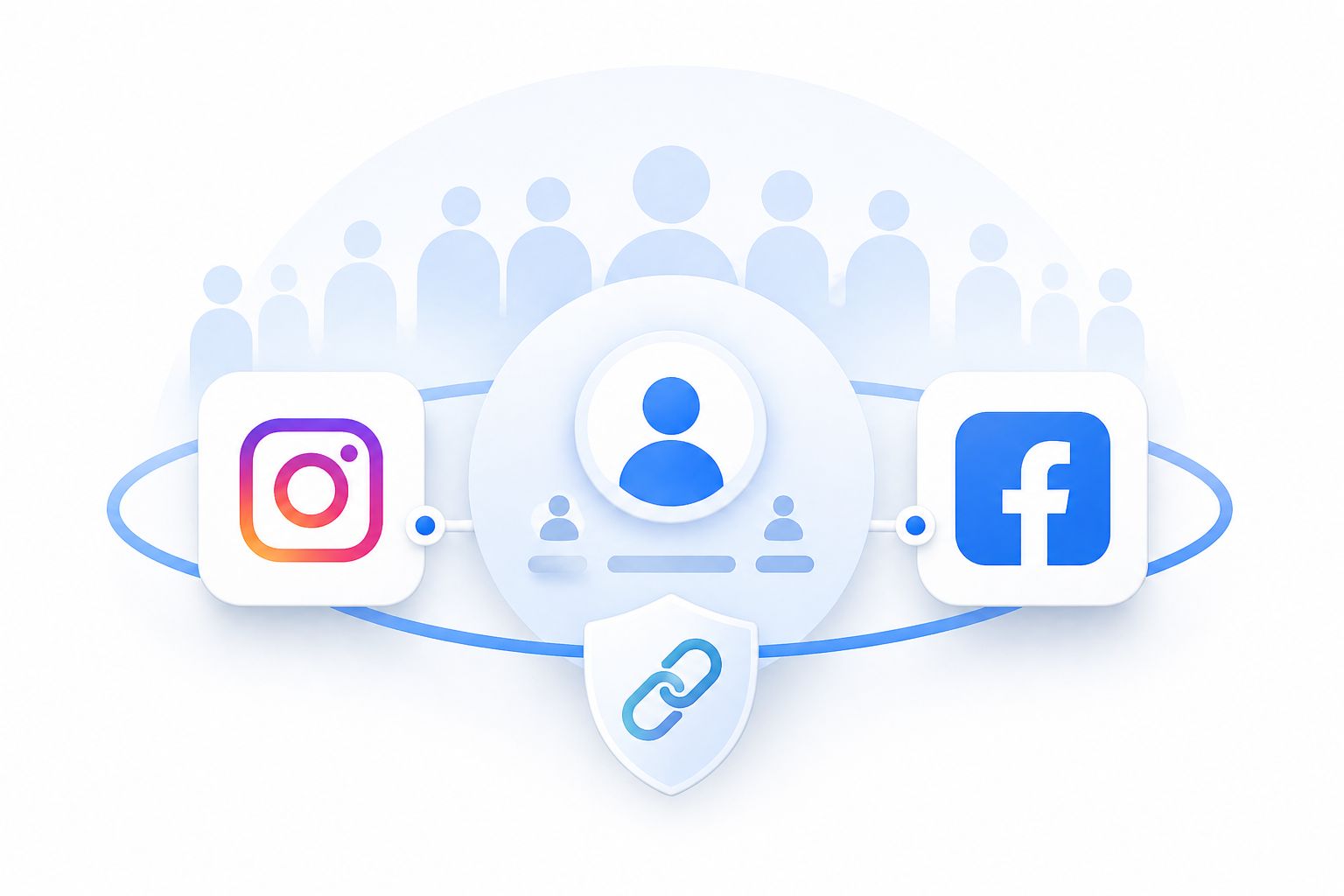
With Meta’s ecosystem growing stronger than ever, keeping Instagram and Facebook as two separate, disconnected islands is a strategy that costs you time, money, and audience reach. In 2026, both platforms share over 3 billion combined monthly active users, yet a significant number of small business owners and content creators still manage them in complete isolation – duplicating effort at every turn.
Linking the two accounts through Meta Accounts Center (Meta’s unified identity hub, launched in 2023 and significantly expanded since) unlocks a range of concrete benefits that go far beyond simple convenience:
- Synchronized advertising: Instagram ad placements can be managed seamlessly from Meta Ads Manager, with proper attribution between both channels.
- Unified analytics: Instead of switching dashboards, you gain aggregated performance data that gives a clearer picture of your total social reach.
- Faster publishing workflows: With a proper connection in place, scheduling tools and automation platforms can push content to both networks from a single interface.
- Professional credibility: Audiences and potential brand partners expect coherent, professionally managed social presences – a linked setup signals exactly that.
For brands investing in AI-powered social media automation, the account link is the foundational requirement that makes any intelligent workflow possible. Without it, most third-party platforms simply cannot obtain the permissions they need to operate.
According to Meta’s official developer documentation, the Instagram Graph API – which powers most business integrations – is only accessible to accounts correctly linked to a Facebook Page through Meta Business Suite.
What You Need Before Getting Started
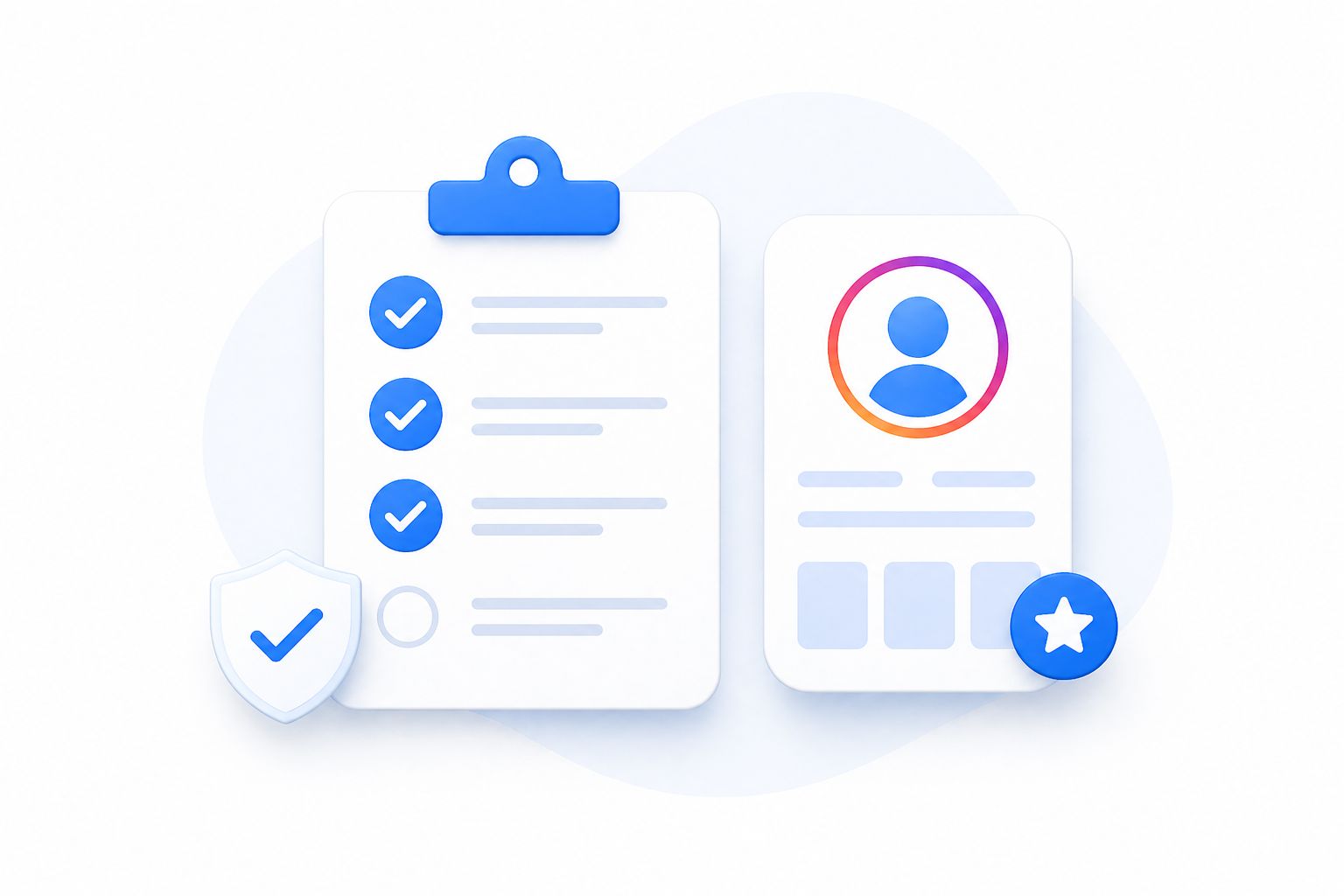
The single biggest reason connection attempts fail is not a technical glitch – it is a missing precondition that nobody checked before starting. Run through this checklist before you touch a single button.
1. Your Instagram Account Must Be Professional
A standard personal Instagram profile cannot be linked to a Facebook Page for business purposes. You must convert your account to either a Creator or Business profile – both fall under Meta’s “Professional Account” umbrella.
If you have not done this yet, do it first. The process takes under two minutes and does not delete any of your existing content or followers.
Choosing the right type:
| Account Type | Best For |
|---|---|
| Creator | Influencers, public figures, individual content creators |
| Business | Brands, agencies, local businesses, ecommerce stores |
| Personal | ❌ Cannot be linked to a Facebook Page |
If you run ads, use analytics tools, or work with a marketing team, choose Business. It unlocks the widest range of integrations and keeps your access consistent when adding team members.
2. You Need Admin-Level Access to the Facebook Page
This is where most business owners run into trouble. Simply being an employee who can post on a Facebook Page does not give you the permissions required to complete the account link. You must have Admin or Editor access to the specific Page you want to connect.
Check your role at: Facebook → Your Page → Settings → Page Roles
3. You Must Be Logged Into the Right Facebook Account
If you manage multiple Facebook profiles (personal and business, for example), make absolutely certain you are logged into the one that owns or manages the target Page. Trying to link from the wrong account is one of the most common causes of the dreaded “no eligible Pages found” error.
Method 1: Link Accounts via the Instagram App
This is the quickest route for most individual users and small business owners. The entire process takes about two to three minutes when everything is in order.
Step-by-Step Instructions
Step 1: Open the Instagram app on your mobile device and navigate to your Profile tab (your avatar icon in the bottom-right corner).
Step 2: Tap the hamburger menu (three horizontal lines) in the top-right corner, then select Settings and Privacy.
Step 3: Scroll down and tap Account, then select Linked Accounts (or look for “Connect to Facebook” if you have not linked before).
Step 4: Choose Facebook from the list. Instagram will redirect you to a Facebook login or, if you are already logged in, will show you a permissions screen.
Step 5: Log in using the Facebook account that has admin access to your target Page. Grant the requested permissions – these typically include access to manage Pages, post content, and read insights.
Step 6: Select the specific Facebook Page you want to link from the dropdown list that appears. If you see multiple Pages, verify the name and cover photo before confirming.
Step 7: Tap Connect or Confirm to finalize the link. You should see a confirmation message within the app.
What to Do If Your Page Does Not Appear
If the target Page is missing from the list, it almost always means one of three things: you are logged into the wrong Facebook account, you do not have sufficient Page permissions, or the Instagram account is already linked to a different Page. Resolve the underlying issue before retrying.
Method 2: Link from Your Facebook Page (Desktop)
For agency managers, multi-brand operators, or anyone who prefers working from a desktop browser, the Facebook-side approach is often more reliable. It gives you direct visibility into the Page’s current settings before making any changes – a significant advantage when managing multiple client accounts.
Step-by-Step Instructions
Step 1: Log into Facebook on a desktop browser and navigate to the specific Facebook Page you want to link.
Step 2: Click on Settings in the left-hand navigation menu of the Page.
Step 3: Scroll down to find Linked Accounts or Instagram in the left sidebar. The exact label may vary depending on whether your Page has been migrated to the new Meta Business experience.
Step 4: Click Connect Account next to the Instagram option.
Step 5: A pop-up window will appear, prompting you to log into Instagram. Enter the credentials for the Professional Instagram account you want to link.
Step 6: Review and accept the permission prompts. Facebook will request access to manage the Instagram account’s content and insights on behalf of the linked Page.
Step 7: Once the authentication is complete, return to the Page Settings to confirm the Instagram account now appears under Linked Accounts.
Why Experienced Managers Prefer This Method
When you start from the Facebook Page, you can immediately see whether an Instagram account is already connected before you begin. This prevents the accidental duplicate-linking scenario where a Page ends up associated with two different Instagram accounts simultaneously – something that causes real headaches in ad reporting and analytics.
For teams that are also exploring AI chatbot solutions for Facebook Messenger, having a clean, properly linked Page is a non-negotiable prerequisite before any automation can be configured.
Method 3: Use Meta Accounts Center Directly
Meta Accounts Center is the company’s unified management hub for all account relationships across Facebook, Instagram, WhatsApp, and Messenger. For users who want a centralized overview – or who are troubleshooting an existing connection – going directly to Accounts Center is often the clearest path.
How to Access Meta Accounts Center
You can reach Accounts Center from either platform:
- On Instagram: Profile → Menu → Settings and Privacy → Accounts Center
- On Facebook: Menu → Settings & Privacy → Settings → Accounts Center
- Directly on desktop: accountscenter.facebook.com
Linking Accounts from Accounts Center
Step 1: Once inside Accounts Center, locate the Profiles section, which lists all accounts currently associated with your Meta identity.
Step 2: If Instagram is not listed, tap or click Add Accounts and select Instagram.
Step 3: Log into your Instagram Professional account and authorize the connection.
Step 4: Accounts Center will confirm the link and display both accounts under your unified Meta profile.
This method is particularly useful if you want to manage multiple Instagram accounts across different Facebook Pages, as Accounts Center provides a clear visual overview of all existing relationships.
According to the Instagram Help Center, Accounts Center is the recommended management location for all cross-platform account connections from 2024 onward.
How to Enable Cross-Posting After Connecting
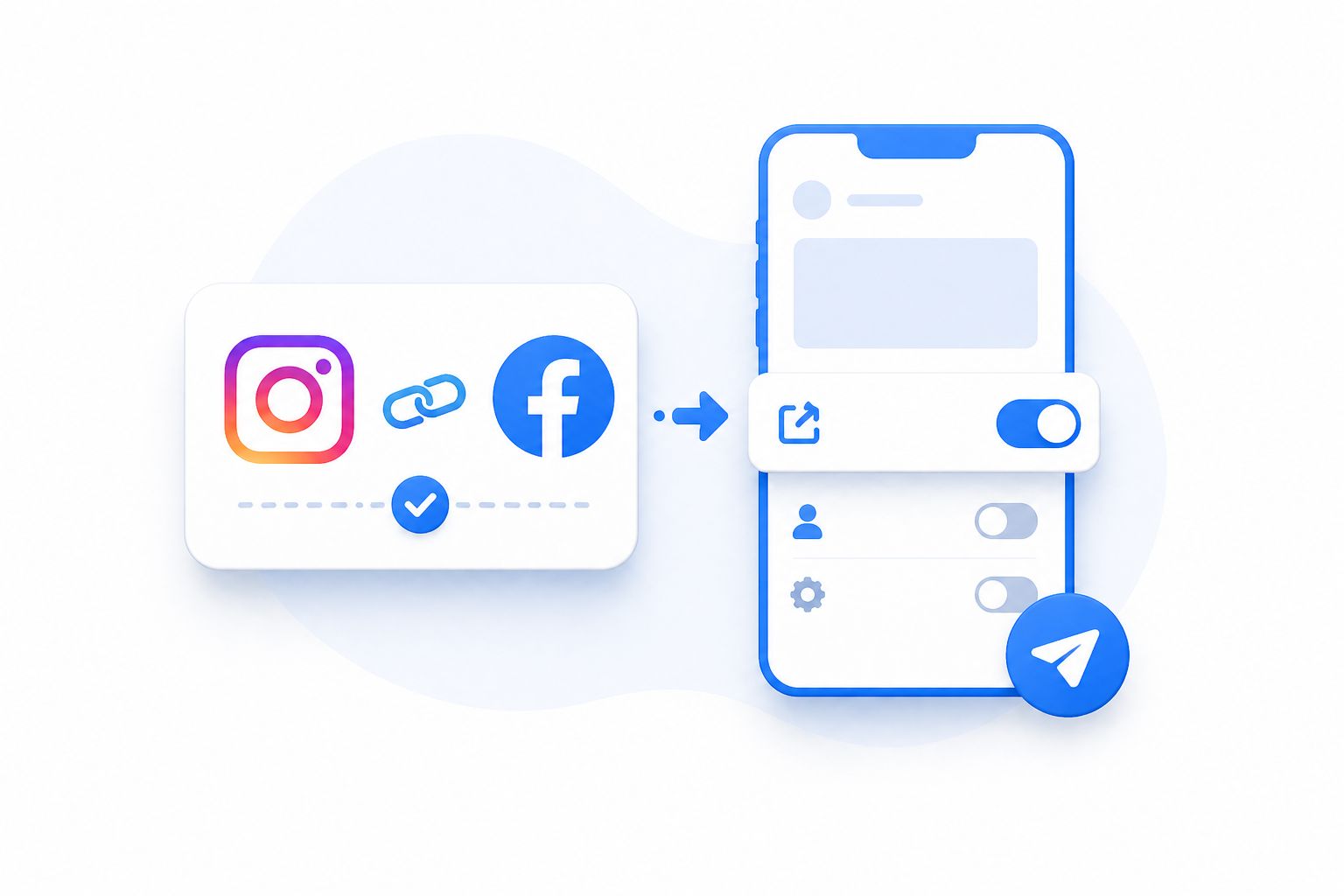
Linking your accounts creates the technical relationship – but it does not automatically push every piece of content across both platforms. Cross-posting is a separate setting that you control.
Enabling Cross-Posting in Instagram
Go to Profile → Settings and Privacy → Cross-Sharing to Facebook. From here, you can choose to share new Posts, Reels, and Stories to your connected Facebook Page by default, or decide on a per-post basis.
Best Practices for Cross-Posting in 2026
Not every piece of content belongs on both platforms. Instagram and Facebook have distinct audience behaviors, format expectations, and algorithmic preferences. Blanket cross-posting can work well in some scenarios and feel forced in others.
Cross-post freely:
- Product announcements and launches
- Event promotions and reminders
- Behind-the-scenes brand content
- Educational carousels with broad appeal
Review before sharing:
- Trend-driven Reels tied to Instagram-specific audio
- Stories using platform-native stickers or polls
- Creator content with highly niche references
Keep platform-native:
- Content written specifically for one community’s tone or culture
- Long-form Facebook text posts that have no Instagram equivalent
- Instagram Close Friends Stories intended for a specific audience segment
For businesses managing content across both platforms strategically, understanding Instagram marketing best practices in 2026 is essential before deciding what to cross-post and what to keep separate.
Troubleshooting: When the Connection Fails
Even with the right preconditions in place, connection errors can occur. Here are the most common issues and how to resolve them efficiently.
Problem: “No Eligible Facebook Pages Found”
Cause: The Instagram account is already linked to a different Page, or the Facebook login being used does not have admin access to any eligible Pages.
Fix: Log into Facebook and verify your Page roles at Settings → Page Roles. If the Instagram account is linked elsewhere, disconnect it first via Accounts Center, then reconnect.
Problem: Permission Error During Authorization
Cause: Facebook’s permission system is blocking the link because the connecting account lacks sufficient privileges.
Fix: Ask the Page Owner (not just an Admin) to complete the connection, or request a role upgrade before attempting again.
Problem: Stuck in an Authorization Loop
Cause: App cache conflicts, stale session tokens, or an outdated app version.
Fix: Update both the Instagram and Facebook apps to the latest versions. Clear app cache (on Android) or offload and reinstall (on iOS). Log out of both apps completely, restart your device, then follow one method from start to finish without switching between methods mid-process.
Problem: Connected to the Wrong Page
Cause: Selecting the incorrect Page from a list of similarly named options.
Fix: Navigate to Accounts Center → Profiles, remove the incorrect connection, and re-link to the correct Page. Double-check the Page name and profile image at each step.
Quick Reference Troubleshooting Table
| Symptom | Root Cause | Fix |
|---|---|---|
| Page not visible in list | Wrong Facebook login or insufficient role | Switch accounts or request Admin access |
| Permission denied error | Partial Page access only | Upgrade to Admin/Editor role |
| Already connected message | Existing link to different Page | Disconnect old link via Accounts Center first |
| Authorization loop | App version or cache issue | Update apps, clear cache, retry from scratch |
| Connection disappears after saving | Account type mismatch | Confirm Instagram is set to Business or Creator |
After You Connect: Building a Smarter Social Workflow
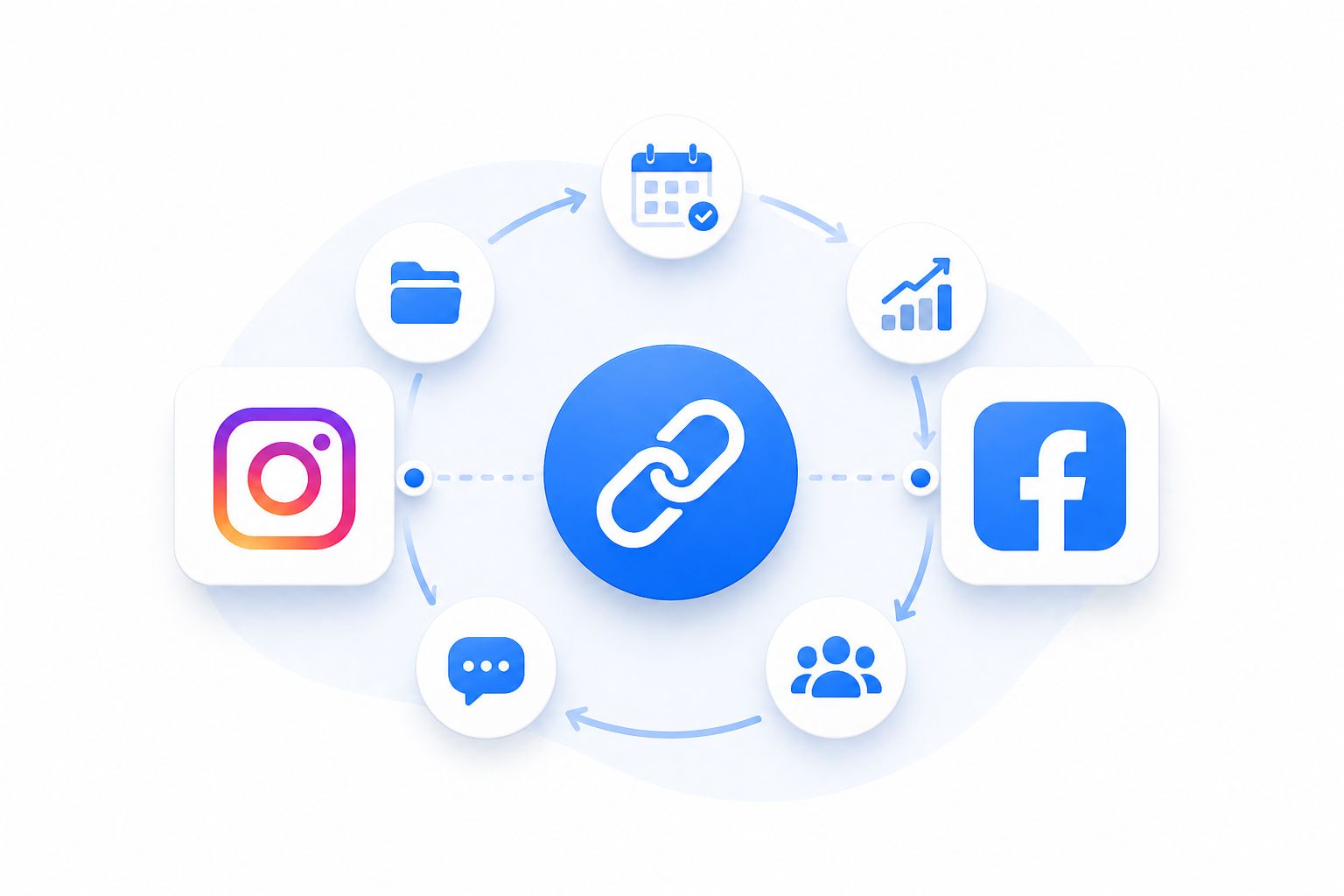
The link between your Instagram and Facebook accounts is not a destination – it is a starting point. Once the technical foundation is solid, you can build workflows that genuinely save time and improve performance.
What the Native Connection Enables
With accounts properly linked, you gain access to:
- Meta Business Suite: A single dashboard for scheduling, messaging, and analytics across both platforms.
- Meta Ads Manager: Full Instagram placement control within your Facebook ad campaigns, with correct attribution.
- Insights aggregation: Cross-platform performance data accessible without switching apps.
- Third-party integrations: Scheduling tools, CRM systems, and AI platforms that require verified Page-Instagram links to operate.
Taking It Further with Automation
For growing brands and agencies, the manual copy-paste approach to social media – even with cross-posting enabled – eventually becomes a bottleneck. The real efficiency gains come from building structured publishing calendars, content approval workflows, and performance review cycles that span both platforms.
Understanding Facebook marketing strategy for 2026 is a natural next step once your account setup is confirmed, as it helps you plan content that genuinely works across the Meta ecosystem rather than just crossing fingers on auto-share.
For businesses focused on customer interaction, pairing a well-managed social presence with customer engagement tools powered by AI can significantly improve response rates and reduce the manual load on marketing teams.
According to Meta’s business research, businesses that use Instagram in combination with Facebook advertising report significantly higher engagement rates than those using either platform in isolation.
Frequently Asked Questions
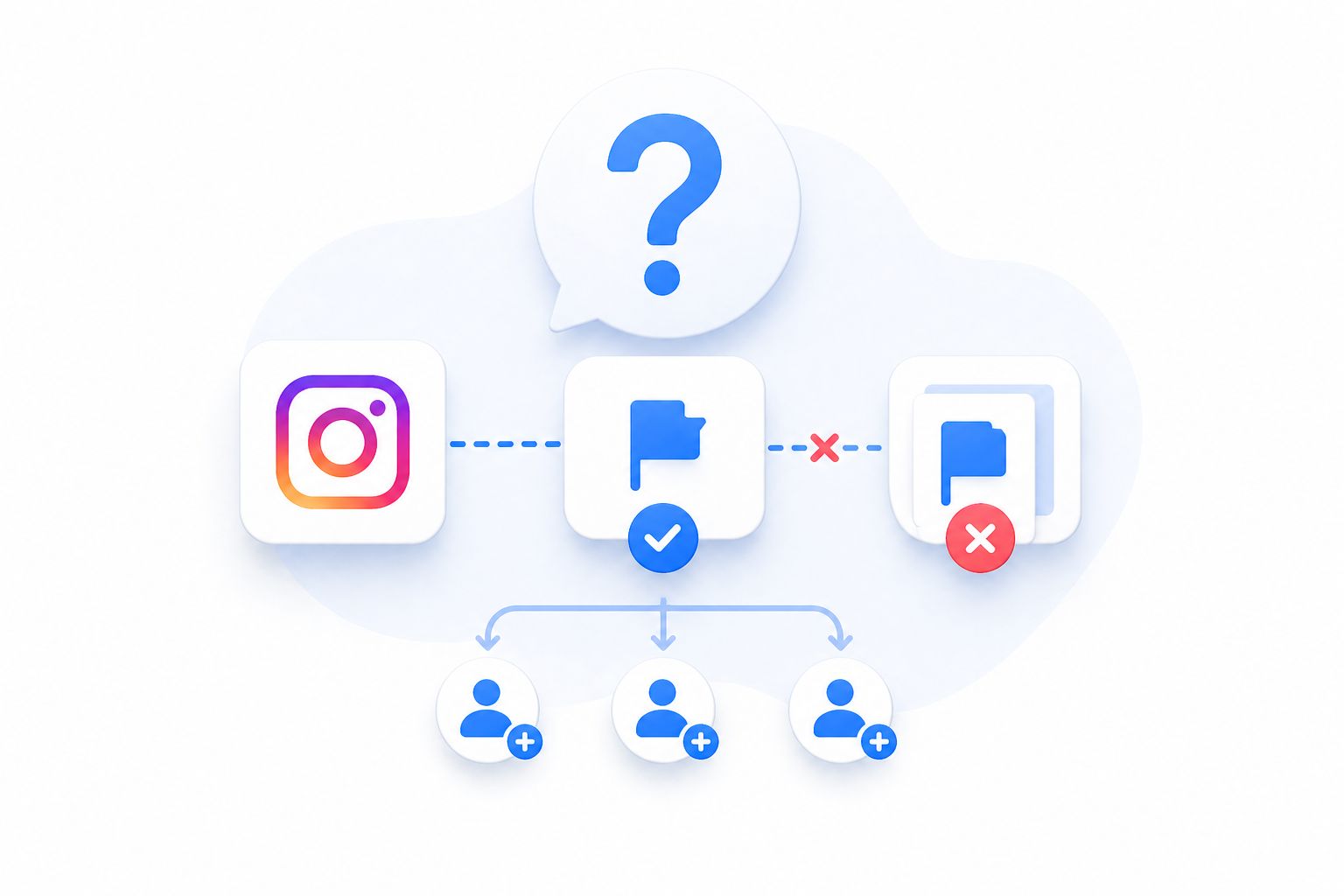
Can I link one Instagram account to multiple Facebook Pages?
No. Meta’s system allows one Instagram Professional account to be linked to one Facebook Page at a time. If you manage multiple brands, each requires its own separate Instagram account and corresponding Facebook Page.
Will linking accounts affect my existing posts?
No. All previously published content on both platforms remains exactly where it is. The connection only affects future publishing behavior, permissions, and business feature access – it does not retroactively push old content anywhere.
Can I disconnect the accounts later if I need to?
Yes, at any time. Go to Meta Accounts Center → Profiles, select the Instagram account, and choose the option to remove the connection. It is a good practice to document your current setup before disconnecting anything, especially if other tools or team members rely on the existing link.
Is it safer to connect from Instagram or from Facebook?
Both methods are equally secure. The choice comes down to convenience and context. Instagram is faster for individuals managing a single account. Facebook is more transparent for agency professionals managing multiple Pages, because it shows the Page’s current state before any changes are made.
Do both platforms automatically share all content after connecting?
No. The connection establishes the relationship and permissions, but you retain full control over what gets shared where. Cross-posting preferences are set separately and can be applied globally or on a post-by-post basis.
Why do scheduling tools require the account link before they work?
Most scheduling and analytics platforms access Instagram’s publishing API through a Facebook Page relationship. Without a verified link, the API cannot grant the necessary permissions to third-party apps – which is why tools often show an error until the connection is in place.
What happens if I switch my Instagram from Creator to Business type?
Switching account types does not break an existing Facebook Page connection. However, some third-party tools may require you to re-authenticate after the change. It is worth re-testing your primary integrations after any account type switch to confirm they still function correctly.
Does linking accounts help with Meta ad performance?
Yes, significantly. Properly linked accounts allow Meta’s ad system to correctly attribute conversions, build custom audiences from both platforms simultaneously, and run Instagram placements through the same campaign structure as Facebook placements – all of which typically improves return on ad spend.
Conclusion
Linking your Instagram account to Facebook in 2026 is not a complex technical operation – but the details around permissions, account types, and existing connections do matter. Getting those details right before you begin is what separates a two-minute setup from a frustrating afternoon of error messages.
To recap the essentials: confirm your Instagram account is set to Business or Creator, verify that you have admin access to the correct Facebook Page, use Meta Accounts Center as your source of truth for all account relationships, and approach cross-posting as a deliberate strategy rather than a default toggle.
Once the foundation is solid, the real work begins. A properly connected Meta presence is not just a technical configuration – it is the infrastructure that powers your advertising, analytics, third-party tools, and customer communication across both platforms.
Speaking of customer communication: if you are ready to take your engagement a step further, ChatbotX is worth exploring. It is an AI-powered chatbot platform built specifically for businesses that want to automate customer conversations across social channels – including Instagram and Facebook Messenger – without losing the personal touch. From instant reply automation to lead qualification and support routing, ChatbotX’s core features are designed to work seamlessly with the Meta ecosystem you have just connected.
Whether you are a solo creator managing your own brand or an agency handling dozens of client accounts, the combination of a clean Instagram-Facebook link and smart AI-driven engagement automation is one of the most effective setups you can build in 2026 – and it starts with the steps you just followed.