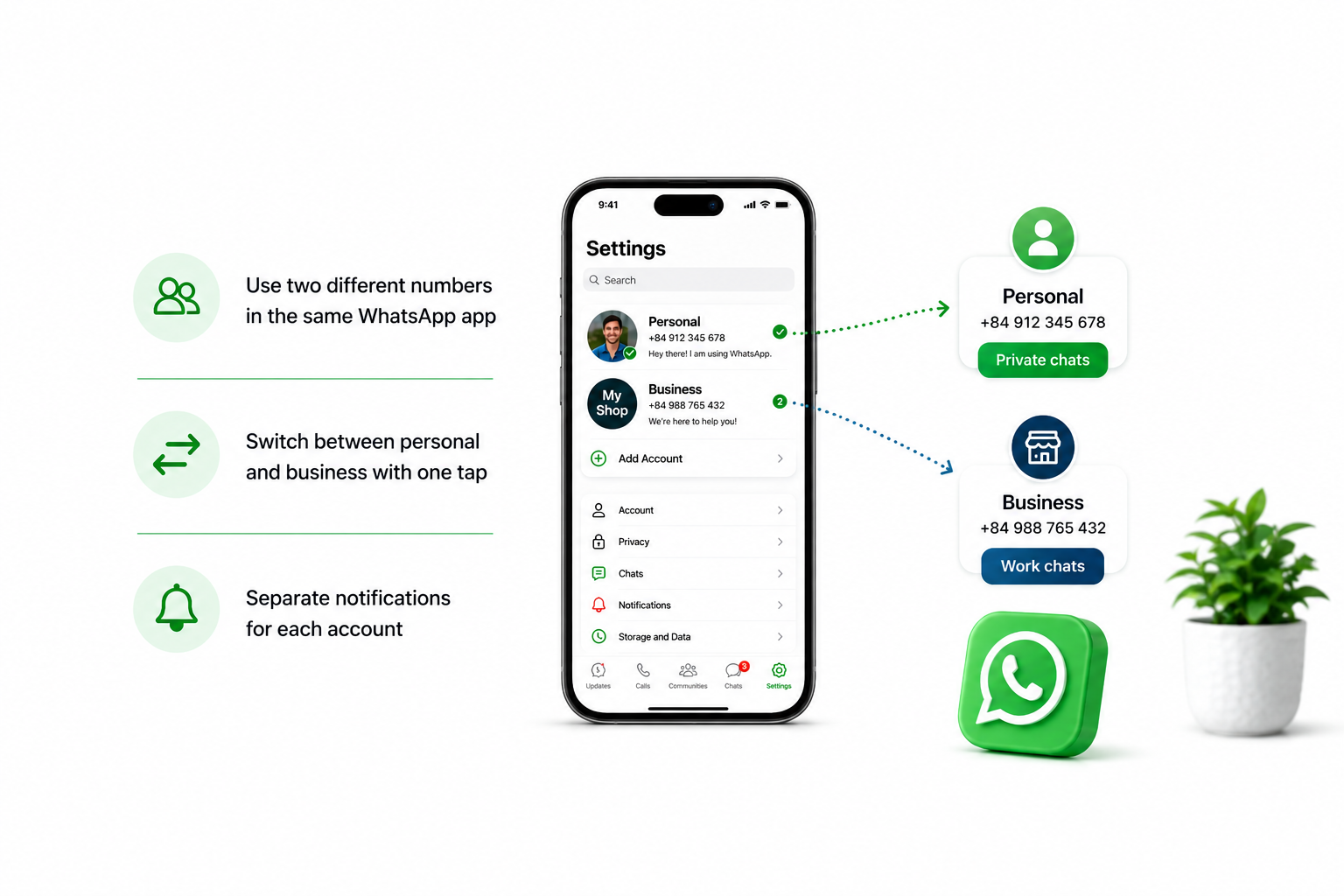
For years, iPhone users juggling a personal life and a business had only one real option: carry two phones. That era is officially over. WhatsApp now supports a native “Two Accounts, One Device” feature on iOS, letting you log into two completely separate numbers inside the same app – no jailbreaking, no sketchy workarounds, no dual-device headaches.
This guide walks you through everything: how the feature works, how to activate it in minutes, how to manage both accounts day-to-day, and when it makes sense to graduate to a professional-grade solution like ChatbotX for business-scale WhatsApp communication.
Launch agentic chat marketing in minutes with ChatbotX














1. Why Use Dual WhatsApp Accounts on One iPhone?
WhatsApp has crossed 3 billion monthly active users globally, making it the world’s most-used messaging platform by a wide margin. (Statista – WhatsApp Usage Statistics)
Yet until recently, iOS’s one-app-one-account architecture forced millions of professionals, freelancers, and small business owners into uncomfortable compromises: mixing personal chats with client conversations, or lugging around a second handset just to keep a business number active.
The official dual-account rollout changes that calculus entirely. You can now maintain a clear boundary between the two sides of your life without sacrificing the convenience of a single device.
2. How WhatsApp Dual Accounts Work on iPhone
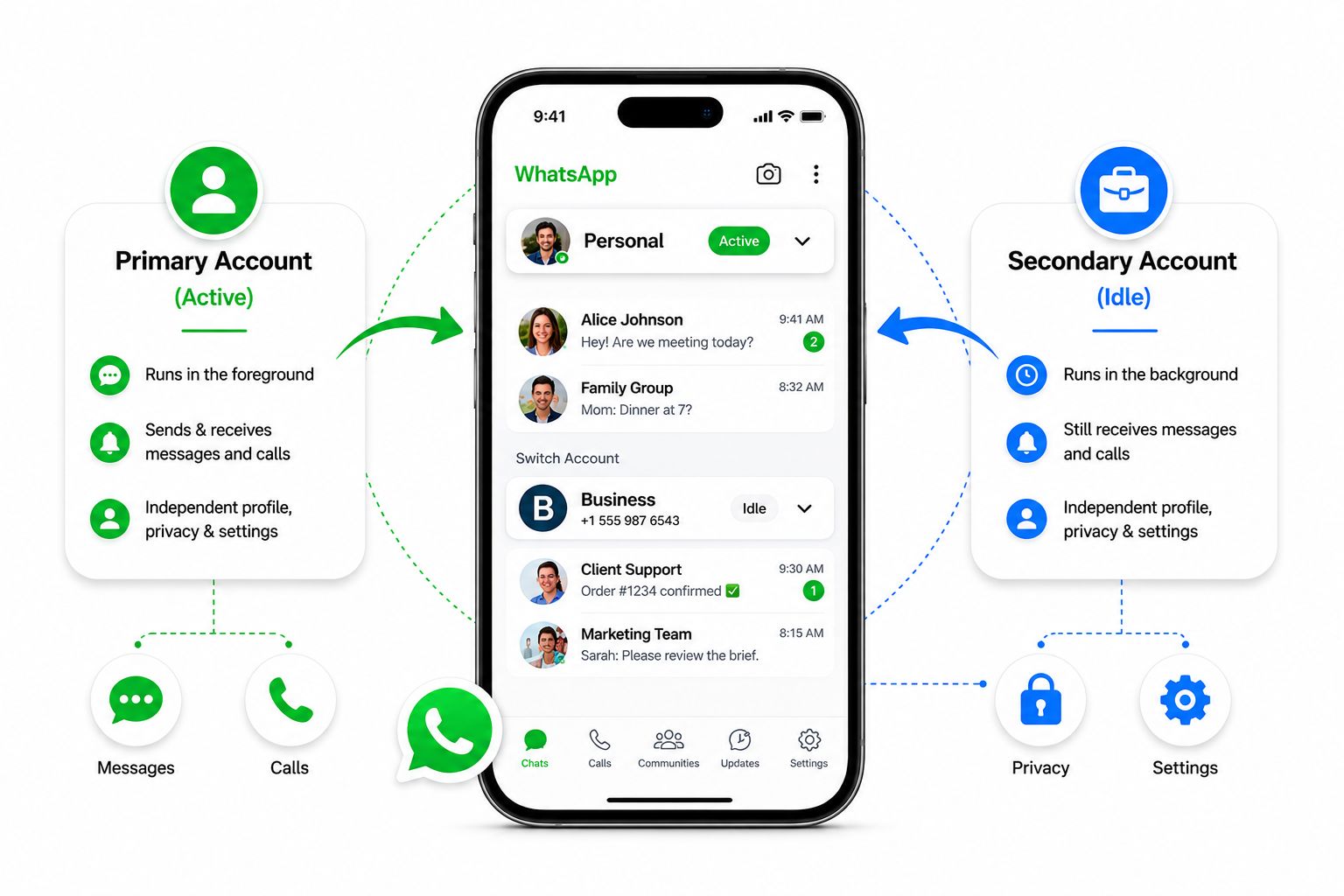
WhatsApp’s iOS dual-account system is built around two roles:
| Role | Description |
|---|---|
| Primary Account | The account currently active and in use. |
| Secondary Account | The account running in the background (idle). |
Both accounts run simultaneously inside the single WhatsApp app. Each maintains its own independent profile photo, display name, “About” text, privacy settings, and notification preferences. You can personalise them as distinctly as you like – there is no crossover between the two.
Even when an account is idle, it continues to receive incoming messages and calls. Missed calls on the secondary account trigger a push notification with two quick options:
- Ignore – dismiss the call without switching.
- Switch Account – jump to the secondary account and choose to accept or decline.
Important: The dual-account setup must be initiated on your primary mobile device. You can link companion devices to the secondary account, but the actual account-switching gesture only works from the main handset.
Avoid toggling between accounts excessively across multiple devices, as WhatsApp’s automated systems may flag this behaviour and temporarily lock verification for your number.
3. Requirements for WhatsApp Dual SIM Setup on iOS
Before you open WhatsApp settings, make sure you have the following:
- An iPhone running iOS 16 or later – earlier versions do not support the feature.
- The latest version of WhatsApp installed from the App Store.
- A second valid phone number registered on either:
- A physical dual-SIM tray (supported on iPhone XS and later), or
- An eSIM alongside your physical SIM. (Apple eSIM overview)
- Access to the second number to receive a one-time SMS or voice verification code.
If you are unsure whether your carrier supports eSIM, check your carrier’s website or contact them directly – most major carriers worldwide activated eSIM support between 2023 and 2025.
4. Step-by-Step: Adding a Second WhatsApp Account on iPhone
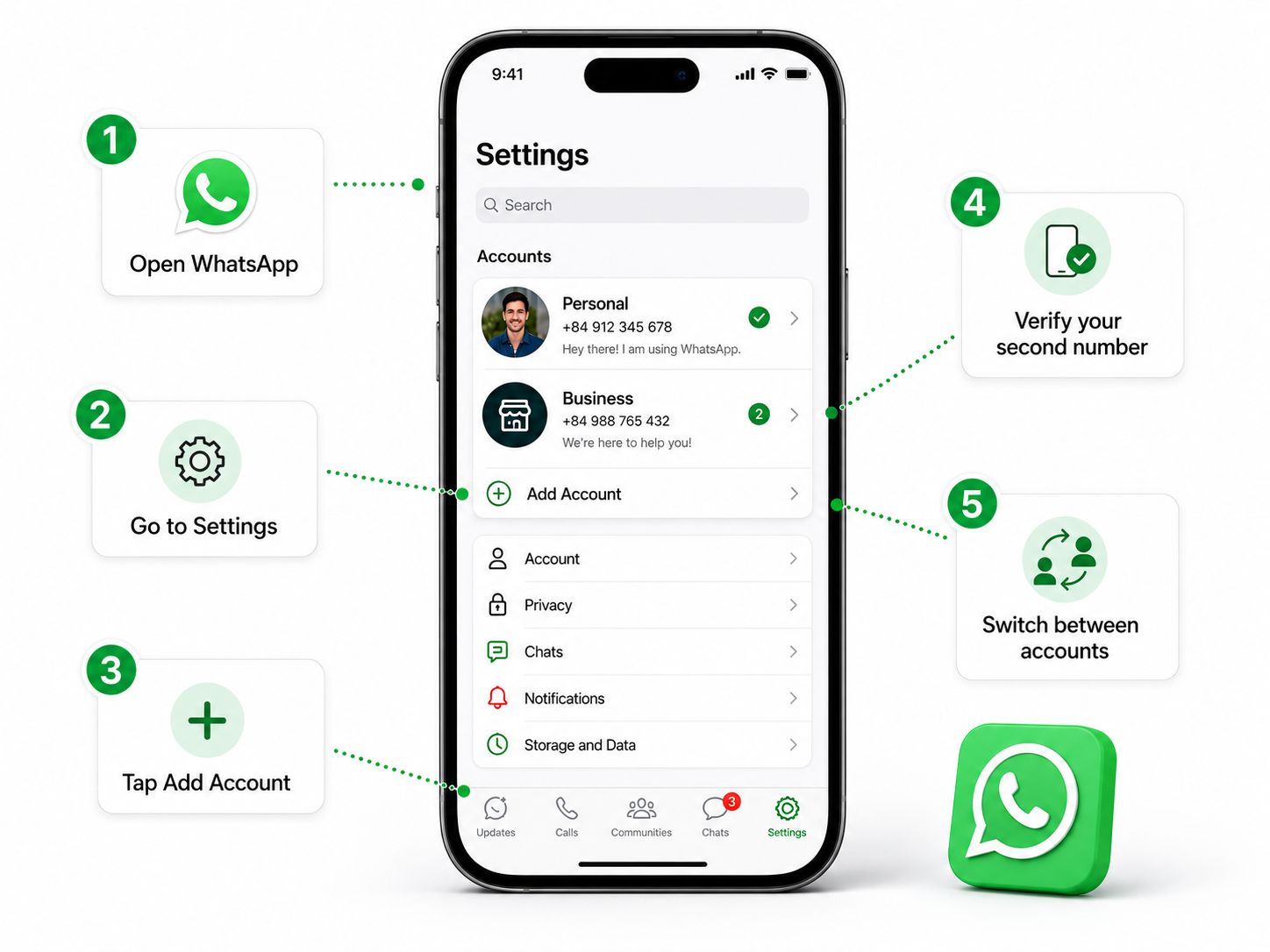
The entire process takes under five minutes:
Step 1 – Open Your Profile
Launch WhatsApp and tap your profile picture in the bottom-right corner of the screen to open Settings.
Step 2 – Navigate to Account Options
Go to Account → Add Account.
Step 3 – Accept Terms of Service
Tap Agree and Continue to acknowledge WhatsApp’s Terms of Service and Privacy Policy.
Step 4 – Enter Your Second Number
Select your country or region from the dropdown, then type your second phone number in full international format (e.g., +84 for Vietnam, +1 for the US).
Step 5 – Verify the Number
Tap Next. WhatsApp will attempt automatic SMS verification first. If that fails, you can request a voice call or switch to the WhatsApp-to-WhatsApp verification method.
Step 6 – Enter the Verification Code
Type the 6-digit code you received. WhatsApp will confirm the number and proceed to profile setup.
Step 7 – Build Your Second Profile
Enter a display name for your second account, then optionally add a profile photo and a status message. Tap Next when ready, or Skip to complete the profile later.
Setup complete. Both accounts are now live inside the same app.
WhatsApp currently supports a maximum of two accounts per device. There is no option to add a third.
5. Switching Between Accounts
Switching is frictionless:
- Go to Settings.
- Tap the arrow icon (→) next to your current profile name.
- Select the other account from the list.
The app reloads within seconds, showing the inbox and contacts for the chosen account. You will see a coloured badge or label distinguishing which account is active – helpful if both profiles share a similar display name.
6. Managing Notifications for Two Accounts
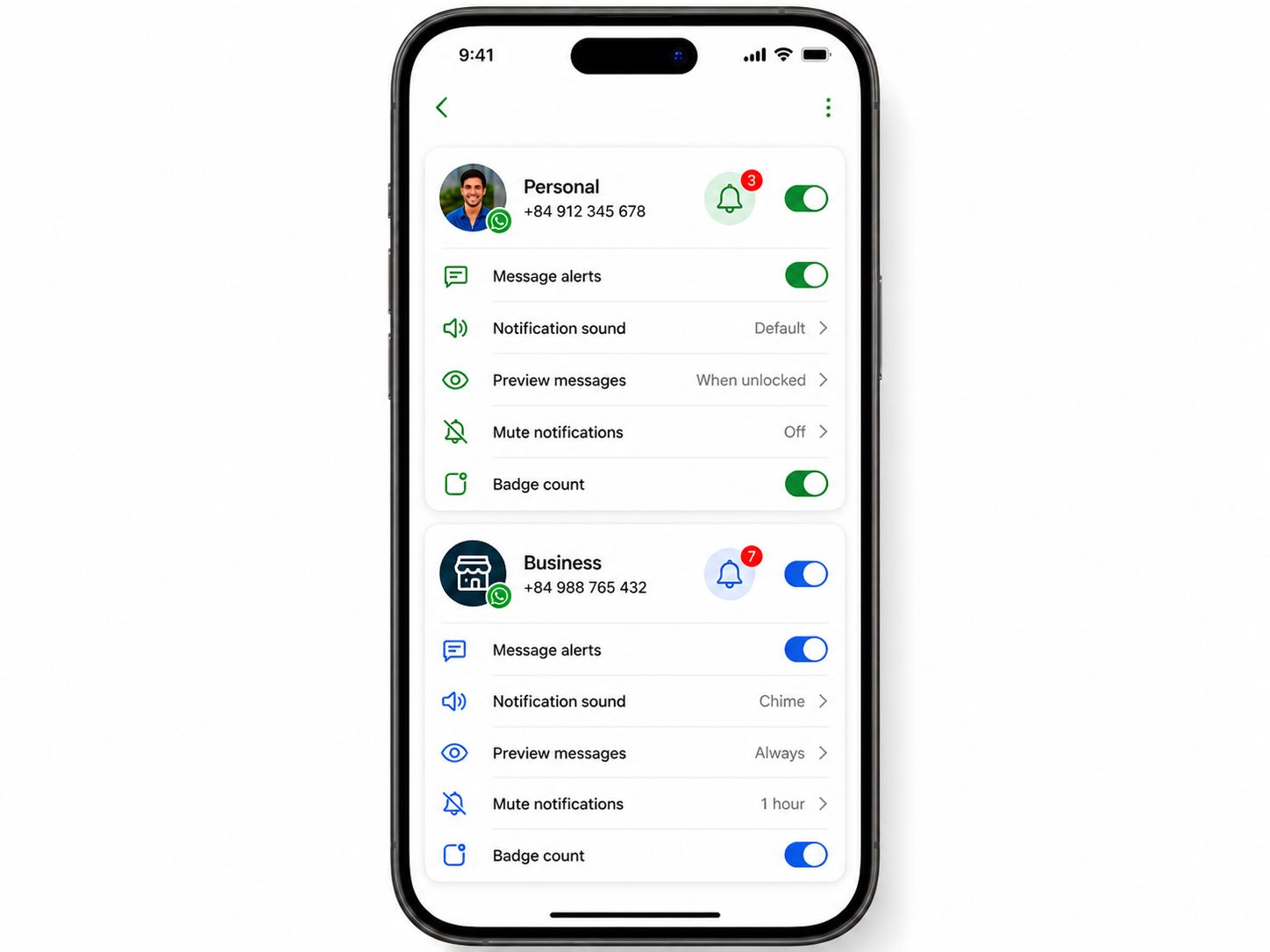
By default, both accounts generate notifications independently. This means your lock screen and notification centre will surface messages from either number without you having to manually check each account.
To customise notification behaviour per account:
- Open Settings → Notifications while logged into the account you want to configure.
- Adjust ringtones, message previews, and alert styles independently.
Setting distinct notification tones for each account is strongly recommended. A unique ringtone for your business number helps you mentally shift context before you even open the app.
7. Account Removal vs. Account Deletion: Know the Difference
This distinction is critical and frequently misunderstood.
Removing an Account (Non-destructive)
Removing an account logs it out from your current device only. The account itself continues to exist on WhatsApp’s servers.
How to remove:
Settings → Account → Remove Account → Back up chats (recommended) → Confirm your phone number → Tap Remove.
What happens:
- The account is signed out from this device.
- If this is your primary device, any linked companion devices (iPad, Mac, WhatsApp Web) will be signed out automatically after 14 days.
- Your WhatsApp groups and channels remain intact.
- Chat history that was not backed up before removal is permanently lost from the device.
Deleting an Account (Permanent)
Deletion is irreversible. It wipes your account from every device and from WhatsApp’s servers.
How to delete:
Settings → Account → Delete Account → Enter your phone number with country code → Select a deletion reason → Confirm.
What happens:
- The account is erased from all devices and all WhatsApp servers.
- Your full message history is deleted.
- You are removed from every WhatsApp group you were a member of.
- Any channels you created are deleted.
- Associated Google Drive or iCloud backups linked to this account are removed.
Before deleting: Export any chats you wish to keep via the Export Chat option in individual conversations. (WhatsApp FAQ – Deleting your account)
8. When One App Isn’t Enough: The Business Case for ChatbotX
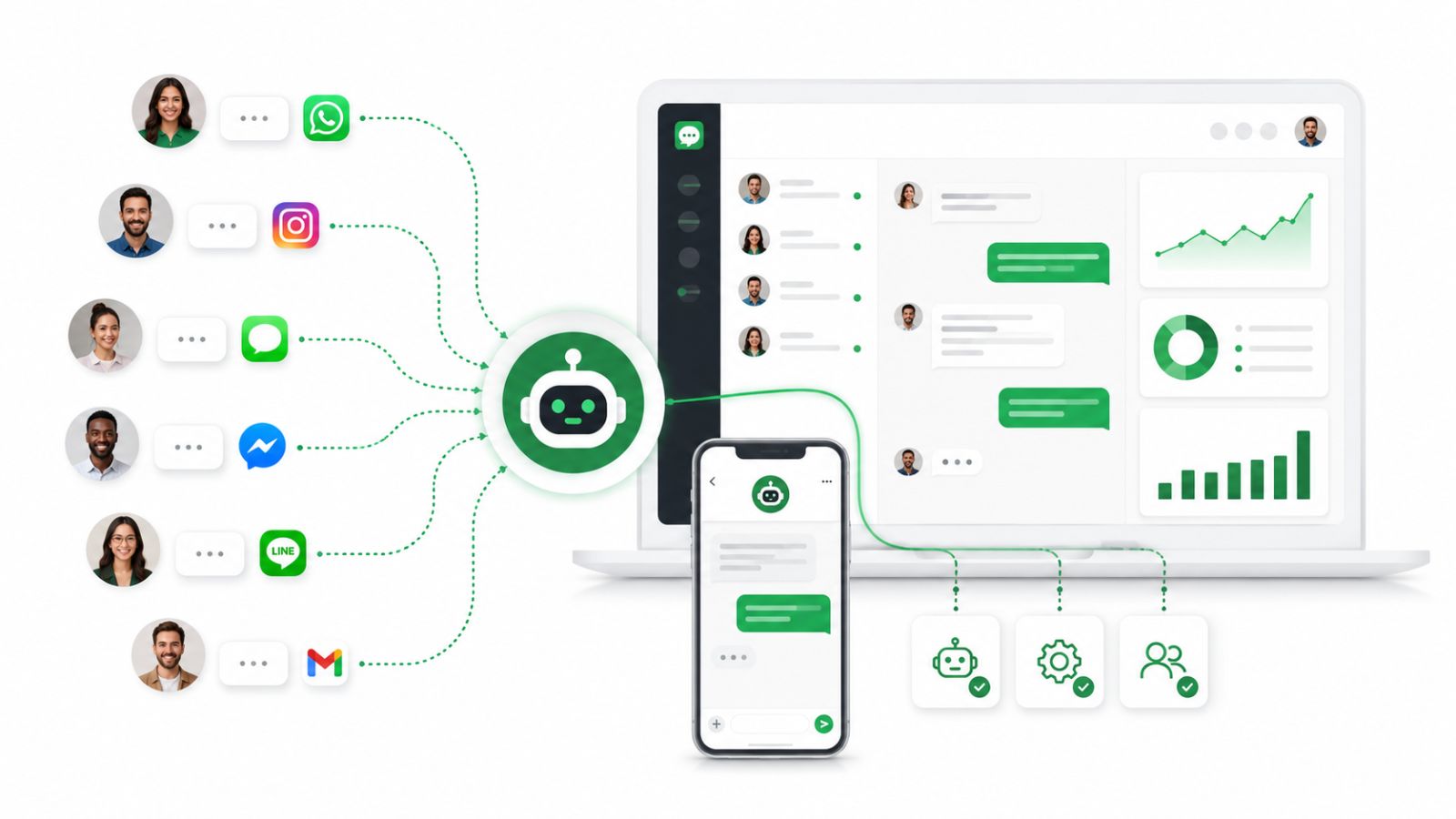
WhatsApp’s native dual-account feature is a genuine quality-of-life improvement for individuals and micro-businesses. But it has hard limits that make it unsuitable for teams:
- Only two accounts per device.
- No shared inbox for multiple agents.
- No broadcast automation.
- No chatbot workflows.
- No CRM integration.
This is where ChatbotX steps in.
ChatbotX is an open-source, omnichannel customer communication platform built for modern businesses that want to run WhatsApp (and other channels) at scale, without being restricted to a single phone or a single person managing conversations.
Multi-Agent Shared Inbox
Rather than routing all customer messages through one employee’s phone, ChatbotX’s Shared Inbox allows your entire support or sales team to collaborate inside a single unified workspace – all connected to the same WhatsApp business number. Conversations can be assigned, tagged, and escalated without any message falling through the cracks.
Intelligent AI Agents
ChatbotX’s AI Agents can handle the repetitive questions that consume your team’s time: order status, FAQs, appointment booking, lead qualification. When a query exceeds the agent’s scope, it escalates to a human with full conversation context – no repetition required from the customer.
Visual Flow Builder for Automation
The Flow Builder gives your team a drag-and-drop canvas to design conversation flows, drip sequences, and automated follow-ups – without writing a single line of code. Build onboarding sequences, re-engagement campaigns, and post-purchase check-ins that run 24/7.
Open Source and Transparent
Unlike proprietary platforms, ChatbotX is fully open source. You can inspect the code, self-host it on your own infrastructure, and customise it to fit your exact business requirements.
- 📂 View the ChatbotX repository on GitHub
- ⭐ Star ChatbotX on GitHub to stay updated with new releases
For teams that care about data privacy, auditability, and long-term control over their communication stack, this matters enormously.
ChatbotX vs. Native WhatsApp Dual Accounts
| Capability | WhatsApp Native | ChatbotX |
|---|---|---|
| Max accounts per device | 2 | Unlimited channels |
| Multi-agent support | ❌ | ✅ |
| Automated chatbot flows | ❌ | ✅ |
| Broadcast to segments | ❌ | ✅ |
| CRM contact management | ❌ | ✅ |
| Analytics & reporting | ❌ | ✅ |
| Open source | ❌ | ✅ |
| Self-hostable | ❌ | ✅ |
9. FAQ
Do I need two physical SIM cards to use WhatsApp dual accounts on iPhone?
No. You can use one physical SIM card and one eSIM. iPhones from the XS generation onwards support Dual SIM via this combination. In the US, iPhone 14 and later models are eSIM-only and support multiple eSIM profiles simultaneously.
Will I miss messages on my secondary account while using the primary?
No. Both accounts receive push notifications independently. Incoming calls on the idle account trigger a banner notification with a one-tap Switch Account shortcut so you can respond without delay.
Can I use the dual-account feature on iPad or Mac?
No. The two-account setup must be created on your primary iPhone. You can link your secondary account to companion devices (iPad, Mac, WhatsApp Web), but the account-switching gesture is only available on the mobile handset.
Is WhatsApp’s native dual-account feature appropriate for a business team?
It depends on your scale. For a solo entrepreneur keeping personal and business chats separate, yes – it works well. For any team where multiple people need to respond from the same business number, where automated responses are needed, or where conversation data must feed into a CRM, the native feature falls short. A platform like ChatbotX is designed precisely for those requirements.
Can I broadcast promotional messages from the native WhatsApp dual-account setup?
No. WhatsApp’s native broadcasting tools are limited and heavily restricted to prevent spam. Unsolicited bulk messages sent through the standard app frequently result in account bans. Professional broadcast tools built on the WhatsApp Business API – such as those available through ChatbotX – operate within Meta’s approved infrastructure and significantly reduce that risk.
Start Building Smarter WhatsApp Workflows Today
Running two WhatsApp accounts on one iPhone is now officially simple, and this guide has shown you exactly how to do it. For personal use and small-scale business communication, the native feature delivers genuine value.
But if your business is growing – if you have a team handling customer inquiries, if you want to automate responses and follow-ups, if you need analytics and CRM integration – you are ready for the next level.
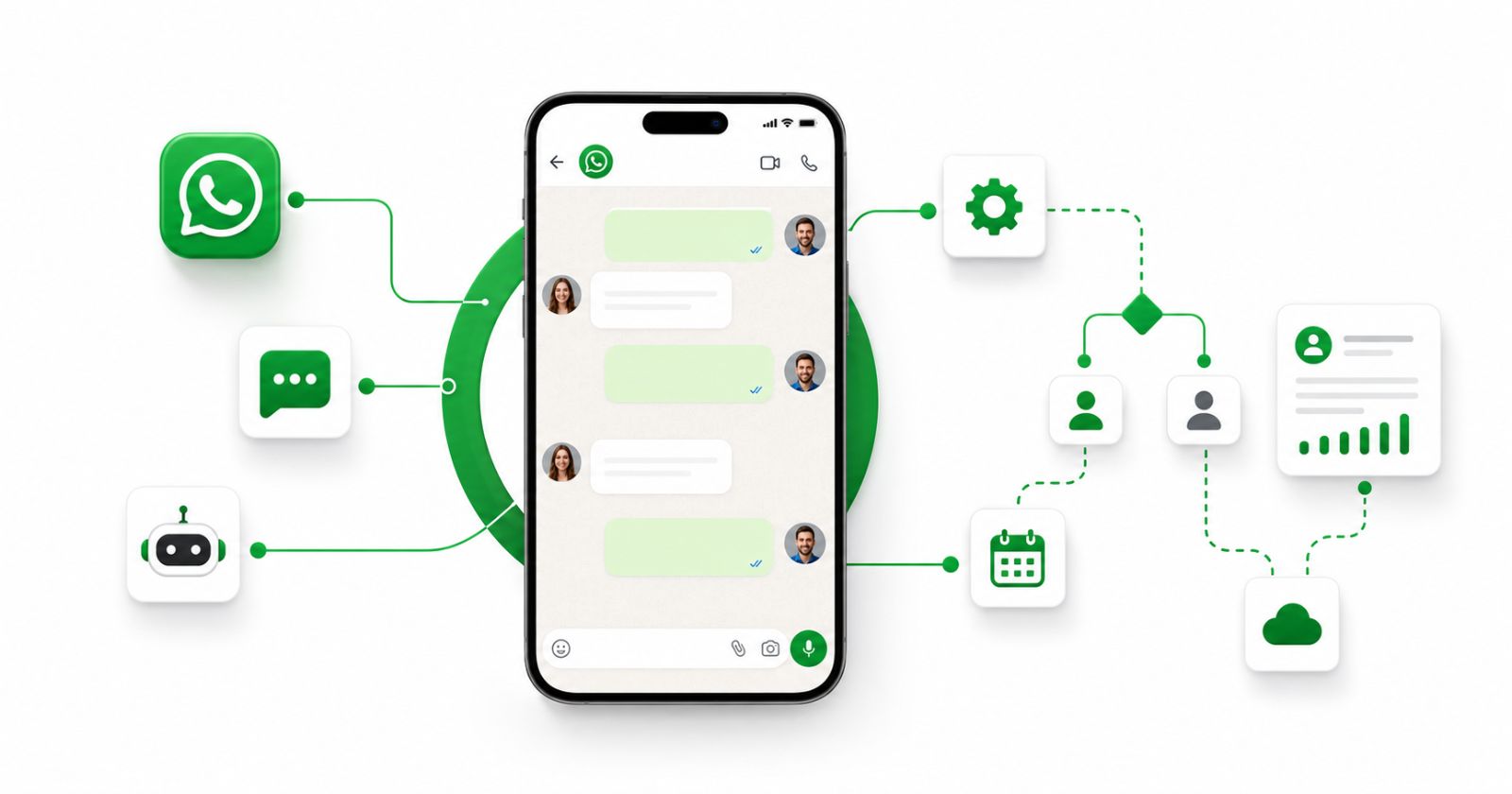
ChatbotX gives you a fully open-source, self-hostable platform that connects WhatsApp, Messenger, Instagram, Telegram, Zalo, and more into one intelligent workspace. Your team works together, your AI agents handle the repetitive work, and your customers get faster, more consistent responses – around the clock.