
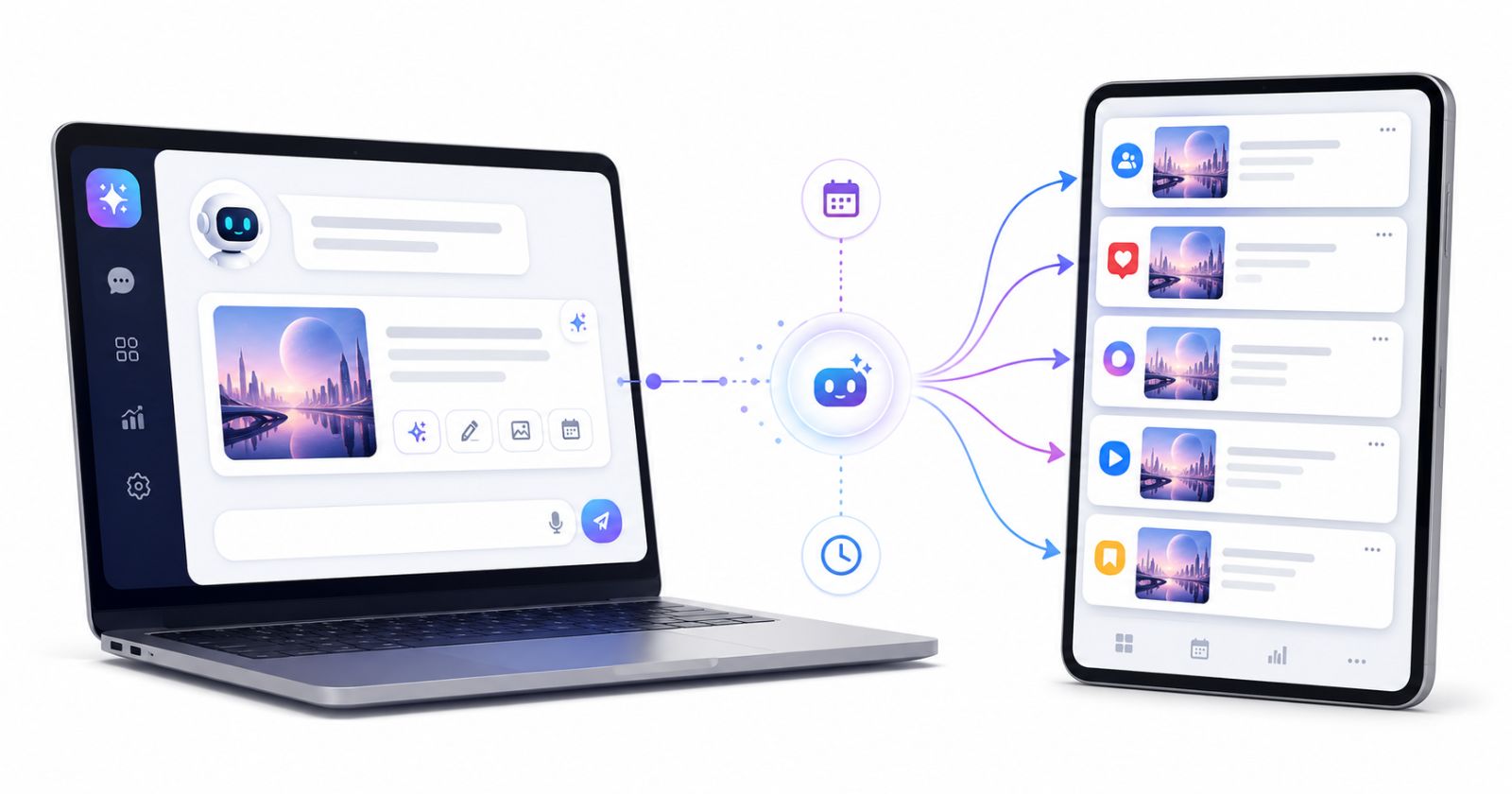
Most social media workflows still look roughly the same: open your scheduler, copy-paste a draft from somewhere else, tweak the format for each platform, pick a time slot, and repeat. It works – but it fragments your attention across four or five different tools before a single post goes live.
In 2026, there is a much leaner way to do it. Thanks to the Model Context Protocol (MCP), AI assistants like Claude can now connect directly to scheduling tools and act on your behalf – drafting, queueing, editing, and repurposing content entirely within the same chat window where the idea first took shape.
This guide covers exactly how that connection works, how to set it up, and how to use it in your day-to-day content workflow.
Launch agentic chat marketing in minutes with ChatbotX












What Is MCP and Why Does It Change Everything?
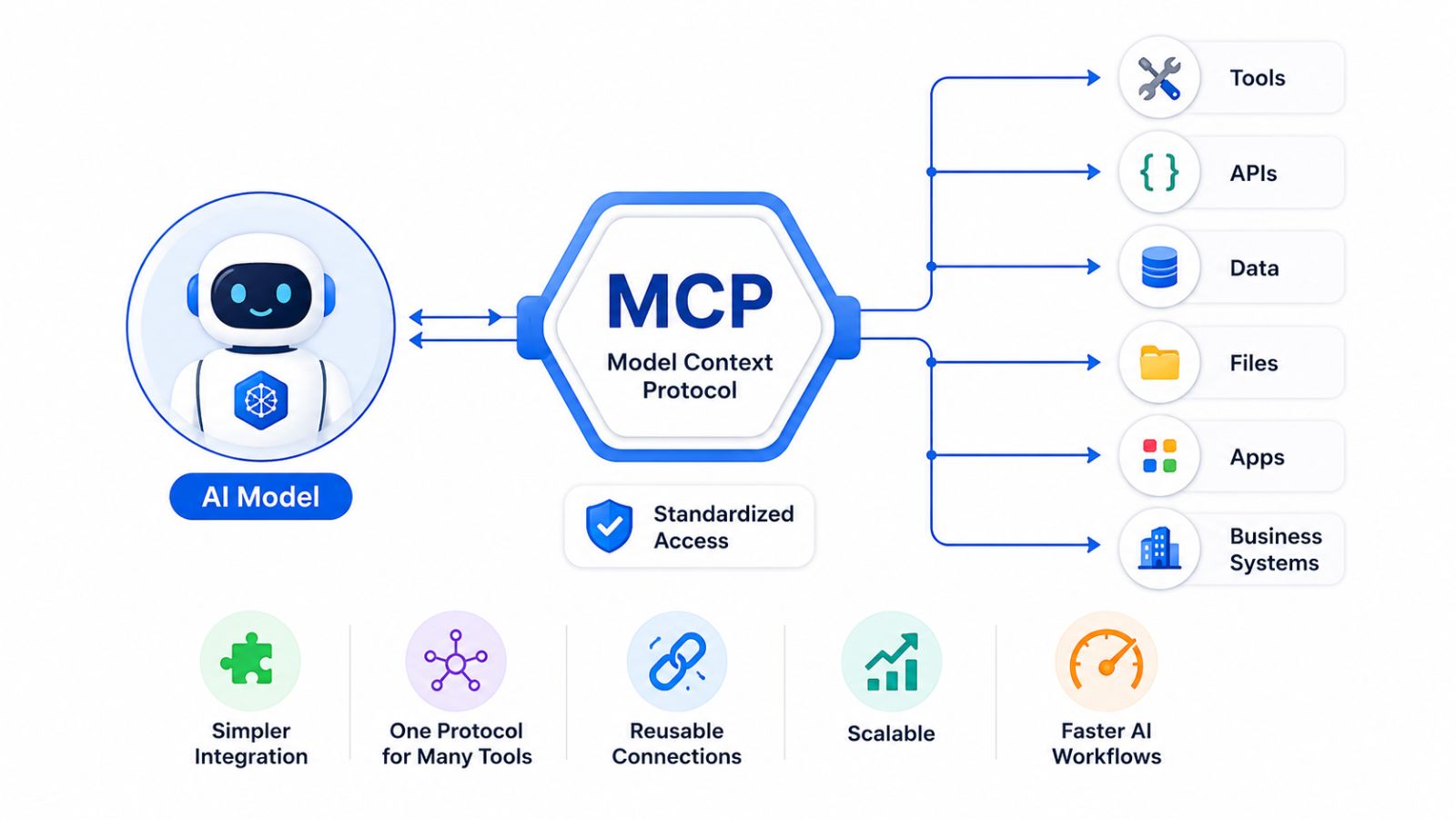
MCP – Model Context Protocol – is an open standard that allows AI assistants to securely communicate with external applications. Think of it as a universal adapter: instead of every AI tool building its own proprietary integration with every platform, MCP provides a shared language that any compliant app can speak.
For social media creators and marketers, this is significant. It means your AI assistant is no longer just a text generator sitting in a separate tab – it becomes an active participant in your publishing stack.
Learn more about how MCP works at the official Model Context Protocol documentation.
When an AI assistant has MCP access to your social scheduling tool, it can:
- Read what’s already in your content queue
- Create and schedule new posts directly
- Modify drafts already sitting in the pipeline
- Adapt a piece of content for a different platform
- Save ideas to a content library without interrupting your flow
This all happens in plain conversational language. No dashboards. No tab-switching. No re-copying text.
What You Can Do Once Your AI Is Connected
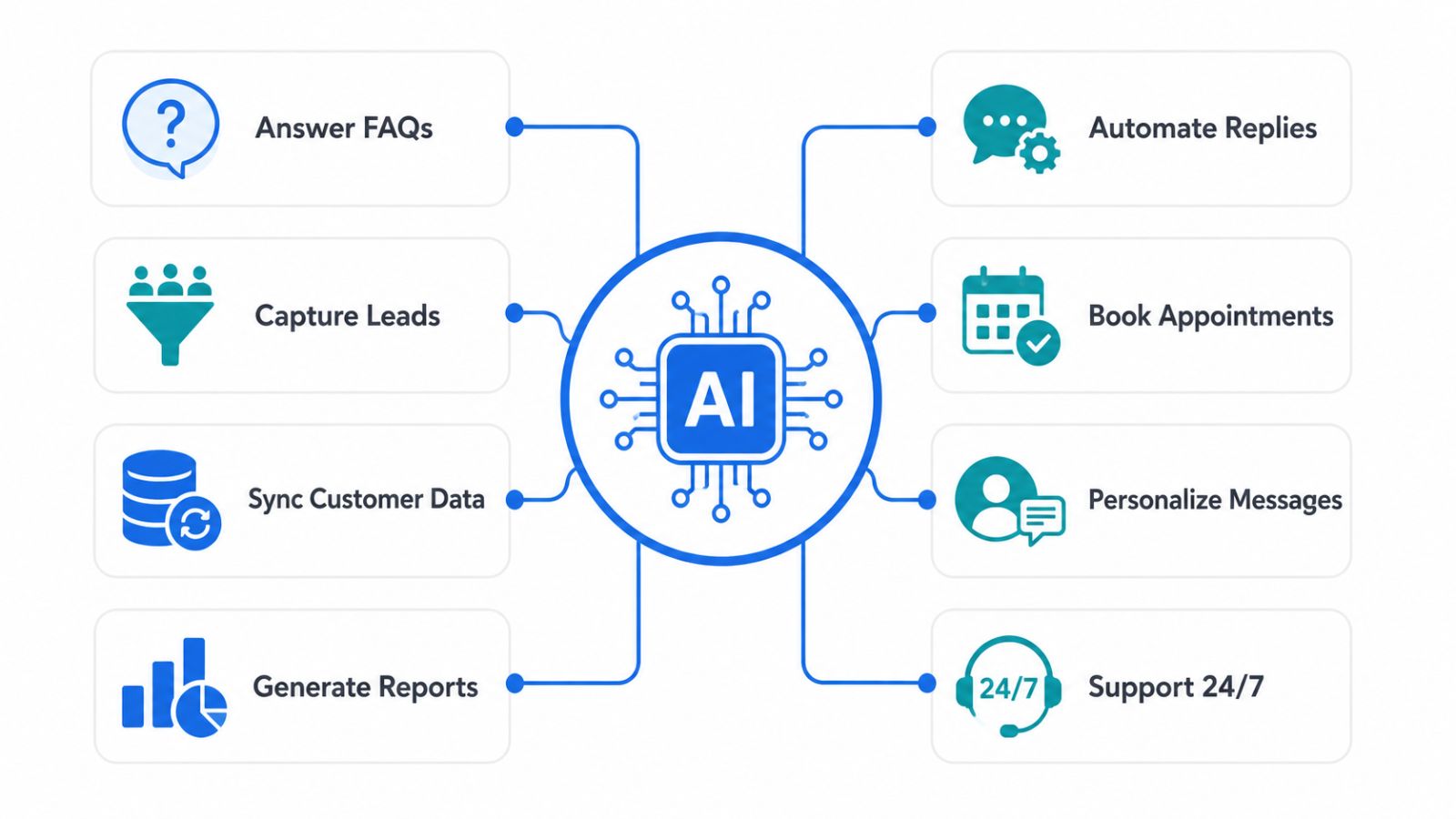
Before diving into setup, it helps to understand the scope of what becomes possible. An AI assistant with scheduling access can handle the full content lifecycle – from the first rough idea to the final published post – without ever asking you to open another window.
Channels typically supported include LinkedIn, X (Twitter), Instagram, Threads, Facebook, TikTok, Pinterest, YouTube, and more. The exact list depends on your chosen scheduling platform, but the major ones cover the full spread.
Practical actions you can trigger through conversation:
- “What’s going out on my LinkedIn this week?”
- “Schedule this thread for Tuesday at 9 AM.”
- “Rewrite this for Instagram – make it shorter and add a hook.”
- “Push that post to tomorrow and change the CTA.”
- “Save this script to my ideas folder.”
Each of those used to require multiple clicks across separate tools. With MCP in the loop, they take a single sentence.
How to Connect Your AI Assistant to a Social Scheduler
Setup is faster than most people expect. There are two paths, and both should take under ten minutes.
Method 1: MCP Connector (Easiest)
This method requires no code and no configuration files. It is the right starting point for most users.
- Open your AI assistant’s settings – in Claude, this is under the Customize tab.
- Navigate to Connectors, then click the + button and choose Add custom connector.
- Enter two fields: a name for the connector (e.g., “Buffer”) and the Remote Server URL provided by your scheduling tool
- Click Add and authenticate with your scheduling account when prompted.
- That’s it. Ask your AI to list your connected channels to confirm the setup worked.
No terminal required. No JSON files. Just a URL and a login.
Method 2: API Integration (More Control)
If you want named API keys, expiration settings, and visibility into connection usage, the API route gives you all of that. The tradeoff is a single extra step involving Node.js.
Step 1 – Generate an API key in your scheduling platform.
Head to your platform’s Integration or Developer settings, find the Claude or AI assistant entry, and generate a personal key. Give it a descriptive name so you can track it later.
Step 2 – Install Node.js 18 or higher.
The MCP server layer runs on Node. If you don’t have it installed, grab the current LTS version from nodejs.org. One installer, one minute.
Check your existing version with:
- node -v
Step 3 – Paste the configuration snippet into Claude Desktop.
Your scheduling platform will provide the exact JSON config snippet to copy. In Claude Desktop, go to Settings → Developer → Edit Config, paste it in, and restart the app. The Edit Config button handles OS-specific file paths automatically.
Verify it’s working by asking: “Show me my scheduled posts for this week.” If content appears, you’re live.
4 Ways to Use This Setup in Your Actual Workflow
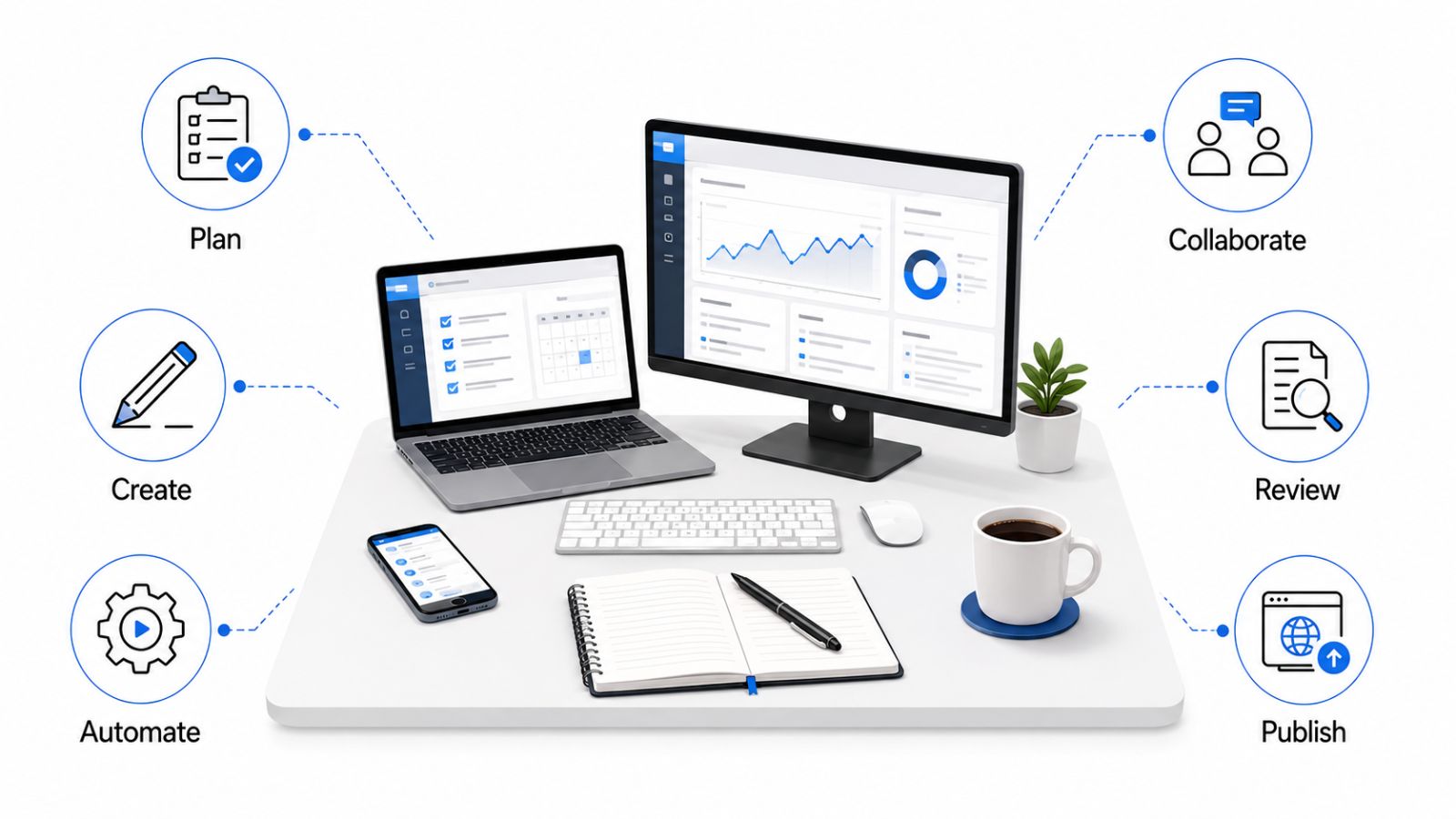
Once the connection is active, the real value comes from building it into your daily routine. Here are four high-impact ways to use it.
1. Get a Full Content Schedule Overview in Seconds
This alone is worth the five-minute setup. Instead of clicking through each channel separately, you can open your AI chat and ask for a full schedule snapshot: “What’s going live on all my channels between now and Friday?”
The response comes back formatted by channel, with dates, times, and post summaries. You can scan it in thirty seconds instead of spending several minutes piecing it together manually.
For creators managing both personal and brand accounts, this is especially useful – you get a unified view without switching between workspaces.
2. Go from Raw Idea to Scheduled Post in One Conversation
This is where the workflow genuinely changes. An idea doesn’t have to sit in a notes app waiting to be formatted later. You can paste a rough thought, a screenshot, a URL, or a half-formed observation directly into the chat and ask your AI to turn it into a post.
The draft that comes back isn’t generic. If you’ve taught your AI your tone – through custom instructions, examples, or a system prompt – the output reads like you wrote it. Once it does, scheduling is one more message away.
The result: the gap between “I have an idea” and “it’s in the queue” compresses from hours to minutes.
3. Repurpose Content Across Platforms Instantly
Every platform has its own grammar – LinkedIn rewards narrative, X rewards compression, Instagram rewards visual hooks, Threads rewards conversational takes. Adapting a single idea for all of them used to mean four separate rewrites.
Now it’s a follow-up prompt. After scheduling a LinkedIn post, you can say: “Give me a shorter version of this for X” and get a platform-native draft in seconds. Then: “Now a caption for Instagram.” Each output stays in the same conversation thread, so context carries over without any copy-pasting.
For more on how AI is reshaping content workflows, see How AI Sales Agents Are Transforming E-Commerce Growth in 2026 on the ChatbotX blog.
4. Edit Queued Posts Without Opening the Scheduler
A post goes into the queue. You come back to it later and notice the hook is weak, the CTA is missing, or the tone drifted. With MCP access, you don’t need to log into your scheduler to fix it.
Just tell your AI: “Change the last line of my Tuesday LinkedIn post to include a question.” It makes the edit and confirms. If the change doesn’t fit the rest of the post, a good AI assistant will flag the inconsistency – not just execute blindly.
This kind of iterative refinement is where AI-assisted workflows genuinely shine. The editing loop stays inside the conversation.
Taking It Further: AI Agents for Messaging Automation
Scheduling is one piece of the puzzle. But what happens after the post goes live – the comments, the DMs, the lead follow-ups – is where most teams still lose time.
This is where platforms like ChatbotX come in. While an AI assistant handles your content publishing workflow, ChatbotX handles the downstream conversation layer: automating responses across WhatsApp, Instagram, Messenger, Telegram, Zalo, Email, and Webchat through a single, unified platform.
A few capabilities worth noting:
- AI Agents – Deploy autonomous conversational agents that qualify leads, answer support questions, and route conversations to the right human – all without manual intervention.
- Flow Builder – Design multi-step automation sequences with a visual drag-and-drop interface, no coding required.
- API, CLI & MCP – Connect ChatbotX to your existing tools, build custom integrations, and extend automation into any part of your tech stack.
ChatbotX is also fully open-source. You can explore the codebase, self-host it, and customize it freely:
- ChatbotX on GitHub – Browse the source code, open issues, and contribute.
- ChatbotX Releases – Stay current with every new version and changelog.
Curious about how AI writing fits into a larger content strategy? The 10 Best AI Writing Tools in 2026 breakdown from ChatbotX is a solid place to start.
For teams already using AI to create content, adding ChatbotX to the stack means the conversation doesn’t stop at “post scheduled.” It continues through every reply, inquiry, and follow-up – automatically.
According to Sprout Social’s research on social media automation, brands that automate routine social interactions report meaningful gains in response time and audience satisfaction. AI-powered conversation tools are at the center of that shift.
Ready to Eliminate Context-Switching for Good?
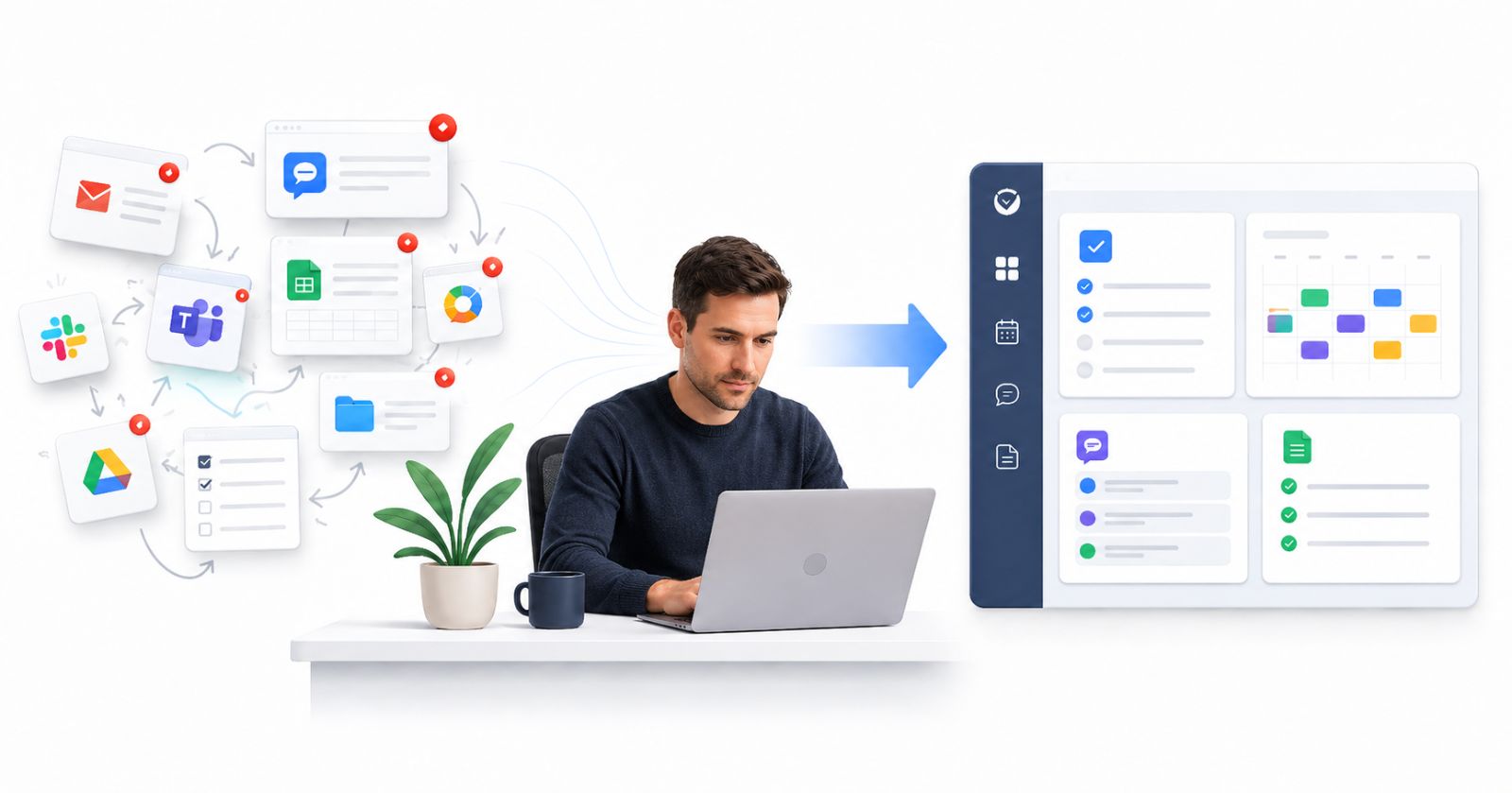
The workflow described here isn’t experimental. It’s available today, takes about ten minutes to set up, and the efficiency gains compound quickly – fewer tabs, faster publishing, more consistency across channels.
Here’s a recap of what the connected setup gives you:
- A real-time view of your content calendar across every platform
- AI-drafted posts that go straight into the queue, no copy-pasting
- Instant cross-platform repurposing from a single draft
- Inline queue edits from inside the chat window
And if you want to close the loop on the full audience journey – from content discovery to direct message to conversion – ChatbotX is built for exactly that.
🚀 Start Automating with ChatbotX Today
Whether you’re a solo creator managing multiple channels, a marketing team juggling campaigns, or a business that needs always-on customer conversations, ChatbotX gives you the infrastructure to handle it all.
Explore the platform, connect your messaging channels, and see how much of your social workflow you can hand off to AI – without losing the human voice that makes your brand worth following.
ChatbotX is proudly open-source. Star the repo on GitHub and join a growing community of developers and marketers building the next generation of AI-powered communication.


