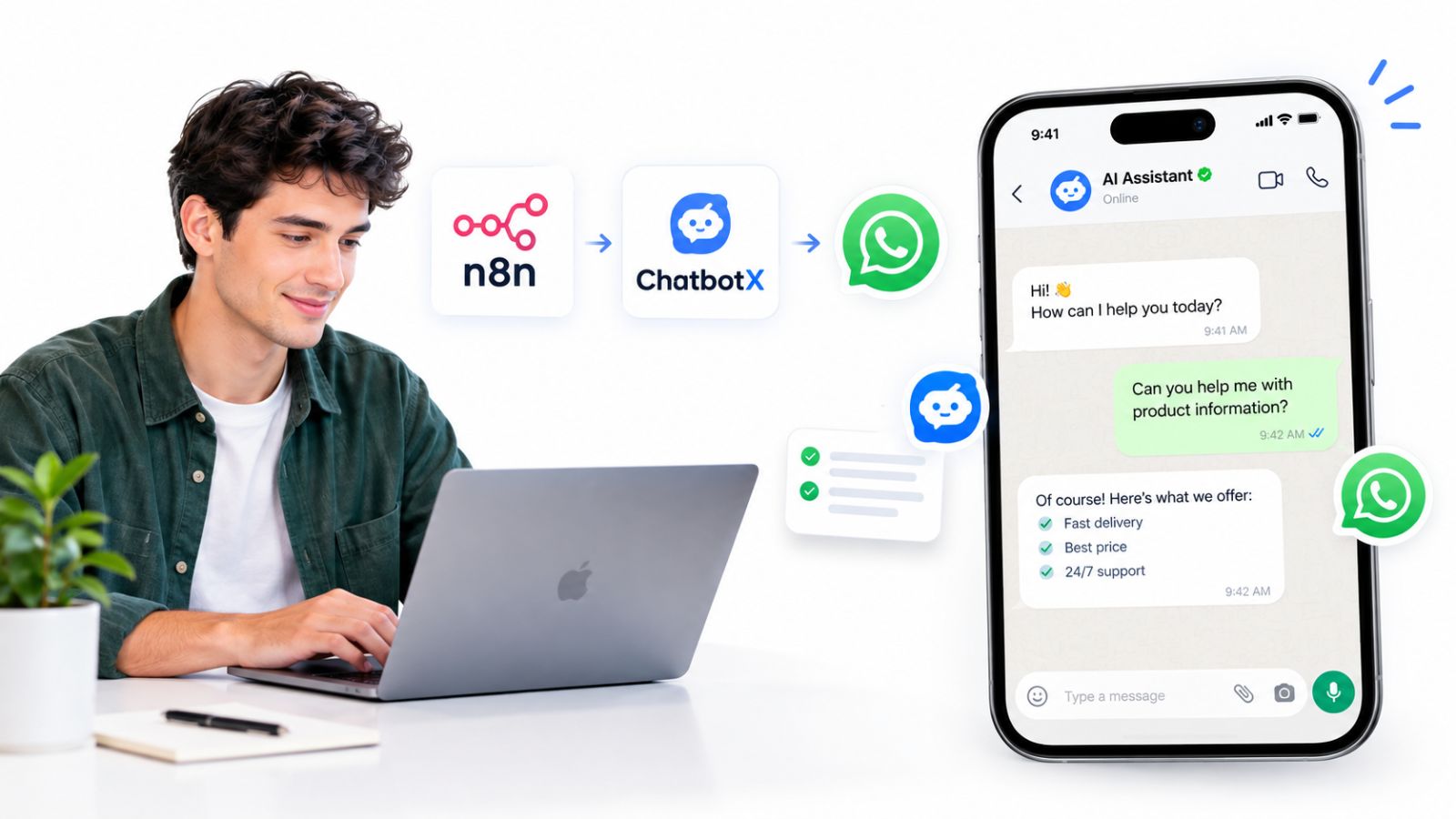
Quick answer: To build a WhatsApp AI agent with n8n, you need three pieces wired together: a WhatsApp Business number connected through the Meta Cloud API (or a platform like ChatbotX that already holds that connection), an n8n webhook that receives incoming messages and forwards them to an AI model, and a reply step that sends the generated answer back to the customer. Once the webhook, the AI node, and the send-message call are linked in a single n8n workflow, the agent runs 24/7 without any manual intervention.
The rest of this guide walks through every one of those pieces in order, including the exact node configuration, the most common failure points, and where a purpose-built platform like ChatbotX removes an entire layer of setup work.
Launch agentic chat marketing in minutes with ChatbotX








Why WhatsApp Is the Channel Worth Automating First
Before touching a single node, it helps to understand why so many teams start their automation stack with WhatsApp rather than email or live chat. WhatsApp business messages carry an open rate near 98%, a figure that towers over the roughly 20% average for email. Scale matters too: industry usage data puts active WhatsApp Business accounts in the hundreds of millions worldwide, with a large share of that daily conversation volume already moving through the same Cloud API that this tutorial uses rather than through the free consumer app.
An AI agent is what turns that reach into something a small team can actually keep up with – instant replies at 2 a.m., consistent answers about pricing or availability, and a human handoff only when the conversation genuinely needs one.
What You’ll Need Before You Start
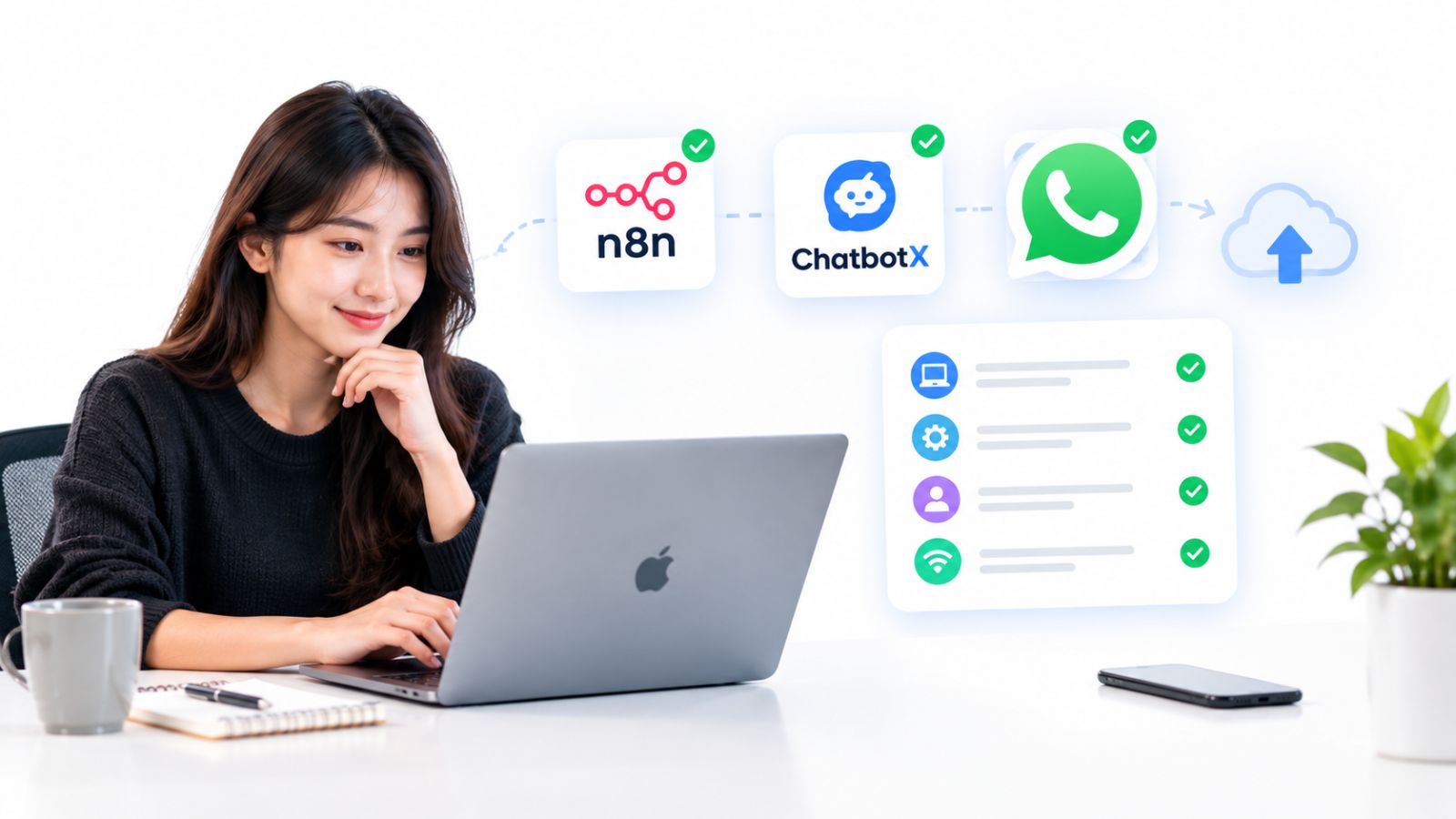
- A Meta Business Portfolio and a WhatsApp Business Account (WABA), created through Meta’s WhatsApp Cloud API onboarding flow
- A phone number not already tied to a personal WhatsApp account
- An n8n instance – self-hosted via the official n8n project or n8n Cloud
- An API key for your AI model of choice (OpenAI, Claude, Gemini, or a local LLM)
- Optionally, a ChatbotX workspace if you’d rather skip the raw Meta setup entirely (more on this trade-off below)
Step 1: Get Your WhatsApp Cloud API Credentials
Log in to Meta for Developers, create an app under the “Business” use case, and add the WhatsApp product. Meta will issue a temporary access token, a phone number ID, and a WABA ID – you’ll need all three inside n8n later. Generate a permanent access token before going live; the default token expires in 24 hours and will silently break your workflow the next morning.
This is also the step where most first-time builders lose an afternoon: Meta requires a verified business, a display name that matches your business category, and (eventually) a message template approved for anything sent outside the 24-hour customer service window. If you’d rather not manage this compliance layer directly, this is exactly the friction that a platform like ChatbotX absorbs for you – its AI Agents feature sits on top of an already-verified WhatsApp connection, so you skip the Meta app-review cycle entirely.
Step 2: ChatbotX API Setup — Connect Your Number and Generate Credentials
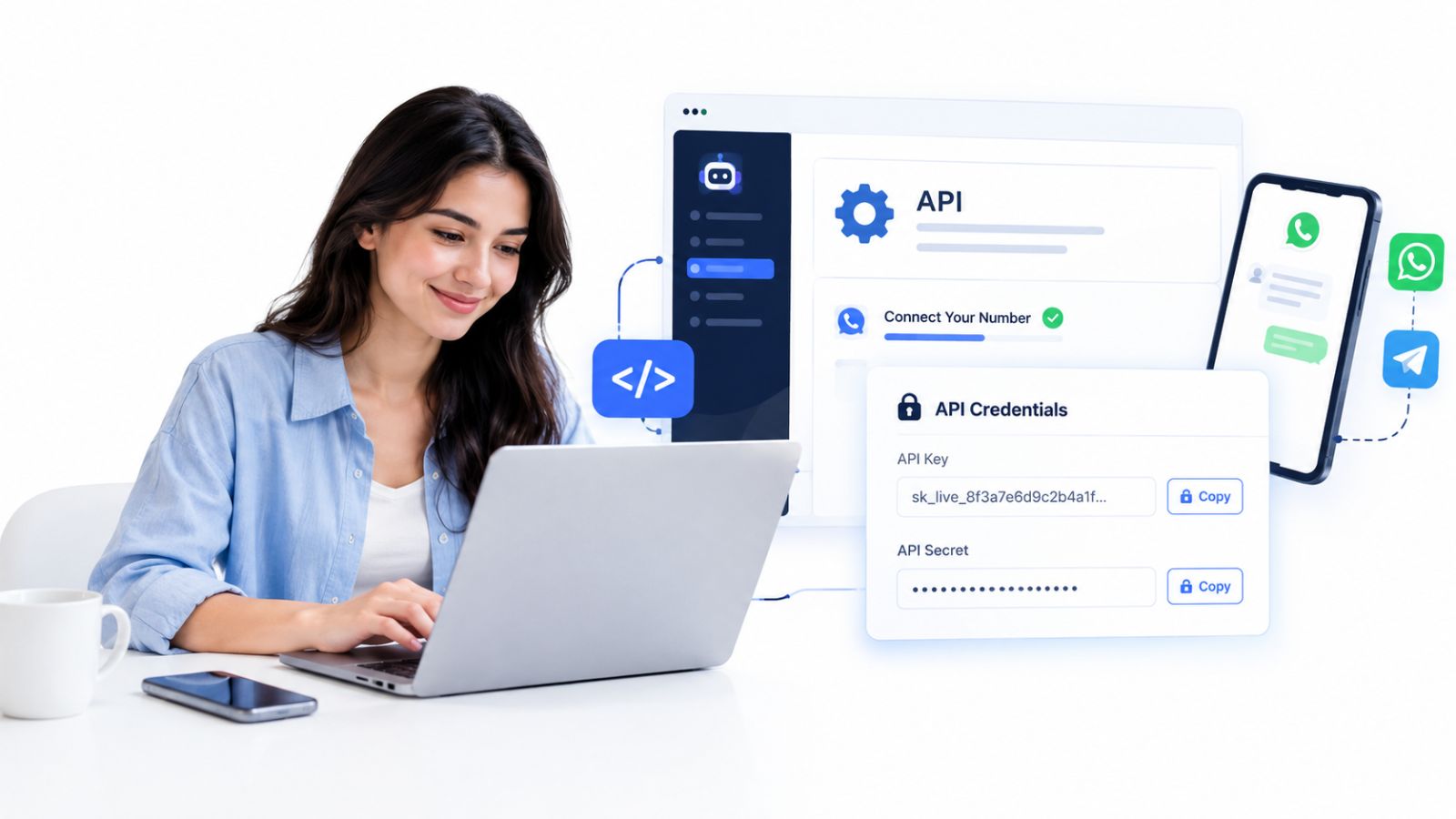
If you’re routing messages through ChatbotX rather than raw Meta credentials, the ChatbotX API setup takes a few minutes instead of a few days:
- Create a ChatbotX workspace and connect your WhatsApp number from the channel settings screen – ChatbotX handles the underlying Cloud API handshake.
- Open API, CLI & MCP in your workspace settings and generate a workspace token. This token authenticates every request your n8n workflow will send.
- Note your workspace ID and the contact/conversation endpoint you’ll be calling – these are documented in the API, CLI & MCP feature page.
- If you’d rather not build the HTTP calls by hand, ChatbotX also ships an official custom n8n node, published alongside the platform’s open-source repository, so the connection appears as a native node in your n8n canvas instead of a generic HTTP Request block.
Either path – raw Meta credentials or a ChatbotX-mediated connection – ends with the same three values in hand: an endpoint, an auth token, and a phone number ID. Everything from here on works the same way.
Step 3: Build the n8n Webhook Integration
This is the core of the whole workflow, so it’s worth building slowly.
- Add a Webhook node. Set the HTTP method to
GETfirst (Meta sends a verification challenge here) and respond with thehub.challengequery parameter to confirm ownership. Once verified, switch the node to also acceptPOST, which is how actual messages arrive. - Register the webhook URL in your Meta app dashboard (or your ChatbotX channel settings, if you’re using the Triggers layer described below) under Webhooks → WhatsApp Business Account, subscribing to the
messagesfield. - Parse the incoming payload. WhatsApp nests the message text several levels deep inside the JSON body – use a Set or Code node to pull out the sender’s phone number and message text into flat variables your next nodes can use.
- Add a filter or switch node if you want different message types (text, button replies, media) to branch into different logic before reaching the AI step.
If your automation needs to react to events already happening inside ChatbotX – a new contact, a tag change, a broadcast reply – rather than the raw Meta payload, the platform’s own Triggers & Actions system can fire that same webhook with a cleaner, pre-parsed payload, which removes step 3 entirely.
Step 4: Add the AI Agent Node
With the incoming message flattened into a clean variable, connect it to an AI node – n8n’s built-in AI Agent node works well here, backed by whichever model you’ve credentialed.
Keep the system prompt narrow and specific: name the business, the tone, what the agent should never promise (refunds, legal advice, exact delivery dates it can’t verify), and when it should hand off to a human. A vague prompt is the single most common reason these workflows produce inconsistent answers once real customers start typing edge cases you didn’t test for.
For anything beyond simple FAQ-style replies – qualifying a lead, checking a knowledge base, calling an external booking system – you’re essentially rebuilding what a dedicated Flow Builder already does with drag-and-drop nodes for conditions, delays, and CRM field updates, which is worth comparing against before you invest in a fully custom n8n build. A detailed breakdown of that trade-off – no-code visual flows versus code-first orchestration – is covered in how to build AI agent flows without code.
Step 5: Send the Reply Back to WhatsApp
Add an HTTP Request node (or the ChatbotX custom node, if you set that up in Step 2) pointed at the /messages endpoint, with the AI node’s output text in the body and the sender’s phone number pulled from your earlier parsing step. Test this in isolation first with a static string before wiring it to live AI output – it isolates whether a bug lives in the AI prompt or in the message-sending call.
A few details that cause real production failures if skipped:
- WhatsApp requires a reply within the 24-hour customer service window unless you’re using a pre-approved template – build a template fallback for anything that might run past that window.
- Rate limits apply per phone number tier; a brand-new number starts at a low messaging tier and scales up with verified quality.
- Always log the raw API response from the send-message call. A silent failure here looks identical to a working workflow until a customer complains they never got a reply.
Step 6: Test, Debug, and Go Live
Send yourself test messages covering the normal case, an empty message, an emoji-only message, and a message sent right at the edge of the 24-hour window. n8n’s execution log shows you exactly which node failed and with what payload, which is far faster than guessing from customer reports. Once the workflow handles all four cases cleanly, activate the workflow and move your webhook subscription from Meta’s test number to your production number.
Open Source WhatsApp Bot: Build vs. Buy the Underlying Platform
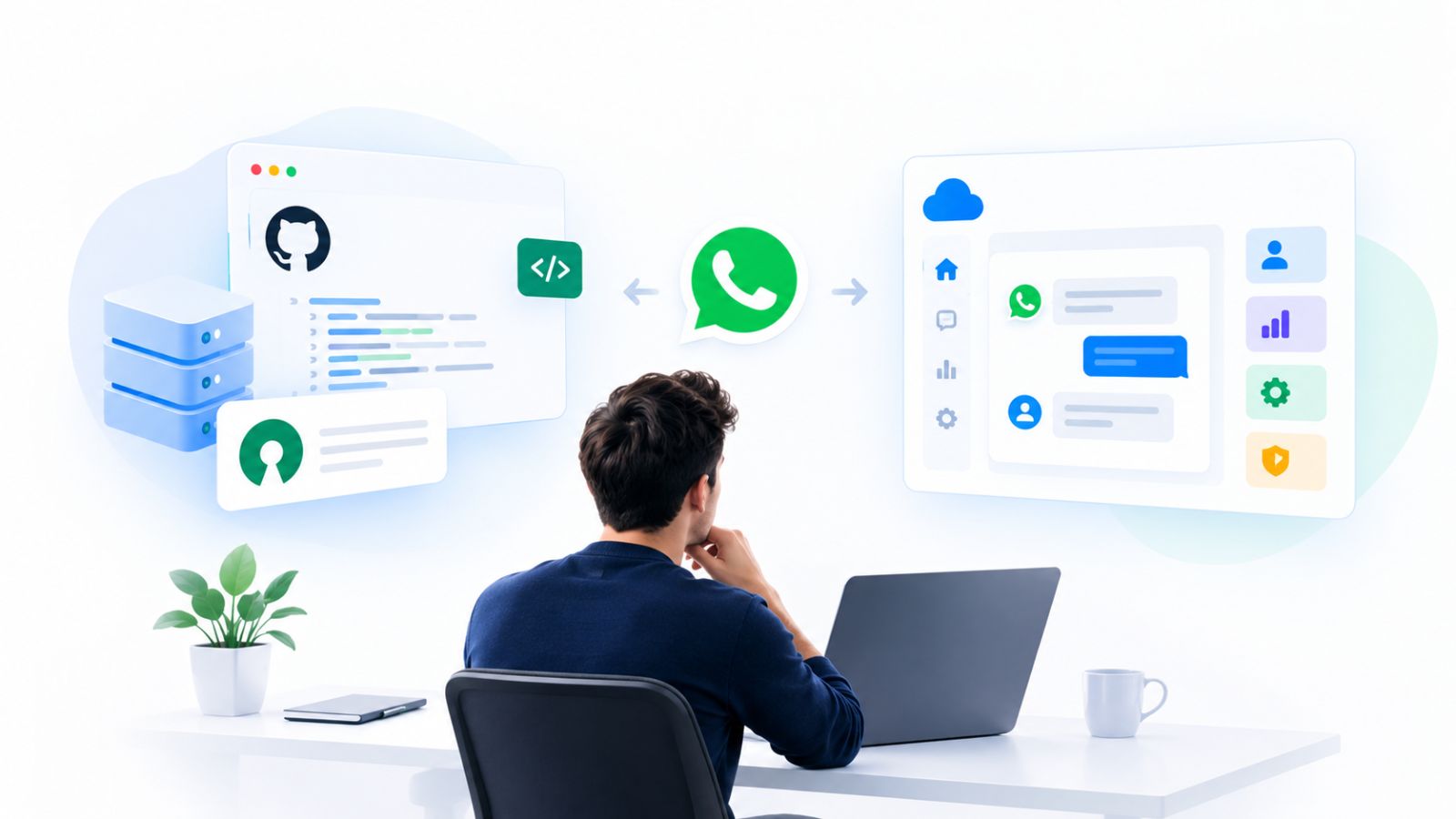
A fully custom n8n build gives you total control over logic, but it also means you personally own the Meta compliance layer, the token refresh cycle, rate-limit handling, and the CRM you’ll inevitably need once conversations pile up. An open source WhatsApp bot platform like ChatbotX takes a different split: the omnichannel messaging layer, contact CRM, and AI agent runtime are already built and self-hostable, while n8n still plugs in wherever you need custom logic that doesn’t belong inside a chat platform – syncing a lead to an external ERP, for instance, or triggering a Slack alert. For a wider view of which integrations are worth building versus which a platform should already ship with, see the connected business platform guide. Teams evaluating n8n specifically for chat-first use cases may also want to weigh it against purpose-built alternatives, covered in the best n8n alternatives comparison.
Because the core codebase is released under an open license, teams that want the platform’s WhatsApp, CRM, and AI Agents layer without vendor lock-in can review every commit and version history before deploying it, and still connect n8n on top for anything genuinely custom.
Common Mistakes to Avoid
- Using the 24-hour temporary token in production. It expires and takes the whole workflow down with it.
- Skipping payload parsing. Feeding the AI node the raw nested WhatsApp JSON instead of clean text produces garbled or hallucinated responses.
- No fallback for the 24-hour messaging window. Customers who reply late get silence instead of a template message.
- No human handoff path. An agent with no escape hatch eventually answers something it shouldn’t.
- Testing only with English text. Emoji, voice notes, and non-Latin scripts often break naive parsing logic that wasn’t tested against them.
FAQ
Is n8n free to use for WhatsApp automation?
n8n’s self-hosted Community Edition is free, though you’re responsible for hosting, updates, and security. n8n Cloud has paid tiers based on workflow execution volume.
Do I need to code to build this workflow?
No. Every step in this guide uses n8n’s visual node editor. Light JavaScript is only useful for advanced payload transformations, not required for a working agent.
Can I use this same webhook pattern for Telegram or Instagram?
The webhook and AI-node pattern is nearly identical across channels – what changes is the payload structure and the send-message endpoint for each platform’s API.
What’s the difference between the WhatsApp Business App and the Cloud API used here?
The Business App is a free mobile app meant for one or two people replying manually. The Cloud API is the programmatic interface this tutorial uses, built for automation and multi-agent access at scale.
Does ChatbotX replace n8n, or work alongside it?
Alongside. ChatbotX handles the WhatsApp connection, AI Agents, and CRM natively, while n8n remains useful for connecting that data to systems outside the chat platform.
Ready to Skip the Meta Setup Headache?
If the Cloud API onboarding process above sounds like more infrastructure than your team wants to own, ChatbotX gives you the same WhatsApp AI agent capability – plus a shared inbox, contact CRM, and broadcast tools – out of the box, self-hostable or on managed cloud plans. Explore the ChatbotX AI Agents feature or spin up a free workspace to connect your WhatsApp number in minutes instead of days.