

⚡ Quick Answer – Fix Discord Stuck on Starting Right Now
Root cause: A zombie background process, corrupted cache file, or Discord server outage.
Fastest fix (works for ~75% of users):
- Open Task Manager → end every Discord.exe process
- Check discordstatus.com for a live outage
- Delete the Discord folders inside appdata and localappdata
- Relaunch Discord
Still stuck? The complete step-by-step guide below covers hardware acceleration conflicts, driver issues, and a clean reinstall.
Launch agentic chat marketing in minutes with ChatbotX














Who This Guide Is For
This guide is for anyone whose Discord application is stuck on the “Starting” loading screen and won’t fully open – on Windows 10, Windows 11, or macOS Sonoma/Sequoia. Whether you’re a gamer, community manager, developer, or business owner, every fix below is free, takes under ten minutes, and requires no technical background.
You will NOT need:
- Any paid tool or third-party software
- Command-line or terminal knowledge (all steps use graphical interfaces)
- A new device or OS reinstall
Why Discord Gets Stuck on Starting
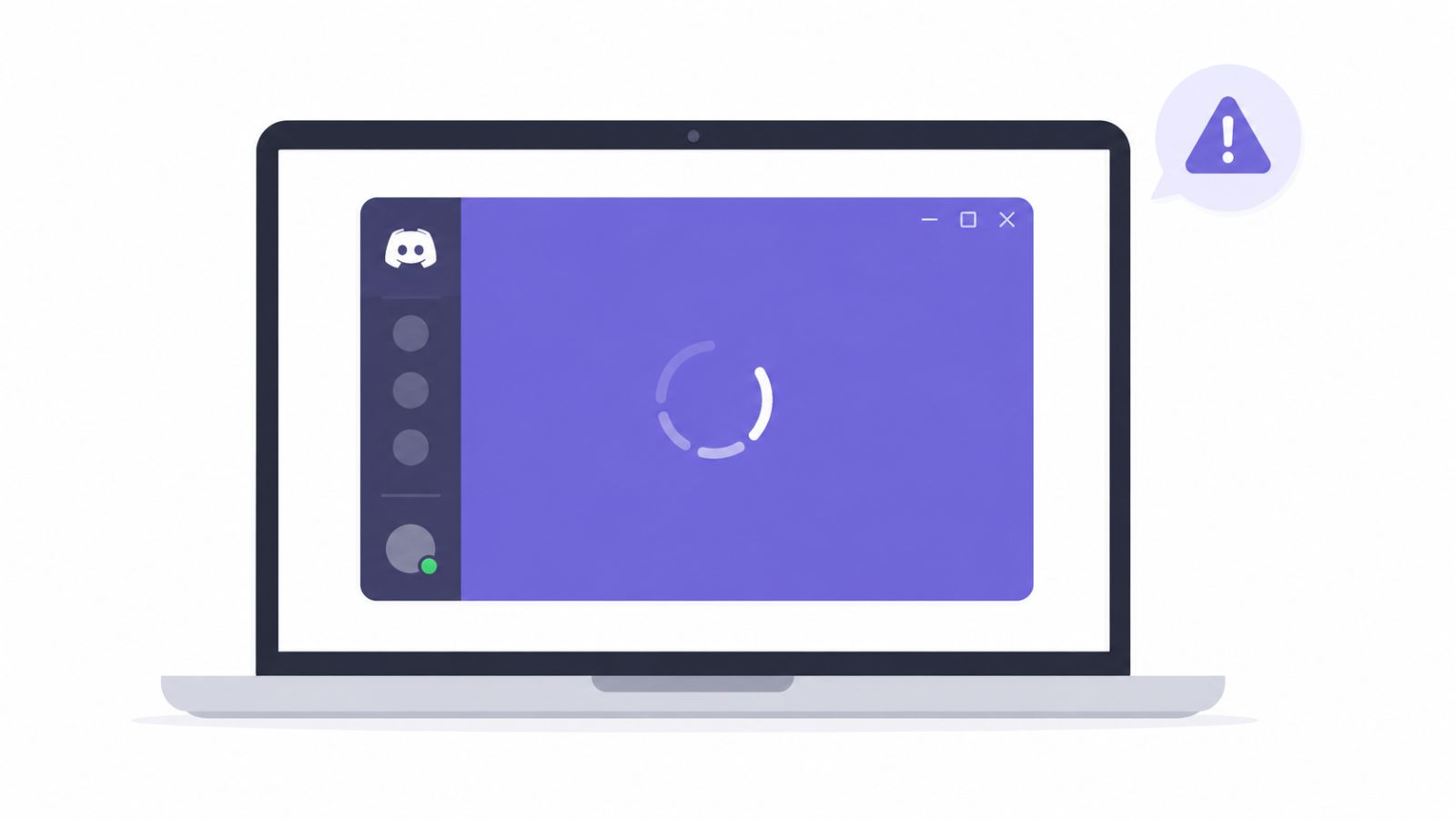
Before jumping to fixes, understanding the root cause saves you from trying solutions that won’t work. When Discord freezes on startup – showing an endless “Starting” spinner – the cause almost always falls into one of three categories.
1. Zombie Background Processes
Clicking Discord’s window X does not fully close the application. A background process keeps running. If that process becomes unresponsive after a crash, a sleep cycle, or a failed update, it holds a “lock” that prevents the next launch from initializing. The new instance tries to start, finds a piece of the old one already occupying the space, and stalls indefinitely.
2. Corrupted or Outdated Cache Files
Discord writes temporary data – icons, images, session tokens, user settings – to your local drive to speed up future loads. After a version update, a mid-download interruption, or an unexpected system shutdown, those files can become mismatched or damaged. When Discord attempts to read a corrupted file during its startup sequence, the process hangs at whatever step it was on.
3. A Discord Server Outage
Sometimes the problem has nothing to do with your machine. If Discord’s backend infrastructure is degraded, under maintenance, or suffering an outage, the desktop client will hang indefinitely waiting for an authentication or API response that never arrives. This looks identical to a local software bug – but no amount of local troubleshooting will resolve it.
Key rule: Always check discordstatus.com before touching any setting on your device. If Discord’s servers are reporting an incident, you’ll save yourself 10 minutes of unnecessary troubleshooting.
Quick Fix Checklist
Run through these three actions first – they resolve most “Discord stuck on starting” reports with zero technical effort.
| # | Action | What It Fixes | Time |
|---|---|---|---|
| ✅ 1 | Restart your computer | Clears stuck memory states and terminates all background processes | \~2 min |
| ✅ 2 | Check discordstatus.com | Rules out a server-side outage you cannot fix locally | 30 sec |
| ✅ 3 | Force-quit all Discord processes | Removes zombie processes that block a fresh app launch | \~1 min |
If the problem persists after all three, work through the numbered fixes below in order – each step escalates in depth only when the previous one didn’t solve the issue.
Fix 1 — Kill All Discord Background Processes
⏱ Estimated time: 1–2 minutes 🎯 Fixes: Discord stuck on startup immediately after closing the app
This is the most common cause of Discord freezing on “Starting” – and the most overlooked. When Discord appears closed, one or more background processes often remain alive in memory. Launching Discord again creates a conflict: two instances competing for the same resources. The result is a frozen startup screen with no error message.
On Windows 10 / 11
- Press Ctrl + Shift + Esc to open Task Manager.
- Click the Processes tab (Windows 10) or look in the main process list (Windows 11).
- Look for any row containing “Discord” – common names: Discord.exe, DiscordPTB.exe, Update.exe.
- Right-click each Discord entry → End Task. Repeat until no Discord processes remain.
- Wait 5 seconds, then relaunch Discord.
Windows 11 shortcut: Use the search bar in Task Manager’s top-right corner – type Discordto instantly filter all related processes without scrolling.
System tray method (preferred): Before opening Task Manager, right-click the Discord icon near your clock → Quit Discord. This is the cleanest shutdown path and the best habit to develop for preventing ghost processes in the first place.
On macOS
- Open Finder → Applications → Utilities → Activity Monitor.
- Type Discord in the search field (top-right corner).
- Select each Discord process that appears in the list.
- Click the ⊗ Force Quit button in the toolbar → confirm when prompted.
- Reopen Discord from your Applications folder.
Success check: If Discord opens fully after this step, you’re done. If it freezes again, continue to Fix 2.
Fix 2 — Run Discord as Administrator
⏱ Estimated time: 1 minute 🎯 Fixes: Discord stuck on startup after a Windows Update or antivirus configuration changePlatform: Windows only
Windows security updates and third-party antivirus tools occasionally tighten file permission policies without warning. When Discord loses read or write access to the files it needs to initialize, the startup sequence stalls silently – no error dialog, no indication of why. Elevating Discord to administrator level restores that access immediately.
Steps:
- Right-click the Discord shortcut on your desktop or in the Start Menu.
- Select Run as administrator from the context menu.
- If Discord opens successfully, make administrator mode permanent:
- Right-click the shortcut → Properties
- Open the Compatibility tab
- Check “Run this program as an administrator”
- Click Apply → OK
This setting change does not affect your messages, server memberships, or any account data.
macOS note: Mac users rarely encounter permission-based startup issues. If you do, try dragging Discord to the Trash, reinstalling from discord.com, and running it immediately after – macOS requests any necessary permissions during first launch.
Fix 3 — Clear the Discord Cache
⏱ Estimated time: 3–5 minutes 🎯 Fixes: Discord stuck after an update, crash, or extended period without openingSafety: This does NOT delete messages, servers, friends, or any account data – those live on Discord’s servers.
Clearing the cache is the single most effective fix for “Discord stuck on starting” across both Windows and macOS. It removes the corrupted temporary files that cause the startup sequence to hang. Discord stores two types of relevant local data:
- Cache – Downloaded temporary content: images, icons, media previews
- Local Storage – App state: window configuration, recent channels, session artifacts
Both are completely safe to delete. Discord rebuilds them automatically on the next successful launch.
Windows – Delete Discord Cache Folders
Ensure Discord is fully closed first (see Fix 1).
- Press Windows Key + R, type appdata, press Enter.
- Find the Discord folder → right-click → Delete.
- Press Windows Key + R again, type localappdata, press Enter.
- Find the Discord folder → right-click → Delete.
- Restart your computer, then relaunch Discord.
Discord will take a few extra seconds on first launch as it rebuilds its local data. This is completely normal.
macOS – Delete Discord Cache Folders
- Open Finder → click Go in the menu bar → Go to Folder…
- Type Library/Application Support → press Enter.
- Delete the Discord folder.
- Go to Finder → Go → Go to Folder… again.
- Type Library/Caches → press Enter.
- Delete the folder named com.hnc.Discord (if it exists).
- Restart your Mac, then relaunch Discord.
Safe to repeat: Cache clearing is non-destructive and can be performed as often as needed. If Discord starts freezing again in the future, clearing the cache is always a safe first response.
Fix 4 — Disable Hardware Acceleration
⏱ Estimated time: 3–5 minutes 🎯 Fixes: Discord stuck on startup after a GPU driver update or on older hardware 📊 By the numbers: Resolves approximately 32% of Discord startup failures
Hardware acceleration offloads Discord’s interface rendering from the CPU to the GPU. On high-end systems with current drivers, this works seamlessly. On older graphics cards or after a driver update introduces a compatibility regression, it can silently crash the startup sequence before the app ever finishes loading.
The Challenge and the Workaround
You can’t reach Discord’s settings if Discord won’t open. The solution: use the Discord web client as a backdoor. Because your settings are stored account-side (not device-side), any change made on discord.com takes effect immediately in the desktop client.
Steps:
- Open any browser and go to discord.com → log in to your account.
- Click the ⚙ gear icon (Settings) in the bottom-left corner.
- In the left sidebar, scroll down and click Advanced.
- Toggle Hardware Acceleration to Off.
- Confirm the restart prompt.
- Kill any remaining Discord processes (Fix 1), then launch the desktop app.
Should You Keep Hardware Acceleration Off Long-Term?
| Setup | Recommended Setting | Reason |
|---|---|---|
| High-end GPU (RTX 3000+ / RX 6000+), current drivers | On | GPU handles rendering efficiently; performance benefit is real |
| Older GPU (pre-2018) or mixed driver versions | Off | Removes compatibility risk; stability outweighs the performance trade-off |
| Currently experiencing crashes or startup failures | Off(first) | Eliminates the most common rendering-layer cause |
| Using Discord screen share or Go Live streaming | On | GPU encoding produces better quality video output |
When to re-enable it: After updating your GPU drivers (Fix 5), turn hardware acceleration back on and test. If Discord still opens cleanly, the driver update resolved the underlying conflict. Get the latest drivers from NVIDIA GeForce or your GPU manufacturer’s official download page.
Fix 5 — Update GPU Drivers and Your OS
⏱ Estimated time: 10–20 minutes (including restart)🎯 Fixes: Recurring startup issues with no single identifiable cause; instability after system changes
Discord updates its rendering engine with nearly every release. If your graphics drivers or operating system are significantly behind, a Discord update can introduce incompatibilities that manifest as startup hangs, black screens, or frozen loading spinners.
Update GPU Drivers
| GPU Brand | Official Update Source |
|---|---|
| NVIDIA | nvidia.com/geforce/drivers or GeForce Experience app |
| AMD | AMD Radeon Software (Adrenalin Edition) or amd.com/support |
| Intel (integrated graphics) | Intel Driver & Support Assistant at intel.com/support |
Always use the manufacturer’s official site – third-party driver aggregator sites carry security risks and may provide outdated or modified packages.
Update Windows 10 / 11
- Open Settings → Windows Update → Check for updates.
- Install all available updates, including items listed under Advanced options → Optional updates (these often include GPU driver updates pushed by Microsoft).
- Restart your computer after all updates are applied.
Update macOS
- Open System Settings → General → Software Update.
- Install any pending updates and restart.
After updating, re-enable hardware acceleration if you disabled it in Fix 4 – test whether the driver update resolved the original GPU conflict.
Fix 6 — Perform a Clean Reinstall
⏱ Estimated time: 10–15 minutes 🎯 Fixes: Persistent startup failures unresolved by all previous steps 📊 By the numbers: Resolves approximately 88% of cases that reach this step
A standard uninstall – via “Apps & Features” or Finder – removes Discord’s executable but leaves behind its configuration and cache folders. If those folders contain the corrupted files causing your startup issue, a standard reinstall simply puts Discord back on top of the same broken data. Nothing is fixed.
A clean reinstall manually removes every leftover folder first, guaranteeing a fully fresh start.
Windows – Clean Reinstall (Step by Step)
Step 1 – Uninstall DiscordGo to Settings → Apps → Installed apps, find Discord, click the three-dot menu → Uninstall.
Step 2 – Delete leftover data folders manually
- Press Windows Key + R → type appdata% → press Enter → delete the Discord folder
- Press Windows Key + R → type localappdata → press Enter → delete the Discord folder
Step 3 – Restart your computerClears any remaining file locks or lingering processes before the fresh installation.
Step 4 – Download and install from the official sourceGet a fresh installer from the official Discord support page or directly at discord.com. Do not use third-party download sites.
macOS – Clean Reinstall (Step by Step)
- Drag Discord.app from the Applications folder to the Trash.
- In Finder, go to Go → Go to Folder… → type Library/Application Support → delete the Discord folder.
- Go to Go → Go to Folder… → type Library/Caches→ delete com.hnc.Discord if present.
- Empty the Trash → restart your Mac.
- Download a fresh copy from discord.com and reinstall.
Use the Discord Public Test Build as a Diagnostic
Before committing to a full reinstall, consider installing the Discord Public Test Build (PTB) – available at discord.com/download. PTB is an official beta client that runs completely independently from your main Discord installation: separate executable, separate local data folders, no interference.
How to use it as a diagnostic tool:
- PTB opens normally → main Discord is still stuck: The problem is isolated to your main installation’s local files. Proceed with the clean reinstall above – it will resolve it.
- PTB also freezes on startup: The issue is deeper – a system-level conflict (firewall blocking Discord’s network calls, antivirus quarantine, OS permission issue). Check your security software exceptions before reinstalling.
FAQ — People Also Ask

Why does Discord keep getting stuck on Starting every time I open it?
Recurring startup failures almost always point to one of two root causes: Discord is not fully closing between sessions (leaving a background process that conflicts on relaunch), or the cache folder is continuously accumulating corrupted files across updates. The permanent fix is to enable “Run as administrator” (Fix 2) and restart your computer regularly so stale processes don’t build up over time.
Will clearing the Discord cache delete my messages or server memberships?
No – not a single message, server, DM, or account setting is stored in the local cache. Everything important is held on Discord’s servers and tied to your account credentials. The cache contains only temporary files: downloaded images, icons, and session artifacts that Discord can re-download instantly. Your account is completely unaffected by clearing it.
How do I know if Discord’s servers are down right now?
Visit discordstatus.com – Discord’s official real-time infrastructure dashboard. It tracks the live status of every component: API gateway, voice servers, media proxy, CDN, and more. If you see an active incident there, no local fix will resolve it – the issue is on Discord’s side. You can subscribe to email or RSS notifications on that page to receive instant alerts when service is restored.
Why is Discord stuck on Starting after a Windows 11 update?
Windows 11 updates can silently modify file permission policies, graphics driver compatibility layers, or network stack behavior – any of which can break Discord’s startup sequence. The fastest resolution: clear the Discord cache (Fix 3) and run Discord as administrator (Fix 2). If those don’t work, check for a pending GPU driver update (Fix 5) from your graphics card manufacturer.
Does completely uninstalling Discord delete my account and messages?
No. A standard uninstall removes the application files but leaves your local data folders (appdata/Discord and localappdata/Discord) intact. Your messages, servers, and account settings are completely safe – they live on Discord’s servers and are tied to your login credentials, not your device. The only way to lose account data is to deliberately delete your account from within Discord’s settings.
How long should Discord normally take to start?
On a modern computer with an SSD and 8 GB+ of RAM, Discord typically loads in 3–8 seconds from a cold start. On older hardware with a traditional hard drive, allow up to 15 seconds. If the app is still showing the “Starting” spinner after 20 seconds with no progress, treat it as a genuine startup failure and work through the fixes in this guide.
Can antivirus or firewall software prevent Discord from launching?
Yes – and it’s more common than most users realize. Security software can quarantine or block a Discord process, especially right after a Discord auto-update changes the executable checksum. To test: temporarily disable your antivirus real-time protection and try launching Discord. If it opens, add Discord (and its update executable) to your antivirus allowlist or exceptions list, then re-enable protection.
Beyond the Fix: Smarter Discord Community Management

Getting Discord running again is the immediate win. But if you manage a server for a business, brand, gaming community, or creator audience, you know that “running Discord” is only the beginning. Maintaining consistent engagement, automating responses across time zones, and centralizing conversations across multiple platforms is an ongoing operational challenge.
This is where ChatbotX comes in. ChatbotX is an open-source AI messaging platform built for community managers and businesses who need to handle conversations at scale – across WhatsApp, Messenger, Instagram, Telegram, Email, and web chat – without expanding their team proportionally.
Key Features Worth Knowing
AI Agents Deploy intelligent AI agents that autonomously answer FAQs, route support tickets, qualify leads, and engage members around the clock – without human burnout. AI agents are available 24/7 across every connected channel simultaneously.
Visual Flow Builder Design automated conversation workflows using a no-code, drag-and-drop interface. Build member onboarding sequences, event announcement flows, support escalation paths, or lead capture funnels – go live in minutes, no developer required.
Shared Inbox Consolidate every incoming message from every platform into a single unified workspace. Your entire team responds from one place – no missed DMs, no duplicate replies, no platform-switching.
Go Deeper on AI-Powered Community Automation
Two resources from the ChatbotX blog are worth bookmarking for community builders thinking seriously about AI automation:
- AI Employees & the Digital Workforce: The Complete 2026 Business Guide – A comprehensive breakdown of how businesses in 2026 deploy intelligent digital workers across sales, support, marketing, and HR, with practical frameworks directly applicable to server and community management at scale.
- ChatbotX Blog – Regularly updated insights on AI chatbot design, multi-channel messaging strategy, automation best practices, and community growth tactics for 2026 and beyond.
ChatbotX went fully open source in May 2026. Technical community managers and developers can explore the codebase, self-host the entire platform, or contribute fixes and features at github.com/ChatbotXIO/ChatbotX. Browse the open issue tracker, check the public roadmap, and submit pull requests through the same GitHub repository.
Summary — Your 6-Step Fix at a Glance
| Step | Action | Primary Target | Success Rate |
|---|---|---|---|
| Fix 1 | Kill all Discord background processes | Ghost processes blocking launch | Very high |
| Fix 2 | Run Discord as administrator | Permission-based startup failures | High |
| Fix 3 | Clear Discord cache folders | Corrupted local files – most common cause | \~75% |
| Fix 4 | Disable Hardware Acceleration via discord.com | GPU driver conflicts | \~32% of remaining cases |
| Fix 5 | Update GPU drivers + OS | Compatibility gaps from outdated software | Variable |
| Fix 6 | Clean reinstall (manual folder deletion) | Deep or persistent file corruption | \~88% of remaining cases |
Start with Fix 1. The vast majority of users are back online before Fix 4. Fix 6 exists for the rare cases that everything else can’t resolve.
🚀 Take Your Discord Community Further with ChatbotX

Once your server is running, the next challenge is keeping up with it. ChatbotX gives Discord community managers and businesses the AI automation layer to handle conversations at scale – across Discord and every other channel your audience uses.
✅ Open-source – self-host or use the managed cloud
✅ No-code Flow Builder – build automation workflows in minutes
✅ AI Agents – 24/7 member engagement without manual effort
✅ Unified Inbox – all platforms, one workspace, zero missed messages
→ Start free at chatbotx.io – no credit card required.