

Broadcasts List Interface
The Broadcasts page is the central hub for managing all your bulk messaging campaigns. The interface provides two flexible view modes, Table and Calendar, along with a status filter sidebar to help you easily monitor the progress and performance of each campaign.Status Filter Sidebar
The left sidebar allows you to quickly filter campaigns by their specific status:- All: Displays all campaigns regardless of status.
- Draft: Campaigns currently saved as drafts and not yet scheduled.
- Scheduled: Campaigns scheduled to send at a future date and time.
- In progress: Campaigns actively sending messages to recipients.
- Completed: Campaigns that have successfully finished sending to all contacts.
- Failed: Campaigns that encountered an error and could not be delivered.
- Cancelled: Campaigns cancelled prior to or during delivery.
Table View
The table view allows you to track detailed performance measurement metrics for each broadcast campaign.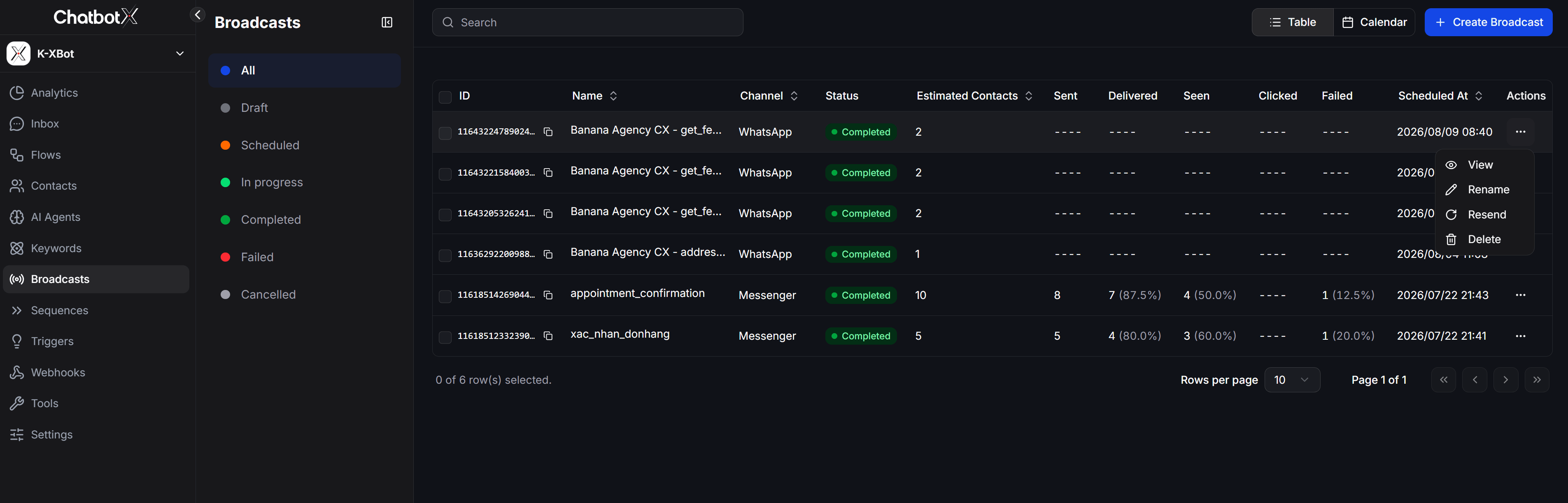
Above the table, you can search for campaigns using the Search input box. Below the table, you can adjust Rows per page and navigate between pages.
Calendar View
Click the Calendar button on the top toolbar to switch to the visual calendar interface. This view gives you a timeline overview of all scheduled broadcasts to help coordinate sending schedules effectively.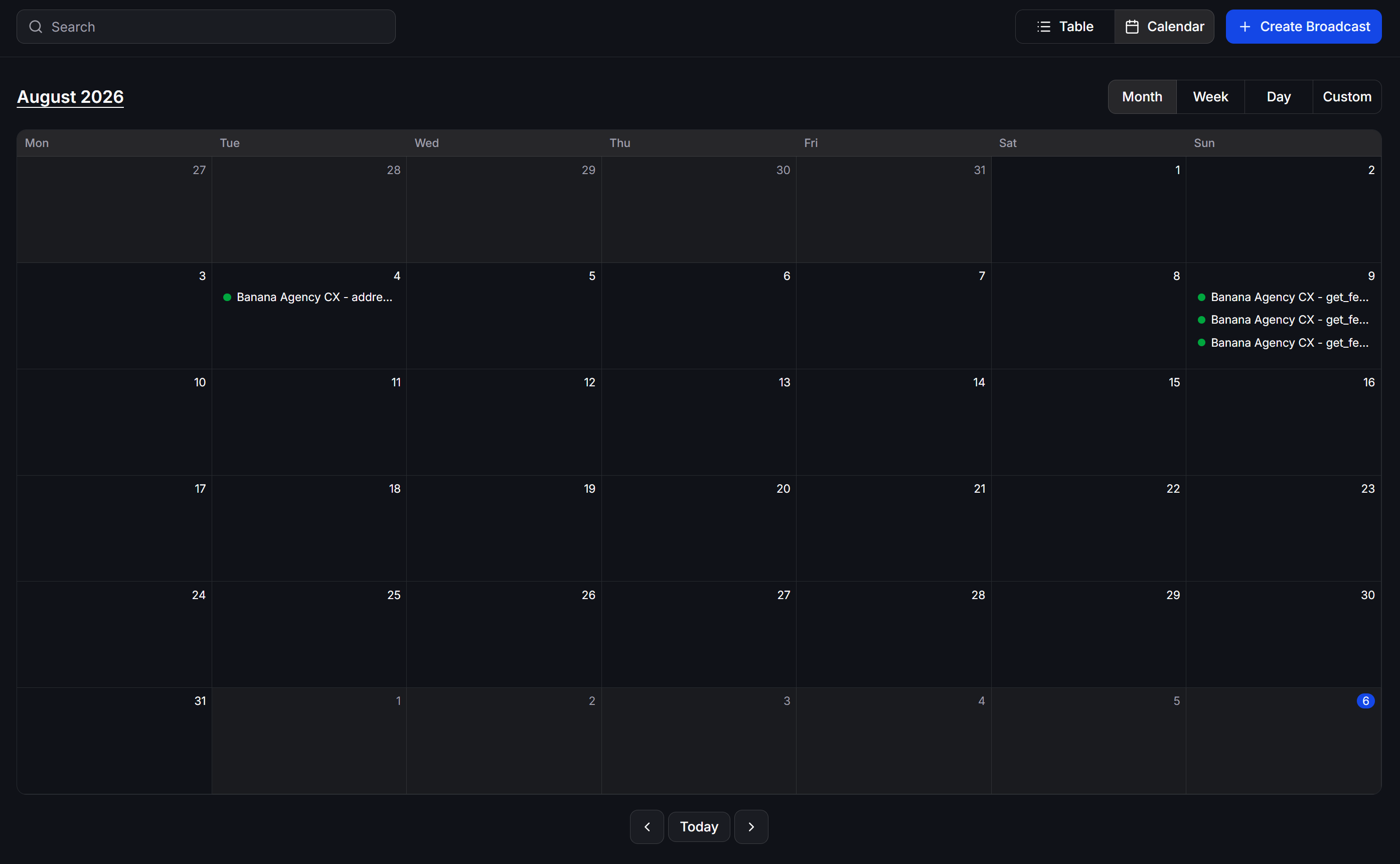
- Display view options: Easily switch between Month, Week, Day, and Custom range views.
- Calendar grid: Each campaign appears directly on its scheduled date block with a colored status dot and campaign name.
- Date navigation: Use the arrow buttons (
<,>) to navigate between months and the Today button to quickly jump to the current date.
Broadcast Detail Modal
Clicking on a campaign event in the Calendar view or selecting View from the Actions menu in Table view opens a popup displaying full configuration details: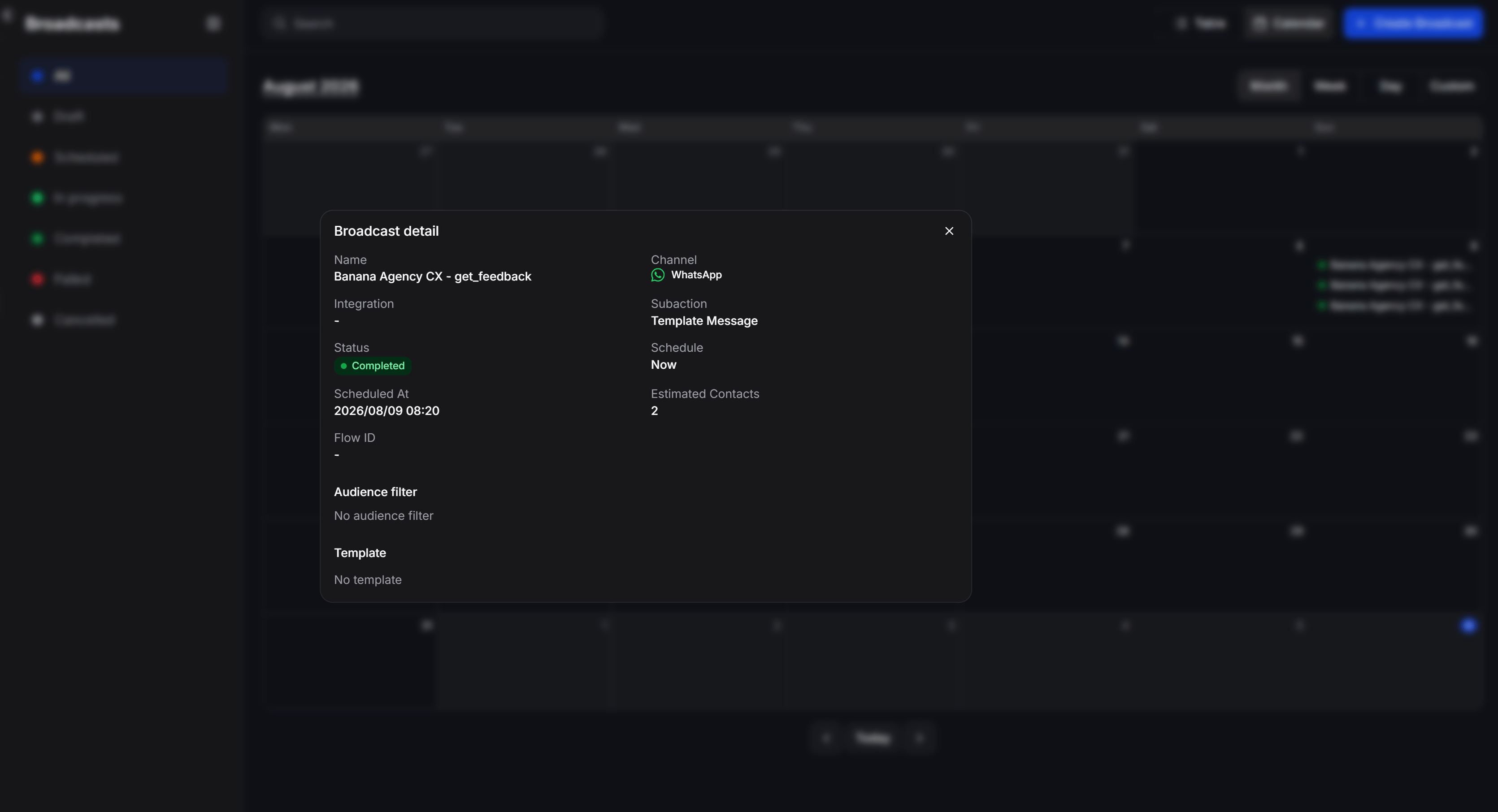
- Name: Campaign name.
- Channel: Messaging channel with its respective icon.
- Integration: Connected account or channel integration used for sending.
- Subaction: Specific message dispatch action (such as Template Message).
- Status: Current operational status of the campaign.
- Schedule: Scheduling mode (such as immediate send
Nowor a scheduled time). - Scheduled At: Specific sending timestamp.
- Estimated Contacts: Number of targeted recipient contacts.
- Flow ID: Associated automated Flow ID (if applicable).
- Audience filter: Contact filtering criteria applied to the campaign.
- Template: Message template used for the campaign.
Basic Guide to Creating a Broadcast
The basic process of creating a bulk messaging campaign in ChatbotX involves the following steps:1
Start creating a campaign
From the left menu, select Broadcasts (1), then click the + Create Broadcast button (2) in the top right corner of the screen.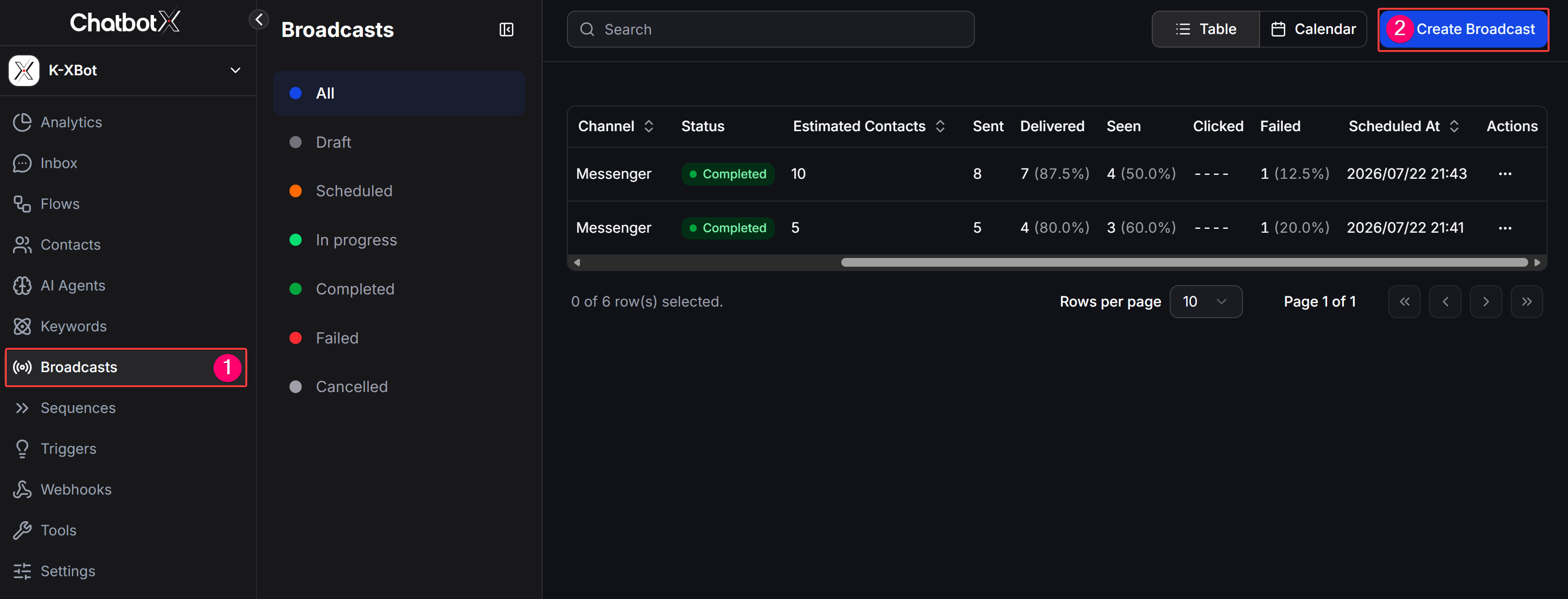
2
Select sending channel
The system will redirect you to the Choose Channel screen. Here, select 1 channel to send your message: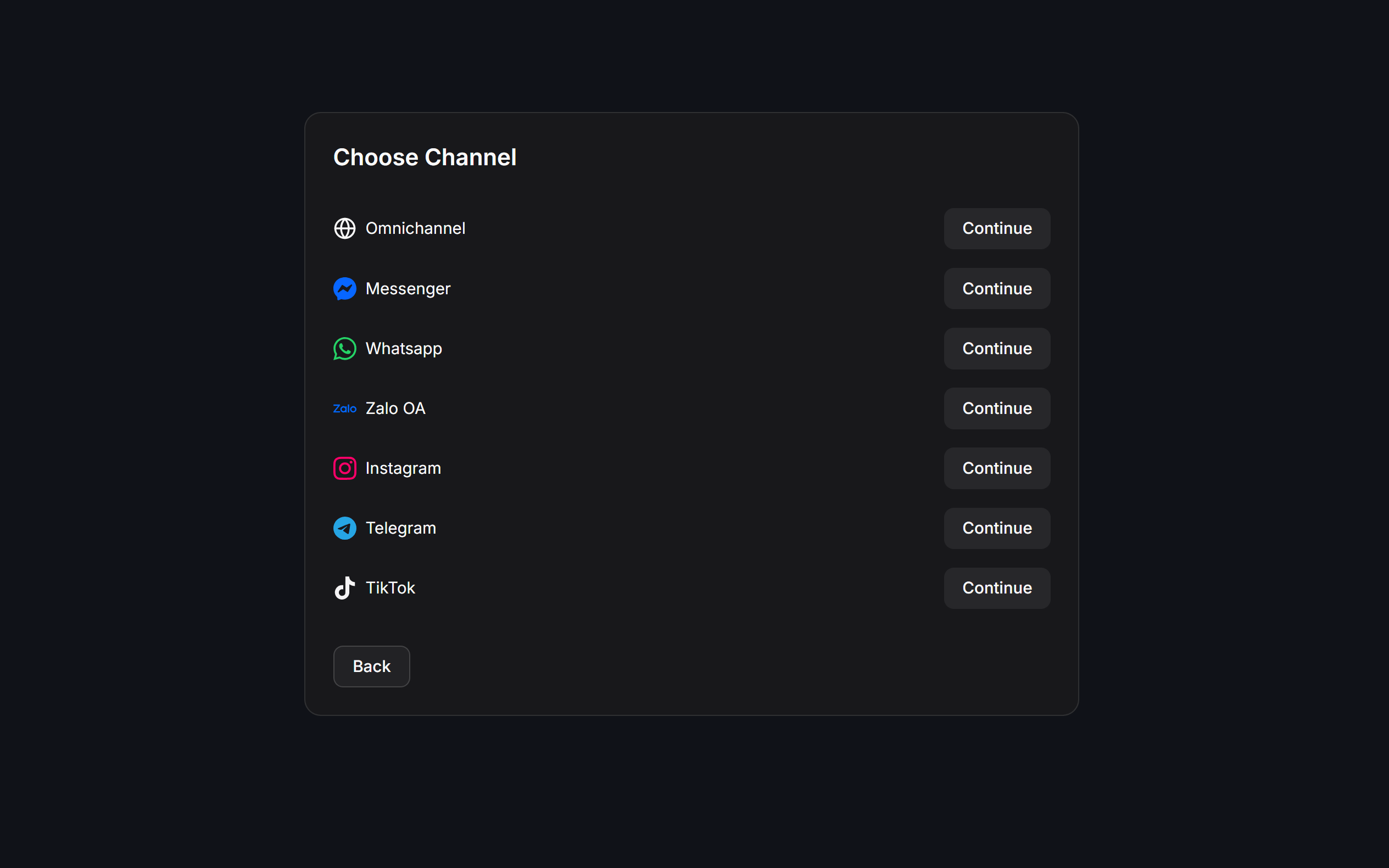
- Omnichannel: Send an automated script to all contacts across all connected channels.
- Messenger: Send messages via Facebook Messenger.
- WhatsApp: Send messages via WhatsApp Business.
- Zalo OA: Send messages to users following your Zalo Official Account.
- Instagram: Send messages via Instagram Direct.
- Telegram: Send messages via Telegram Bot.
- TikTok: Send messages via TikTok Business.
Broadcast guides by channel
Choose the article for the channel you want to use. Each guide covers the channel-specific setup and links back to this page for shared audience and scheduling settings.Messenger Broadcasts
Send a bulk campaign through Facebook Messenger.
WhatsApp Broadcasts
Send a bulk campaign through WhatsApp Business.
Zalo OA Broadcasts
Send a bulk campaign to contacts on Zalo OA.
Instagram Broadcasts
Send a bulk campaign through Instagram Direct.
Telegram Broadcasts
Send a bulk campaign through Telegram Bot.
TikTok Broadcasts
Send a bulk campaign through TikTok Business.
Configure Schedule and Contact Filter
When configuring the details of the message content, all channels share two common settings for sending time and receiver targets: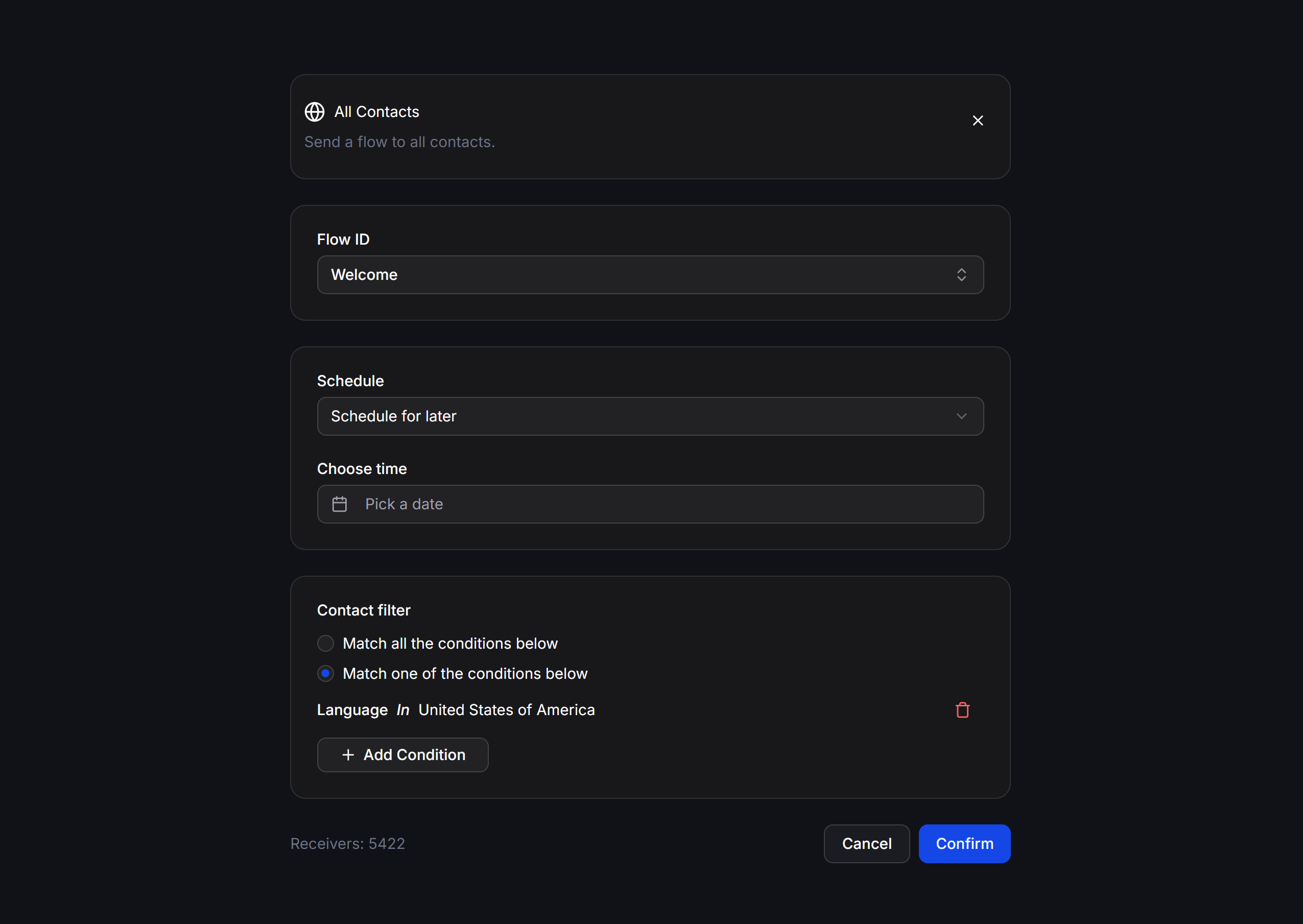
Schedule - Sending Time
You can decide when to run the messaging campaign using these options:- Now: The system will send the messages immediately after you confirm the campaign.
- Schedule for later: Schedule for later by selecting a specific date, time, and timezone. This feature allows you to prepare content in advance and send it during golden hours with high open rates.
Contact Filter - Receiver Target Filters
Filters help you target the exact group of customers you want to message, avoiding generic spam that could harm your channel’s reputation.- Match all the conditions below: Customers must match all added conditions (AND logic - filters a specific, deep audience).
- Match one of the conditions below: Customers only need to match one of the added conditions (OR logic - expands the receiver list).
- + Add Condition: Click to add a new filter condition based on attributes such as Tag, Custom Field, Active Channel, or interaction time.
The system will automatically calculate and display the number of customers matching the filters in the Receivers section at the bottom of the screen. Always check this number before clicking the confirm button.
Operating Tips for High Effectiveness
- Name campaigns with a consistent syntax for easy tracking in the list table, for example:
[Channel] - [Goal] - [Send Date](e.g.,Zalo - Maintenance Notice - 1806). - Filter your customer segment thoroughly using the Contact filter to ensure the sent content matches their needs, which increases the open rate (
Seen) and reduces user spam reports. - For scheduled campaigns, double-check the linked chatbot script (Flow ID) to ensure that all buttons and content within the script still function correctly before the scheduled sending time.