

How to Create a Messenger Broadcast
Tip: For an overview of campaign list management, status filters, and the Calendar view, refer to the Omnichannel Broadcasts article.Basic steps to set up a bulk messaging campaign on Messenger:
1
Start creating a campaign
From the left menu, select Broadcasts (1), then click the + Create Broadcast button (2) in the top right corner of the screen.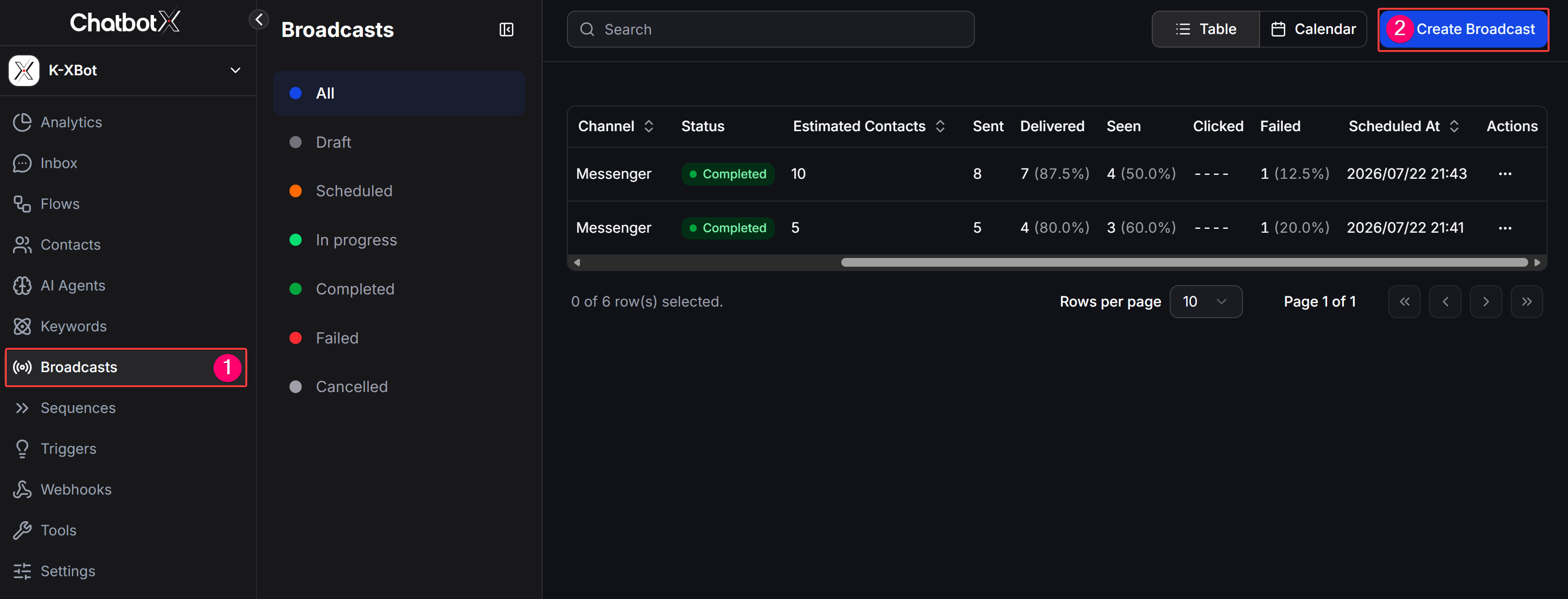
2
Select Messenger channel
On the Choose Channel screen, select Messenger, then click Continue to proceed.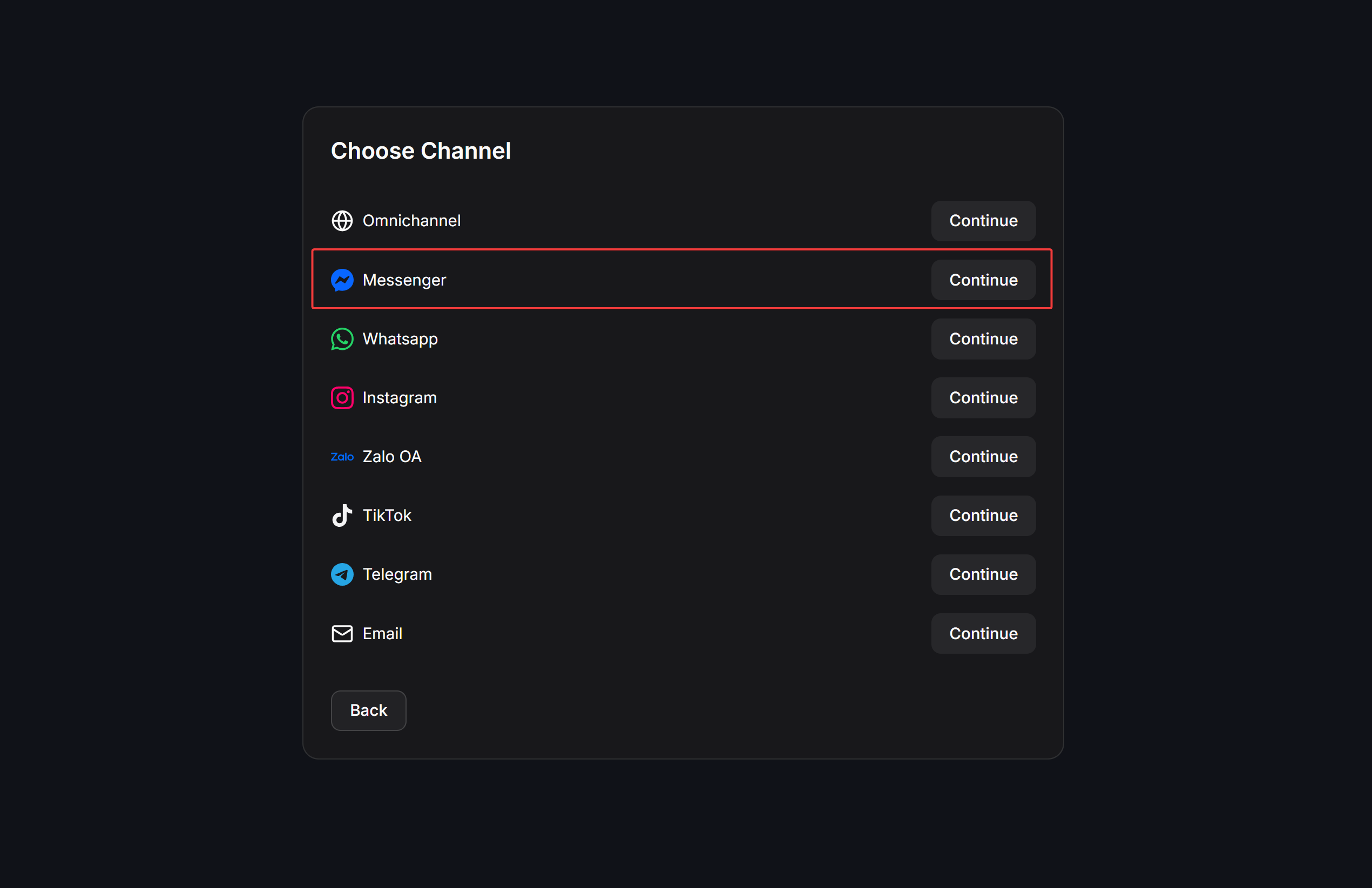
3
Select sending type
On the Choose Subaction screen, select one of the two sending types: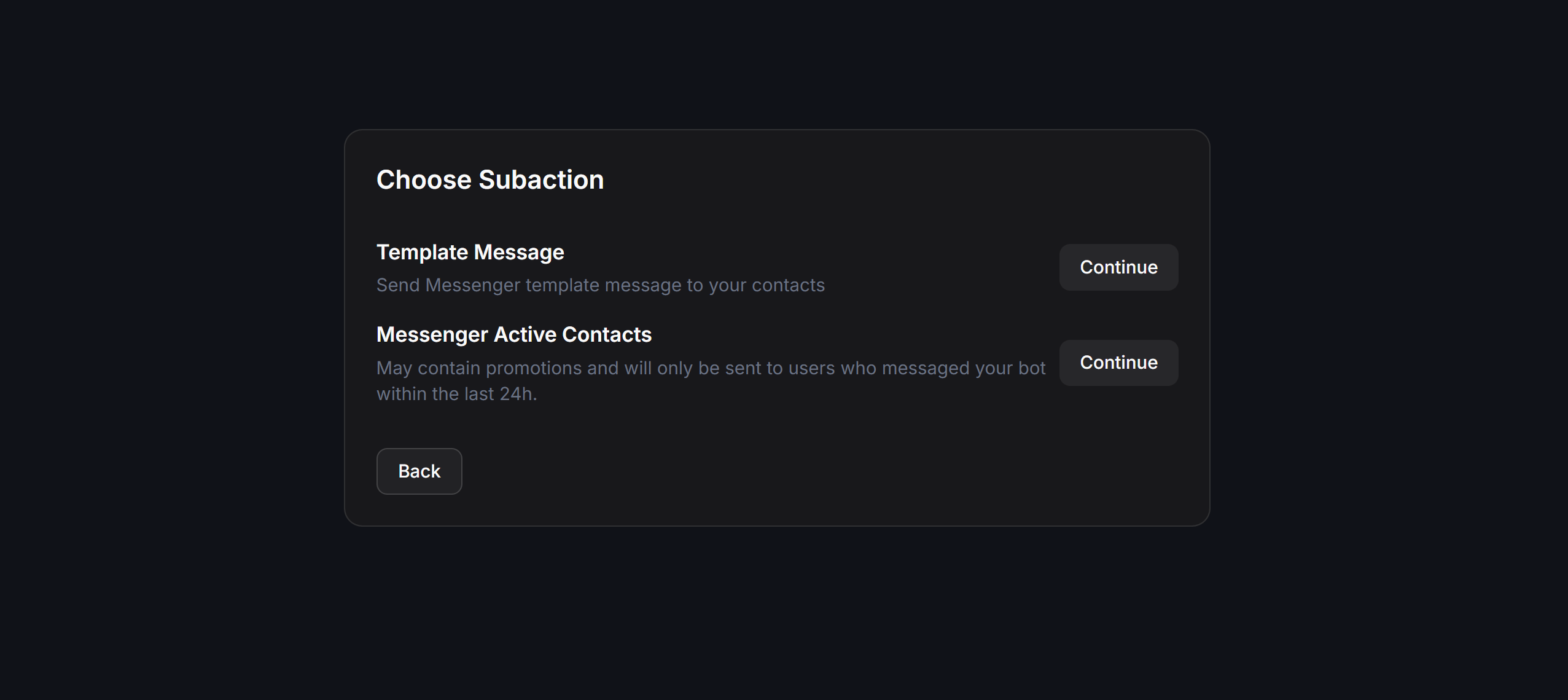
- Template Message: Send a Flow script or a Utility Template to customers. This option allows sending to any customer list, even if they are outside the 24-hour interaction window.
- Messenger Active Contacts: Send a Flow script to customers who have messaged your page within the last 24 hours.
Template Message
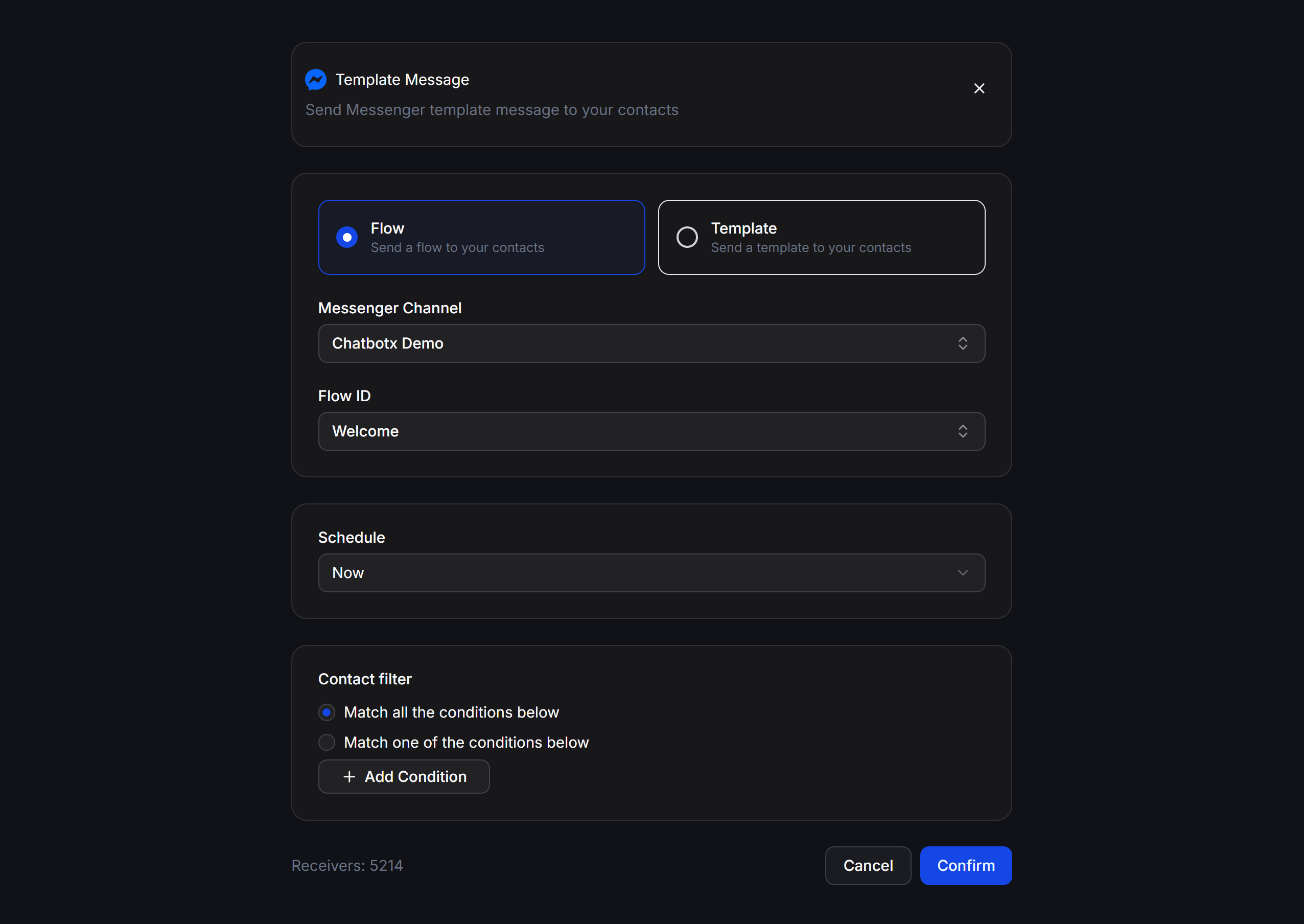
Select the Template Message sending type when you need to message old customers who have not interacted with your page for a long time (outside the 24-hour window). The configuration interface includes the following components:Sending via Flow
If your contacts are still within the interaction window or you are sending a standard notification message using a Flow script:- Select Flow (“Send a flow to your contacts”).
- Select the Fanpage in Messenger Channel and the desired chatbot script in Flow ID.
- Configure the general Schedule and Contact filter, then click Confirm.
Sending via Template (Utility Messages)
If you want to send an approved utility template (Utility Template) to your contacts outside the 24-hour interaction window: For detailed instructions on how to set up, approve, and execute a bulk campaign with Utility Templates (Template Message), please see the documentation here: 👉 Tin nhắn Thông báo (Utility Messages)Messenger Active Contacts
Select the Messenger Active Contacts sending type when you only want to send messages to customers who have interacted with your chatbot within the last 24 hours.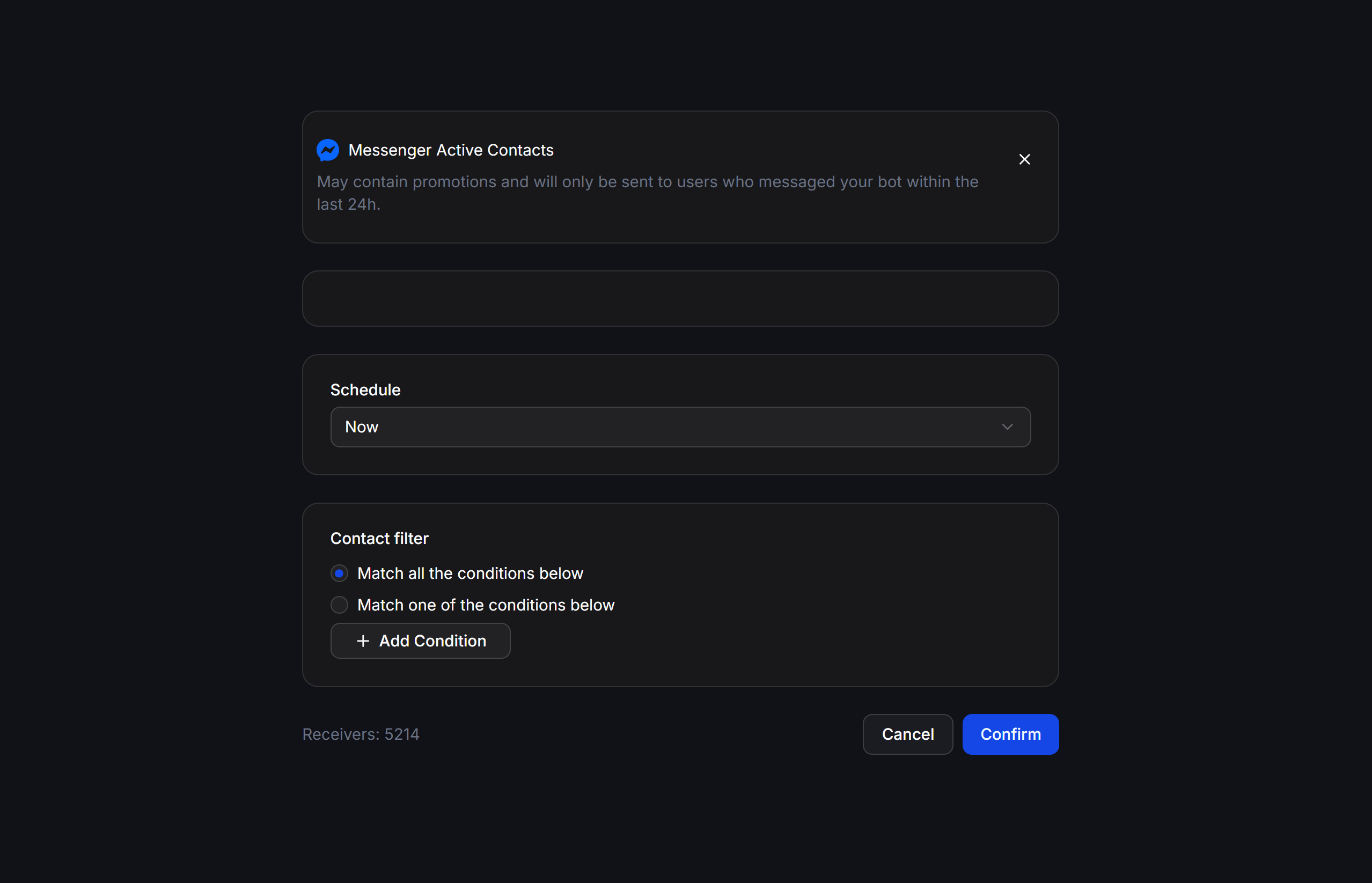
Interface and Configuration
The Active Contacts configuration interface is simpler than Template Message and only supports sending chatbot scripts (does not support selecting templates):- Flow ID: Select the chatbot script to send.
- Schedule: Set the sending time (send immediately or schedule for later).
- Contact filter: Filter contacts within the 24-hour customer window.
- Receivers: The number of active customers who match the conditions.
Important Notes
- This is the best choice when you want to send promotional messages, discount codes, or run direct sales campaigns (marketing/advertising content) since Meta allows sending unrestricted content within the 24-hour window.
- If your contacts have been silent for more than 24 hours since their last message to the bot, the Broadcast will fail to send. In this case, you must use Template Message with a utility template.
Meta Messaging Policy on Messenger
When operating a chatbot on Messenger, you must follow Meta rules to prevent your Fanpage from being blocked:- 24-Hour Interaction Window: When a customer actively messages your Fanpage, you have a 24-hour window to send unrestricted messages (including sales and promotional content).
- Outside 24 Hours: You can only send proactive messages using pre-approved Utility Templates (Utility Messages). You must not include promotional content in utility templates.
Practical Examples
Reminding Customer Appointments (Template Message -> Template)
You need to send a reminder message to a group of customers who have a beauty appointment tomorrow:- Select Template Message -> Template.
- Select the pre-approved appointment reminder utility template.
- Fill in actual values for variables (e.g., enter customer name for
{{1}}, appointment time for{{2}}). Contact filter: Filter customers whose appointment field matches tomorrow.- Set to send immediately.
Sending Quick Flash Sale Codes (Messenger Active Contacts)
You are running a golden hour promotion and want to immediately notify customers who have chatted with you today:- Select Messenger Active Contacts.
- Select the Flow containing the flash sale introduction and the purchase button.
- Set to send immediately so that contacts in the 24-hour window receive the promotional information instantly.
Messenger Broadcast Operating Tips
- Name your Broadcasts in detail based on the campaign goal (e.g.,
Messenger - Spa Appointment Reminder 1906orMessenger - Active Contacts - Flash Sale). - Always double-check the actual number of receivers in the Receivers section before sending. If the Receivers count is 0, check your filter or sending channel configuration.
- After the campaign is complete, go to the Broadcasts list table to check the metrics for
Sent,Delivered,Seen, andClickedto evaluate the campaign’s reach and effectiveness.