

How to create an Action
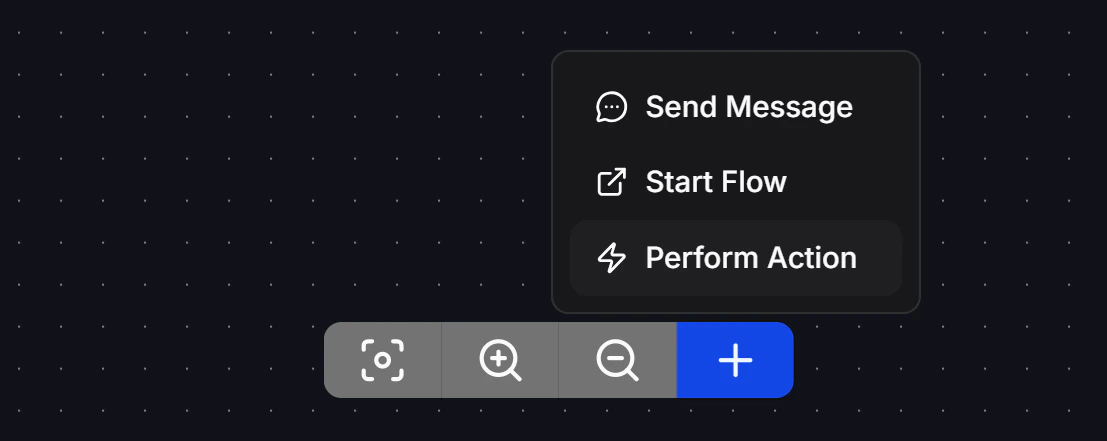
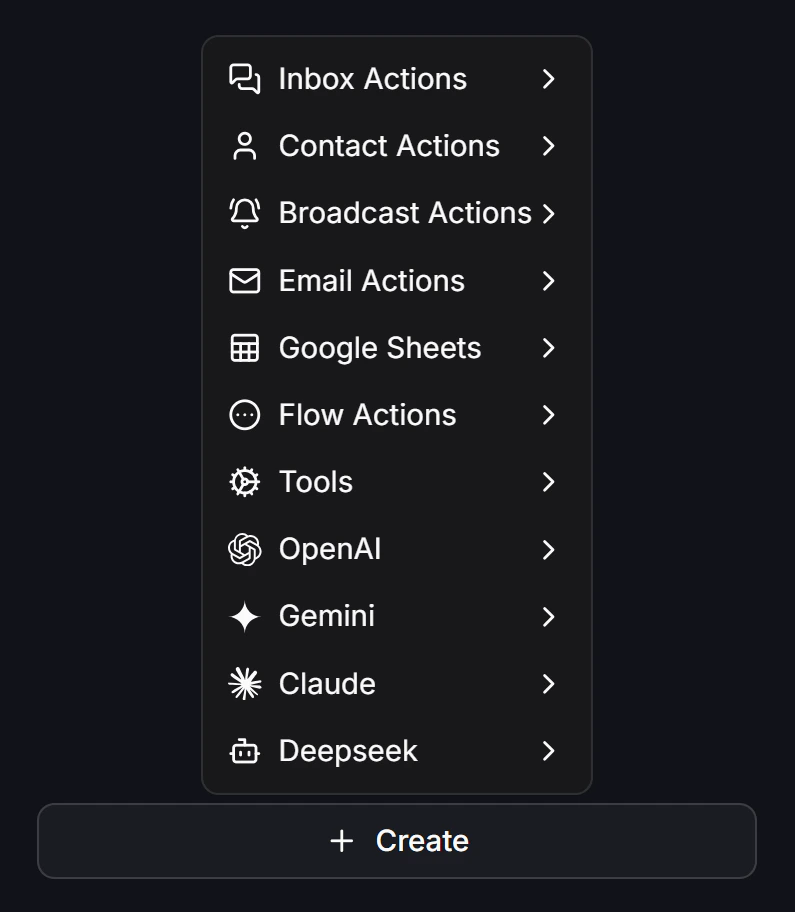
To add an Action block to your Flow, click the+ icon below the canvas and select Perform Action. A blank block will appear. Click that block and choose Create to open the actions menu.
Inbox Actions
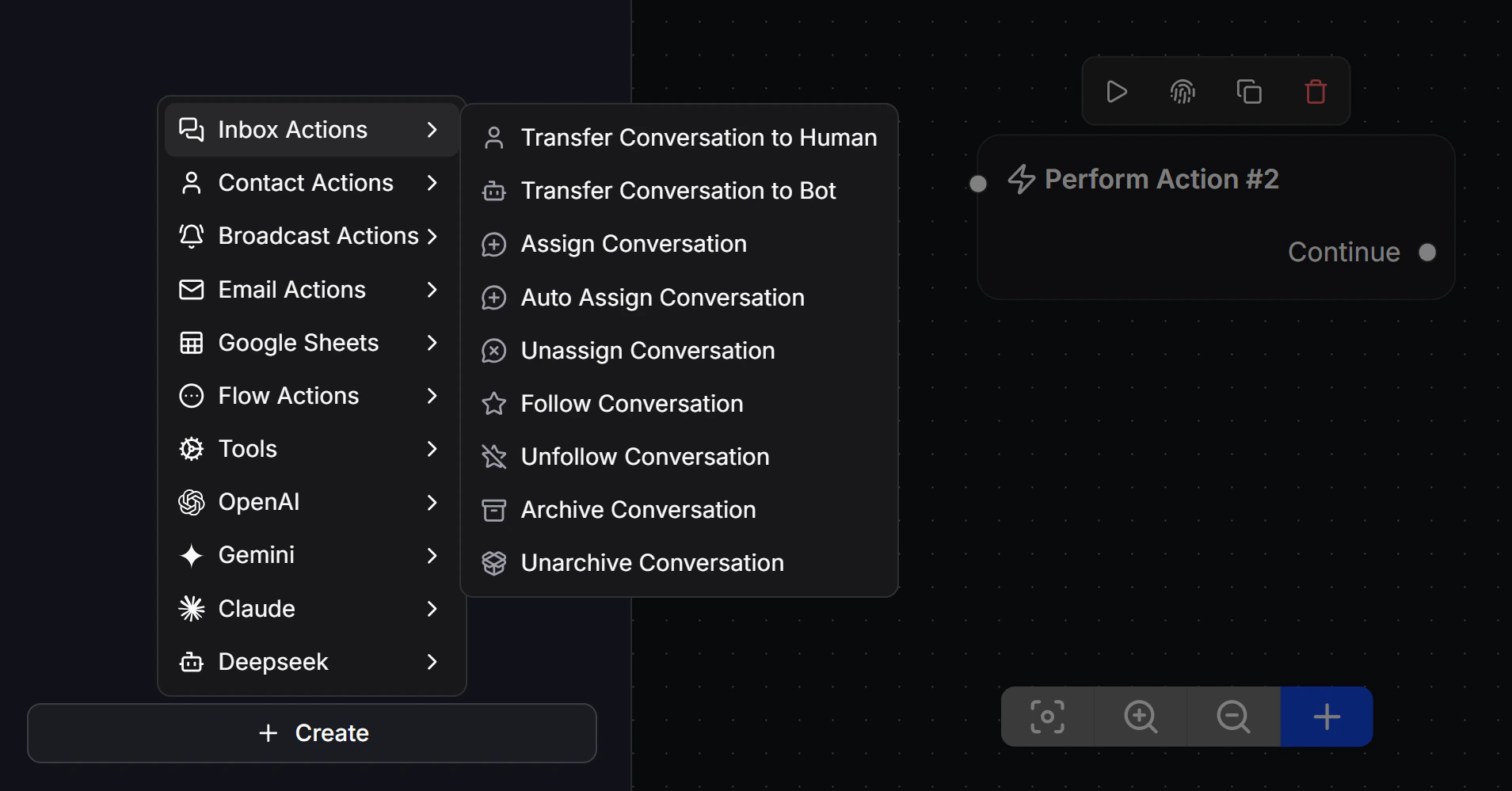
These actions help your Bot coordinate smoothly with your support or sales team:- Transfer Conversation to Human: Pauses the Bot’s auto-replies and hands conversation control over to a human support agent. The system immediately alerts the active team members to assist.
- Transfer Conversation to Bot: Returns conversation control to the chatbot for automated replies after the human agent finishes the support session.
- Assign Conversation: Manually assigns the conversation directly to a specific team member.
- Auto Assign Conversation: Automatically routes and distributes active chats evenly or sequentially among a selected group of agents.
- Unassign Conversation: Removes the assigned agent from the conversation, putting it back into the unassigned queue.
- Follow Conversation: Subscribes to the conversation to receive real-time notifications on the dashboard whenever the subscriber sends new messages.
- Unfollow Conversation: Unsubscribes from notifications for this conversation.
- Archive Conversation: Moves the conversation into the Archive folder once the consultation or order is complete, keeping the live chat inbox clean.
- Unarchive Conversation: Moves the conversation back to the active inbox when further support is needed or when the customer messages again.
Contact Actions
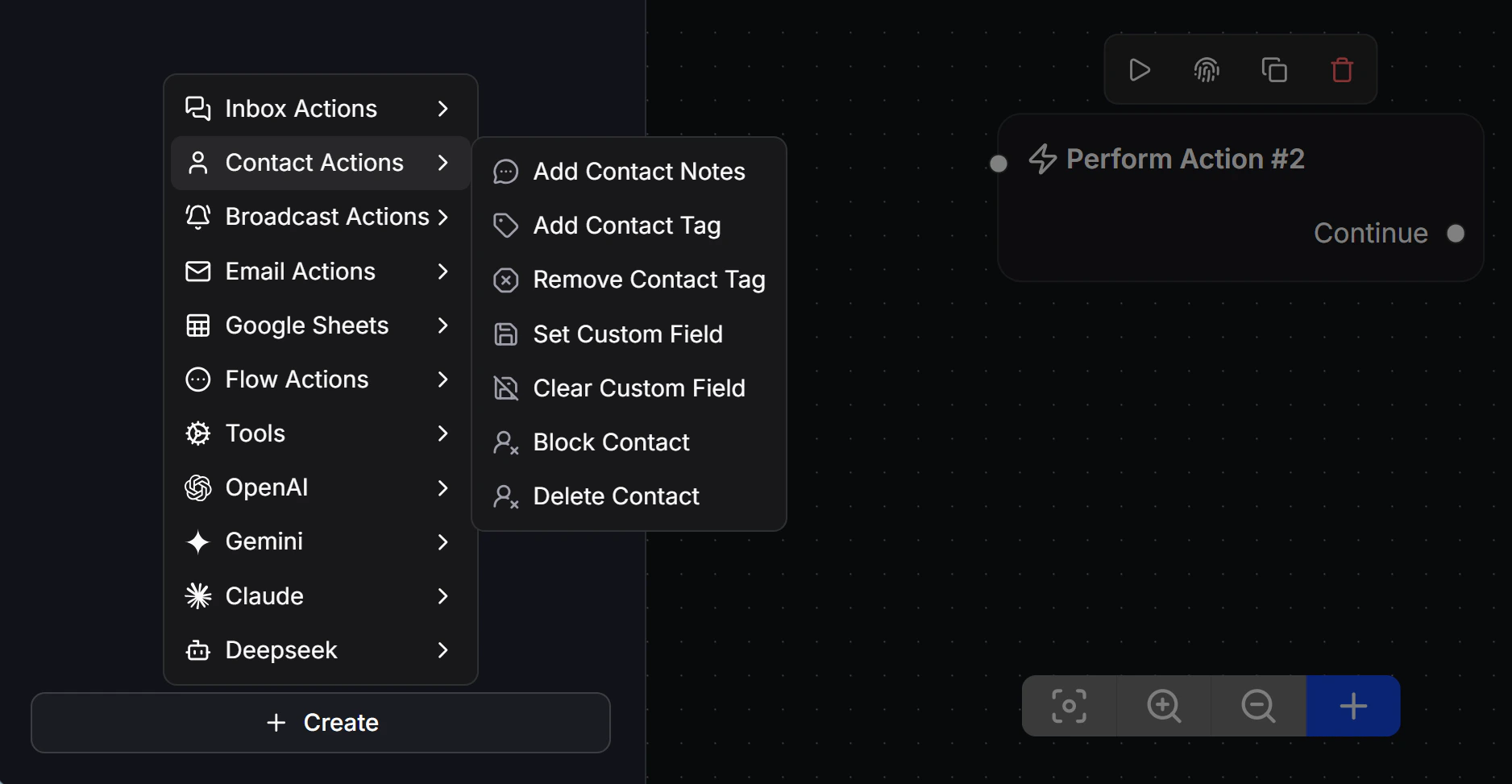
These actions help you tag, segment, and manage customer profile records:- Add Contact Notes: Appends an internal note to the contact’s profile. This is visible only to team members and is hidden from the customer.
- Add Contact Tag: Applies a classification label to the customer based on their behavior or interest (e.g.,
VIP,Lead_Wholesale). Tags are crucial for filtering broadcast campaigns. - Remove Contact Tag: Removes a classification label from the customer’s profile.
- Set Custom Field: Saves specific user details (e.g., phone, birthday, preferences, loyalty points) into custom profile fields.
- Clear Custom Field: Erases the stored value from a specific Custom Field.
- Block Contact: Blocks the customer from sending messages to your channel, preventing spam or abuse.
- Delete Contact: Permanently deletes the contact’s profile and historical data from the ChatbotX system.
Broadcast Actions
Manage subscriber consent for bulk campaigns:- Subscribe Broadcast: Subscribes the customer to receive bulk promotional and update broadcast campaigns from your page.
- Unsubscribe Broadcast: Unsubscribes the customer from bulk broadcast messages, ensuring you do not trigger spam complaints.
Sequence Actions
Manage subscriptions to scheduled drip sequences:- Subscribe Sequence: Enrolls the customer in an automated message sequence scheduled to send over time (e.g., a 7-day post-purchase follow-up series).
- Unsubscribe Sequence: Unenrolls the customer from the sequence, stopping any further scheduled messages in that series.
Email Actions
Manage consent and verification status for email communications:- Mark Email Verified: Flags a contact’s email address as verified, allowing for trusted bulk email campaigns.
- Opt In Email: Enrolls the customer’s email into your email marketing list.
- Opt Out Email: Unsubscribes the customer from receiving marketing emails.
Google Sheets
These actions let your chatbot interact and sync data bi-directionally with Google Sheets:- Get Row: Searches a Google Sheet for a matching value (e.g. searching by Phone Number) and retrieves the row’s data to save into custom fields.
- Get Random Row: Retrieves a random row from a Google Sheet (ideal for giveaway events, random draws, or mini-games).
- Update Row: Finds an existing row on Google Sheets and updates its cells with new subscriber information.
- Clear Row: Clears all data from a specific row in the target Google Sheet.
- Send Data: Exports collected customer information (name, phone, order details) to Google Sheets, creating a new row.
Flow Actions
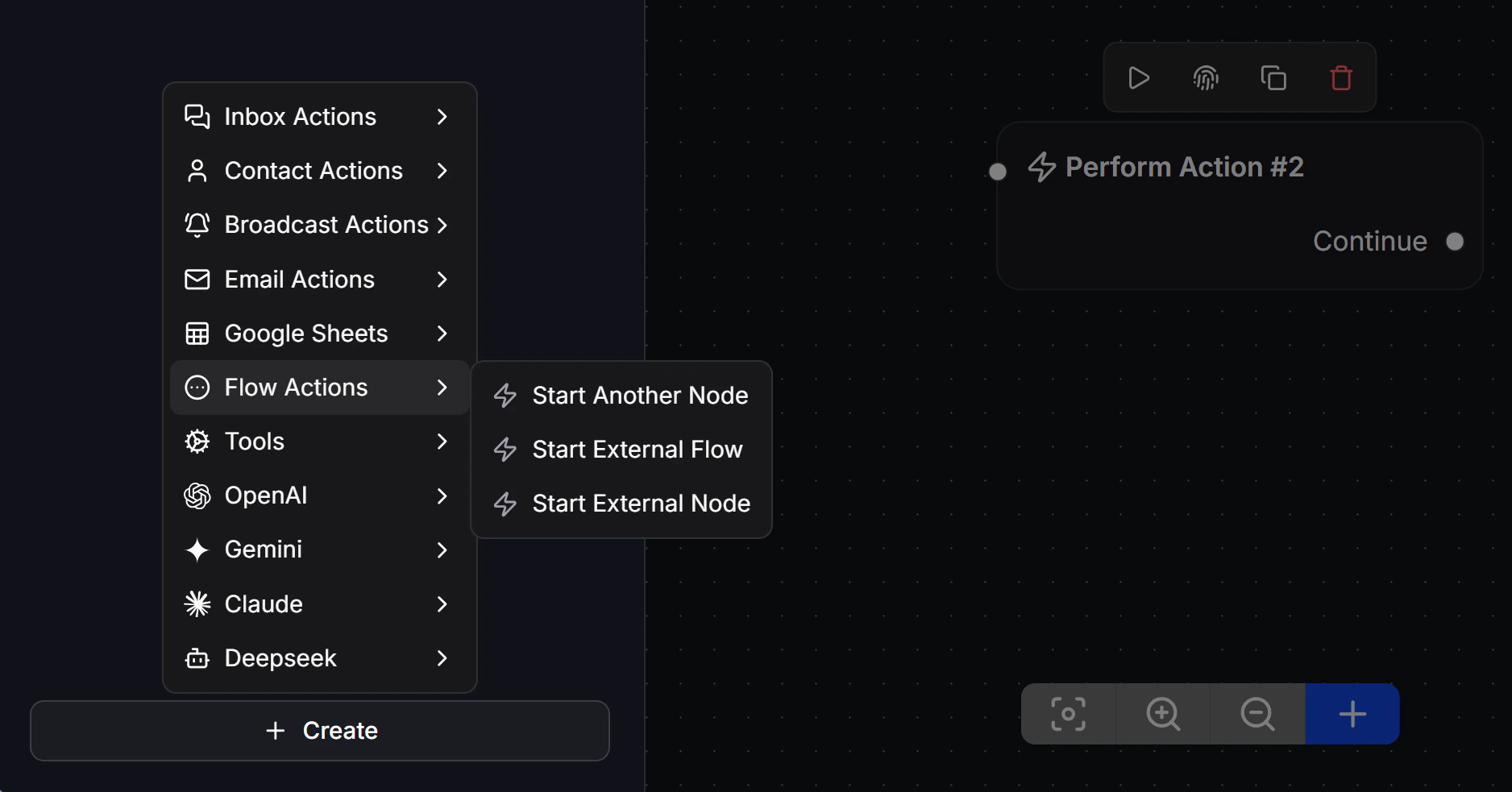
Manage user routing to keep your Flow builder workspace organized and free of visual clutter:- Start Another Node: Directs the user to another node in the current flow workspace without using a connecting line.
- Start External Flow: Invokes a separate, independent Flow to run next (e.g. calling a reusable “Shipping Address” collector flow).
- Start External Node: Directs the user to jump directly into a specific node inside another flow.
Tools
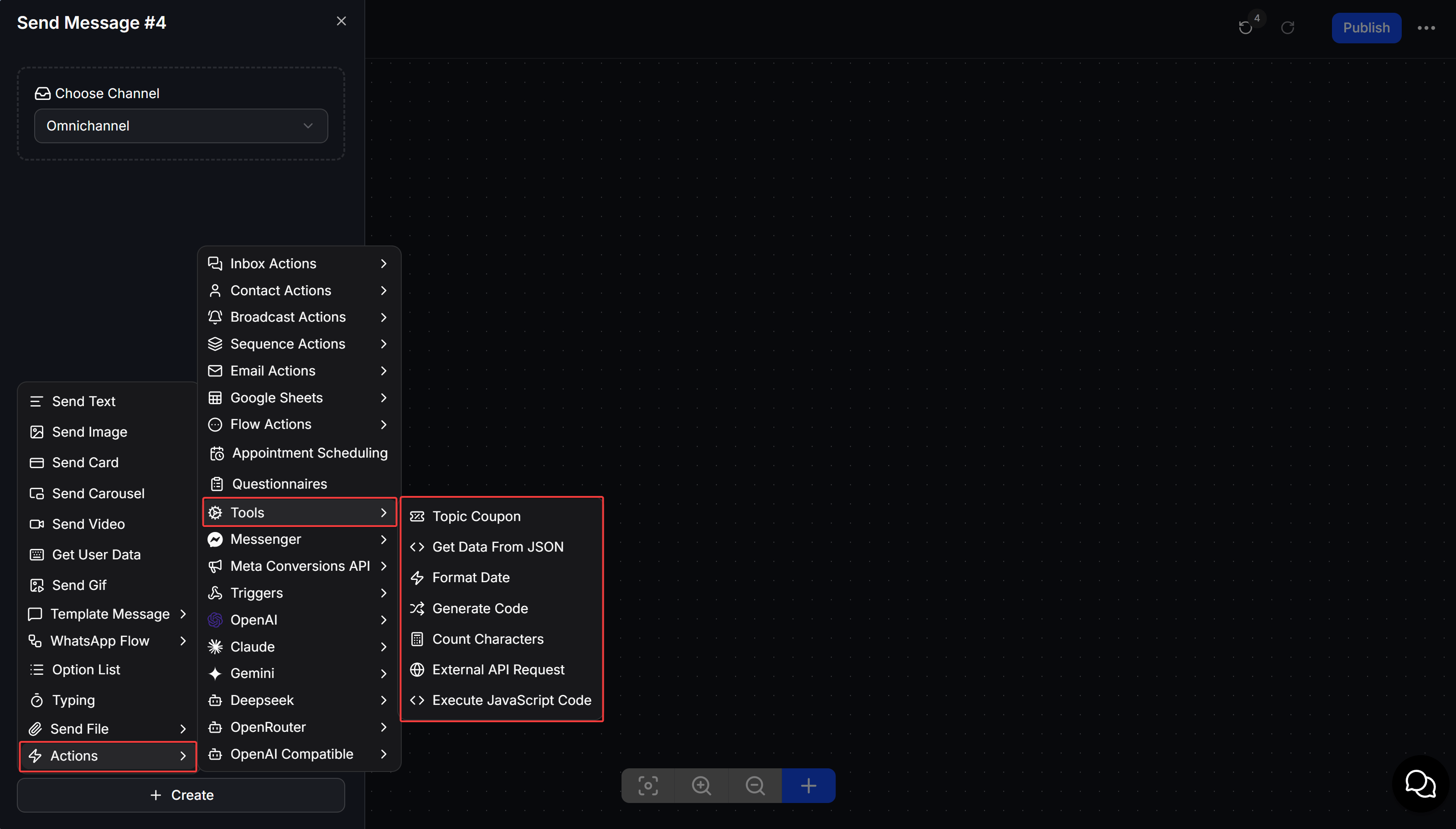
Perform data processing, formatting, and general utility tasks:Topic Coupon
Create and manage Coupon topics, then assign or mark Coupons as used in a Flow.
Get Data From JSON
Extract a value from JSON data and use it in the next Flow step.
Format Date
Change a date or time value with date-fns format patterns.
Generate Code
Create a random code for a voucher, ticket, order, or customer record.
Count Characters
Count a text value to validate a customer response in the Flow.
External API Request
Send data to an external server or retrieve data for the Flow.
Execute JavaScript Code
Run JavaScript to calculate, validate, normalize, and save data in a Flow.
OpenAI
Integrate OpenAI artificial intelligence directly into your flow kịch bản:- OpenAI: AI Generate Text: Generates text responses automatically based on a predefined system context and user prompt.
- OpenAI: AI Generate Image: Generates images from user text descriptions.
- OpenAI: AI Edit Image: Edits or modifies existing images using AI.
- AI Analyze Image (flows.aiAnalyzeImage.label): Analyzes user-submitted images to identify objects or read text.
- AI Generate Text Agent: Runs a smart conversational AI Agent to handle complex textual inquiries.
- OpenAI: AI Extract Data: Extracts structured properties (e.g. product names, quantities, contact info) from unstructured user text.
- OpenAI: AI Speech to Text: Transcribes user audio voice notes into text format for the bot to process.
- OpenAI: AI Text to Speech: Converts bot text into an audio voice file sent to the customer.
- Delete message history: Clears all conversational context and history saved with OpenAI, resetting the AI’s conversation memory for this contact.
Claude
Integrate Claude AI by Anthropic into your flows:- Claude: AI Generate Text: Generates natural text responses using Claude language models.
- Claude: AI Analyze Image (flows.aiAnalyzeImage.label): Analyzes user-uploaded image contents using Claude.
- AI Generate Text Agent: Launches a Claude-powered conversational agent.
- Claude: AI Extract Data: Extracts structured fields from raw user text using Claude.
- Delete message history: Clears the conversation memory context stored with Claude, starting a fresh session.
Gemini
Use Google’s Gemini AI models inside your automations:- Gemini: AI Generate Text: Generates text completions and answers using Gemini models.
- Gemini: AI Generate Image: Generates images from text prompts using Gemini’s Imagen model.
- Gemini: AI Edit Image: Modifies images based on text instructions via Gemini.
- Gemini: AI Analyze Image (flows.aiAnalyzeImage.label): Analyzes user-submitted images using Gemini models.
- AI Generate Text Agent: Deploys a Gemini conversational agent to automate complex inquiries.
- Gemini: AI Extract Data: Extracts structured fields from raw conversation using Gemini.
- Delete message history: Clears the conversation memory context stored with Gemini, resetting the AI’s memory.
Deepseek
Use Deepseek models to optimize answer quality:- Deepseek: AI Generate Text: Generates automated text answers with optimized costs using Deepseek.
- AI Generate Text Agent: Runs a conversational agent powered by Deepseek models.
- Delete message history: Clears the conversation memory context stored with Deepseek, resetting the AI’s memory.
Messenger Actions
These actions are designed specifically for your Facebook Messenger channel. They allow you to customize the chat interface display and personalize the chatbot’s visual identity directly within the flow.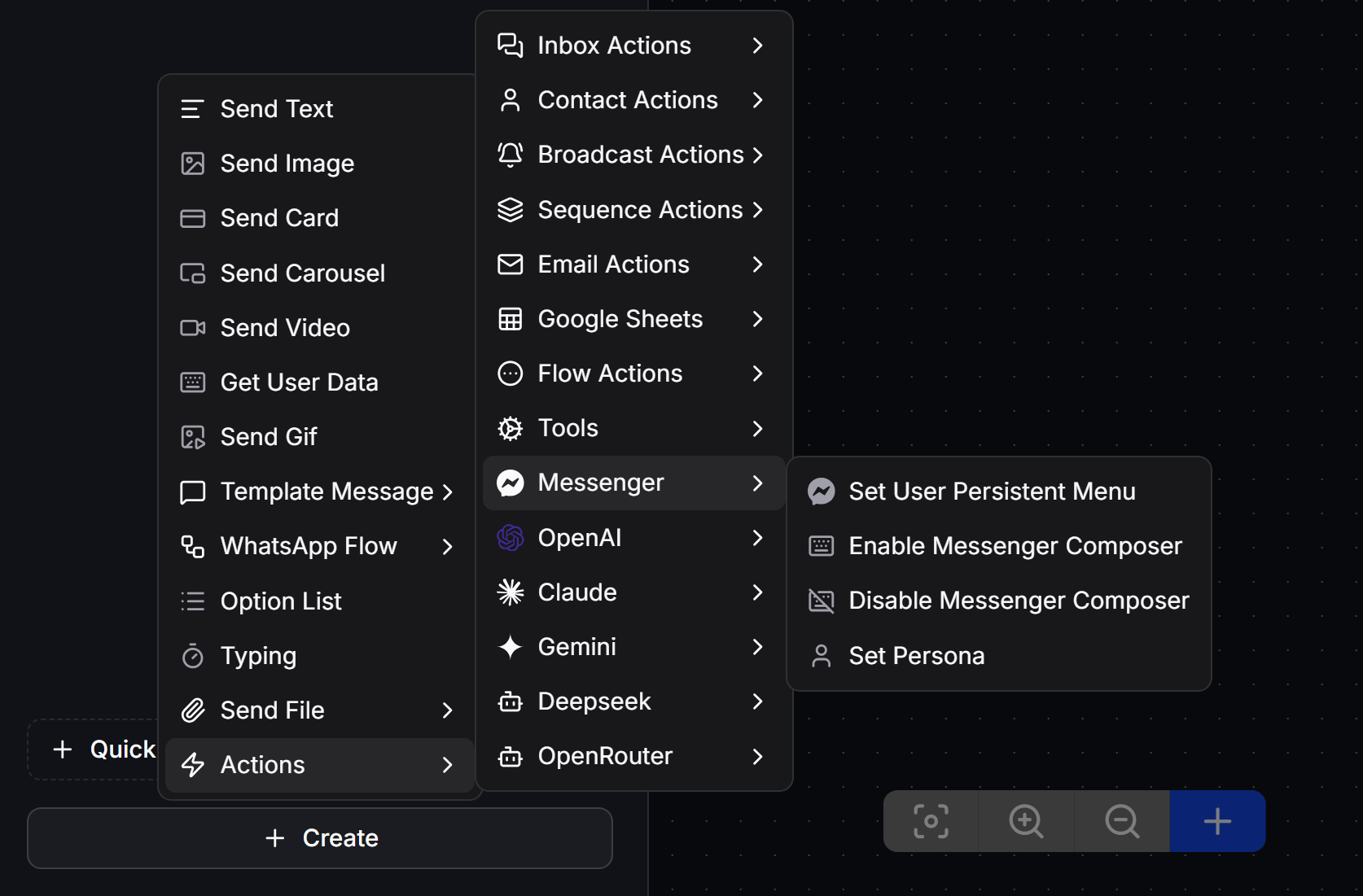
- Set User Persistent Menu: Configures a customized persistent menu for an individual subscriber.
- Enable Messenger Composer: Enables the customer’s text input keyboard in Messenger.
- Disable Messenger Composer: Locks and hides the customer’s keyboard, forcing interactions via buttons and Quick Replies.
- Set Persona: Dynamically changes the bot’s avatar and display name during the chat.