
Documentation Index

Fetch the complete documentation index at: https://chatbotx.io/docs/llms.txt

Use this file to discover all available pages before exploring further.

Quick Replies give customers a clean and friendly way to interact with your messages, making conversations easier by letting them choose from ready-made options instead of typing text manually.

The difference between Quick Replies and Regular Buttons

The navigation logic and connection settings of Quick Replies are similar to Buttons, including actions such as Send Message, Perform Action, and Start Flow. However, the display behavior and experience are very different inside ChatbotX:
FeatureQuick RepliesRegular Buttons
DisplayDisappear immediately after the customer taps one or after a new message is sent. Customers cannot scroll back and select them again.Stay visible below the message. Customers can scroll back and press them again at any time.
Number of optionsSupports 1 to 12 horizontally scrollable options. Great for surveys, size selection, or color selection.Up to 3 buttons per text message block. Best for primary menu-style choices.
PositionAppears at the bottom of the screen above the mobile keyboard area.Appears directly below the message content, such as Text or Card.
Quick Replies are ideal when you want to guide customers through a one-way funnel. Once they choose an option, it disappears so they cannot go back and trigger the previous step again.

How to configure Quick Replies

Quick Replies usually work best on platforms such as Facebook Messenger and Instagram, where the interface supports this type of horizontal option list well. You can add them directly while building the Flow by selecting a Text block, or another supported block, then clicking + Quick reply below the message editor.
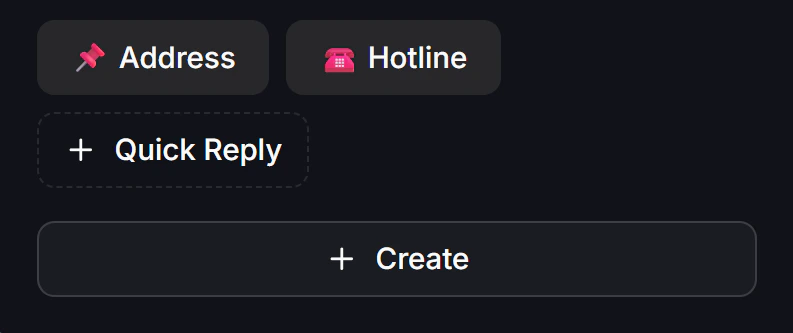
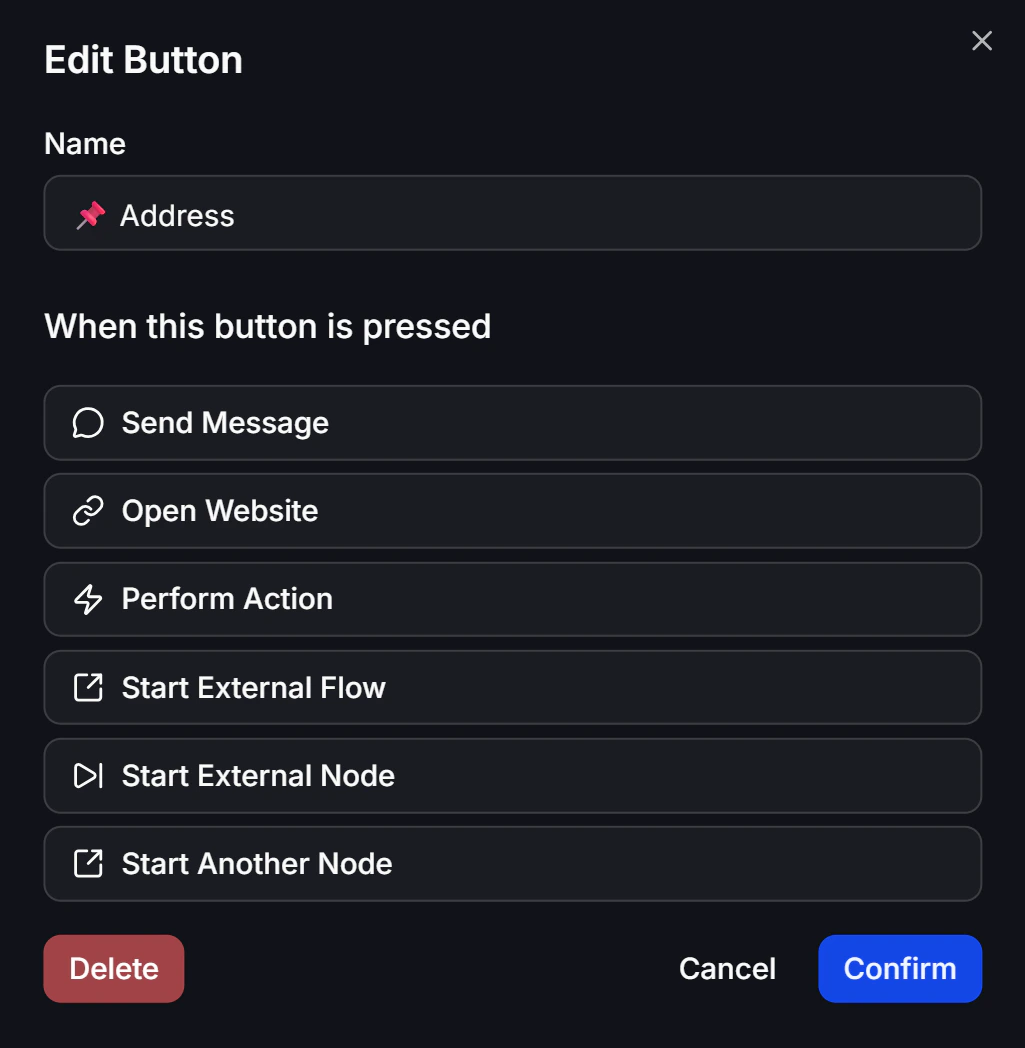
add_quick_reply_in_flow
You can enter any label you want. After the Quick Reply is added, drag a connection from its output point (When pressed) to define what happens next, such as sending a new message, applying a Tag with Perform Action, or routing the customer to another Flow.
link_quick_reply_to_another_step
You can also assign an emoji icon to each option to make the choices more visual and engaging.