

When to use Import Contacts
Use Import Contacts when you already have a customer list from another system, an event registration file, a lead form export, or an internal sales list. Instead of creating contacts one by one, you can import the full list in a single step and map the data into the right fields inside ChatbotX.Create a contact manually with Create Contact
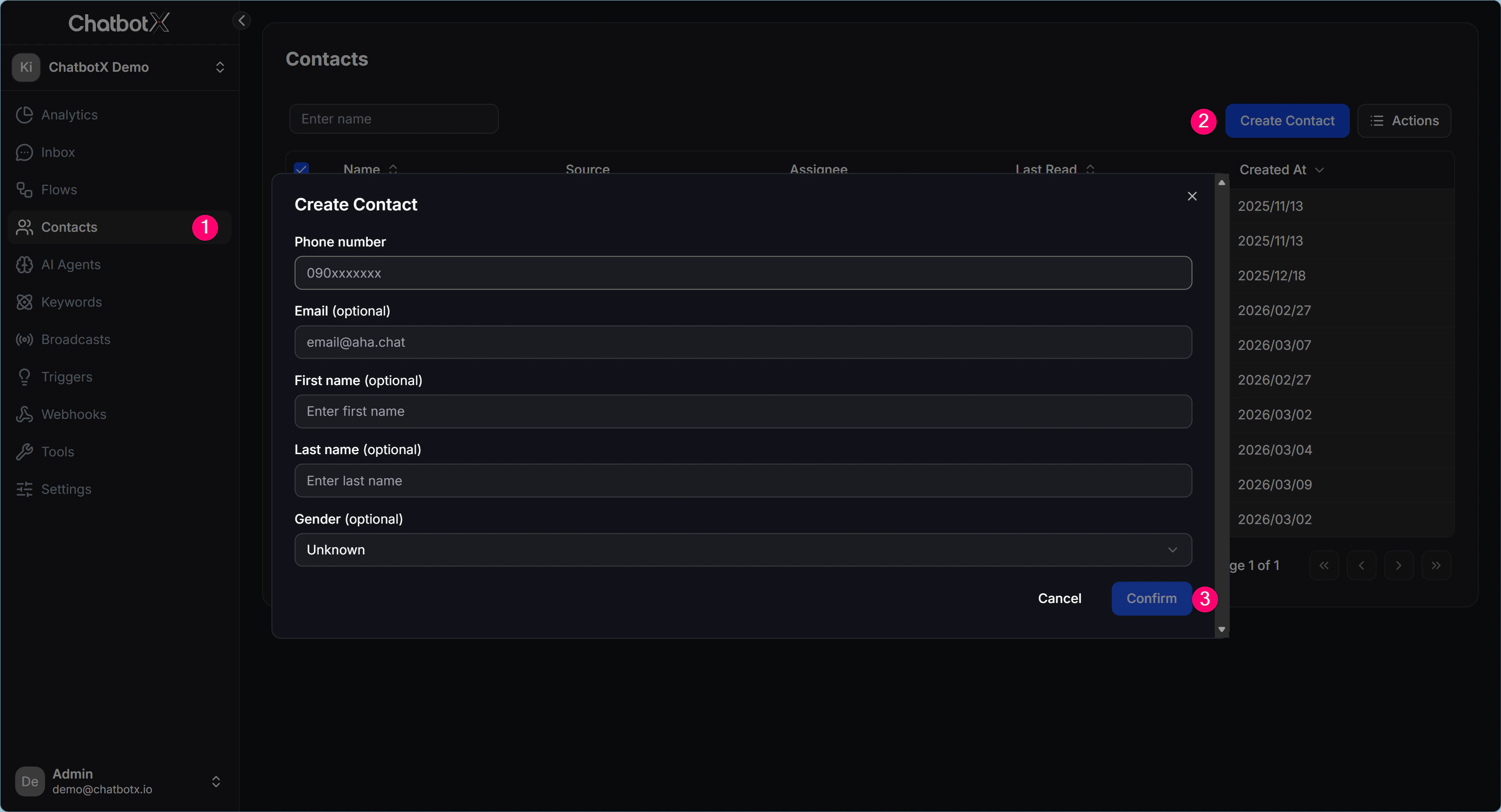
Create Contact is a better fit when you only need to add one contact instead of importing a full list. It is the fastest way to create a new profile while you are already working inside the system.1
Open the Contacts page
Go to Contacts from the left menu.
2
Click Create Contact
Click Create Contact in the top-right corner to open the new contact form.
3
Fill in the details and confirm
Enter the required fields, then click Confirm to create the contact.
Import contacts from a CSV file
1
Open the import screen
Go to Contacts, click Actions, then choose Import.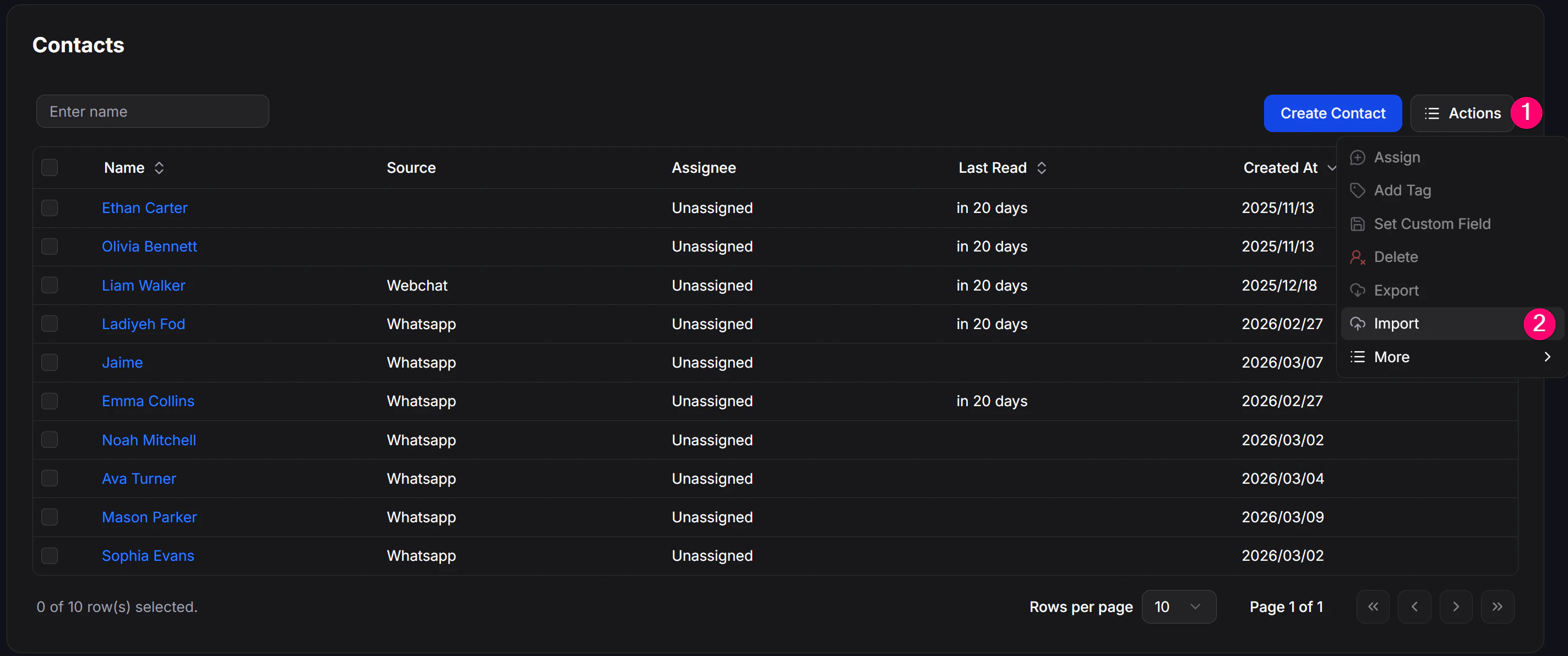
2
Upload the CSV file
Select the CSV file that contains your contact list. After upload, the file name will appear at the top of the import window.
3
Choose Source if needed
In Source (optional), choose a source for the imported list if you want to classify the data right away.
4
Map the columns
Select the CSV column on the left and map it to the matching field on the right. The current import screen supports standard fields such as
Contact ID / Subscriber ID / PSID, Phone number, Email, First name, and Last name.5
Open More options if needed
Open More options if you want to apply a
Tag or map additional data into a Custom Field.6
Confirm the import
Review the mapping, then click Confirm to start the import. If you do not want to continue yet, click Cancel.
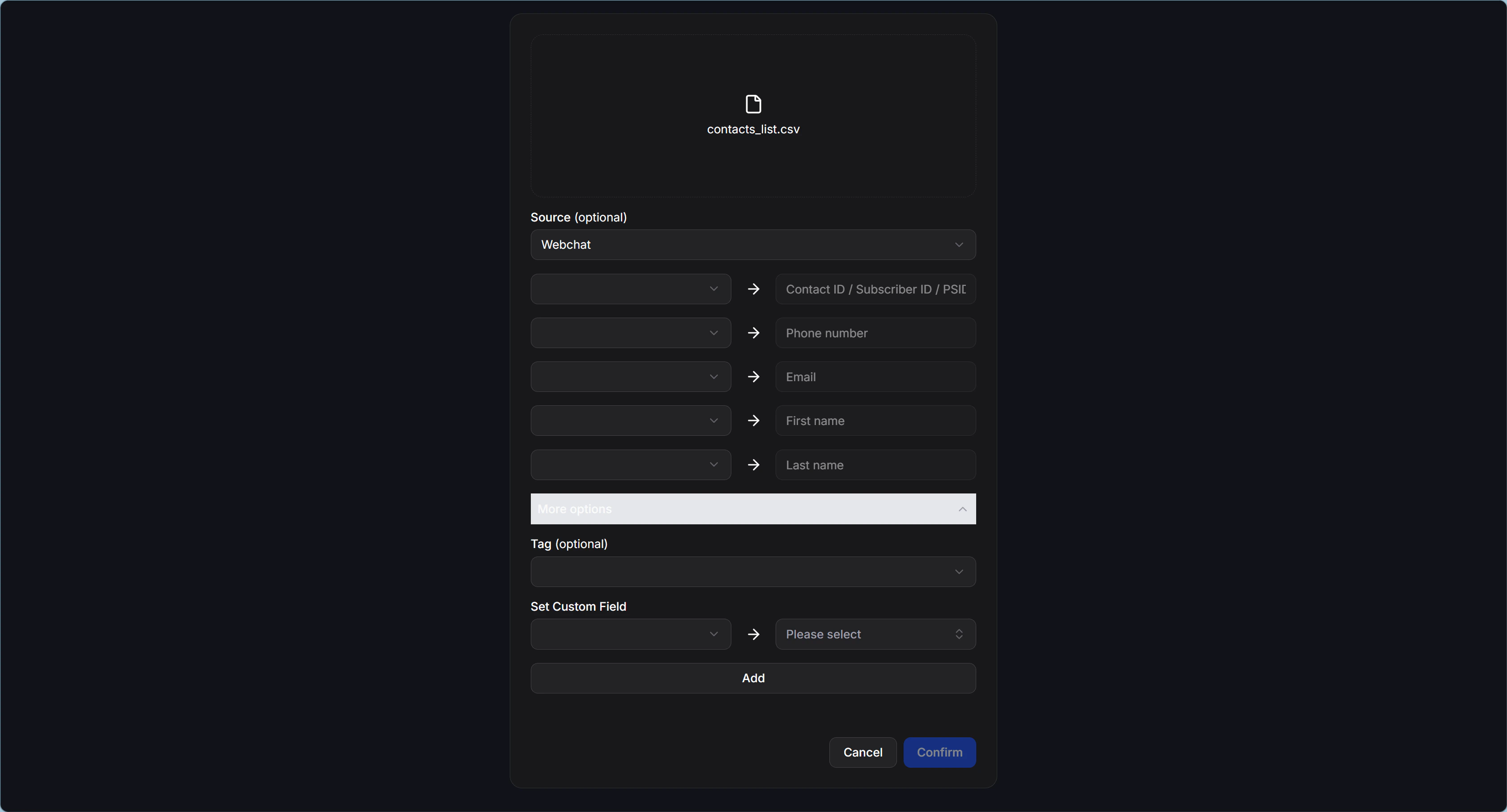
Fields shown on the import screen
The current import screen includes these main areas:More options
The More options section is useful when you want to enrich the whole list during import.Tag (optional)
The Tag (optional) field lets you apply the sameTag to every contact in the import file. This is useful when you want to label a group quickly by campaign, data source, or import batch.
Set Custom Field
The Set Custom Field section lets you map more CSV data into existingCustom Field entries in ChatbotX. Choose the data column on the left, the matching Custom Field on the right, then click Add to include that mapping in the import list.
If you do not have the right field yet for storing custom contact data, create it first in Custom Fields.
Prepare the file before importing
Before starting the import, it helps to review the CSV file so mapping is faster and cleaner:- Use clear column names so they are easy to identify during mapping.
- Make sure key columns such as phone number, email, or name are separated correctly.
- Review the data first so you do not import records you no longer need.
- Prepare the needed
TagorCustom Fieldvalues in advance if you want to group the data immediately.
Check after the import
After the import finishes, open Contacts again and inspect a few sample records to make sure the data was saved into the correct fields. From there, you can use Filter Contacts to review the imported group quickly, or use Bulk Actions if you needAssign, Add Tag, Set Custom Field, or Export.
Example use case
For example, your sales team may have a file namedcontacts_list.csv containing leads collected at an offline event. You can import that file into ChatbotX, map columns such as phone number, email, and name, then apply a campaign Tag and add a Custom Field so the team can keep filtering, segmenting, and tracking those contacts in one place.