

Set User Persistent Menu
Cài đặt Menu cố định cá nhân hóa cho từng khách hàng.
Enable Messenger Composer
Kích hoạt lại ô nhập văn bản (bàn phím) của khách hàng.
Disable Messenger Composer
Tạm thời ẩn bàn phím để dẫn dắt khách đi theo nút bấm kịch bản.
Set Persona
Thay đổi linh hoạt tên hiển thị và ảnh đại diện của chatbot.
Cách truy cập Messenger Actions
Trong màn hình chỉnh sửa kịch bản (Flow Builder), nhấp vào nút + chọn Actions chọn Messenger để truy cập danh sách hành động.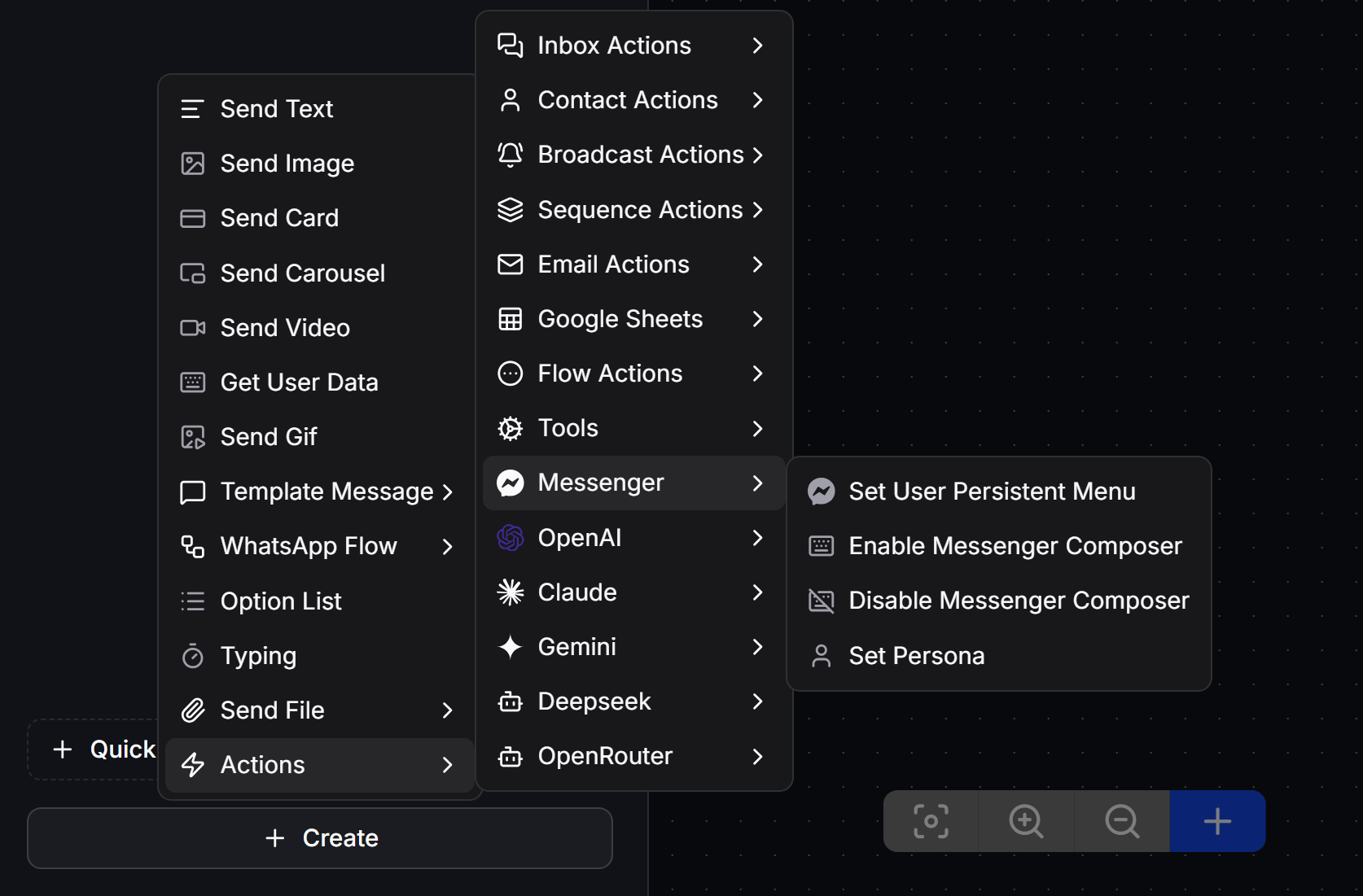
Set User Persistent Menu
Hành động này cho phép bạn thiết lập một Menu cố định (Persistent Menu - nút menu hamburger nằm góc dưới màn hình chat) riêng biệt cho từng khách hàng, ghi đè lên thiết lập menu mặc định của trang.Hướng dẫn cấu hình
1
Thêm hành động vào Flow
Trong Flow Builder, thêm khối hành động Set User Persistent Menu.
2
Nhấn tạo mới Menu
Trong cửa sổ cấu hình hành động, nhấn vào liên kết Add new phía trên góc phải của ô chọn. Giao diện thiết lập menu động sẽ xuất hiện ngay lập tức để bạn thiết kế các nút bấm.
3
Thiết kế và lưu Menu
Đặt tên nhận diện cho menu động và cấu hình các nút chức năng mong muốn bằng nút + Add Persistent Menu, sau đó nhấn Save để lưu lại.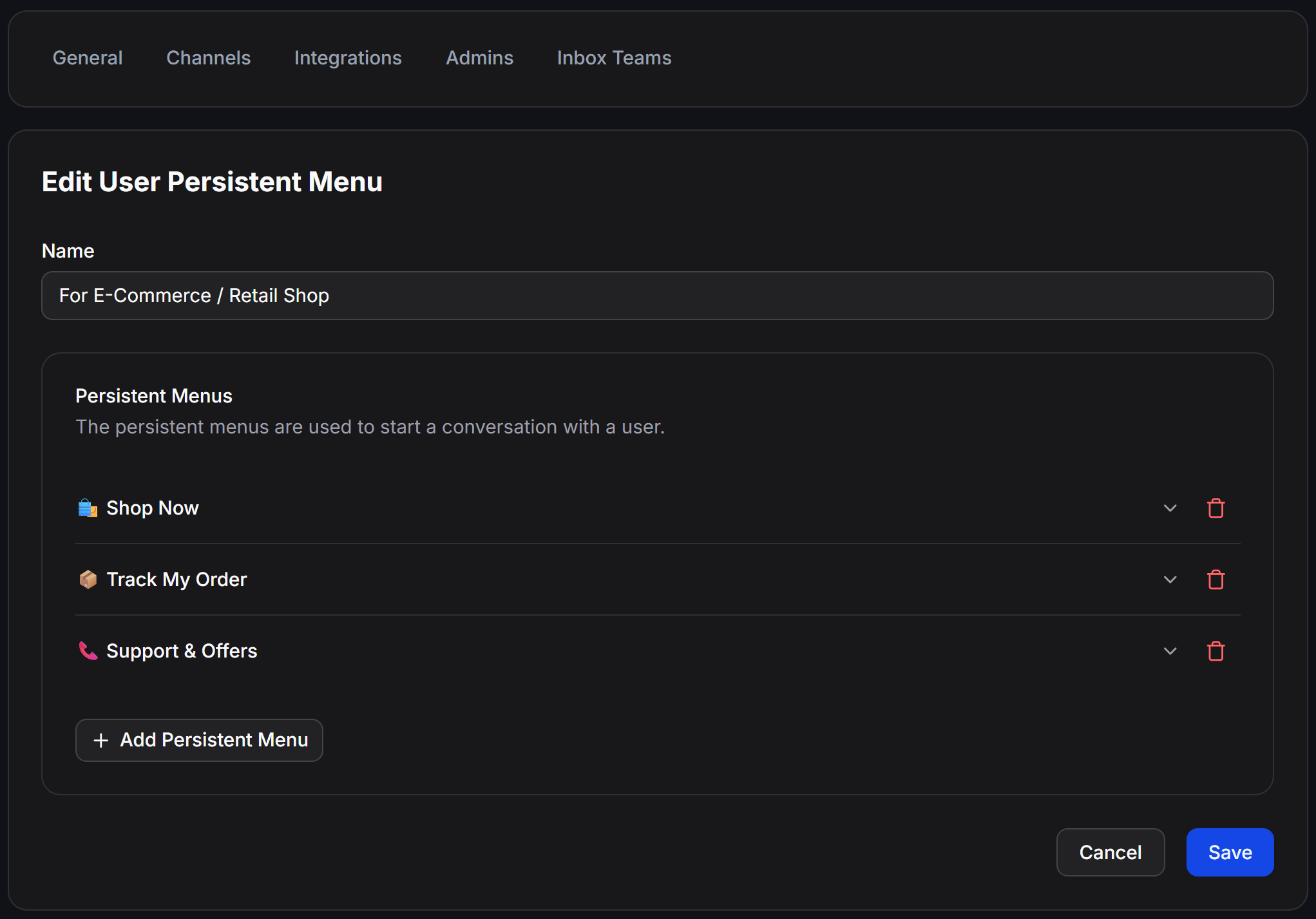
4
Áp dụng Menu cho khách hàng
Chọn tên menu động bạn vừa tạo trong ô chọn của khối hành động.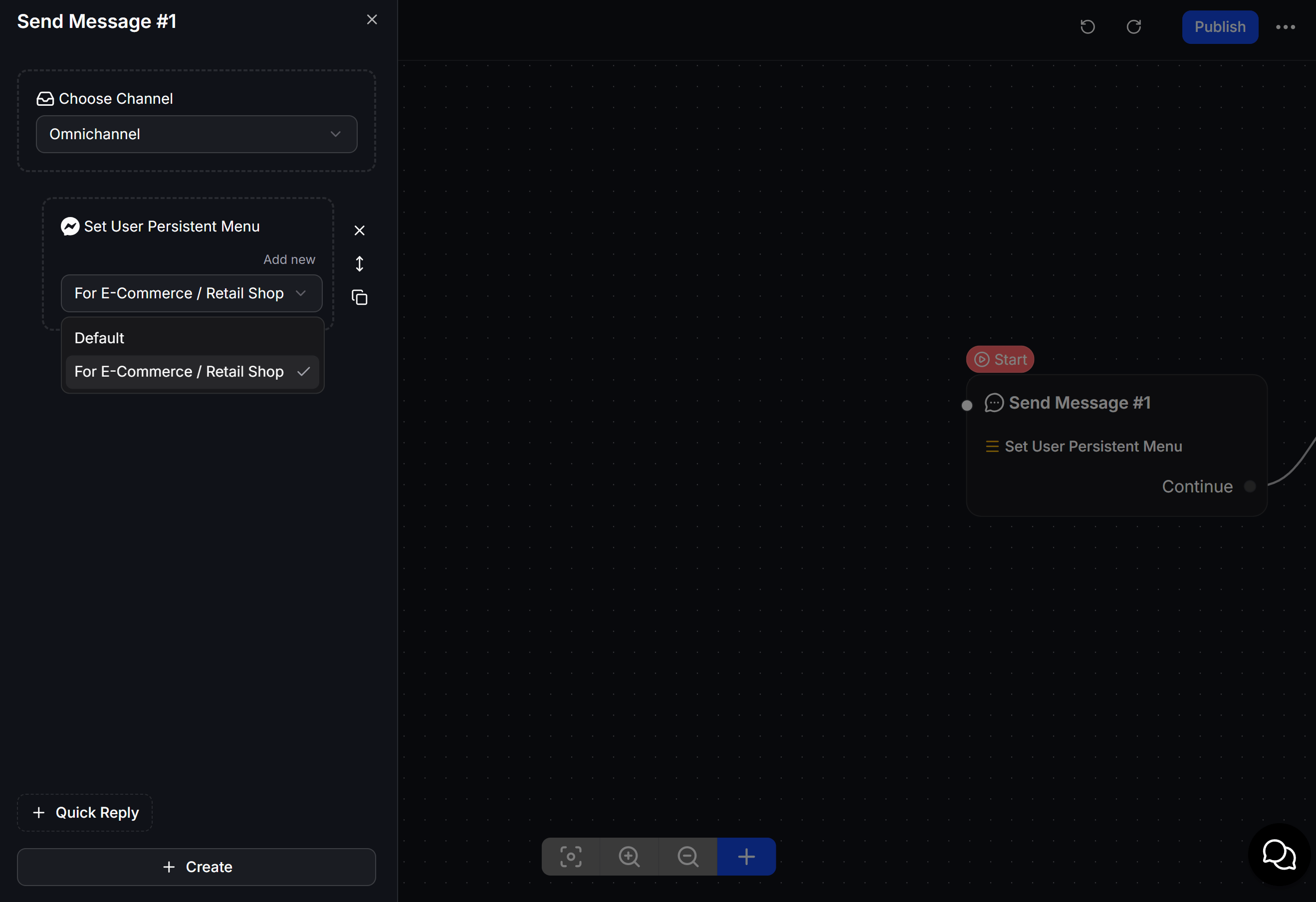
5
Kết quả
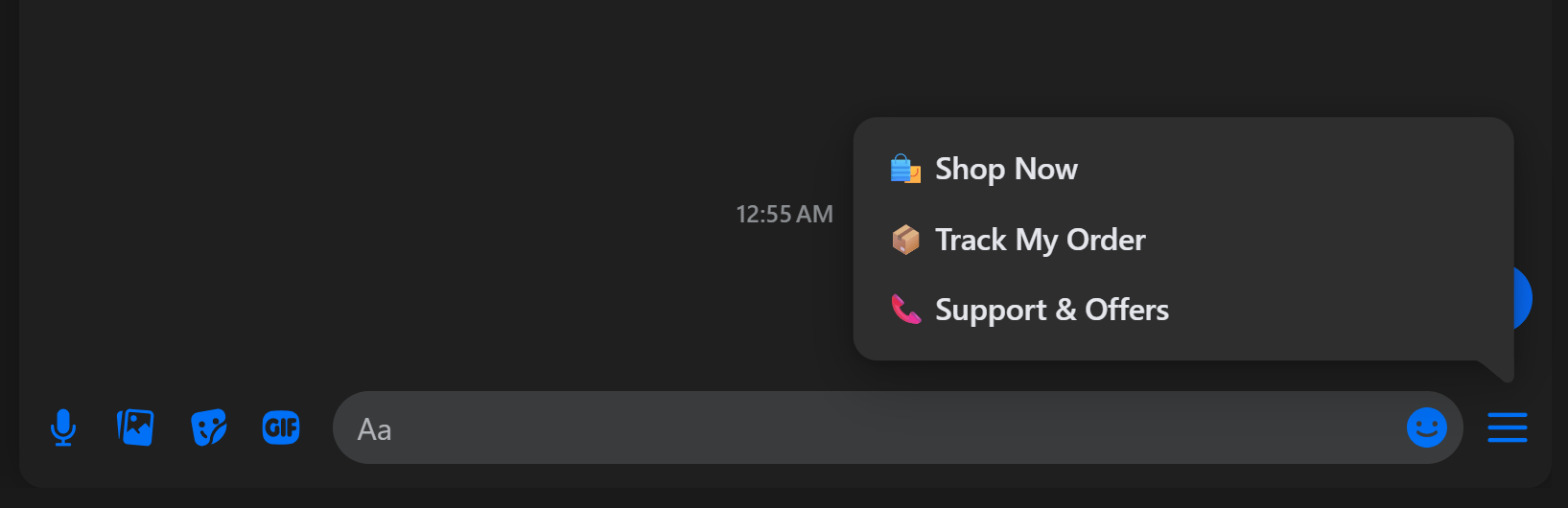
Để gỡ bỏ Menu động cá nhân hóa và quay trở lại sử dụng menu mặc định của trang, bạn chỉ cần chọn giá trị Default trong dropdown cấu hình của khối hành động.
Disable Messenger Composer
Hành động này tạm thời khóa và ẩn ô nhập liệu (bàn phím) của khách hàng trên Messenger, buộc khách hàng phải tương tác qua các nút bấm hoặc câu trả lời nhanh trong kịch bản. Điều này giúp dẫn dắt khách hàng đi đúng luồng tư vấn và hạn chế tối đa việc khách gõ tin nhắn tự do gây lệch hướng kịch bản.Enable Messenger Composer
Hành động này kích hoạt lại khung soạn thảo văn bản (bàn phím nhập liệu) cho khách hàng trong Messenger, cho phép họ tự do gõ chữ và gửi tin nhắn bình thường.Set Persona
Hành động này cho phép bạn thay đổi danh tính (tên hiển thị và ảnh đại diện) của chatbot ngay trong cuộc trò chuyện Messenger. Khách hàng sẽ thấy tin nhắn được gửi từ một nhân vật mới thay vì từ tên Page Facebook mặc định, giúp cá nhân hóa trải nghiệm tư vấn (ví dụ: đổi thành Persona “Hỗ trợ viên Linh”).Hướng dẫn cấu hình
1
Tạo Persona mới trong cài đặt
Truy cập Settings → Channels → Messenger, cuộn xuống phần Personas và nhấn nút + Add Persona để tạo danh tính mới (nhập tên hiển thị và tải ảnh đại diện lên).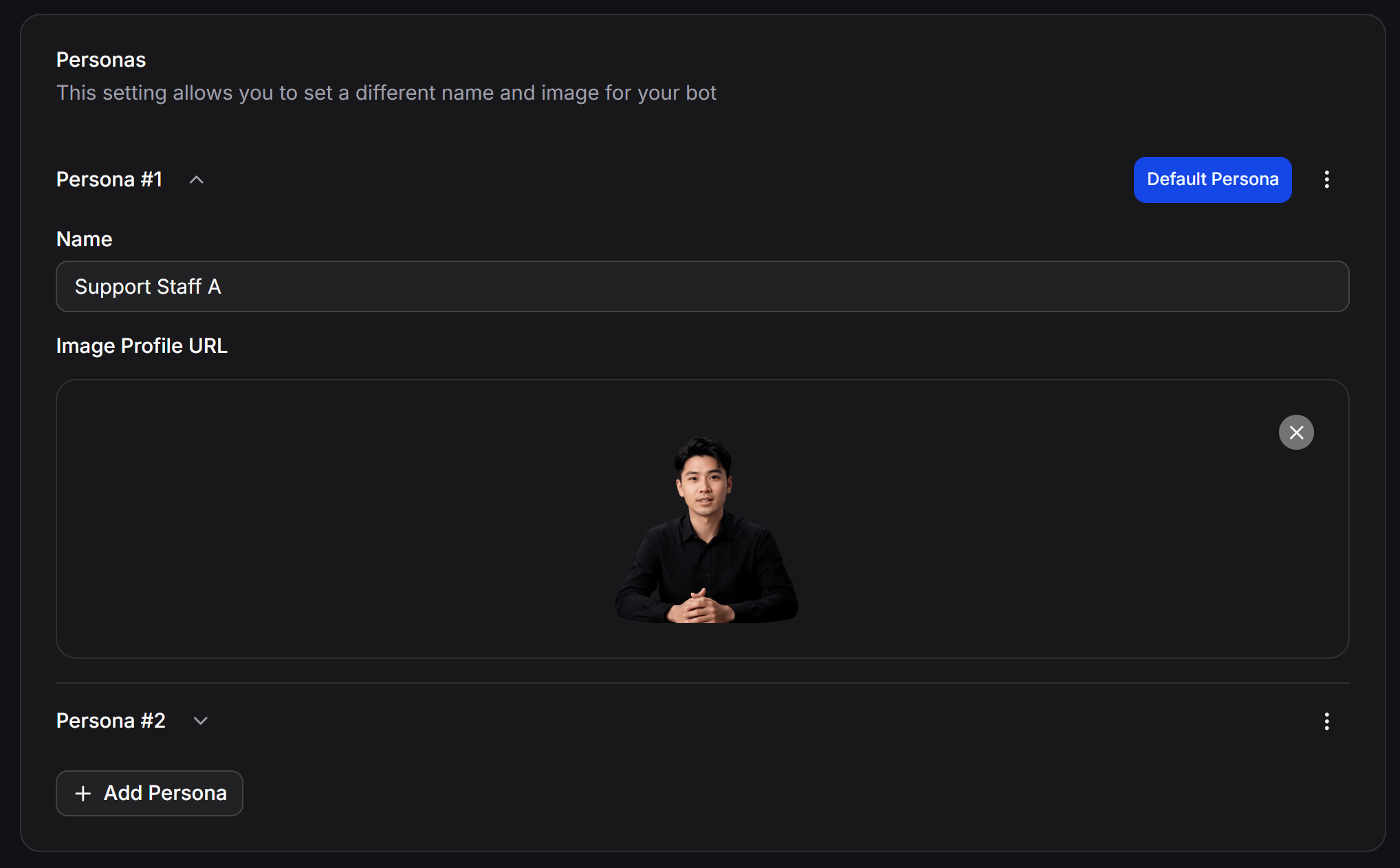
2
Áp dụng hành động trong Flow
Trong kịch bản chat, thêm khối hành động Set Persona và chọn đúng Persona bạn vừa tạo. Các khối nội dung phía sau hành động này sẽ gửi đi dưới diện mạo mới.