

1. Create an Inbox Team
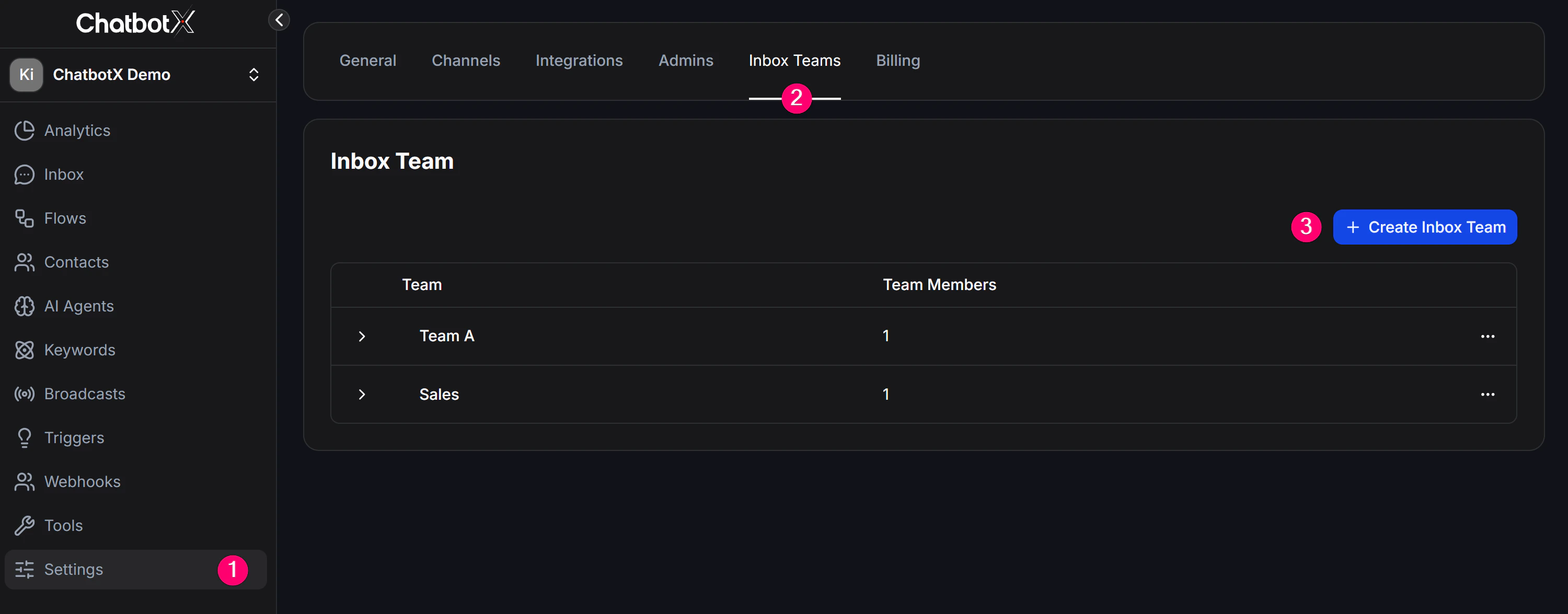
Before assigning conversations, group your team members first. How to create one:- Go to Settings -> Inbox Team.
-
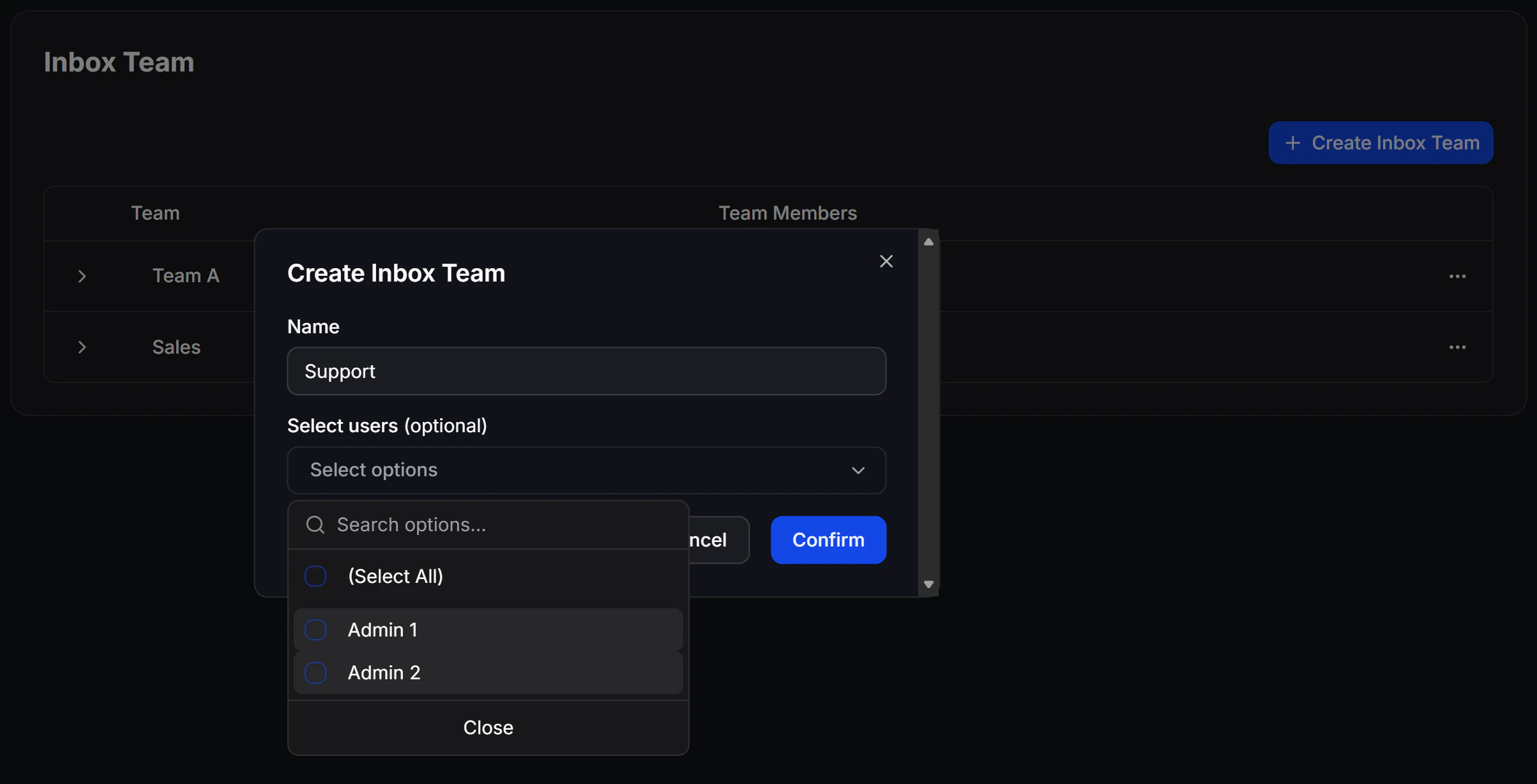
Click Create Inbox Team, then enter a team name such as “Sales Team” or “Support Team”.
-
Select the team members and save.
2. Assign a chat manually to a person or team
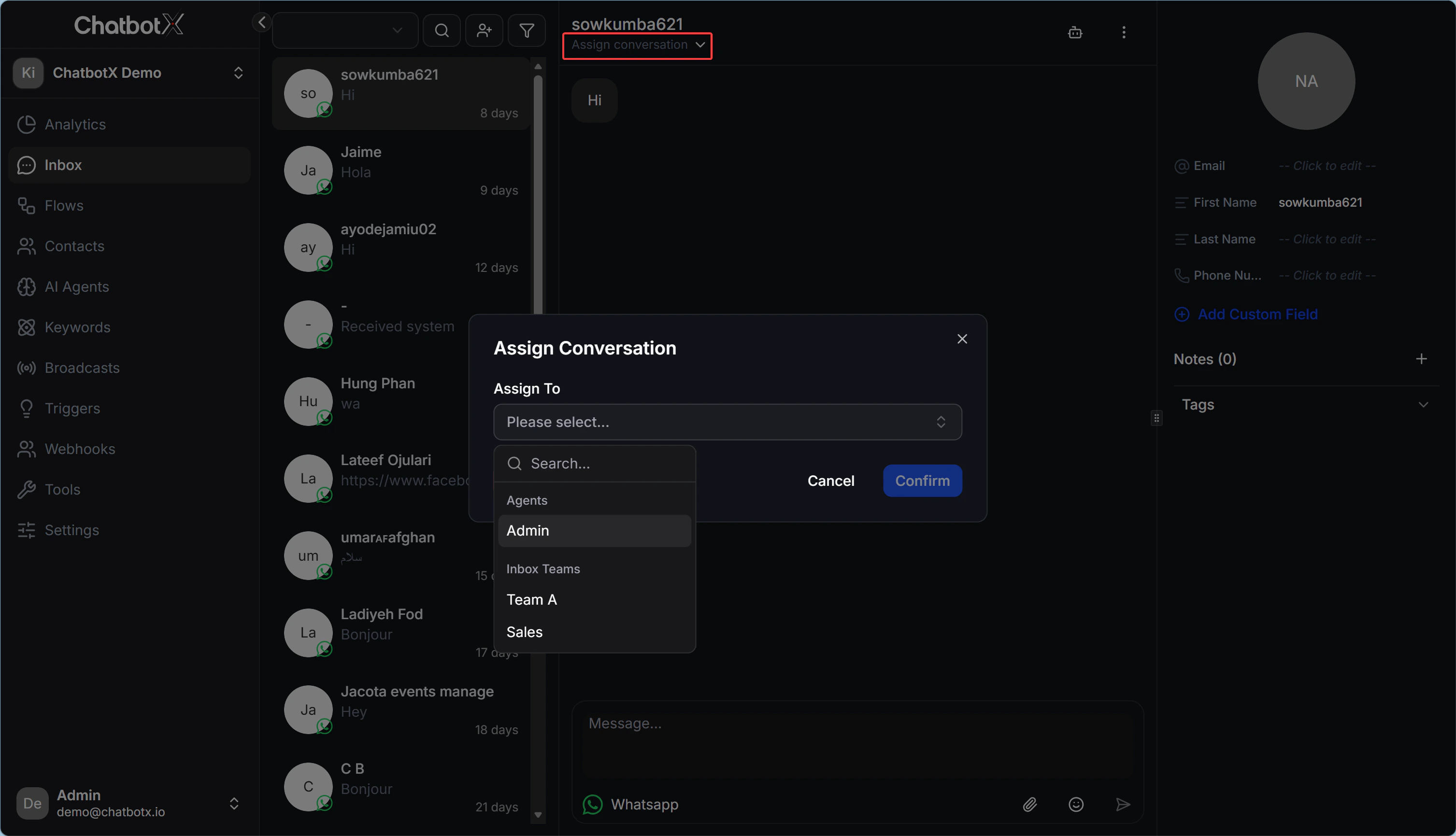
When you are viewing a conversation and want to assign it to a specific person:- Open the conversation in Inbox.
- Look at the top area and find Assign Conversation.
- Choose the team member or team that should take over.
3. Configure automatic assignment in Flow Builder
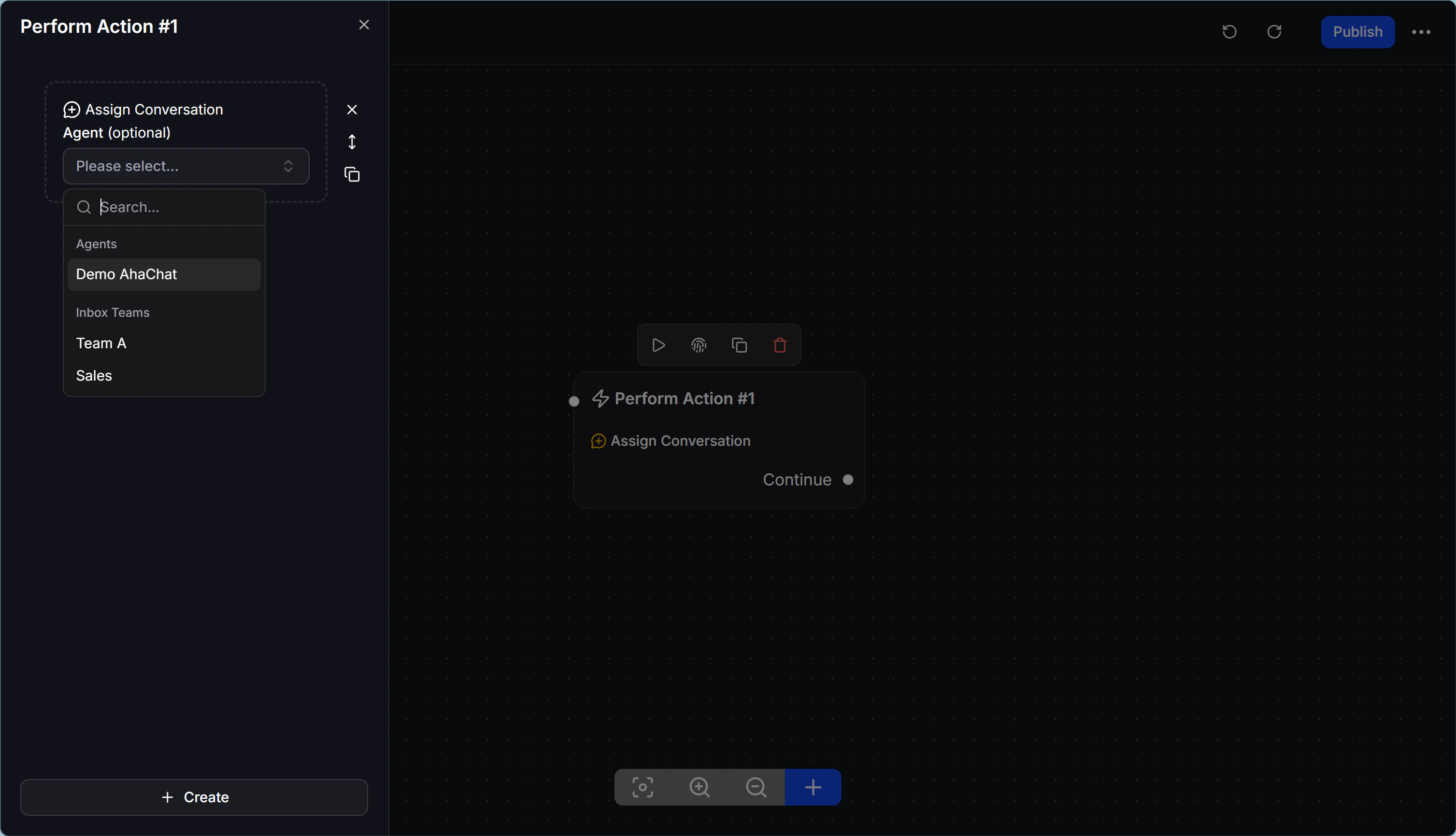
If you do not want to assign chats manually one by one, set it up directly in the Flow so the system handles it automatically:- In Flow Builder, add an Action block.
- Choose Inbox Actions -> Assign Conversation.
- Select the target team member or team.
4. Distribute chats automatically across the team
Auto Assign Conversation helps the system distribute chats fairly across available online team members so no one gets overloaded and no one stays idle. Available distribution modes: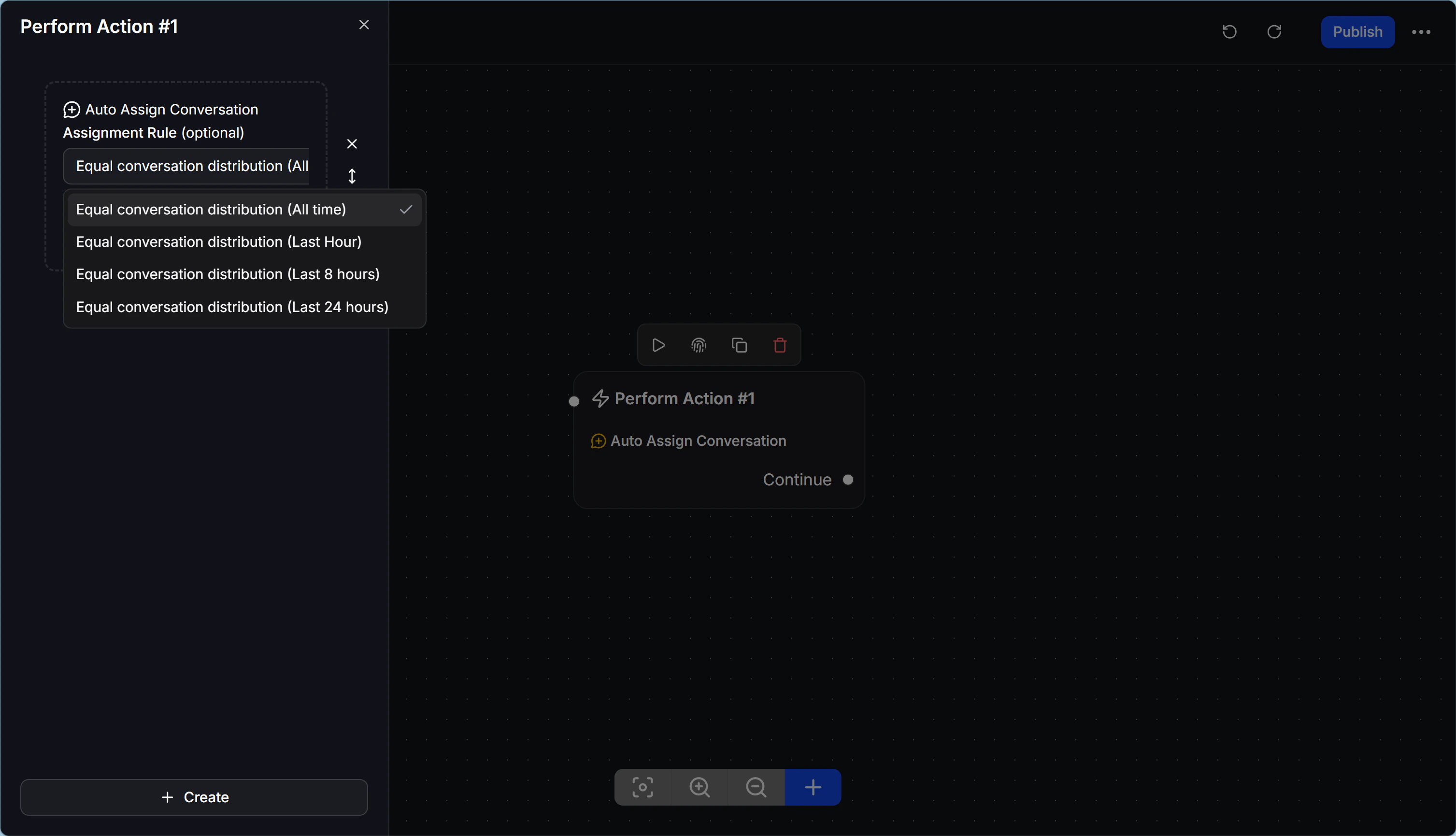
5. Handle cases where no one is online
When you use Auto Assign in Flow Builder, you will see 2 result branches:- Success: The system found an available team member and assigned the chat successfully. The Flow continues through this path.
- Failure: No team member is online or available, so the Flow moves into the fallback path.
On the Failure branch, add an automatic message such as “Sorry, our support team is busy right now. We will get back to you as soon as possible.” This prevents customers from waiting with no reply at all.