Keywords let ChatbotX detect specific phrases in a customer’s message and automatically trigger either a static reply or a matching Flow.
This is an effective way to create fast-response rules for predictable situations, such as guiding customers to a menu, checking order information, or answering frequently asked questions.
For more natural conversations that require deeper context analysis, ChatbotX recommends combining Keywords with AI Agent support.
1. Management interface
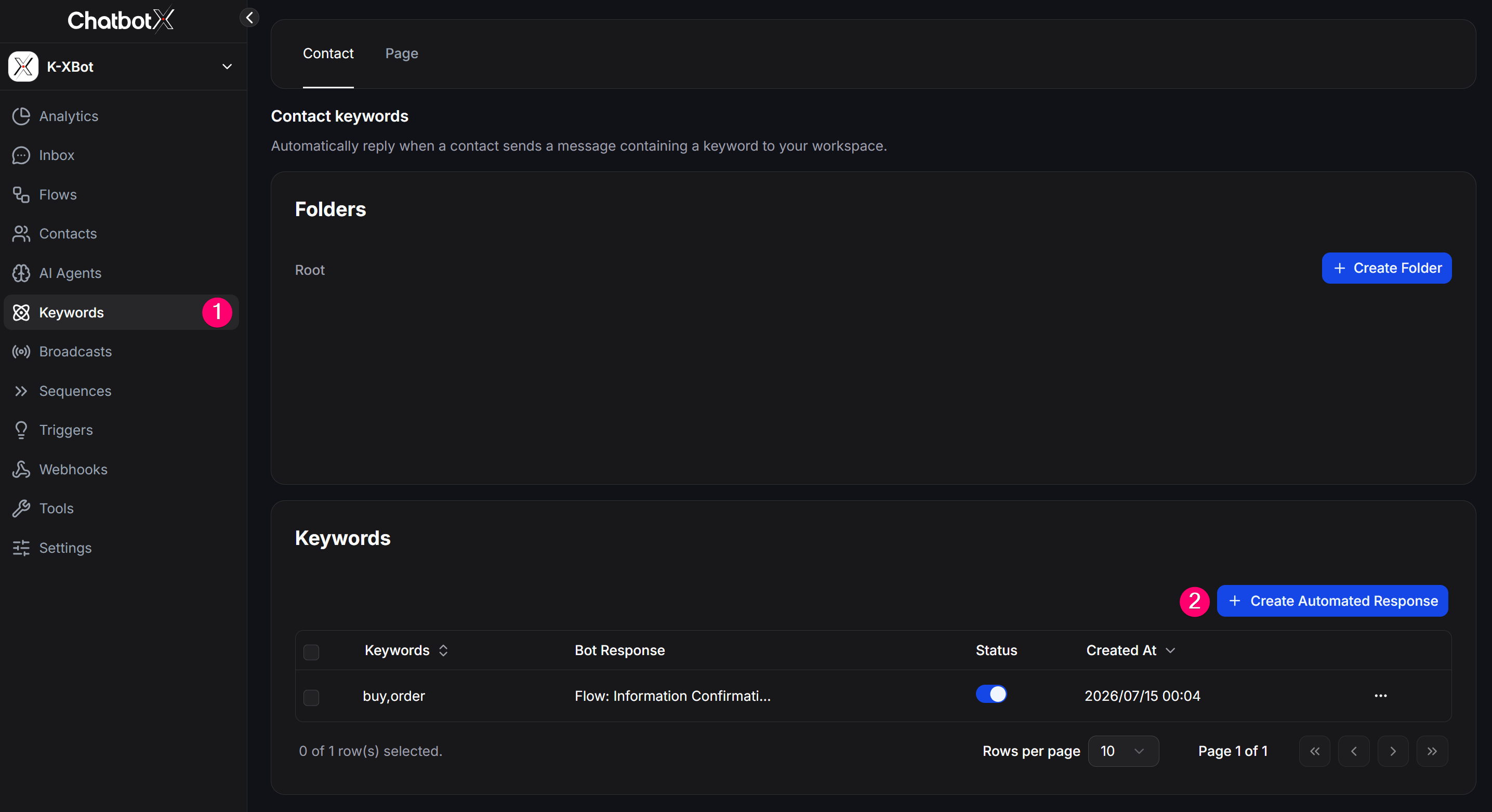
To access this feature, open Keywords from the left navigation. Use the tabs at the top to choose which type of message should trigger the rule:
- Contact: Triggers a response when a message from a contact contains a configured keyword.
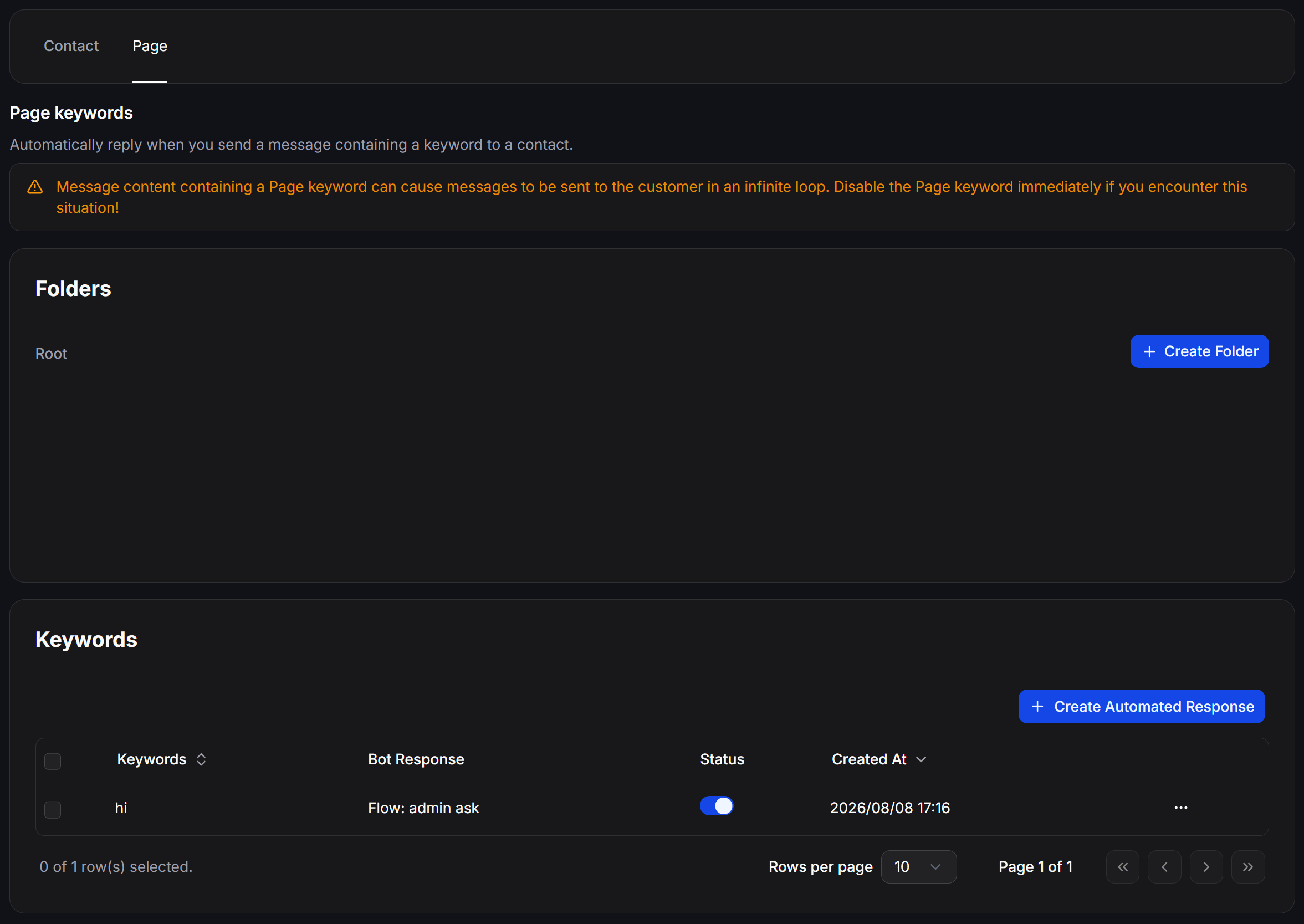
- Page: Triggers a response when a message sent by your Page to a contact contains a configured keyword.
Each tab contains 2 main parts:
- Folders: Lets you organize keyword rules by campaign or use case, such as
Promotions or Customer Support. You can create a new folder with + Create Folder.
- Keywords list: Shows every keyword rule in a table:
- User Message: The phrase the system should recognize, such as
price, consultation, or menu.
- Bot Response: The response action, either a text reply or a Flow trigger.
- Status: Whether the keyword rule is on or off.
- Created At: When the keyword rule was created.
2. How to set up an automated response
ChatbotX creates keyword rules through a simple modal. To start, click + Create Automated Response in the top-right corner.
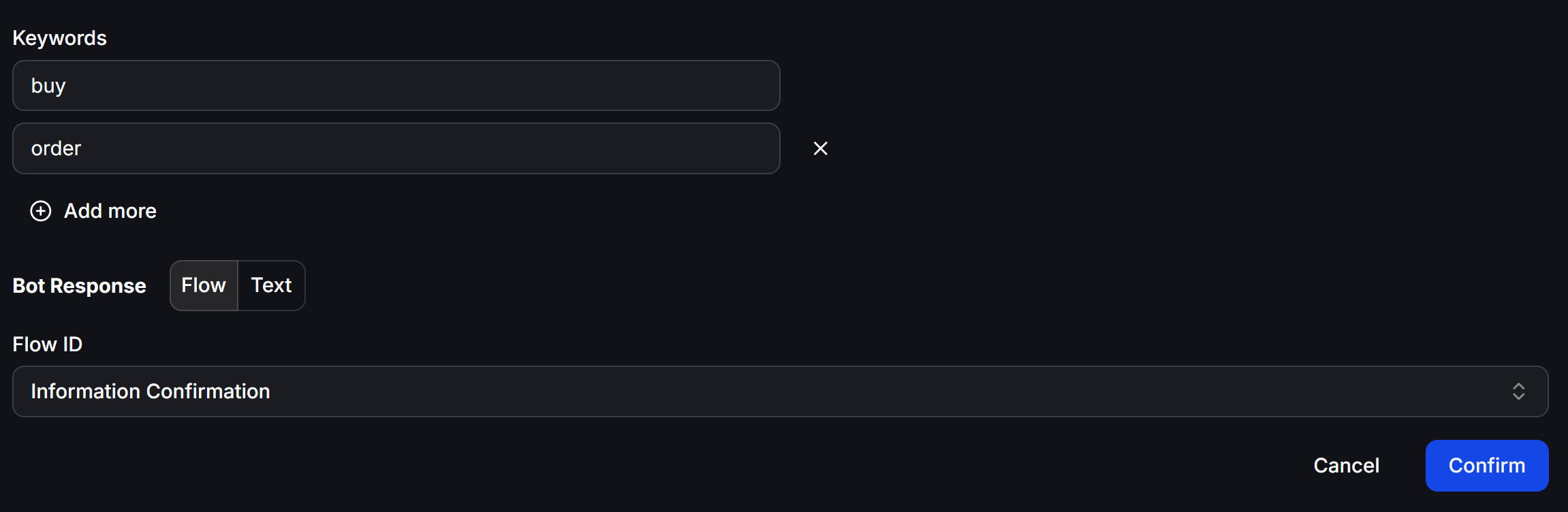
Step 1: Set up User Message
- User Message input: Enter the keywords the system should recognize.
- (+) Add more: Add multiple keyword variations that should trigger the same response, such as
price quote and pricing.
Step 2: Set up Bot Response
When the system detects a matching keyword, you can choose one of these response types:
- (+) Add text reply: Sends a text message immediately. This works best for short and direct replies.
- (+) Add flow reply: Lets you choose an existing Flow from a dropdown list. When the keyword is matched, that Flow starts automatically.
After finishing the setup, click Confirm to save the rule.
3. How to set up a Page keyword response
Page keywords let your team trigger an automated response by including a configured keyword in a message sent from the Page to a contact. For example, an agent can send a short keyword that starts a predefined Flow for the customer.
- Open Keywords and select the Page tab.
- Optional: Click + Create Folder to organize Page keyword rules by campaign or use case.
- Click + Create Automated Response.
- Enter the keyword that ChatbotX should detect in messages sent by the Page.
- Choose the Bot Response, such as a text reply or an existing Flow.
- Click Confirm to save the rule.
Use the toggle in the Status column to enable or disable a Page keyword rule.
A message containing a Page keyword can repeatedly trigger another message to the customer and create an infinite loop. If this happens, disable the Page keyword immediately and check that the automated response does not contain the same keyword.
4. Automation priority
When rule-based automation and AI are both active, ChatbotX follows a priority order to handle the customer’s message as accurately as possible:
- Keywords: Highest priority. The system always checks the Keywords list first. If the message contains a valid keyword, the matching action runs immediately and processing stops there.
- OpenAI / LLMs: If no keyword matches, the message is sent to the highest-priority AI model, which is OpenAI by default, for analysis and response.
- Fallback AI models (Claude / Gemini / xAI / DeepSeek…): If the main AI model fails to connect or times out, the system automatically forwards the request to preconfigured backup models so the customer experience is not interrupted.
- Default Reply: This is the final fallback when all automation and AI options are unavailable. The system sends a fixed message, such as a delay notice or a handoff message to a human agent.