

Understand the 24-hour policy before building a Sequence
Before setting up a Sequence, you need to understand the messaging limits of each platform. These rules decide whether you can send a direct message or whether you need to switch to a specific message type or template category.Messenger
- Within 24 hours of the customer’s last interaction, you can send direct content.
- After 24 hours, split your use case into 2 cases:
- Utility Message: for non-promotional content such as order updates, appointment reminders, or account notifications
- Marketing Messages on Messenger: for marketing content outside the 24-hour window, sent through campaigns to contacts who opted in
- Within 24 hours, WhatsApp allows you to send free-form messages without using a fixed template.
- After 24 hours, WhatsApp requires pre-approved message templates.
- The main template categories are:
- Marketing
- Utility
- Authentication
Quick summary
How to set up a Sequence
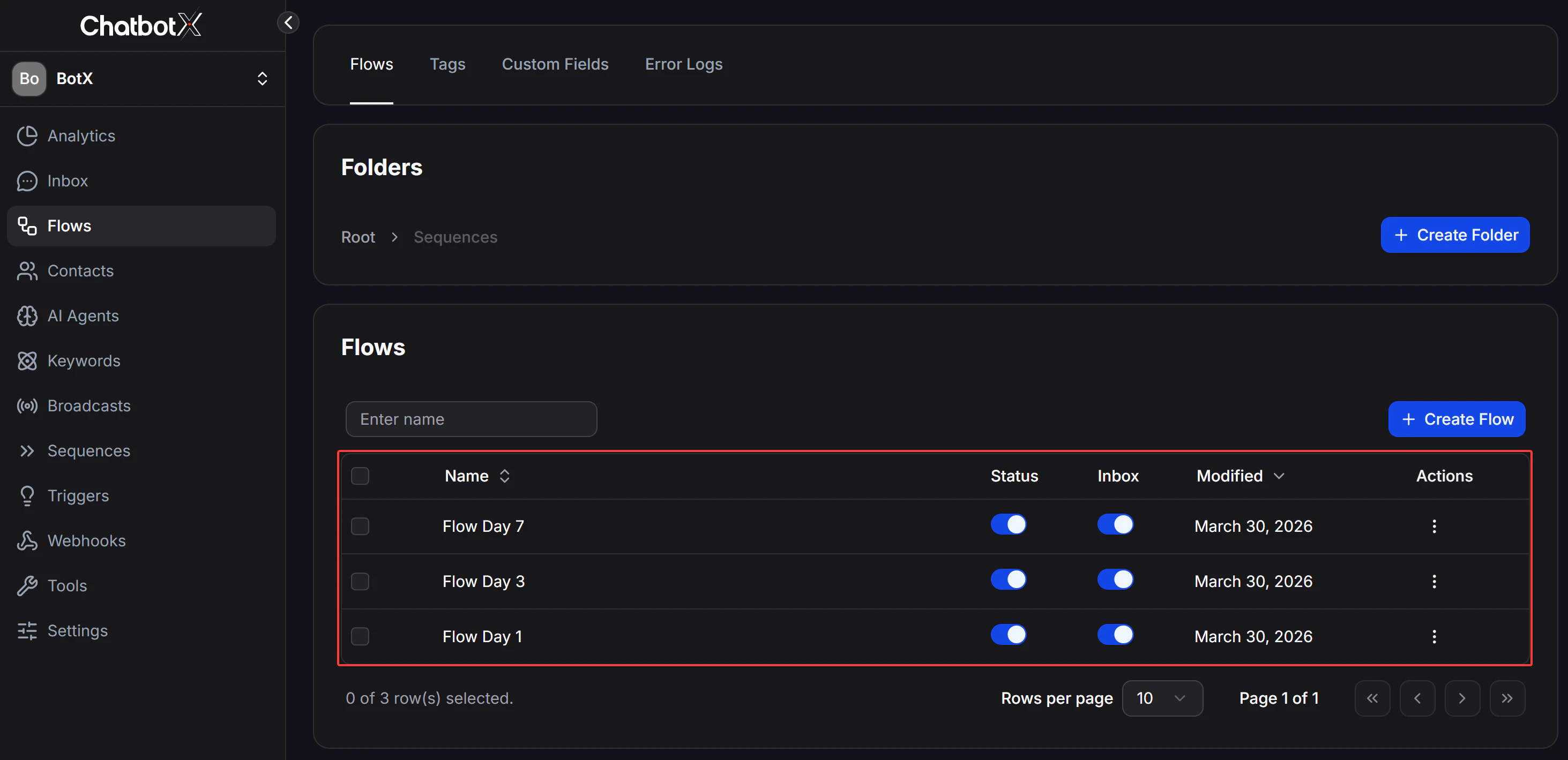
Step 1: Create separate Flows first
Each message in the Sequence should be its own Flow. Prepare those Flows before you assemble the full Sequence. Example of a 7-day WhatsApp sequence:- Day 1 Flow: welcome message and first introduction while the customer is still inside the 24-hour window
- Day 3 Flow: appointment reminder or order update using
Utilitycontent - Day 7 Flow: a return-purchase offer using a
Marketingtemplate
Step 2: Open Sequences
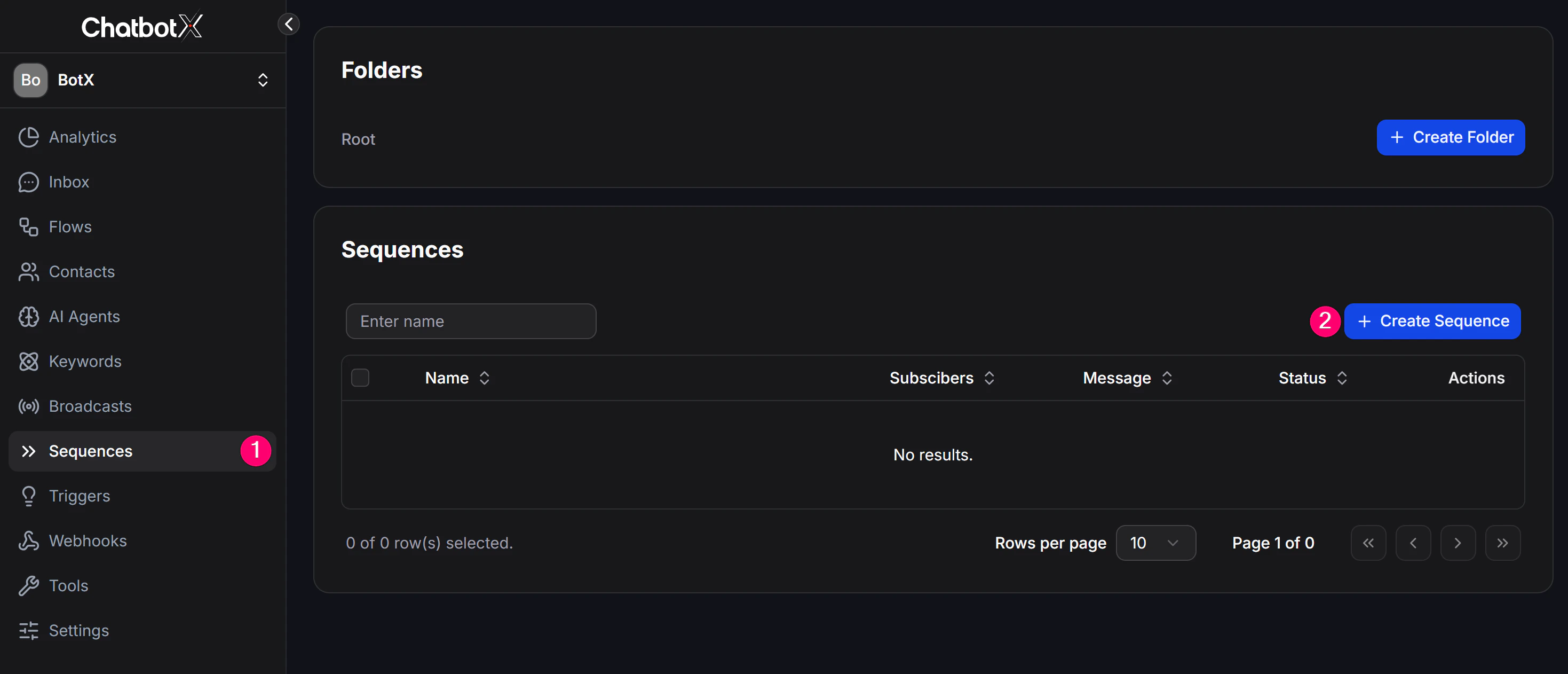
From the left menu, open Sequences.Step 3: Create a new Sequence
- Click + Add to create a new sequence.
- Give it a clear name, such as
New Customer Care - WAor7-Day Nurture - Messenger. - Click Save to continue.
Step 4: Add messages and define the schedule
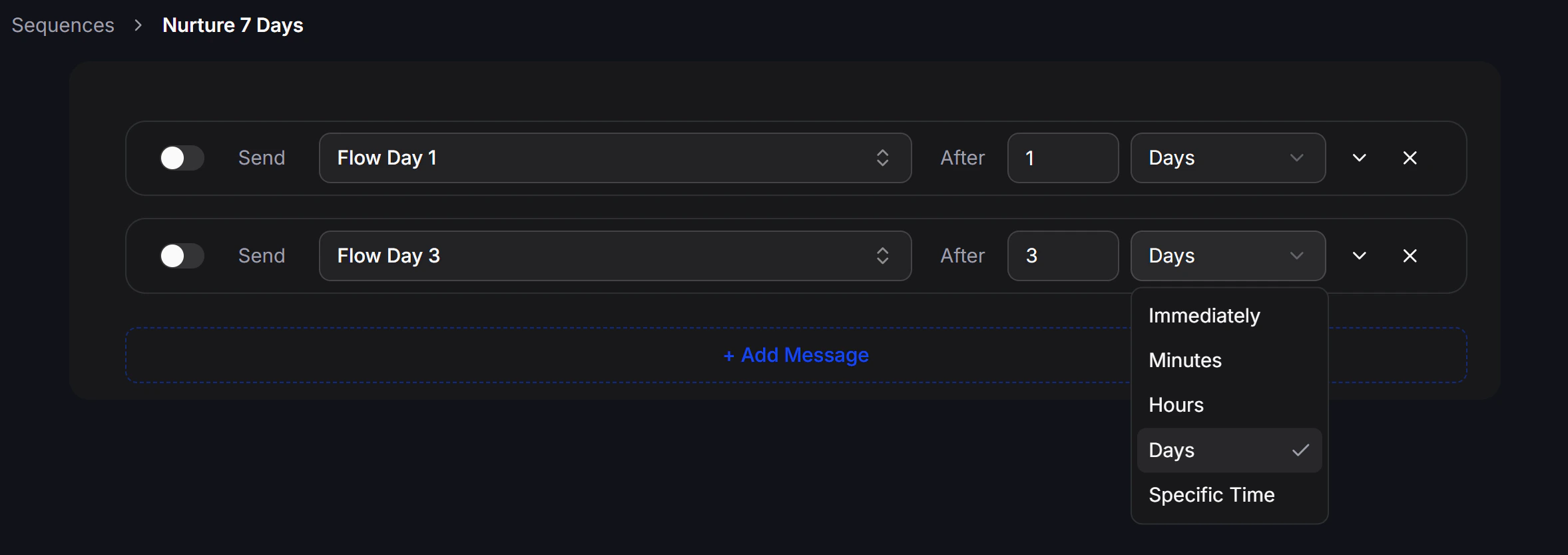
- Click + Add Message to add a step to the sequence.
- Choose the matching Flow for that step.
- Set the delay: immediately, after X hours, or after X days.
- Turn on the toggle to activate that step.
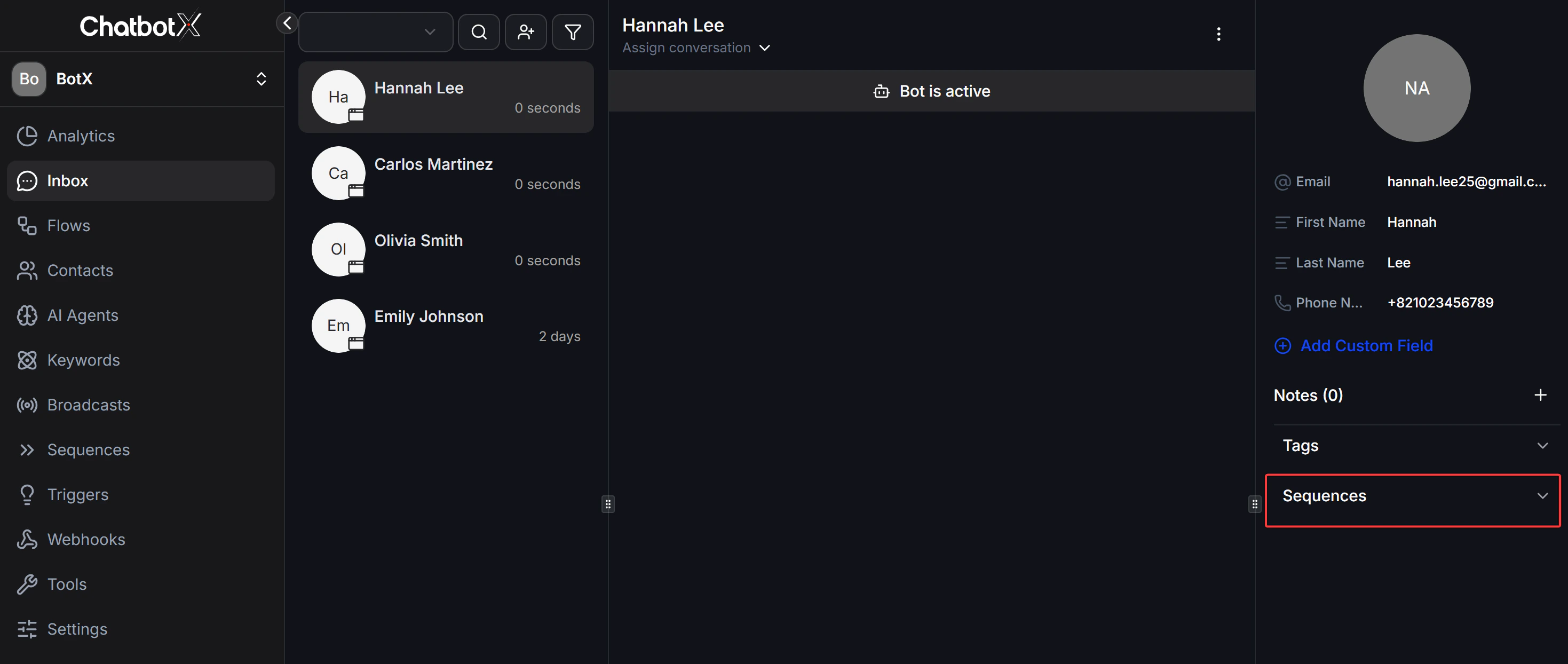
Step 5: Create the subscription point for the Sequence
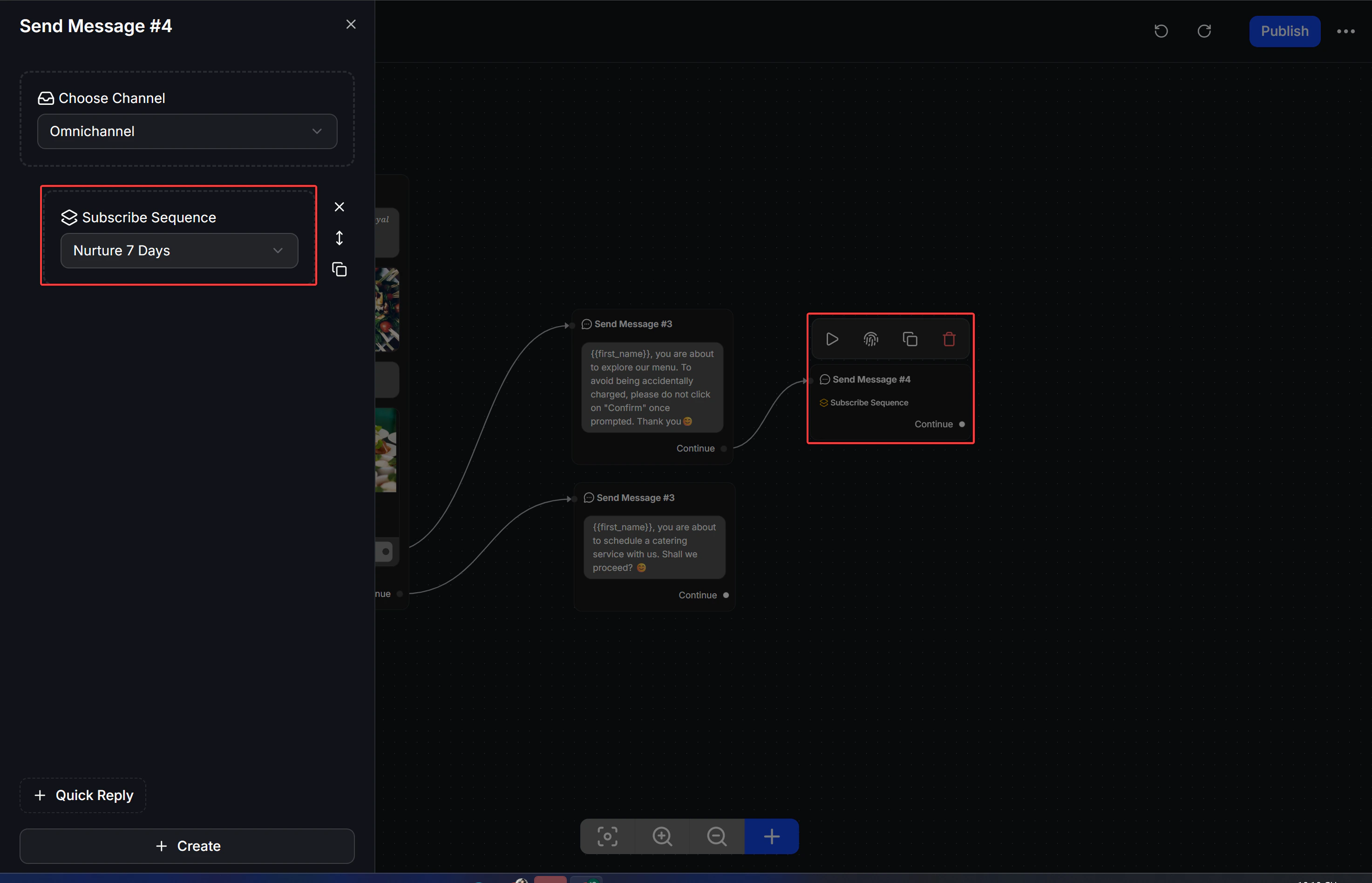
A Sequence does not run by itself. It needs a Flow to subscribe the customer into it.- In any Flow, add an Action block.
- Choose Subscribe to Sequence and select the correct Sequence.
Example Sequence setups
Post-purchase care sequence on WhatsApp
- Right after the customer messages you: send instructions or a thank-you message as a
free-form message within 24h - A few days later: send a transactional update or reminder with
Utility - Later on: if you want to remarket, use the right
Marketingtemplate
Win-back sequence for older Messenger contacts
- If the customer is still inside 24 hours: send the needed message directly
- If the customer is outside 24 hours and the content is essential: use
Utility Message - If the content is promotional or newsletter-style: use
Marketing Messages on Messenger
Safe operating strategy
- Classify the message before sending:
UtilityorMarketing. - Do not place promotional content inside the
Utilitypath. - If you want to keep the 24-hour window open longer, end your message with a question that encourages the customer to reply.
- For longer nurture flows, choose the correct channel and message type from the start instead of using the same logic everywhere.