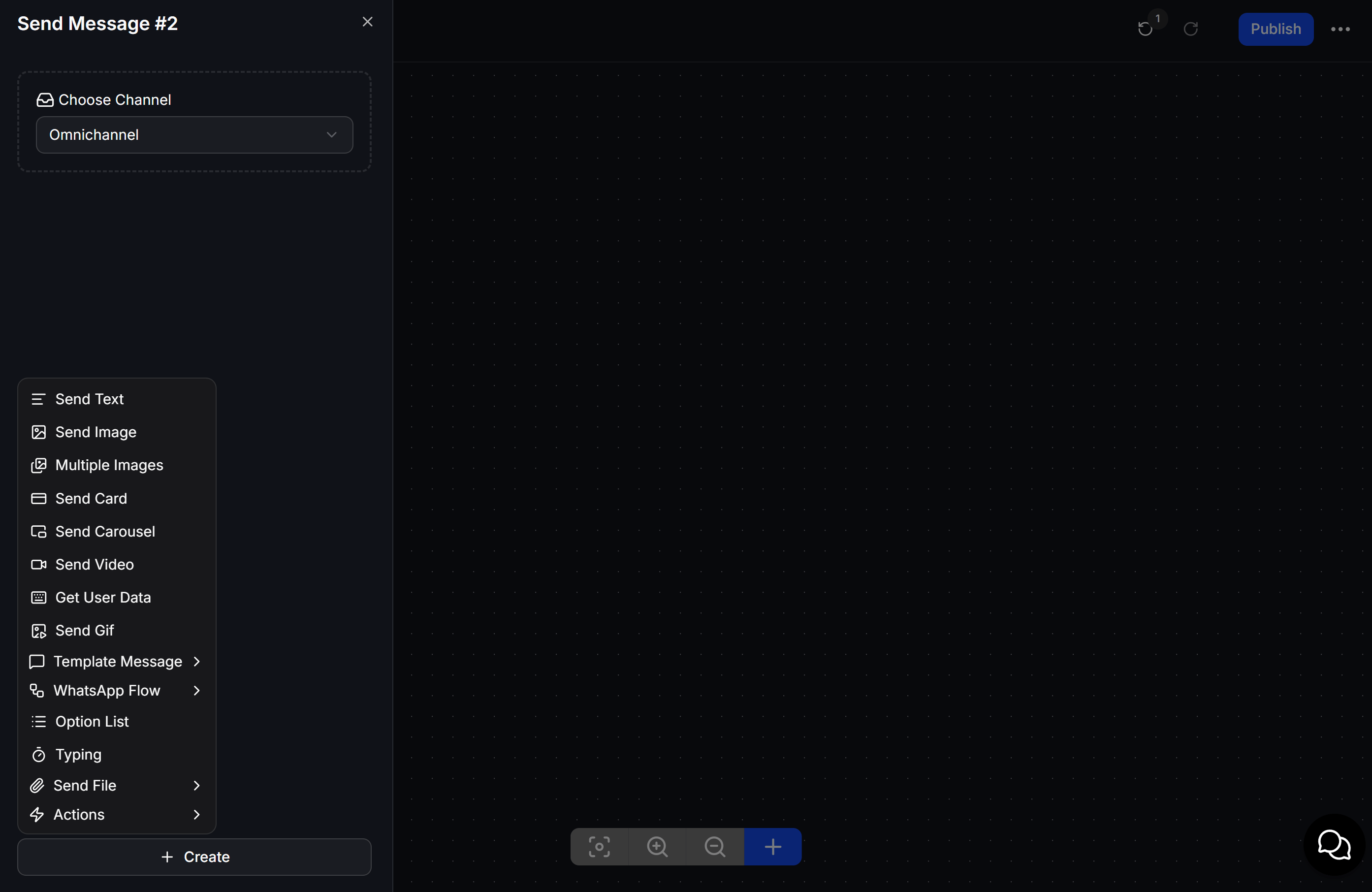
- Send Message & Content Blocks: Blocks that show visible content to the customer, such as text, images, and questions.
- Interaction Elements: Buttons that help customers make choices and move to the next step.
- Logic & System Nodes: Blocks that control background processing rules inside the system.
1. Send Message
The Send Message block is where you place the content you want to send to customers. Inside one message, you can combine multiple content formats, which are the Content Blocks described below.1.1 Display content
These blocks are used to present information directly to the customer:- Send Text: Send a normal text message. You can insert the customer’s name or other personalized values from Custom Fields.
- Send Image / Send Video: Send an image or short video. You can upload a file from your computer or paste the direct URL of the media.
- Multiple Images: Send multiple images grouped together within a single message. This allows you to showcase multiple product photos, variations, or galleries without cluttering the chat window.
- Send File: Send downloadable files such as PDFs, price lists, or audio files.
- Send Card: Create a polished information card with a large image on top, a title, a short description, and one or more Buttons. This is a good format for presenting a product or update.
- Send Carousel: Create a swipeable row of multiple Cards. Customers can swipe horizontally to browse up to 10 cards. This format is often used for product catalogs, collections, or item lists.
1.2 Get User Data
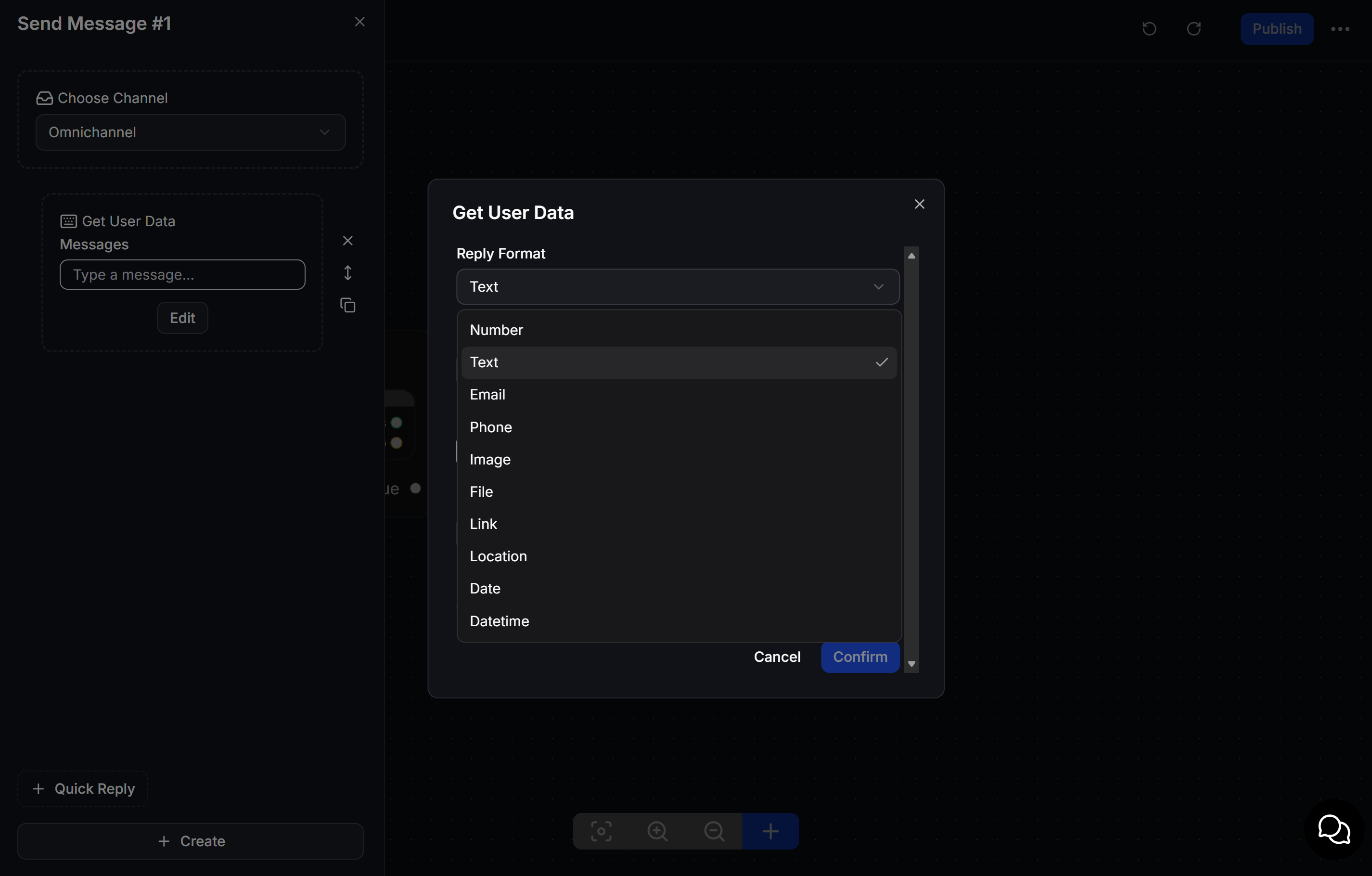
When you want to ask the customer for a specific piece of information, such as a phone number or email address, and save the answer for later, use this block. When the Flow reaches this step, the chatbot pauses and waits for the customer to respond. As soon as the reply arrives, the system automatically saves that value to the customer’s profile through the selected Custom Field. To make sure the customer enters data in the correct format, ChatbotX supports several validation types:- Text: Accepts any text, number, or symbol input.
- Email / Phone: Requires a valid email format or a valid phone number format.
- Number: Accepts numbers only. This is useful for questions like age or quantity. If the customer enters text, the system shows an error and asks again.
- Link: Requires the customer to enter a valid website URL.
- Location: Requests the customer’s current location on supported channels.
- Date / Datetime: Shows a date or date-time picker so the customer can choose a specific appointment or schedule.
- Image / File: Asks the customer to upload an image or file for the system to store.
1.3 Minigame Blocks (Coming Soon)
These are small game-style blocks designed to boost engagement and make the experience more interactive:- Lucky Spin: Create a spin wheel with prizes and define your own winning rates.
- Lucky Gift: Show a gift box that the customer can open to receive a reward.
2. Interaction Elements
To guide customers through the Flow and offer clear choices, you will mainly use these 2 tools:2.1 Buttons
Buttons are fixed directly below a text block or below the image area of a Card. The key difference is that a Button stays visible. Customers can scroll back through the conversation and press it again at any time.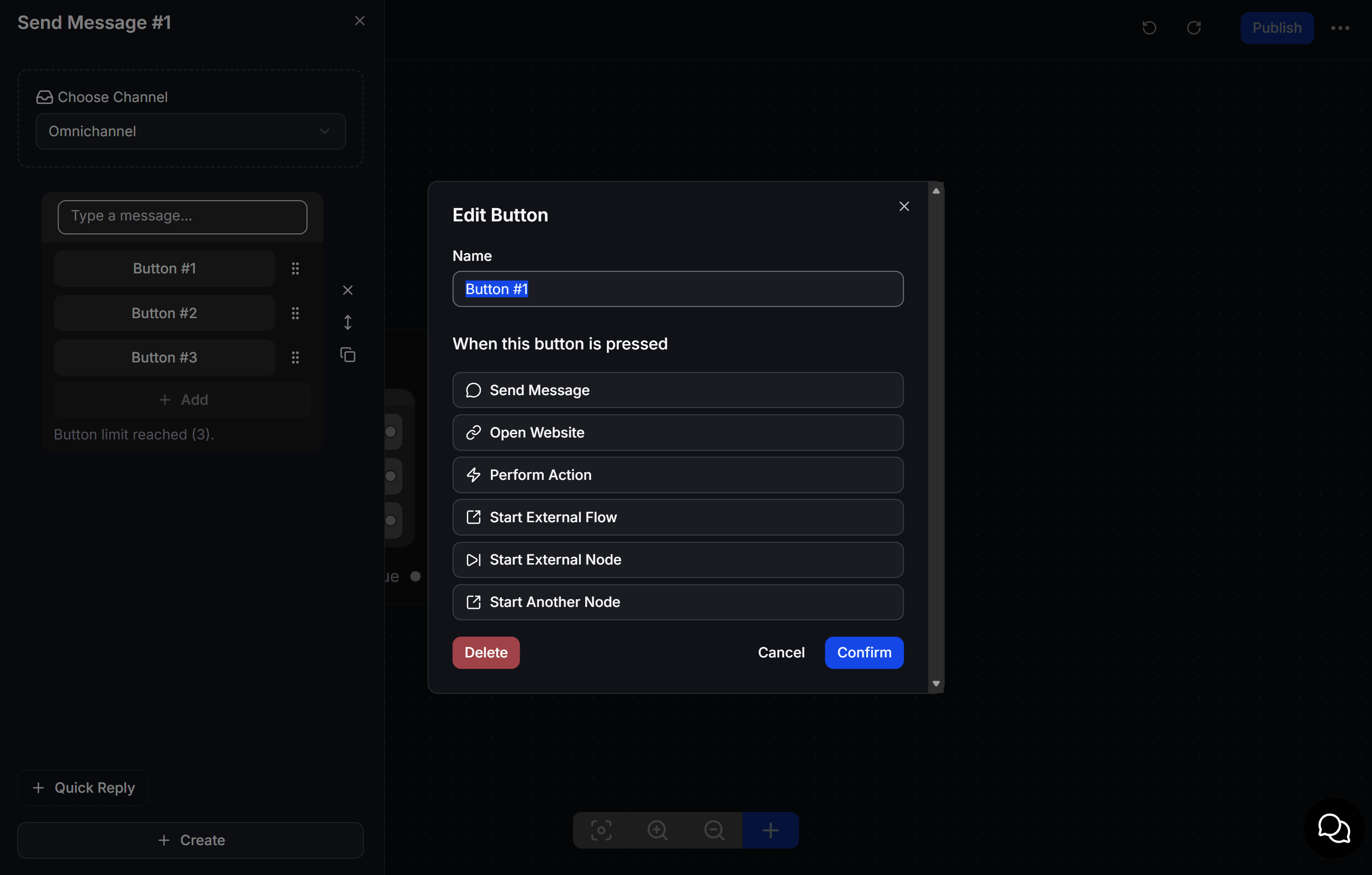
2.2 Quick Replies
Quick Replies are oval-shaped options that appear above the mobile keyboard area. Unlike Buttons, a Quick Reply disappears immediately after the customer taps it or sends a manual message. This helps prevent customers from clicking an old option and disrupting the active Flow. Quick Replies work especially well for guided questions, short surveys, or collecting information step by step.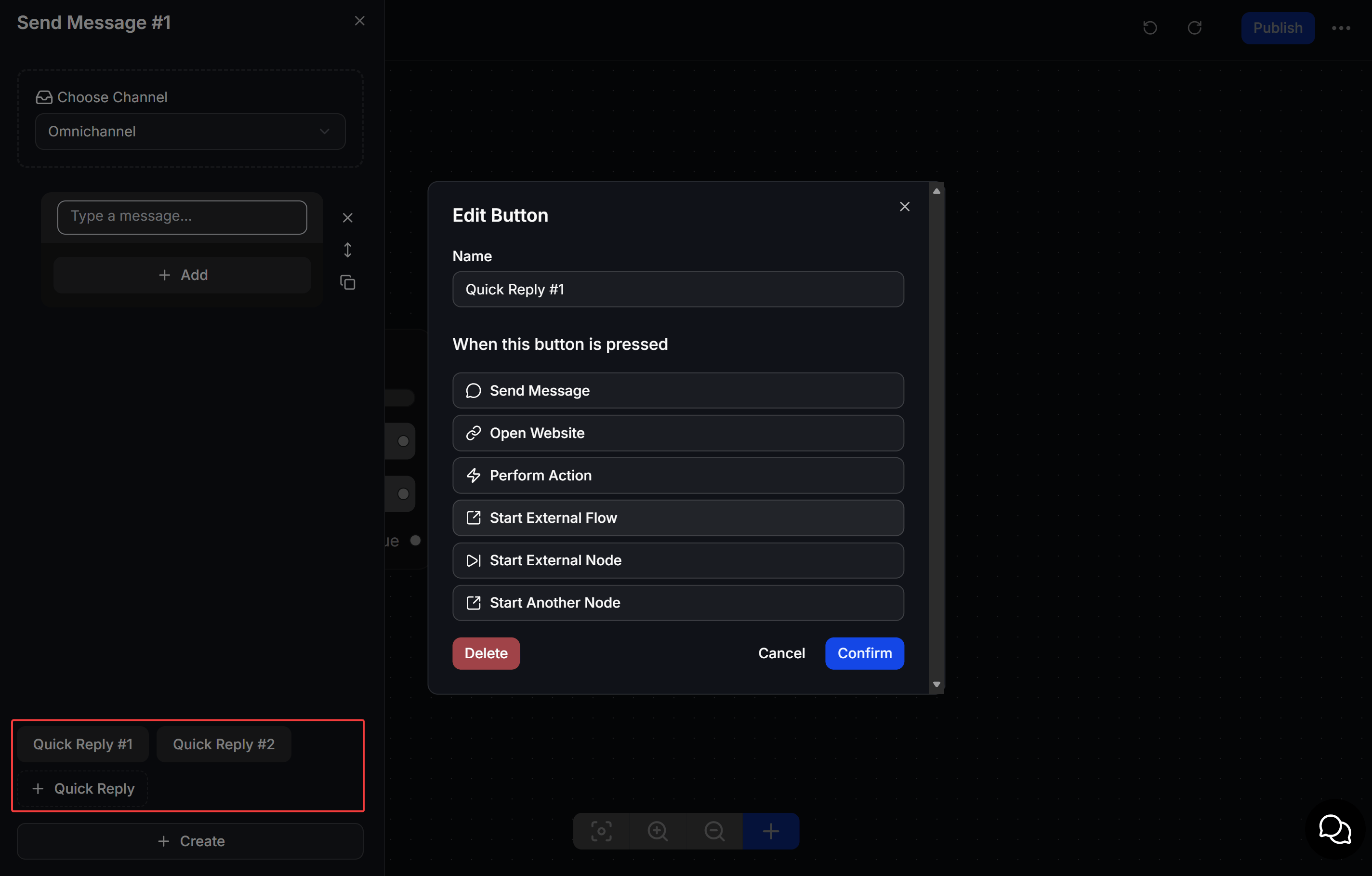
2.3 What happens when customers press a Button or Quick Reply
When you add a Button or Quick Reply, you can configure the system to perform an action immediately after the customer clicks it:- Send Message: Continue the Flow by sending another message in the current conversation path.
- Open Website: Open a destination link. You can also use this to launch a Mini App, such as a Zalo Mini App.
- Perform Action: Run a background action, such as applying a Tag or saving a value to a Custom Field, without showing any extra message to the customer.
- Start External Flow: Send the conversation into a completely different Flow that is stored separately.
- Start External Node: Similar to Start External Flow, but you can choose the exact Node inside that Flow so the customer skips earlier steps.
- Start Another Node: Jump to another Node inside the current Flow. This keeps your Flow map cleaner by reducing long and tangled connections.
3. Logic & System Nodes
This group handles background processing on the ChatbotX side. These blocks work silently, so customers will not see any message from them.3.1 Flow routing blocks
These blocks check customer data, classify users, and route them down the correct branch automatically.Condition Node
Use this block to check whether the customer matches the audience you want by evaluating Tags or Custom Fields on their profile. There are 2 condition modes:- Any of the below conditions: This is an OR check. The customer only needs to meet one of the listed conditions.
- All of the following conditions: This is an AND check. The customer must meet every listed condition. For example, they may need to both
Bought T-shirtandHave point balance > 100.
The user doesn't match....
Smart Wait
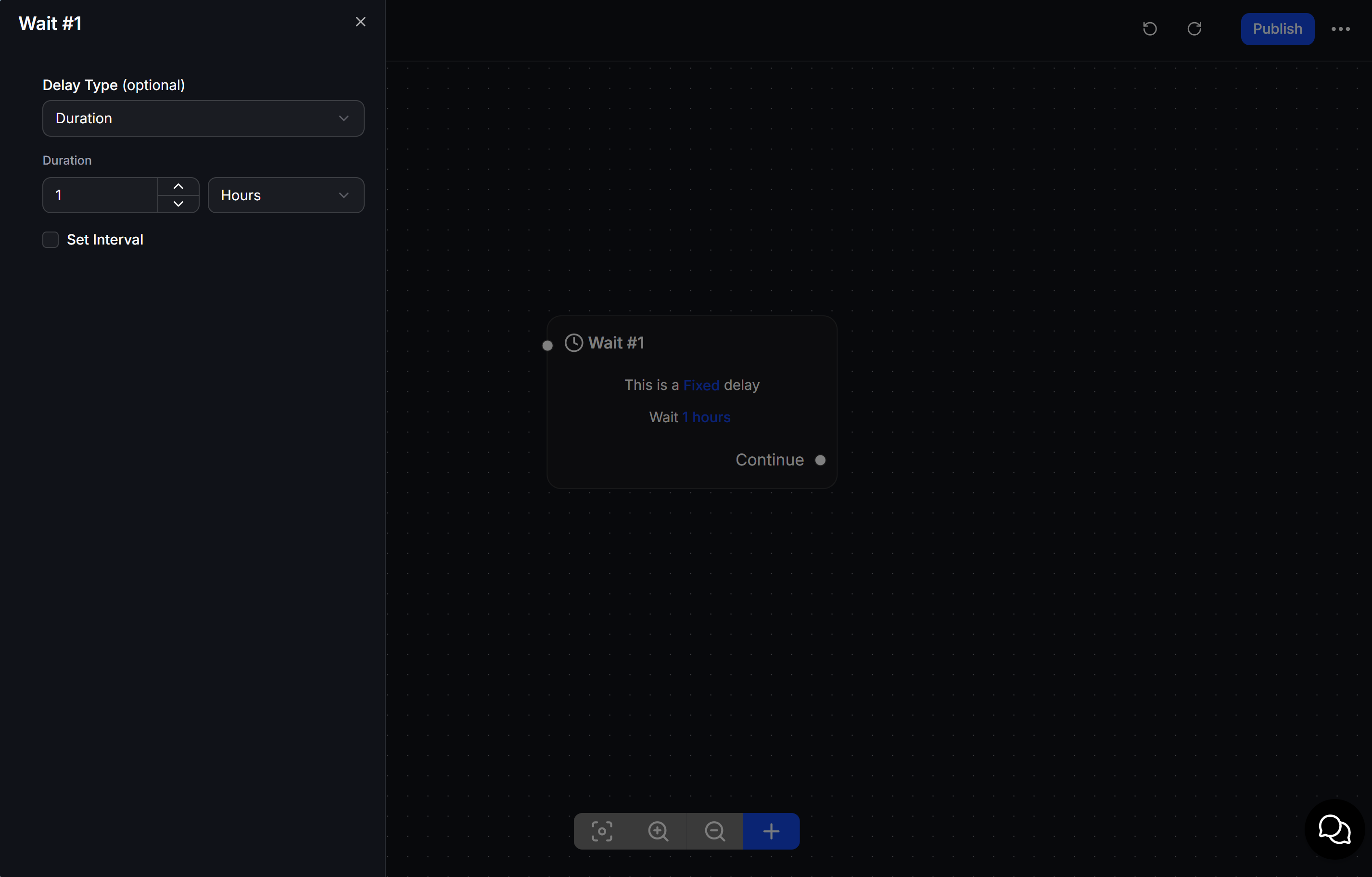
This block adds a delay before the chatbot sends the next message. It helps the conversation feel more natural and less robotic.- You can wait for a fixed amount of time, such as 10 minutes or 1 hour.
- You can also wait based on a saved value in a Custom Field, such as a customer’s appointment time, then send a reminder 1 hour before the appointment begins.
Split Traffic
This smart feature randomly divides customers across multiple branches based on percentages that you define. For example, 30% of customers can go to branch A and 70% to branch B. This is useful for A/B testing when you want to compare which message path generates better click or conversion results.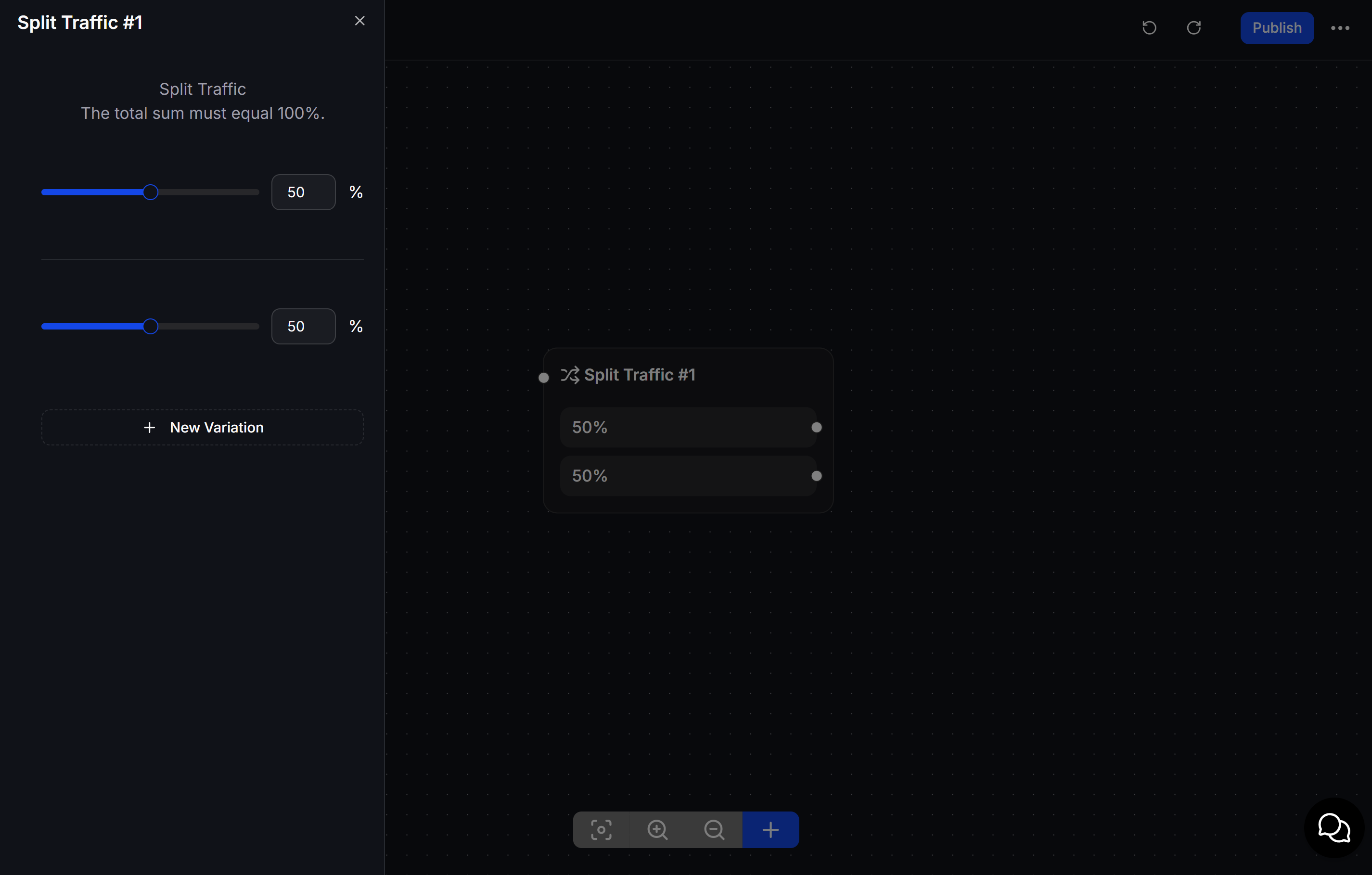
3.2 Perform Actions
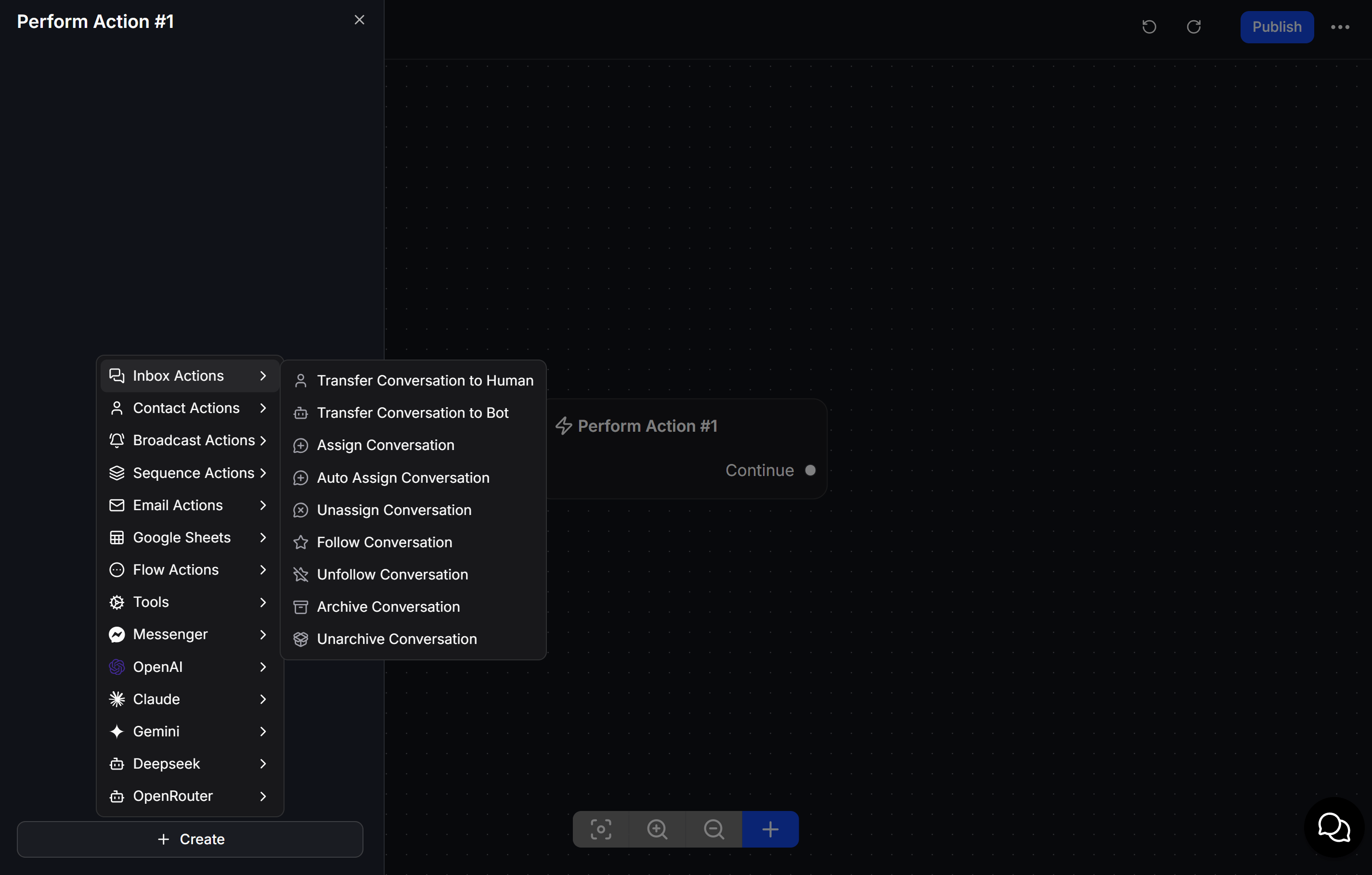
An Action Node works like a highly capable invisible assistant inside ChatbotX. It brings together the automation features used to update contact data, route conversations, process values, and connect with outside platforms:- Contact Actions:
- Automatically apply or remove Tag and save customer-specific values into Custom Fields.
- Add internal notes for your team or automatically block and delete abusive contacts.
- Inbox Actions:
- Transfer: Temporarily pause the Bot and hand the conversation to a human agent.
- Auto-assign conversations to available team members or archive closed chats to keep Inbox tidy.
- Broadcast & Email:
- Mark whether a customer has subscribed or unsubscribed from bulk promotional messages.
- Flow Actions:
- Start Another Node: Jump to another block so you do not need long visual connections.
- Start External Flow / Node: Launch another ready-made Flow as part of the current journey.
- Data Tools:
- Generate unique voucher or ID codes with Generate Code, reformat date and time with Format Date, or pull structured data from other systems with Get Data From JSON.
- Integrations:
- Google Sheets: Push collected customer data into a spreadsheet row automatically.
- Centralized LLMs AI: Connect to models such as ChatGPT, Gemini, Claude, or DeepSeek so AI can think and reply more naturally inside the Flow.