Documentation Index

Fetch the complete documentation index at: https://chatbotx.io/docs/llms.txt

Use this file to discover all available pages before exploring further.

Triggers & Actions helps you build automation rules like: “When X happens -> the system automatically does Y”, without needing someone to monitor or handle the task manually. For example:
  • When a customer gets the Tag “VIP” -> automatically transfer the chat to a human agent
  • When a customer subscribes to a Sequence -> automatically add the Tag “Being nurtured”
  • When a new contact comes in through an Entry Point Link -> automatically start a welcome Flow
Open Triggers from the menu to get started.

How to create a Rule

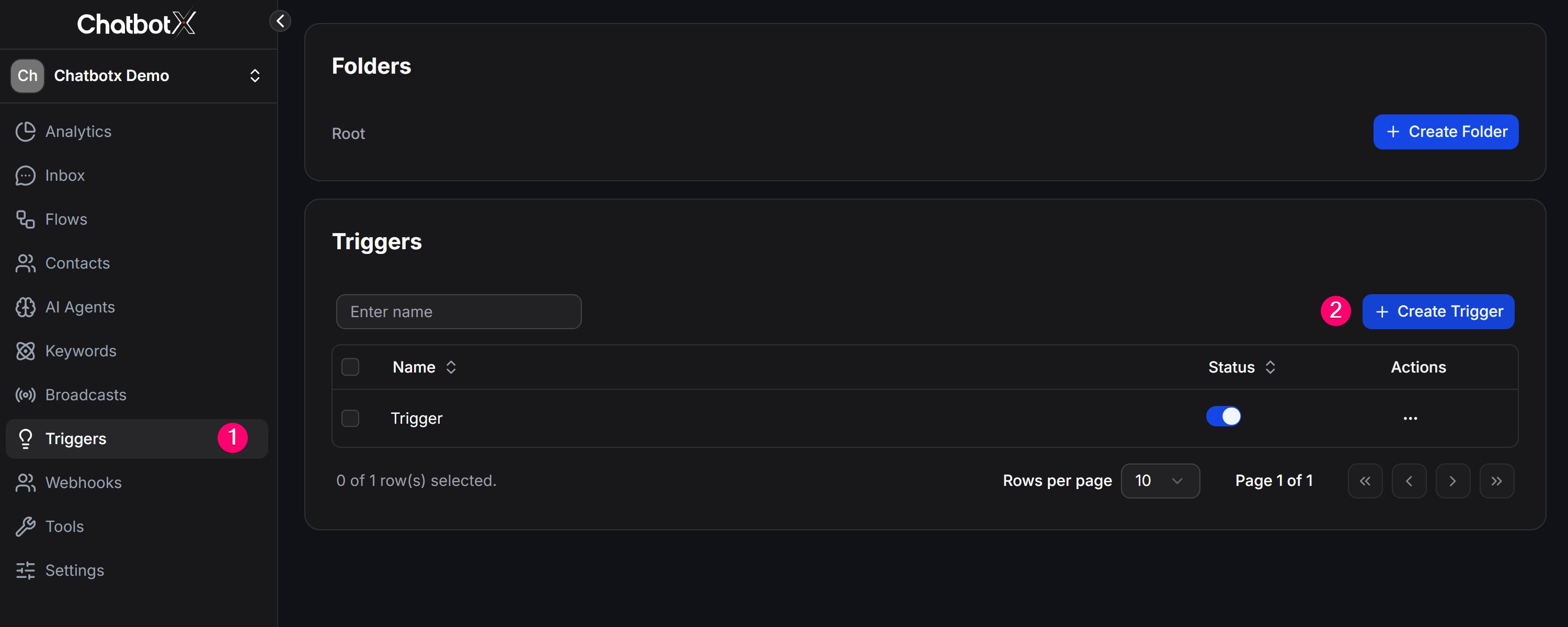
  1. In the left menu, open Triggers.
  2. Click + Create Rule to create a new rule.
triggers_create
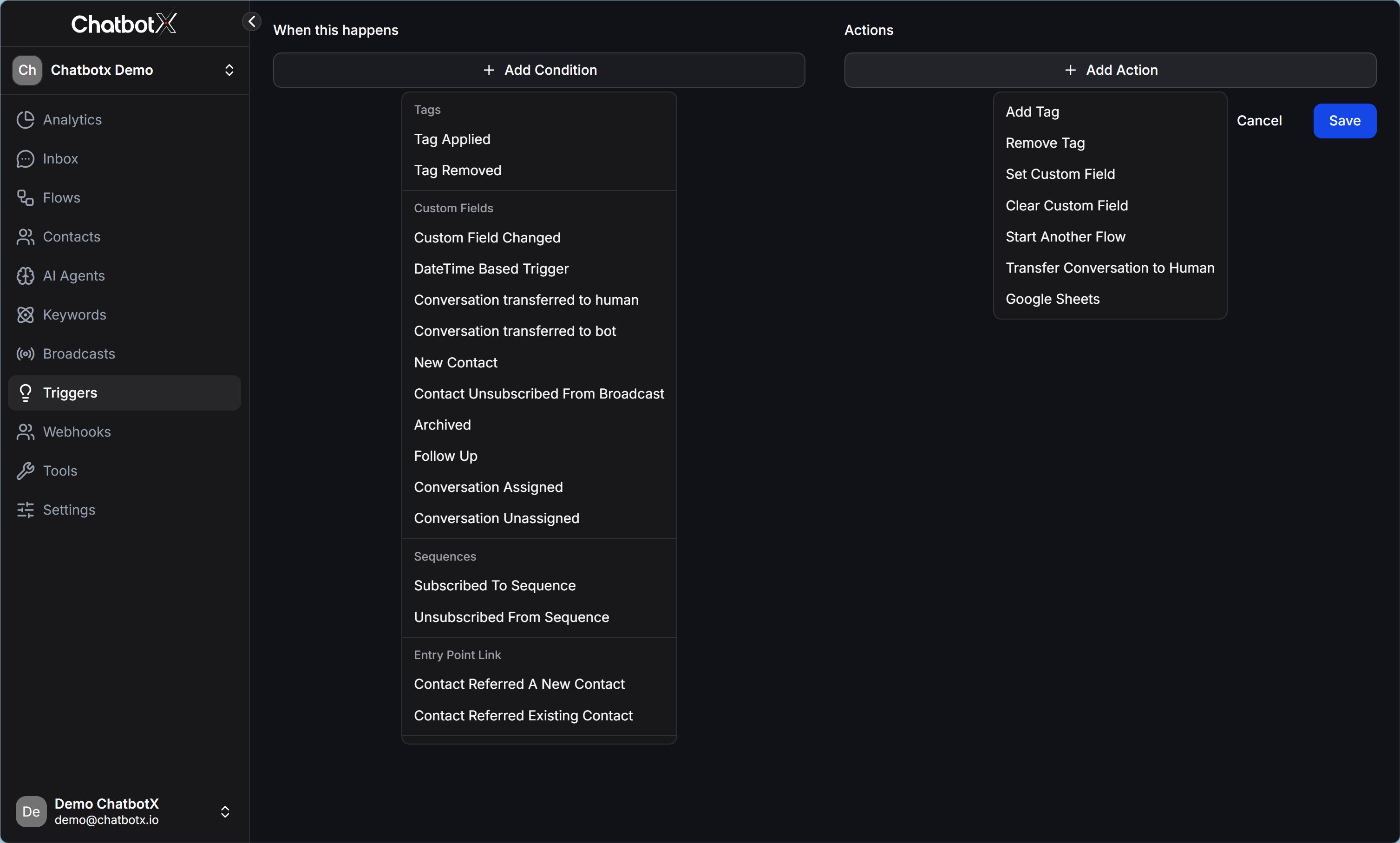
  1. You will see an interface split into 2 columns:
    • When this happens
    • Actions
triggers_rule

Left column: When this happens

Click + Add Condition, then choose the event you want to monitor. Conditions are grouped by topic:

Tags

ConditionMeaning
Tag AppliedWhen a Tag is applied to a contact
Tag RemovedWhen a Tag is removed from a contact

Custom Fields

ConditionMeaning
Custom Field ChangedWhen the value of a Custom Field changes
DateTime Based TriggerTrigger at a specific date or time, such as sending a reminder before an appointment
Conversation transferred to humanWhen a chat is transferred to a team member
Conversation transferred to botWhen a chat is handed back to the Bot
New ContactWhen a new contact is created
Contact Unsubscribed From BroadcastWhen a customer unsubscribes from Broadcasts
ArchivedWhen a conversation is archived
Follow UpWhen a conversation is marked for follow-up
Conversation AssignedWhen a conversation is assigned to a person or team
Conversation UnassignedWhen a conversation is unassigned

Sequences

ConditionMeaning
Subscribed To SequenceWhen a customer subscribes to a Sequence
Unsubscribed From SequenceWhen a customer unsubscribes from a Sequence

Entry Point Link

ConditionMeaning
Contact Referred A New ContactWhen a contact refers a completely new contact
Contact Referred Existing ContactWhen a contact refers someone who already exists in the system

Right column: Actions

Click + Add Action, then choose what the system should do automatically when the conditions are met:
ActionWhat the system does
Add TagApply a Tag to the contact
Remove TagRemove a Tag from the contact
Set Custom FieldWrite a value into a Custom Field
Clear Custom FieldClear the value from a Custom Field
Start Another FlowStart any Flow you choose
Transfer Conversation to HumanTransfer the chat to a team member
Google SheetsWrite contact data to Google Sheets

Real example

Scenario: You want to automatically save a new contact’s name into Google Sheets when the contact comes in from an ad.
StepSetup
ConditionNew Contact
ActionGoogle Sheets -> choose the sheet and matching columns
Result: every time a new customer messages you from an ad link, the name and other details are added to the sheet automatically, with no manual copy and paste.
Note: A Rule can combine multiple Conditions and multiple Actions at the same time. The system only triggers the Rule when all conditions are met together.