

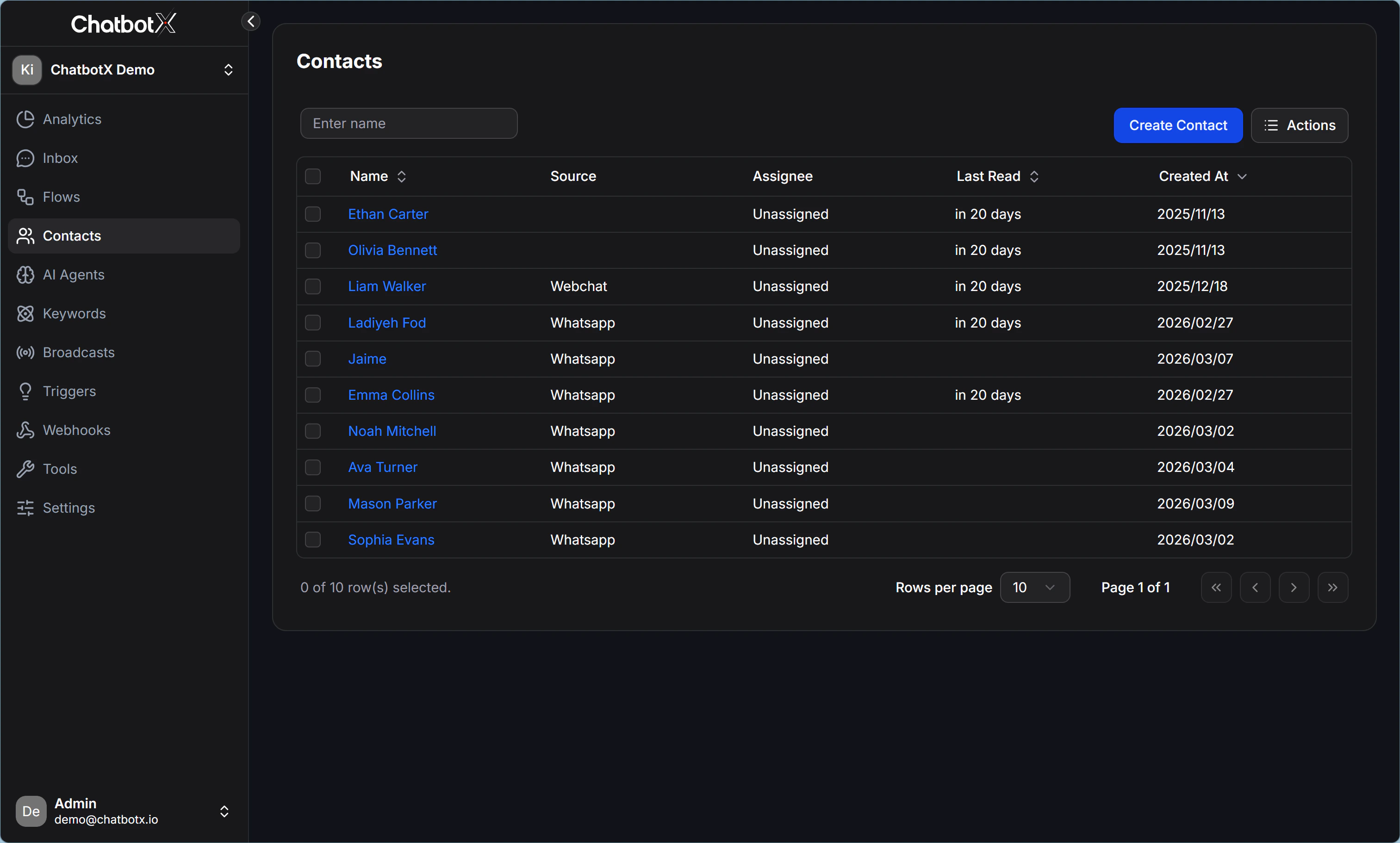
What you see on the Contacts page
The Contacts interface usually includes 4 main areas:- Search box: Used to quickly find a contact by display name.
- Contact table: Shows each contact as a row so you can review and choose actions.
- Create Contact button: Lets you create a new contact manually.
- Actions menu: Opens the list of bulk actions such as import, export, apply Tag, or update data.
Basic workflow
When working with your contact list, the most common flow looks like this:- Use the search box to narrow down the list.
- Review
Source,Assignee,Last Read, andCreatedto understand each contact’s status. - Click the contact name if you want to open the conversation details.
- Select one or more contacts with the checkbox if you need to run a bulk action.
- Open
Actionsto continue with the next step.
Note: The Contacts page is best for list management. If you need to read the full chat history or reply manually, open that contact and switch to Conversations.
When to use Contacts
Start from Contacts in these situations:- You need to find an older customer but do not remember which channel they used.
- You want to check which contacts already have an assignee and which are still
Unassigned. - You want to review contacts who returned recently based on the
Last Readcolumn. - You want to select multiple contacts to apply a Tag, update a Custom Field, export data, or archive conversations.
Learn more about the Contacts menu
For a more detailed view of the features in Contacts, see these articles:- Import Contacts: Import contact data in bulk.
- Filter Contacts: Narrow down the contact list quickly.
- Bulk Actions: Run bulk actions such as
Assign,Add Tag,Set Custom Field,Export, andArchive Conversation.
Quick tips
- Check
Sourcebefore taking action so you know which channel the customer came from. - Check
Assigneebefore following up so two team members do not contact the same customer at the same time. - Use
Last Readto prioritize contacts who engaged recently. - Select multiple contacts only when you are sure they all need the same action.