

Supported Data Types
Custom Fields support 6 standard data types to match your business requirements:- Short Text: A single line of text. Suitable for names, job titles, voucher codes, or short text answers.
- Long Text: Multi-line text with line breaks. Suitable for customer feedback, detailed notes, or address descriptions.
- Number: Integer or decimal numeric values. Used for reward points, order quantities, or numeric calculations.
- Date: Date format (Day/Month/Year). Commonly used for birthdays, anniversaries, or appointment dates.
- Datetime: Date and time format including hour and minute. Ideal for precise booking timestamps or scheduled callbacks.
- Boolean: Logic values of True or False (
True/False). Used to track toggle states such asPurchased,VIP Contact, orSubscribed.
How to Create and Manage Custom Fields
You can create and manage Custom Fields in 2 locations within ChatbotX:Create in the Flows Management Dashboard
1
Open Flows
From the left navigation menu in ChatbotX, select Flows.
2
Select the Custom Fields tab
Click on the Custom Fields tab on the top horizontal navigation bar.
3
Create a new Custom Field
Click the blue + Create Custom Field button, enter the Name, select the corresponding Type, and click Save.
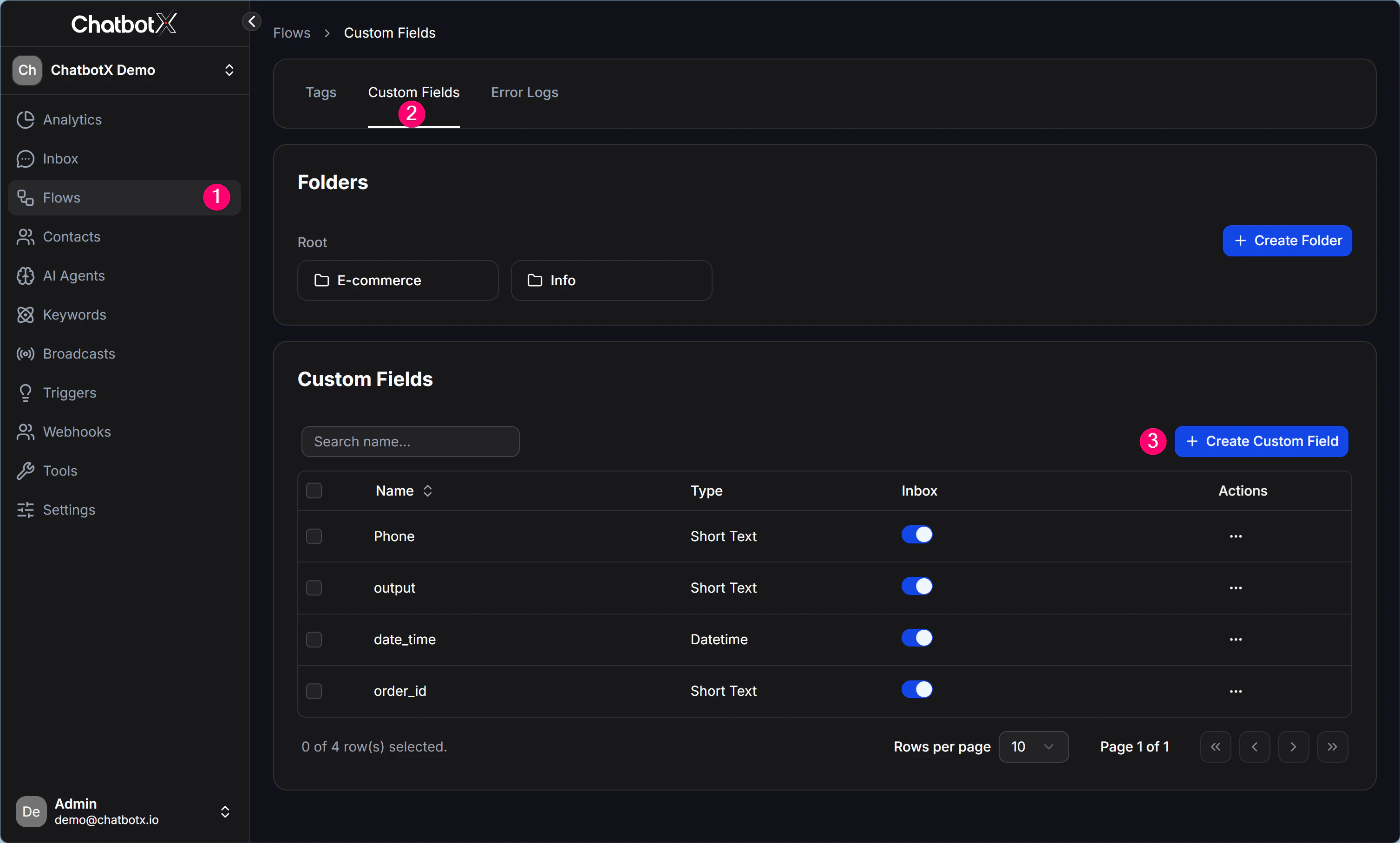
You can create Folders to organize Custom Fields by department, product line, or marketing campaign, and toggle their visibility in the Livechat Inbox interface.
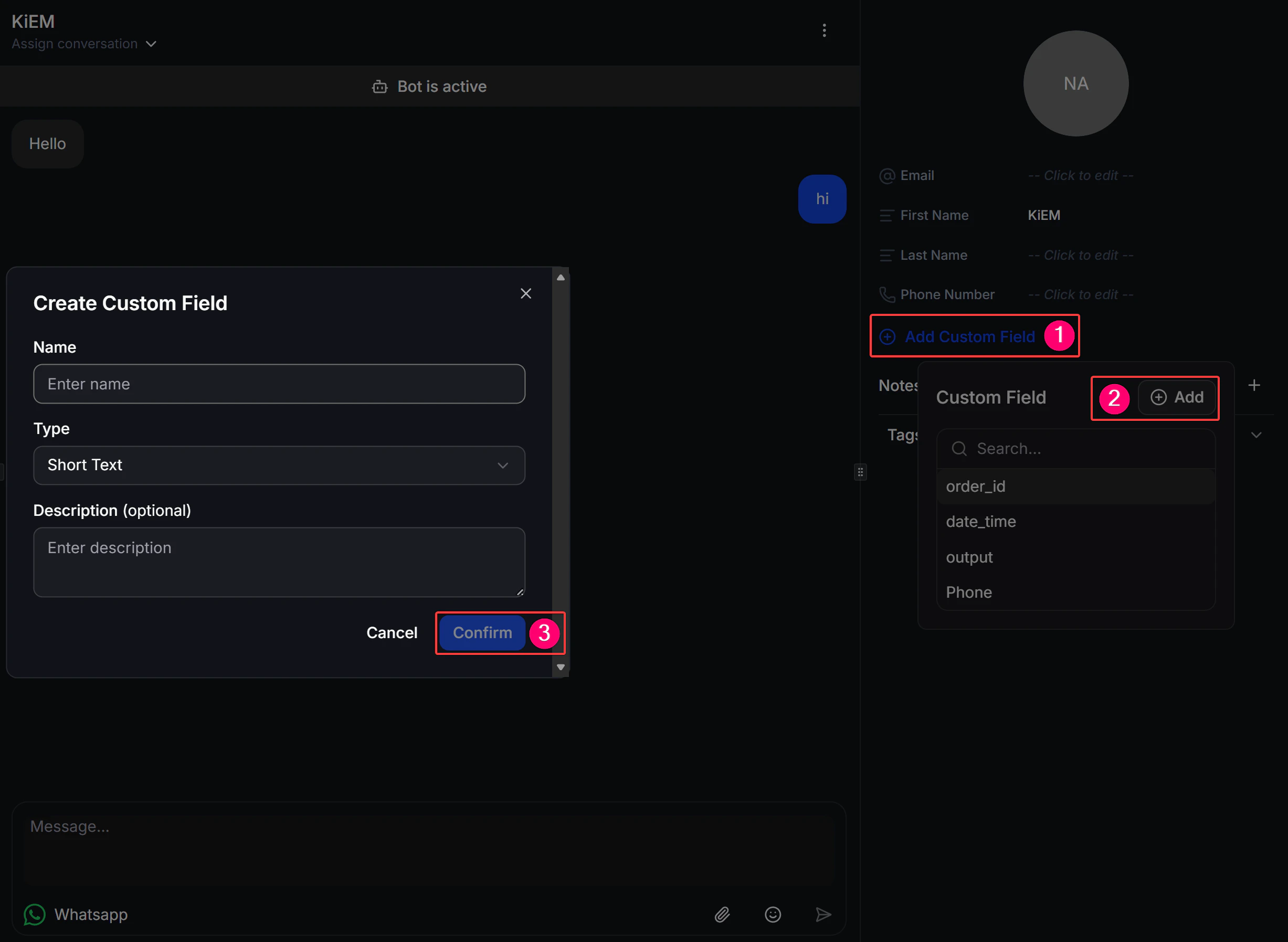
Create Directly in Livechat Inbox
When an agent is chatting directly with a customer in Inbox and needs to save a new attribute on the fly:- In the Inbox chat window, look at the contact profile panel on the right.
- Find the Custom Field section and click the (+) Add button.
- If the required field does not exist yet, select (+) Add Custom Field to create a new variable and enter a value for the current contact.
How to Collect and Use Custom Fields in Flows
Once created, you can utilize Custom Fields throughout your automated Flows:1. Collect User Input into Custom Fields
When using the Get User Data (User Input) block to ask customers for details (such as phone number, email, or shipping address), enable the Save response to a custom field option and select the target Custom Field. ChatbotX will automatically record the customer’s reply into their profile.2. Automatically Set and Update Values (Action)
Use the Set Custom Field action to automatically update a contact’s field value based on specific events or button clicks (for example, settingVIP_Member = True or updating Lead_Score = 10 when a customer clicks a pricing button).
3. Branching Flows with Condition Blocks
Use the Condition block to compare Custom Field values using logical operators (equals, contains, greater than, less than, is set/not set, true/false) to segment contacts and direct them to personalized conversation paths.4. Personalizing Message Content
Insert variables directly into your message text using the{{field_name}} syntax. When delivering the message, ChatbotX dynamically replaces the placeholder with the recipient’s personalized data.