

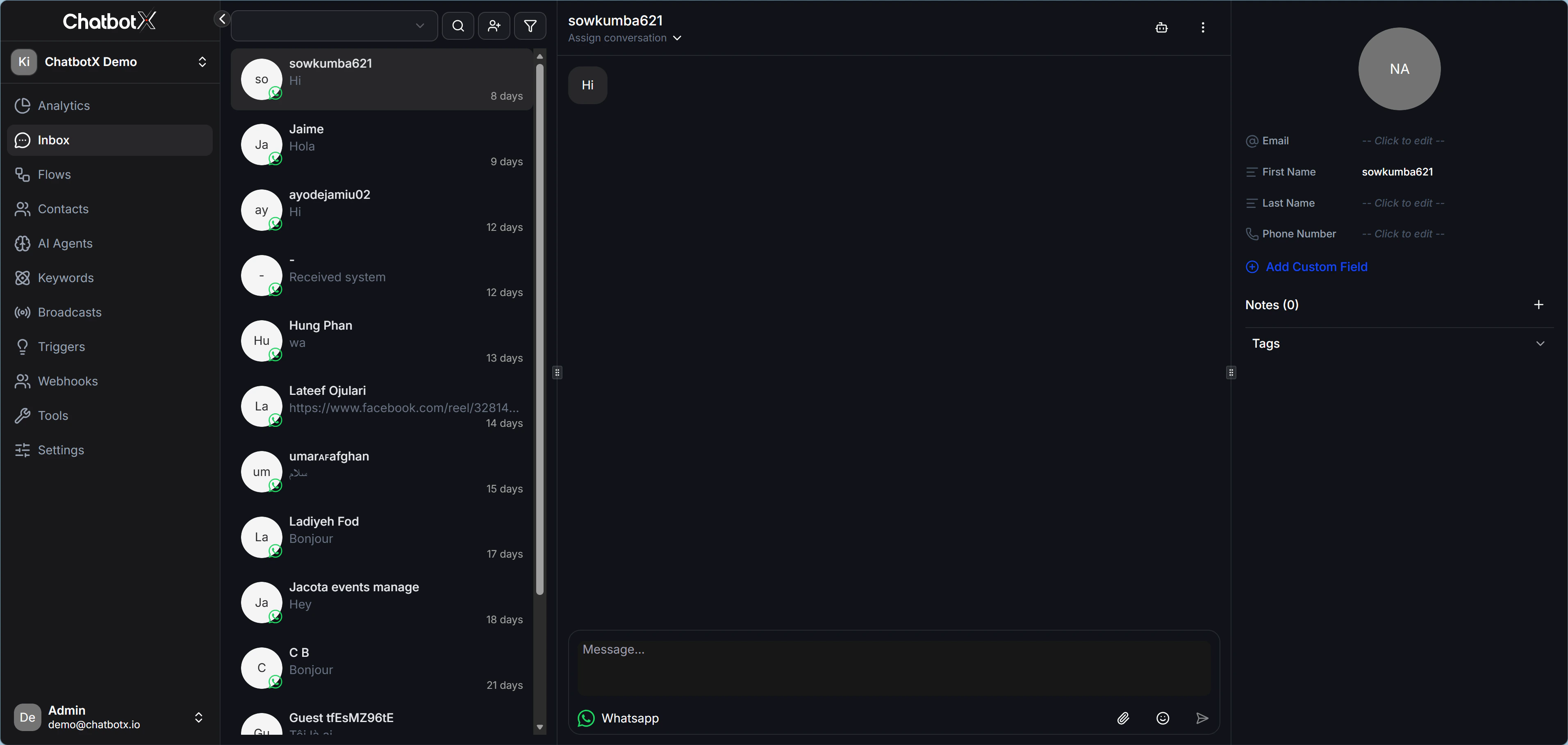
1. Filter and find conversations quickly
When you have hundreds of chats at the same time, you need a fast way to narrow the list and focus on the right work. Handler filters:- All: View every message.
- Bot: Show only conversations currently handled by the Bot.
- Human: Show only conversations currently handled by a team member.
- Assigned / Unassigned: Filter chats that already have an owner, or chats that have not been assigned yet.
- Channel: Filter by a specific channel, such as Facebook or WhatsApp.
- Unread / Follow-up / Archived / Blocked: Filter by special conversation status.
- More Options -> Condition: Add advanced filter conditions based on customer data.
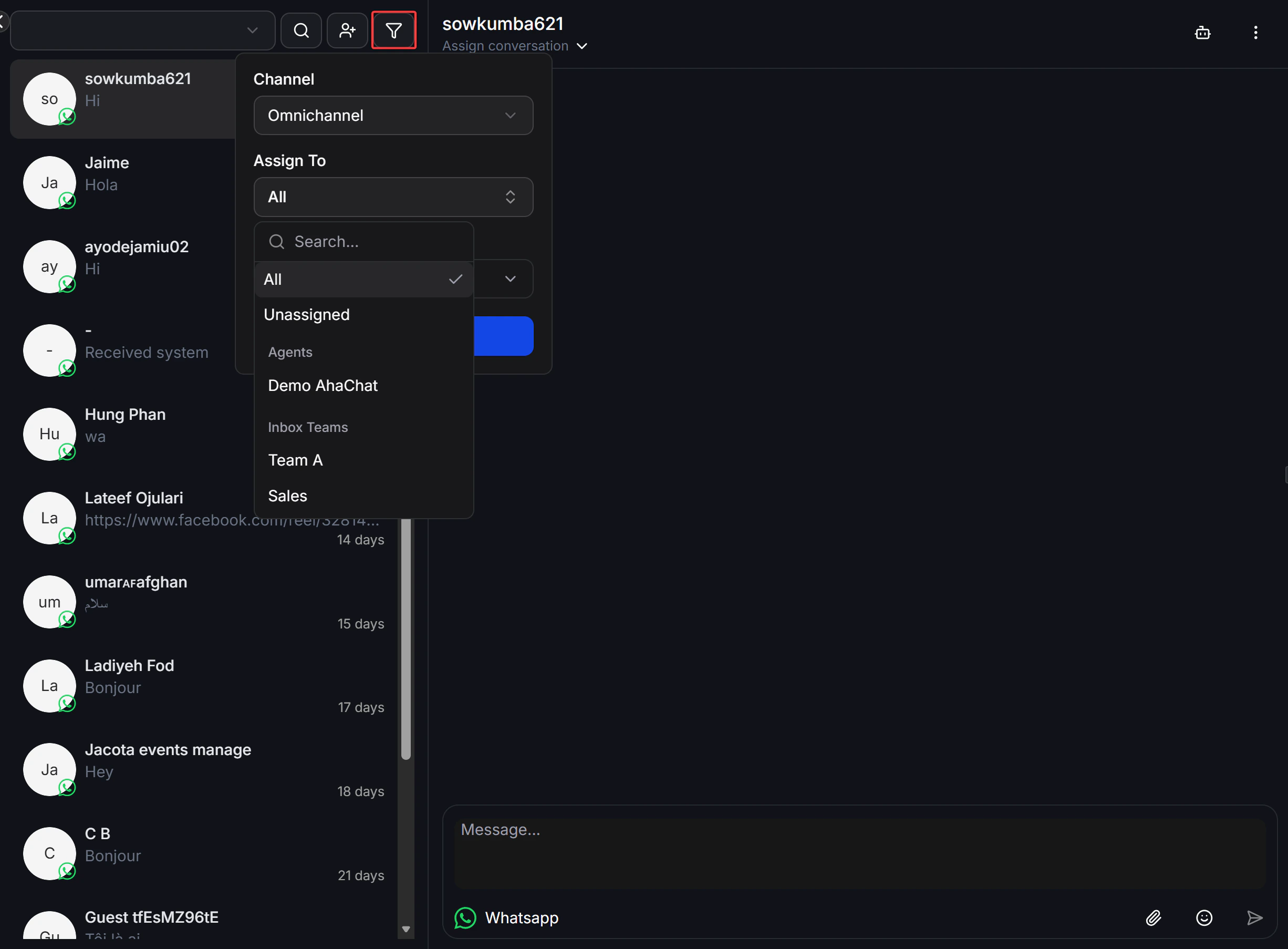
2. Transfer a chat from Bot to Human and back again
This is one of the most important Inbox features: Transfer to Human / Transfer to Bot. When should you use it? When a customer asks something complex that the Bot is not ready to answer, a real person can step in and take over. How it works:- Open the conversation you want to transfer.
- Click Transfer to Human. The Bot stops replying automatically, and the team member takes full control.
- After the team member finishes, click Transfer to Bot so the Bot can continue automatically.
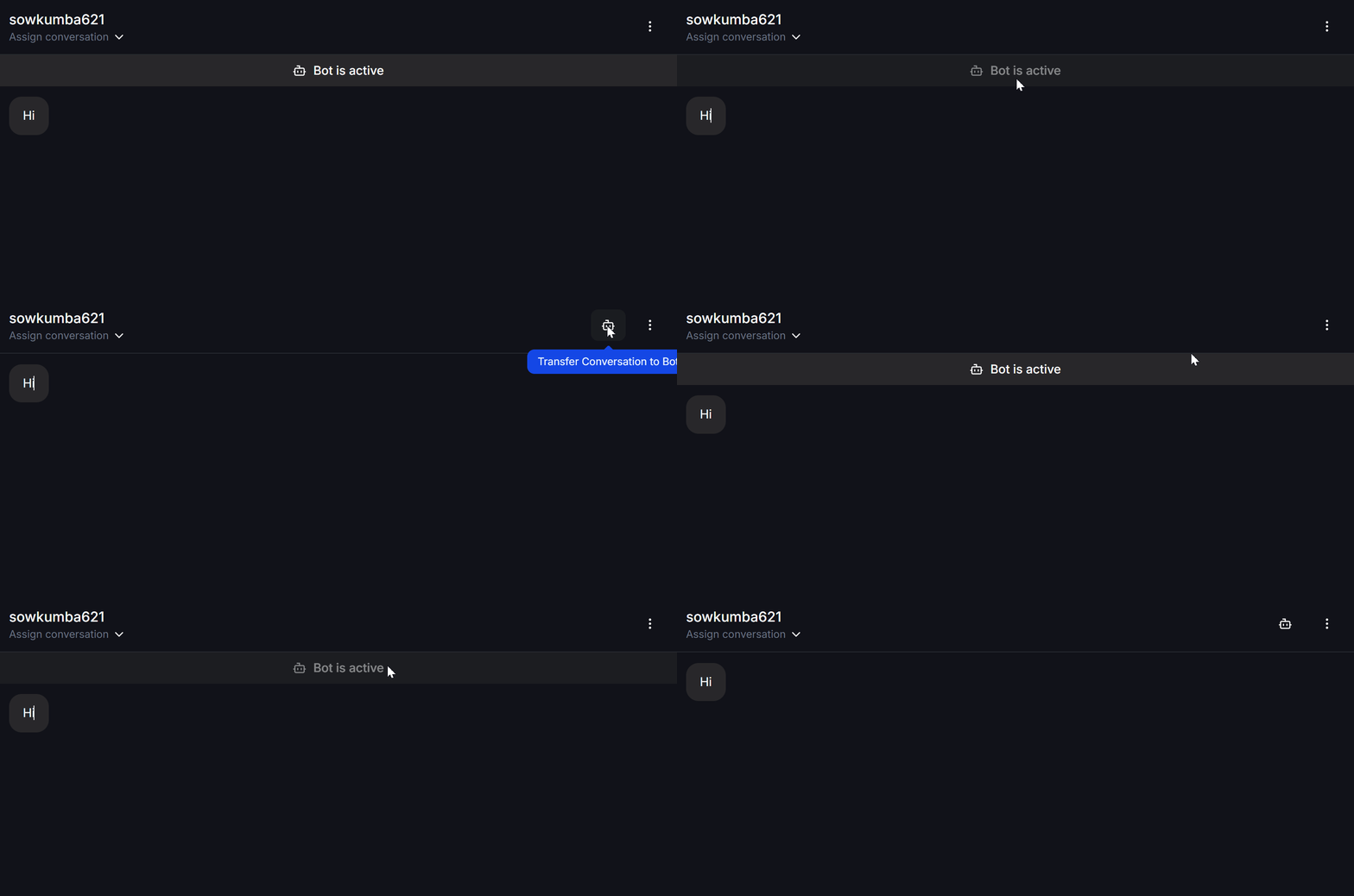
3. Pin a chat for follow-up
Sometimes a customer does not reply right away, or you need to come back later. Mark as Follow-up helps you flag the chat so it does not get forgotten. How to use it:- Open the conversation, click the menu, and choose Mark as follow-up.
- Then use the Follow-up filter to review the list later.
4. Archive a conversation
When a conversation is finished and you do not want it taking space in the main Inbox, use Archive.- Open the conversation, then choose Archive from the menu.
- The chat is removed from the main list but still kept in the system.
- Automatic reopen: If the customer sends another message later, the system automatically brings the conversation back to the main Inbox.
5. Send manual messages to customers
Besides the Bot, you can always type and send messages manually. In the composer box, you have several helpful tools:- Send Flow: Select and send an existing Flow to the customer, such as a signup form, price list, or product introduction sequence.
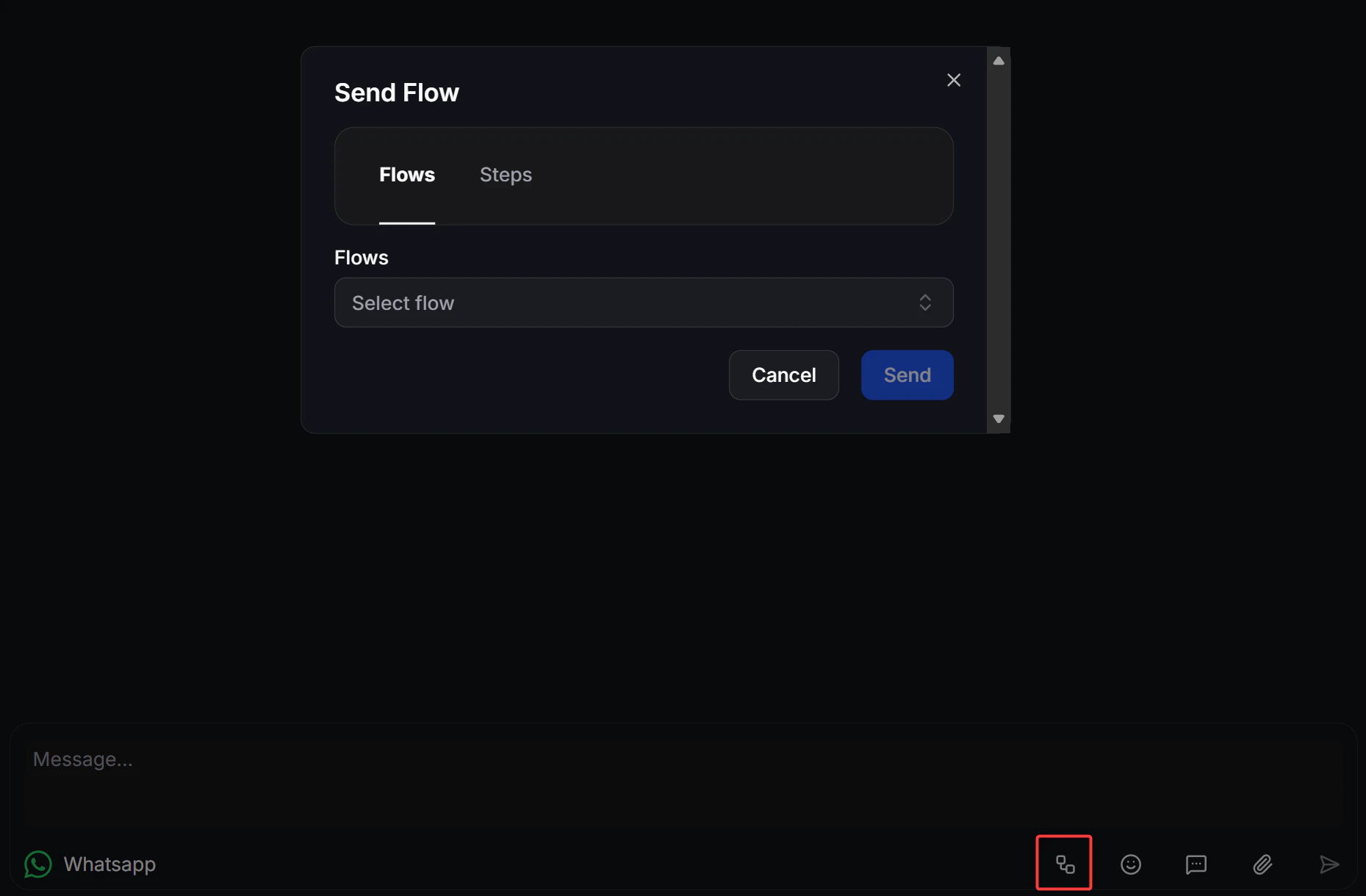
- WhatsApp Template Message: Available only on WhatsApp. After the 24-hour window expires without a customer reply, you may only send approved templates. Choose the matching template and send it.
- Saved Replies: Store frequently used answers. When needed, type
/in the chat box and the saved reply list appears so you can insert one quickly without retyping it.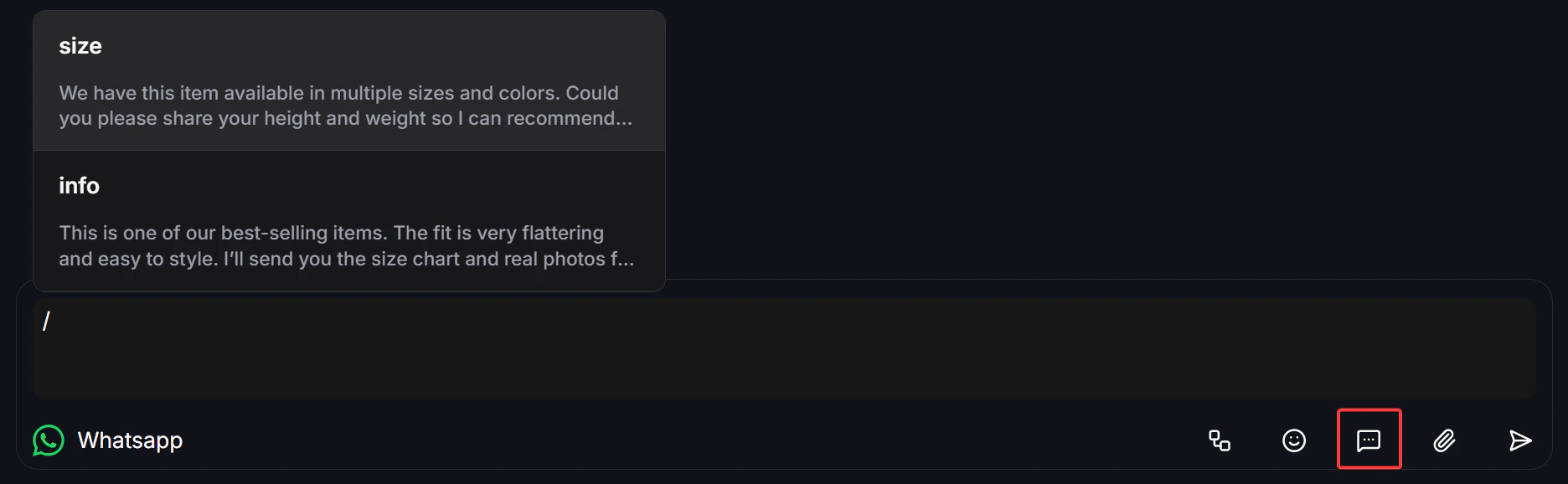
6. View customer info and history
On the right side of Inbox, you can see the full profile of the customer you are talking to:- Custom Fields / System Fields: All data that the Bot has already collected, such as name, email, or product interest.
- Tags: The classification labels currently applied to the customer. You can also add more manually here.
- Notes: Internal notes for your team. Customers cannot see this section.
7. Delete or block a customer
If you run into spam or abusive accounts:- Block Contact: Blocks the customer so the Bot stops replying. You can do this from the Inbox menu or automate it in Flow Builder.
- Delete Contact: Removes the customer completely from the system. You can do this from the Inbox menu, from Flow Builder, or from the Contacts page.