

When to use Export Contacts
You should use the Export Contacts feature in the following scenarios:- Backing up customer data for internal storage.
- Downloading contact lists with custom information like Custom Fields and Tags for data analysis.
- Transferring or syncing contact lists to CRM systems or other marketing tools.
Exporting contacts directly via Actions
The Export action in the Contacts table allows you to quickly download a CSV file containing complete customer information.1
Open the Contacts page
Go to the Contacts menu from the left sidebar.
2
Select the contacts to export
Select specific contacts or check the top checkbox in the list to select all contacts on the page. You can combine this with filters to select the exact target audience.
3
Choose the Export action
Click the Actions button at the top right of the table, then select Export.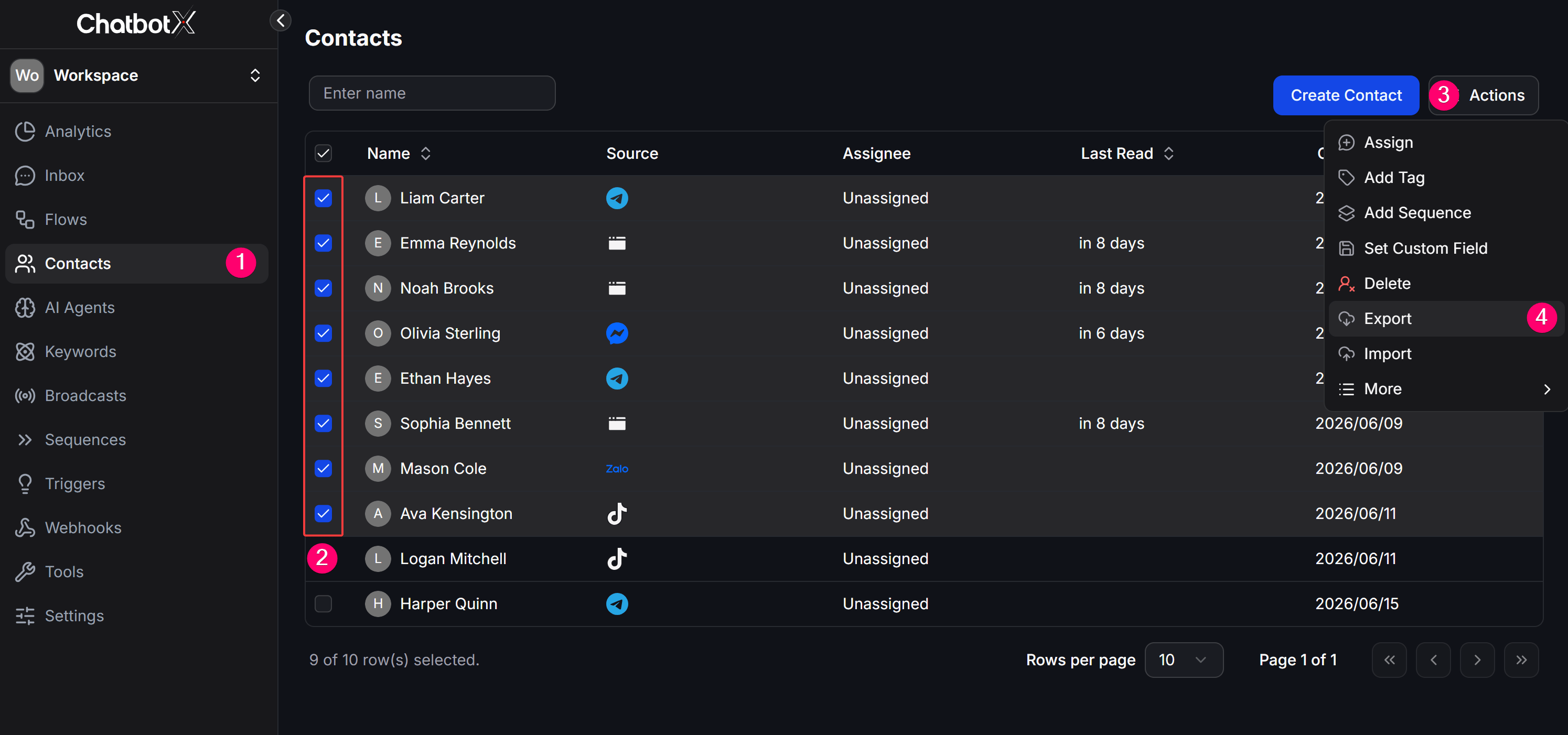
4
Download the CSV file
The Export Contacts window appears once the export file is ready. Click Download to download the CSV file containing customer details, including Bot Fields, Custom Fields, and Tags, or click Copy link to copy the download URL.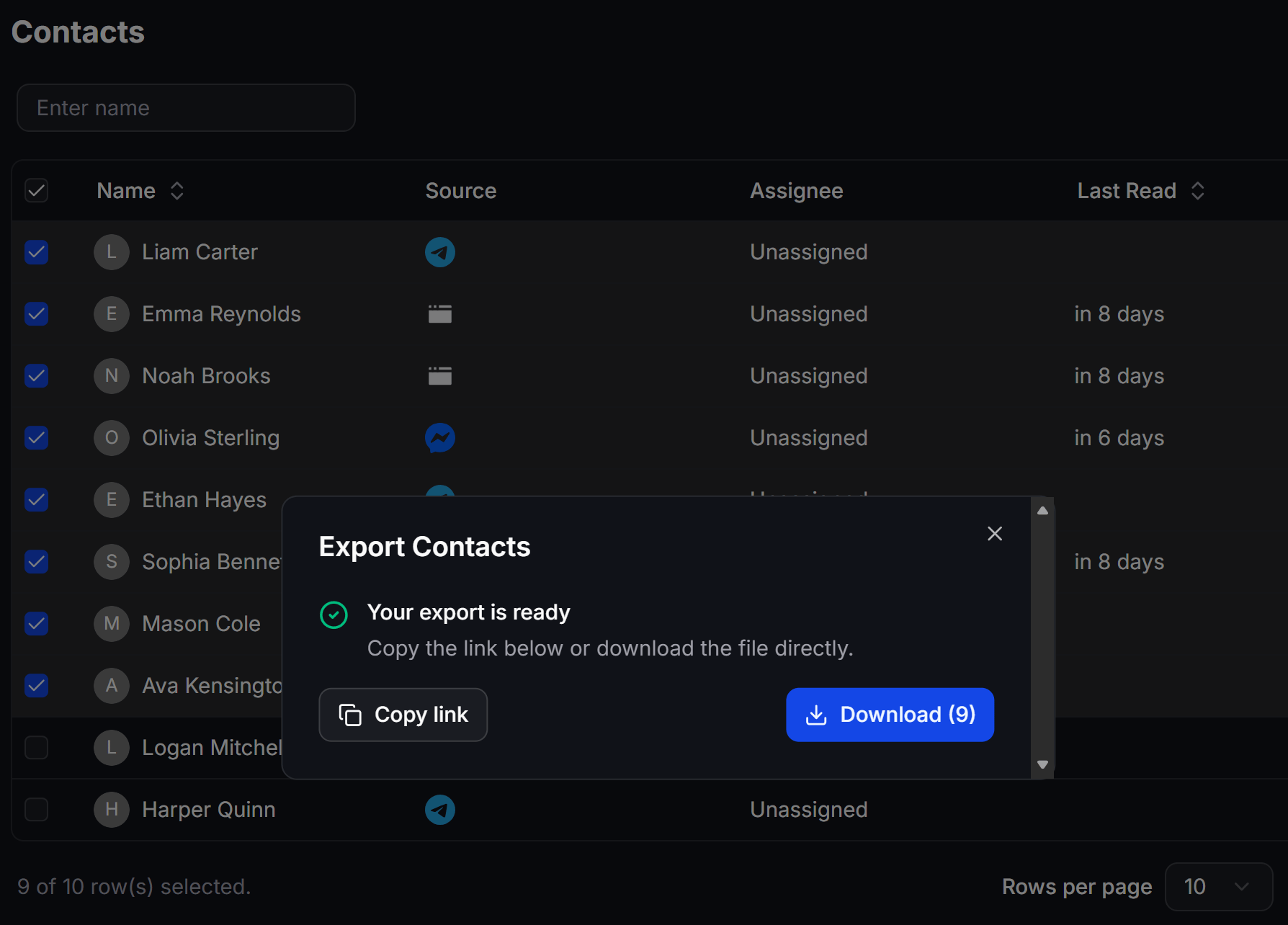
Exporting all data via Google Sheets
If you want to automatically record and sync contact information to an online spreadsheet in real time, use the Google Sheets integration combined with Sequences.1
Connect your Google account
Go to Settings > Integrations and connect your Google account with ChatbotX.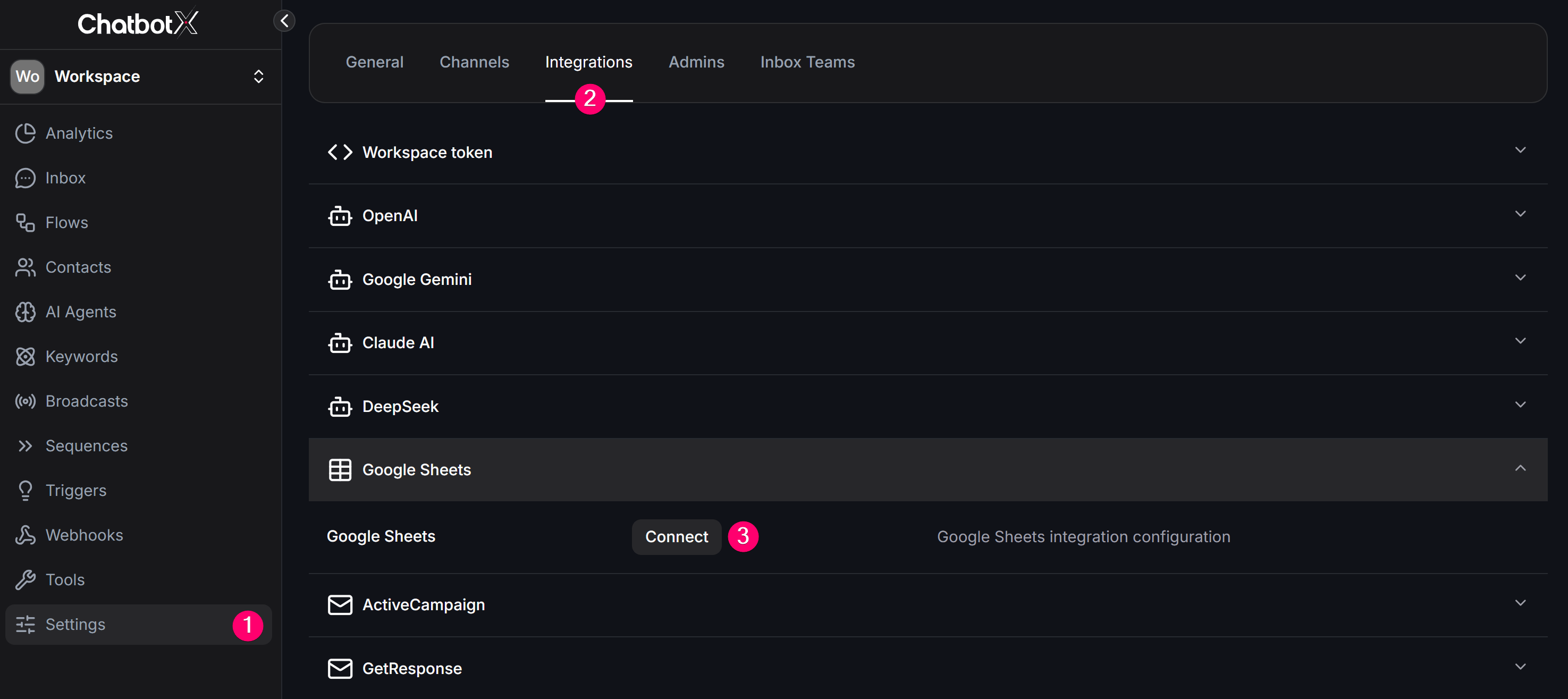
2
Prepare your Google Sheets spreadsheet
Create a new spreadsheet in your Google Drive. Set up headers corresponding to the data you want to export (e.g., First Name, Last Name, Phone, Email, Custom Field…). Then, go to the Google Sheet Manage section in ChatbotX to add your newly created spreadsheet.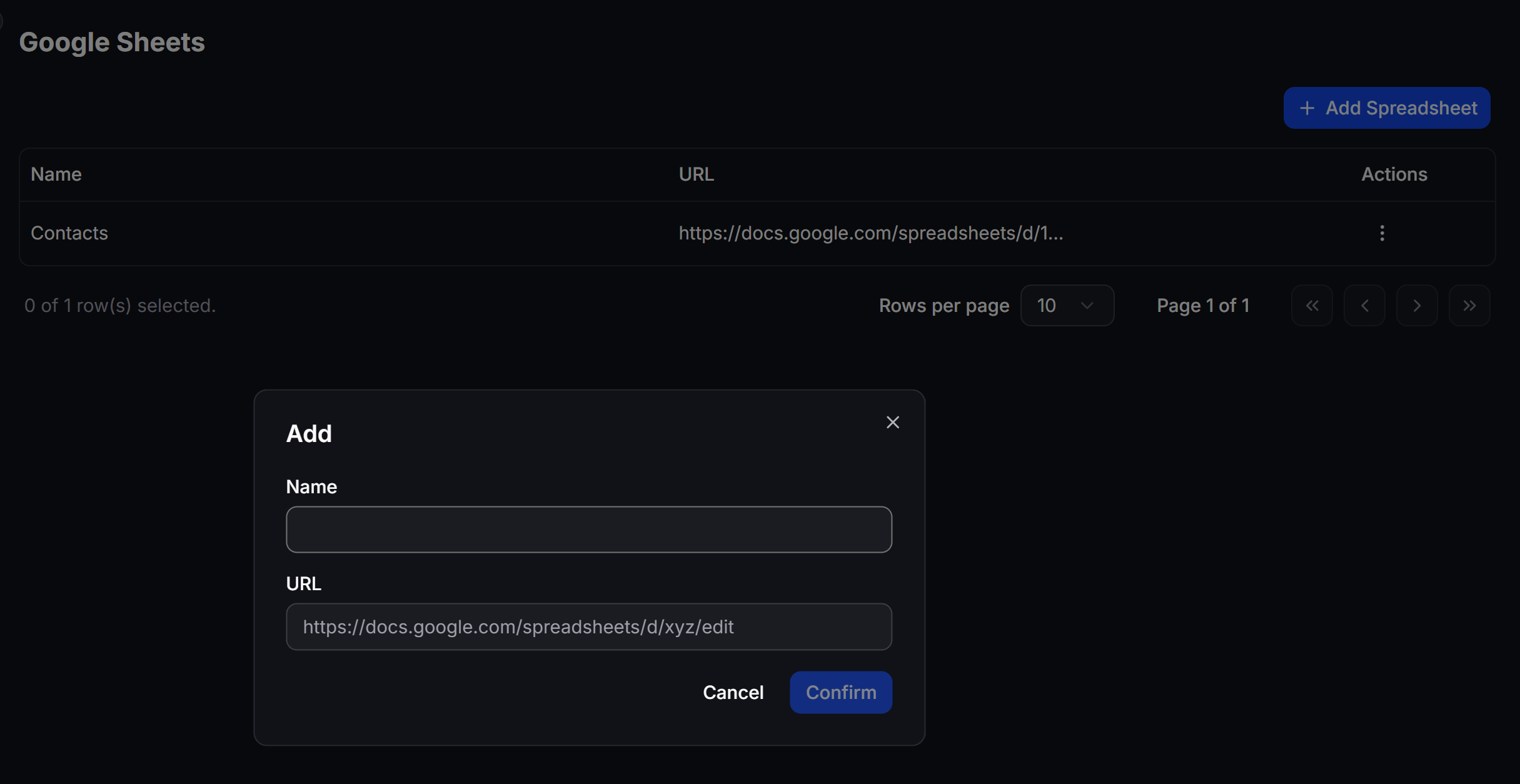
3
Create an export Sequence
Go to Sequences in the left menu and create a new Sequence. Add a message or an action block for data export: select the Action block, choose Google Sheets, and configure the Insert Row action. Select your prepared spreadsheet and map the corresponding fields from ChatbotX to Google Sheets.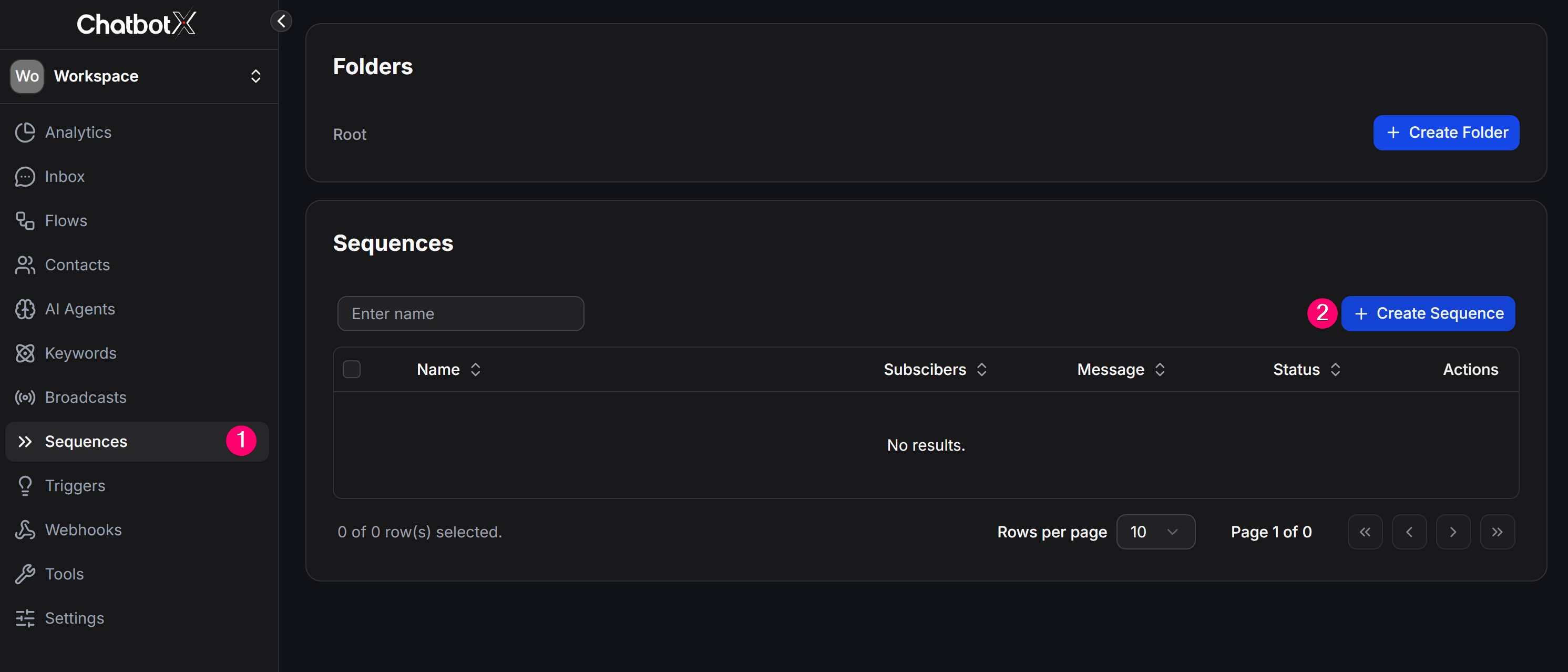
4
Run bulk export via Add Sequence
Go back to the Contacts menu, filter, and select the contacts you want to export. Click Actions > Add Sequence and select the export Sequence you just created to automatically write the contact information to Google Sheets.
When running the Add Sequence action to export data to Google Sheets for large lists, the system processes them sequentially. Please ensure your Sequence scenario is set to Active before running bulk actions.