

How to Create a WhatsApp Broadcast
Tip: For an overview of campaign list management, status filters, and the Calendar view, refer to the Omnichannel Broadcasts article.The process of setting up a bulk messaging campaign on WhatsApp involves these steps:
1
Start creating a campaign
From the left menu, select Broadcasts (1), then click the + Create Broadcast button (2) in the top right corner of the screen.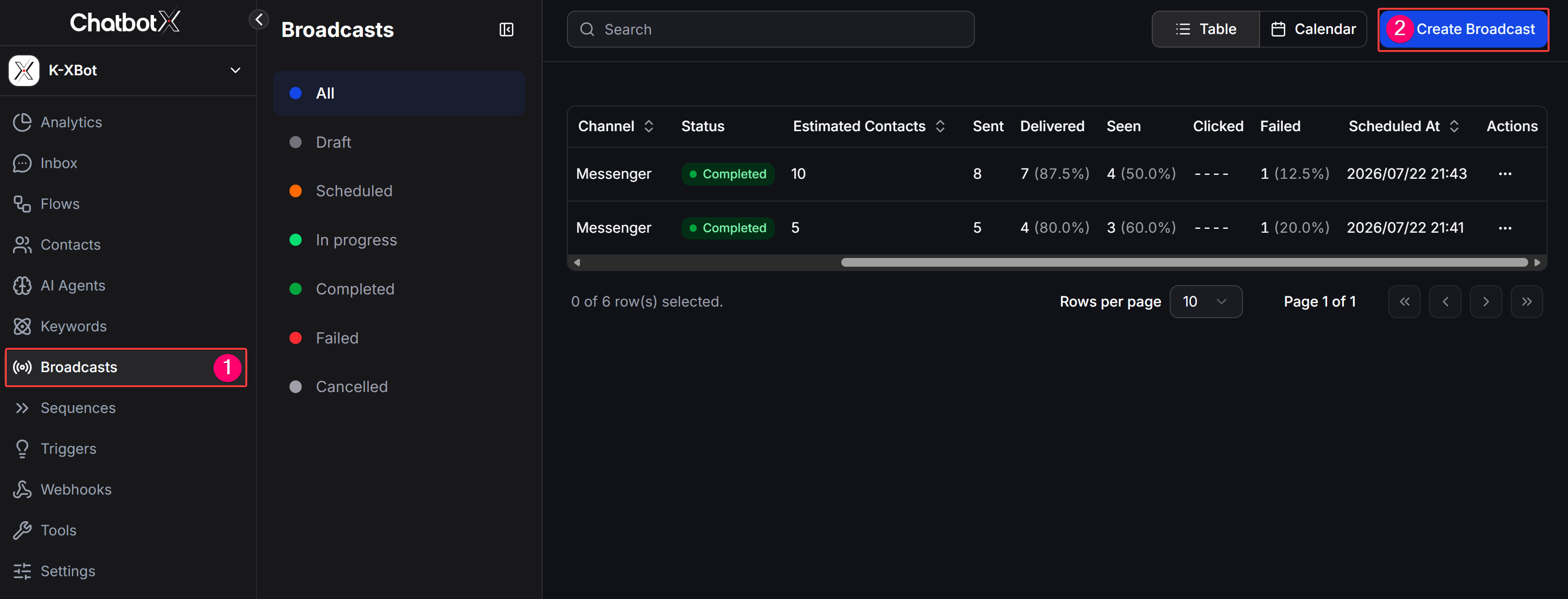
2
Select WhatsApp channel
On the Choose Channel screen, select WhatsApp, then click Continue to proceed.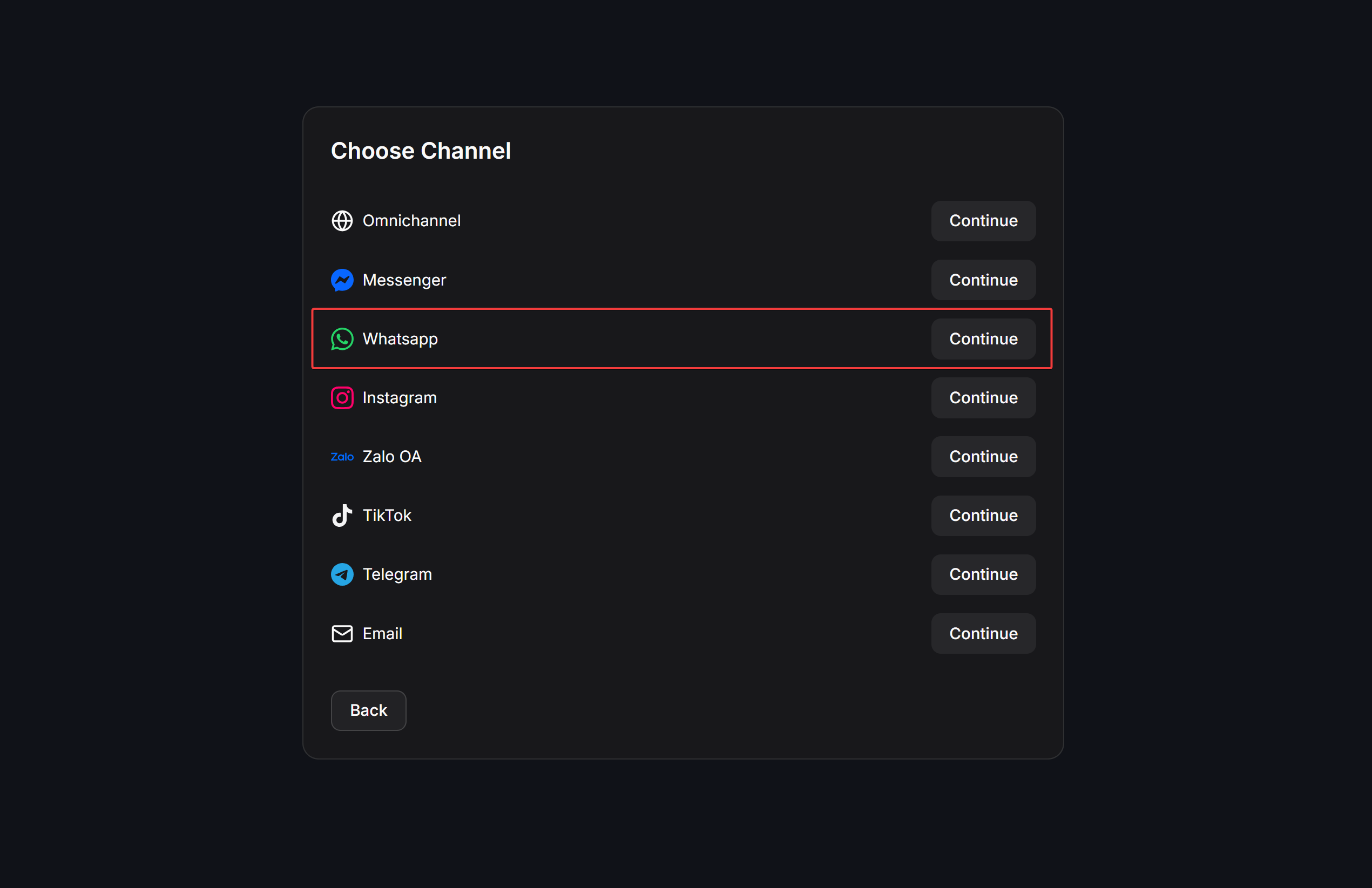
3
Select sending type
On the Choose Subaction screen, select the sending type that matches your customer segment: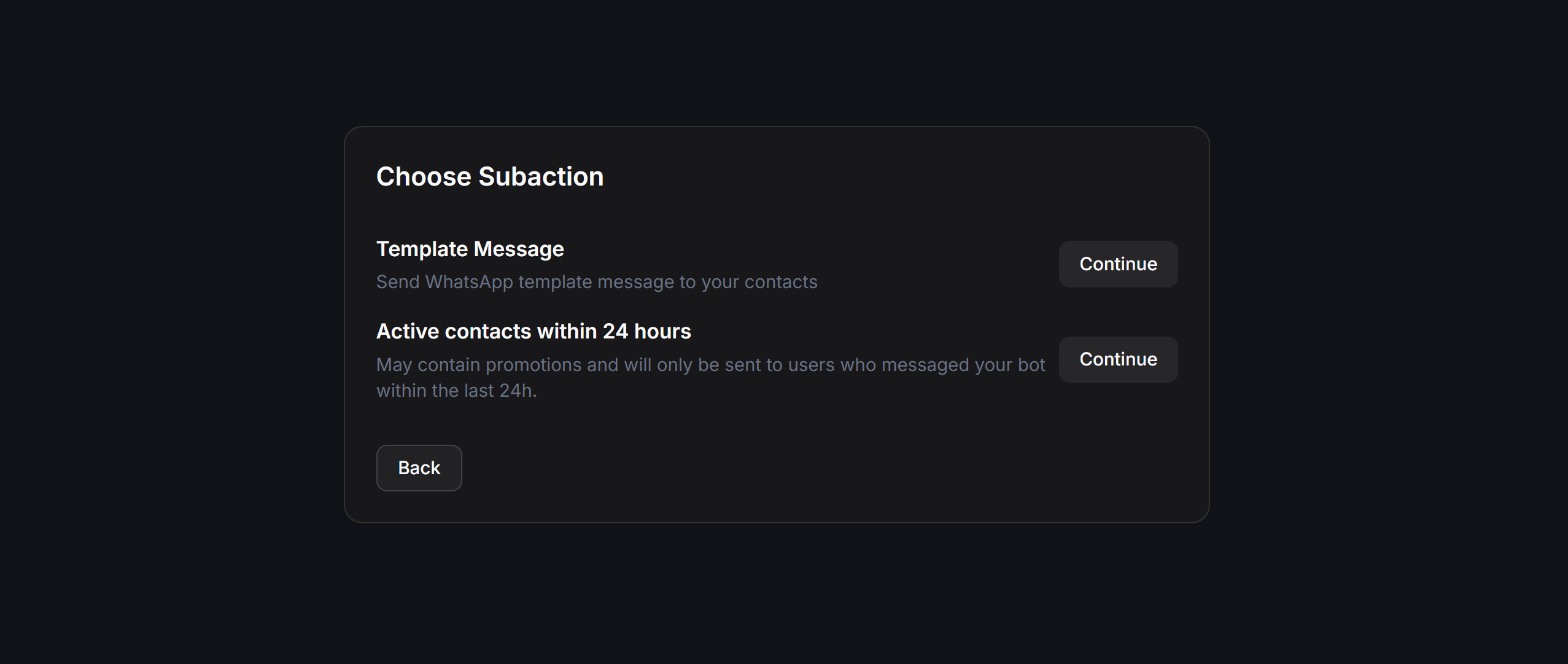
- Template Message (Outside 24 hour): Use an approved message template to send messages to customers outside the 24-hour window.
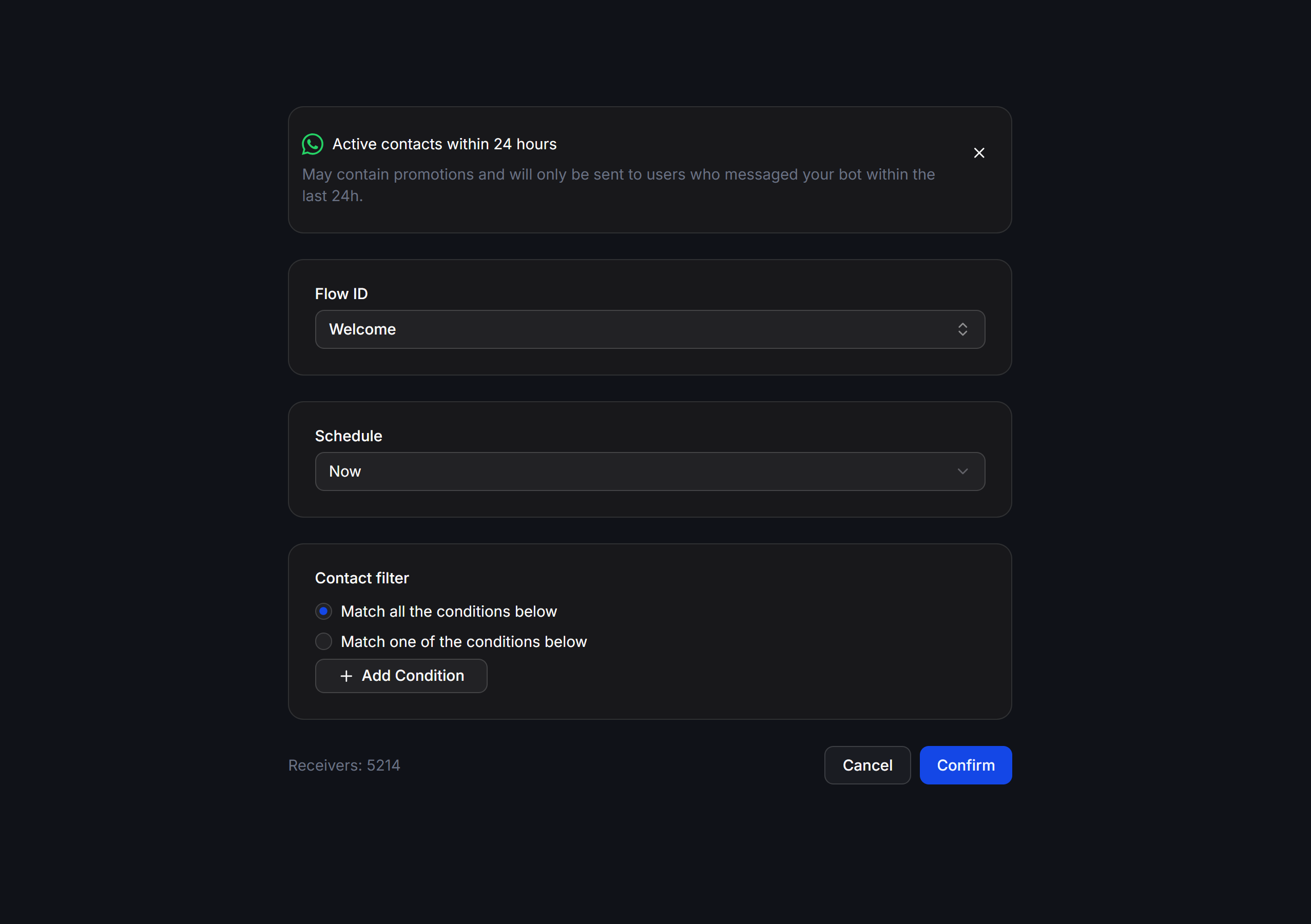
- Active contacts within 24 hours: Send free-form Flow scripts to customers who have an active chat session within the last 24 hours.
Template Message (Outside 24 hour)
Use this subaction to message customers outside the 24-hour interaction window using an approved template. The configuration interface includes: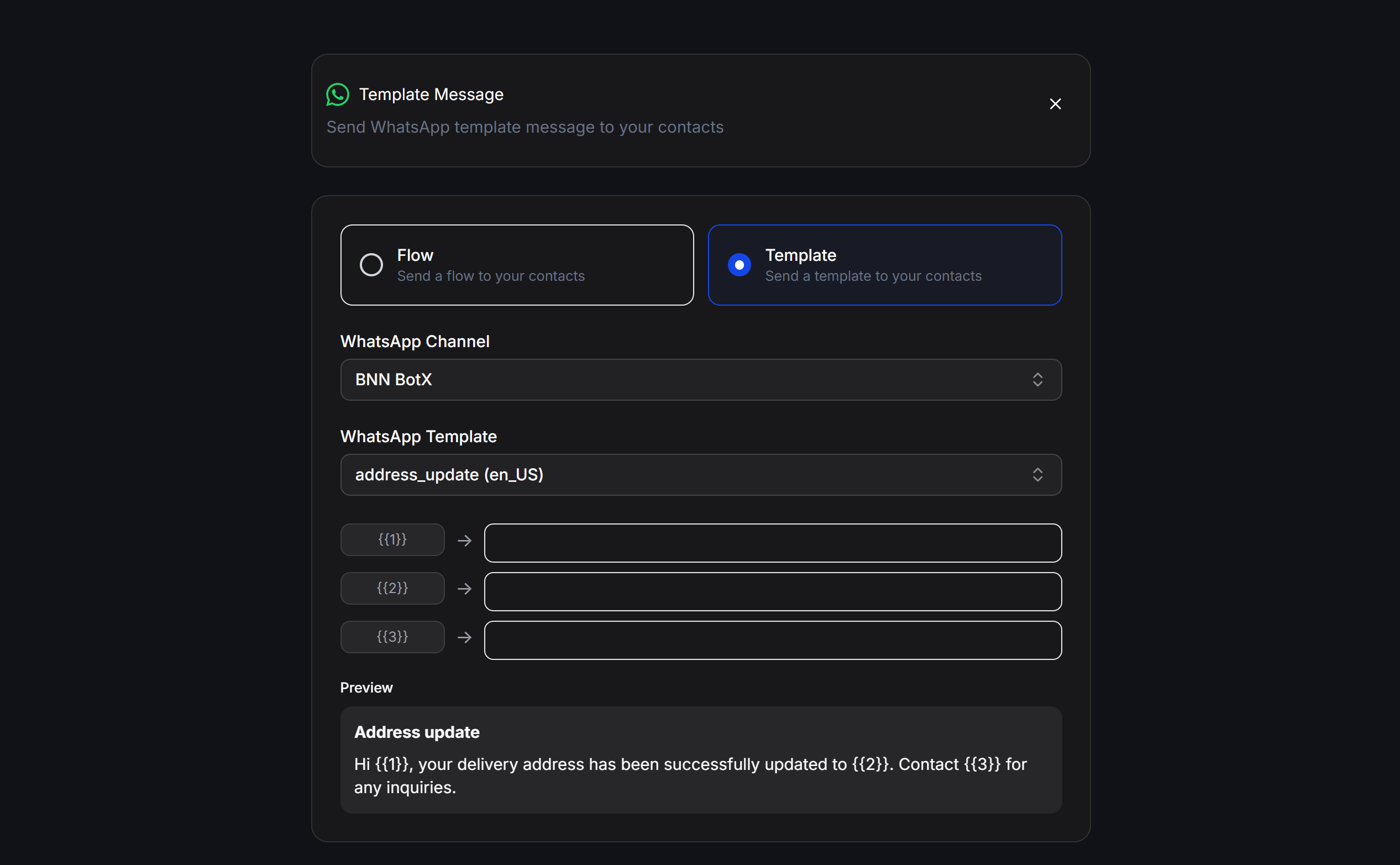
- Flow / Template: Select Flow (send a chatbot script bundled with a template) or Template (send a Meta-approved message template).
- WhatsApp Channel: Select the WhatsApp phone number to send from.
- WhatsApp Template: Select the synced message template from the dropdown.
- Variable mapping: Fill in sample values or link to custom contact data fields for variables
{{1}},{{2}}… - Preview: Preview the actual message layout (including buttons) before confirming.
Active contacts within 24 hours
Use this subaction to send bulk messages to contacts who have an active chat session within the last 24 hours.24-Hour Chat Session Logic (Free-form messages)
When a customer actively messages your WhatsApp number, the system opens a chat session lasting 24 hours.- Within this chat session, you can send free-form messages (Flow scripts) without being required to use Meta-approved templates.
- You can freely send product consultations, answer questions, send promotions, or customer care scripts.
- Only Flow scripts are supported (Template is not supported).
Sending Configuration
- Flow ID: Select the chatbot script to send.
- Schedule: Select whether to send immediately or schedule for later.
- Contact filter: Use filters to target specific contacts within the active 24-hour audience.
- Receivers: The number of active customers who match the filters.
Practical Examples
Sending Order Confirmation Notifications (Utility Template)
When a customer has just placed an order and you want to send a status update notification outside the 24-hour window:- Select Template Message (Outside 24 hour) -> select Template.
- Select the pre-approved order confirmation utility template.
- Fill in values for variables (e.g.,
{{1}}for Customer name,{{2}}for Order ID,{{3}}for Delivery status). - Schedule for later or send immediately.
Re-engaging Old Customers with Offers (Marketing Template)
You want to run a remarketing campaign to send a discount voucher to your old customer segment:- Select Template Message (Outside 24 hour) -> select Template.
- Select the Meta-approved Marketing template containing the promotional offer.
- Fill in the corresponding variable values and preview in the Preview section.
Contact filter: Filter contacts with the TagOld Customer.- Confirm and send.
WhatsApp Message Templates
To proactively message customers outside the 24-hour window, WhatsApp requires you to use message templates that have been reviewed and approved by Meta in advance to prevent spam.Template Categories
WhatsApp message templates contain fixed content and dynamic variables{{1}}, {{2}}… to automatically populate customer information. Meta categorizes templates into 3 main categories:
- Utility: Send transactional information, order updates, account updates, or essential appointment reminders directly related to a customer action.
- Marketing: Send offers, promotions, product advertisements, or commercial customer care content to boost engagement.
- Authentication: Send OTP codes or two-factor authentication login verification codes.
Steps to Create and Submit Templates for Approval
The process of creating templates and submitting them for Meta review is as follows:1
Access WhatsApp management
Go to Settings -> Channels tab -> select Whatsapp -> click Manage next to the WhatsApp number you want to configure.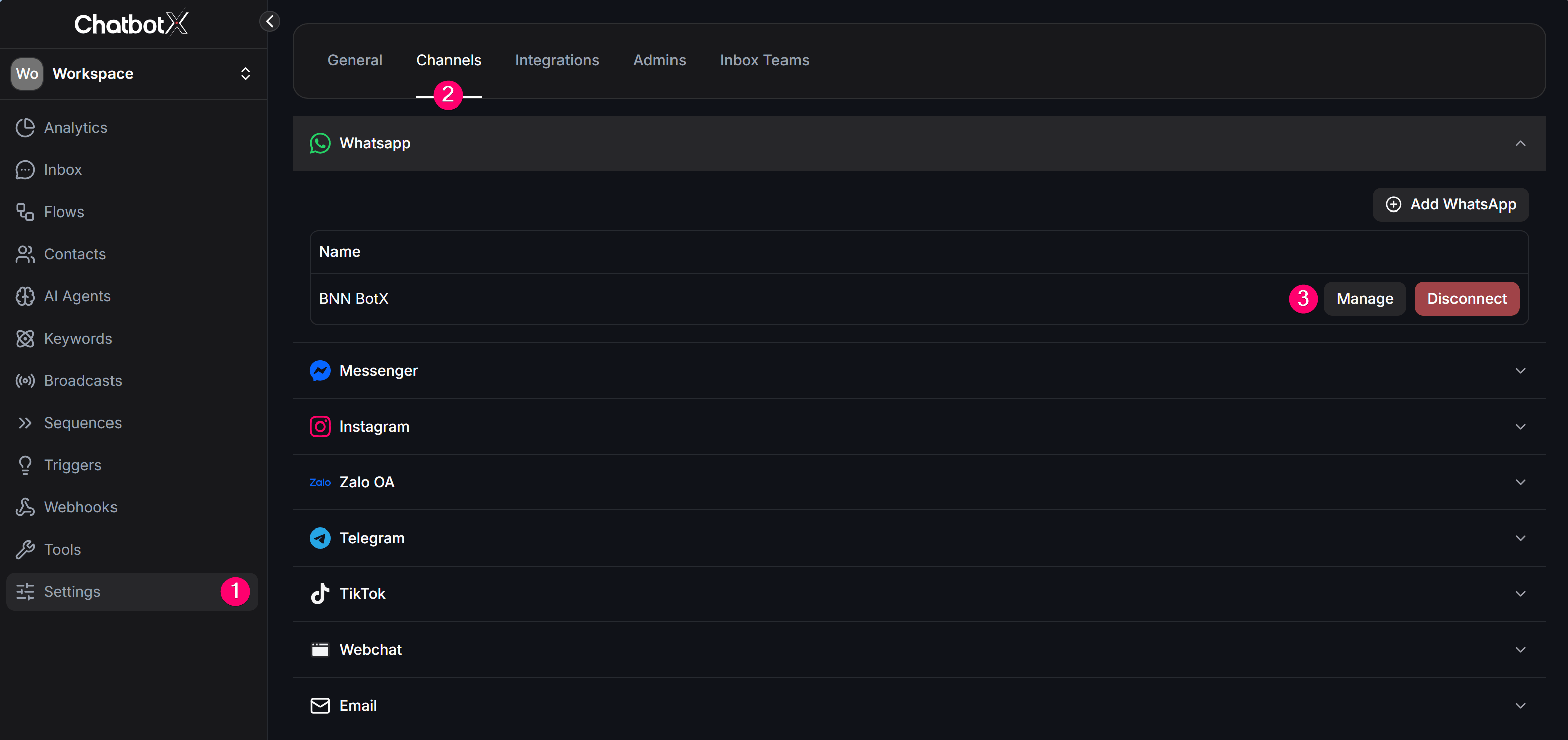
2
Open the message template list
Select the Message Templates tab from the top horizontal menu. Here, click the Synchronize button to sync templates from Meta to ChatbotX, or click the Manage button on the right side to switch to the Meta management interface.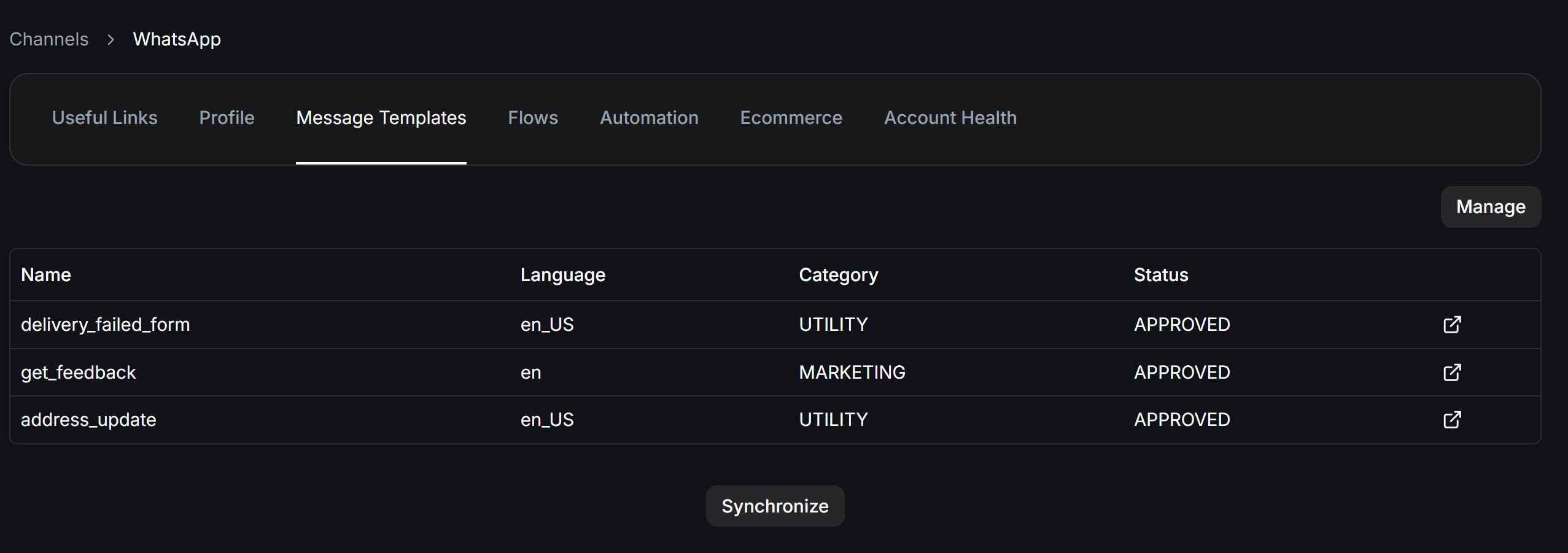
3
Create a template on Meta's WhatsApp Manager
On Meta’s management page, click Create template and fill in the details: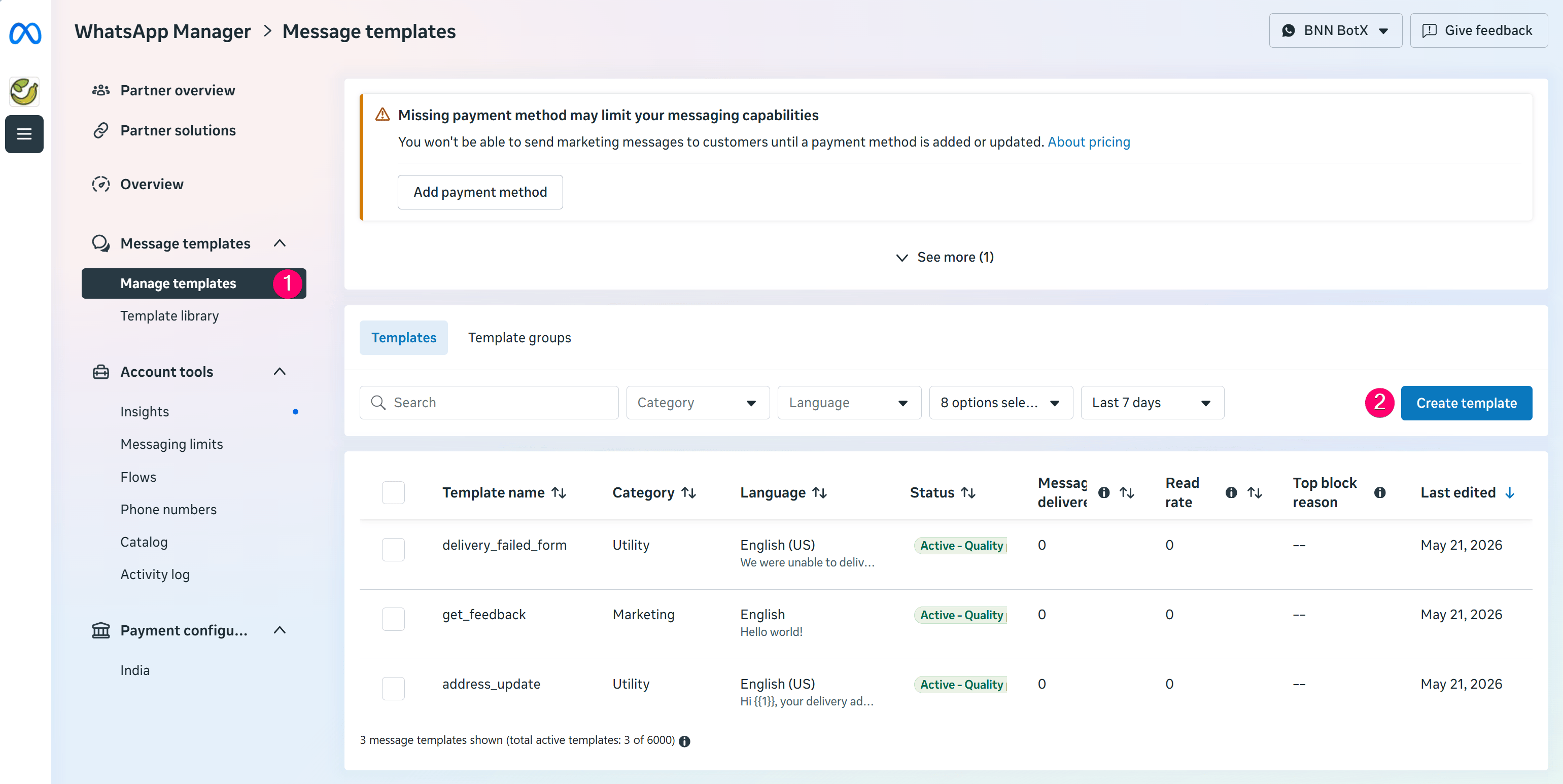
- Category: Select the appropriate category (Marketing, Utility, or Authentication).
- Template name: Only use lowercase letters without accents and underscores (e.g.,
order_delivery_update). - Content: Draft the message body (up to 1024 characters). You can add variables
{{1}},{{2}}… and set up call-to-action buttons or quick replies.
APPROVED), return to ChatbotX and click the Synchronize button from the previous step to sync the template for use.Tips to Avoid Meta Rejecting Your Templates
- Do not place dynamic variables at the very beginning or very end of the message.
- Do not place two dynamic variables next to each other (e.g., incorrect:
{{1}}{{2}}). - Dynamic variables must be numbered sequentially starting from 1, using the correct double curly brace syntax (e.g.,
{{1}},{{2}}). - Call-to-action button URLs must not contain direct wa.me links.
- Template content must not completely duplicate the wording structure of a previously created template.
- Do not use overly vague, overly short, or unclear language.
- Avoid spelling or grammar errors.
Safe WhatsApp Broadcast Operating Tips
- Name campaigns clearly with a consistent format for easy tracking in the Broadcasts list.
- Always Synchronize newly Meta-approved message templates to ChatbotX before creating a campaign.
- Follow Meta’s category classification rules when creating templates (Utility, Marketing, Authentication). Sending promotional content through templates approved under the Utility category may cause Meta to disable the template or limit your WhatsApp number’s sending quality.
- Monitor delivery metrics and negative response rates (customers blocking your number, spam reports) closely after each campaign to optimize sending frequency and content.