Classifying Message Templates
Meta categorizes message templates into 3 main categories:- Utility: Send transactional updates directly related to a customer’s action or transaction (e.g., order confirmations, shipping updates, appointment reminders…).
- Marketing: Send promotional offers, product introductions, discount codes (vouchers), birthday greetings, or interaction surveys.
- Authentication: Send OTPs (One-Time Passwords) or verification codes for account logins.
Content Formatting Rules
To ensure your message templates are approved by Meta quickly, please follow these guidelines:1. Rules for Variables ({{1}}, {{2}}…)
- Provide Sample Values (Validation Values): When creating templates with variables like
{{1}},{{2}}…, you must enter a realistic sample value for each variable (e.g., enter “John Doe” for{{1}}). If left blank, Meta will reject the template. - Do Not Place Variables Side-by-Side: Never place two variables adjacent to each other without static text separating them (e.g., incorrect format:
Hello {{1}}{{2}},). - Do Not Place Variables at the Start or End: Avoid placing variables at the very beginning or the very end of your message.
- Sequential Ordering: Variables must start at
{{1}}and increase sequentially ({{2}},{{3}}…).
2. Limits on Characters and Emojis
- Body Length: The body text can be up to 1024 characters. However, keeping it short (under 550 characters) is recommended to improve readability.
- Emoji Limits: Do not over-use emojis. Keep the count below 10 emojis in each message template.
3. Sending Marketing Messages Safely
- User Consent (Opt-in): Only send proactive messages if the customer has explicitly agreed to receive communications from your business (e.g., checking a website checkbox, opting in during checkout…).
- Include an Opt-out Button: For marketing templates, we highly recommend adding a Quick Reply button such as “Opt-out” (Stop / Unsubscribe) at the bottom to reduce the likelihood of being reported as spam.
How to Create and Submit Templates for Approval
The process to create and submit templates for review is performed as follows:1
Access WhatsApp Management
Go to Settings -> Channels tab -> select WhatsApp -> click Manage next to the WhatsApp number you want to configure.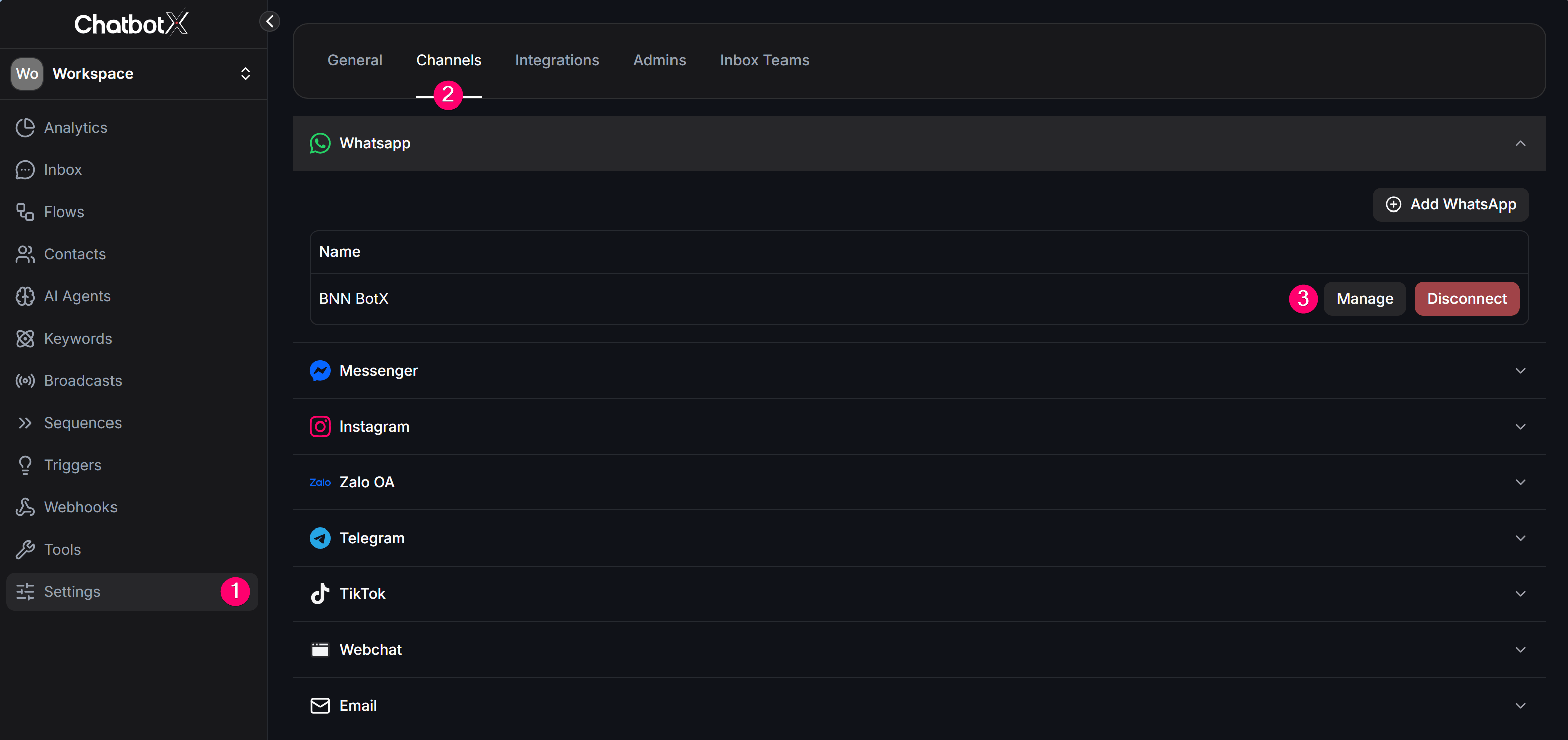
2
Open Message Templates Tab
Select the Message Templates tab from the top horizontal menu. Here, click Synchronize to sync templates from Meta to ChatbotX, or click Manage on the right side to redirect to the Meta Business Manager.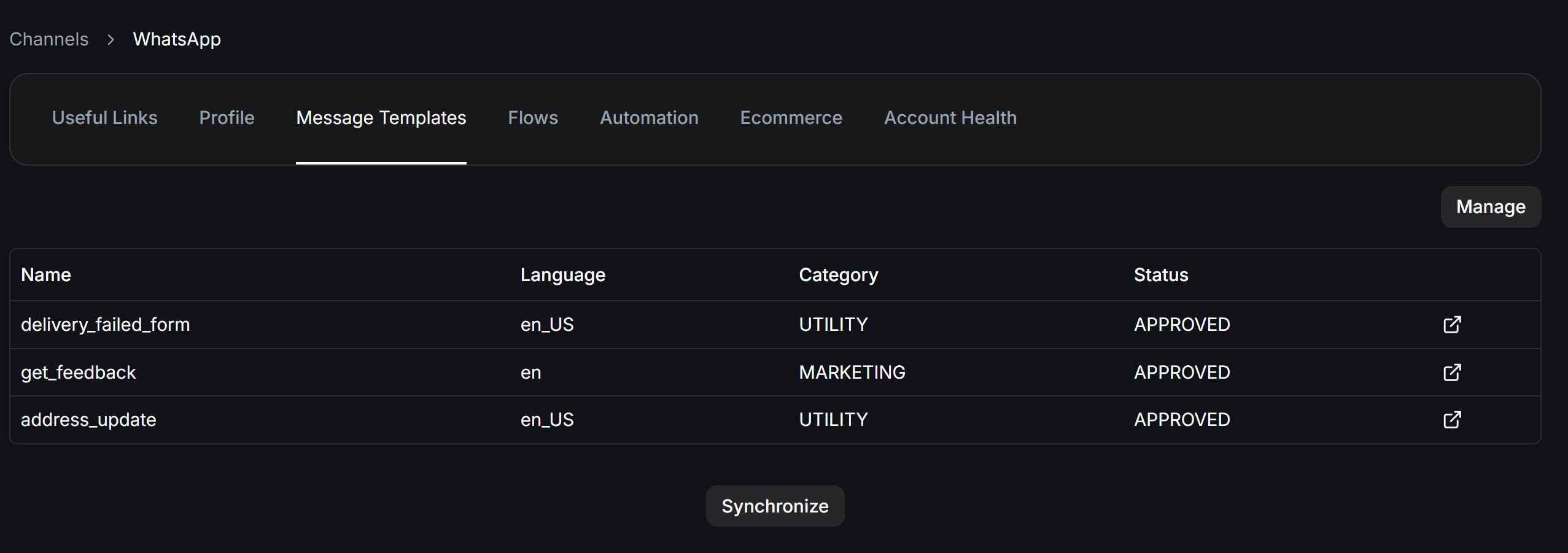
3
Create Template on Meta Business Manager
On the Meta manager page, click Create template and fill in the details: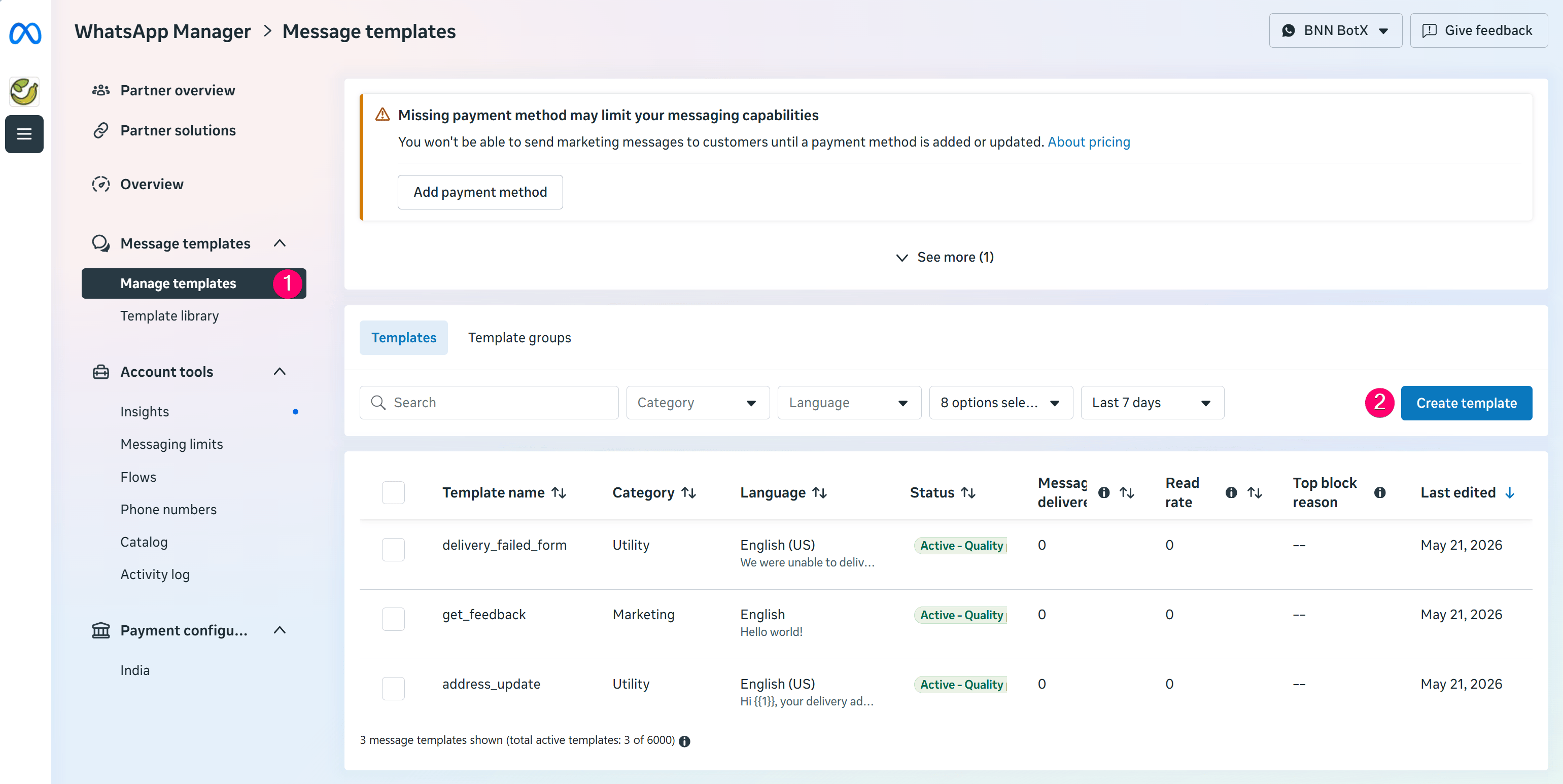
- Category: Select the appropriate category (Marketing, Utility, or Authentication).
- Template Name: Use only lowercase letters and underscores (e.g.,
order_confirmation). Do not use spaces, capital letters, or special characters. - Content: Draft the body text (up to 1024 characters). Set up variables
{{1}},{{2}}… and fill in sample values (Validation). - Buttons: Add Call to Action buttons (directing to a website or phone number) or Quick Reply buttons.
- Note: The website URL button must not use
wa.melinks.
- Note: The website URL button must not use
4
Sync Templates to ChatbotX
Once the template status changes to
APPROVED, go back to the Message Templates tab on ChatbotX and click Synchronize to pull the template into the system.Ways to Send Templates on ChatbotX
After syncing the templates to ChatbotX, you can send them to customers using the following methods:1. Send Bulk Campaigns (WhatsApp Broadcasts)
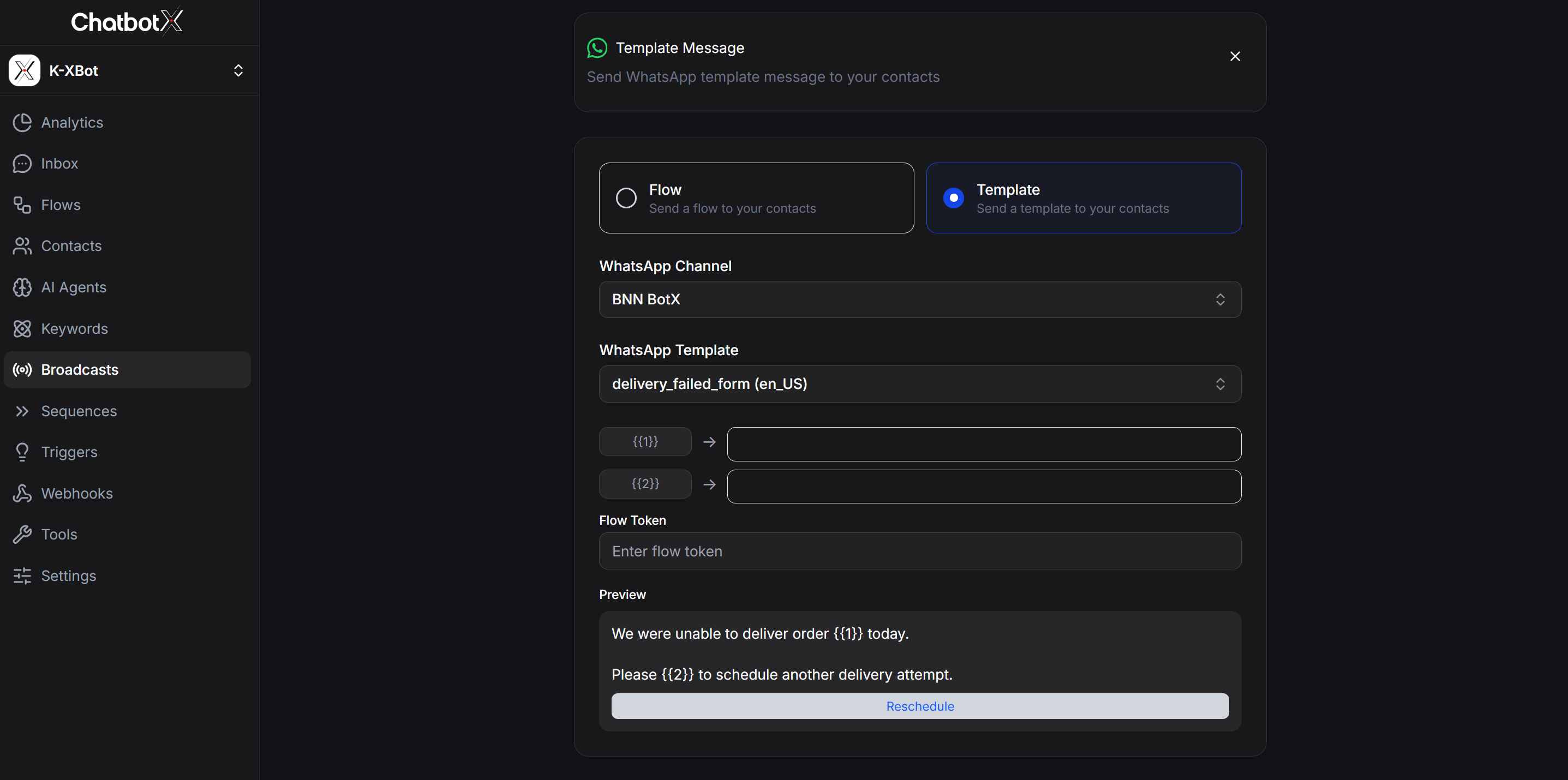
Use this when you want to proactively send bulk messages to a targeted contact list outside the 24-hour window.- How-to: Go to Broadcasts -> Click + Create Broadcast -> select WhatsApp -> choose the Template Message (Outside 24 hour) option -> Select the approved template, map contact Custom Fields to variables like
{{1}},{{2}}… -> Schedule and send. - Detailed guide: Bulk Campaigns (WhatsApp Broadcasts)
2. Send Automatically via Sequences
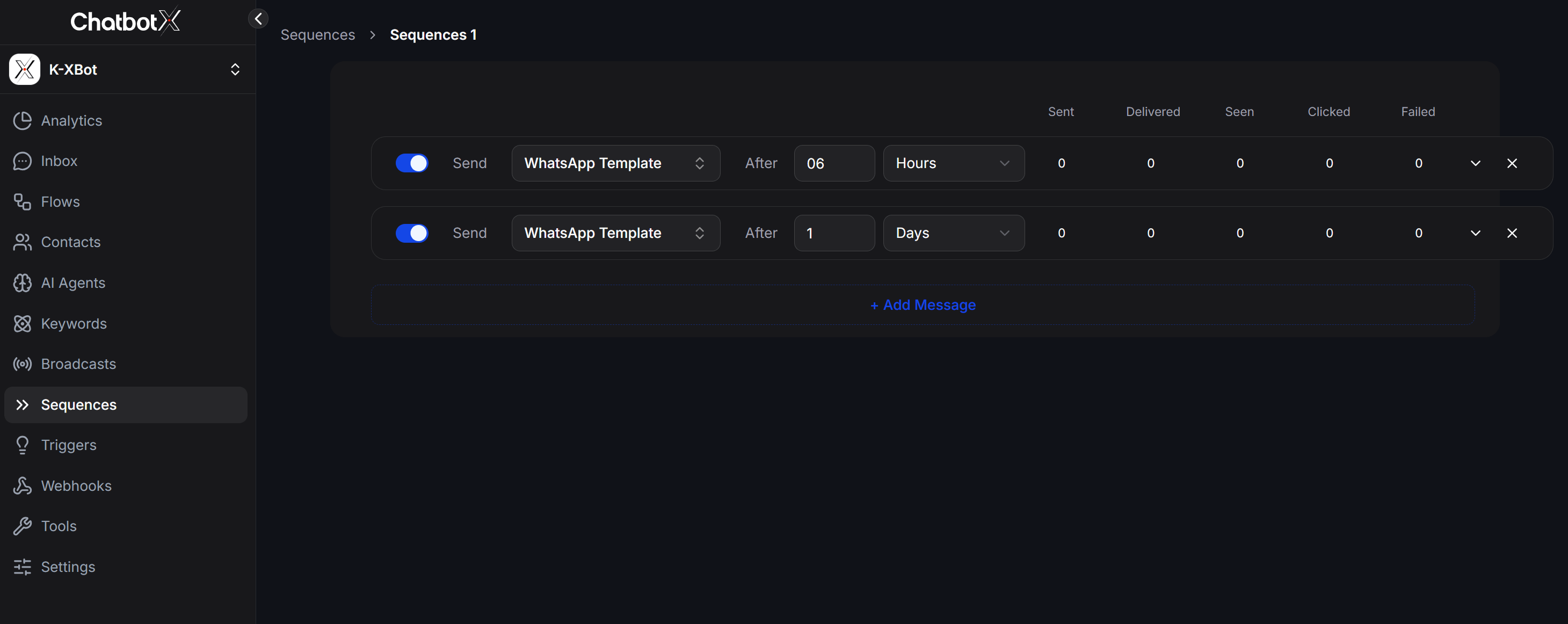
Use this to nurture customers automatically on a scheduled timeline (e.g., automatically sending an appointment reminder 1 day after registration).- How-to: Go to Sequences (under Remarketing) -> Click + Create Sequence -> Select WhatsApp -> Add a message, choose the Template type -> Select your approved template and map variables.
- Detailed guide: Automated Campaigns (Sequences)
3. Use Directly in Flows (Flow Builder)
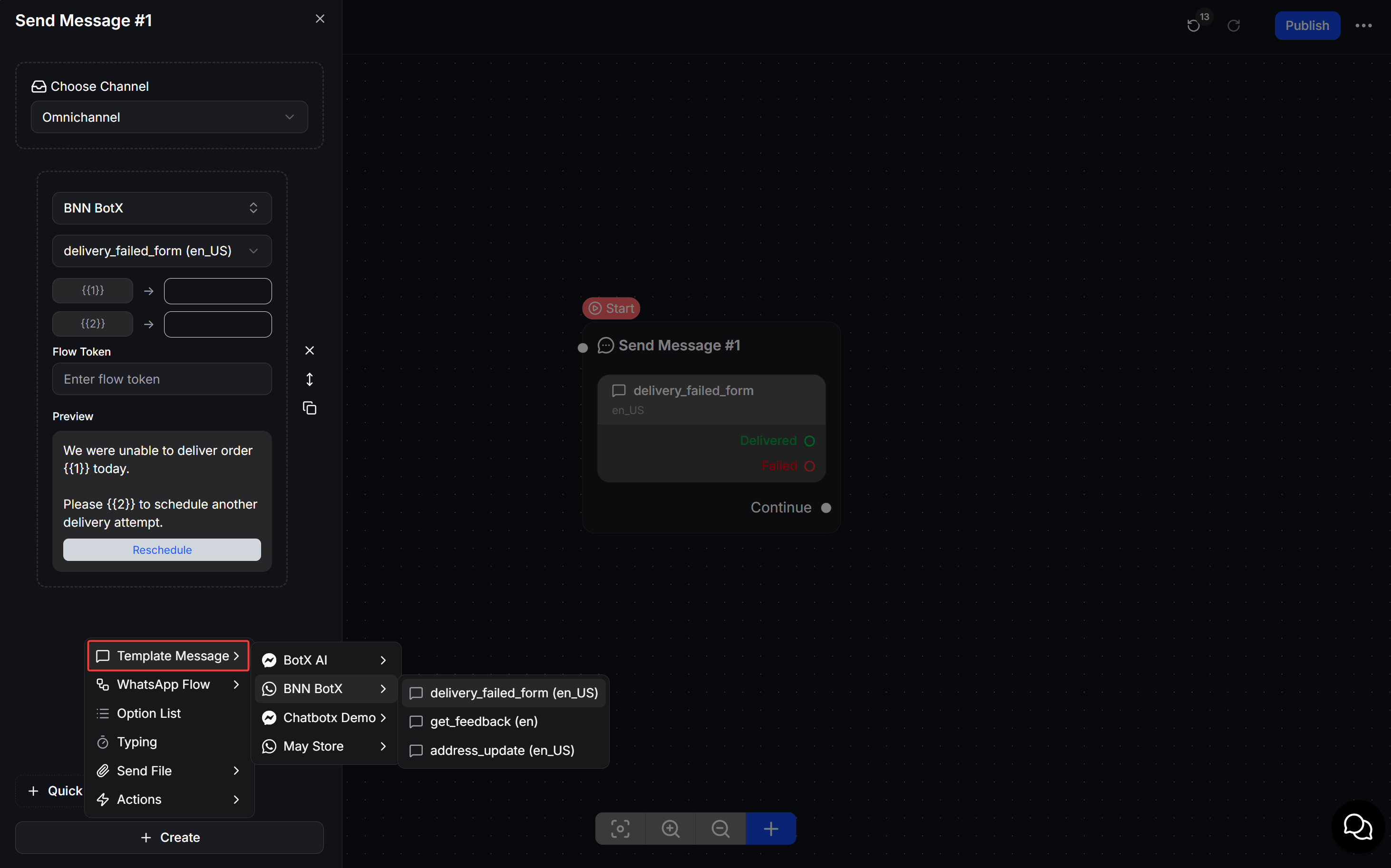
Insert templates directly into auto-response kịch bản flows to notify customers when they meet certain conditions.- How-to: In the Flow Builder editor, add an action block -> Select Utility Message (or WhatsApp Template) -> Select the sending WhatsApp number and the corresponding template.