

WhatsApp Flows Templates
You can use Flows to generate leads, recommend products, book appointments, or for any other business purpose. Here are some common use cases of WhatsApp Flows:Appointment Booking
Help customers select dates, times, services, or locations, and confirm appointments directly within the WhatsApp conversation.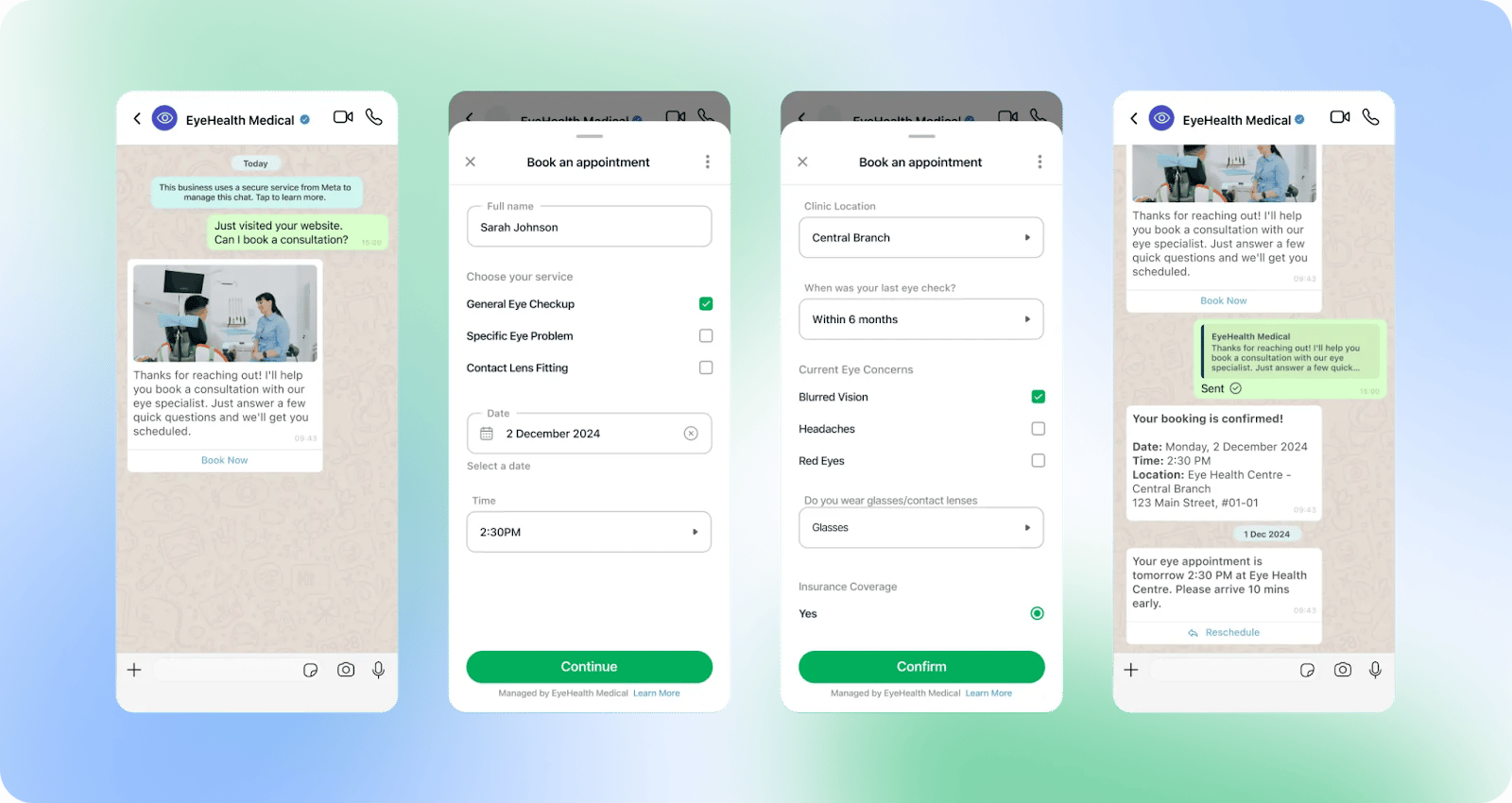
Lead Generation
Collect customer contact details such as name, phone number, email, or product requirements using convenient input forms.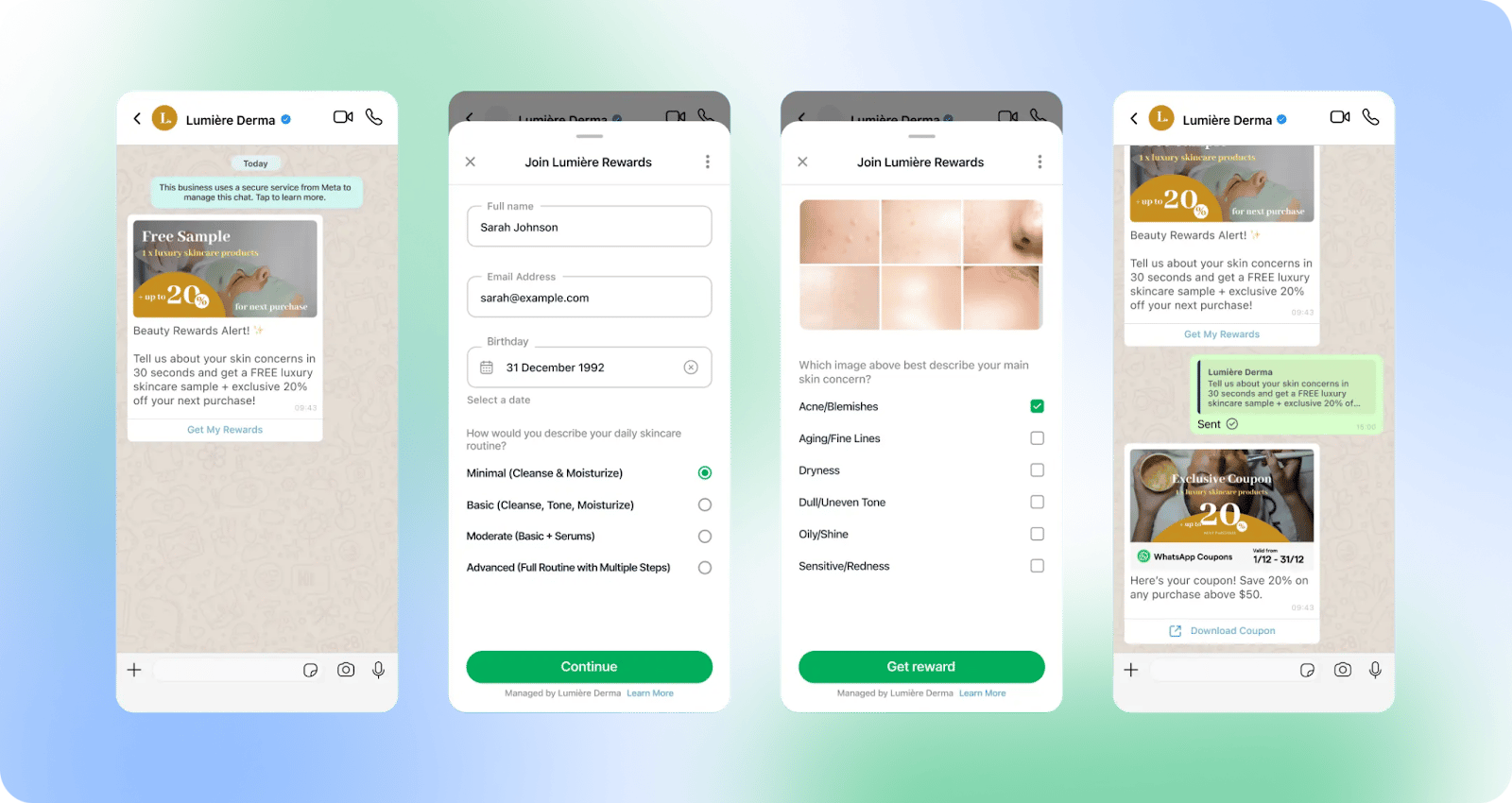
Product Recommendation
Display product catalogs or provide tailored suggestions to help customers browse and make purchasing decisions easily.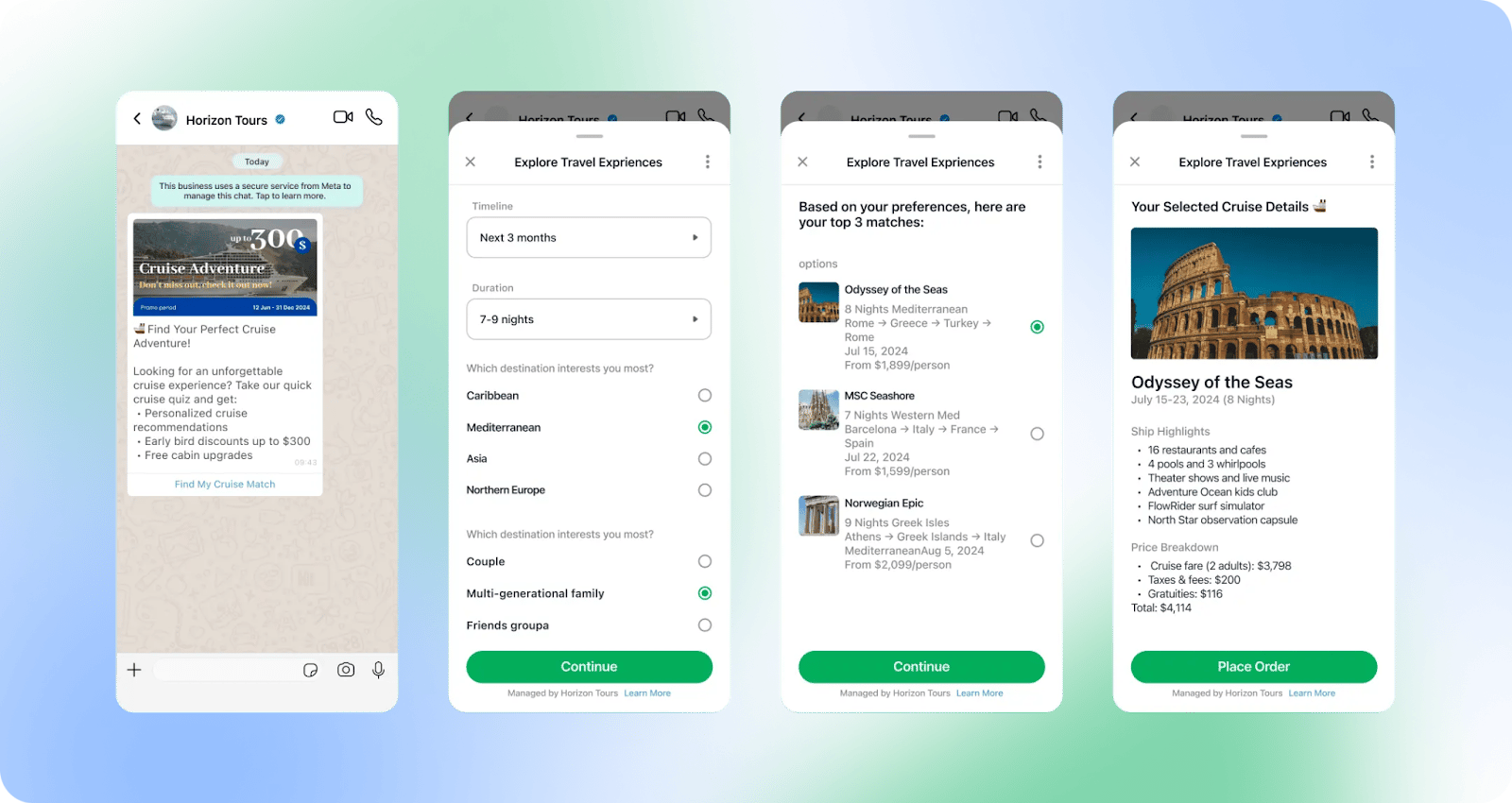
Quote Request
Provide detailed pricing and service costs based on the options selected by the customer.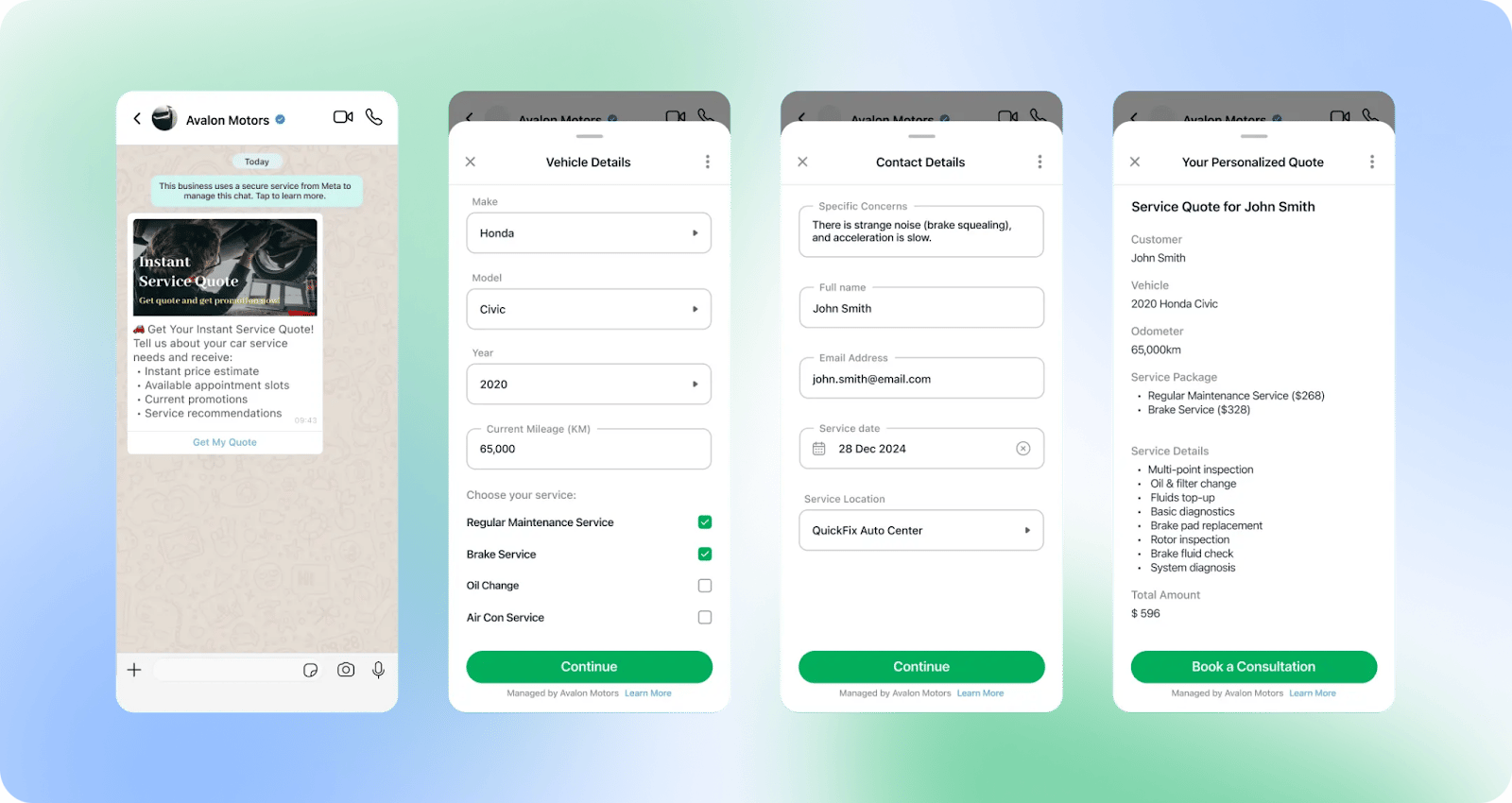
Customer Survey
Collect feedback and customer satisfaction ratings after experiencing a product or service.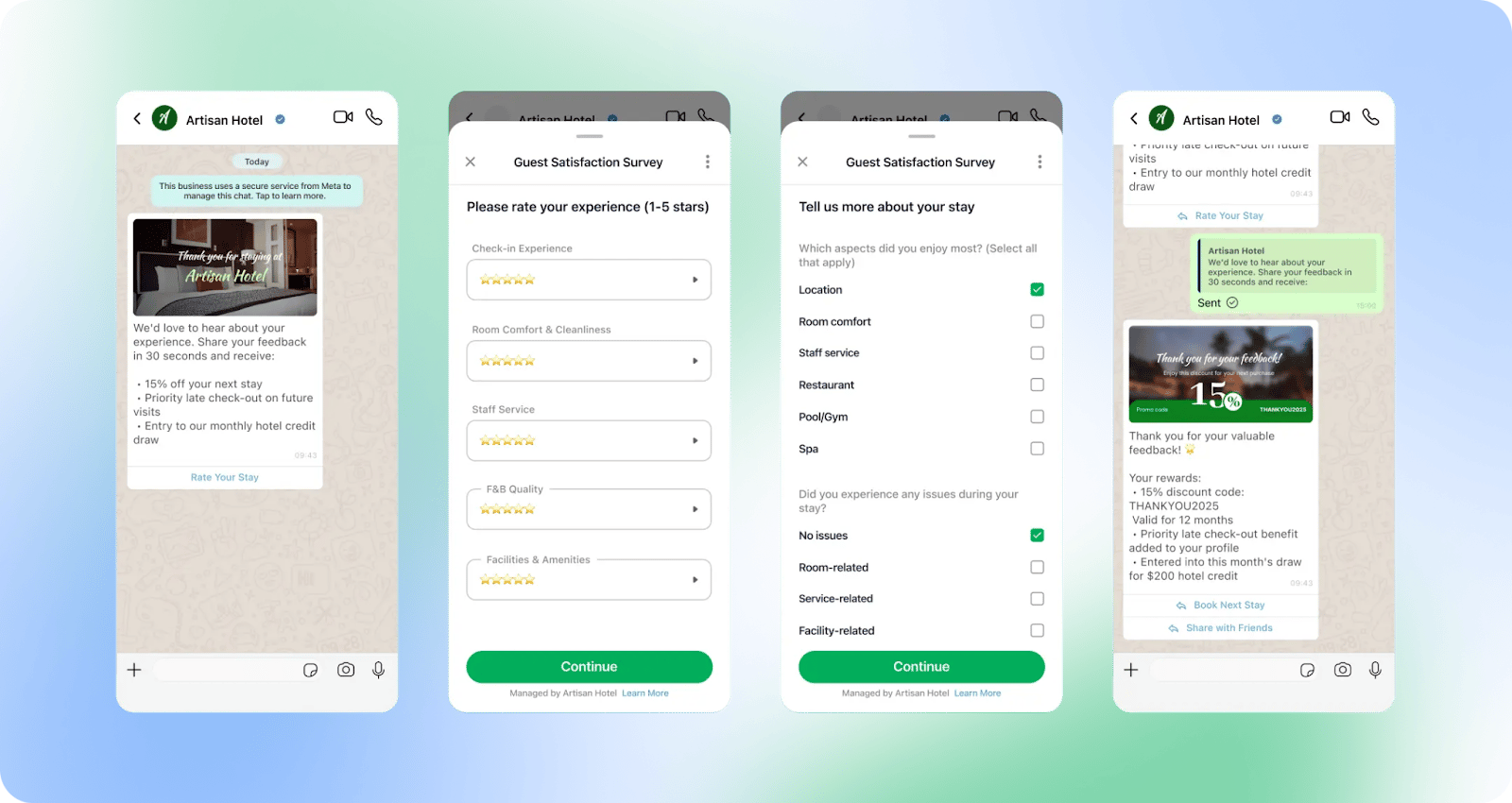
Create WhatsApp Flows on Meta
You can create, edit, or duplicate Flows using the Flows management interface in the Meta WhatsApp Manager:- Access the WhatsApp Manager and select Flows from the left navigation menu.
- Click Create Flow to get started.
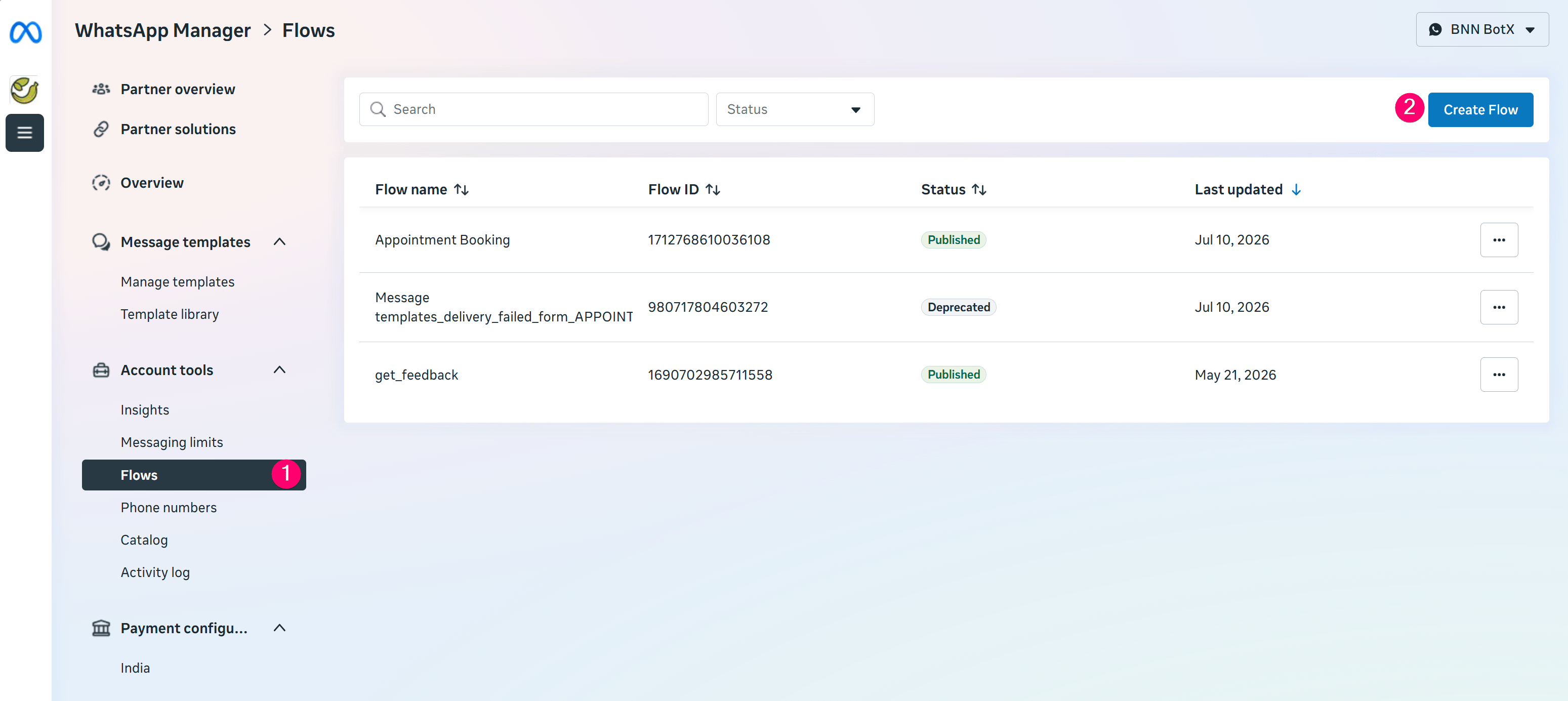
- Enter your Flow name and select the appropriate Category.
- Choose a Template to use as a starting point:
- No endpoint: Suitable for static display elements.
- With endpoint: Suitable for dynamic elements (e.g., processing inputs or dynamic navigation).
- Preview the template on the right side and click Create.
- Choose a Template to use as a starting point:
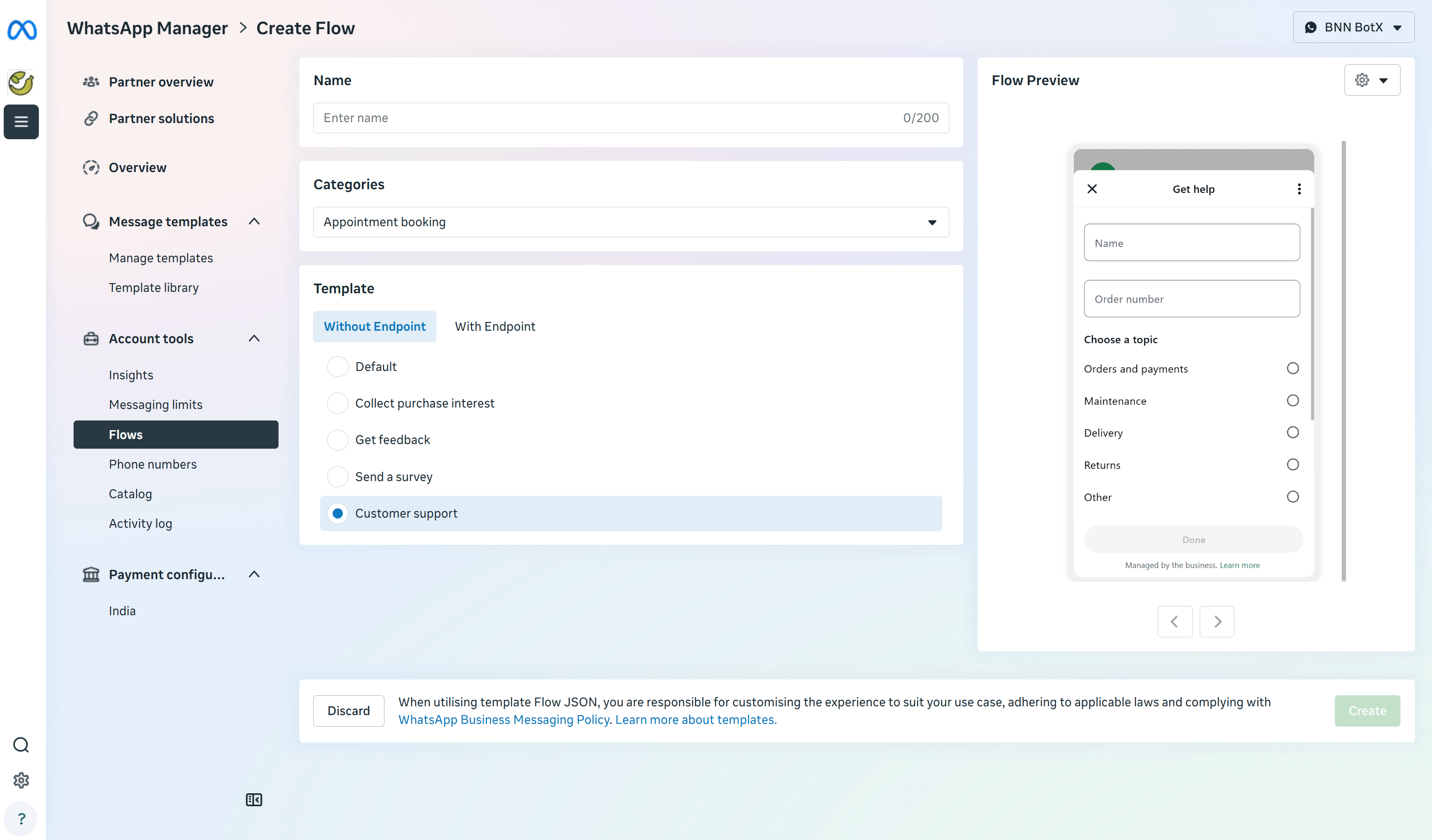
- Once created, the Flow JSON Editor will open with a live preview:
- Edit properties, customize labels, and update field names as needed.
- Click Run to preview your changes.
- Once satisfied, click Save.
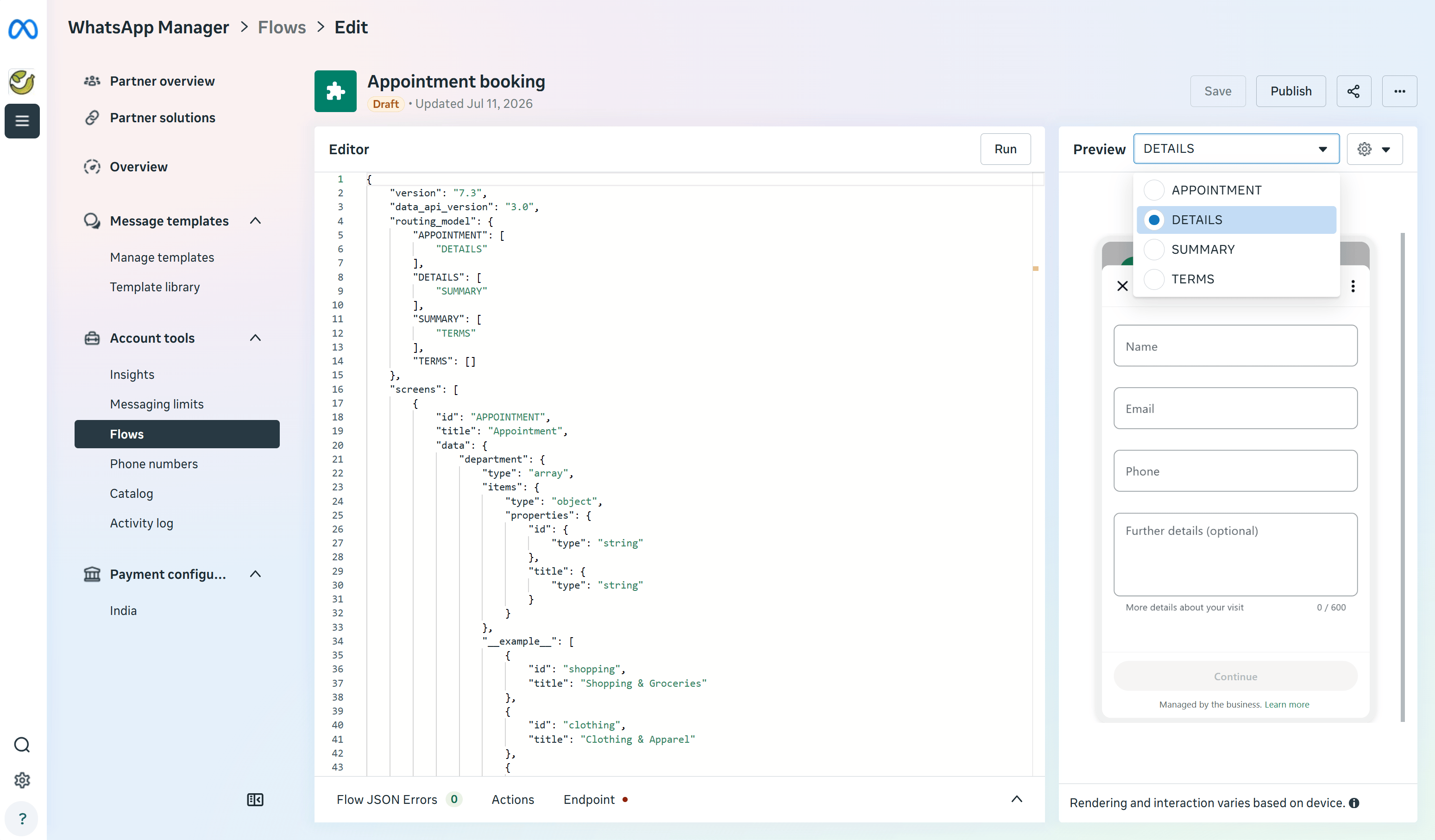
- Publish the Flow:
- By default, the saved Flow remains in Draft status and is only available for testing.
- Resolve all validation errors and ensure the Flow complies with WhatsApp design guidelines, terms of service, and business messaging policies.
- Click Publish to publish the Flow and make it ready to send to customers.
Sync WhatsApp Flows with ChatbotX
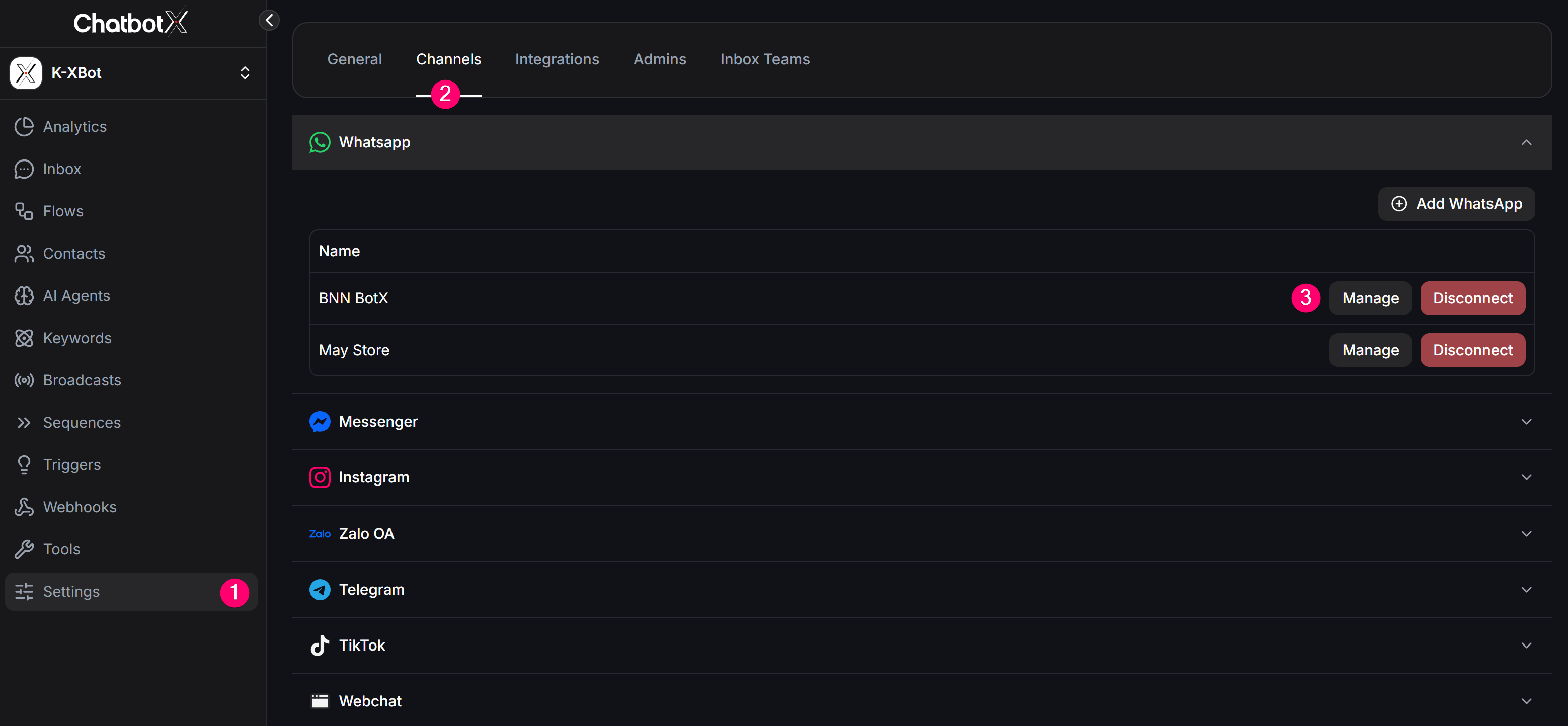
You can sync your published Flows to ChatbotX through the following steps:- Go to Settings → Channels, then click Manage next to the WhatsApp channel you want to configure.
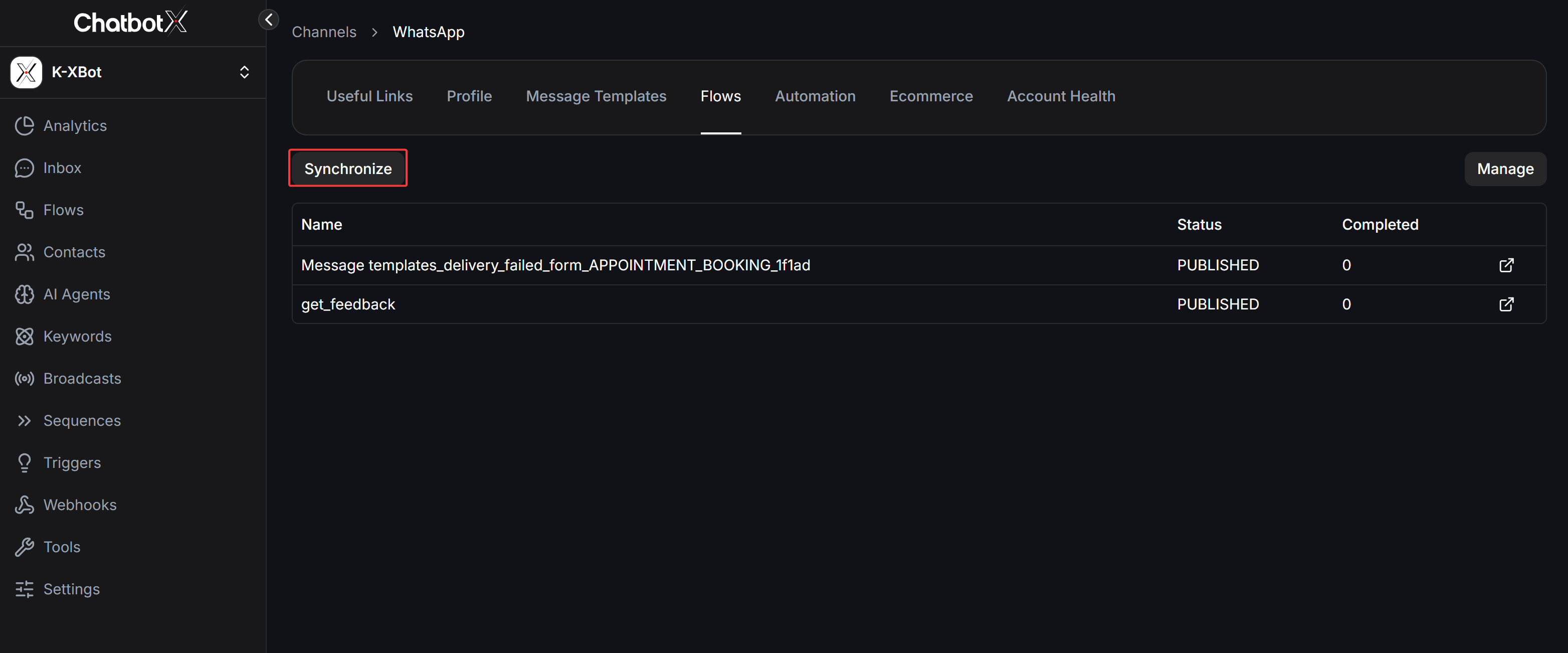
- Switch to the Flows tab.
- Click the Synchronize button to retrieve the published Flows from Meta. The Manage button next to it provides a quick link to the Meta WhatsApp Manager.
Send WhatsApp Flows to Customers
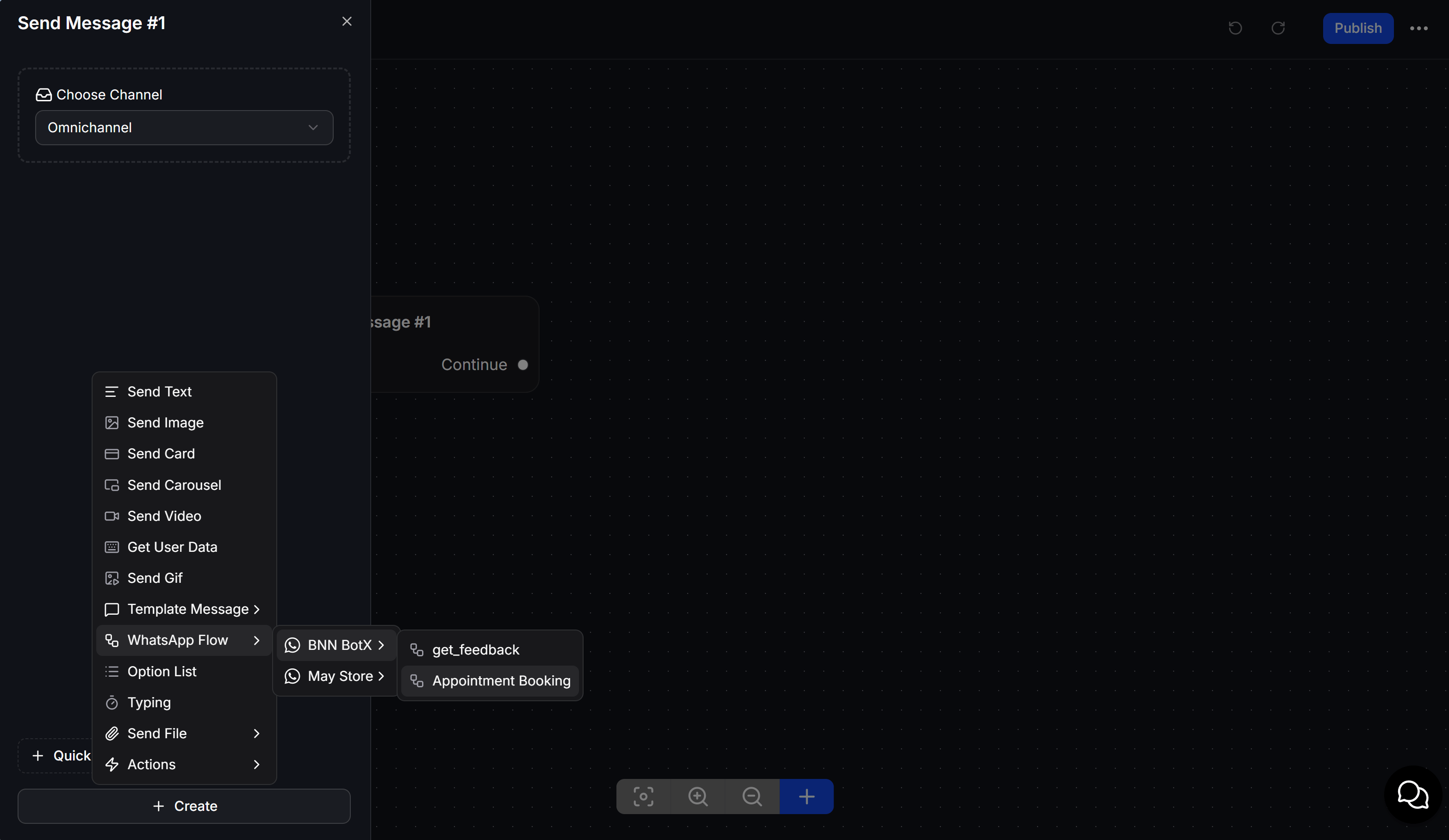
ChatbotX supports sending WhatsApp Flows directly in the Flow Builder script to automate customer interactions:- Open your Flow Builder and select the message block where you want to add the Flow.
- Click the Create button (or the
+icon) in the message editor, select WhatsApp Flow → Choose your WhatsApp channel → Select the specific Flow you want to send.
- In the Edit WhatsApp Flow configuration modal, configure the following fields:
- Button Label: Enter the button text that will be displayed on the WhatsApp message.
- WhatsApp Flow: Select the corresponding Flow.
- Start Screen: Choose the starting screen of the Flow.
- Save Response to Custom Fields: Map the inputs submitted by the customer on the Flow screens (e.g., name, phone number, address) to the corresponding Custom Fields in ChatbotX for storage and CRM synchronization.
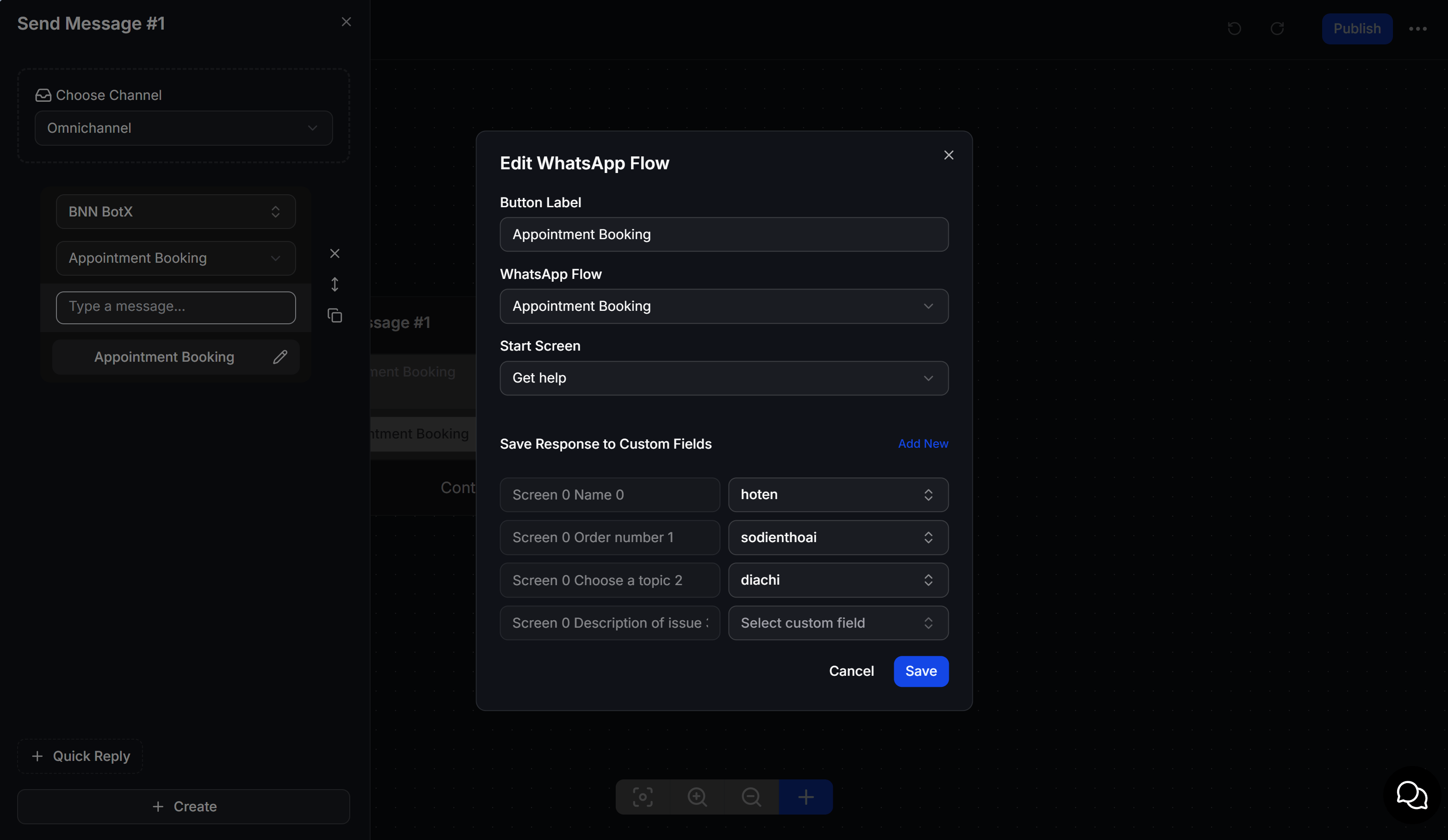
- Click Save to complete the block setup.
Send Bulk Messages with WhatsApp Flows
To send bulk messages (Broadcasts) with WhatsApp Flows to a list of customers simultaneously, you must link the Flow to a pre-approved Message Template. After that, you can launch your bulk sending campaign using the Broadcast feature. For detailed instructions on setting up bulk messaging campaigns, refer to the WhatsApp Broadcasts article.FAQ
Can I use WhatsApp Flows on all numbers?
Can I use WhatsApp Flows on all numbers?
Yes, as long as your number is connected to ChatbotX via the Meta Cloud API.
Are the inputs from WhatsApp Flows synced in real-time?
Are the inputs from WhatsApp Flows synced in real-time?
Yes, when a customer completes and submits a Flow, the data is instantly written to the mapped Custom Fields in ChatbotX.
Can I customize the visual style of the Flow screens?
Can I customize the visual style of the Flow screens?
The layout is defined by the JSON template configured on Meta. You can customize text, fields, and options within the JSON Editor but must follow Meta’s UI components and guidelines.