

Accessing QR Code Generator
From the left navigation bar in ChatbotX, select Tools and click the QR Code Generator card.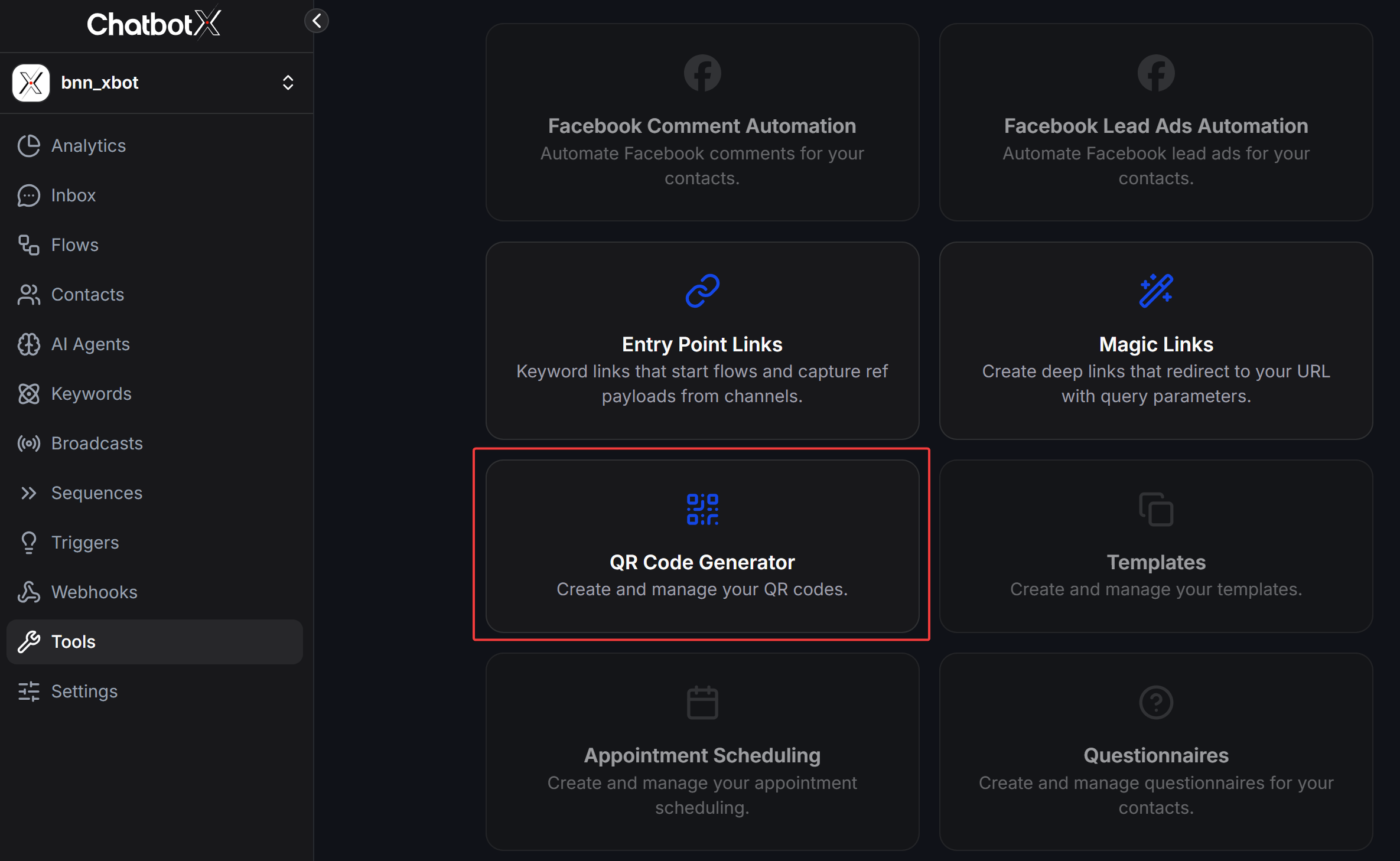
How to Create a New QR Code
1
Open QR Code Creation Modal
On the QR Codes management page, click the + Create QR Code button in the top right corner.
2
Configure QR Code Settings
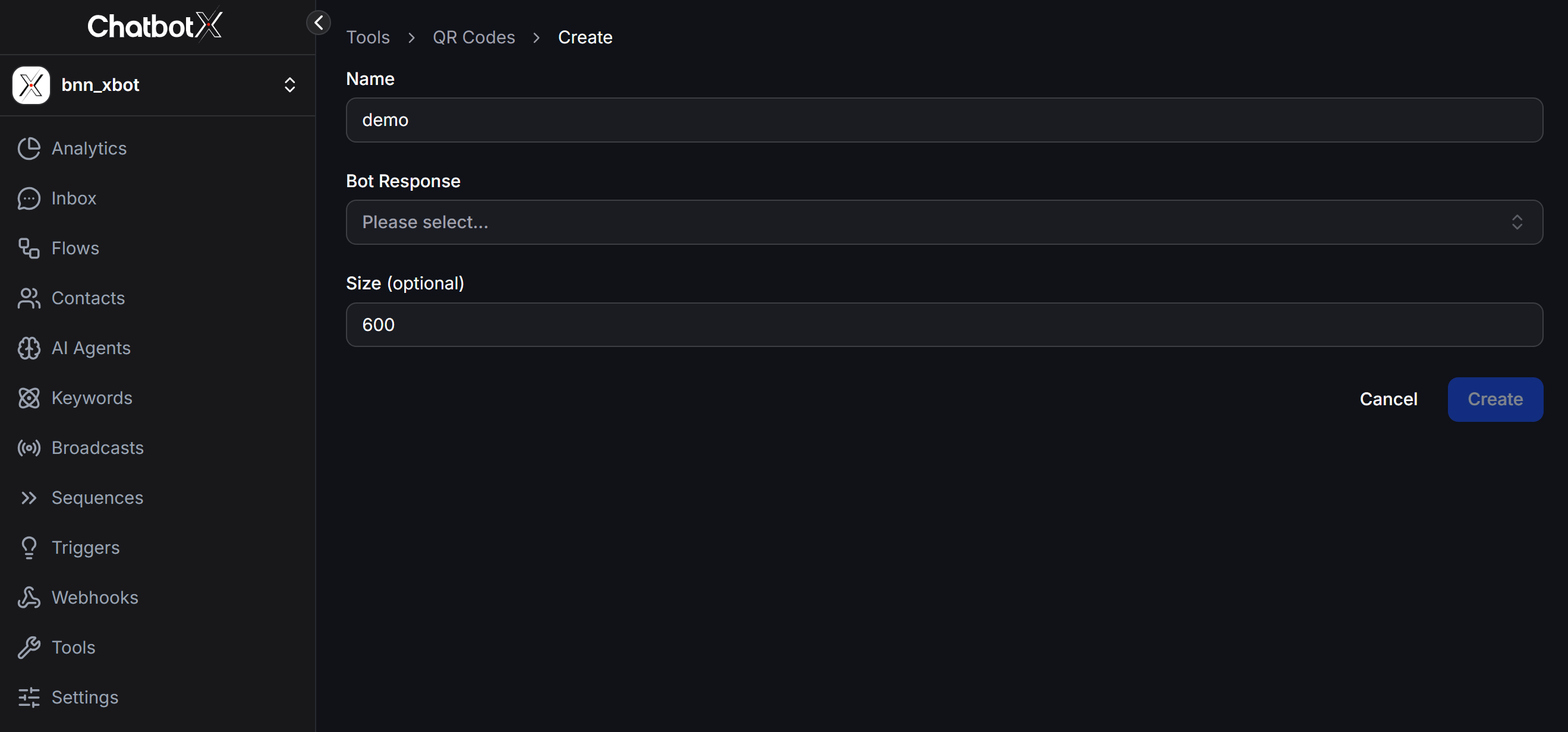
In the creation form, fill in the following information:
- Name: Enter an identifier for the QR code (e.g.,
demo,qr-store-menu,qr-order-confirmation). - Bot Response: Select the chatbot scenario (Flow) to trigger automatically when customers scan the QR code.
- Size (optional): Customize the QR code image size in pixels (e.g., enter
600for high-resolution images suitable for high-quality printing).
3
Complete Creation
Click Create to generate your QR code.
Preview, Edit, and Download QR Codes
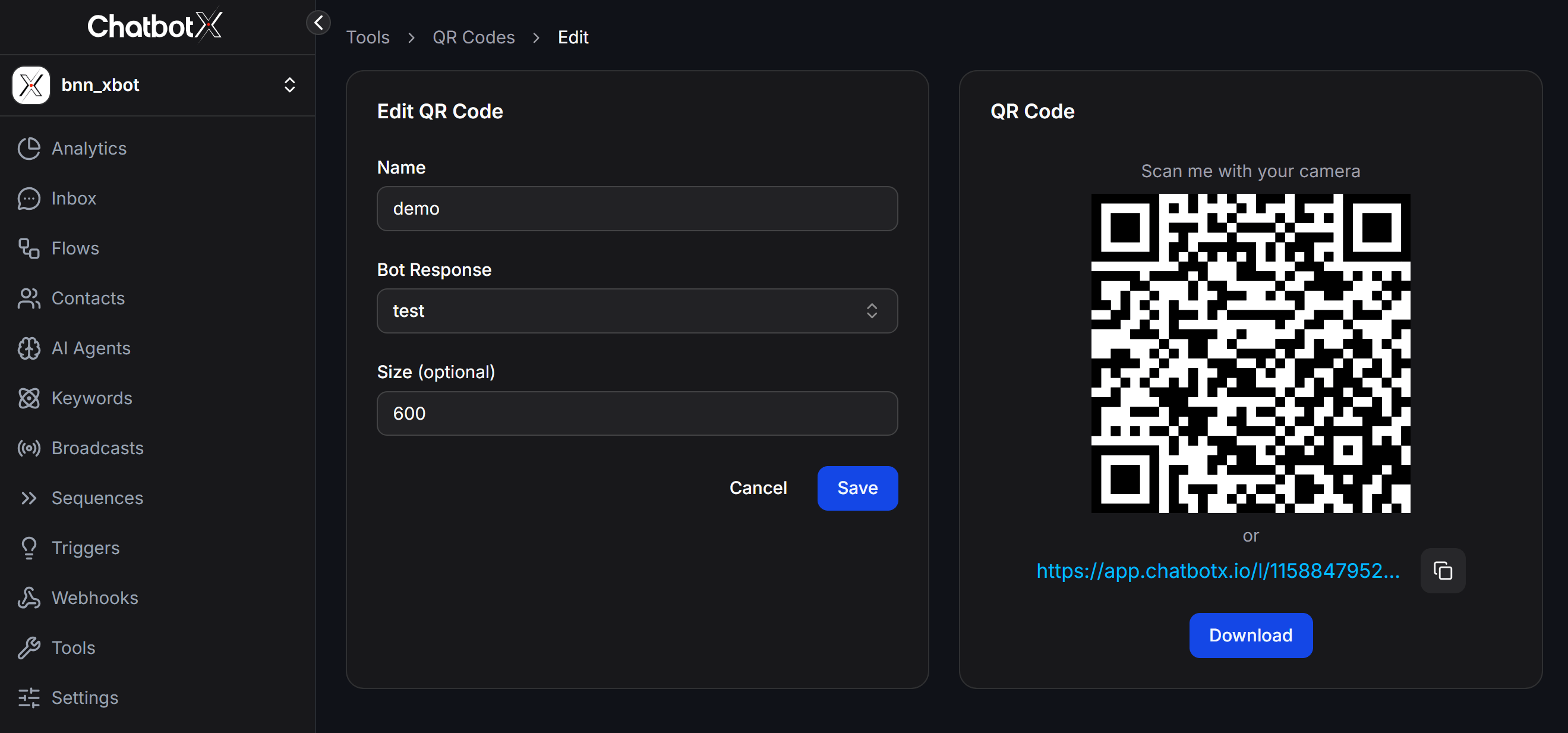
After successful creation, the detailed QR code management interface displays 2 main sections:Edit QR Code Details
You can update the Name, choose a different Bot Response flow, or change the image Size at any time, then click Save to apply your changes.Preview and Download QR Code
The preview section provides complete utilities:- QR Code Image: Displays the visual QR code with the label “Scan me with your camera”.
- Short URL: Provides a shortened link (e.g.,
https://app.chatbotx.io/l/...) alongside a convenient Copy button for online sharing. - Download Button: Download a crisp QR code image file to your computer for design and print production.
Managing Your QR Codes List
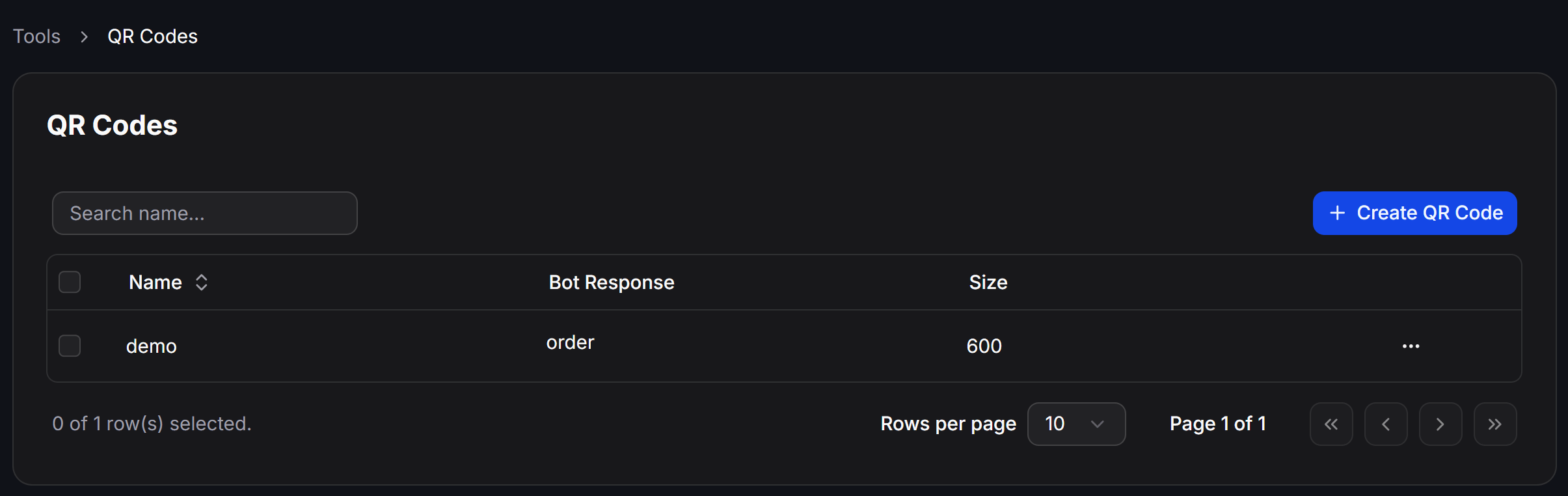
All created QR codes are centrally listed on the QR Codes management dashboard:- Quick Search: Use the Search name… input field to look up QR codes by name.
- Detailed Info: The table displays Name, attached Bot Response flow, and image Size.
- Action Menu: Click the … icon at the end of any row to open options to Edit or Delete the QR code.
Customer Scanning Experience
When a customer scans the QR code on a product or clicks the short link, ChatbotX displays a multi-channel landing page: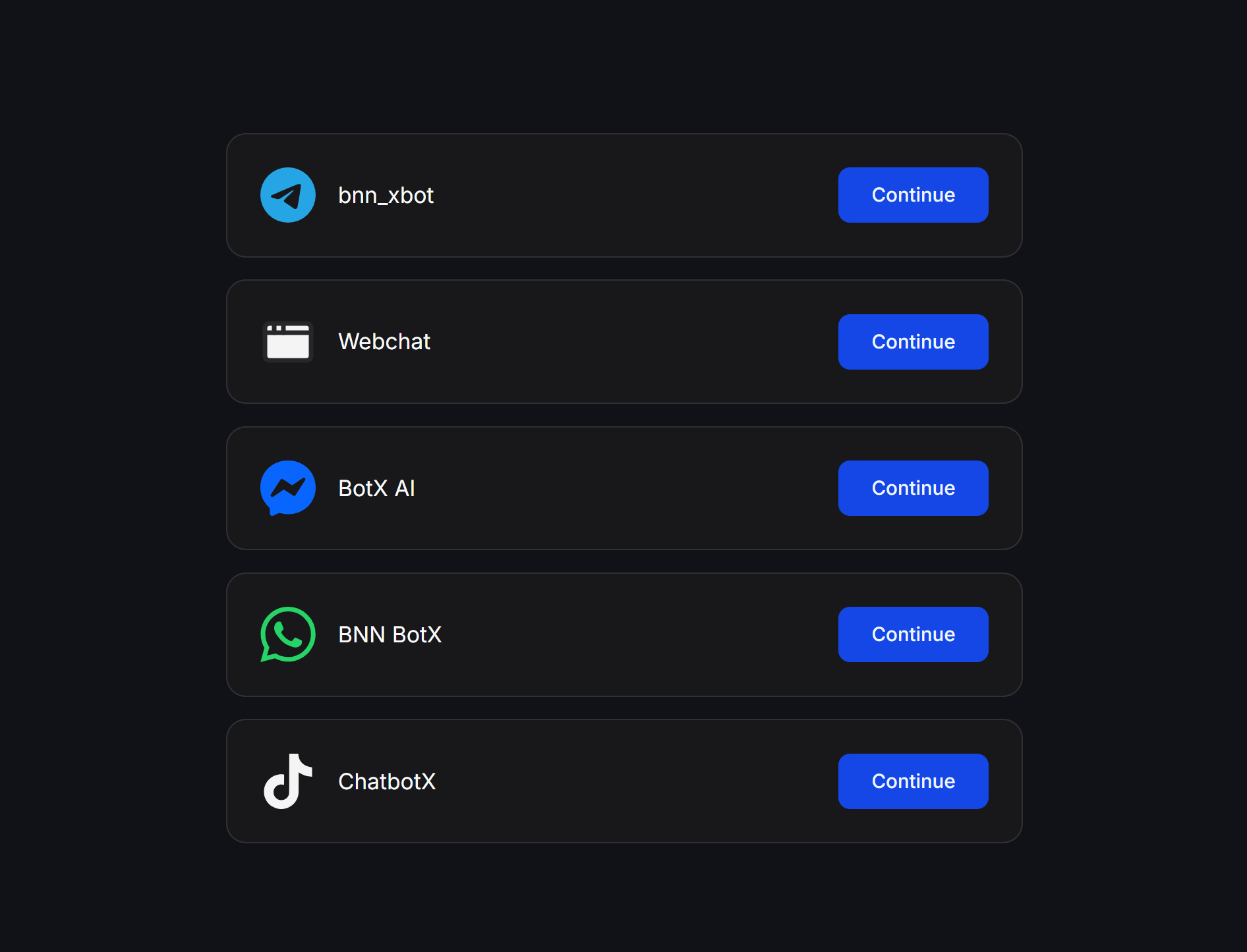
- The landing page shows all active messaging channels supported by your business (such as Telegram, Webchat, Facebook Messenger, WhatsApp, TikTok…).
- Customers choose their preferred messaging app and click Continue.
- The messaging app opens and the Bot automatically sends the initial response according to your configured Flow.
Best Practices and Important Notes
QR codes in ChatbotX are dynamic QR codes. You can change the linked Bot Response flow in settings at any time without altering the QR code image or breaking links already printed on physical media.
When printing on large physical items like store standees, posters, or banners, set Size (optional) to 600px or higher to ensure the QR code image remains sharp when scaled up.