

- Gain Flexibility: Choose the LLM that best fits your budget and the specific conversational needs of your business.
- Automate Interactions: Enable your bot to study your Knowledge base and answer customer queries automatically 24/7.
- Optimize Costs: Pay for AI usage directly to the provider based on your actual token consumption without any markup fees.
AI Provider Configuration Page
You can manage your AI connections by navigating to your admin Portal, selecting Settings from the left navigation menu, and clicking the Integrations tab on the top toolbar.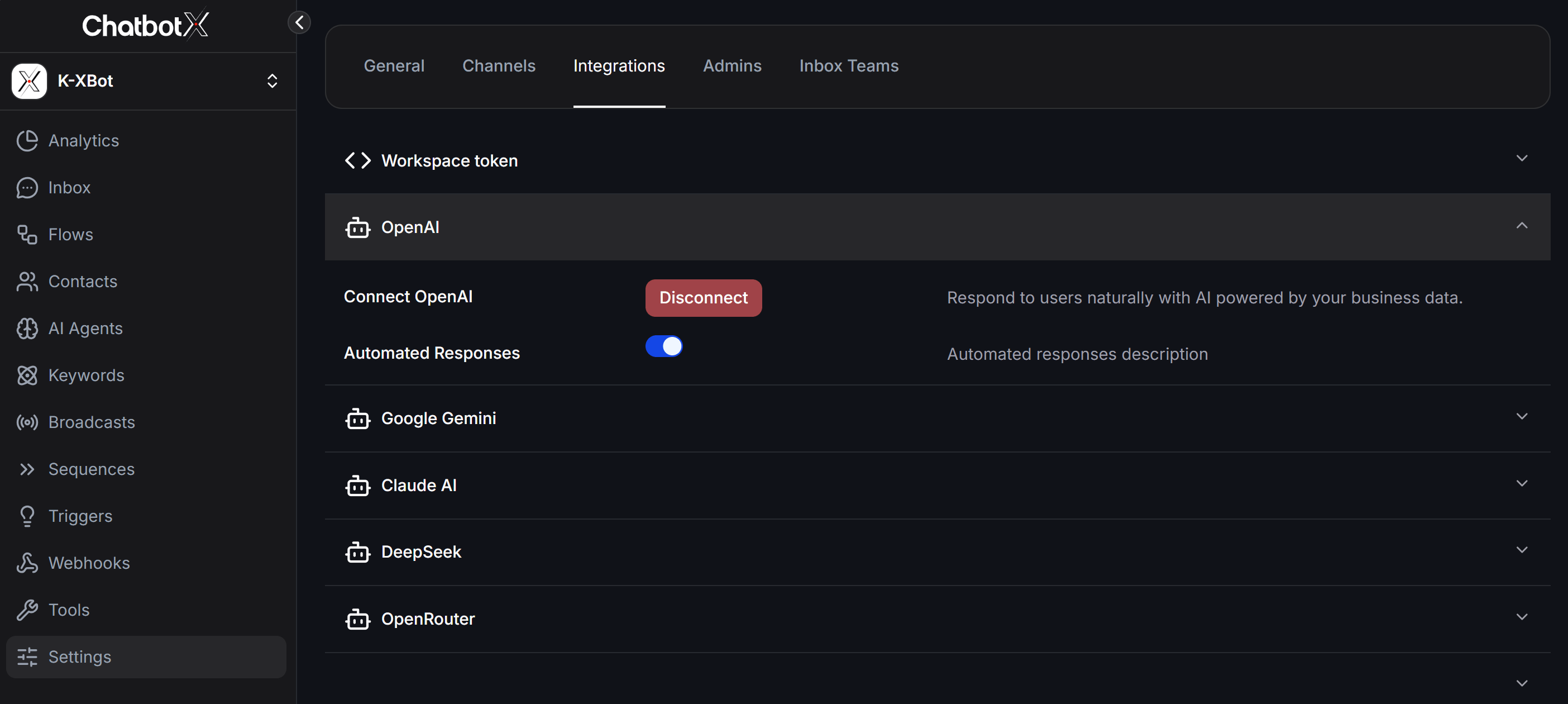
Integrating Your LLM Accounts
ChatbotX supports the major AI providers listed below. Follow the quick guide for each platform to retrieve and link your API Keys:1. OpenAI
The most popular AI platform, providing highly intelligent and reliable responses.- How to integrate:
- Log in to your OpenAI Developer Dashboard.
- Create a new API Key and copy it.
- Expand the OpenAI section under the Integrations tab in ChatbotX, paste your API Key, and click connect.
- Configure the Automated Responses option:
- When Enabled: Every time a user sends a message to your chatbot, the chatbot will automatically use the AI model to analyze your knowledge base and respond to the user’s message (Global Auto Reply).
- When Disabled: Global automated responses are disabled. You can still use OpenAI capabilities by manually configuring OpenAI actions within your chatbot flows (Flow Builder).
- API Key URL:
2. Google Gemini
Features exceptionally fast processing speeds and a massive context window for handling large documents.- How to integrate:
- Access Google AI Studio.
- Click Get API key and generate a new key.
- Paste this key into the Google Gemini section in the ChatbotX dashboard.
- API Key URL:
3. Claude AI
AI models by Anthropic, renowned for superior logical reasoning and highly professional, natural conversations.- How to integrate:
- Access and log in to the Anthropic Console.
- Navigate to the API Keys section and generate a new key.
- Copy and paste the key into the Claude AI section on ChatbotX to activate.
- API Key URL:
4. DeepSeek
Next-generation AI models that deliver high performance and exceptional language understanding at highly optimized API costs.- How to integrate:
- Log in to the DeepSeek API Dashboard.
- Select API Keys from the left menu and generate a new key.
- Copy the key and paste it into the DeepSeek section in ChatbotX.
- API Key URL:
5. OpenRouter
A unified router gateway that gives you access to hundreds of open-source and commercial AI models through a single API Key.- How to integrate:
- Log in to your OpenRouter account.
- Create a new API Key in your key management settings.
- Paste this key into the OpenRouter section in ChatbotX, then select your desired LLM from the connected dropdown list.
- API Key URL:
6. OpenAI Compatible
OpenAI Compatible allows you to connect any AI provider that uses the OpenAI-compatible API format. Instead of being limited to the built-in providers, you can configure custom connections to other AI services, self-hosted models, or any platform that exposes an OpenAI Chat Completions-compatible endpoint.1
Open OpenAI Compatible section
Go to Settings > Integrations > Expand the OpenAI Compatible section and click + Add AI Provider.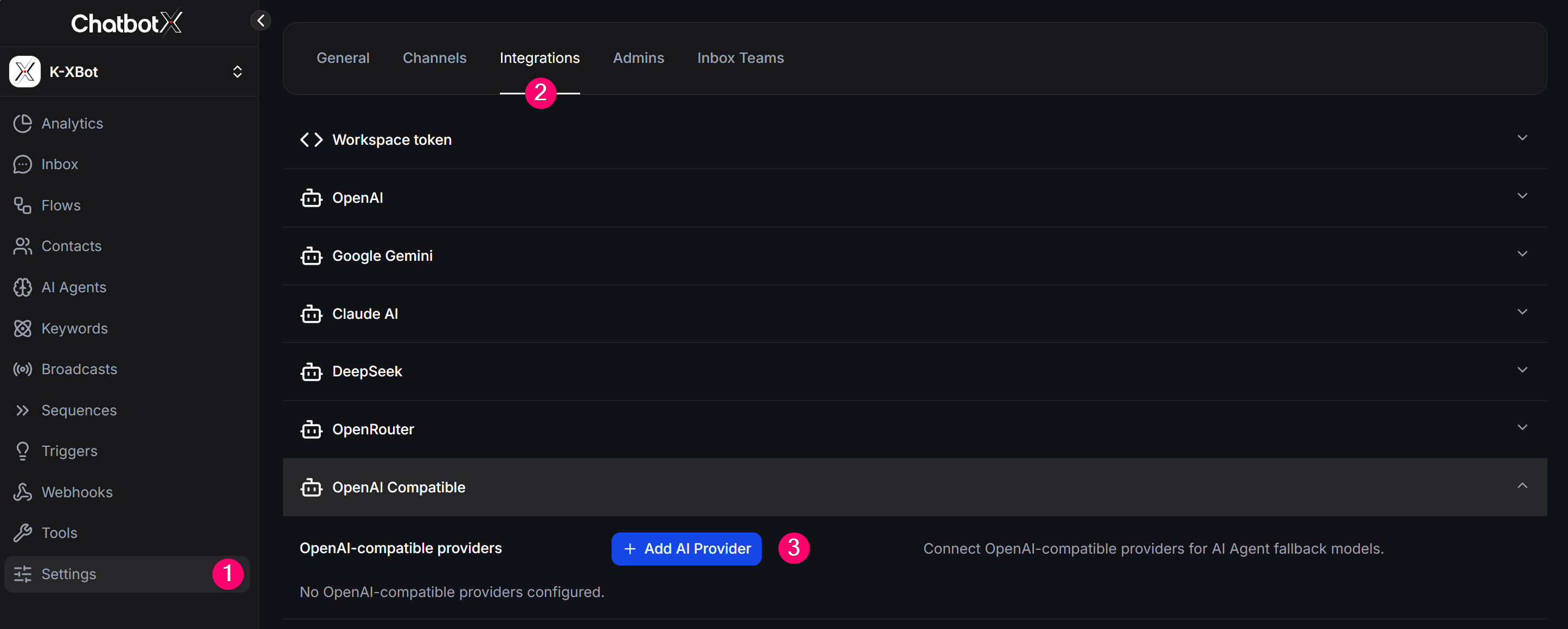
2
Select a Provider or create Custom
In the Add AI Provider modal, select a provider from the preset list (NVIDIA NIM, LM Studio, Heroku, Clarifai, NEAR AI Cloud…) or choose Custom to configure your own.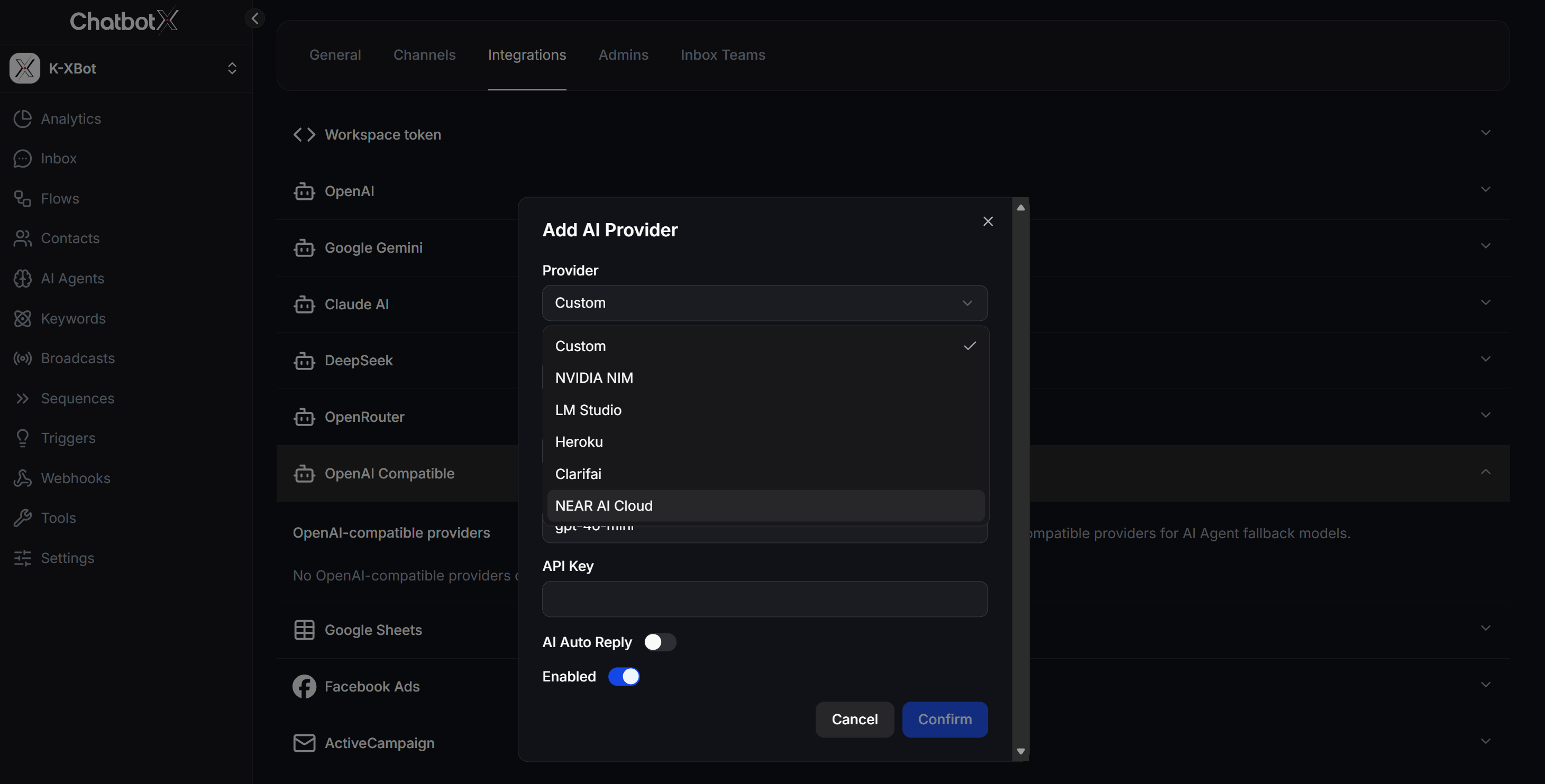
3
Fill in connection details
Configure the following fields: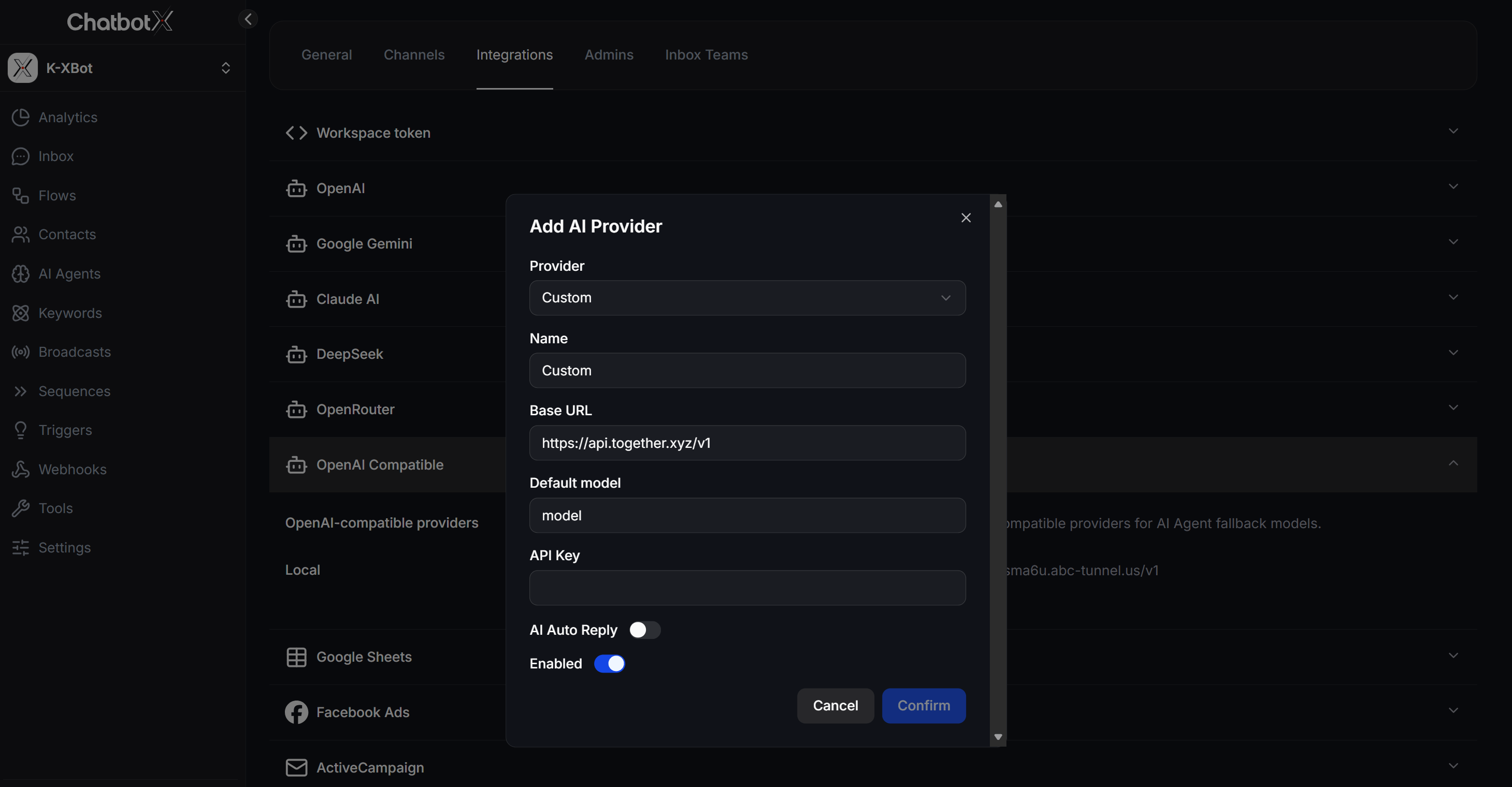
- Name: A display name to distinguish between providers (e.g., “LM Studio Local”, “Ollama Server”).
- Base URL: The API endpoint address of the provider (see the reference table below).
- Default model: The default model name to use (e.g.,
gpt-4o-mini,llama-3.1-8b). - API Key: The authentication key from the provider (some local services like LM Studio or Ollama may not require one).
- AI Auto Reply: Enable to use this provider for the global auto-reply feature.
- Enabled: Toggle on to activate this provider.
Common Base URL Reference
You can add multiple OpenAI Compatible providers at the same time. Each provider will appear as a separate option when configuring the AI model for an AI Agent.
Assigning an AI Provider to an AI Agent
Once you have successfully linked your API Keys in Settings, proceed to configure the specific AI model and parameters for each AI Agent:- Go to the AI Agents menu on the left sidebar.
- Select the AI Agent you want to configure or click + Create AI Agent to build a new one.
- In the agent configuration form, set up the parameters on the right panel to allocate the LLM model for your agent:
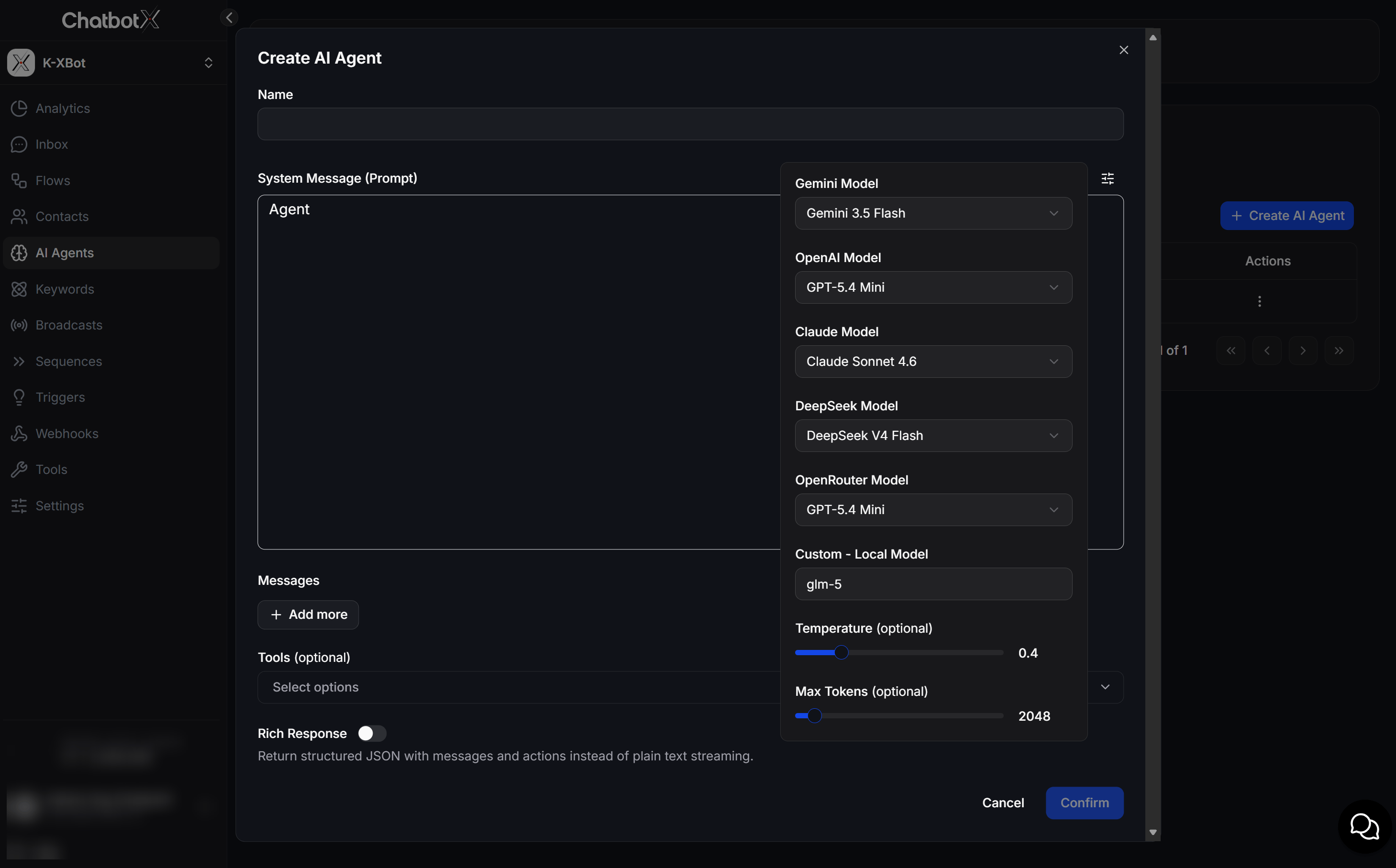
- Model selection (Gemini Model / OpenAI Model / Claude Model / DeepSeek Model / OpenRouter Model / OpenAI Compatible): Choose the specific LLM version you want to run for each provider integrated under Settings. Any OpenAI Compatible providers you have added will also appear in this selection list.
- Temperature: A slider that controls the randomness and creativity of the AI’s responses (valued from
0to1).- Low Values (e.g., 0.2 - 0.4): The bot responds with factual, precise answers strictly following your Knowledge base (ideal for Customer Support or Sales).
- High Values (e.g., 0.7 - 0.9): The bot responds with more creative, diverse, and expressive language (ideal for copywriting or content generation).
- Max Tokens: Limits the maximum size of the bot’s response (e.g.,
2048) to prevent verbose outputs and help optimize your API usage costs.