

Access and manage Questionnaires
1
Open Tools
Select Tools from the left navigation menu.
2
Select Questionnaires
Click the Questionnaires card to open the management page.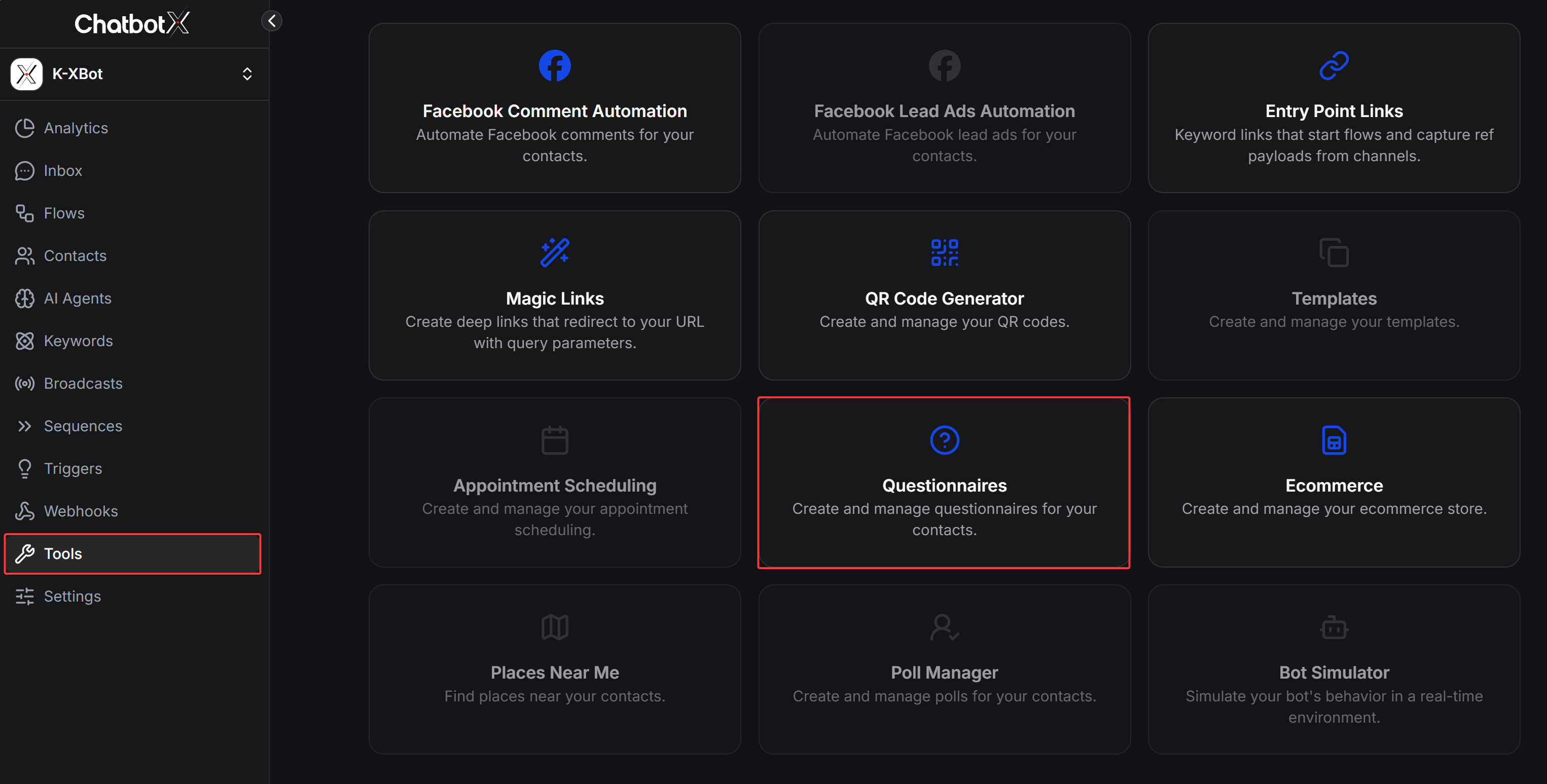
3
Create a questionnaire
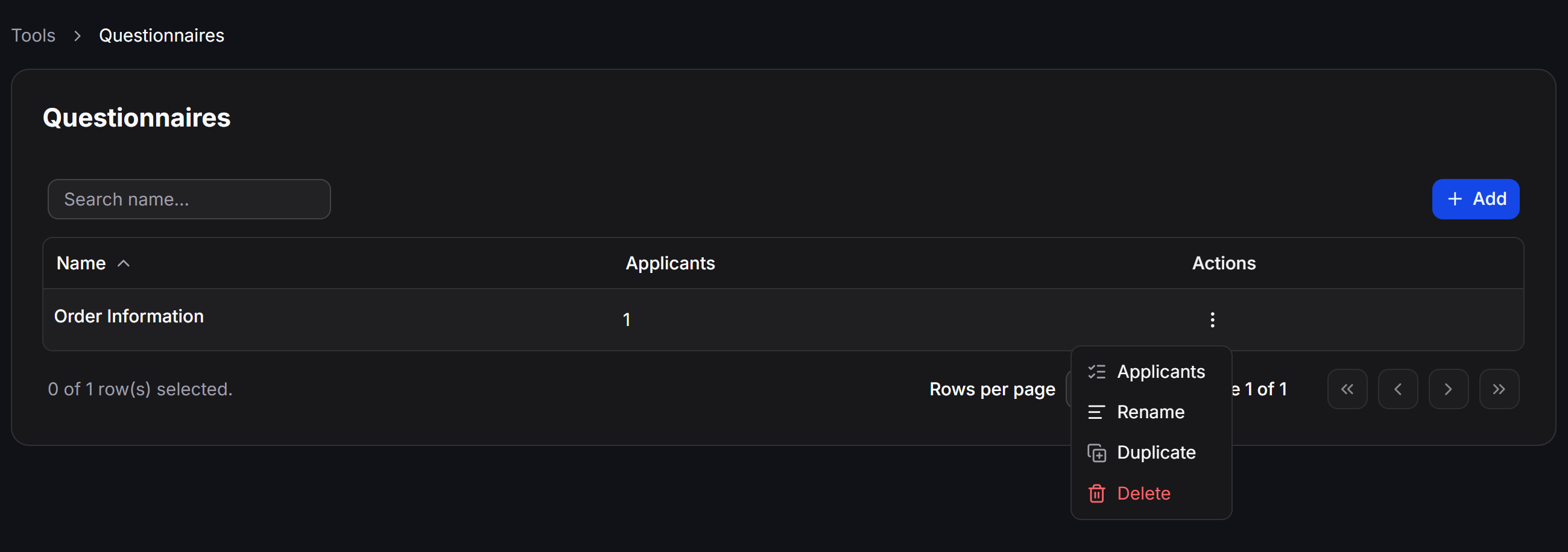
Click Add, enter a name for the questionnaire, and start adding questions.
- Applicants: View participants and their responses.
- Rename: Change the questionnaire name.
- Duplicate: Create a copy that you can edit as a new questionnaire.
- Delete: Delete the questionnaire.
Create and configure questions
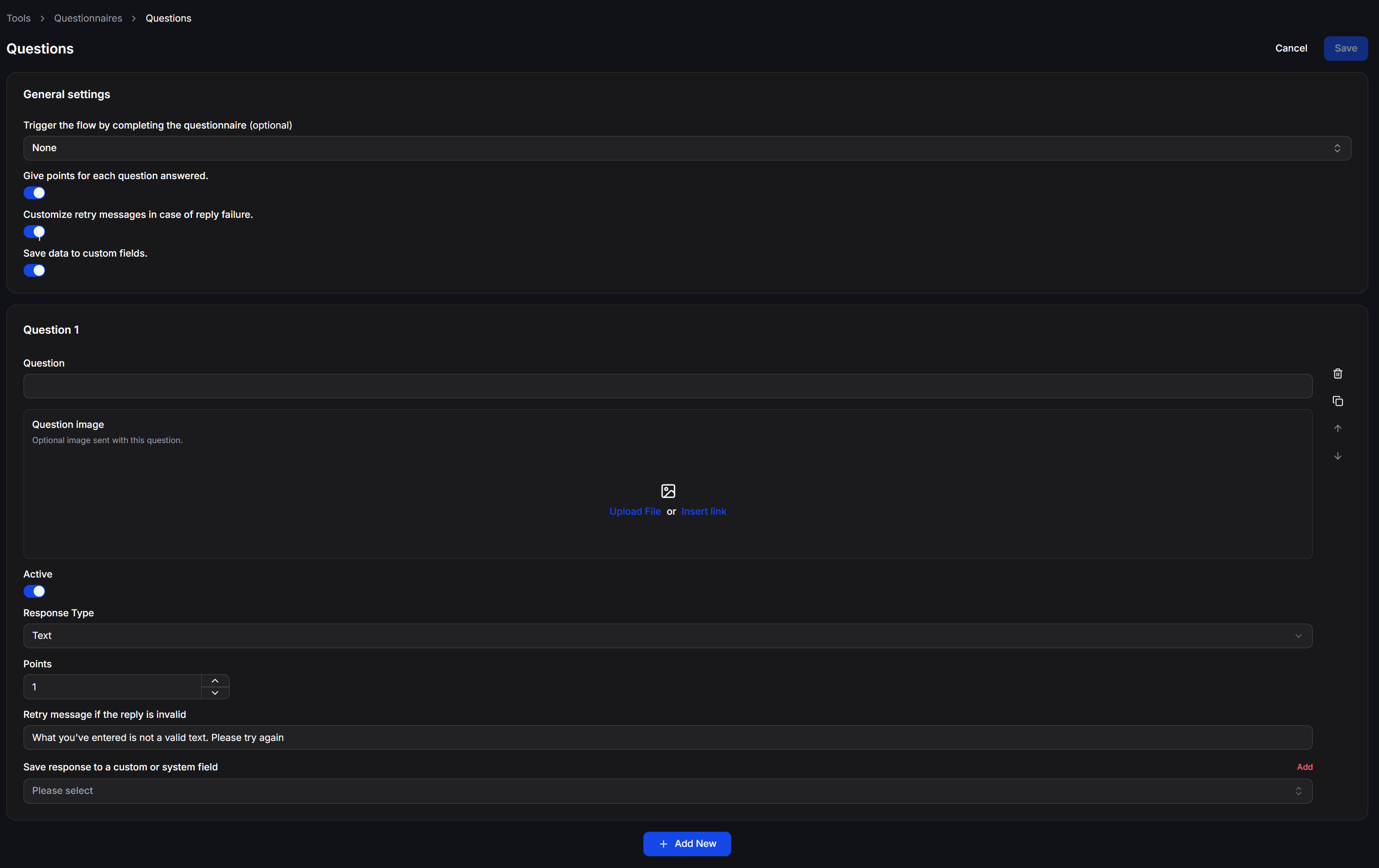
The Questions page contains General settings and question blocks. You can add, duplicate, reorder, deactivate, or delete individual questions.Configure General settings
When you enable Give points for each question answered, you can assign points to correct answers. ChatbotX calculates the total questionnaire score and saves it to the
{{last_points}} System Field.
Customize retry messages in case of reply failure validates these types of data:
- Text
- Number
- Phone number
- Quick Reply buttons
Configure each question
Each question includes the following settings:- Question: The message the Bot sends to the user.
- Question Image: An optional image sent with the question. You can upload a file or insert a link.
- Active: Enable or disable the question.
- Response Type: The type of response the user must provide.
- Points: The score assigned to the answer when scoring is enabled.
- Retry message if the reply is invalid: The message sent when the response is invalid.
- Save response to a custom or system field: The field where ChatbotX saves the response.
Handle invalid responses
When a response does not match the selected Response Type, the Bot sends the Retry message if the reply is invalid and asks the user to try again. The user can submit an invalid response up to three times. After the third failed attempt, ChatbotX exits the questionnaire and runs the next block in the Flow.Response Types
Questionnaires support five Response Types:- Text: Accepts a text response.
- Number: Accepts numeric data only.
- Email: Validates the email address format.
- Phone: Validates the phone number format.
- Multiple choice: Displays answer options as Quick Reply buttons.
- Create multiple answers under Options.
- Assign a separate score to each option.
- Use the up and down arrows to change the order.
- Delete options that are no longer needed.
- Click Add to create another option.
Review results in Applicants
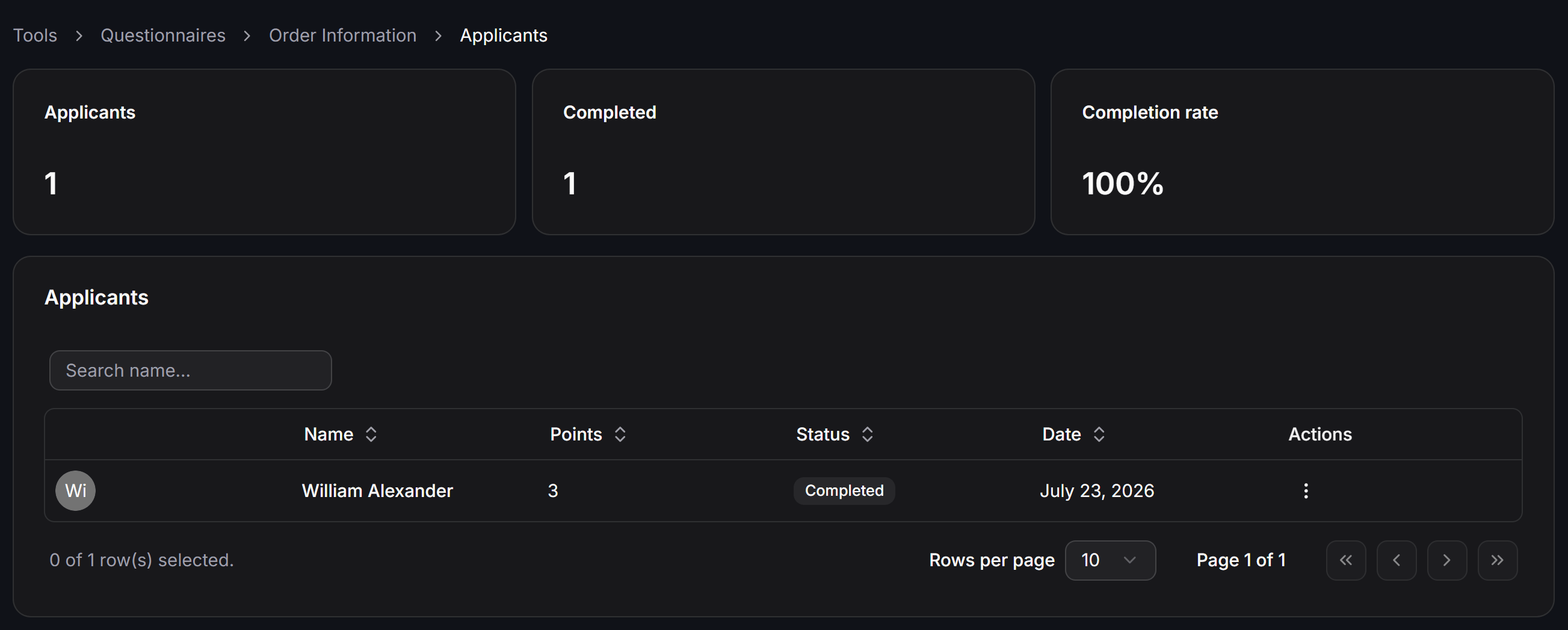
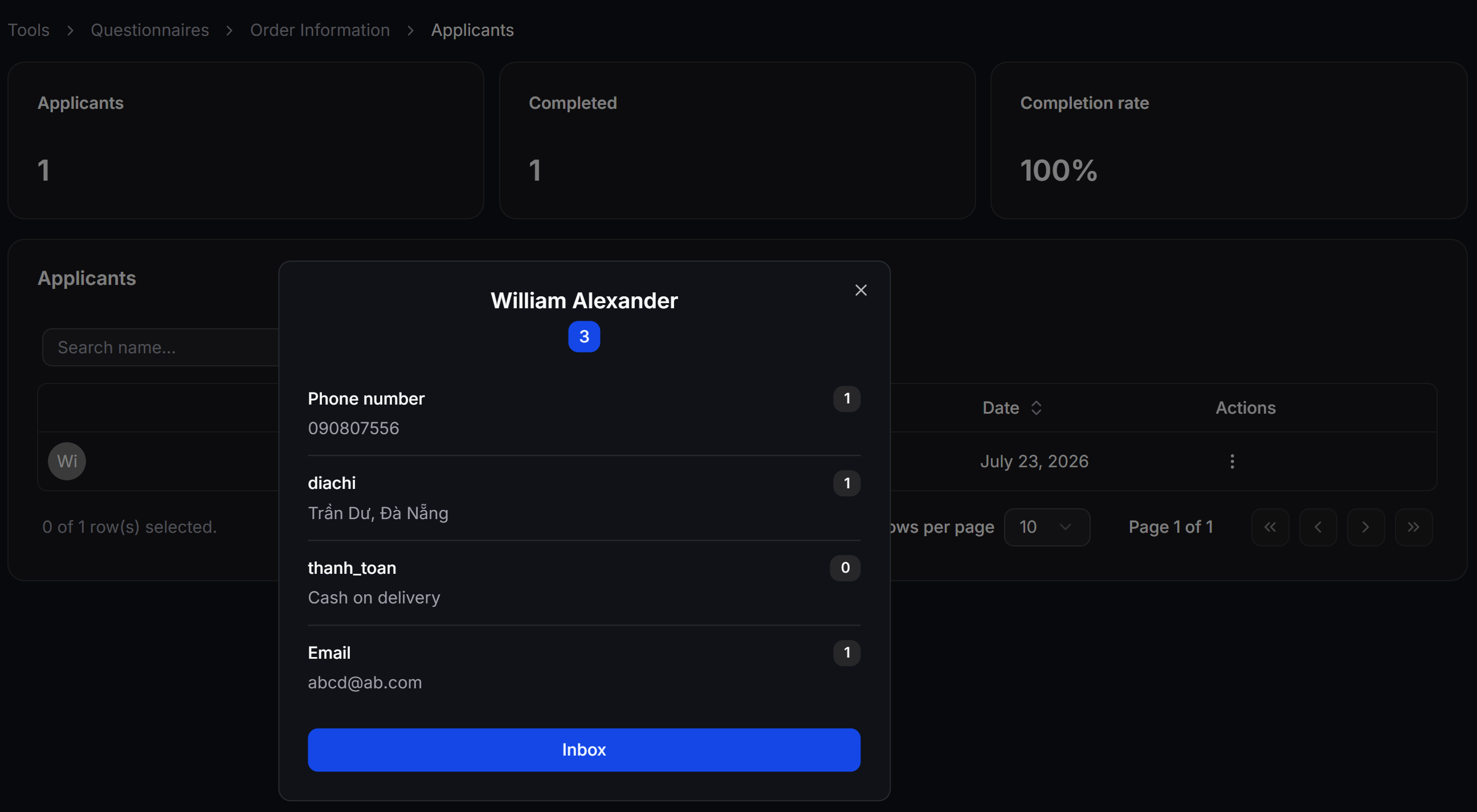
When a user completes a questionnaire, ChatbotX saves the result in Applicants. The overview displays:- Applicants: The total number of participants.
- Completed: The number of completed questionnaires.
- Completion rate: The questionnaire completion rate.
Use Questionnaires in a Flow
Add a Questionnaires Action
1
Open Send Message
Create or open a Send Message block in Flow Builder.
2
Open Actions
Click Create, select Actions, and then select Questionnaires.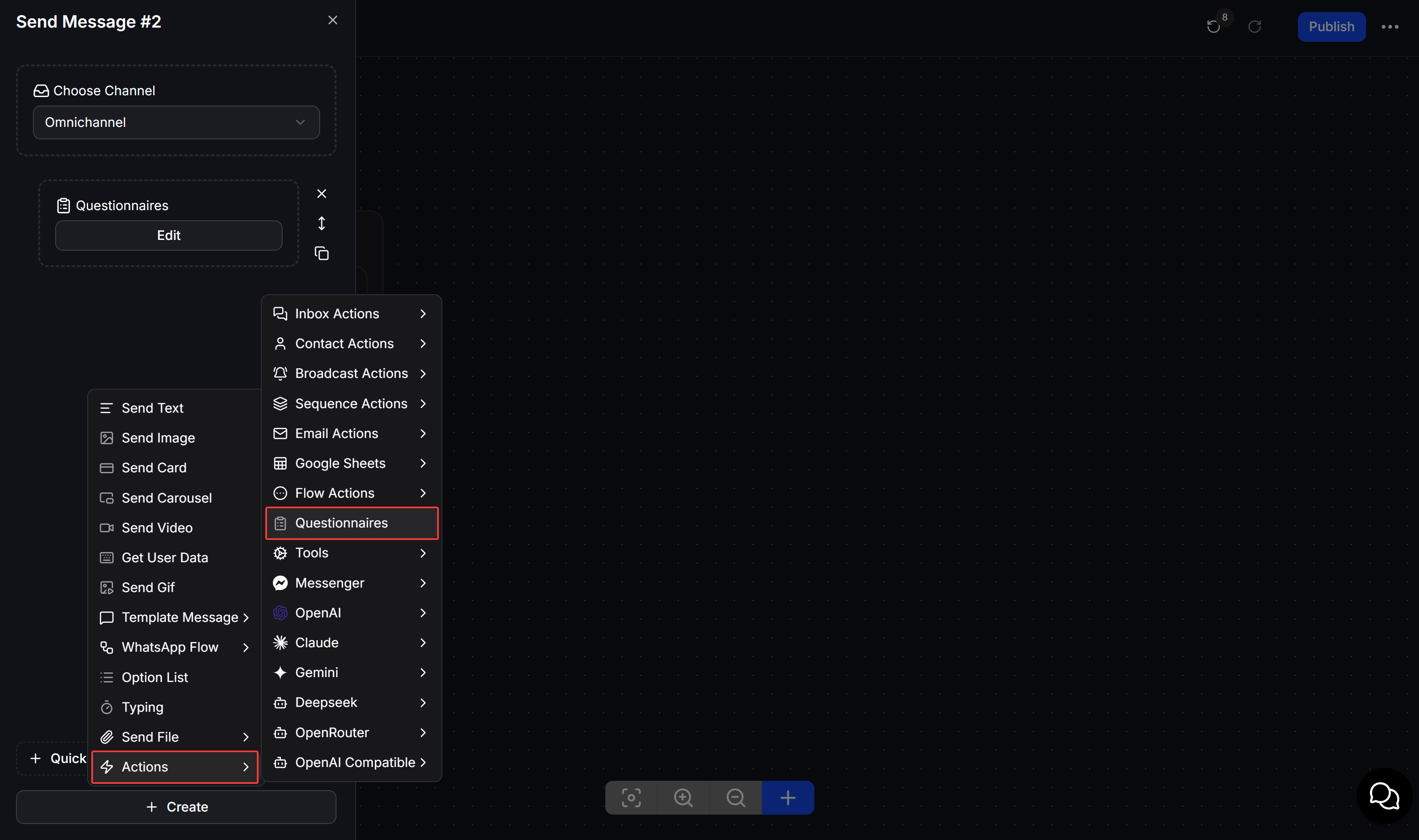
3
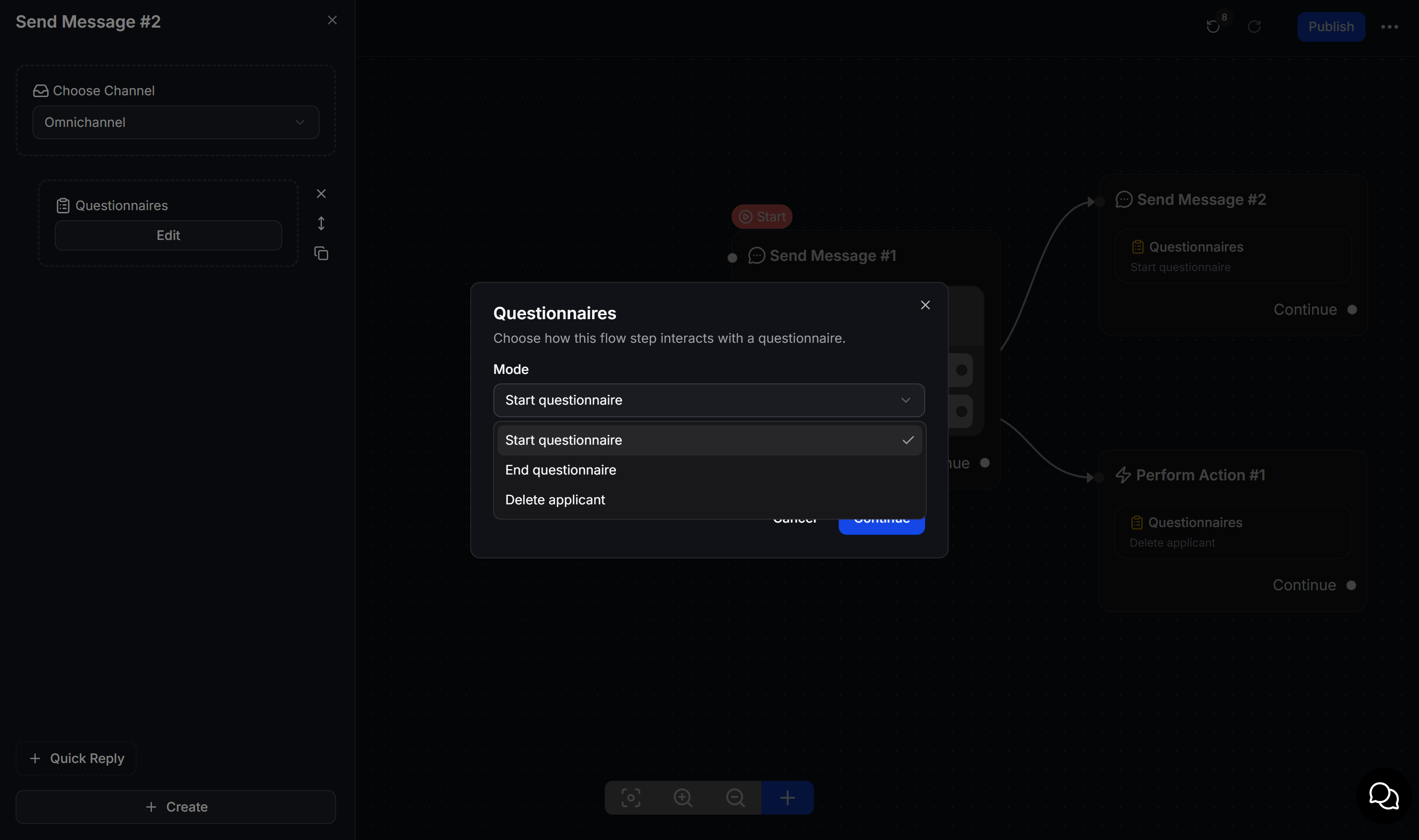
Select a Mode
Open Edit and select the Mode that matches the purpose of the block.
Delivery information Flow example
Create a Send Message that asks whether the user wants to provide delivery information. Connect the Enter information button to a block containing the Start questionnaire Action. When the user clicks the button, the Bot asks for their phone number, address, payment method, and email in sequence.How Questionnaires work
Questionnaires preserve each user’s progress:- If a user answers the first question and the Flow returns to the Start questionnaire block, the Bot continues from the next unanswered question.
- A questionnaire is completed after the user answers every question.
- The End questionnaire Mode also ends the questionnaire and saves the result in Applicants.
- A user already listed in Applicants cannot complete the same questionnaire again.
- Run Delete applicant to remove the previous result and let the user start again.
- If a response matches a Keyword, ChatbotX prioritizes and triggers that Keyword even while the questionnaire is active.
- After three invalid responses, ChatbotX exits the questionnaire and runs the next block.
Select the appropriate Contact Field for each question before saving. This lets you reuse phone numbers, email addresses, and delivery addresses in other Flows.