

NEW Tag, and enrolls the customer in a relevant email nurture series.
Prepare your API URL and API Key
You need the API URL and API Key from your ActiveCampaign account before connecting. These credentials allow ChatbotX to send contact data to the correct account.1
Sign in to ActiveCampaign
Sign in to the ActiveCampaign account that you want to connect to ChatbotX.
2
Open Developer Settings
Select Settings in the lower-left corner, then select Developer from the account settings menu.
3
Copy the API credentials
Copy both the API URL and API Key from the API Access section. You will enter these values in ChatbotX during the next procedure.See Getting started with the API in the official ActiveCampaign documentation.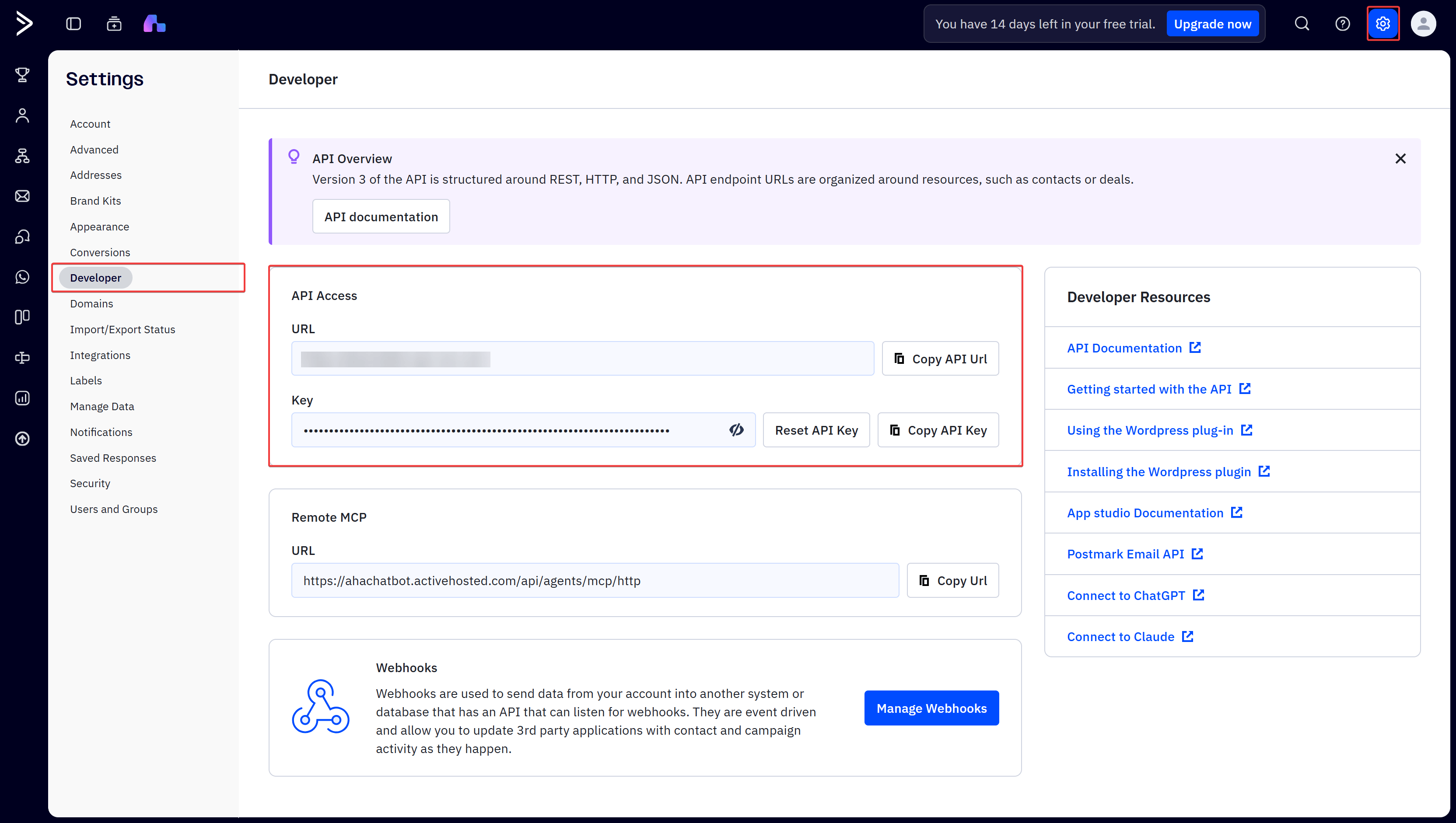
Connect ActiveCampaign to ChatbotX
1
Open Settings
In your ChatbotX workspace, select Settings from the left menu.
2
Select Integrations
Select the Integrations tab, then open ActiveCampaign.
3
Open the connection window
Click Connect to open the Connect ActiveCampaign window.
4
Enter the API credentials
Paste the address into API URL and the key into API Key. The API URL usually follows the format
https://youraccount.api-us1.com.5
Confirm the connection
Click Confirm. When the credentials are valid, ChatbotX saves the connection for use in your Flows.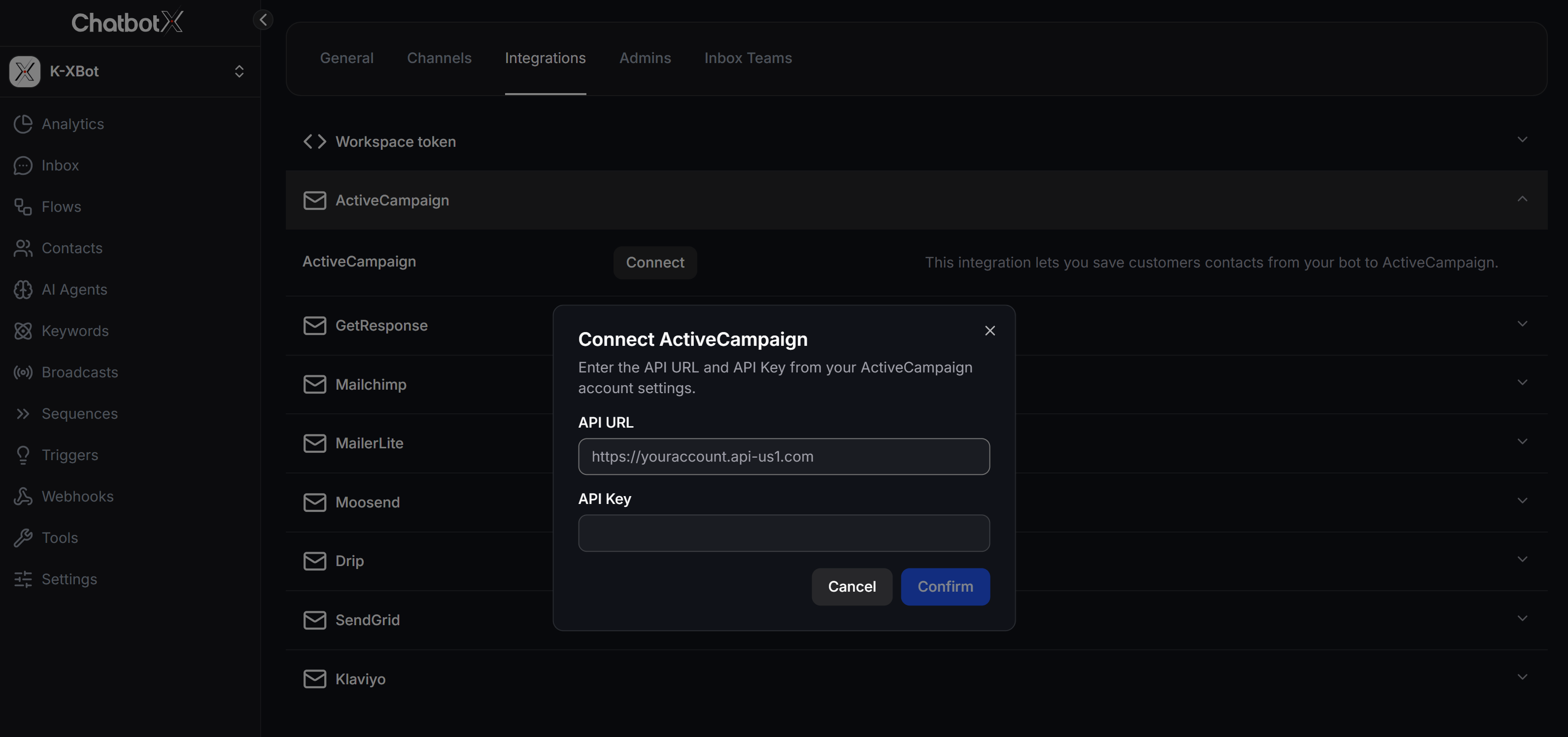
Add ActiveCampaign to a Flow
After connecting your account, add the ActiveCampaign action to a Send Message node or another suitable position in your Flow.1
Open the Flow
Select Flows, then open the Flow that you want to use for contact synchronization.
2
Add Actions
In a Send Message node, click + Create, then select Actions.
3
Select Email Actions
Open Email Actions and select Add Contact to ActiveCampaign.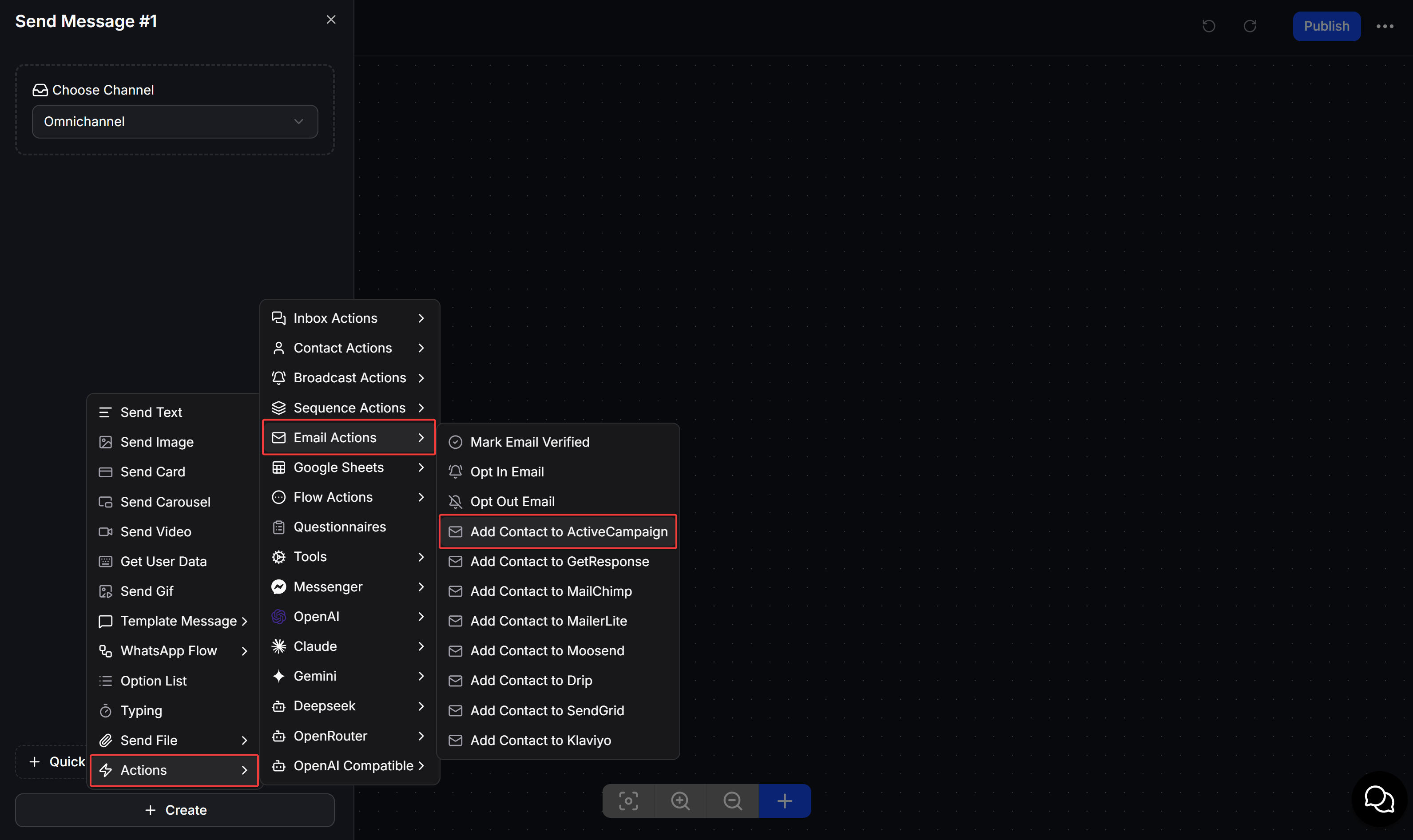
4
Open the configuration
Click Edit on the new action to select an operation and map contact data.
Create or update a contact
Select the Create or Update Contact operation to send customer data from ChatbotX to ActiveCampaign. If the email address already exists, ActiveCampaign updates the contact instead of creating a duplicate record.
Click Save to save the action.
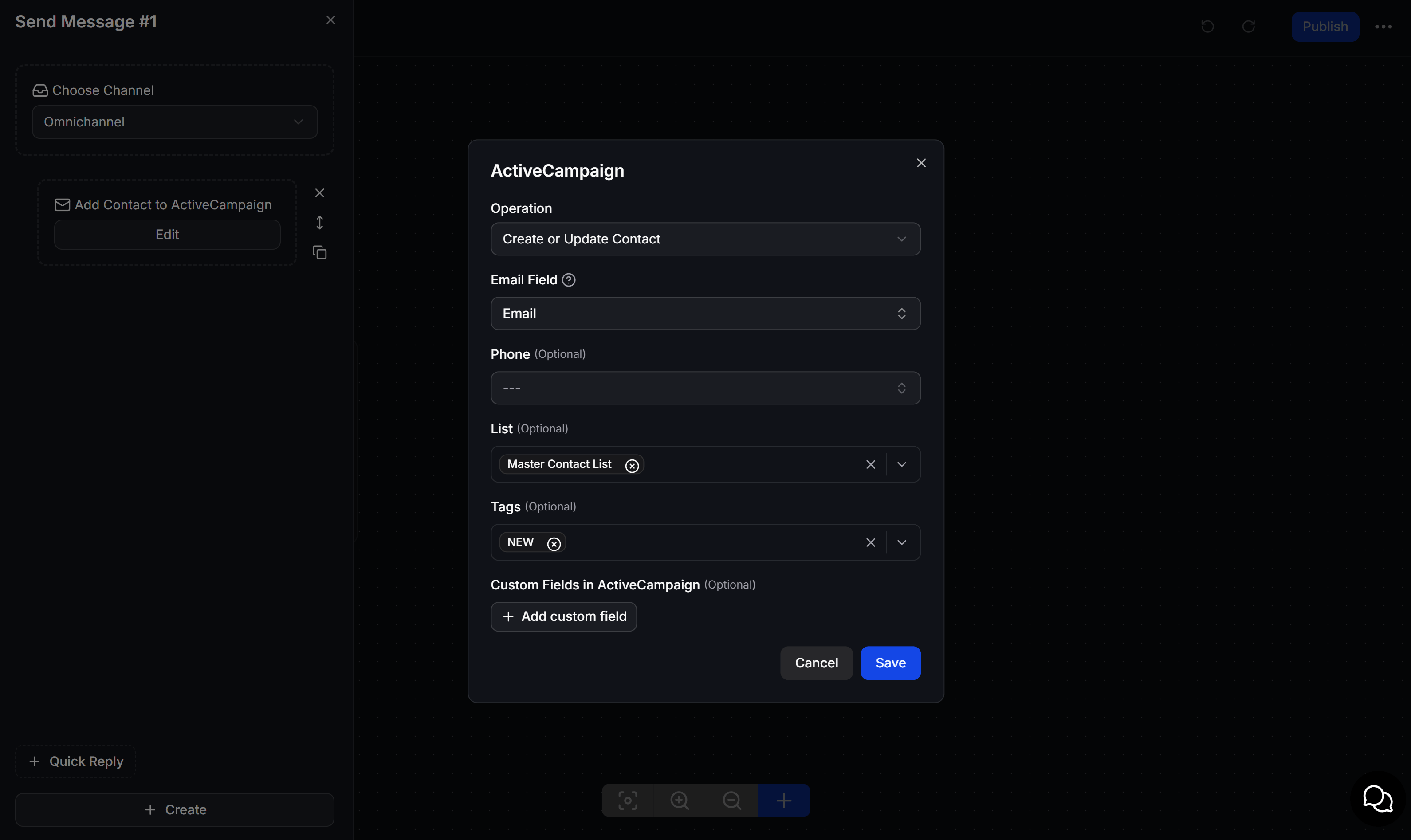
Collect the customer’s email address with Get User Data before this action runs. ChatbotX cannot create the correct ActiveCampaign contact if the email field is empty or invalid.
Add a contact to an Automation
Select the Add Contact to Automation operation to enroll a contact with an email address in an ActiveCampaign automation.1
Select the operation
In Operation, select Add Contact to Automation.
2
Select the email field
In Email Field, select the ChatbotX field that contains the customer’s email address.
3
Select the Automation
In Automation, select the ActiveCampaign automation that the customer should join, then click Save.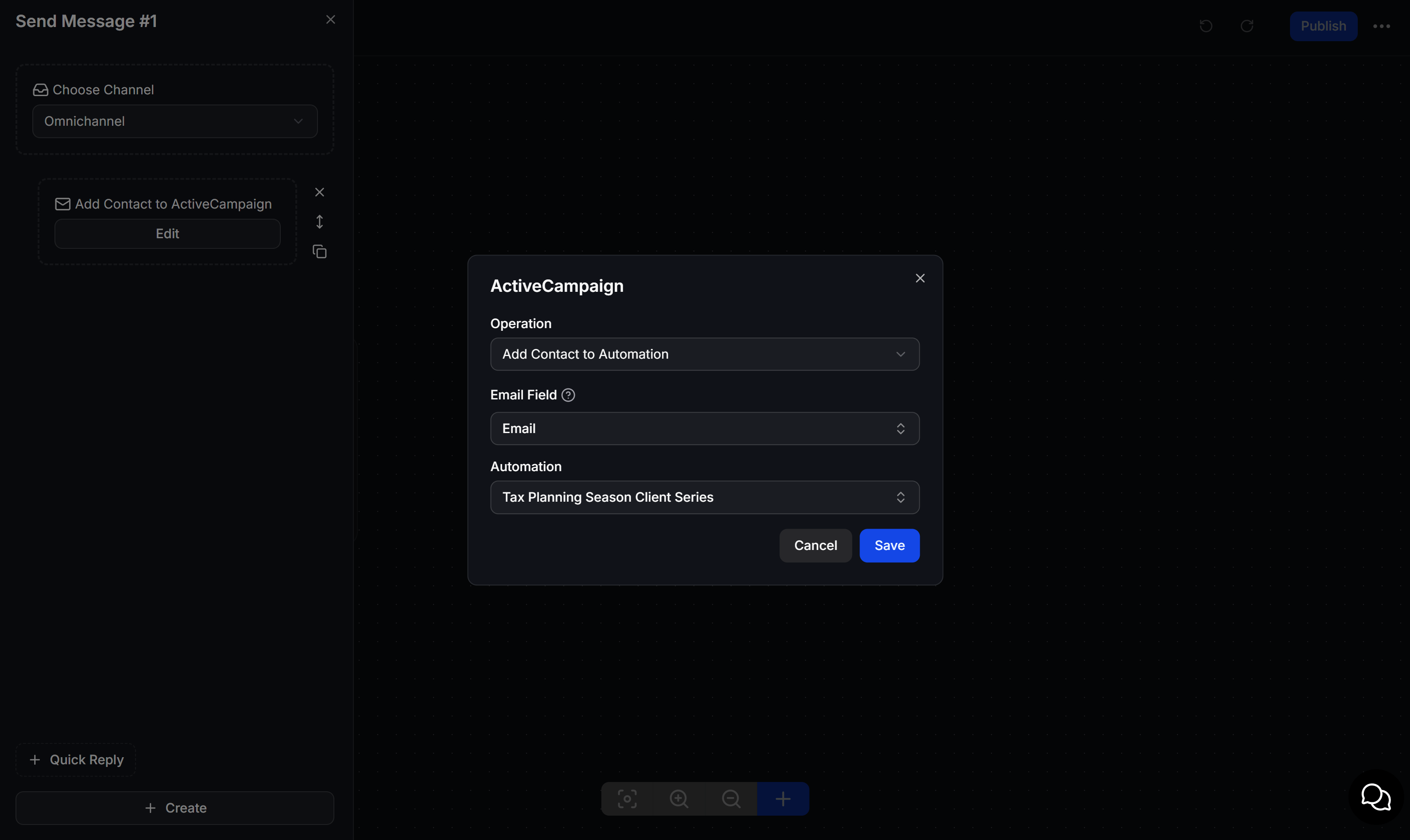
Test the integration
Before publishing the Flow, test it with an email address that you can verify.- Open Contacts in ActiveCampaign and confirm that the contact was created or updated.
- Check that ActiveCampaign received the correct Lists, Tags, and Custom Fields.
- If you use Add Contact to Automation, confirm that the contact appears in the selected Automation.
- If the connection fails, copy the API URL and API Key again from Settings > Developer, then reconnect the integration.