

How it works
Each automation has three main parts:
For example, a customer replies
consultation to a product Story. ChatbotX detects the keyword and immediately sends guidance in Inbox.
Create an Instagram Story Reply Automation
1
Open Instagram Story Reply Automation
Select Tools from the left menu. Then click the Instagram Story Reply Automation card.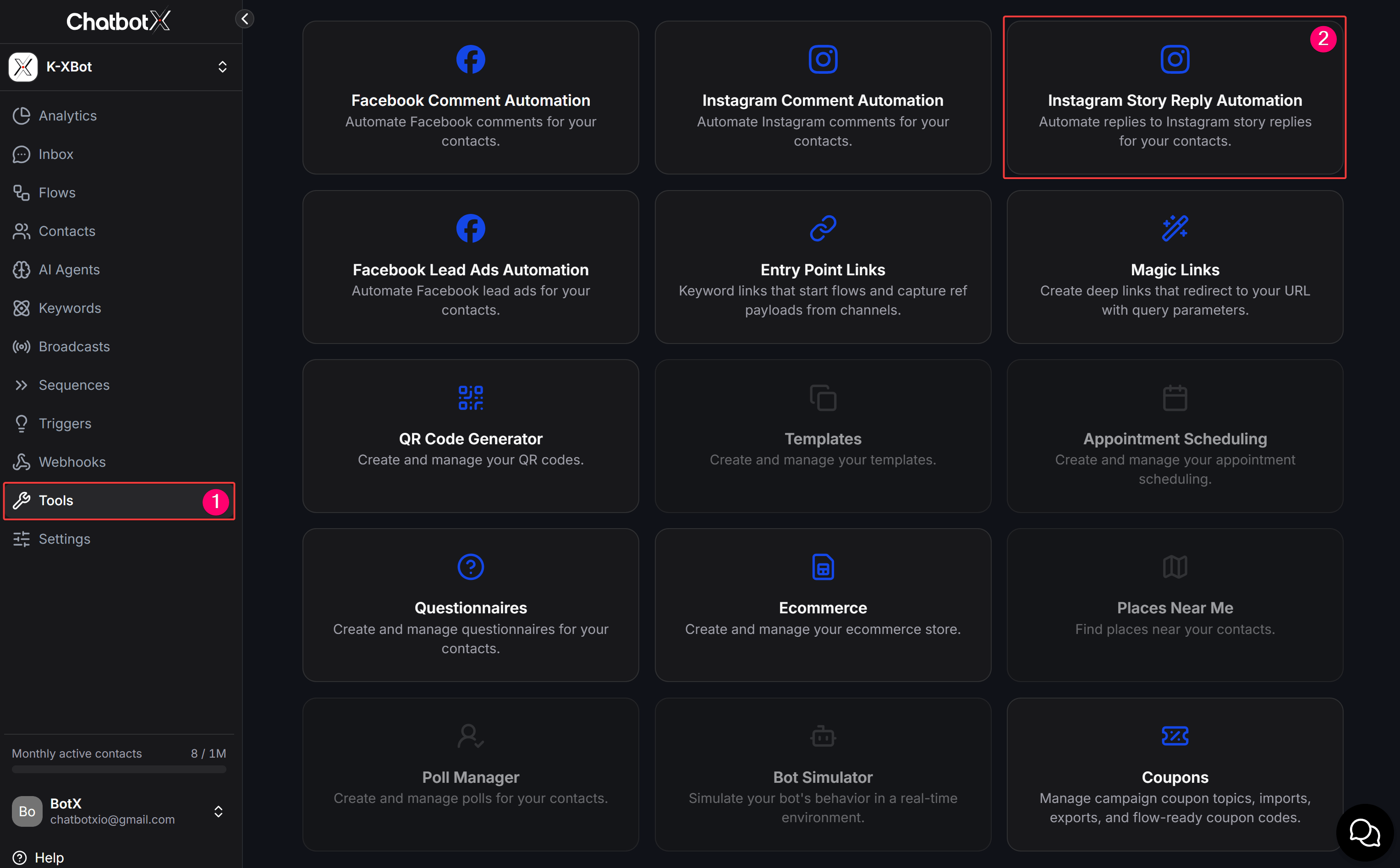
2
Create a new automation
Enter a name in Enter name, then click Create Automation. You can also click Create Folder to organize automations by campaign.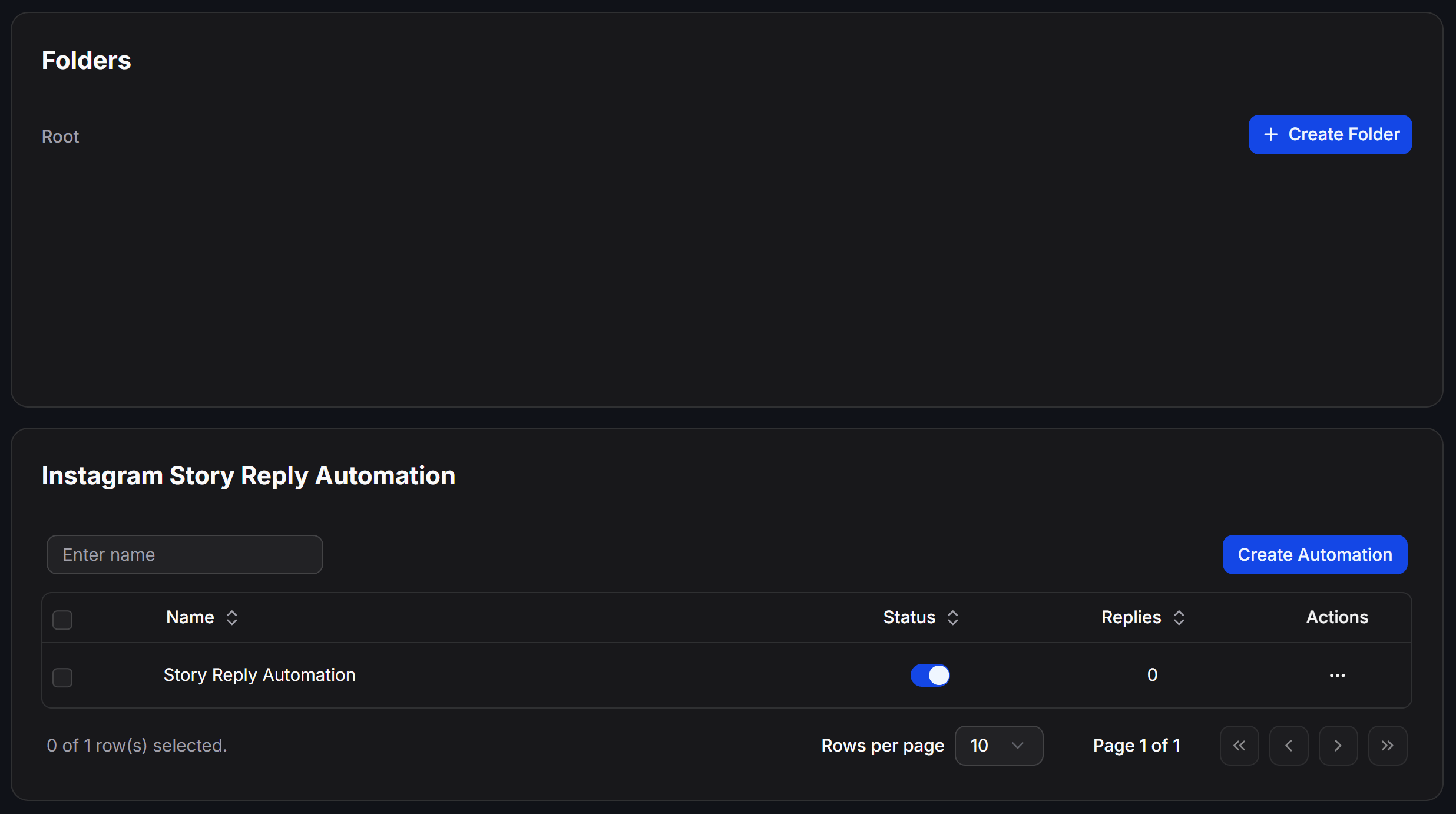
3
Choose Instagram connection type
The Choose Instagram connection type modal will appear. Select the connection type that matches your integrated Instagram account: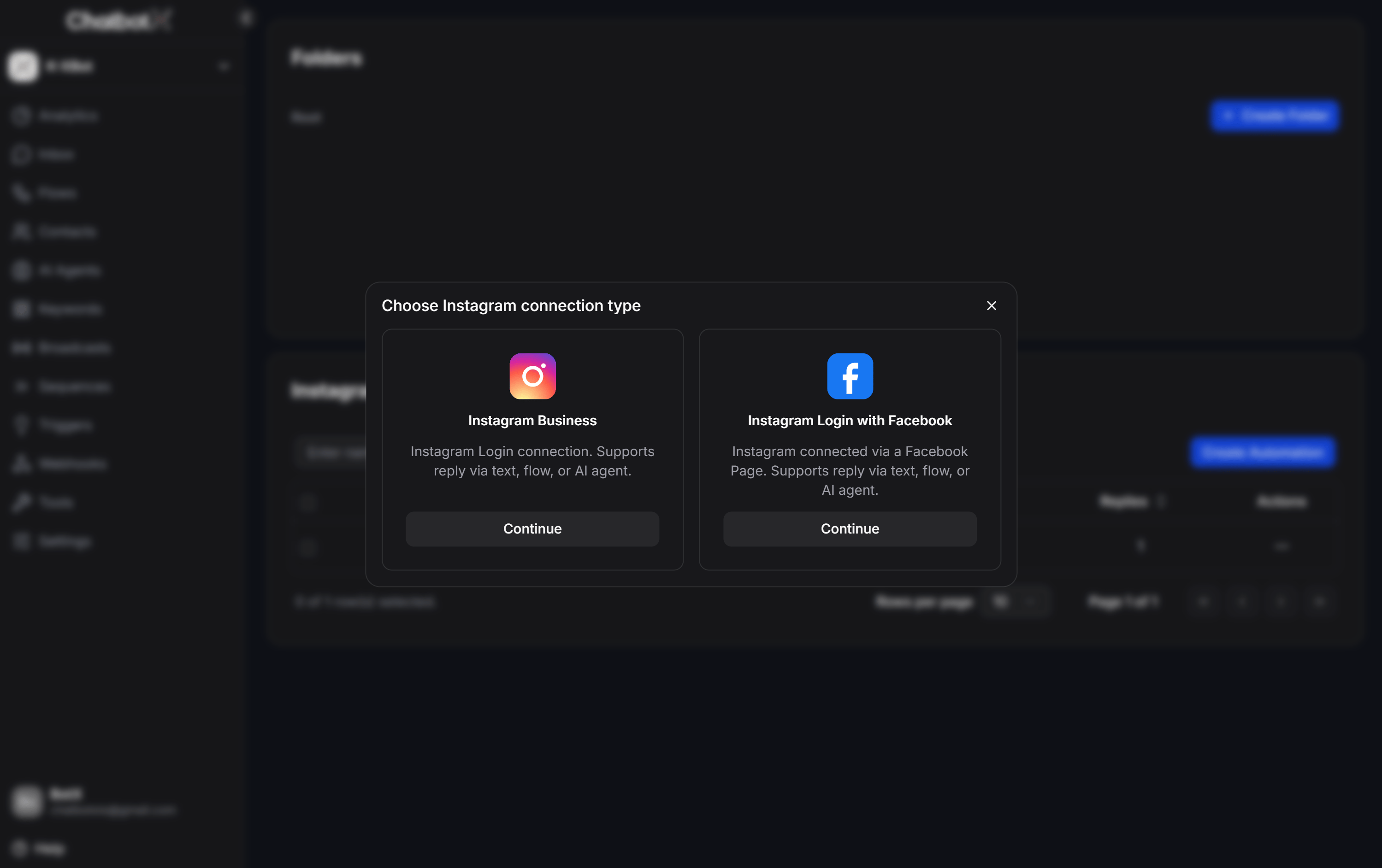
- Instagram Business: For accounts linked via direct Instagram Login. Supports public replies, private inbox replies, and hiding comments. Note: Automatically liking comments is not supported under this connection type.
- Instagram Login with Facebook: For Instagram accounts connected via an associated Facebook Page. Fully supports public replies, private inbox replies, hiding comments, and automatically liking comments.
4
Choose the Story scope
Review the name under Name. Under Track Story reply on, choose a scope: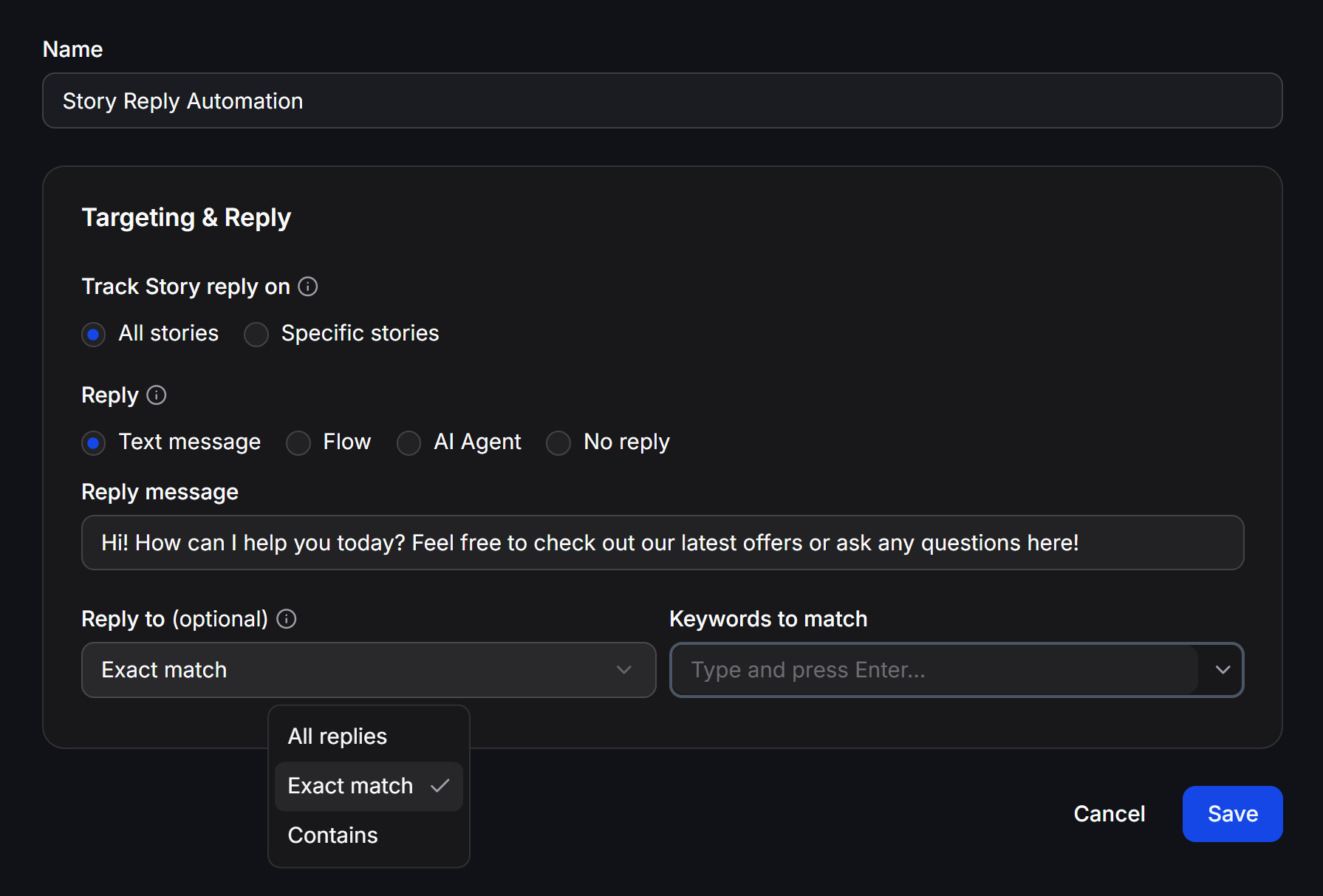
- All stories: Monitor responses to every Story.
- Specific stories: Monitor responses only to the Stories you select.
5
Select specific Stories
When using Specific stories, open Select Stories and select an account under All accounts.Select a Story from Active stories. If you know its ID, open the Story ID tab to identify the Story to monitor. Then click Confirm.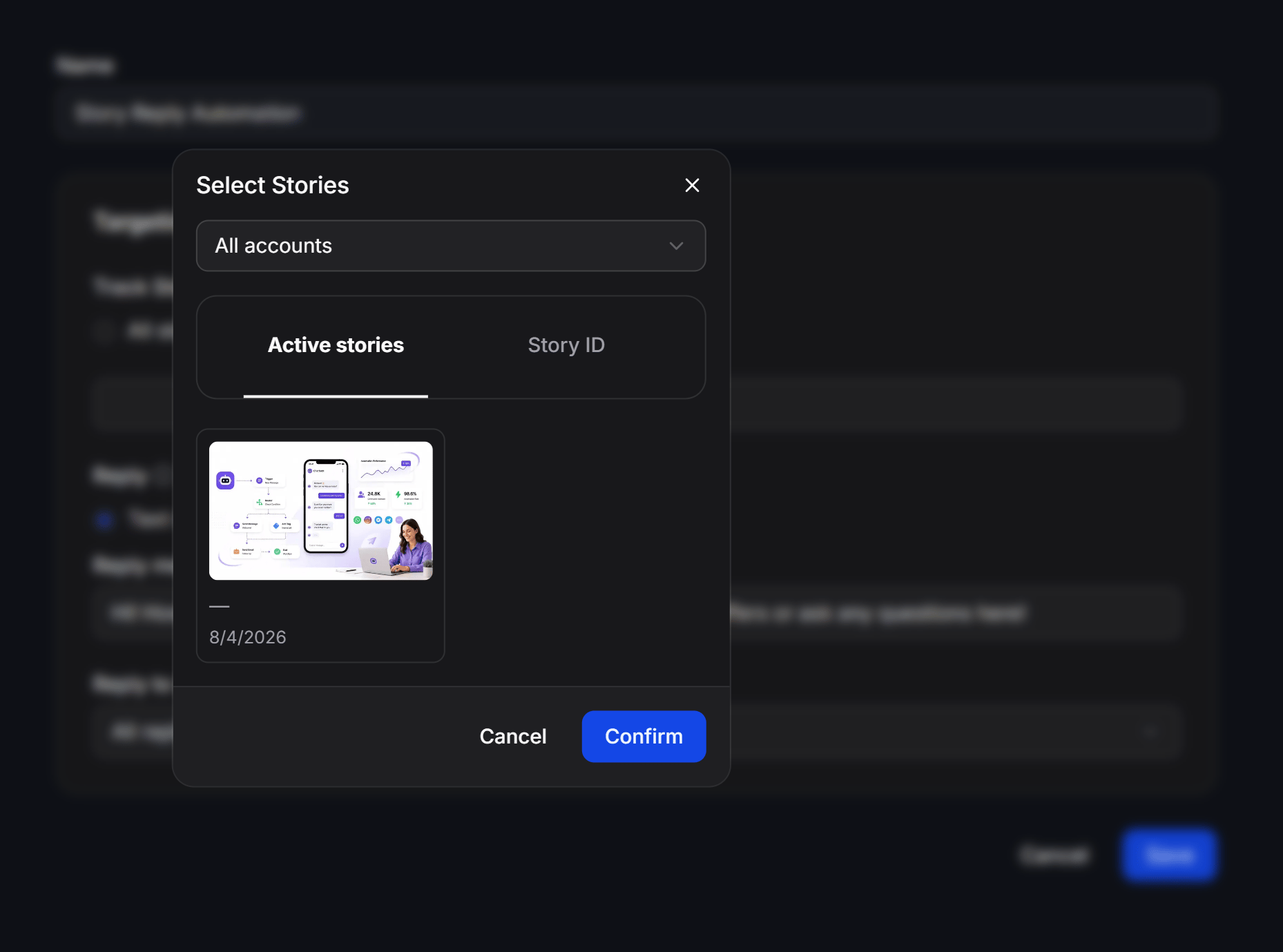
6
Choose how to reply
Under Reply, choose how ChatbotX responds to the person who replied to the Story:
The reply is sent to the Story replier’s Inbox.
7
Filter responses and save
Under Reply to (optional), select the appropriate condition:
With Exact match or Contains, enter each keyword in Keywords to match and press Enter. Review the settings, then click Save.
Example: product consultation
Suppose you publish a Story about a new product and want to automatically collect consultation requests:
When a customer replies
Can I get the price?, ChatbotX starts the consultation Flow in Inbox. Responses without the configured keywords do not trigger this automation.
Manage automations
Use the automation list to organize and monitor the automations you create:- Folders: Create folders to group automations by campaign or purpose.
- Status: Use the switch to activate or pause an automation.
- Replies: View the number of responses handled by the automation.
- Actions: Open the three-dot menu to use Edit, Rename, Move, or Delete.
- Rows per page: Select how many automations appear on each page.
Test an automation with Specific stories before enabling it for All stories. Send a test response and check the message received in Inbox.