Webchat lets you place a chat widget directly on your website so visitors can message you while they browse. In ChatbotX, you can create a new Webchat, choose a Welcome Flow, add authorized domains, configure the opening experience, adjust the widget design, and copy the embed code to install it on your site.Documentation Index
Fetch the complete documentation index at: https://chatbotx.io/docs/llms.txt
Use this file to discover all available pages before exploring further.
Create Webchat
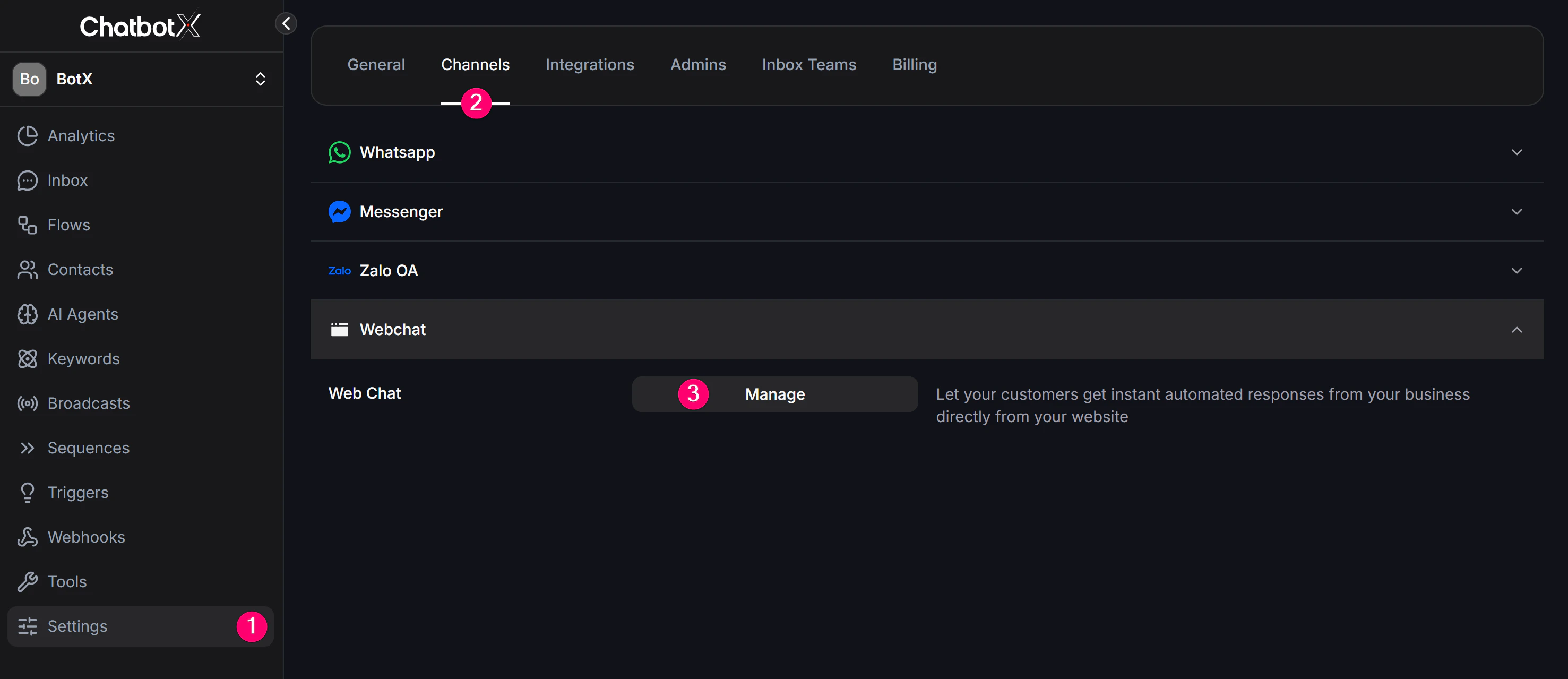
You can create Webchat in either of these 2 ways:Method 1: From the Create Inbox flow
Method 2: From the Channels management area

Channels > Webchat
On Channels > Webchat, you will see the list of Webchat widgets you already created.
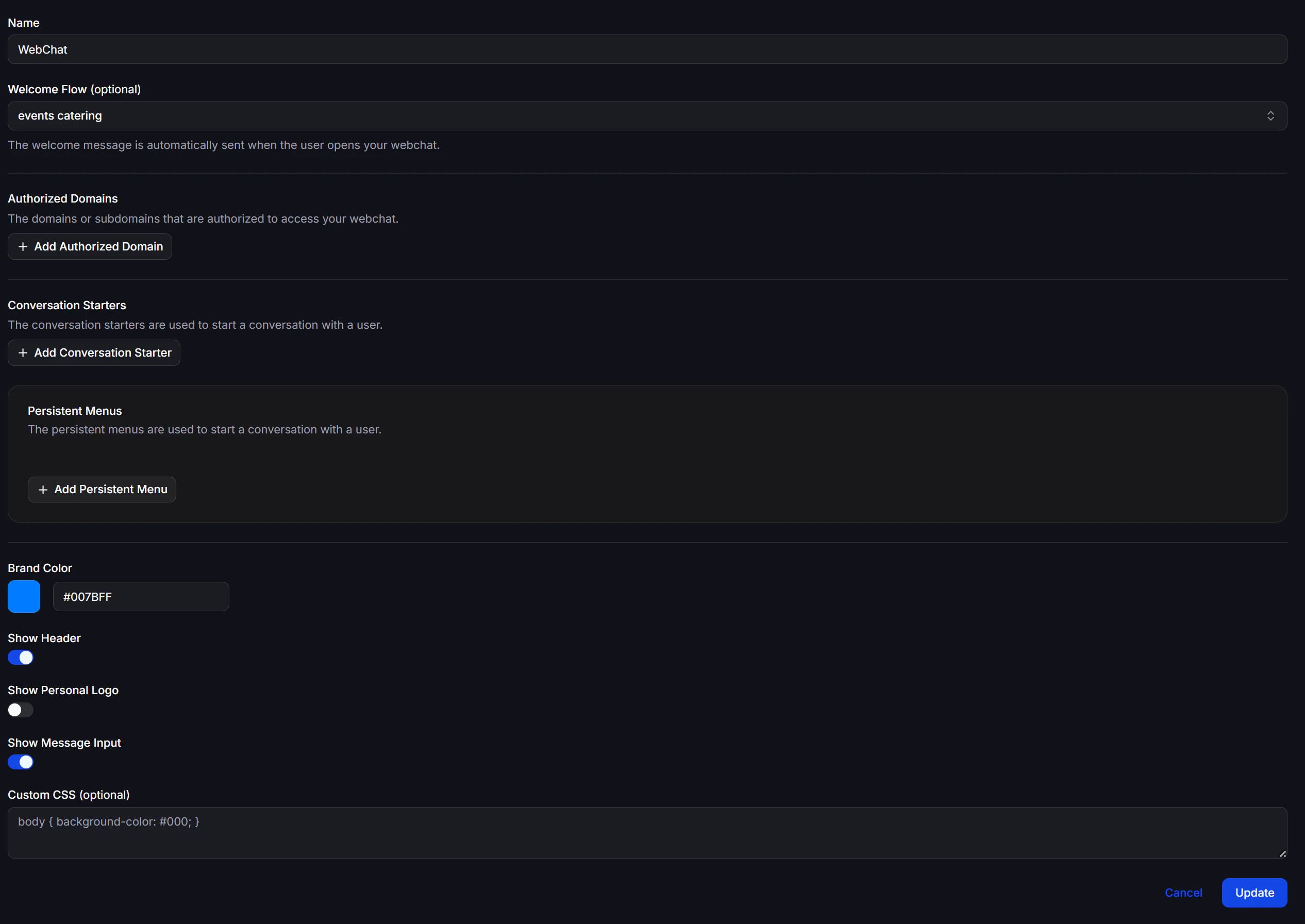
Configure a new Webchat
Enter the Webchat name
In the new form, the first field is Name. This is the internal name you use to distinguish each Webchat if you run several sites or several widget versions.

Main configuration features
After the Name and Welcome Flow fields, the Webchat form lets you configure these features:Authorized Domains
Authorized Domains is the list of domains or subdomains allowed to use your Webchat widget. Click Add Authorized Domain to add a new domain. This step matters because the embed code only works on domains that have been approved here.Conversation Starters
Conversation Starters are quick opening prompts that help visitors begin the conversation faster. Click Add Conversation Starter to add a suggestion. This works well when you want visitors to choose a topic right away, such as:- Pricing
- Book a consultation
- Ask about a product
Persistent Menus
Persistent Menus are menus that always stay visible to help users start or navigate a conversation. Click Add Persistent Menu to add a menu item. This is useful when you want visitors to always see the main options instead of typing from scratch.Customize the Webchat design
The configuration form also lets you adjust the widget appearance.Brand Color
Brand Color sets the main color of the Webchat widget. In the current interface, you can:- choose a color from the picker
- or enter a color code directly, such as
#007BFF
Show Header
The Show Header toggle lets you turn the widget header on or off.Show Personal Logo
The Show Personal Logo toggle lets you decide whether a custom logo should appear in the widget.Show Message Input
The Show Message Input toggle lets you turn the text input box on or off. If you disable the input box, visitors can only interact through the elements you prepared in advance, such as Conversation Starters or Persistent Menus.Custom CSS (optional)
Custom CSS (optional) lets you add your own CSS so the Webchat widget matches your website better. The example in the screenshot changes the page background:Image Alt Tag: [webchat_form_brand_toggles_css]
Get the embed code for your website
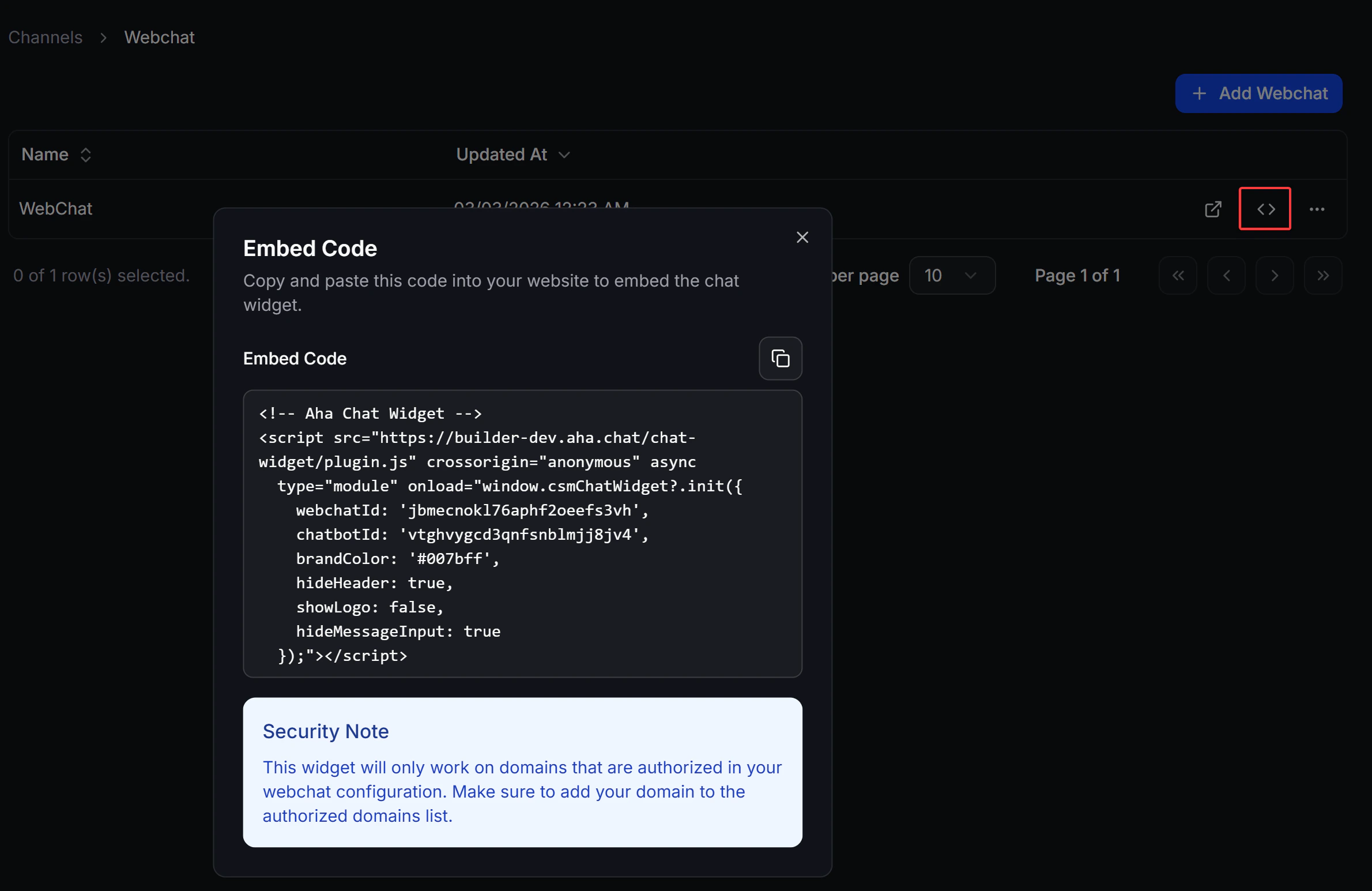
After the Webchat is created, go back to Channels > Webchat. For each Webchat row, click the embed code icon to open the Embed Code window. Inside that window, you will see:- a short description telling you to copy the code and embed the widget on your site
- the Embed Code field
- a quick copy button
- a Security Note

Test Webchat
From the Channels > Webchat list, you can click the demo/test icon to open a live preview of Webchat. This is the best quick check after setup so you can confirm:- whether the Welcome Flow runs as expected
- whether visitors can see Conversation Starters, Persistent Menus, or the message input based on the options you enabled
Note: If Webchat does not work after embedding, check Authorized Domains first. The Embed Code window highlights this requirement directly.