

Understand Topic Coupons and Coupons
Create a Topic Coupon first, then import codes into that Topic. The Set up Coupon Action assigns a code from the Topic and saves it to the customer’s information.
Open Coupons and create a Topic Coupon
1
Open Tools
Select Tools from the left menu.
2
Select Coupons
Click the Coupons card to open the management page.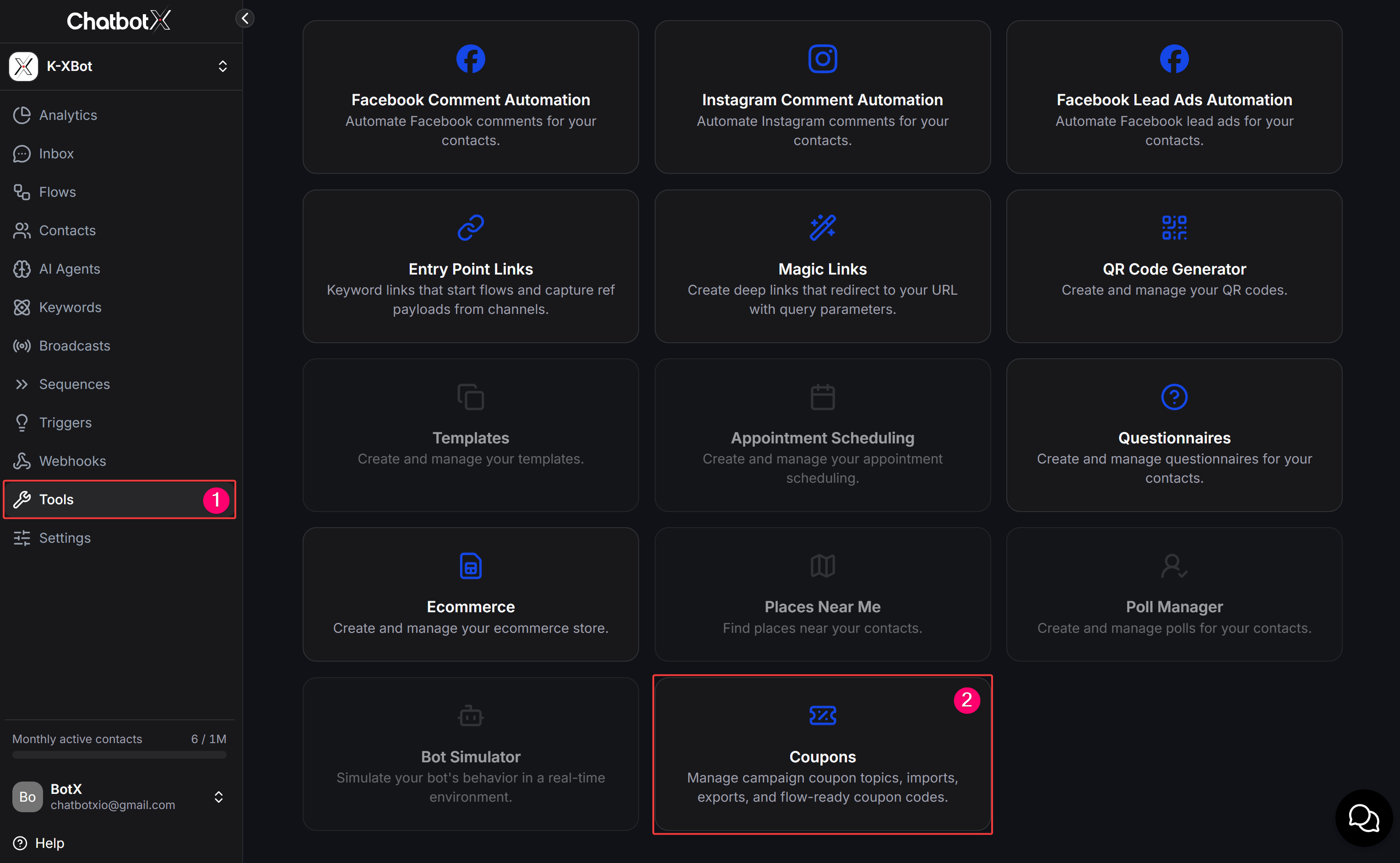
3
Open Topic Coupon
Select the Topic Coupon tab. The List Topic page shows each Topic name, Coupon count, validity period, and Actions menu.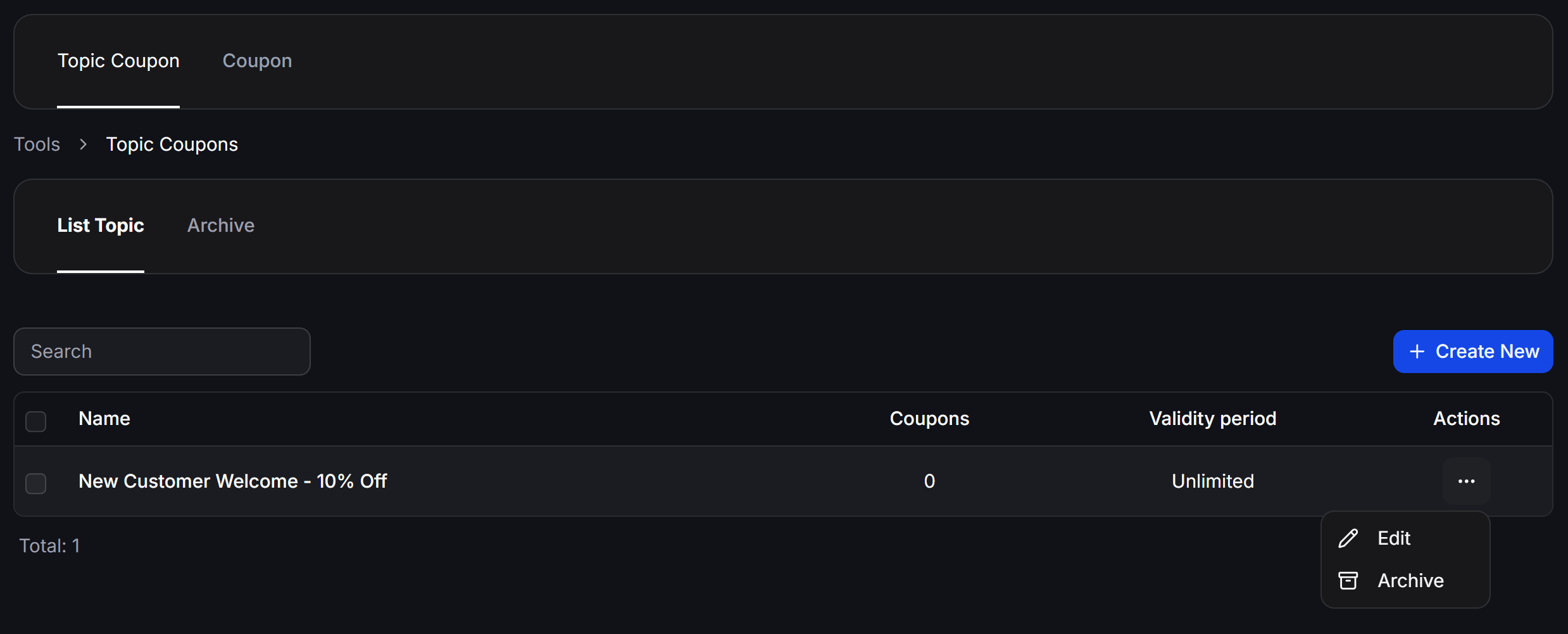
4
Click Create New
Click + Create New to open the Topic Coupon creation dialog.
5
Enter the Topic information
Enter a Name, select a Validity period if the promotion has an expiration date, and add a Description when needed.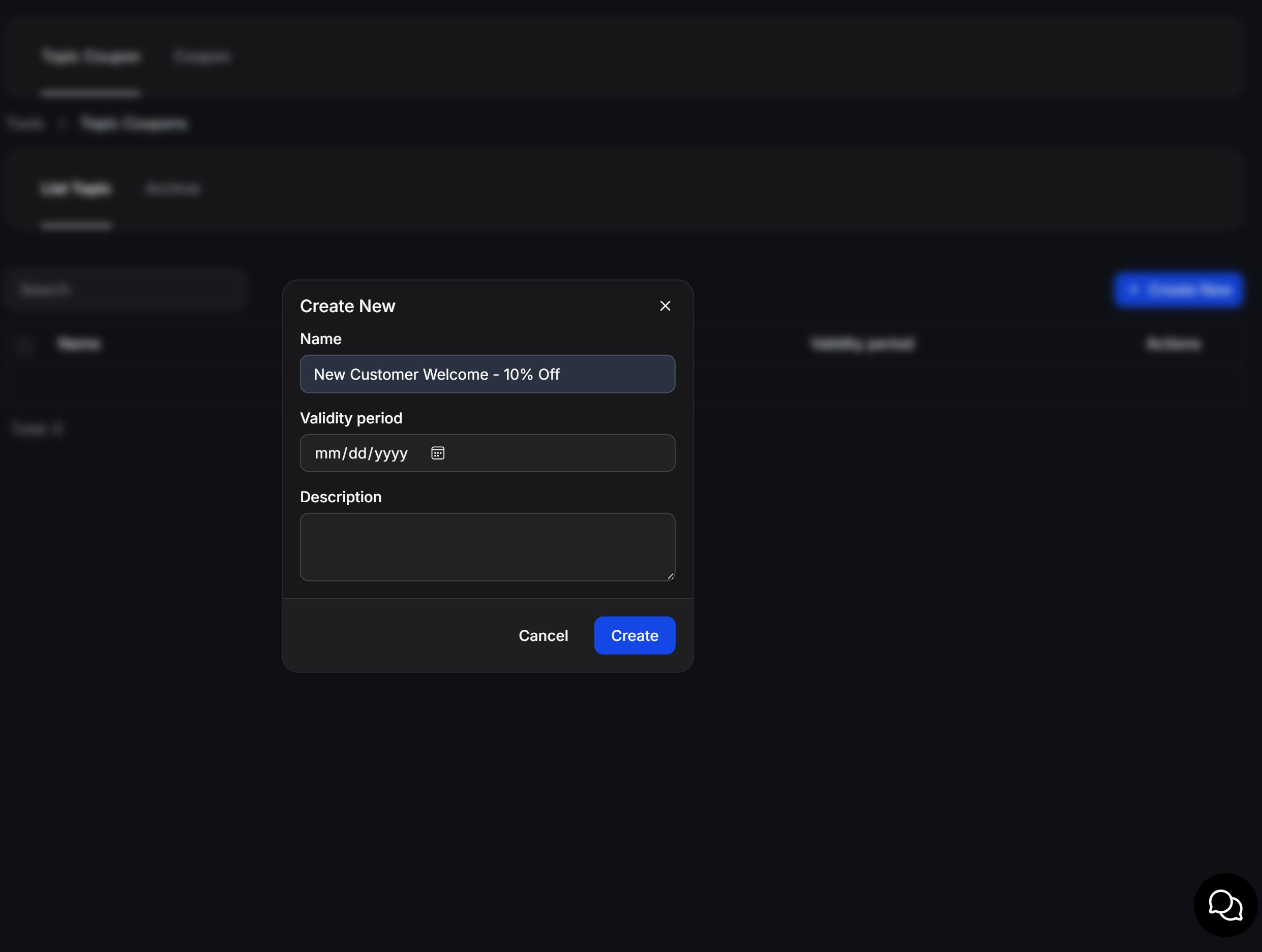
6
Click Create
Click Create to save the Topic Coupon.
Edit or archive a Topic Coupon
Open the three-dot menu in the Actions column to choose one of these options:- Edit: Change the name, validity period, or description.
- Archive: Move the Topic Coupon to the Archive tab.
Import and manage Coupons
Prepare the import file
Download the template from the Download import template link in the Import coupons dialog. The CSV file uses one column namedcoupon:
Import and download the Coupon list
1
Open the Coupon tab
On the Coupons page, select the Coupon tab.This page includes Topic, Status, and Usage filters, a Search code field, and the Coupon list.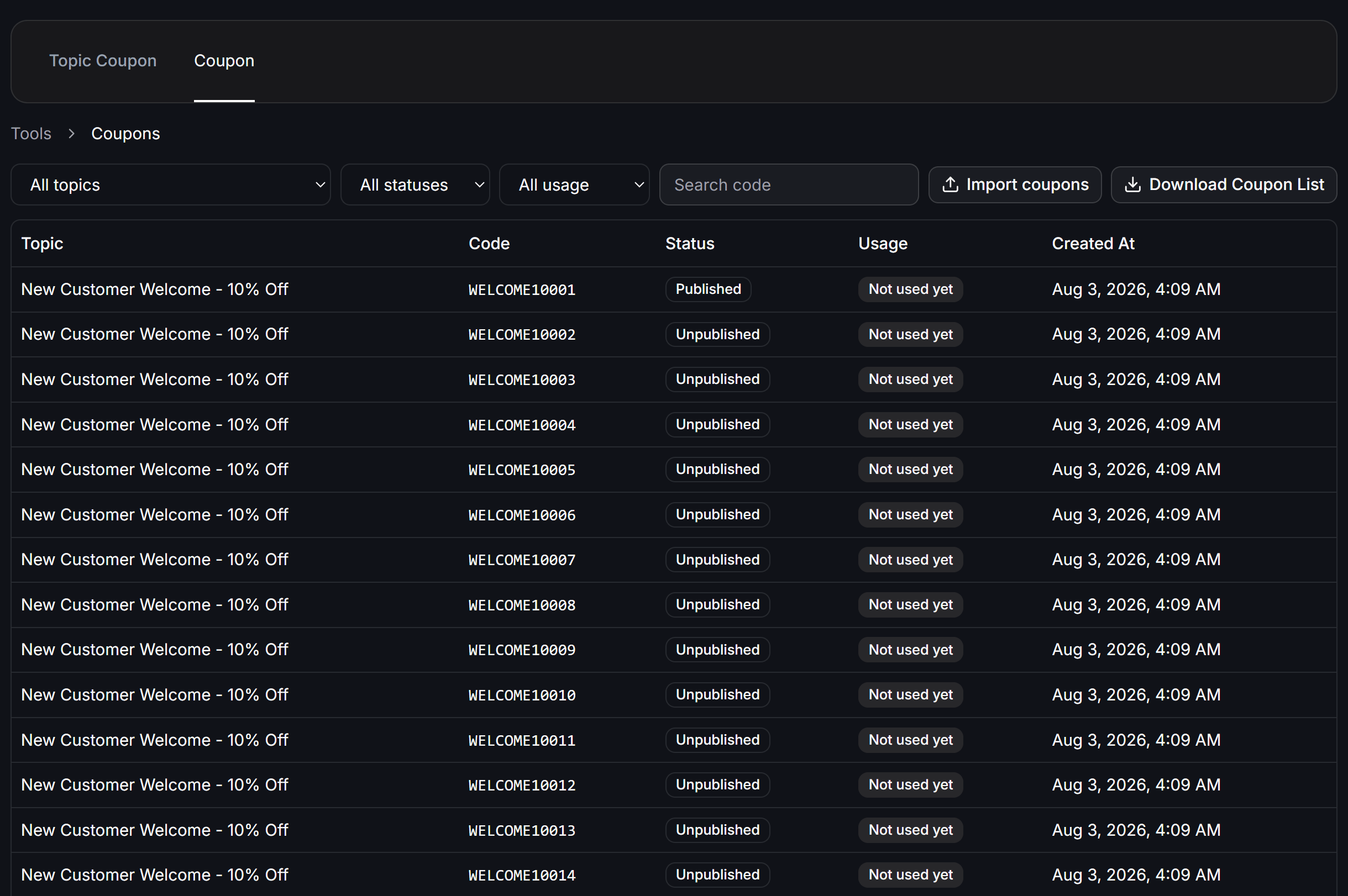
2
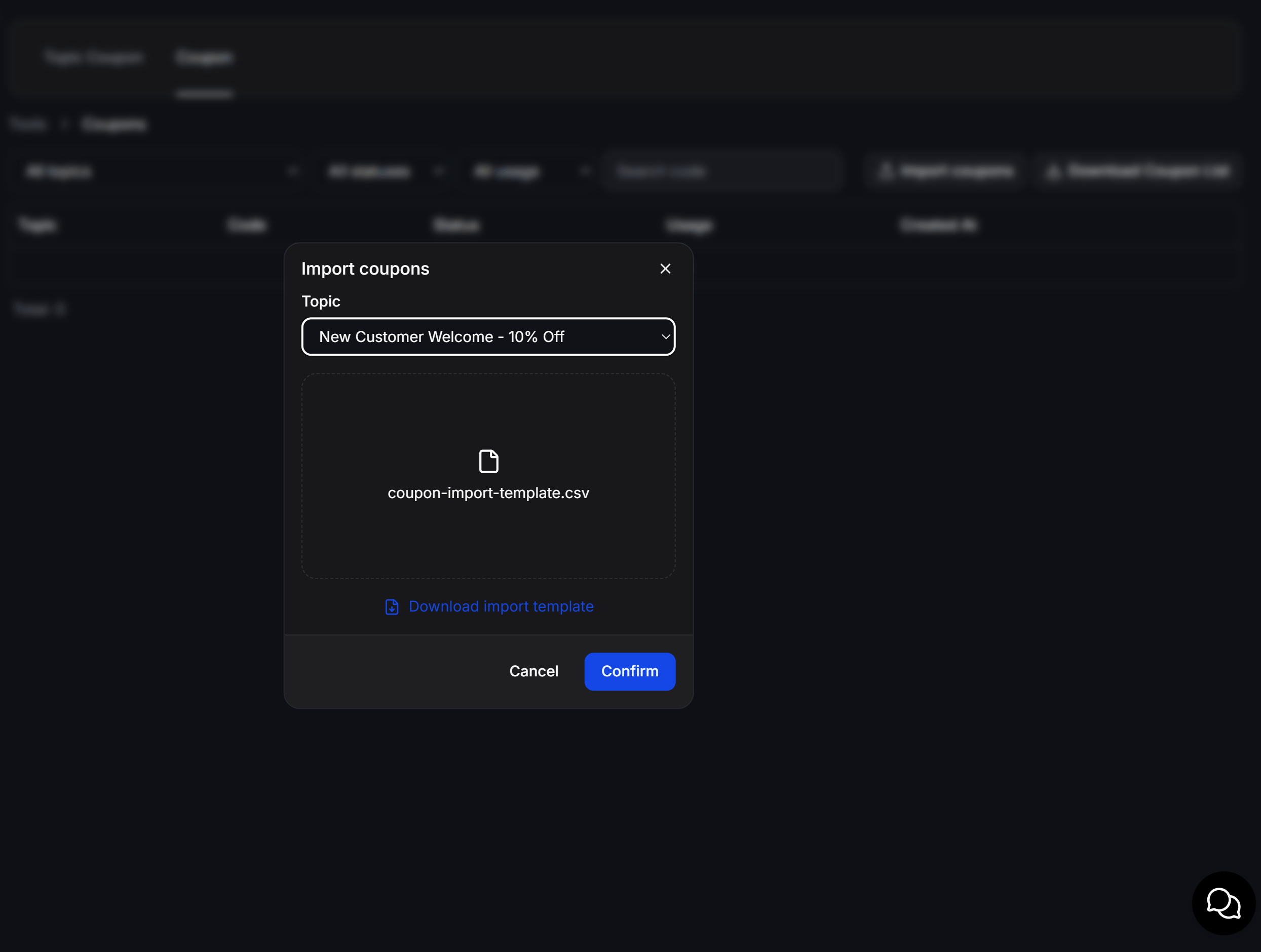
Click Import coupons
Click Import coupons to open the import dialog.
3
Select a Topic
In the Topic field, select the Topic Coupon that will receive the new codes.
4
Upload the CSV file
Select the prepared CSV file. The filename appears in the upload area after the system receives it.
5
Click Confirm
Click Confirm to import the codes into the selected Topic Coupon.
- All topics: Filter by Topic Coupon.
- All statuses: Filter by assignment status.
- All usage: Filter by usage status.
- Search code: Find a specific code.
Distribute Coupons in a Flow
Add a Topic Coupon Action
1
Open Send Message
Create or open a Send Message block in Flow Builder.
2
Open Actions
Click Create, then select Actions.
3
Select Topic Coupon
Open the Tools group and select Topic Coupon.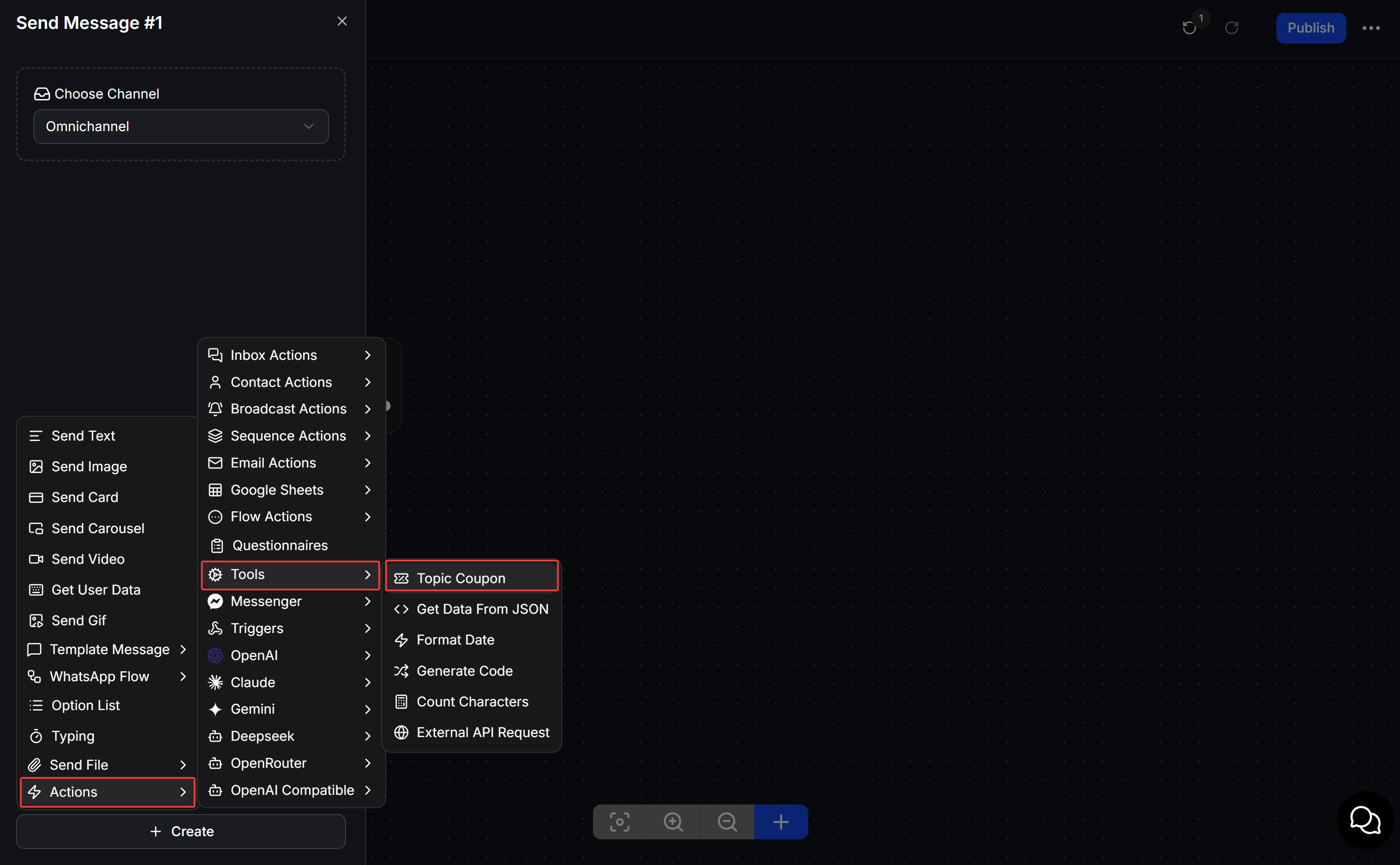
4
Select a Type
In the Type field, select Set up Coupon or Mark Coupon used.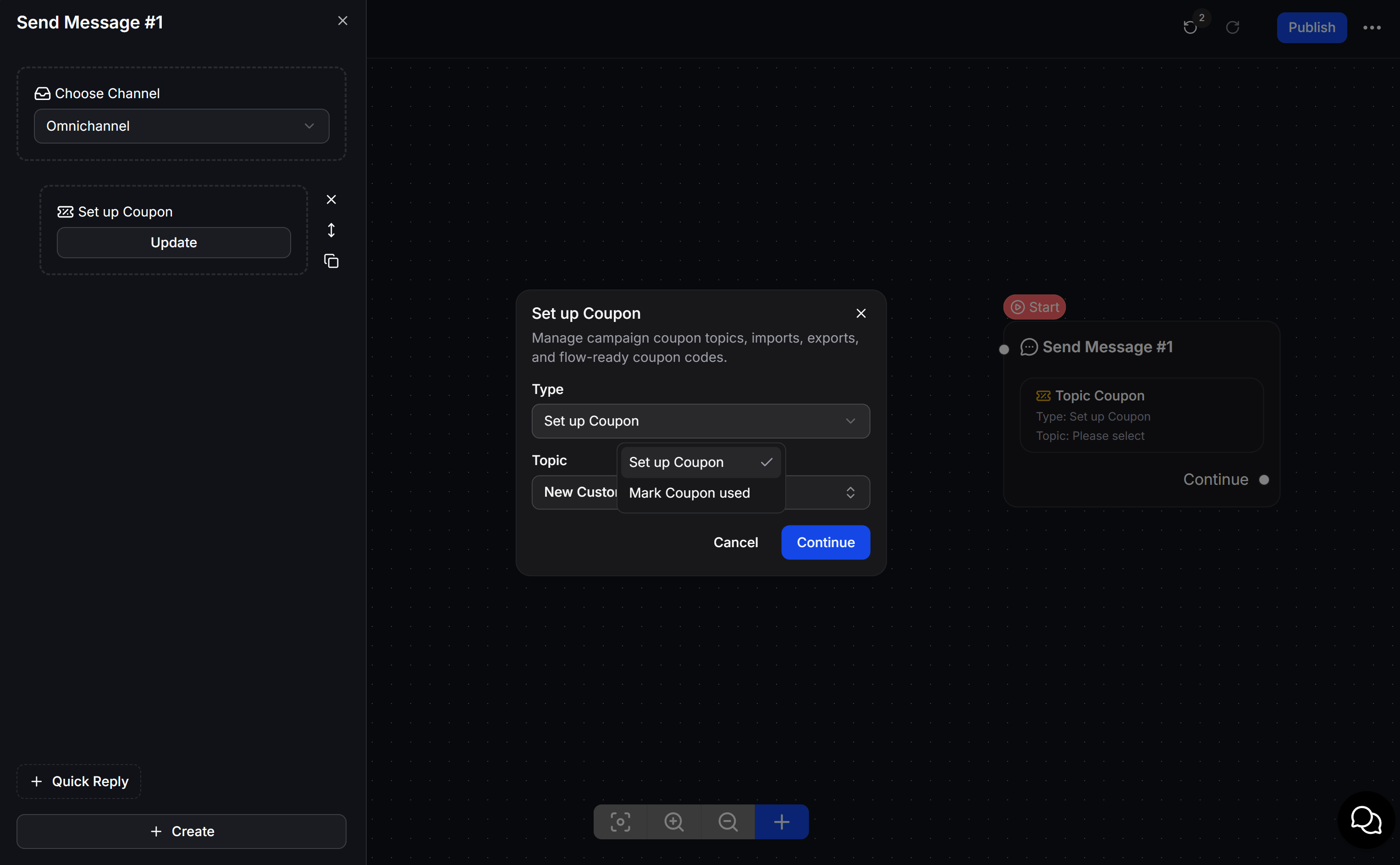
5
Select a Topic
In the Topic field, select the Topic Coupon the Flow will use.
6
Click Continue
Click Continue to add the Action to the Send Message block. Click Update when you need to reopen its settings.
Check a Coupon with Condition
Use a Condition node to create Flow branches based on each customer’s Coupon.1
Open Add Condition
In the Condition node, click Add Condition to open the filter settings.
2
Select a Topic Coupon
Open the field list. In the Topic coupon group, select the Topic you want to check.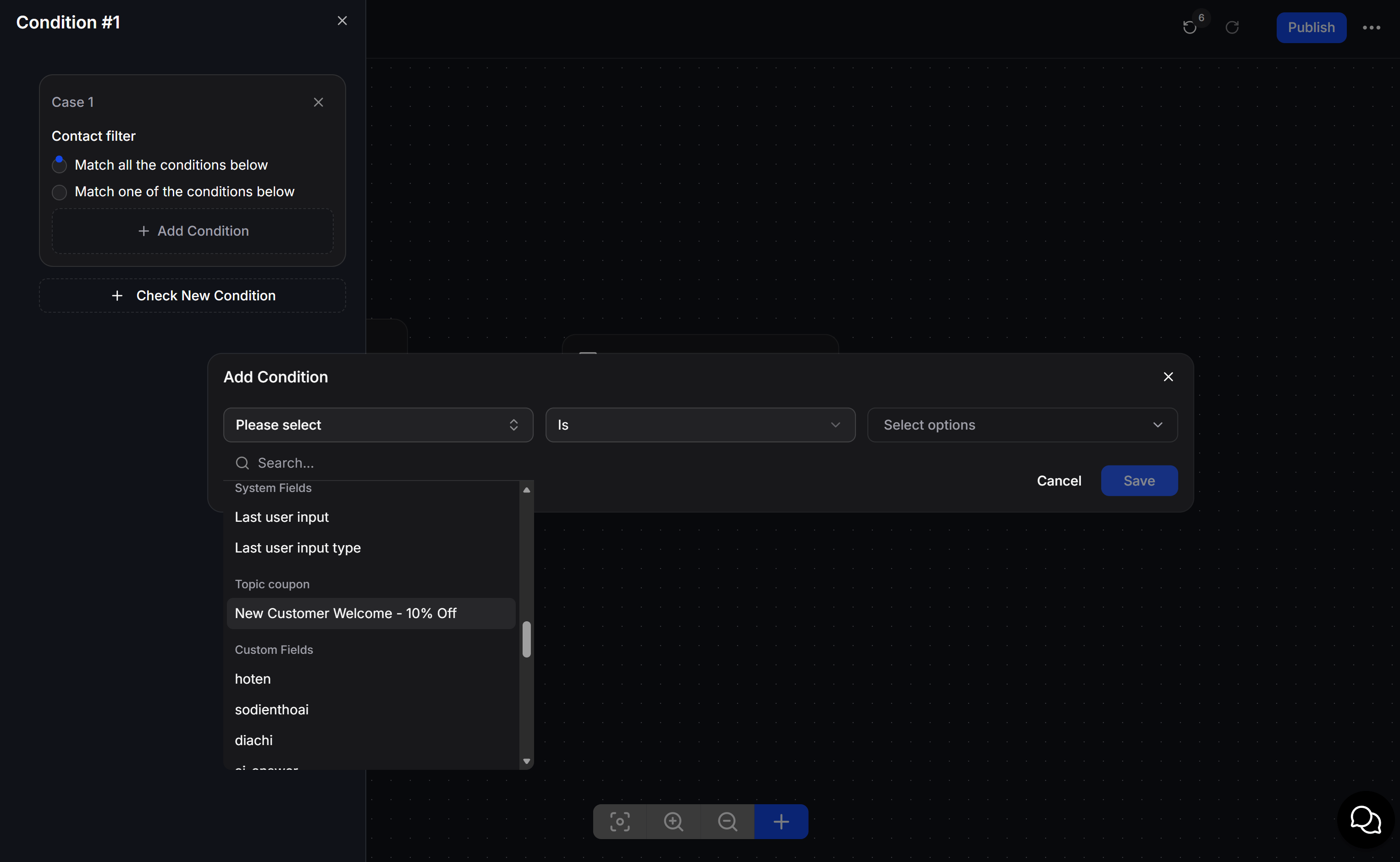
3
Select an operator
Select Has any value, Used, or Is based on the condition you want to check.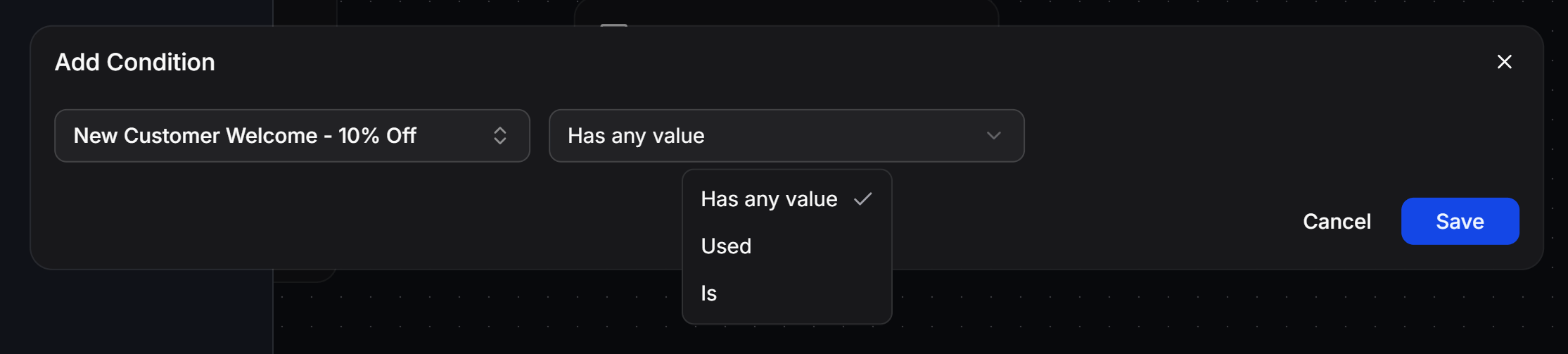
4
Select a comparison value
When you use Is, select the value to compare in the third field.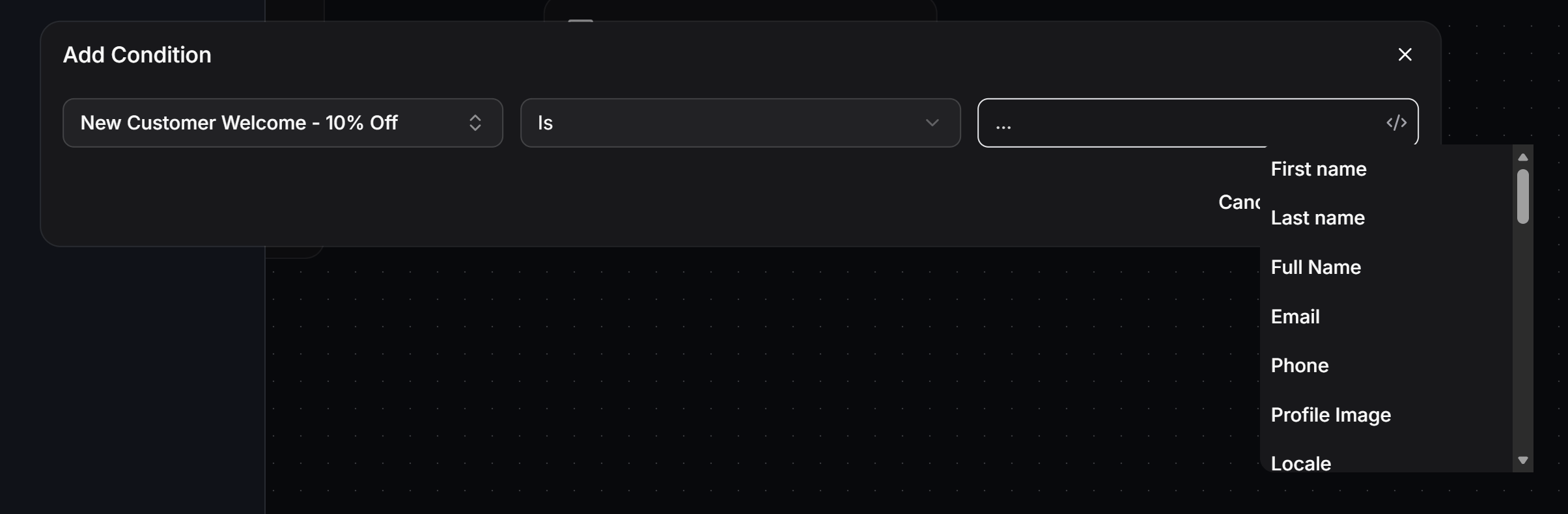
5
Click Save
Click Save to add the condition to the current Case.
Send a Coupon code in a message
1
Add Send Text
Add or open Send Text content in the Send Message block.
2
Enter the message
Enter the fixed message content, such as
Your Coupon:.3
Insert the Coupon property
Click the 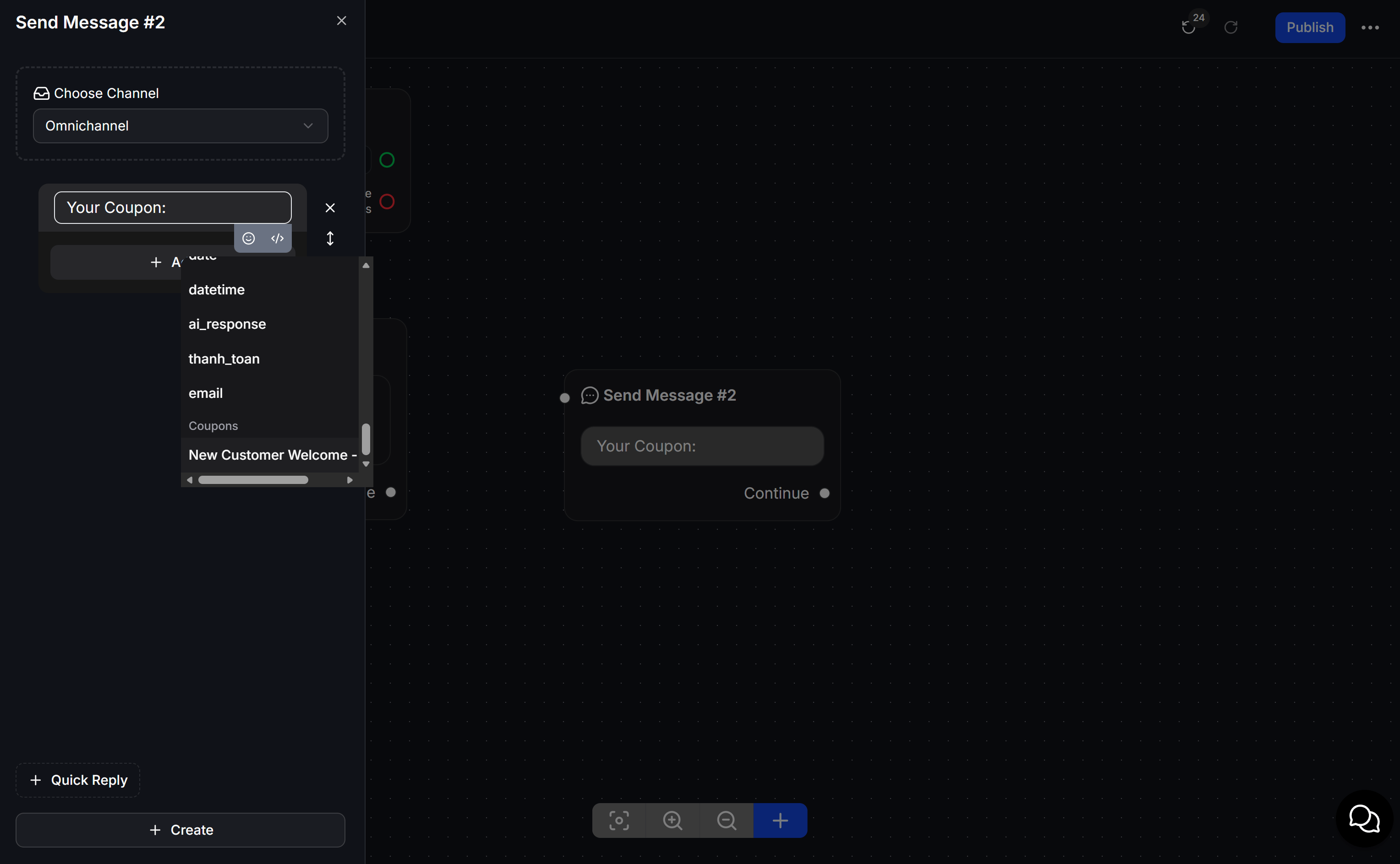
</> icon in the editor. In the Coupons group, select the Topic Coupon you want to insert.Run Set up Coupon before sending the Coupon field. This ensures the customer has a code that ChatbotX can insert into the message.
Track Coupons by customer
Filter customers in Contacts
The Coupon filter helps you find customers who received a specific code or used a code from a Topic.1
Open Contacts
Select Contacts from the left menu.
2
Add a filter condition
Open the filter panel and select Add Condition.
3
Select a Topic Coupon
In the first field, select the Topic Coupon you want to filter.
4
Select an operator
Select Has any value, Used, or Is based on the customer list you need.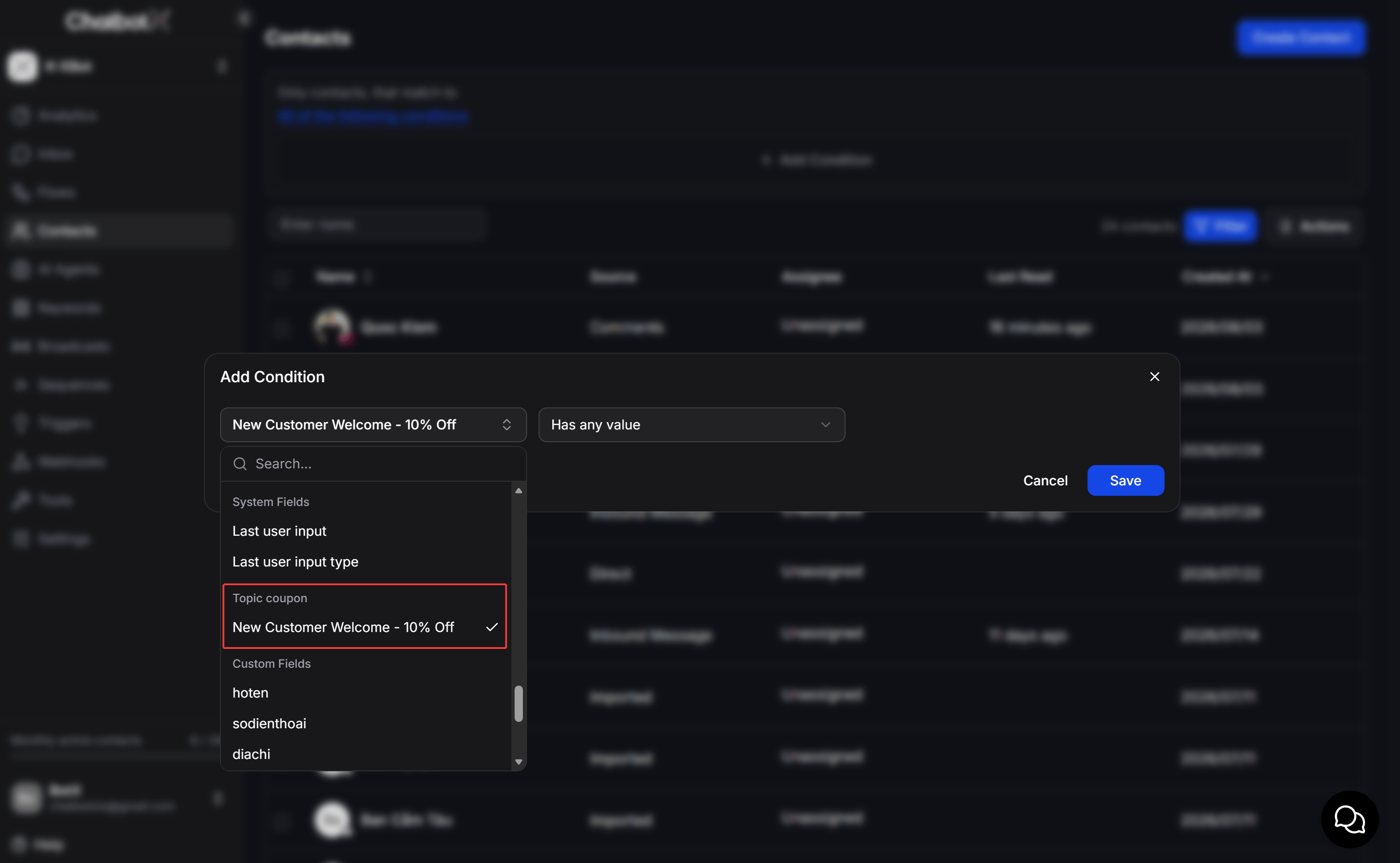
5
Click Save
If you select Is, choose a comparison value. Then click Save to apply the filter.
View Coupons in Inbox
1
Open Inbox
Select Inbox from the left menu.
2
Select a conversation
Select the customer you want to review from the conversation list.
3
Open Coupons
In the contact profile on the right, open Coupons.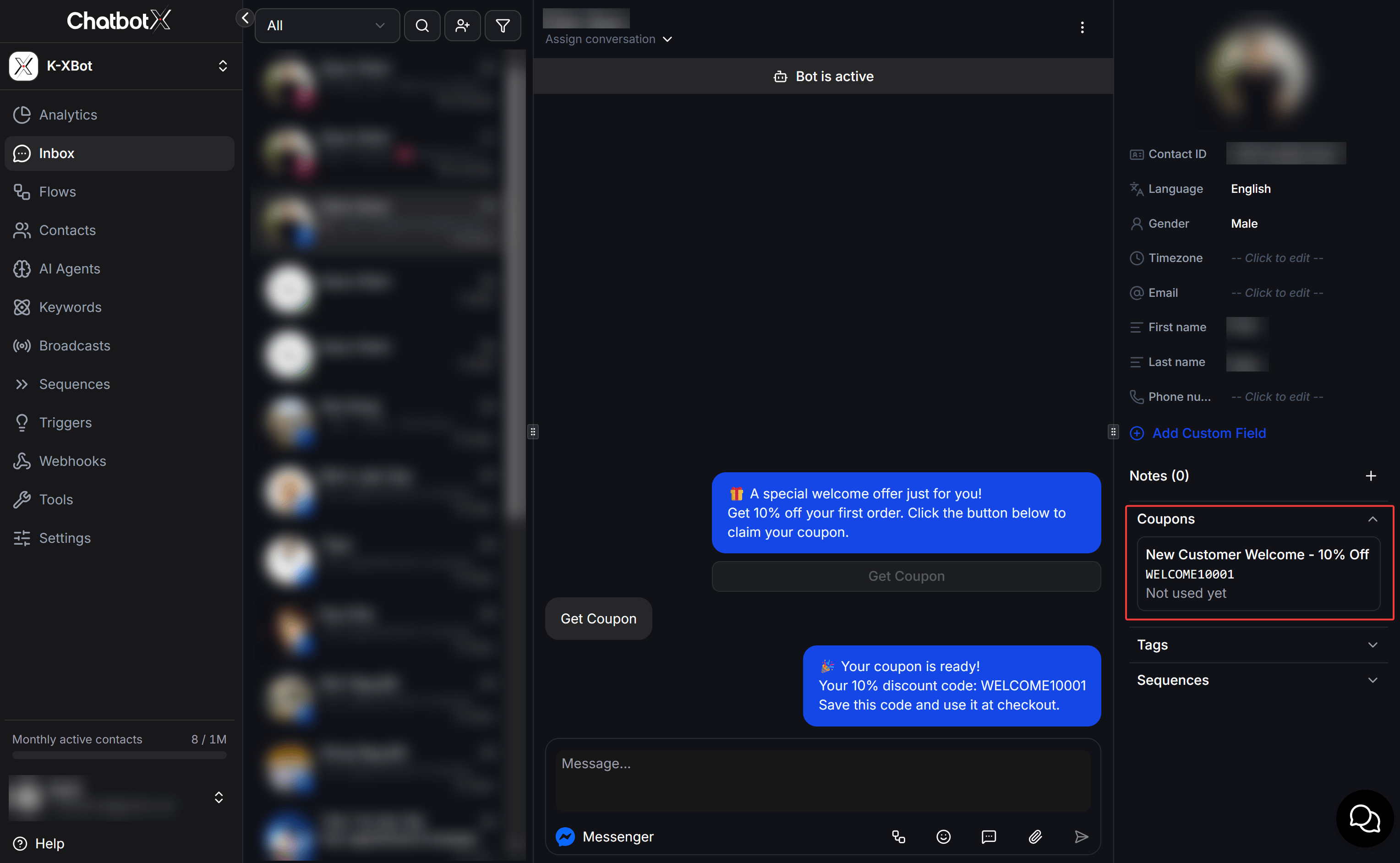
Example: distribute a welcome Coupon to new customers
You have a Topic namedNew Customer Welcome - 10% Off with 30 imported codes from WELCOME10001 to WELCOME10030.
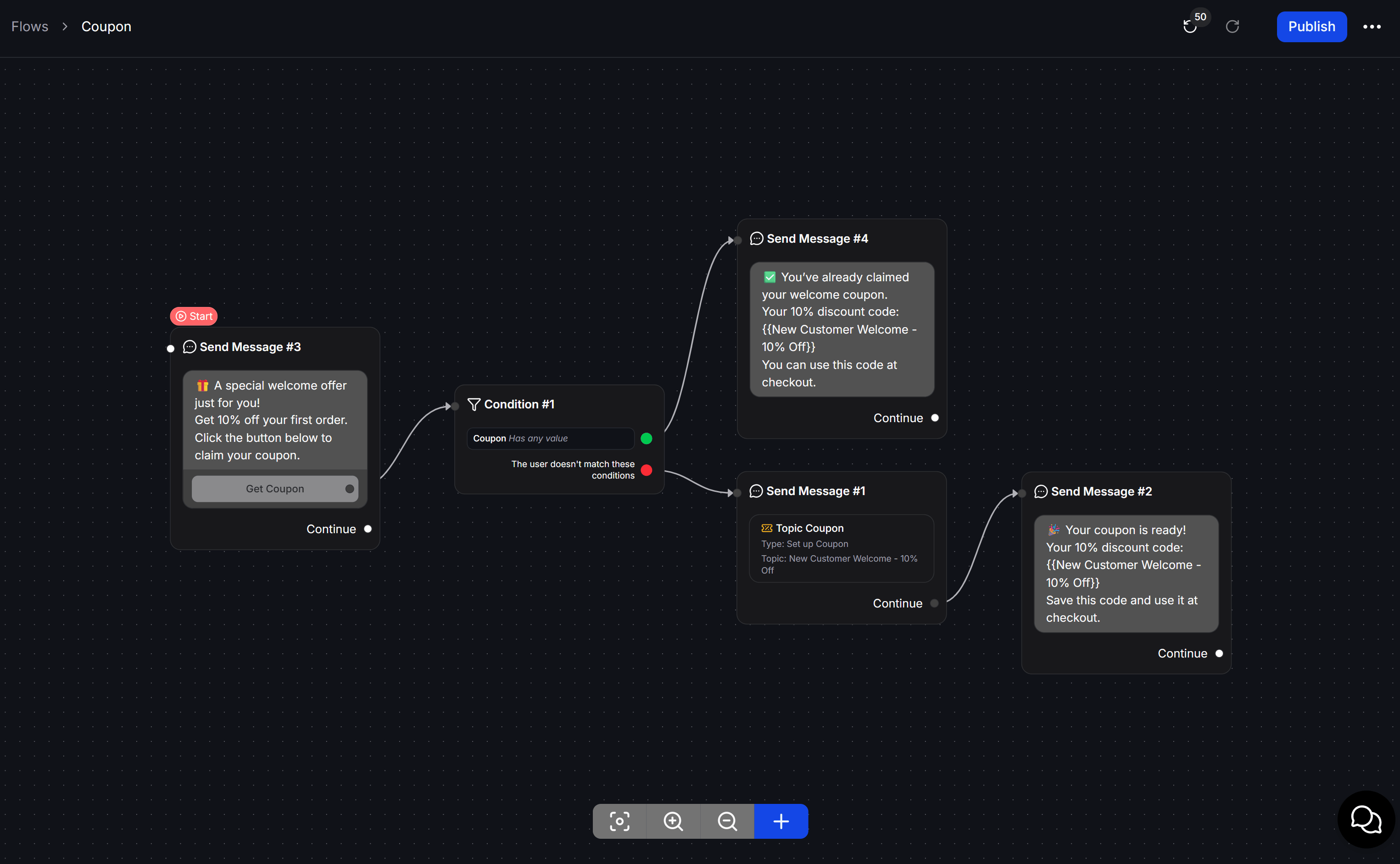
The Flow starts with an offer message and a Get Coupon button. When a customer clicks the button, the Flow follows these steps:
1
Receive the Coupon request
The customer clicks Get Coupon in the offer message.
2
Check the customer's Coupon
The Condition node uses Has any value to check whether the customer already has a Coupon from the Topic.
3
Send the existing Coupon again
If the condition matches, the Flow sends the customer’s saved Coupon code again.
4
Assign a new Coupon
If the condition does not match, the Flow runs Set up Coupon to assign a code from the Topic.
5
Send the assigned Coupon
The Flow sends a message containing the Coupons > New Customer Welcome - 10% Off property.
Prepare enough codes for the expected number of customers. Make sure the CSV file has no empty rows or duplicate codes.