

Add Count Characters to a Flow
1
Open the Flow
Open the Flow that collects or uses the text value.
2
Add a Perform Action node
Add a Perform Action node after the Flow receives the customer’s response.
3
Choose Count Characters
Open the node, click Create, then select Tools > Count Characters.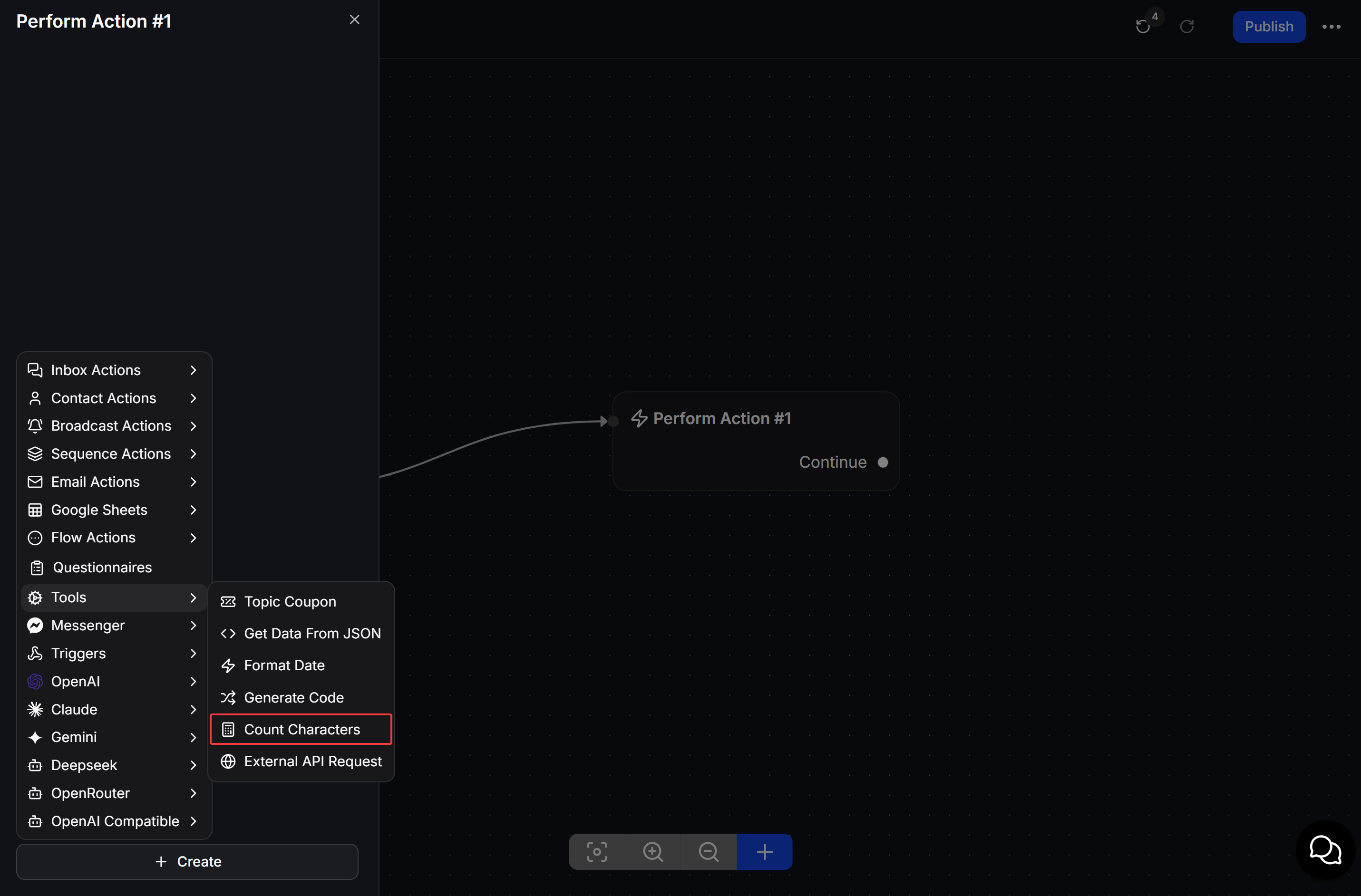
4
Choose the text to count
Select the Input Custom Field that contains the text. Under Save result to a custom field, choose the Custom Field that will receive the character count, then click Save.
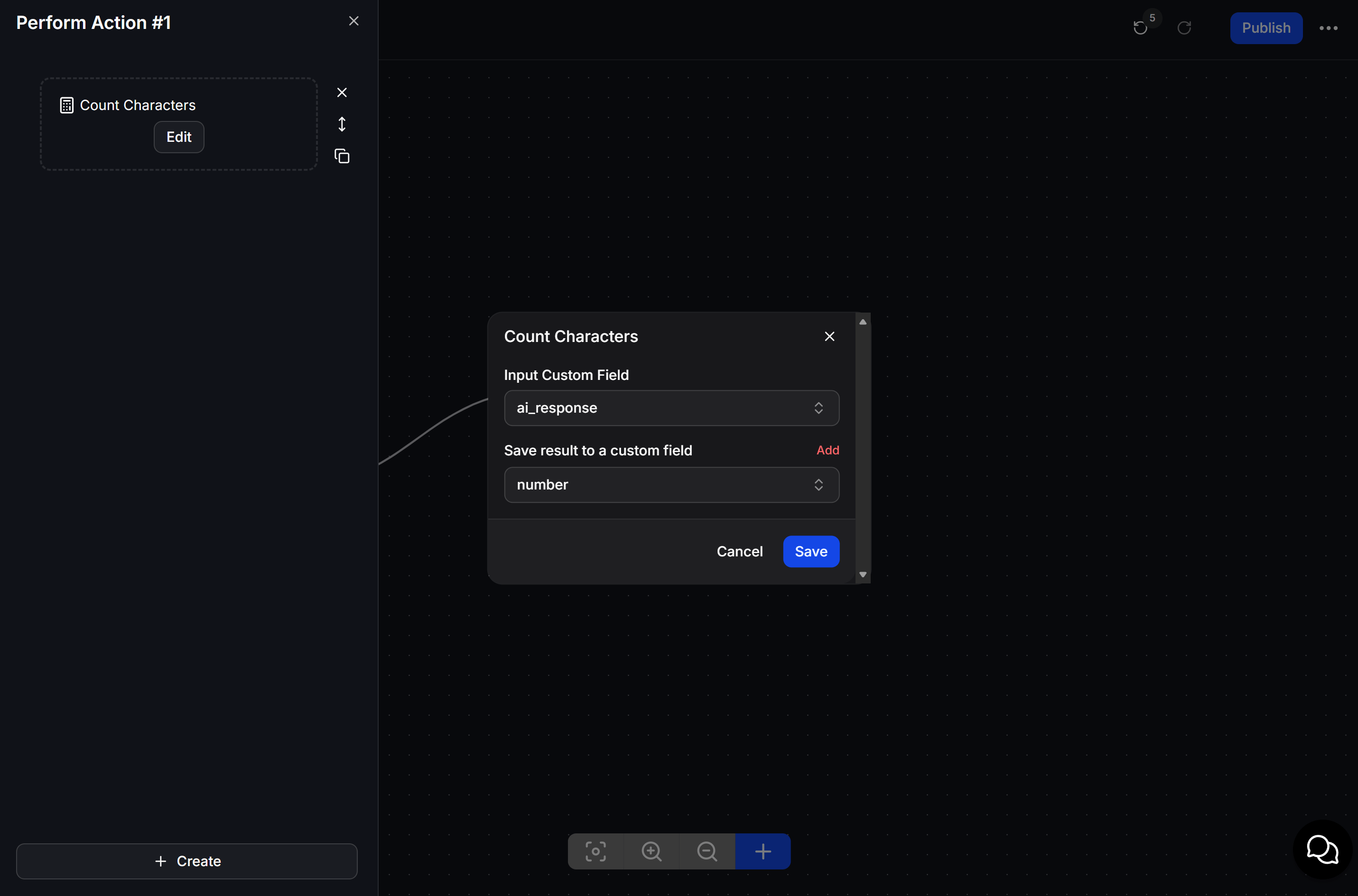
Example: validate an order code
Ask the customer to enter an eight-character order code. After the reply is saved, Count Characters counts the response. A Condition can then route an eight-character value forward and ask for the code again when the count does not match.Count Characters measures every character in the selected text, including spaces. Tell customers whether they should enter spaces in a code or reference number.