

Add Get Data From JSON to a Flow
1
Open the Flow
Open the Flow where the JSON data is available.
2
Add a Perform Action node
Add a Perform Action node at the point where the Flow needs to read a value from JSON.
3
Choose Get Data From JSON
Open the node, click Create, then select Tools > Get Data From JSON.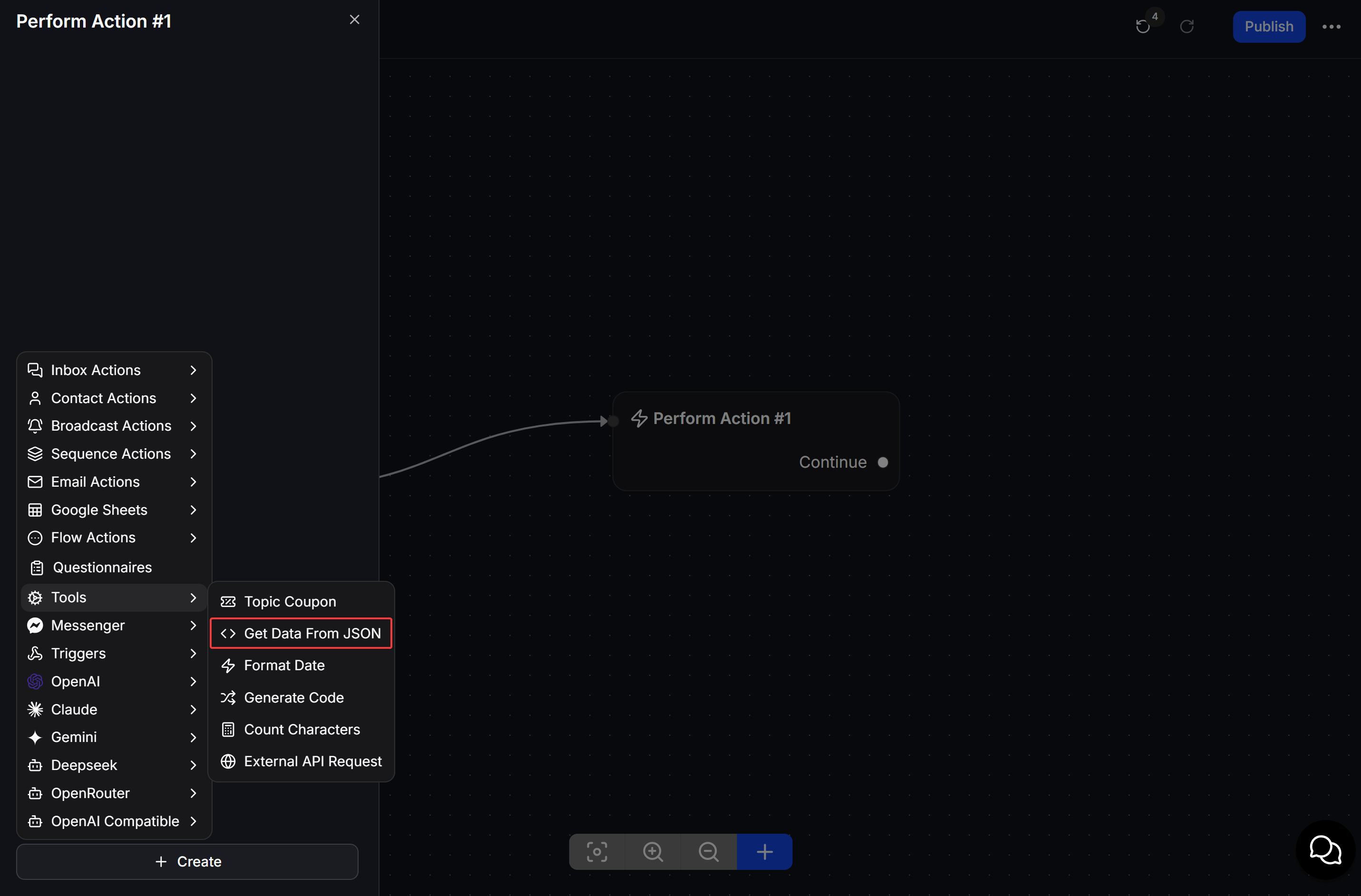
4
Configure the JSON value
Select the Input Custom Field that stores the JSON data. In Output Custom Field, enter the JSON path and select the Custom Field that will receive the extracted value. Click Add when you need another mapping, then click Save.
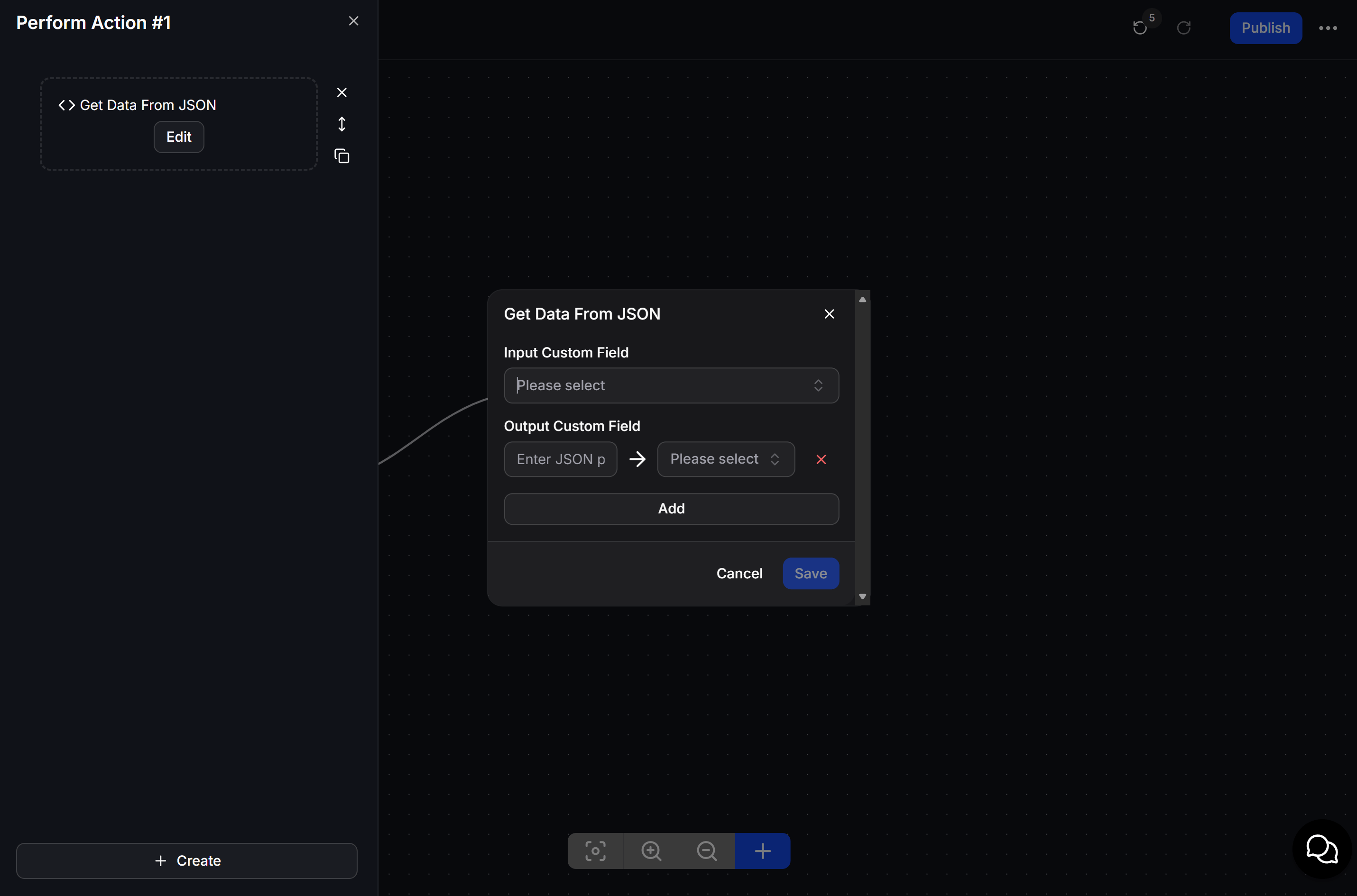
Map JSON data to Custom Fields
The Input Custom Field must contain the JSON data that the Action will read. For every value you need, add one mapping:- Enter the JSON path in the first field under Output Custom Field.
- Select the destination Custom Field in the second field.
- Click Add to map another value, or click Save when the mapping is complete.
membership value when the Flow needs to continue differently for Gold members.
Example: personalize a membership message
An earlier step in the Flow receives customer data in JSON. Get Data From JSON extracts the membership value, then the Flow uses that value in a Condition or message.Check the exact property names in the JSON response. A property name that does not exist cannot return a value to the Flow.