

Overview of Media Library
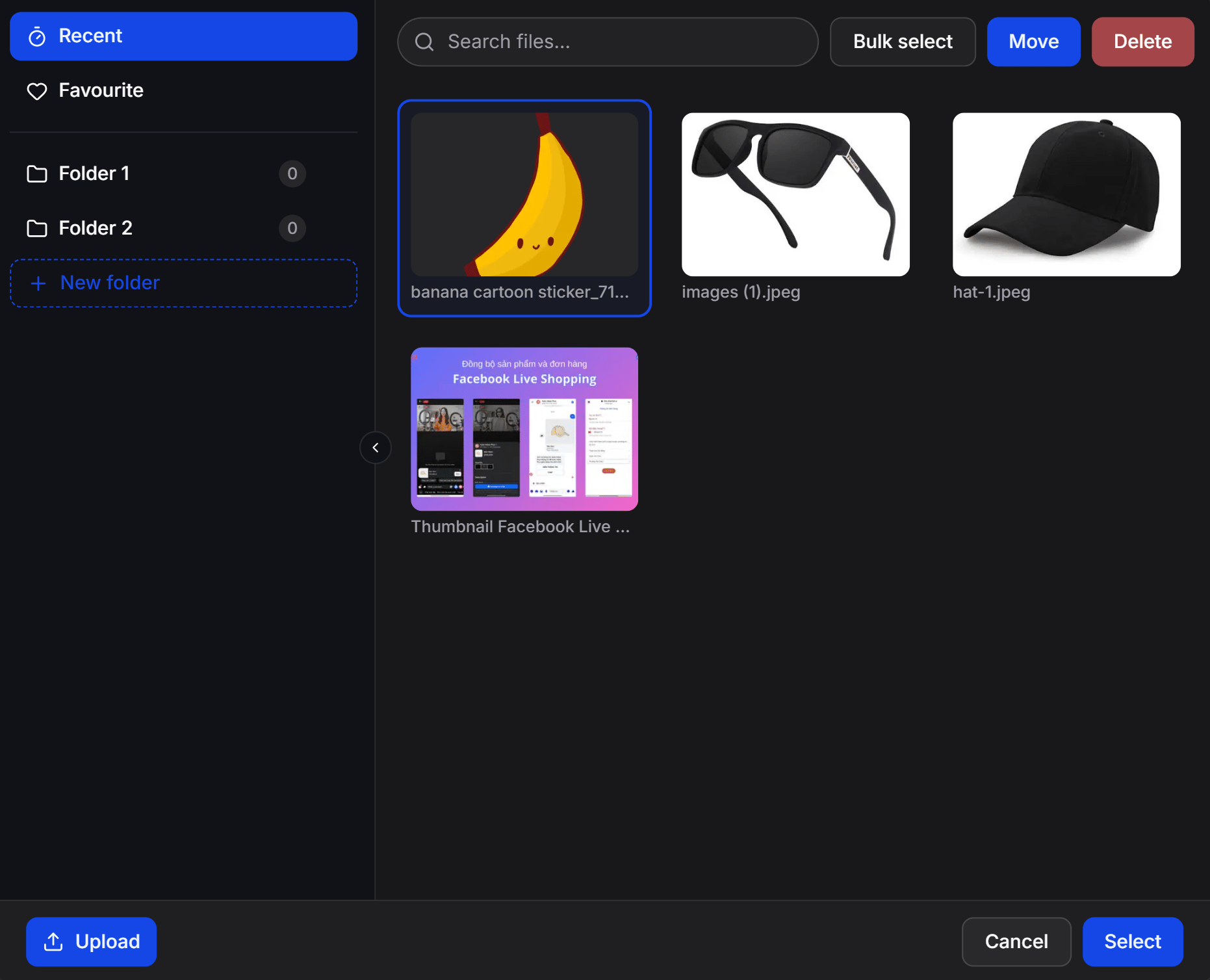
Media Library is a centralized cloud storage system for all images, videos, and documents within your workspace. Instead of repeatedly uploading files from your computer, Media Library lets you upload assets once and reuse them across all ChatbotX tools and features. Key benefits of Media Library:- Time Efficiency: Quickly browse and insert existing product images, pricing sheets, or documents into Flows and live chat conversations.
- Structured Organization: Organize assets with custom folders, mark favorites, and find files instantly using search.
- Brand Consistency: Ensure that all support agents and automated chatbot flows use the latest approved logos, banners, and marketing materials.
Integrated Locations in ChatbotX
Media Library is seamlessly integrated into every tool and feature that requires image or file uploads:Flow Builder
Insert images and videos into Send Image, Send Video, Send Card, Send Carousel, and Send File blocks in message flows.
Livechat Inbox
Support agents can open the library to select and send product images, quotes, or PDF guides directly in the chat composer.
Dynamic Images
Add static image layers for VIP card templates, background frames, or watermarks when designing dynamic personalized images.
Gamification
Upload and select prize images, gift icons, and themes for minigames such as lucky spin wheels or gift boxes.
Questionnaires
Add illustrative images to questions in surveys, application forms, or assessment questionnaires.
Ecommerce
Manage your catalog of product images and category covers for your chatbot store.
Templates
Choose thumbnail covers for shareable flow templates within your workspace.
Using Media Library Features
When building a message flow in Flow Builder (or configuring any other tool), simply click the Open Media Library link inside a message block (such as Send Image, Video, or File) to launch the library modal directly over your canvas: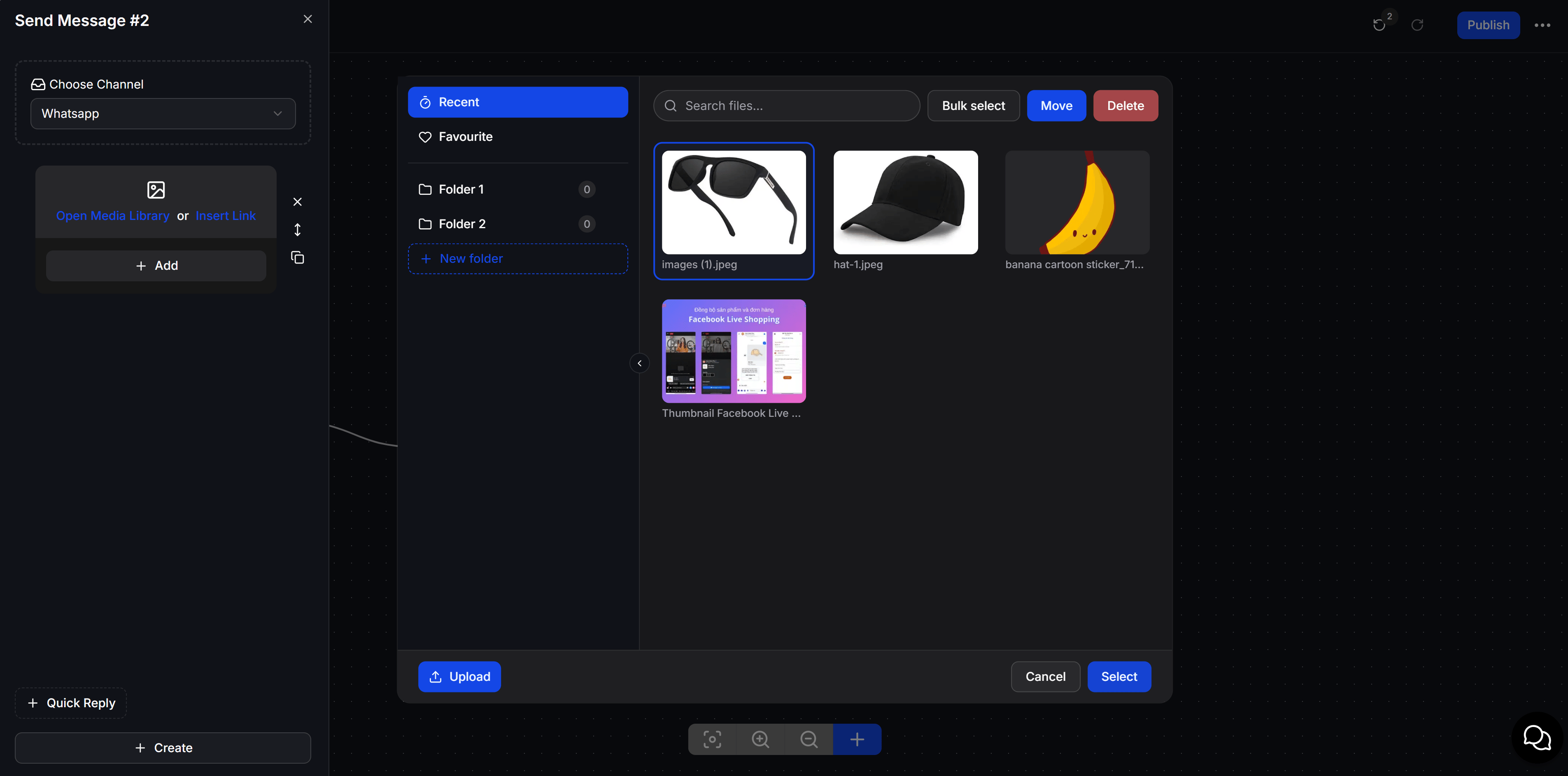
Folder Management and Navigation
The left navigation sidebar helps you categorize and access your digital assets:- Recent: Displays recently uploaded or used media files.
- Favourite: Quick access to frequently used assets marked with a star.
- Folder Management:
- Displays existing folders along with their item count (for example:
Folder 1,Folder 2). - Click + New folder to create new folders categorized by campaign or department.
- Displays existing folders along with their item count (for example:
- Collapse Sidebar: Click the arrow icon
<on the sidebar edge to collapse or expand folder navigation for more asset viewing space.
Search and Asset Actions
The top toolbar offers quick search and asset manipulation controls:- Search files…: Type keywords into the search bar to locate specific assets in your library.
- Single File Actions:
- Click any asset in the gallery to select it (selected items display a blue border).
- Click the blue Move button to relocate the asset to another folder.
- Click the red Delete button to remove the asset from your library.
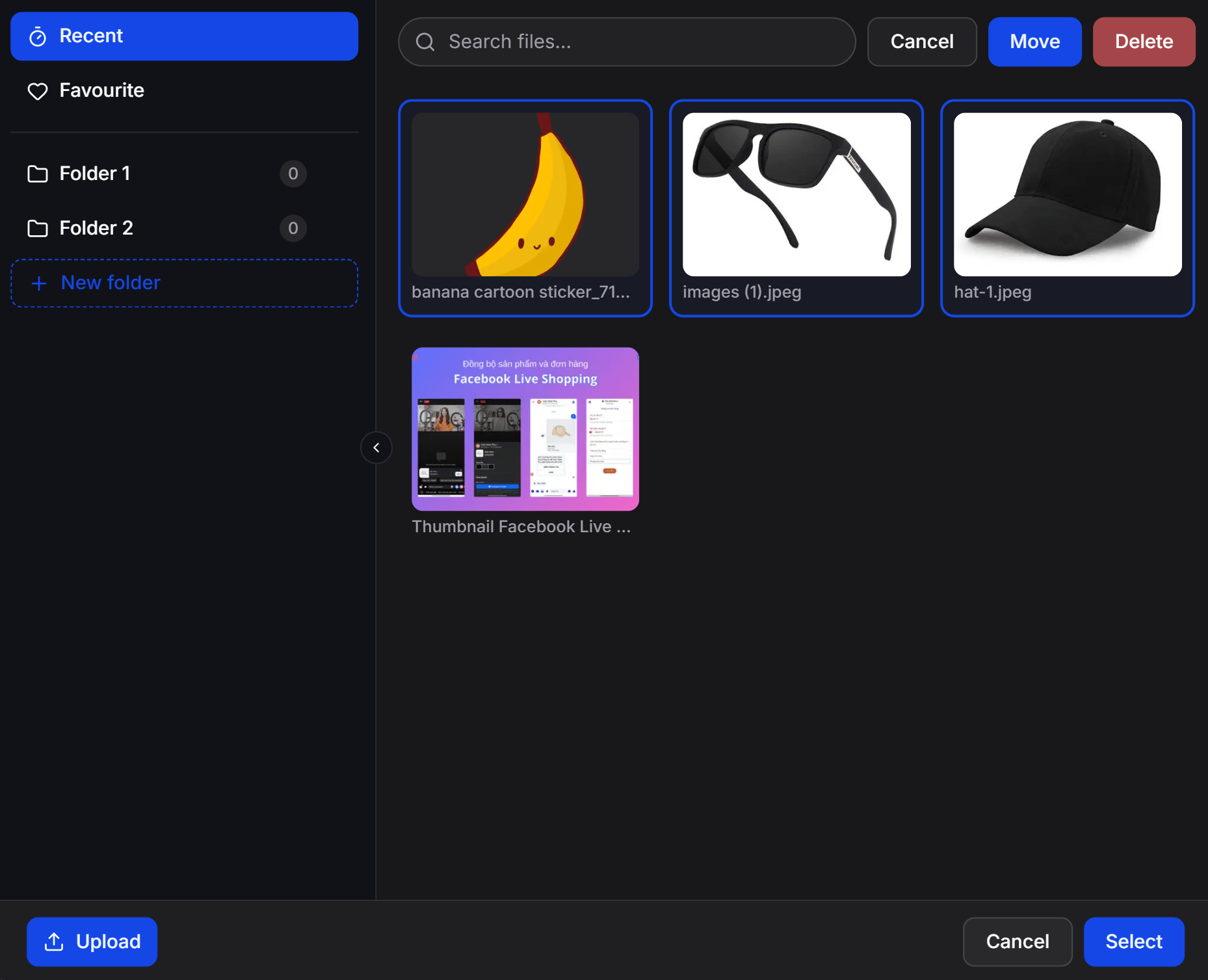
- Bulk select Mode:
- Click the Bulk select button on the top toolbar to enable multi-select mode.
- Click multiple images or files you want to manage concurrently (all selected items show blue borders).
- While in bulk select mode:
- Click Move to relocate all selected assets to another folder at once.
- Click Delete to batch remove all selected files.
- Click Cancel on the top toolbar to exit bulk select mode.
Uploading and Inserting Files
To upload and insert assets from Media Library:1
Open Media Library
Click the Open Media Library link or file attachment icon within the content block or feature you are configuring.
2
Upload new media or select existing files
- Upload new file: Click the blue Upload button at the bottom left to upload images or videos from your computer.
- Select existing file: Click on any asset in the gallery.
3
Confirm and Insert
Click the blue Select button at the bottom right to insert the chosen asset into your message canvas (or click Cancel to exit without selecting).
Best Practices
To ensure fast chatbot message delivery, optimize your image file sizes (recommended JPG or PNG under 2MB) before uploading them to Media Library.