

Prerequisites
Before connecting your account, ensure you have the following requirements ready:- Admin or Standard access to the target Google Ads account.
- Auto-tagging enabled in your Google Ads account preferences so Google automatically appends click identifiers (GCLID or GBRAID) to your landing page URLs.
- At least one conversion action created in Google Ads with the source set to Import conversions from clicks.
Connect Your Google Ads Account
You can link your Google Ads account directly from your workspace settings:1
Navigate to Google Ads integration settings
In the left navigation bar, go to Settings (1), switch to the Integrations tab (2), and click Google Ads (3).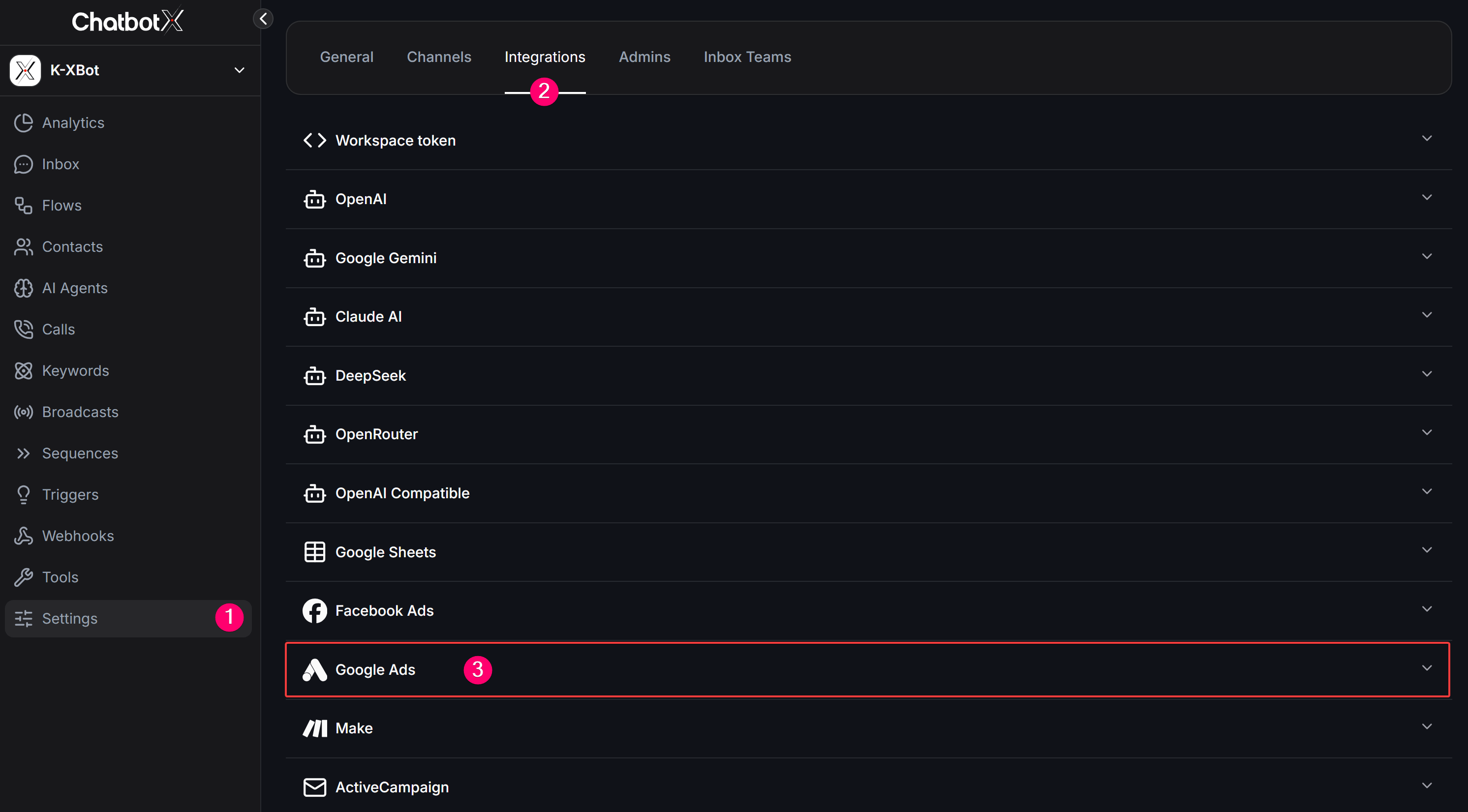
2
Start connection
On the Google Ads integration panel, click the Connect Google Ads button in the top right corner.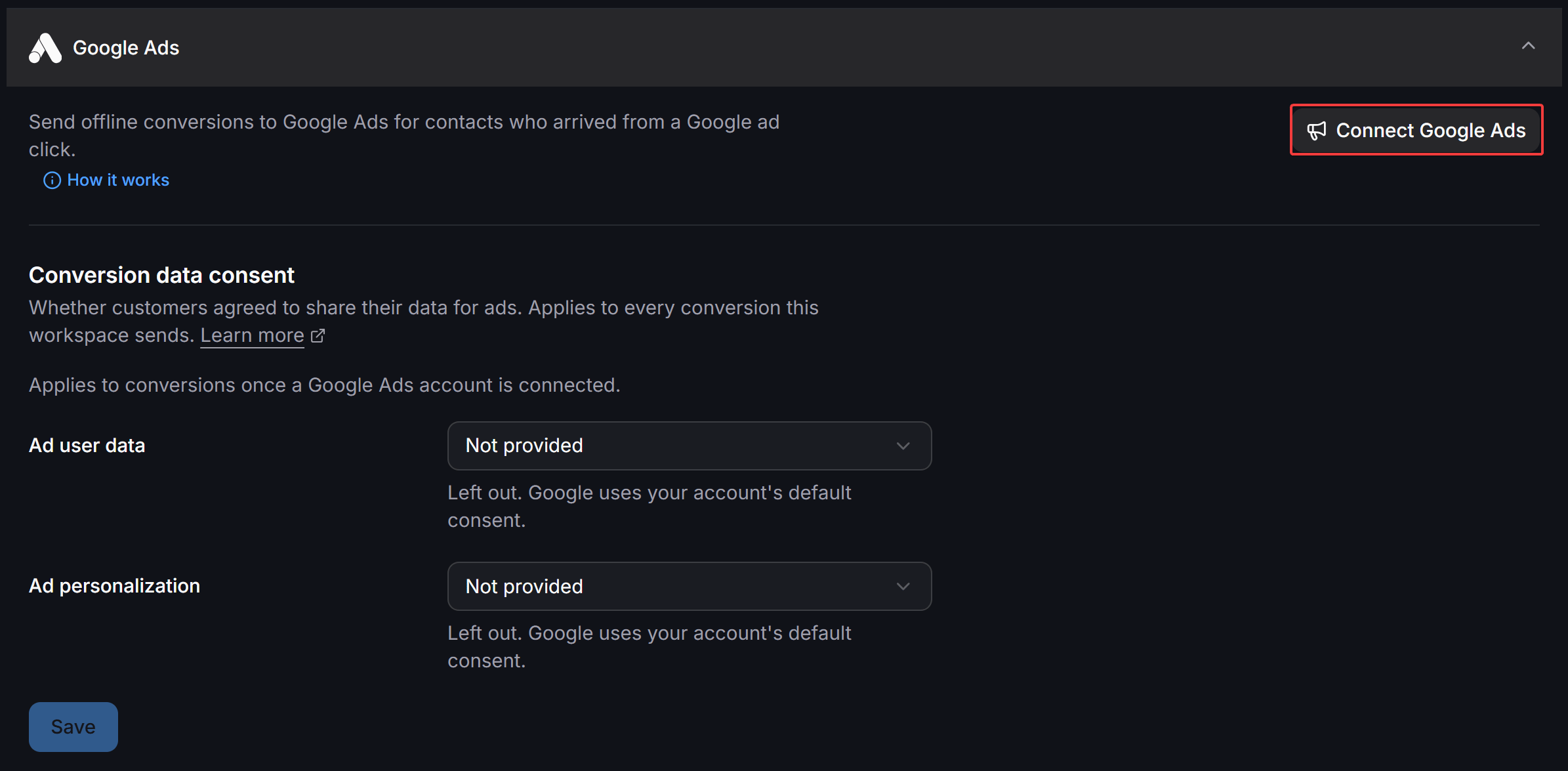
3
Authorize Google account access
Log in to the Google account that manages your advertising account. When prompted by the ChatConnectX authorization screen, review the requested permissions and click Continue.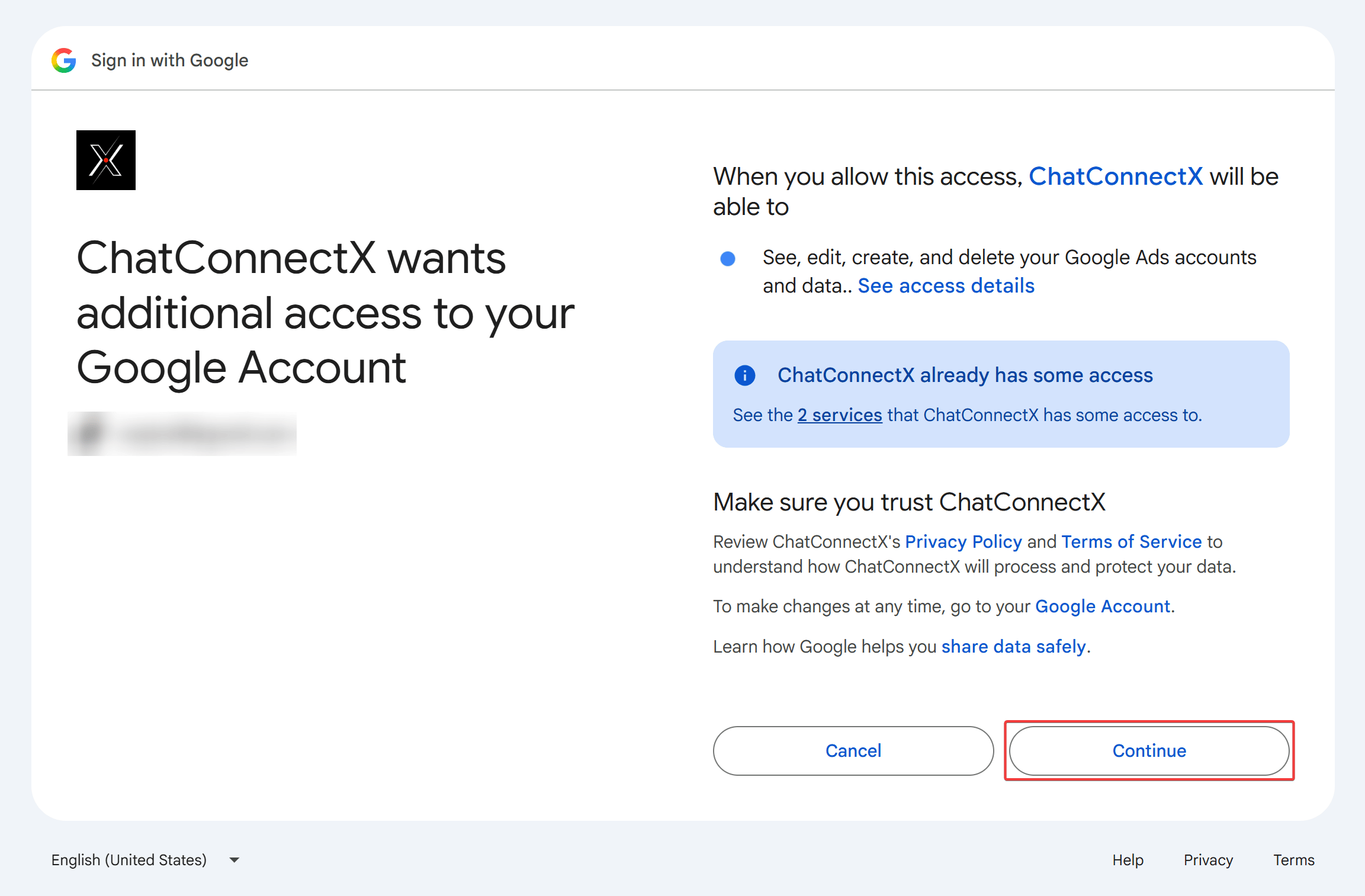
4
Select your Google Ads account
ChatbotX displays a list of accessible Google Ads accounts with their 10-digit Customer IDs. Select the account you want to connect to this workspace and click Connect account.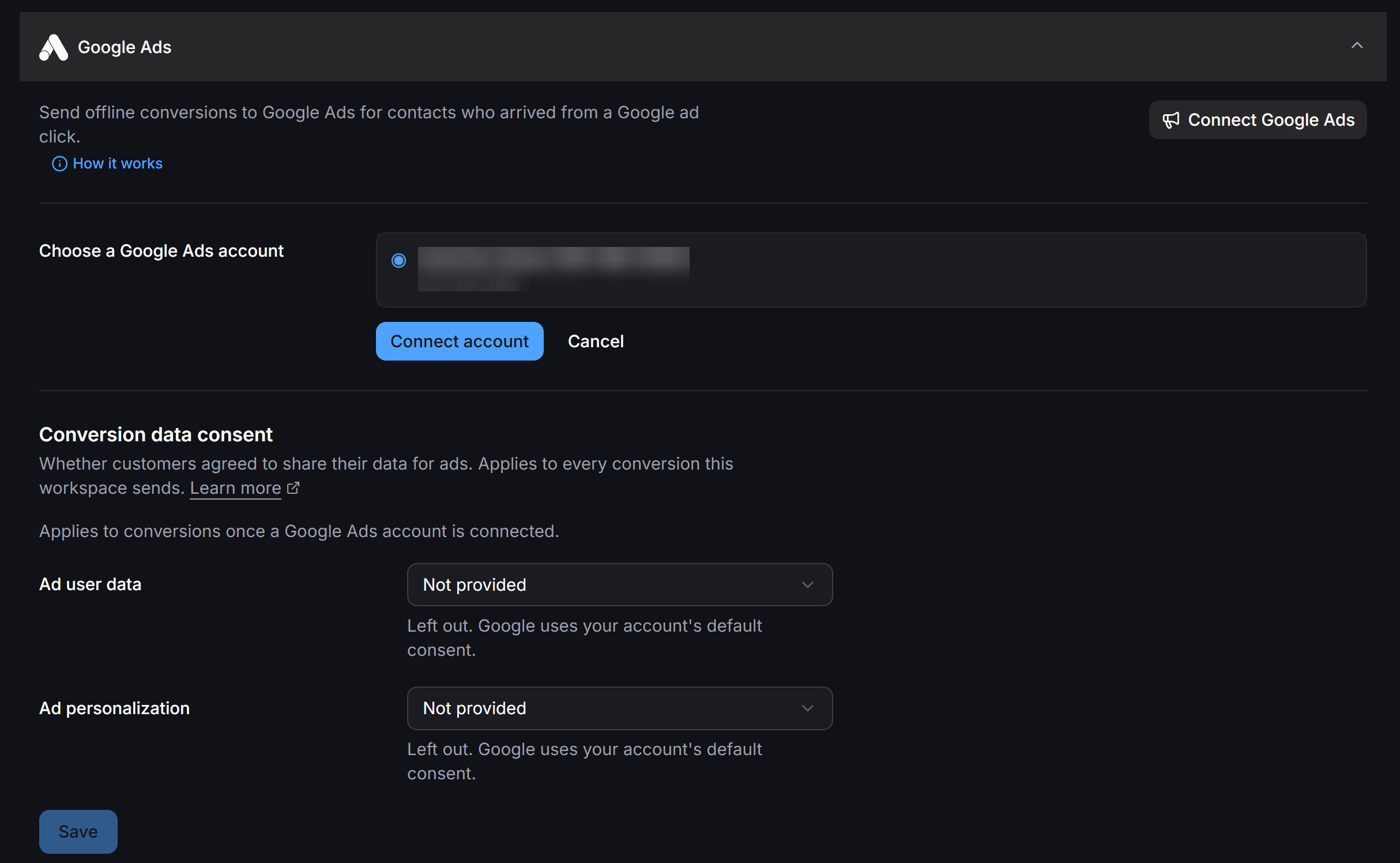
Manage Conversion Actions
The Conversion actions section lists the conversion goals synced from your Google Ads account to ChatbotX.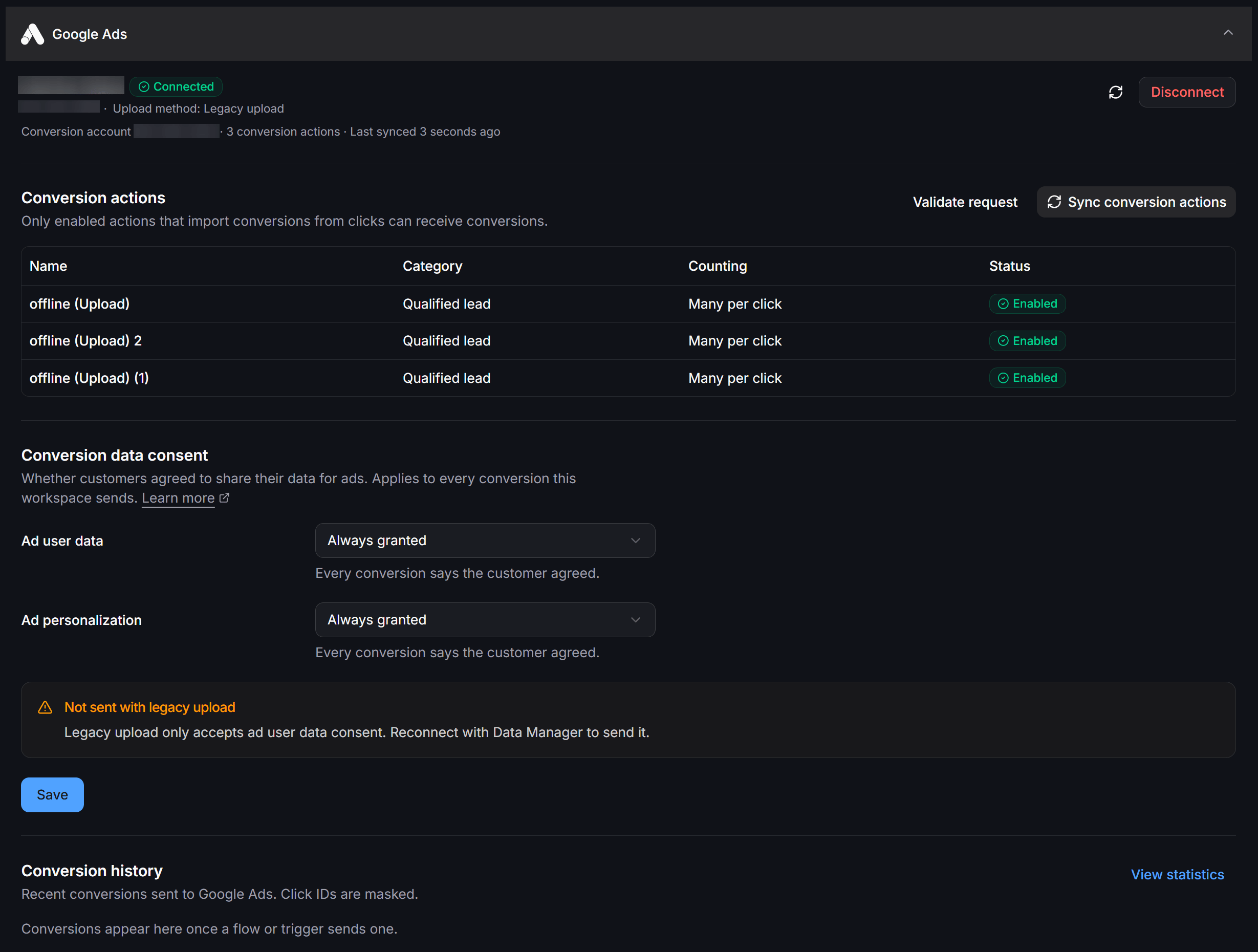
- Name: The conversion action name defined in Google Ads.
- Category: The goal category (for example, Qualified lead or Purchase).
- Counting: The counting method (Many per click or One per click).
- Status: Operational status (only actions marked as Enabled can receive conversion events).
Note: Only enabled actions that import conversions from clicks can receive conversions from ChatbotX. If you create a new conversion action in Google Ads, click Sync conversion actions to refresh the list.
Validate Request Configuration
The Validate request feature lets you test your configuration with Google Ads servers before running live campaigns. To open the test tool, click Validate request located above the conversion actions table: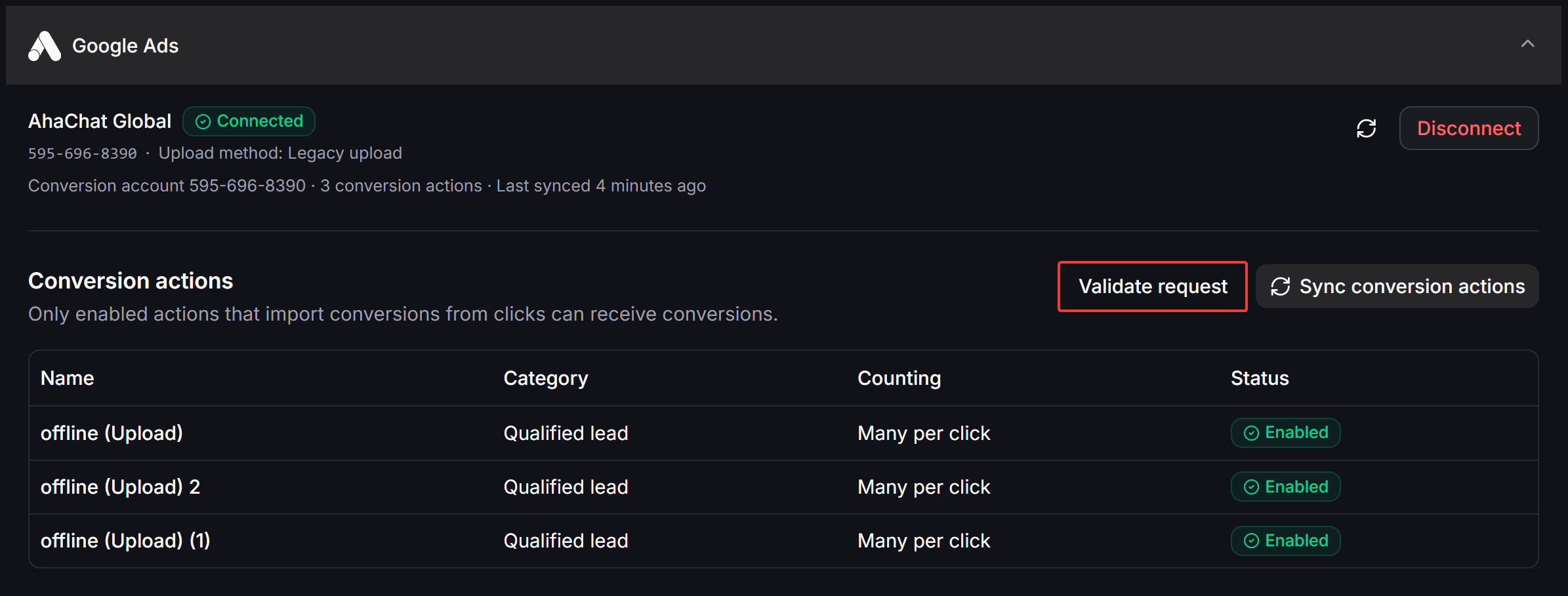
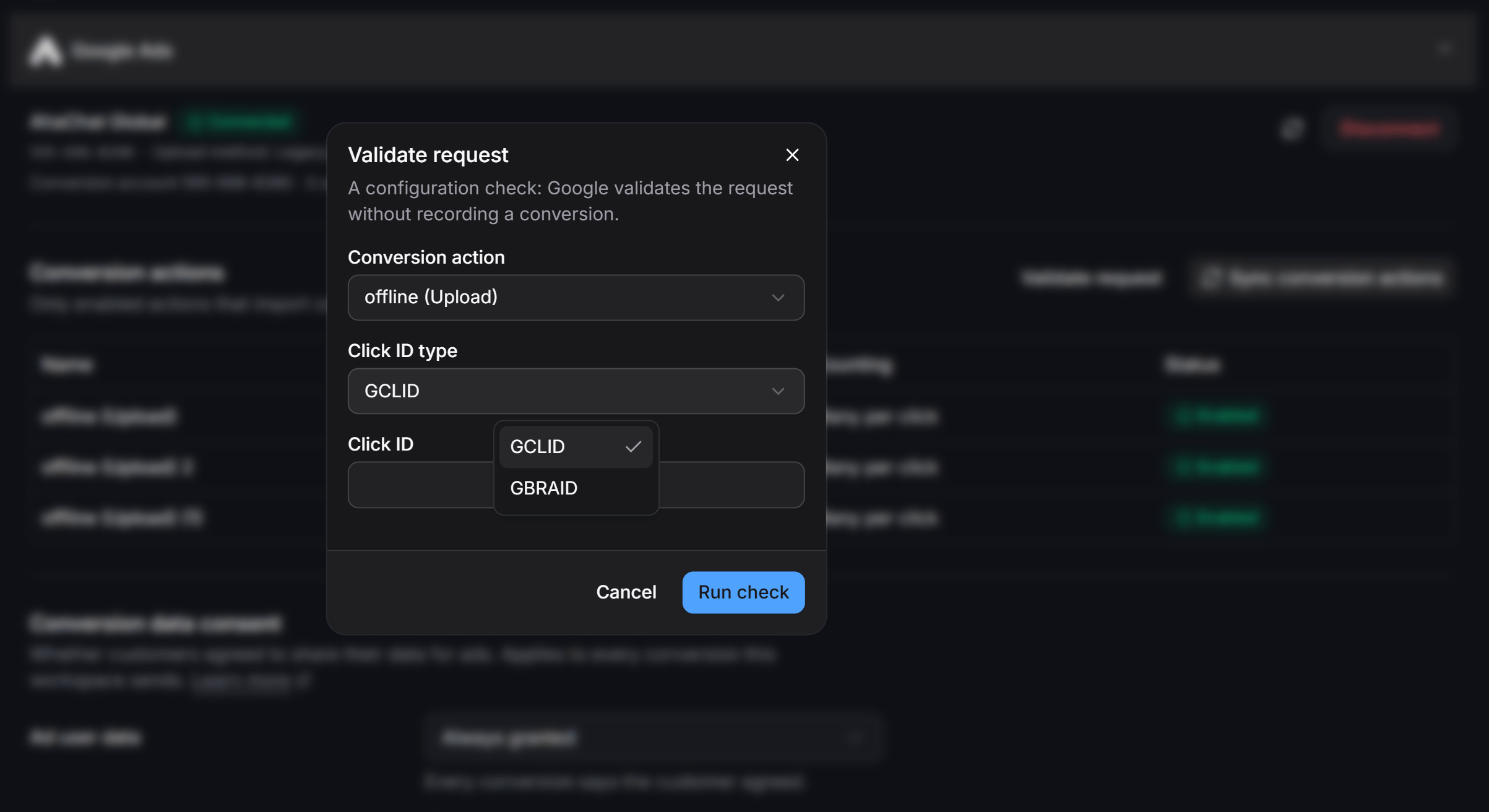
- Conversion action: Choose the target conversion action from your synced list.
- Click ID type: Select the appropriate click identifier format:
- GCLID (Google Click Identifier): Standard click tracking identifier for traffic from desktop websites, Android devices, and regular mobile browsers.
- GBRAID: Specialized click tracking identifier designed for web-to-app conversion journeys on iOS devices (iOS 14.5 and newer) in compliance with Apple App Tracking Transparency (ATT) policies.
- Click ID: Enter a sample click identifier string for testing.
Configure Conversion Data Consent
The Conversion data consent section applies to all conversions uploaded from this workspace, following Google Consent Mode v2 and Google Ads Data Manager specifications:- Ad user data: Sets whether users agreed to share personal data for ad measurement purposes.
- Ad personalization: Sets whether users agreed to use their data for personalized advertising and remarketing.
- Not provided: Leaves out the consent flag so Google uses your account default consent setting.
- Always granted: Flags every conversion as user-consented.
- Always denied: Flags every conversion as user-denied.
- From a contact field: Dynamically reads consent status from a contact custom field. You can collect consent through a bot survey flow and store the response in this field to forward directly to Google.
Note: The legacy upload method only accepts ad user data consent. To transmit both ad user data and ad personalization flags, connect your account using the Data Manager API.
Send Conversions in Automated Flows
Once the integration is active, you can trigger offline conversion uploads inside your conversational flows when contacts reach valuable milestones. In the Flow Builder, add a new action step and select Send Google Ads Conversion from the action menu: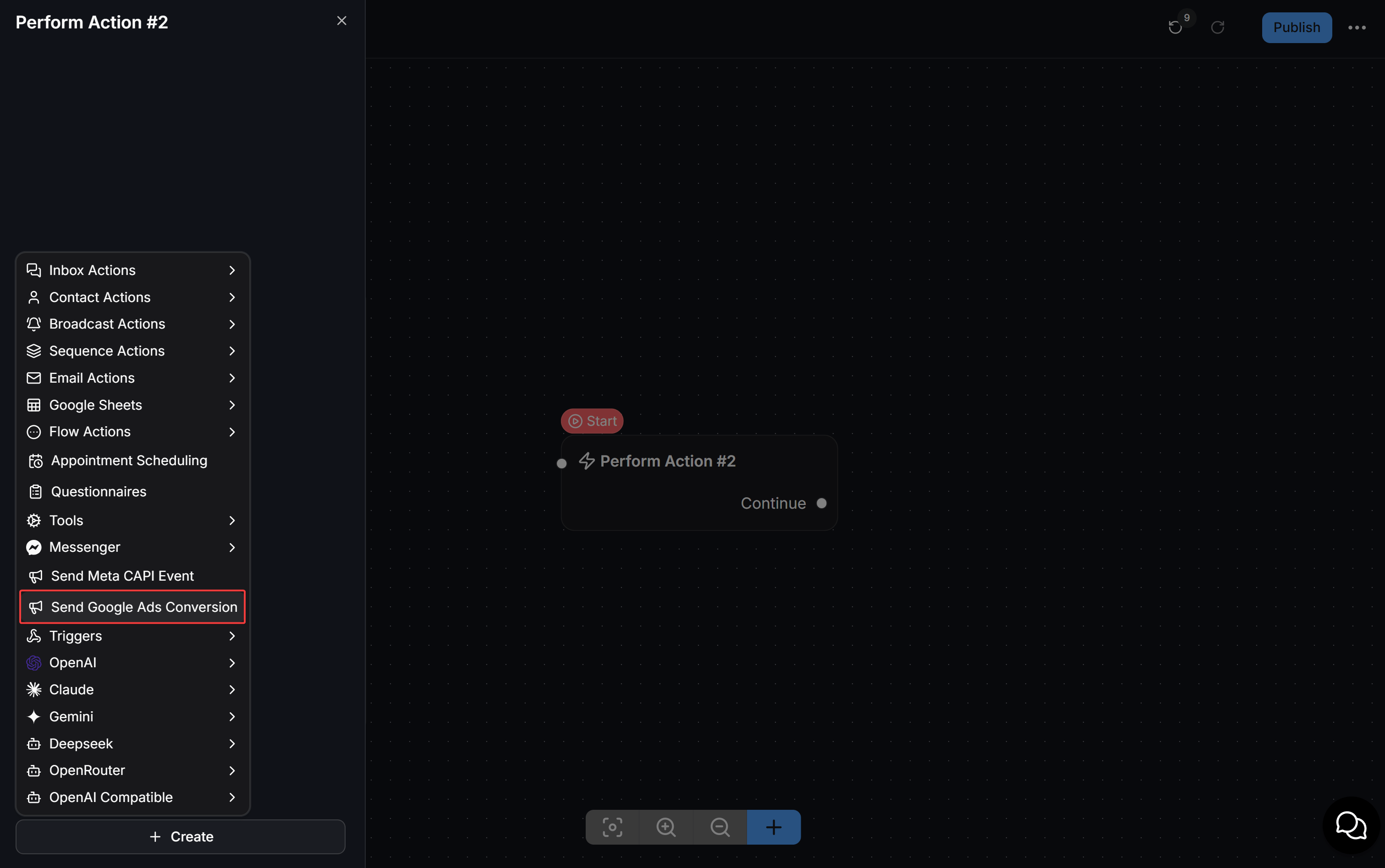
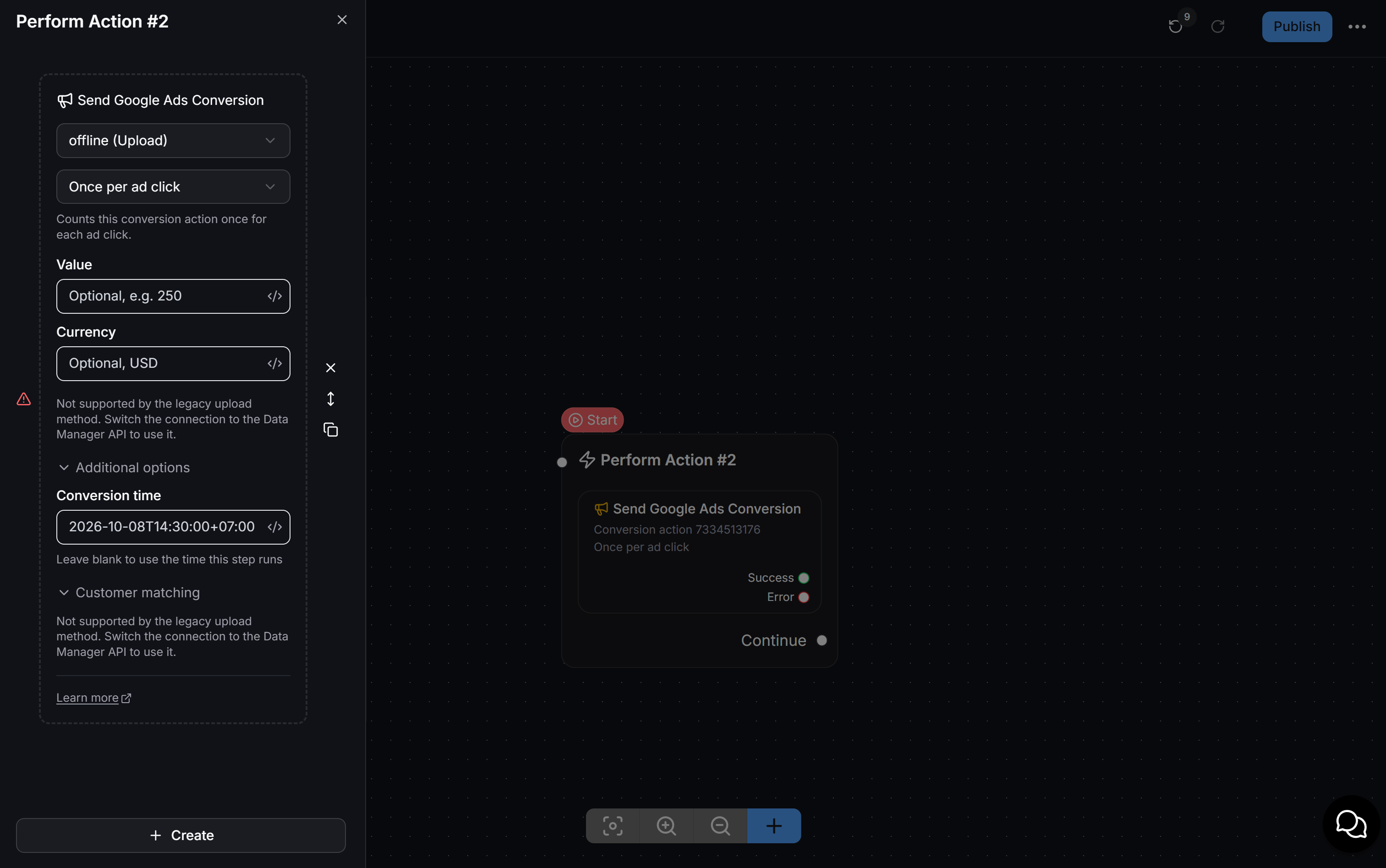
- Conversion action: Select the target conversion action (for example,
offline (Upload)). - Counting: Select the counting behavior for this step, such as
Once per ad click. - Value: Optional conversion value (for example,
250). Click</>to insert dynamic values from contact custom fields. - Currency: Optional currency code (for example,
USDorVND). Supports dynamic variables through</>. - Conversion time: Expand Additional options to provide a timestamp in ISO 8601 format with timezone (for example,
2026-10-08T14:30:00+07:00). Leave this field blank to automatically use the exact time this step executes. - Customer matching: Supports sending hashed contact information to improve conversion matching (requires Data Manager API connection).
- Success (Green): Executes when the conversion is successfully uploaded or queued. Connect this branch to confirmation messages or follow-up offers.
- Error (Red): Executes when an error occurs (missing click ID, expired click, or connection failure). Route this branch to fallback handling or internal notifications.
- Continue: Proceeds along the main flow path.
Monitor and Reconcile Conversion Analytics
You can monitor conversion delivery and performance on the dedicated dashboard under Analytics > Google Ads. The dashboard includes filters for date range, conversation channels (WhatsApp, Messenger, WebChat), and specific conversion actions: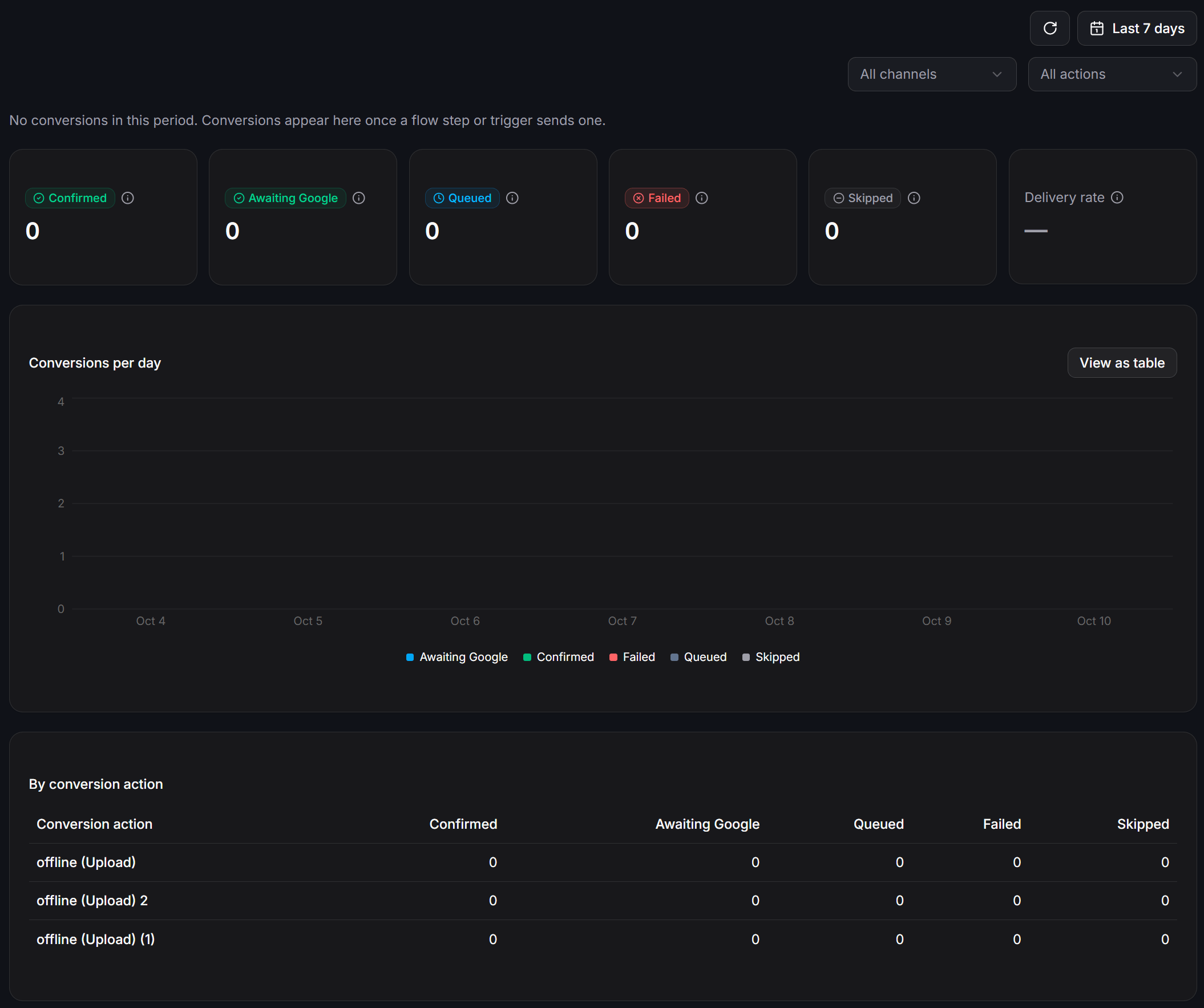
- Confirmed: Conversions accepted and verified by Google Ads servers.
- Awaiting Google: Conversions dispatched by ChatbotX that are waiting for processing confirmation from Google.
- Queued: Conversions currently in queue awaiting delivery.
- Failed: Conversions that encountered delivery or validation errors.
- Skipped: Conversions skipped by the system (for example, missing click IDs or denied consent).
- Delivery rate: The percentage of successfully delivered conversions relative to total attempts.
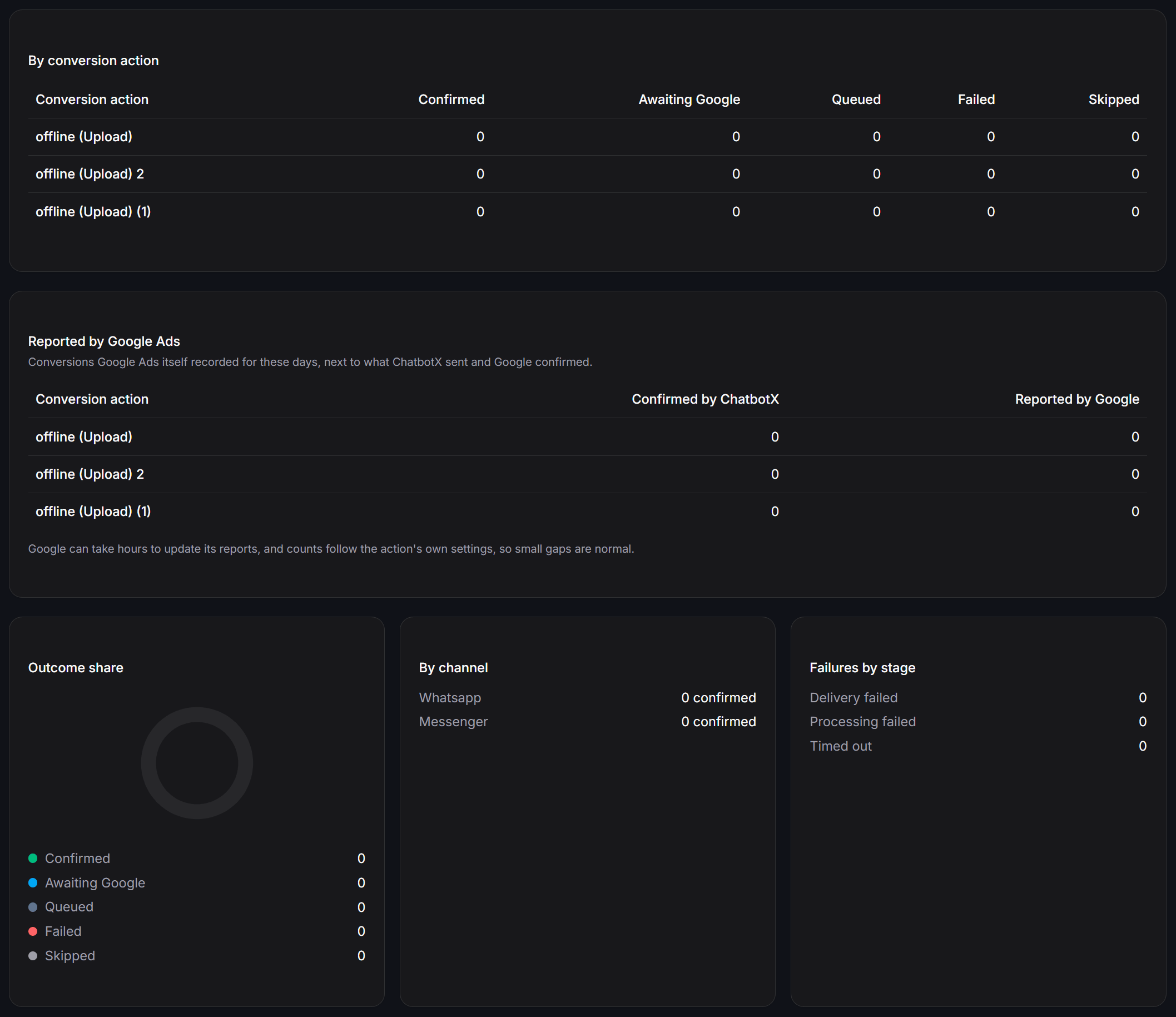
- Confirmed by ChatbotX: Total conversions successfully transmitted by ChatbotX.
- Reported by Google: Conversions actively displayed in Google Ads campaign reports.
Note: Google may take 3 to 24 hours to reflect confirmed conversions in reporting tables. Discrepancies may also occur due to individual action counting settings (Many per click versus One per click). Small temporary differences are normal.Additional diagnostic widgets:
- Outcome share: Donut chart illustrating conversion status distribution.
- By channel: Volume of confirmed conversions segmented by channel (such as WhatsApp and Messenger).
- Failures by stage: Categorizes errors by stage (Delivery failed, Processing failed, or Timed out) to speed up troubleshooting.
Technical Notes and Troubleshooting
Keep these operational principles in mind to maintain optimal tracking accuracy:- 90-Day conversion window: Google Ads accepts offline conversions within 90 days of the original ad click. Conversions submitted with click IDs older than 90 days are rejected as expired.
- Indexing window: Google requires 4 to 6 hours after an ad click to index the click ID in its database. Conversions uploaded immediately within minutes of a click may return a temporary click not found notice.
- Single click ID rule: Each conversion upload must link to exactly one click identifier (either GCLID or GBRAID). Never combine multiple identifiers on a single event.
- Disconnecting or switching accounts: To link a different advertising account, click Disconnect in the top right corner of the Google Ads settings panel, then reconnect with your new credentials.