

Export
Download the current Flow as a
.chatbotx-flow.json file.Import Flow
Add a Flow file to the workspace’s Flows list.
Import history
Track the status and result of each import.
Export a Flow
1
Open the Flow
Go to Flows, then open the Flow you want to back up or move to another workspace.
2
Open the Flow menu
In the Flow Builder, click the three-dot icon in the upper-right corner.
3
Select Export
Select Export to download the Flow. The exported filename ends with
.chatbotx-flow.json.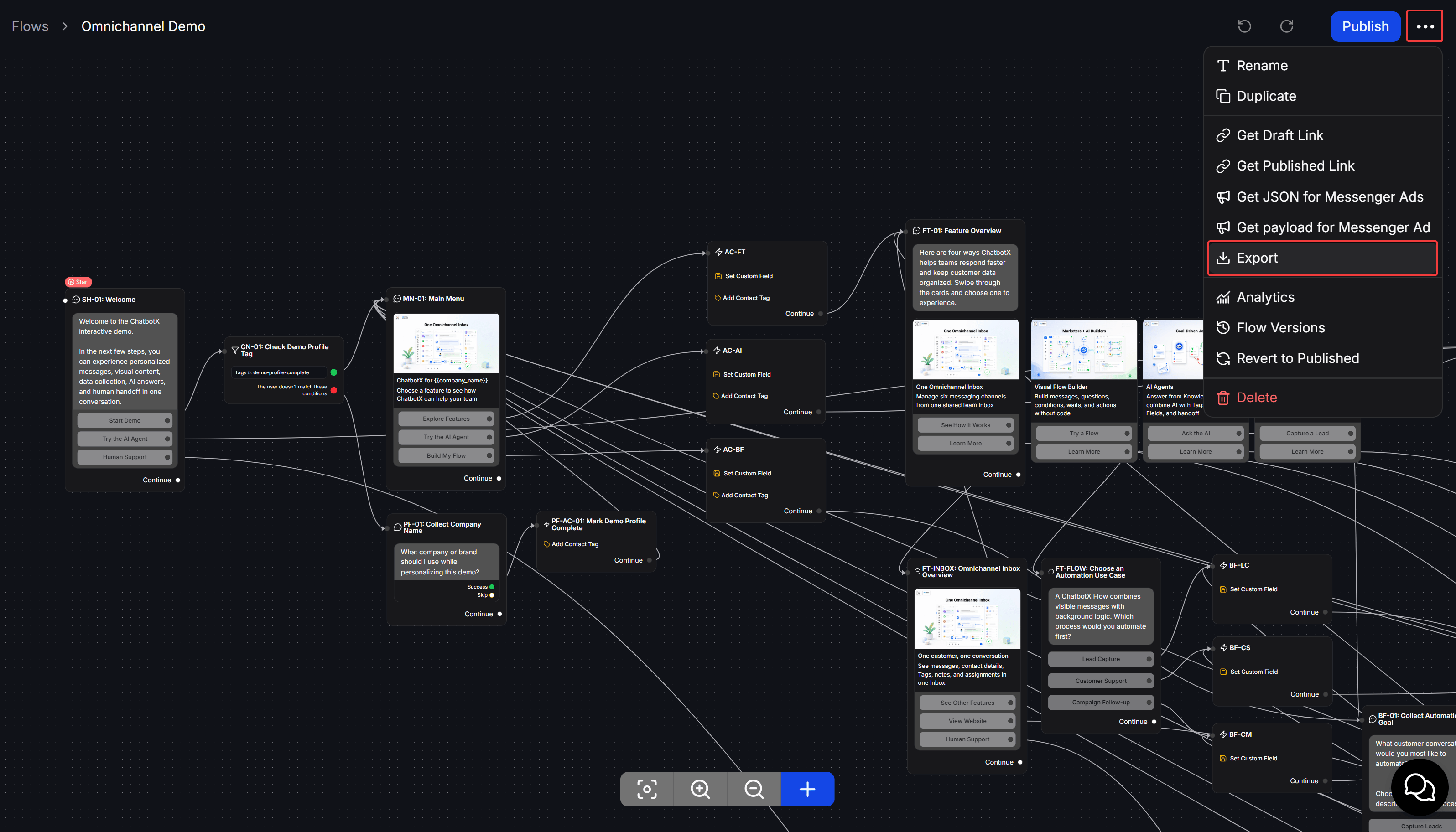
Import a Flow
1
Open the Flows list
Go to Flows in the workspace that will receive the Flow.
2
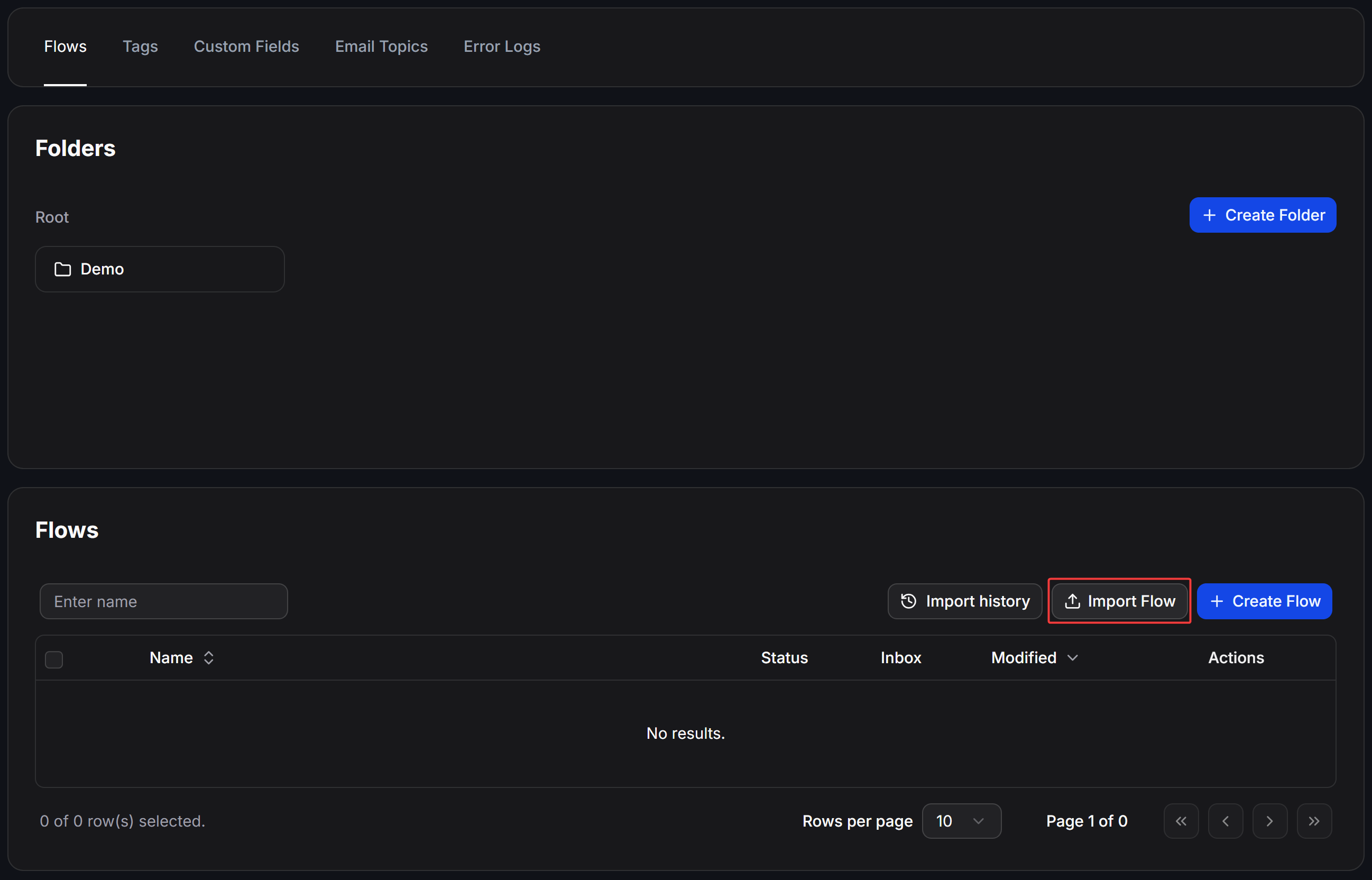
Select Import Flow
Click Import Flow, then select a
.chatbotx-flow.json file exported from ChatbotX.3
Track the import
ChatbotX processes the file and adds the Flow to the workspace. Click Import history to review the result.
4
Review the imported Flow
Open the new Flow, review its content and block connections, then click Publish when it is ready to use.
Review Import history
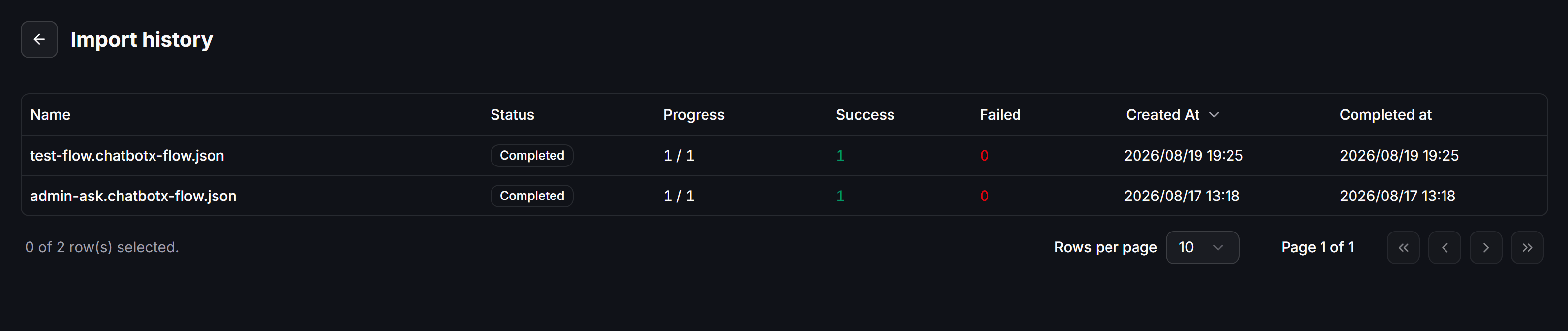
The Import history page shows the result of each imported file:- Name: The Flow filename.
- Status: The current processing status.
- Progress: The number of processed Flows compared with the total in the import.
- Success: The number of successfully imported Flows.
- Failed: The number of Flows that could not be imported.
- Created At: When the import started.
- Completed at: When processing finished.
1 and Failed set to 0 means that one Flow was imported successfully.
Example workflow
Suppose you created a customer data collection Flow in your main workspace and want to reuse it in a new workspace:- Open the original Flow and select Export.
- Switch to the new workspace, open Flows, and select Import Flow.
- Open Import history to confirm that processing completed successfully.
- Open the imported Flow, adjust its content for the new workspace, and click Publish.
Keep the
.chatbotx-flow.json file if you want to use it as a backup or import the Flow into another workspace later.