

Access Error Logs
To open the error logs in your Workspace:- In the left navigation menu, select Flows.
- On the top sub-navigation bar, select the Error Logs tab.
Interface and Data Fields
The Error Logs interface presents an actionable table designed for filtering and investigating issues across all channels.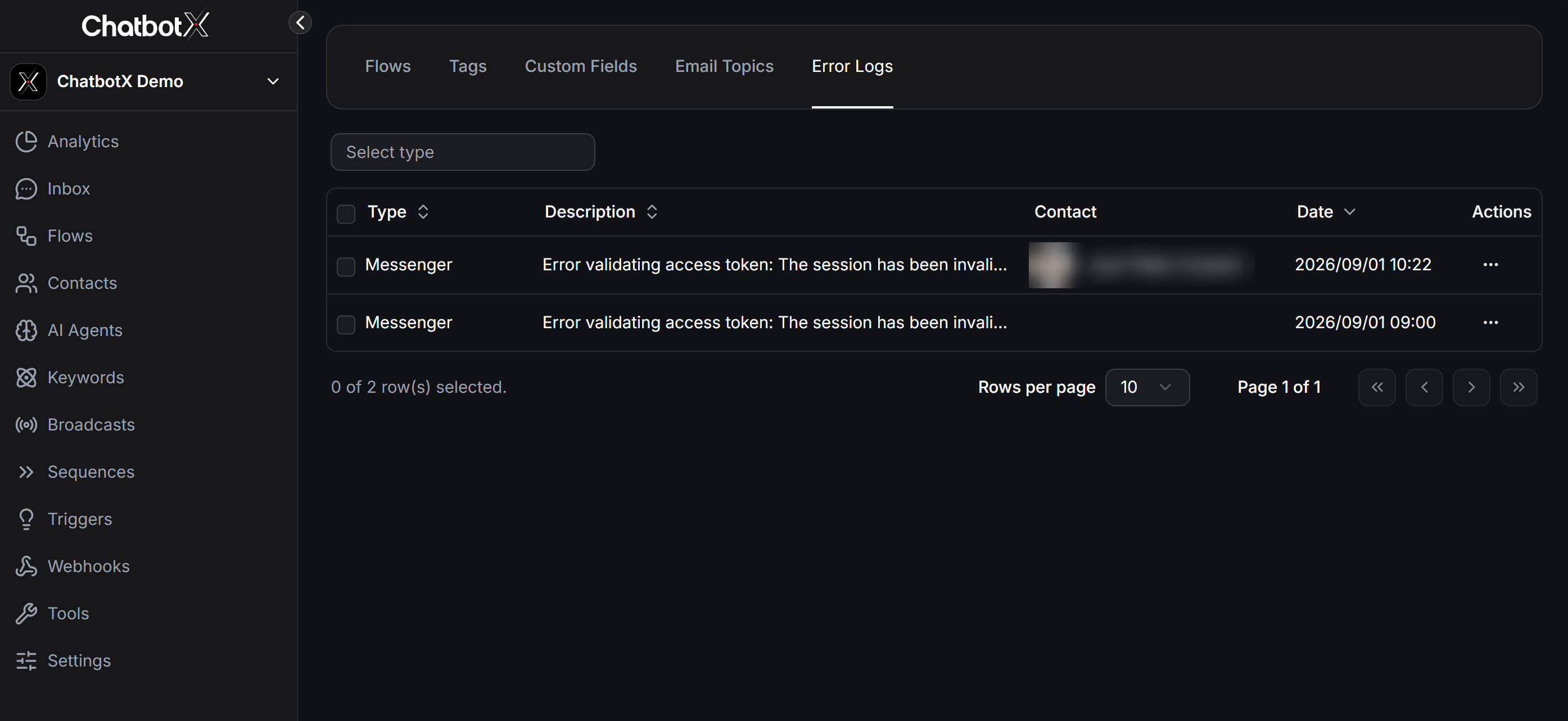
Filters and Table Controls
- Select type: A selector placed above the table that lets you filter logs by specific channel or feature category (such as WhatsApp, Messenger, Instagram, External Request, Send Email, etc.).
- Row Checkboxes: Check individual rows or the master header checkbox (e.g.,
0 of 7 row(s) selected) to select multiple error log entries in bulk and quickly delete them. - Pagination: Controls how many records display per page via Rows per page (10, 20, 50 rows) along with page navigation buttons.
Table Columns
Type
Displays the messaging channel or execution feature. Click the Type column header to sort rows alphabetically in ascending (Asc) or descending (Desc) order.
Description
Detailed description of the issue along with the specific error code returned by ChatbotX or downstream Meta platforms (Messenger Platform, WhatsApp Cloud API…).
Contact
The contact associated with the conversation session where the failure occurred.
Date & Actions
Exact timestamp of the failure along with quick action controls (three-dots icon …) to view payload details or delete the error record.
3-Step Troubleshooting Workflow
When bot responses stop working or contacts report issues, follow this systematic workflow:1
Open Error Logs and filter by source
Go to Flows > Error Logs. Use the Select type filter above the table to isolate records related to the affected channel or integration.
2
Inspect error description and contact details
Check the Description column for specific error codes. Click the contact name in the Contact column to review the real conversation context in your Inbox.
3
Apply fix and verify delivery
Update the flow blocks, refresh channel permissions, or adjust API credentials according to the error reference guide below. Then trigger a test message to confirm resolution.
Error Codes and Solutions Reference
Common errors typically stem from Meta platform messaging policies, flow variable mismatches, or third-party authentication timeouts:- Facebook & Instagram
- WhatsApp
- Integrations & APIs
Common Errors on Messenger and Instagram
Refer to the full list of Meta error codes in the Messenger Platform Error Codes Documentation.Best Practices to Prevent Errors
Incorporate these proactive practices into your chatbot setup:Configure Fallback Text
Always provide fallback text when referencing dynamic variables like
{{first_name}} so messages never deliver blank spaces.Validate with Condition Blocks
Insert a Condition step (such as
Email is set or Phone is valid) before calling external API webhooks or sending email messages.Regular Error Log Reviews
Regularly inspect the Error Logs tab after creating or updating automated flows to catch and resolve message delivery issues promptly.
Verify URLs and Links
Use the Preview button to test flows on mobile devices and verify all interactive buttons open destination websites correctly.
If you encounter an error code not listed in this guide, copy the full text from the Description column and contact ChatbotX Support for assistance.