

How it works
In your JavaScript code, reference customer data with the{{field_name}} syntax. Replace field_name with the Custom Field or System Field you want to use.
- For numbers, you can assign the value directly, such as
let age = {{user_age}};. - For text, place the value inside quotation marks, such as
let name = "{{first_name}}";. - Your code must include
returnto send a result back to the Flow. - Select an Output Custom Field when you want to save the result for another step.
Add the Action to a Flow
1
Open the Flow
Go to Flows, open the Flow you want to edit, then create or select a Perform Action node.
2
Select Execute JavaScript Code
In the Action menu, select Tools, then select Execute JavaScript Code.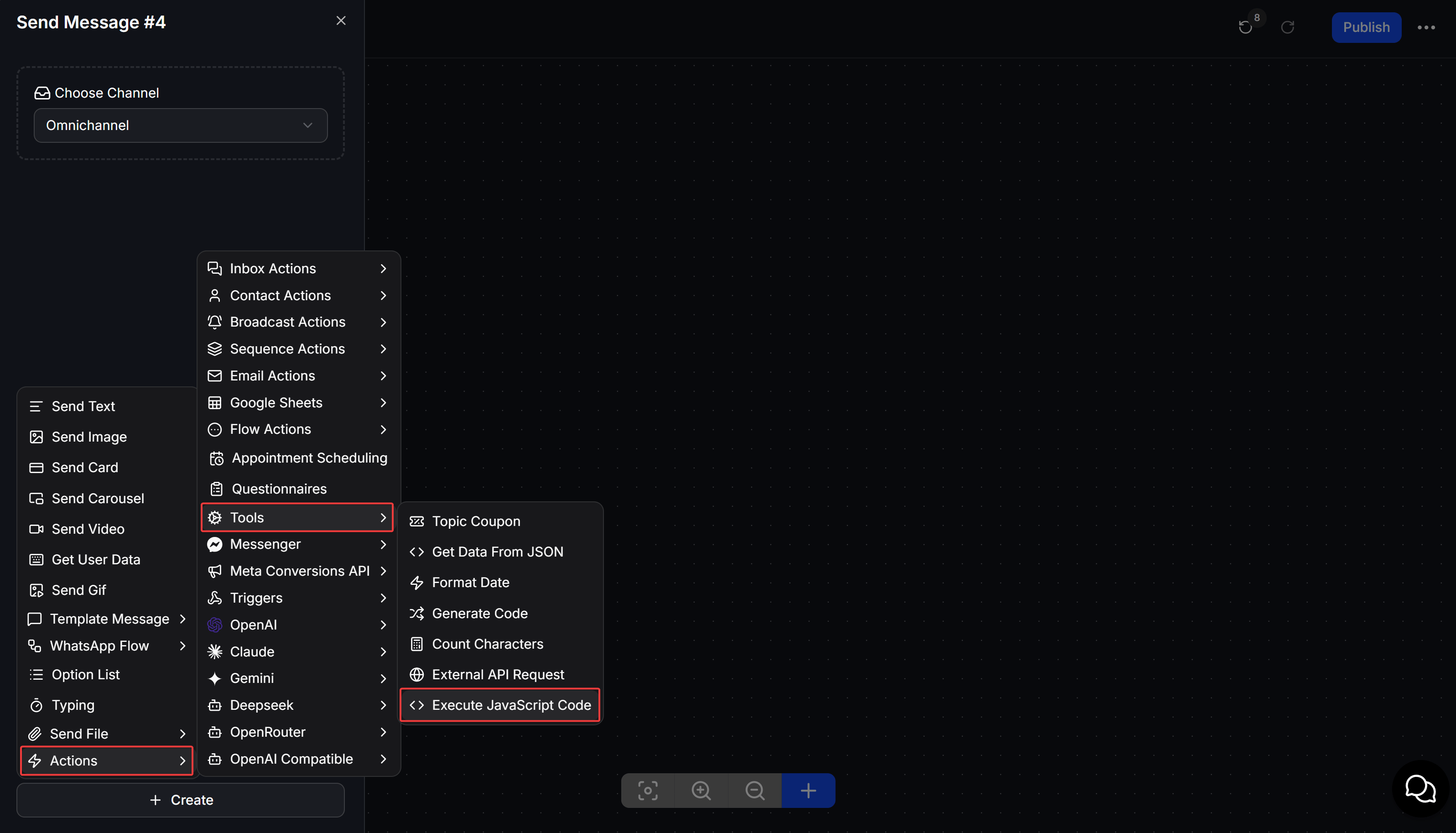
3
Enter the JavaScript code
Enter your code in JavaScript code. Make sure the code ends with
return.4
Save the result
Under Output Custom Field, select the field that will receive the result, then click Save.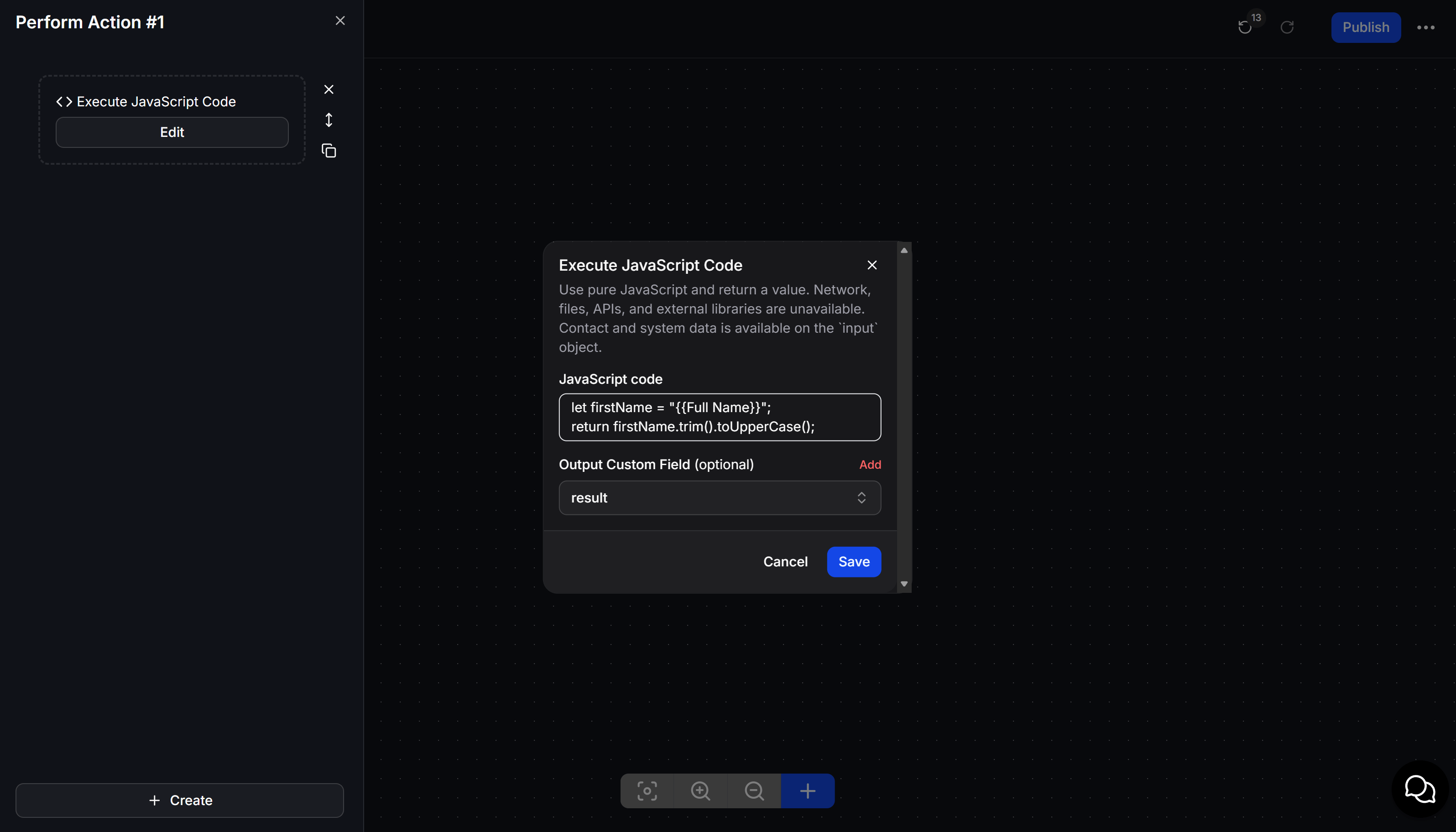
Practical examples
Calculate the final amount after a discount
This example uses the order amount fromorder_total and the discount percentage from discount_percent:
final_total. You can use {{final_total}} in an order confirmation message.
Calculate a delivery fee by area
This example provides free delivery for orders of at least 500,000, charges 30,000 for Hanoi or Ho Chi Minh City, and charges 45,000 for other areas:shipping_fee, then add it to the order amount or show the delivery fee to the customer.
Classify a customer
This example assigns customers with a total purchase value of at least 1,000,000 to thevip group:
customer_level, then use a Condition node to send VIP customers to a dedicated offer or follow-up path.
Validate an email address
email_status. If the value is invalid, use a Condition node to ask the customer to enter the email address again.
Read an order amount from JSON
Suppose theorder_json Custom Field contains {"total":750000,"status":"paid"}:
order_total. The fallback value 0 lets the Flow continue if the JSON is invalid or does not contain a total property.
Use the result in a Flow
After the Action runs, its returned value is saved to the selected Output Custom Field. You can:- Insert the field in a message, such as
Your total is {{final_total}}. - Use a Condition node to create branches based on the result.
- Pass the result to another Action for further calculations or data updates.
Tips for writing code
- Check that every field name inside
{{...}}is correct. - Put text values inside quotation marks, but leave numbers unquoted when you need to calculate with them directly.
- Always include a
returnstatement. - For JSON or potentially invalid data, use
try...catchand return a fallback value. - Test the Flow with a test contact before using it with customers.