

As of February 10, 2026, Meta has deprecated free Recurring Notifications globally. All marketing messages sent outside the standard 24-hour window on Messenger are delivered as Paid Marketing Messages charged through your Meta Ad Account on a per-delivered-message basis.
Messenger Message Types Comparison
To maintain high delivery rates and adhere strictly to Meta platform policies, understand the operational boundaries of each Messenger message type:When a contact receives a marketing message and taps a Quick Reply button, an action button, or replies with text, the free 24-hour standard messaging window reopens immediately. Live human agents or AI Agents can then converse two-way at zero additional cost.
Meta Connection and Authorization Workflow
Before creating marketing campaigns or audience segments, complete the Meta authorization process to grant messaging permissions and link a billing Ad Account.1
Navigate to Facebook Marketing Messages
In the main left navigation sidebar of ChatbotX, select Tools and click the Facebook Marketing Messages card.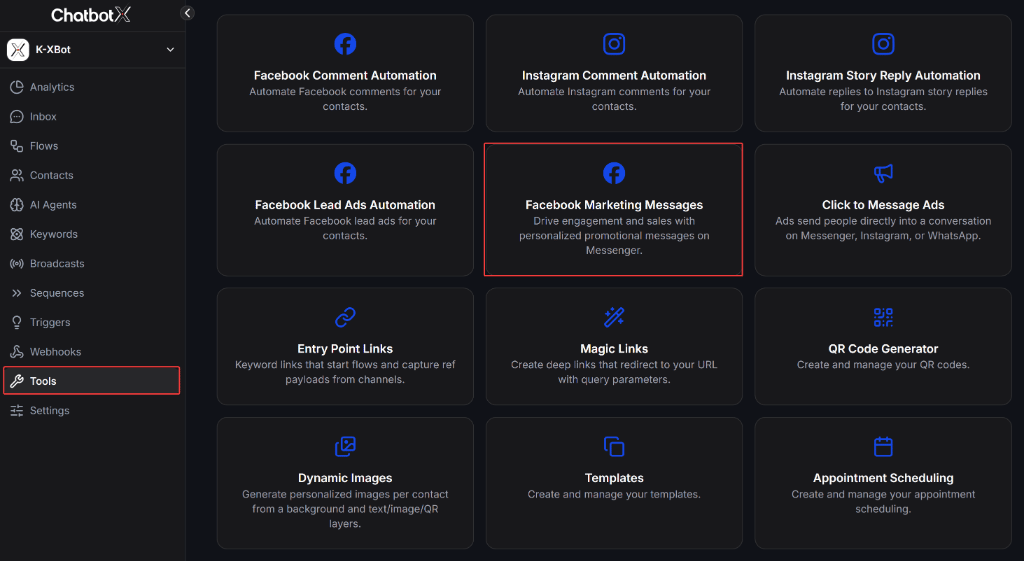
2
Initiate Facebook Access Request
On the onboarding card, click the blue Grant access button to open the secure Meta OAuth dialogue.
3
Confirm Facebook Administrator Identity
Meta prompts you to verify your administrative profile. Confirm the correct Facebook user account and click Continue.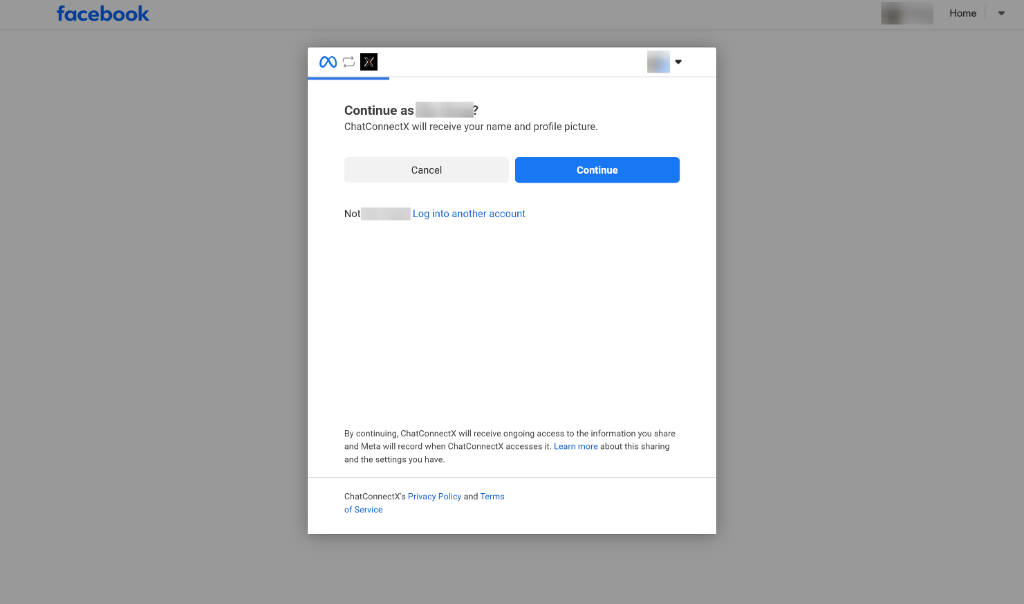
4
Choose Page Authorization Scope
Select your preferred page management permission: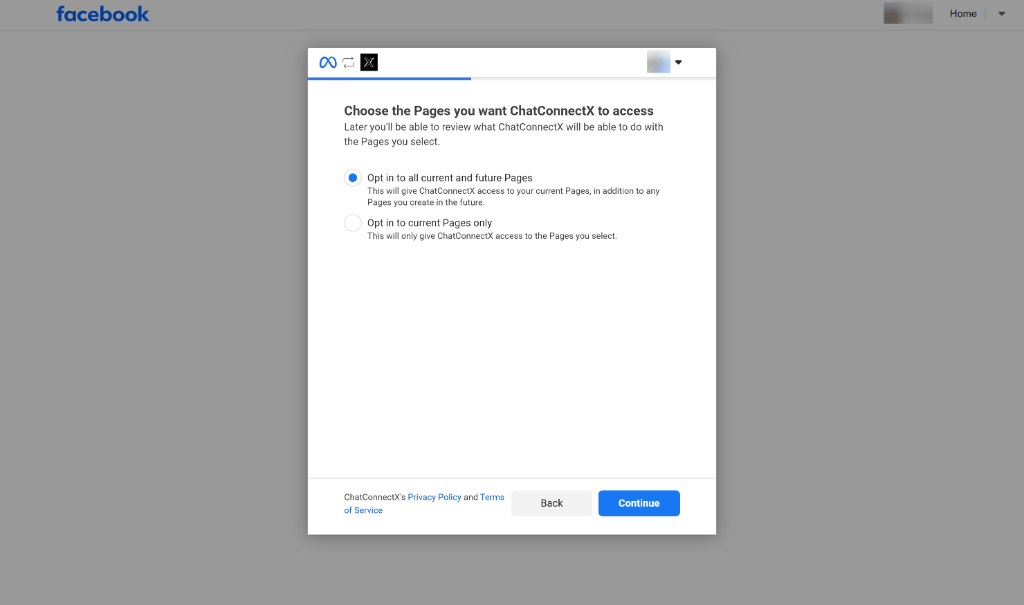
- Opt in to all current and future Pages: Grants permissions across existing Pages and newly created Pages (recommended).
- Opt in to current Pages only: Limits authorization strictly to currently selected Pages.
5
Select Facebook Pages and Billing Ad Account
Configure the mandatory operational pairings: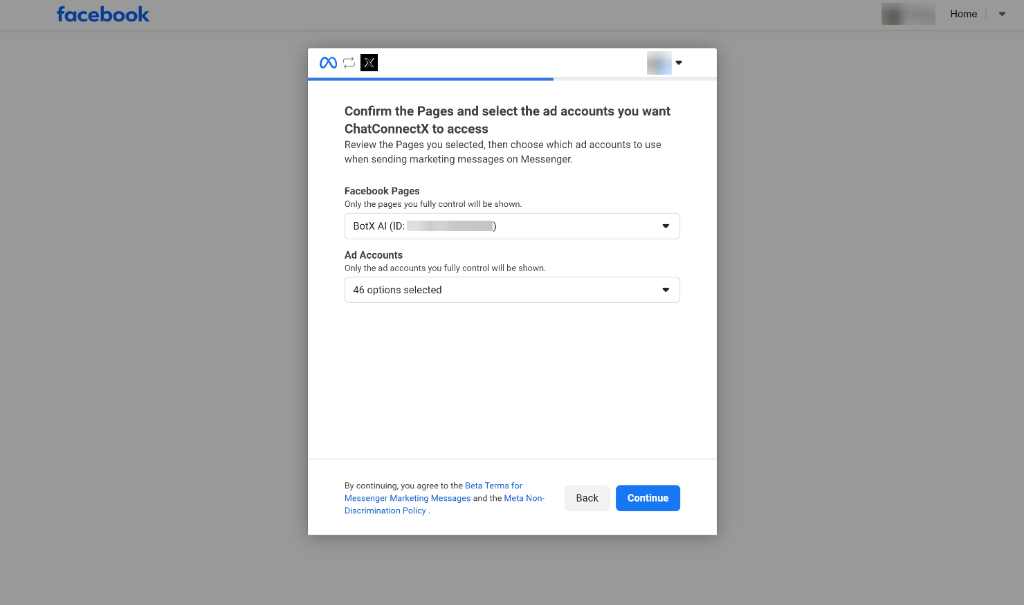
- Facebook Pages: Select the Facebook Pages authorized to broadcast marketing messages.
- Ad Accounts: Select the Meta Ad Account responsible for settling delivered message charges.
6
Configure Automated Subscriber Growth
Meta provides two automated opt-in expansion features: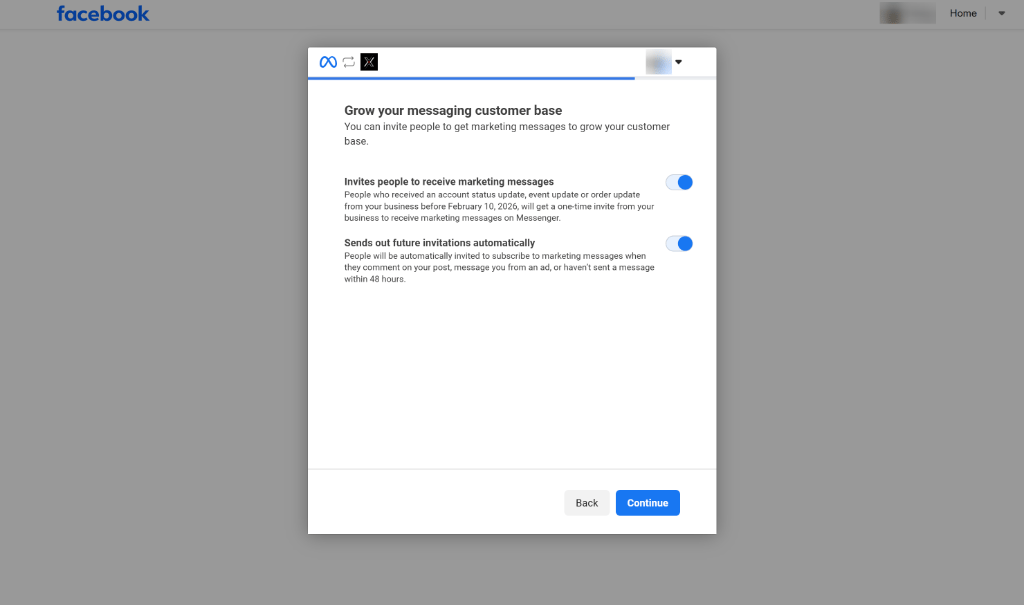
- Invites people to receive marketing messages: Dispatches opt-in invitations to contacts who previously received utility updates from your Page prior to February 10, 2026.
- Sends out future invitations automatically: Sends opt-in prompts when contacts comment on Page posts, initiate conversations from Click-to-Messenger ads, or remain inactive for 48 hours.
Facebook Marketing Messages Dashboard Architecture
Once connected, the Facebook Marketing Messages control center provides 3 dedicated workspaces in the top navigation:- Campaigns: Create, schedule, and review outbound broadcast campaigns, monitoring delivery throughput, spend, and completion rates.
- Audiences: Build and manage custom audience segments from ChatbotX contact filters or imported files for targeted message delivery.
- Statistics: Review aggregated delivery analytics, engagement KPIs, and return on ad spend.
Managing and Creating Marketing Campaigns
The Campaigns tab provides complete administrative control over creating, scheduling, and monitoring outbound marketing broadcasts.Campaign Management Dashboard
The dashboard provides a complete overview of active and historical campaigns: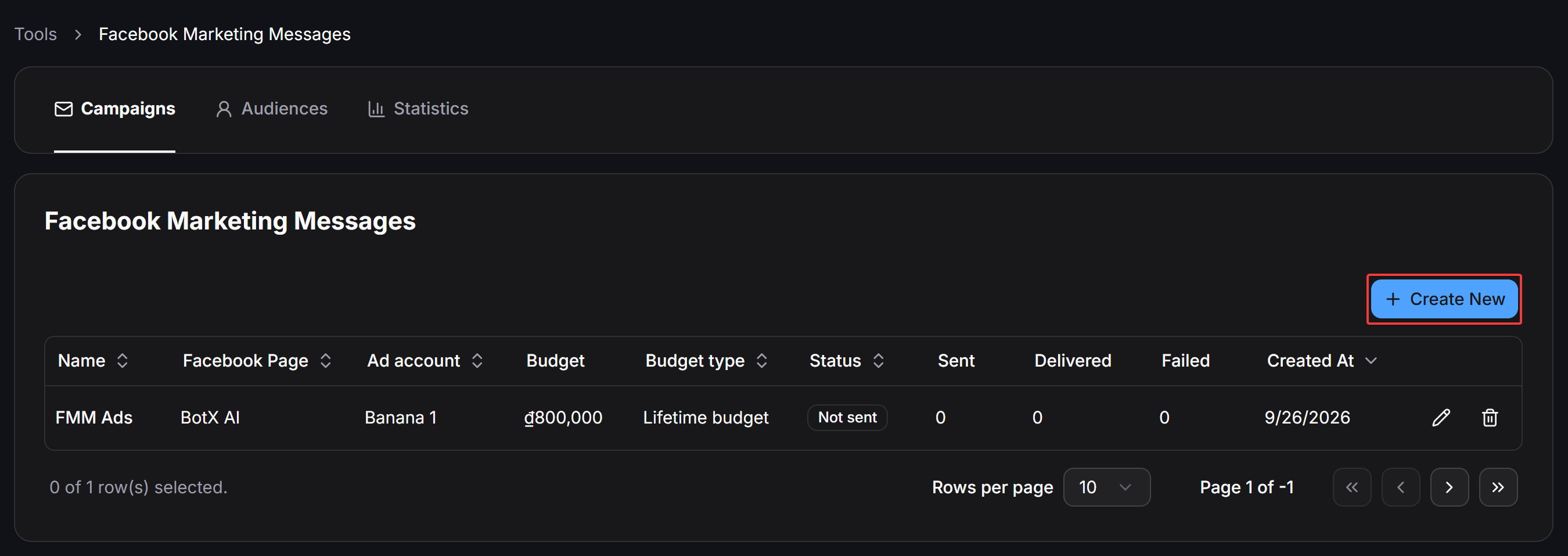
Campaign Creation Workflow
To launch a new marketing message campaign:1
Open the Campaign Creation Form
In the top-right corner of the Campaigns dashboard, click the blue + Create New button.
2
Configure Identity, Budget, and Target Audience
Complete the parameters in the upper configuration card: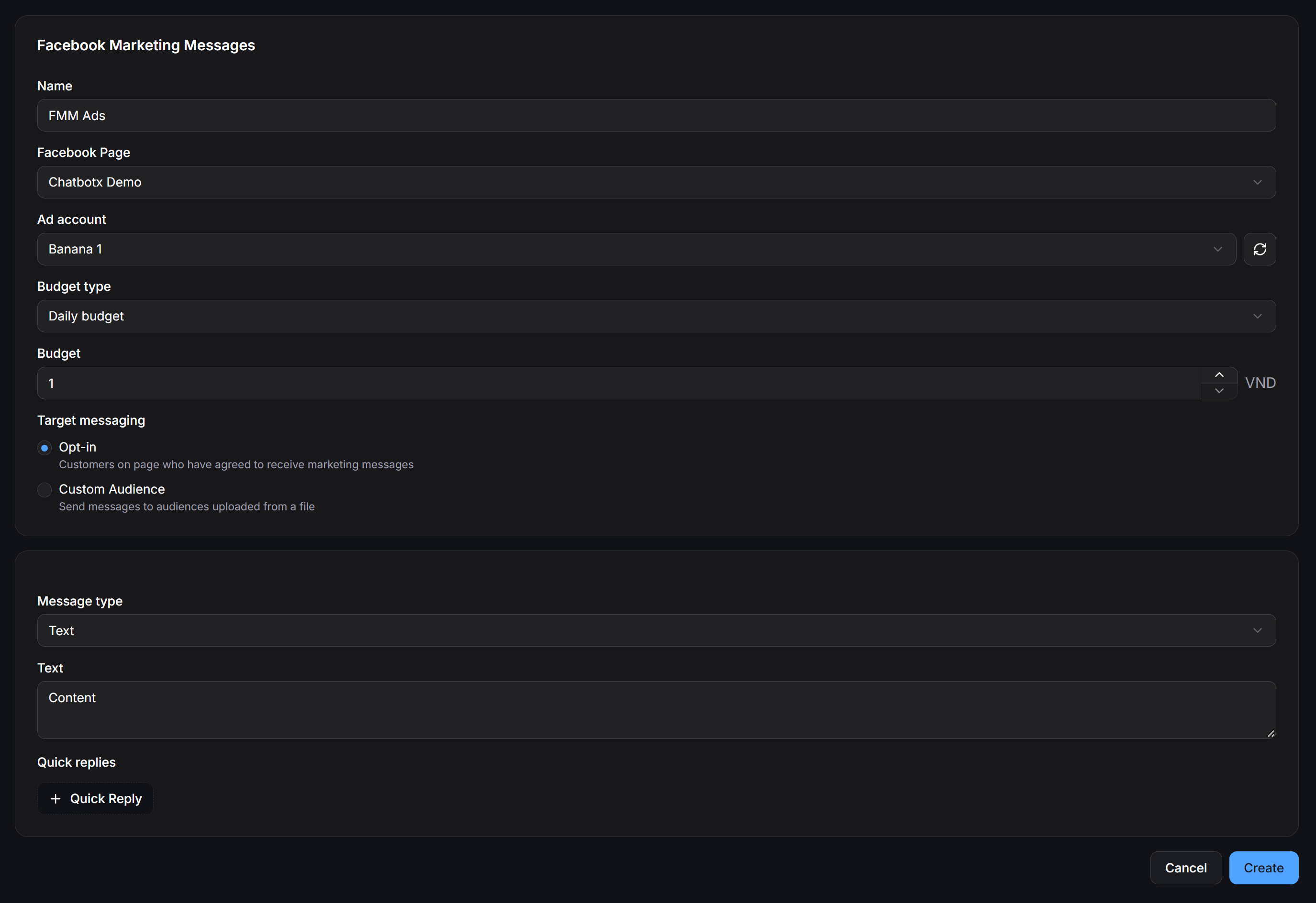
- Name: Enter a clear, identifiable name for your campaign.
- Facebook Page: Select the originating Facebook Page from your authorized list.
- Ad account: Choose the billing Meta Ad Account. Use the refresh icon next to the dropdown if you recently funded or updated accounts in Meta Business Suite.
- Budget type: Select your budget pacing method:
Daily budget: Caps the maximum spend within a single calendar day.Lifetime budget: Sets an absolute maximum spend cap across the full lifespan of the campaign.
- Budget: Enter your desired budget figure. The currency indicator (e.g.,
USDorVND) matches your Meta Ad Account settings automatically. - Target messaging: Select your target recipient group:
- Opt-in: Sends messages to contacts who have agreed to receive marketing messages on your Page.
- Custom Audience: Sends messages to audiences uploaded from a file.
3
Select and Configure Message Format
In the lower configuration card, select your preferred message layout from the Message type dropdown:
- Text: Plain text copy paired with quick reply pills.
- Button: Text copy embedded with functional interactive buttons.
- Media: Eye-catching image assets with button and quick reply attachments.
- Generic: Horizontal carousel slider supporting up to 5 product cards.
4
Finalize and Launch Campaign
Review budget limits, targeting parameters, and message content, then click Create at the bottom right corner to submit the campaign.
Detailed Message Formats
Text Format
Ideal for short announcements, time-sensitive alerts, or personalized conversational invitations:- Text: Enter the marketing message copy.
- Quick replies: Click + Quick Reply to attach rapid response pills below the message.
Button Format
Enhance text copy with interactive action buttons: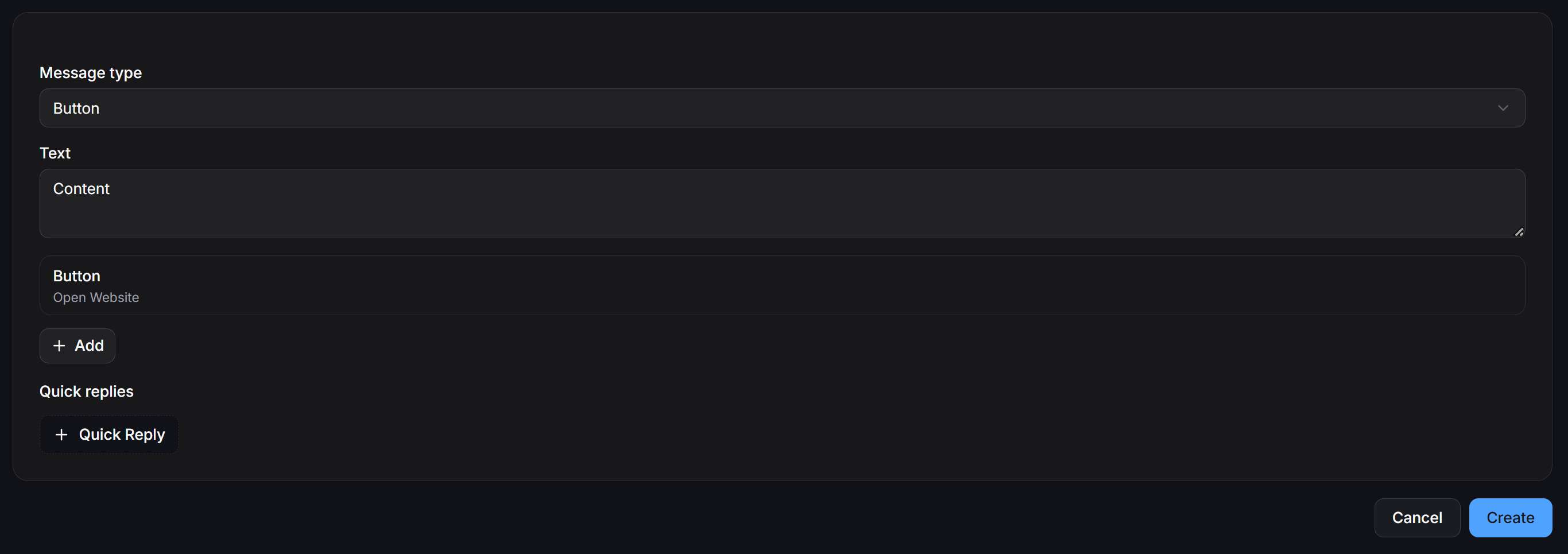
- Text: Enter campaign description copy.
- Button: Attach interactive action buttons:
Open Website: Directs contacts to an external landing page or web shop URL.Start External Flow: Launches an automated ChatbotX flow to handle consultations or orders.Start External Node: Navigates contacts to a specific step within an existing flow.- Click + Add to attach multiple action buttons.
- Quick replies: Attach quick reply response pills below the message.
Media Format
Capture attention using rich visual imagery: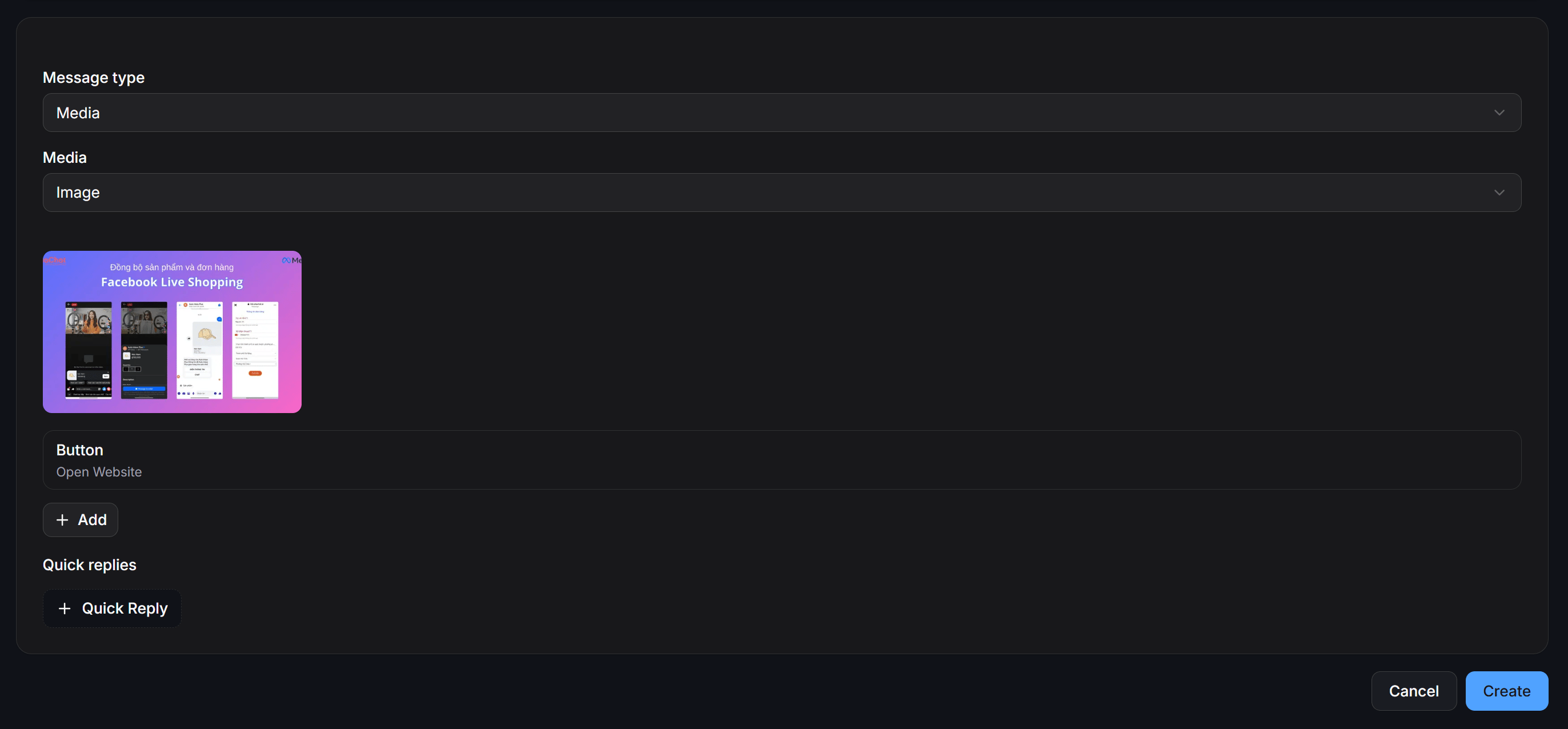
- Media: Select Image as the media format.
- Image Asset: Upload image files from your computer or paste direct image links.
- Button: Attach action buttons (such as
Open Website) leading to products or booking forms. Click + Add to add more buttons. - Quick replies: Include interactive quick reply options beneath the media card.
Generic Format (Carousel Slider)
Present product catalogs, collections, or tiered promotional bundles: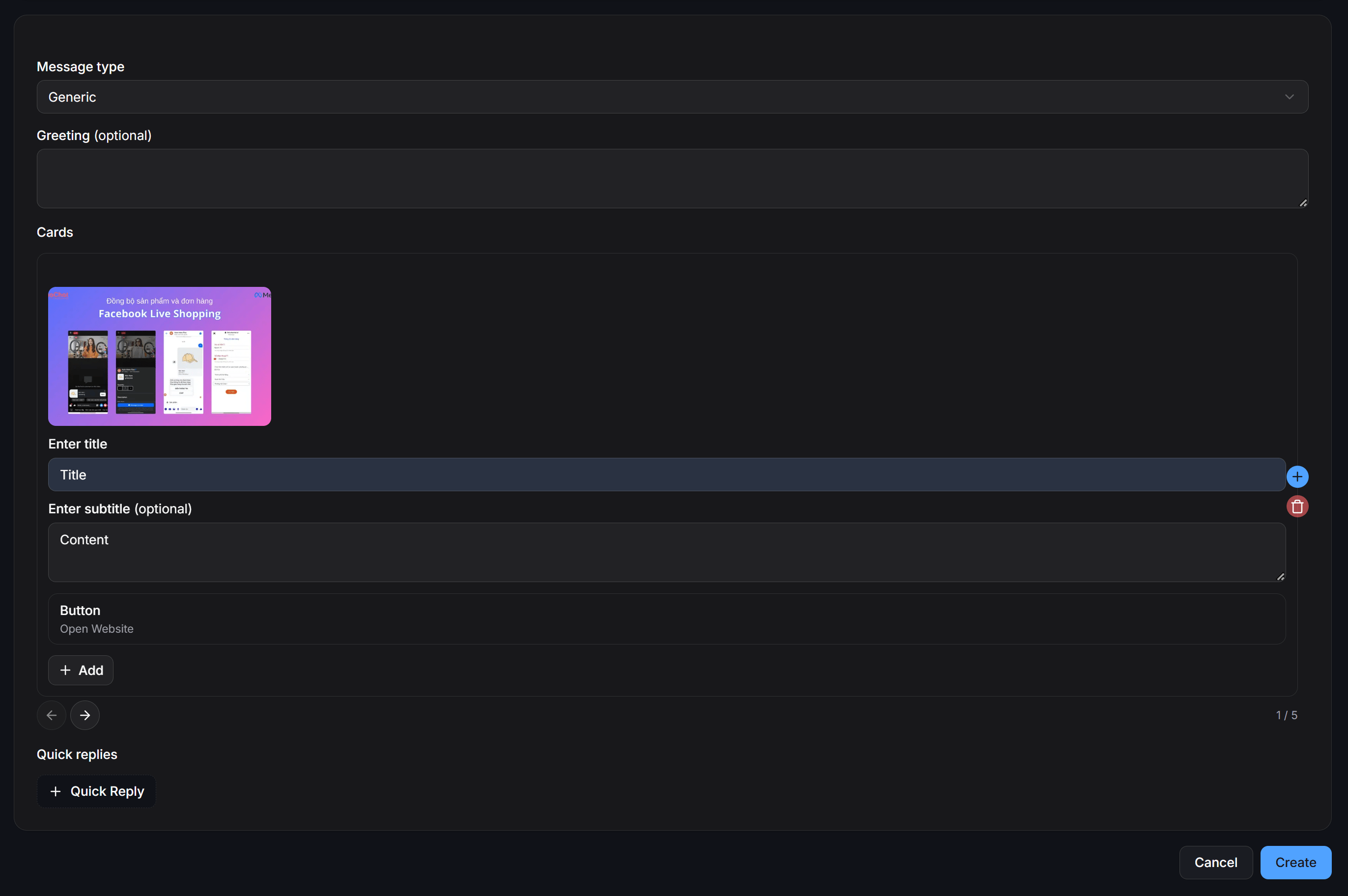
- Greeting (optional): Brief introductory headline displayed above the card slider.
- Cards: Supports up to 5 horizontally scrollable cards (with a
1/5position counter and directional navigation arrows):- Card Image: Upload product thumbnail images for each card.
- Enter title: Primary card headline (mandatory). Click the blue
+icon to add cards to the carousel. - Enter subtitle (optional): Secondary description, pricing, or promotional details. Click the red trash icon to delete the active card.
- Button: Attach dedicated action buttons for each card.
- Quick replies: Attach common quick reply options below the entire carousel.
Strategic Quick Reply Configuration
Quick replies are critical for driving conversions while minimizing messaging expenses:- Title: Enter concise action text on the pill button.
- Action Triggers:
Start External Flow: Launches an automated flow immediately upon contact tap to deliver catalog items or capture lead details.Start External Node: Jumps to a specific node within an existing flow graph.
- Cost Advantage: When a contact taps a Quick Reply, Meta’s free 24-hour messaging window reopens instantly. All subsequent conversational steps and transactions proceed with zero per-message charges.
Managing Custom Audiences
The Audiences tab enables you to create and manage Custom Audiences by uploading customer identifier lists (such as email addresses and phone numbers). ChatbotX securely hashes identifier records client-side using cryptographic standards and matches them against Facebook and Instagram accounts for targeted marketing message delivery.Custom Audiences Dashboard
The Audiences dashboard lists all configured audience segments along with their Meta matching status: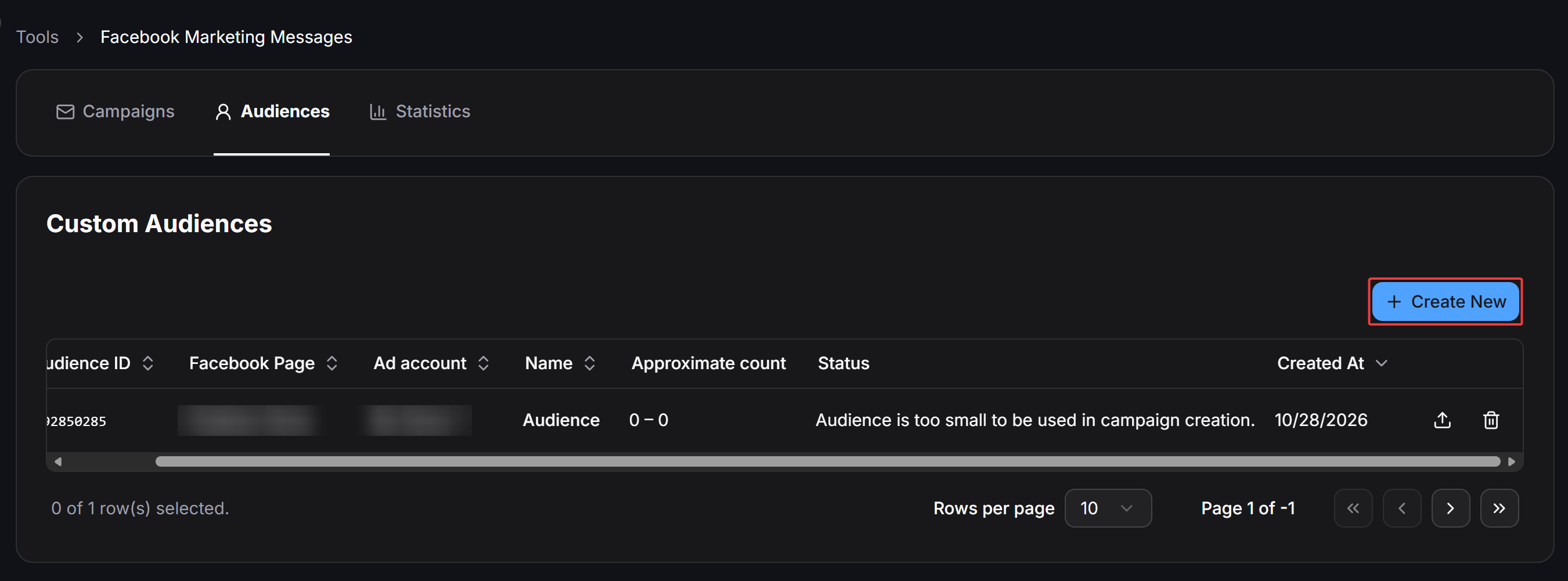
3-Step Custom Audience Creation Process
Follow the standardized 3-step wizard to upload and initialize a custom audience:1
Step 1: Prepare List (Prepare list)
From the Audiences tab, click + Create New at the top right to open the modal: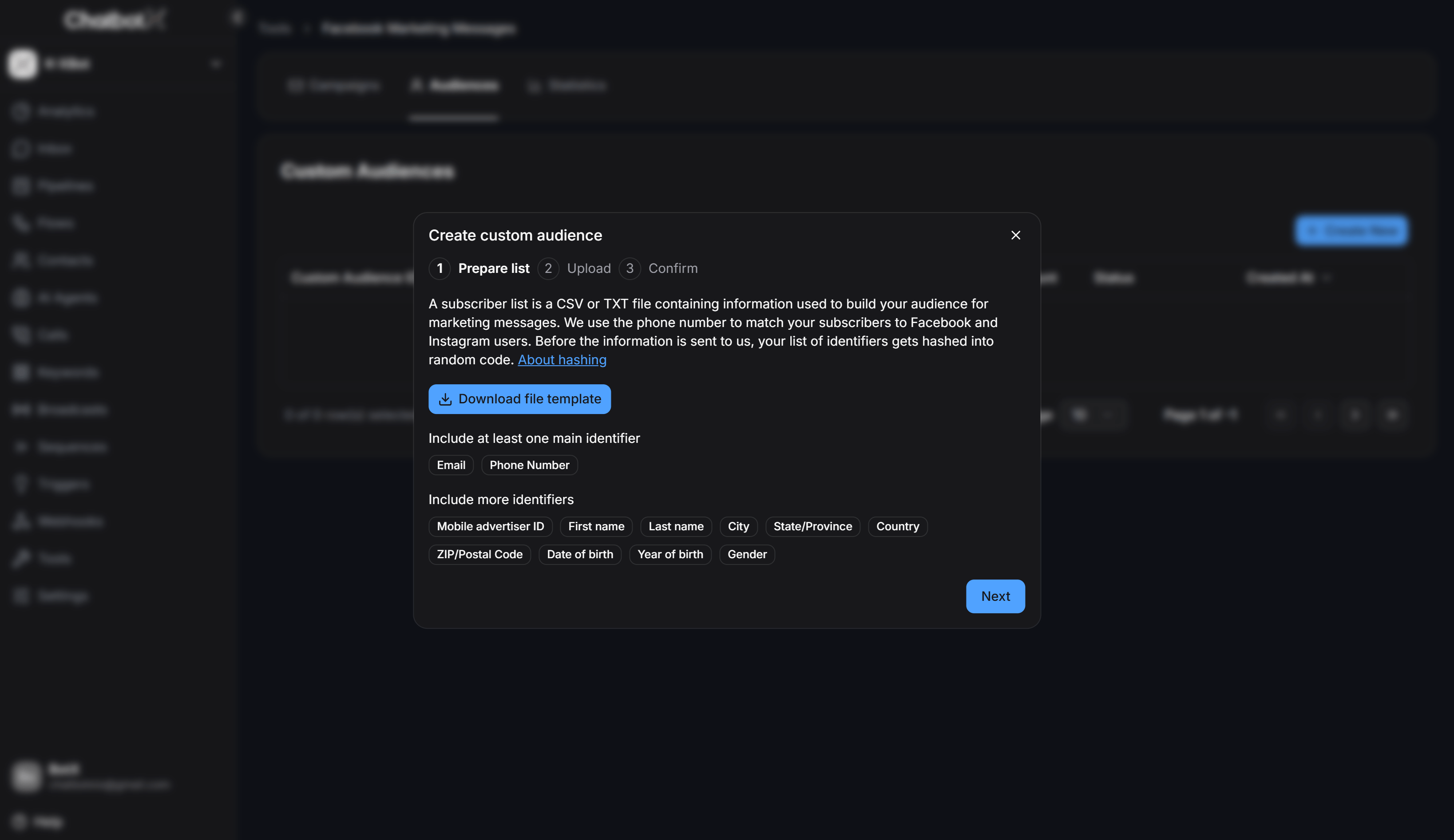
- Download file template: Click Download file template to retrieve the official CSV/spreadsheet template with standard column headers.
- Main identifiers (at least one required): Your list must include at least one primary identifier for Meta account matching:
Email: Customer email addresses.Phone Number: Customer phone numbers with international dialing codes.
- More identifiers: Supply optional secondary attributes to increase matching accuracy:
Mobile advertiser ID: Mobile advertising identifiers (IDFA / GAID).First name&Last name: Customer given name and surname.City,State/Province,Country,ZIP/Postal Code: Geographic location data.Date of birth,Year of birth,Gender: Demographic attributes.
- Client-Side Data Hashing: Prior to transmission, all personal identifiers are automatically hashed into random strings using SHA-256 directly in your browser, maintaining strict privacy compliance.
- Click Next to proceed.
2
Step 2: Upload Audience Data (Upload)
Configure destination assets and select your prepared subscriber list: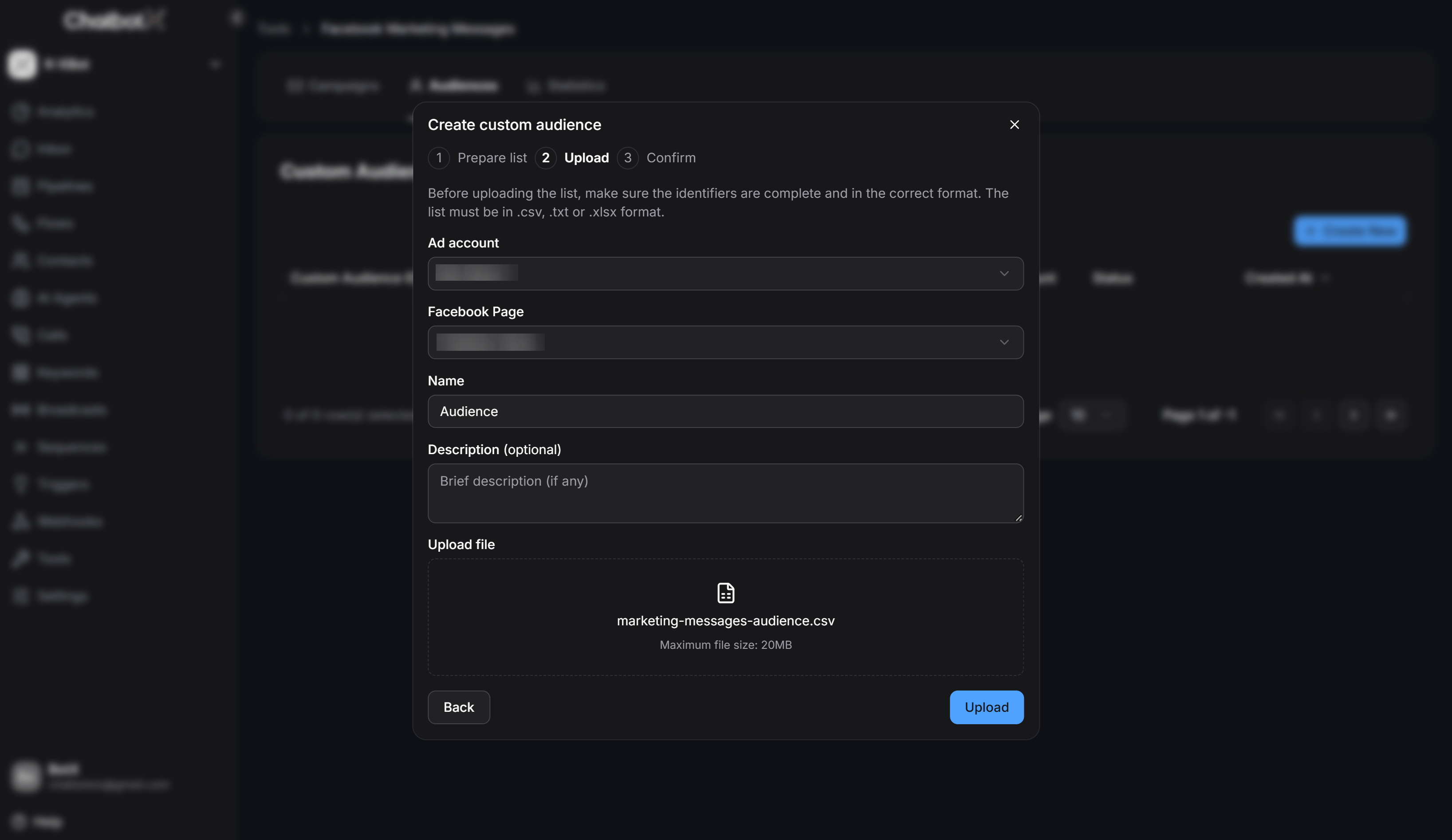
- Ad account: Select the target Meta Ad Account to store and govern the audience asset.
- Facebook Page: Choose the Facebook Page associated with the subscriber cohort.
- Name: Enter a descriptive name for the custom audience (e.g., VIP Buyers October or Audience).
- Description (optional): Provide internal notes regarding segmentation criteria or campaign intent.
- Upload file: Click or drag and drop your contact list file into the dropzone. Supported formats include
.csv,.txt, and.xlsxwith a maximum file size of 20MB. - Click Upload to initiate data transfer.
3
Step 3: Confirm Upload (Confirm)
Upon transmission completion, the wizard confirms successful submission: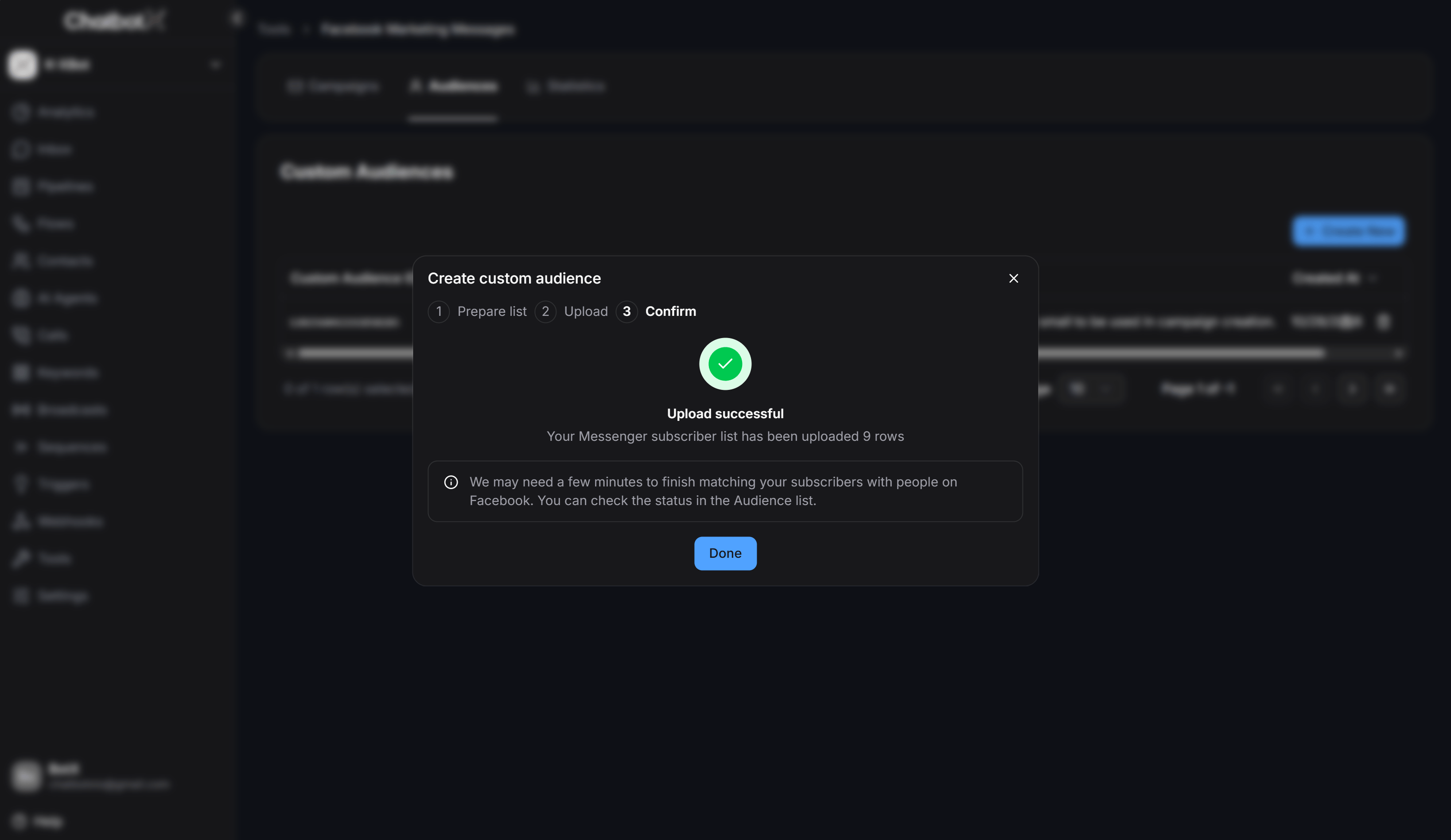
- Upload successful: Confirms the exact number of rows received (e.g., Your Messenger subscriber list has been uploaded 9 rows).
- Matching Processing Window: Meta requires anywhere from several minutes to a few hours to match uploaded identifiers against active profiles. Check the Status and Approximate count columns in the Audiences table to track readiness.
- Click Done to return to the Audiences dashboard.
Performance Analytics in the Statistics Tab
The Statistics tab provides comprehensive reporting on delivery rates, engagement metrics, and advertising expenditures across all Facebook Marketing Message broadcasts.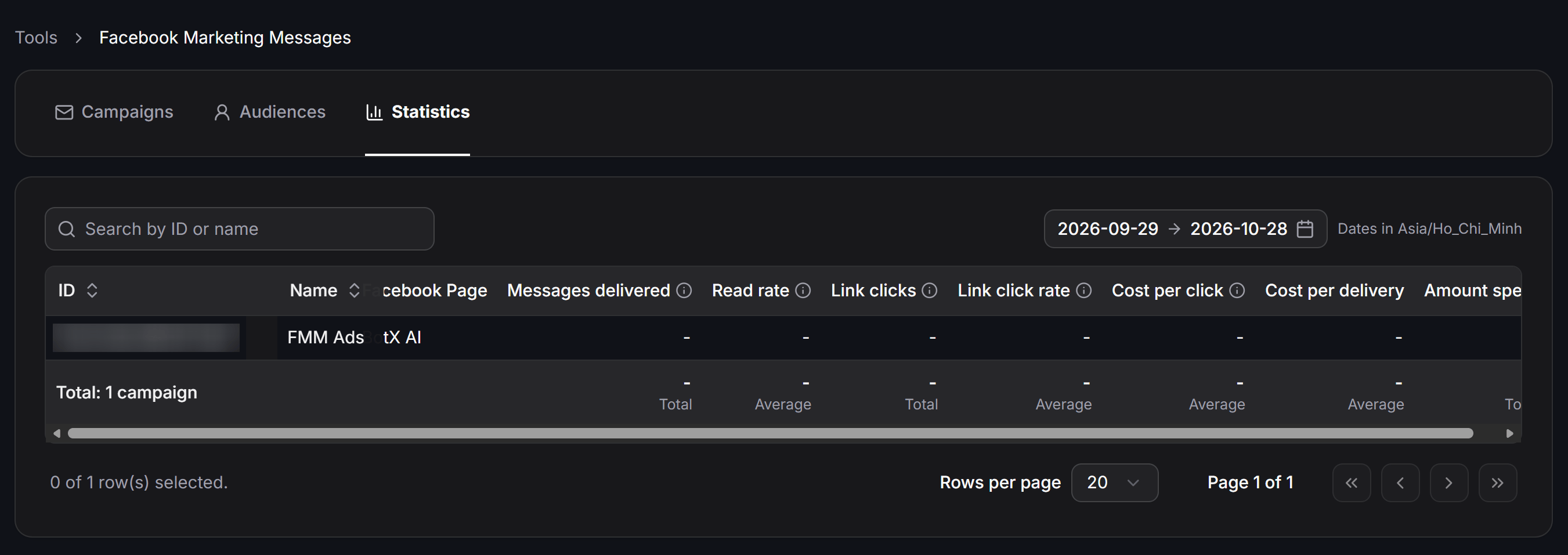
Filtering and Search Controls
- Search by ID or name: Quick search filter to locate specific campaigns by their unique identifier or descriptive name.
- Date Range Picker: Filter metrics across custom date ranges (with start and end calendar pickers). All timestamps adhere to your configured local timezone (e.g., Dates in Asia/Ho_Chi_Minh).
Metric Definitions and Evaluation
The reporting table aggregates individual campaign performance and displays summary footers (Total / Average) across all columns:Strategic Alignment Between Audiences, Campaigns, and Statistics
Integrating the three pillars creates an end-to-end performance marketing loop:- Targeting Precision via Custom Audiences: Selecting Custom Audience under Target messaging during campaign setup ensures promotional broadcasts reach verified subscriber lists rather than untargeted audiences.
- Cost Efficiency and 24-Hour Free Re-engagement: When recipients interact with Quick Reply buttons or CTA links within your marketing message, Meta’s standard 24-hour service window reopens immediately. Follow-up sales conversations, AI agent interactions, and order processing proceed with zero per-message charges.
-
Data-Driven Optimization via Statistics:
Evaluate
Read rate,Link click rate, andCost per clickin the Statistics tab to identify top-performing creatives and copy variations, allowing you to scale successful broadcasts systematically.
Best Practices and Cost Management
Start with Modest Daily Budgets
Always test new broadcasts with conservative Daily Budgets to benchmark delivery rates, response ratios, and effective cost per conversion before scaling.
Optimize Action Triggers
Ensure marketing messages include compelling Quick Replies that trigger automated flows, reopening the free 24-hour messaging window upon customer response.
Respect Messaging Frequency Caps
Meta enforces a strict frequency limit: each Page may send at most 1 marketing message per recipient per 24 hours. Schedule broadcasts during peak engagement hours.
Protect Page Reputation
Avoid spamming contacts with repetitive messages to prevent spam reports or blocks, which can lead to Meta imposing delivery limits on your Page.