

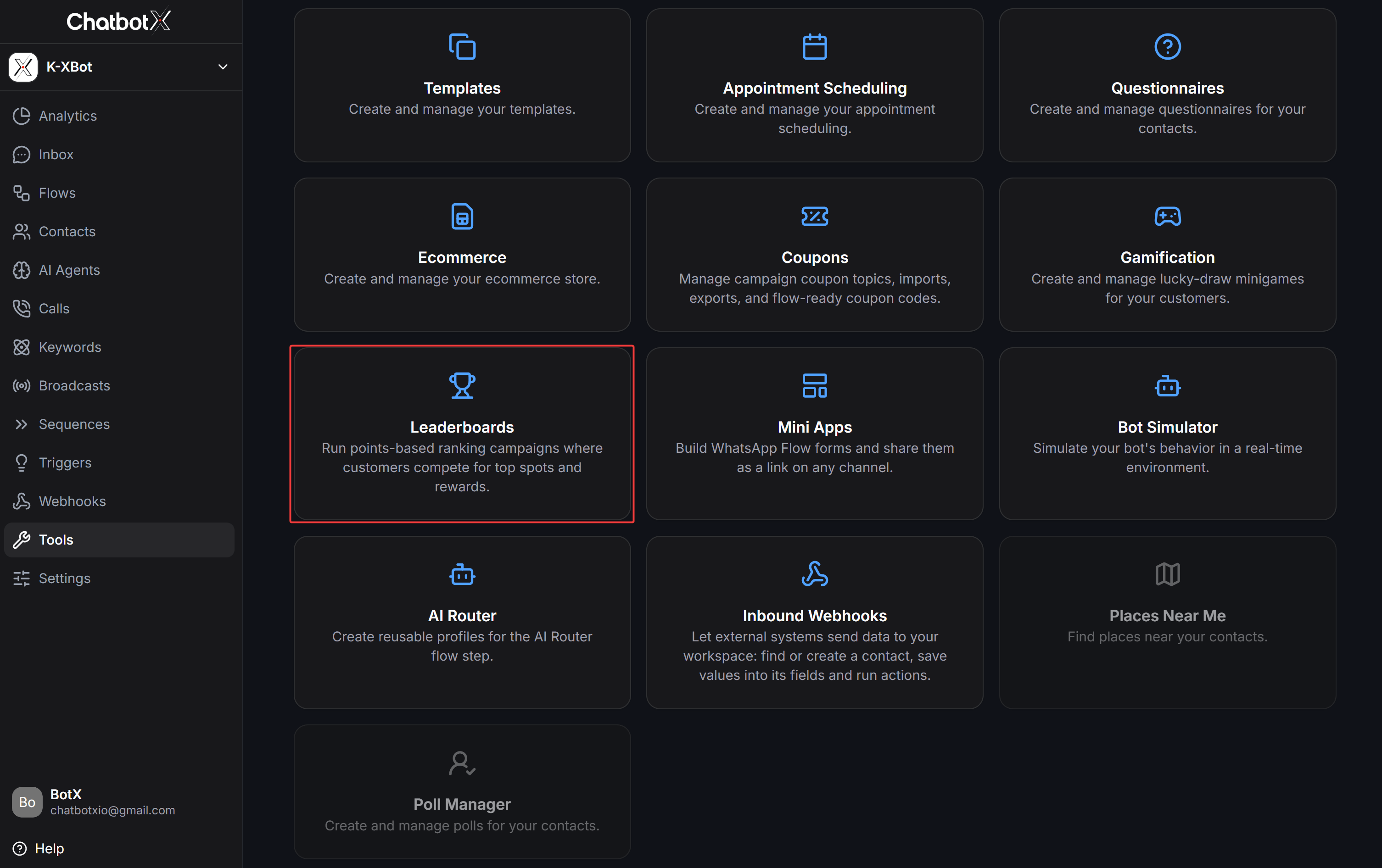
Understanding Leaderboard Mechanics
Leaderboards in ChatbotX operate on four core principles:Managing Leaderboard Campaigns
From the left navigation bar, go to Tools > Leaderboards to open the central management dashboard for all campaigns.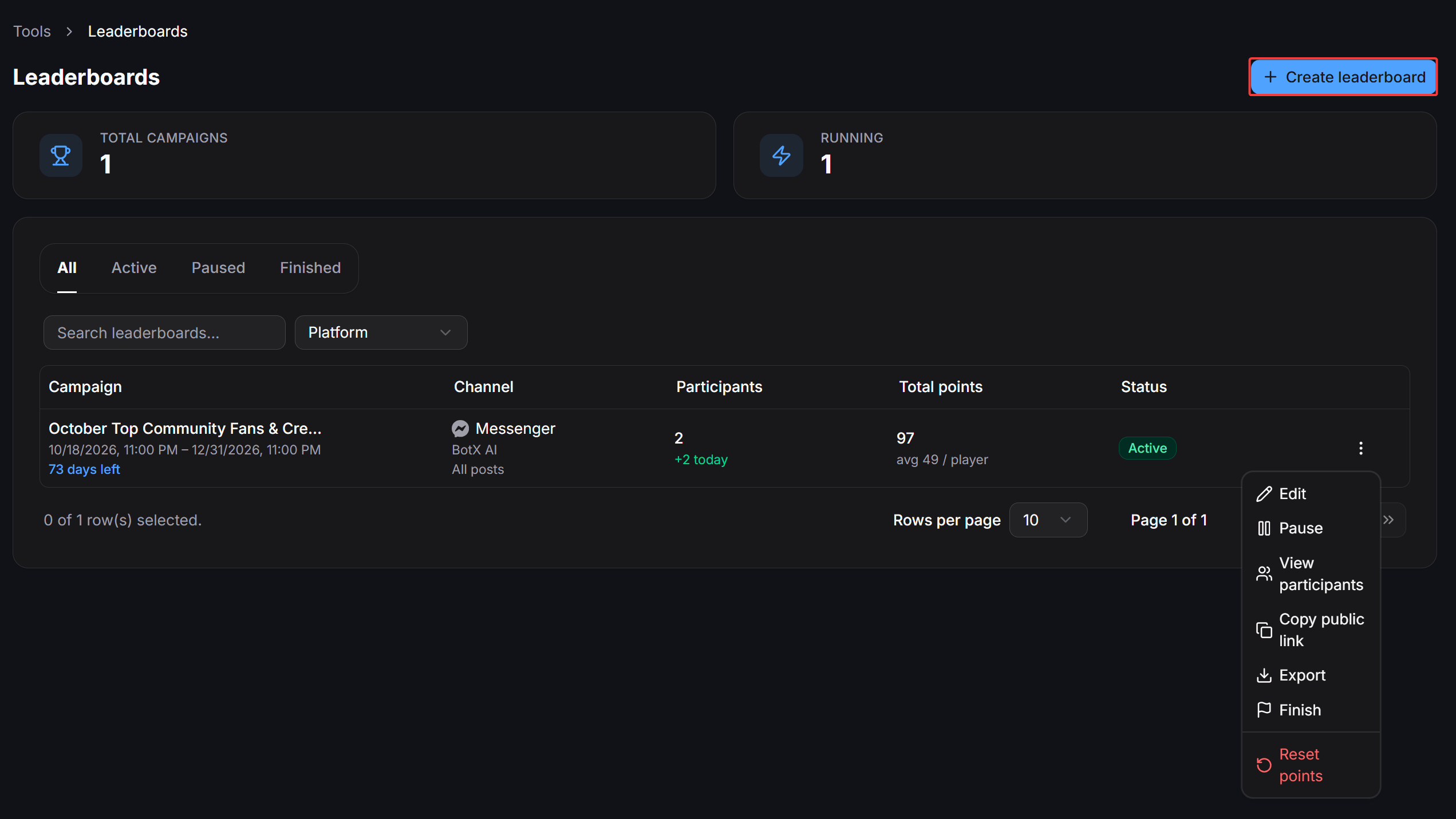
Overview Metric Cards
At the top of the page, the system displays two operational metrics:- Total Campaigns: The total number of leaderboard campaigns in the workspace, including active, paused, and ended campaigns.
- Running: The number of campaigns currently accepting interactions and calculating points in real time.
Filters and Campaign Table
You can search and filter campaigns using:- Status tabs: Quickly filter by lifecycle stage: All, Running, Paused, and Ended.
- Search bar and platform filter: Search by campaign name or filter by a specific connected channel.
- Campaign data table: View campaign name, duration, remaining days, connected channel, total participants, today’s new participants, total awarded points, and current status.
Campaign Actions
Click the three-dot menu at the end of each row to perform actions:- Edit: Adjust campaign name, rules, scoring configurations, and rewards.
- Pause / Start: Temporarily pause automatic scoring or reactivate the campaign.
- View Participants: View participant rankings, inspect score breakdowns, and adjust points manually.
- Copy Public Link: Copy the leaderboard page URL to share across social media or attach to posts.
- Export: Download the full list of participants and scores as CSV or Excel.
- End: Permanently close scoring, lock results, and trigger the reward distribution flow for winners.
- Reset Scores: Reset accumulated scores for all players back to zero when organizing a new season.
Creating a New Leaderboard Campaign
To launch a new tournament, click Create Leaderboard in the top-right corner. The wizard consists of three steps:1
Configure Campaign Information
In the first step, configure identity details and tournament rules.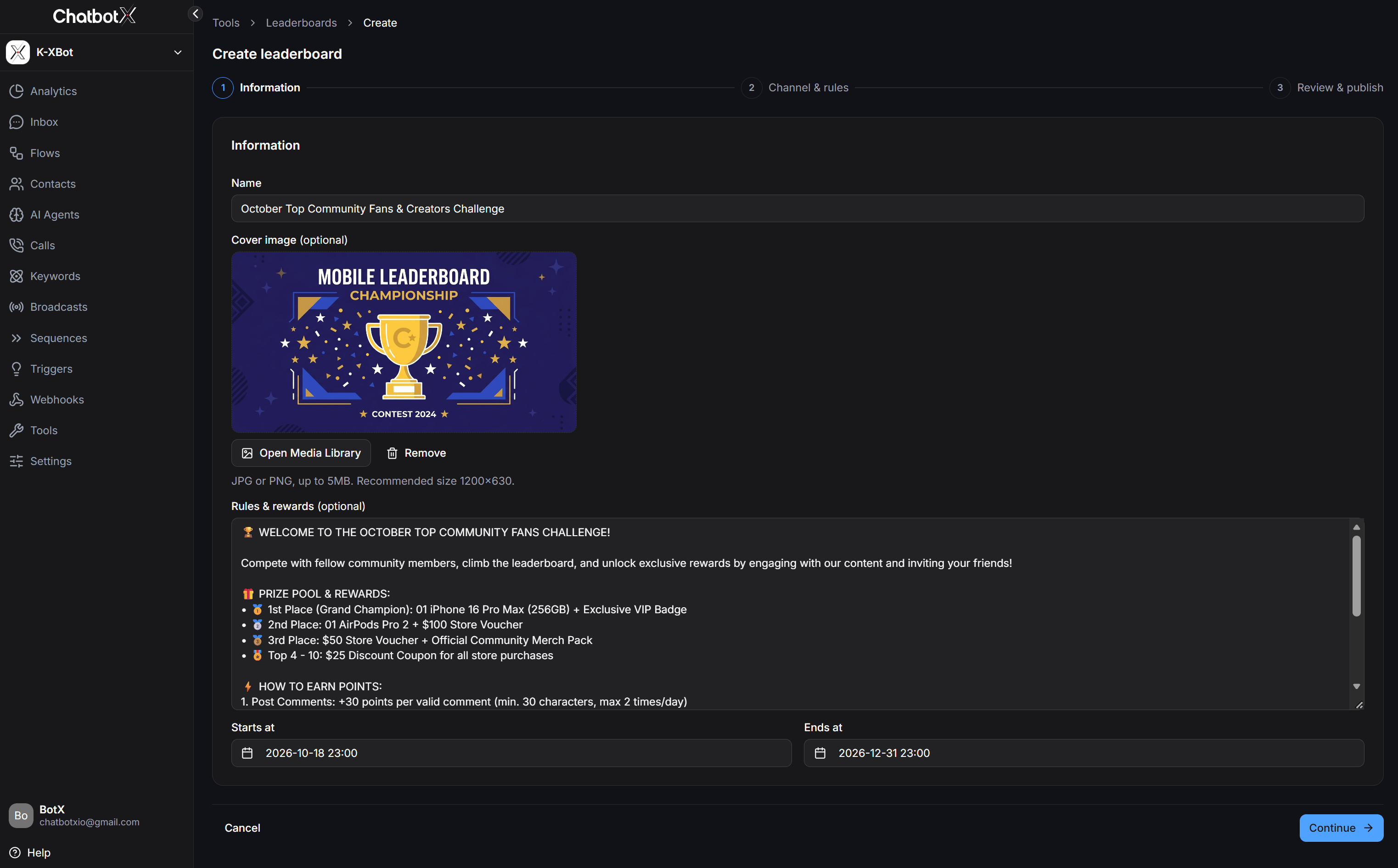
- Leaderboard Name: Enter the official campaign title. This name appears on the mobile webview and inside automated flows.
- Cover Image (Optional): Upload a promotional banner image with a recommended 16:9 aspect ratio (1200 x 630 px, JPG or PNG, maximum 5MB). Upload from your device or click Open media library to select existing assets.
- Rules & Rewards (Optional): Summarize reward tiers and competition guidelines so players know their goals.
- Start Time and End Time: Set the exact campaign duration down to the minute. The system displays a live countdown timer on the mobile page and freezes point calculation when time expires.
- Click Next to proceed.
2
Select Channel and Configure Scoring Rules
Choose the target platform and configure point-earning actions.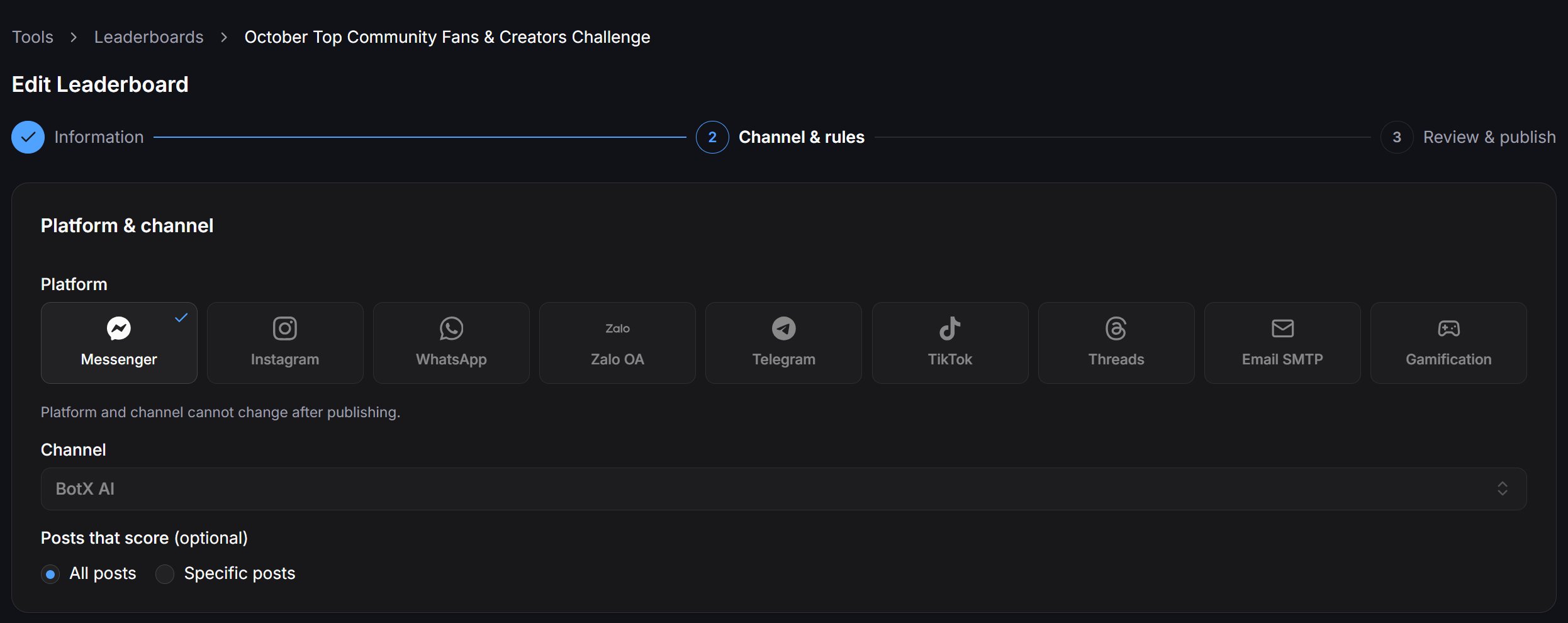
Instagram
WhatsApp
Select your connected account under Channel and specify the scope: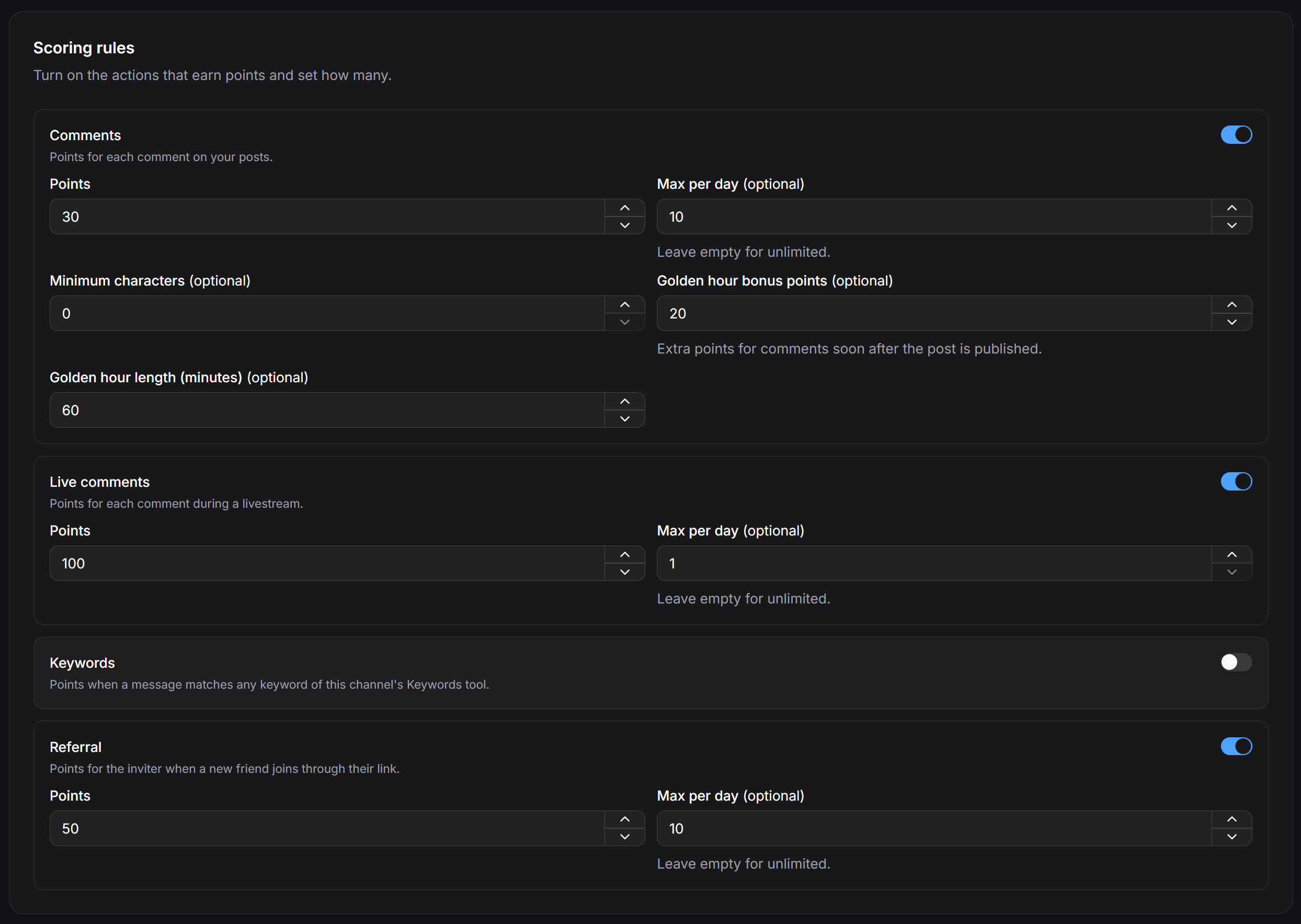
Platform and Channel Selection
The system supports 9 independent platforms:Messenger
Earn points via Fanpage interactions, post comments, livestreams, and messaging.
Earn points via post comments, Reels, Story mentions, and direct messages.
Earn points via conversational messages and click-to-WhatsApp ads.
Zalo OA
Earn points via following OA, scanning QR codes, and interactive messages.
Telegram
Earn points via joining channels and community group discussions.
TikTok
Earn points via TikTok channel interactions and video comments.
Threads
Earn points via post interactions and replies on Threads.
Email SMTP
Earn points by opening marketing newsletters and clicking call-to-action links.
Interactive Games
Sync winning scores directly from 5 interactive gamification mini-games.
- All posts: Automatically listen and award points for all public posts on the channel.
- Specific posts: Only award points for designated posts.
The platform and channel cannot be changed once the campaign is published.
Scoring Rules
Enable toggles for the actions you want to reward:- Post Comments:
- Points: Points earned per valid comment.
- Daily Limit: Maximum times a user can earn comment points per day (leave empty for unlimited).
- Minimum Characters: Minimum character count required to prevent short spam comments.
- Golden Hour Bonus: Bonus points awarded to users who comment early after a post is published.
- Golden Hour Duration: Time window in minutes after post publication when bonus points apply.
- Live Stream Comments: Points awarded per comment during live broadcasts and daily limit.
- Keyword Messages: Earn points when customers send messages containing preset keywords configured in the channel’s Keywords tool.
- Share & Refer Friends: Points awarded to the referrer when a new friend clicks their unique referral link and interacts with the bot.
General Settings
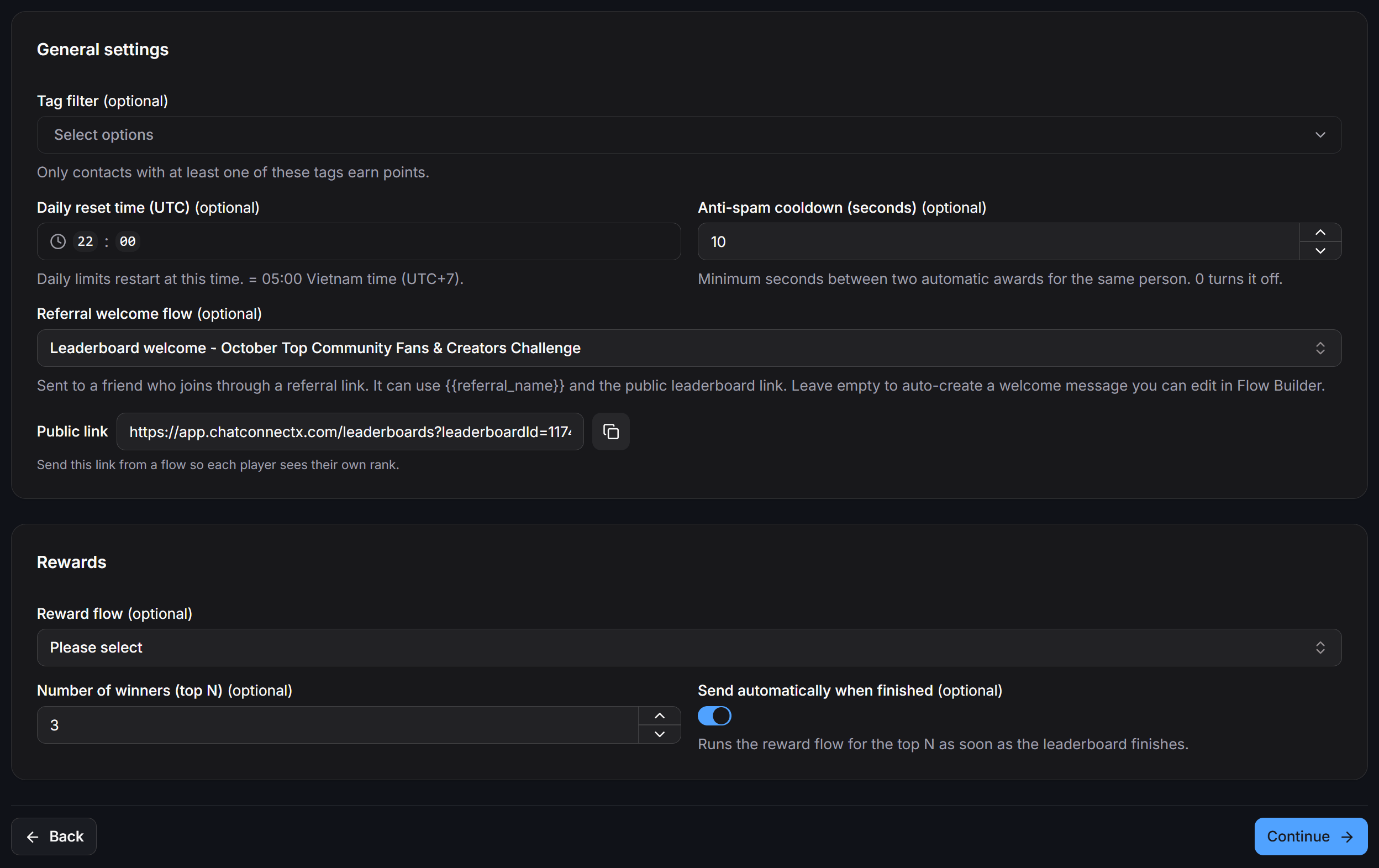
Scroll to the bottom of the step to configure operational limits and rewards:- Filter by Tags: Only permit contacts tagged with at least one designated tag to earn points.
- Daily Action Reset Hour: The UTC hour when daily limits reset to zero (default: 22:00 UTC).
- Anti-Spam Interval: Minimum interval in seconds between two point rewards for the same user (enter 0 to disable).
- Referral Welcome Flow: The automated flow sent to friends who click a referral link. Choose an existing flow or generate an automated template.
- Public Link: The URL opening the mobile leaderboard with a one-click copy button.
End-of-Campaign Reward Settings
Automate reward distribution for top performers:- Reward Flow: Select the automated flow that delivers congratulatory messages, coupons, or redemption links.
- Number of Winners: Set how many top-ranking participants receive rewards (e.g., Top 3 or Top 10).
- Auto-send when ended: Toggle on to automatically trigger the reward flow when the campaign ends.
3
Review and Publish
Review your configurations before launching the tournament.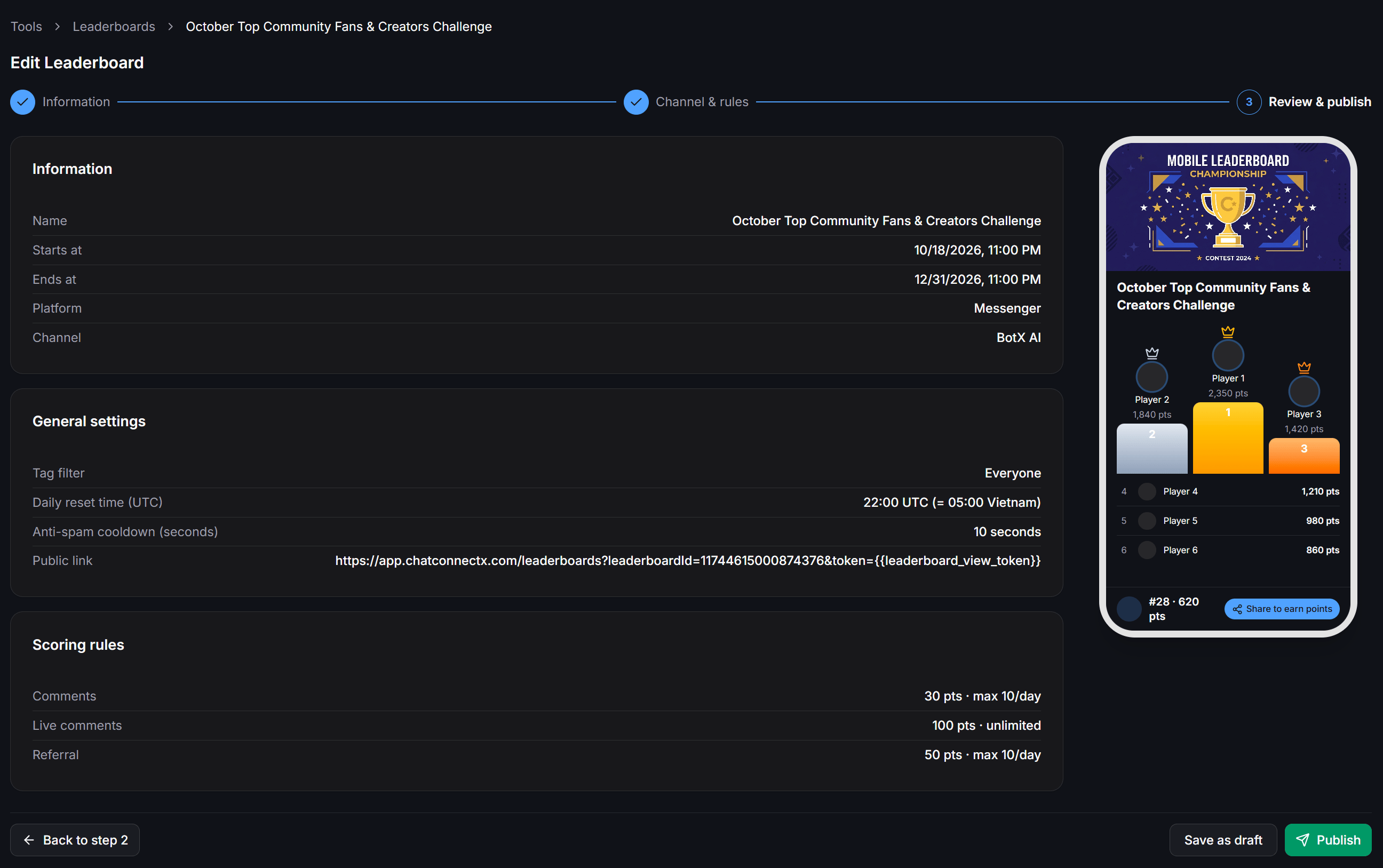
- Left Column: Displays campaign summary, general settings, and active scoring rules.
- Right Column (Mobile Preview): Renders the live mobile webview with cover banner, 3D podium for Top 1, Top 2, and Top 3, ranked list, and the pinned personal bar.
- Save Draft: Save configurations without opening point calculation.
- Publish: Activate the campaign into Running status, start real-time scoring, and begin the countdown timer.
Mobile Leaderboard Experience
When participants open the leaderboard link on their mobile device or browser, the interface provides an engaging visual experience: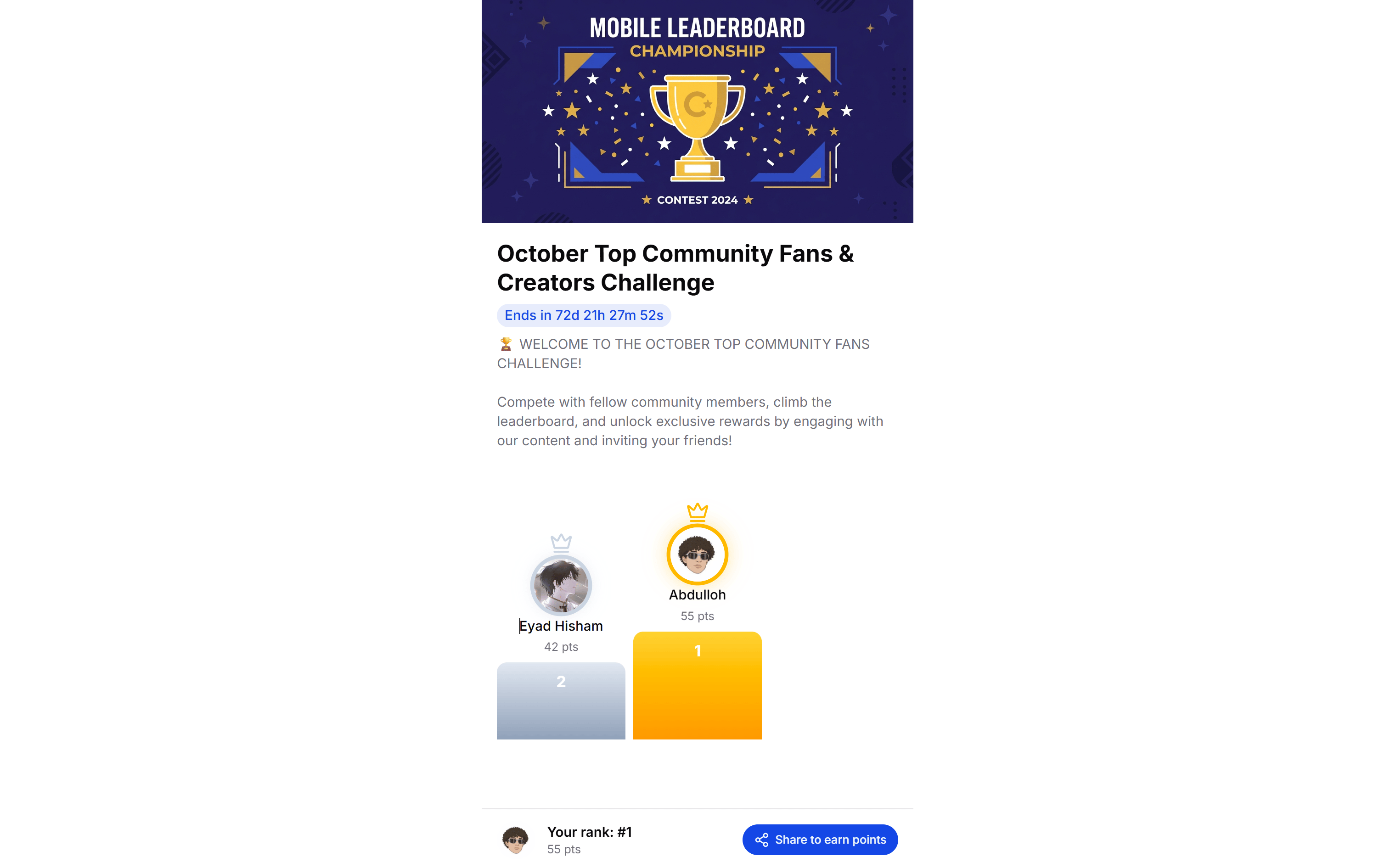
- Live Countdown Timer: Displays remaining days, hours, minutes, and seconds until the tournament closes.
- Winner Podium: Visual podium columns highlighting Top 1 with a gold crown, Top 2 with a silver crown, avatars, names, and real-time scores.
- Rankings List: Displays ranks from 4th place onward with scores (names are partially masked for privacy).
- Pinned Personal Bar: Fixed at the bottom of the screen, showing the user’s current rank, total score, and a call-to-action button to share and earn more points.
Opt-in Enrollment and Viral Referral Gate
To ensure that leaderboards only track actual participants and avoid unconsented data collection, the system utilizes a two-way enrollment gate:- Participant opens the Leaderboard page and clicks the share button to obtain their unique referral link.
- Participant sends this link to friends.
- When Friend B clicks the link and sends an initial message to the bot, both users are enrolled into the campaign’s official participant roster.
- User A instantly receives referral bonus points.
- From this moment on, social post comments and livestream interactions from both users are tracked and scored automatically.
Managing Participants and Anti-Cheat Controls
To monitor contestants, click the three-dot menu on any campaign and select View Participants.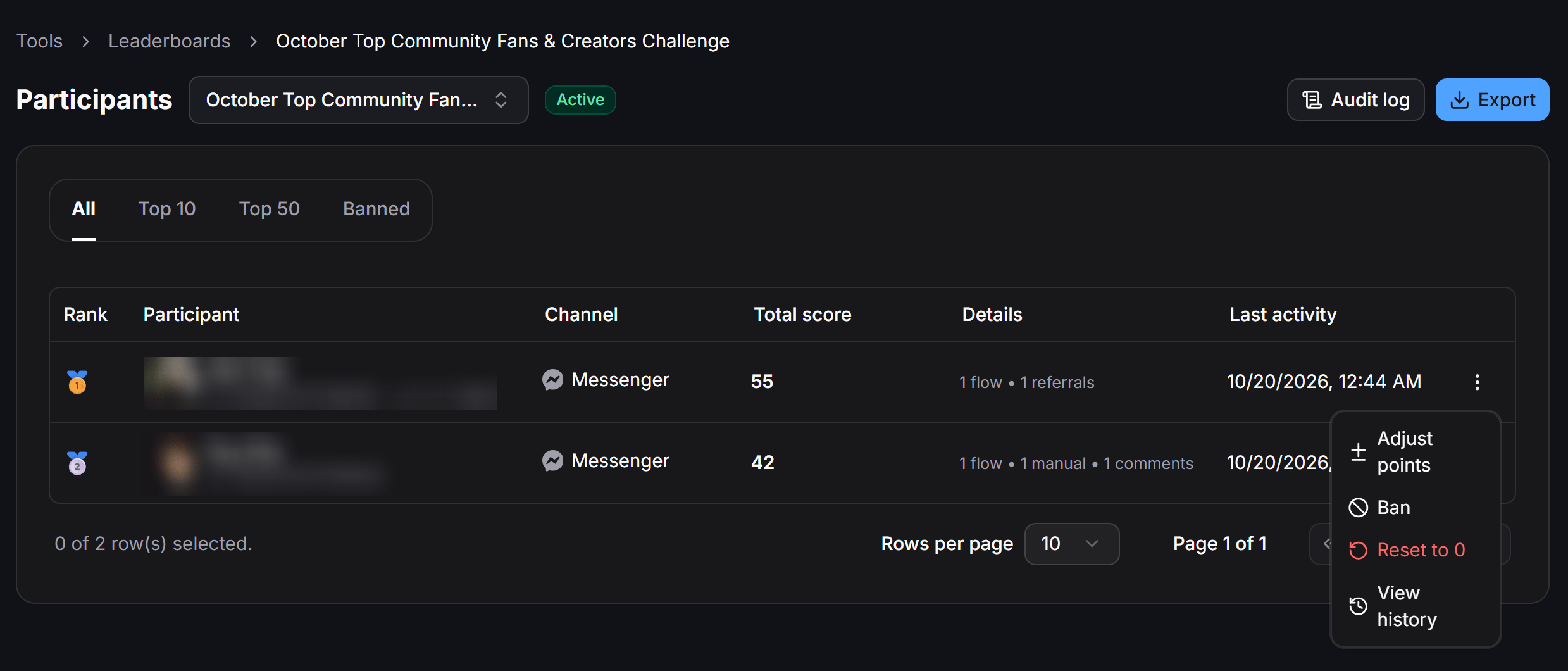
Participant Table
The table provides detailed records for every player:- Rank: Gold, silver, and bronze medal badges for Top 1–3, sequential numbers for remaining ranks, and a banned icon for restricted accounts.
- Participant: Name, avatar, and social platform ID.
- Channel and Total Score: Connected channel and current real-time score.
- Interaction Breakdown: Detailed point origins such as flow points, manual adjustments, post comments, or referral points.
- Last Active: Timestamp of the most recent interaction.
Manual Adjustments and Penalties
Click the three-dot menu on any participant row to access management tools: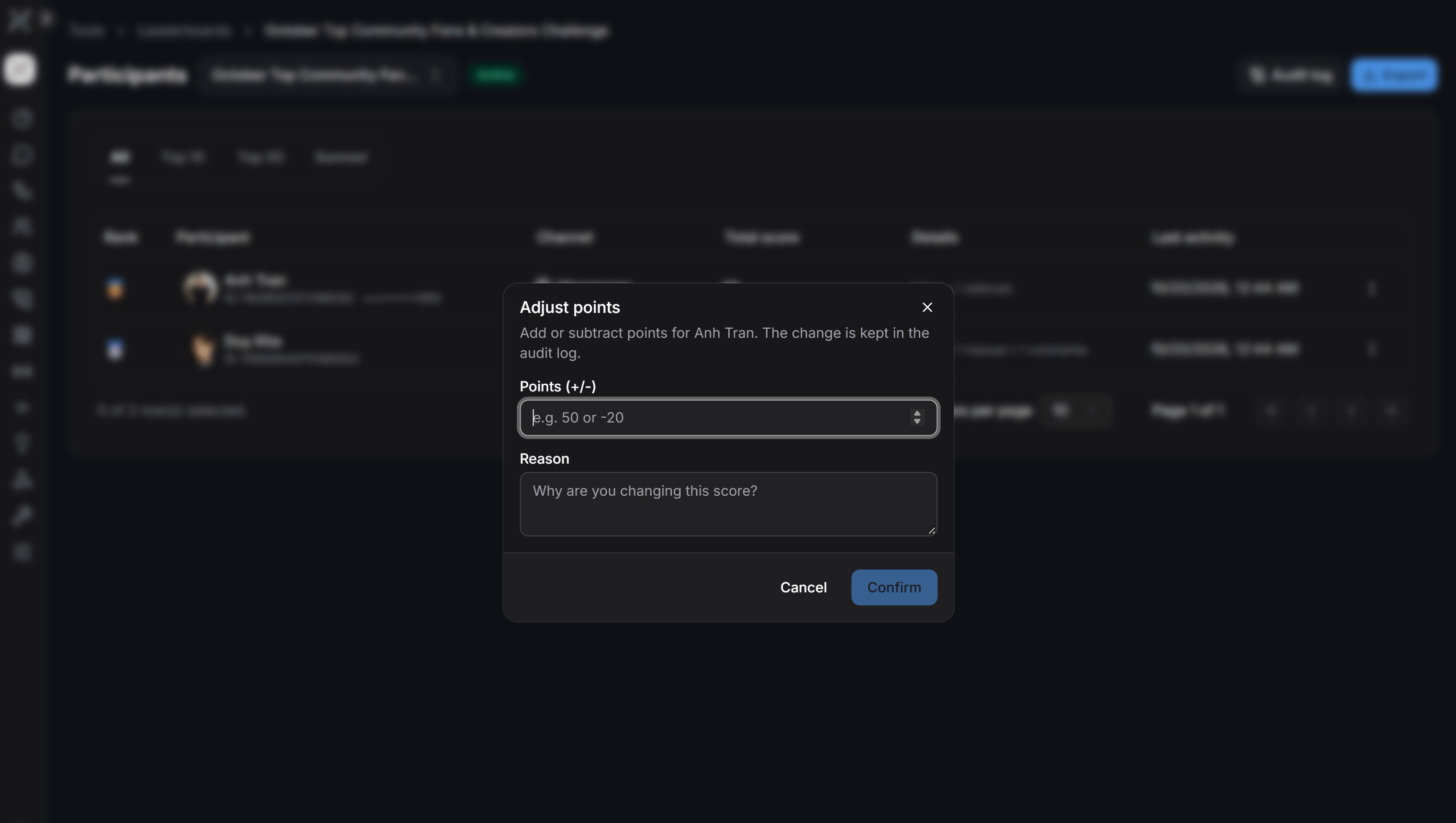
- Adjust Points: Opens a modal allowing you to add positive points or deduct negative points, with a mandatory reason field recorded in the audit log.
- Ban Participant: Disqualifies accounts caught cheating or spamming. When banned, the player’s score is struck through and new points are blocked.
- Reset to 0: Resets an individual player’s points back to zero.
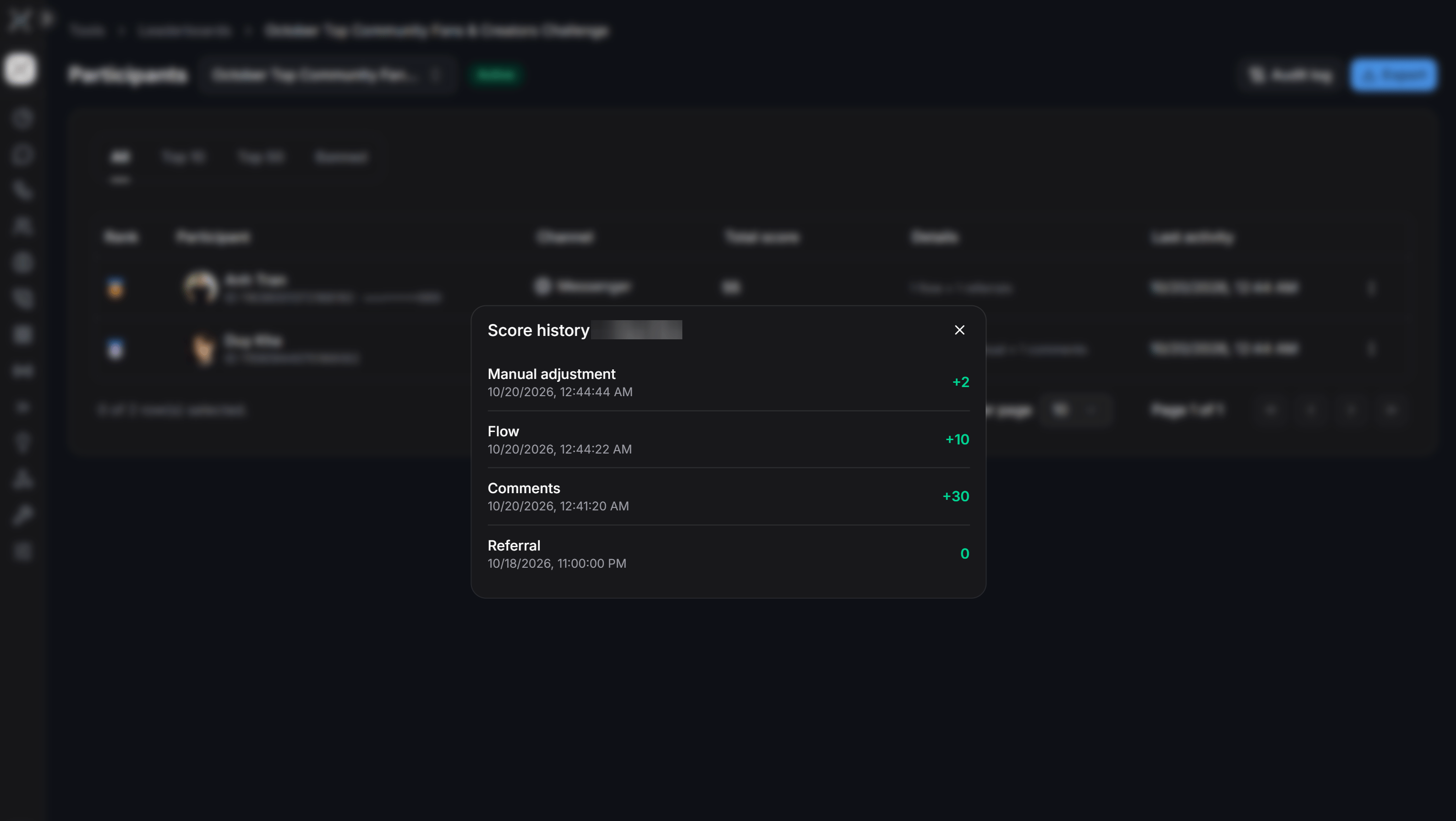
- View History: View a chronological log of score transactions for that specific user.
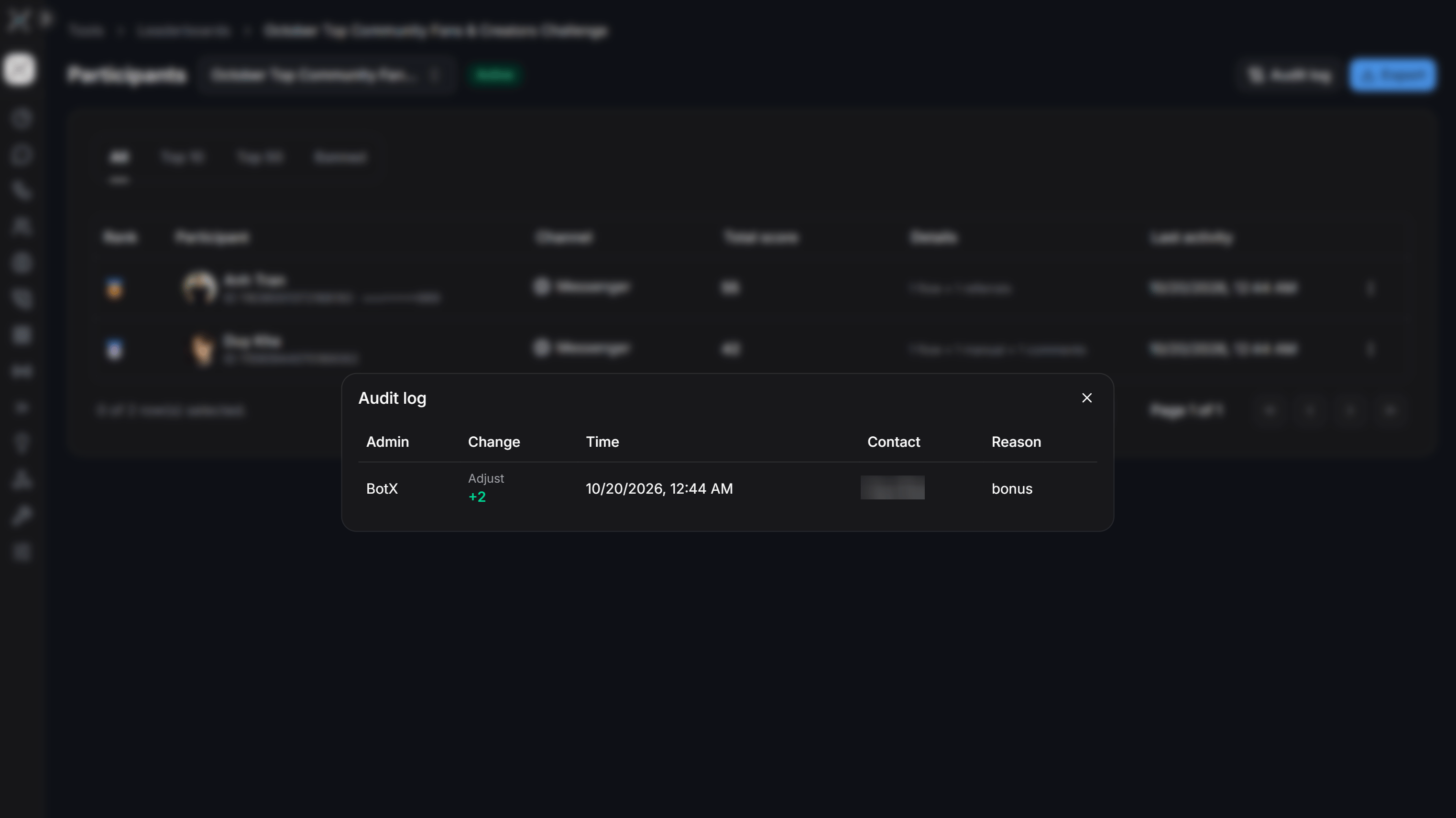
- Audit Log: Click Audit Log in the upper-right corner of the participants page to view an immutable campaign-wide record showing admin username, score delta, exact timestamp, affected contact, and change reason.
Integrating Leaderboards into Automated Flows
You can embed Leaderboard logic into conversational flows under Flows to award points for survey completion, purchase confirmations, or quiz games.Change Gamification Scores Action
Inside the flow builder, add Action > Tools > Change gamification scores: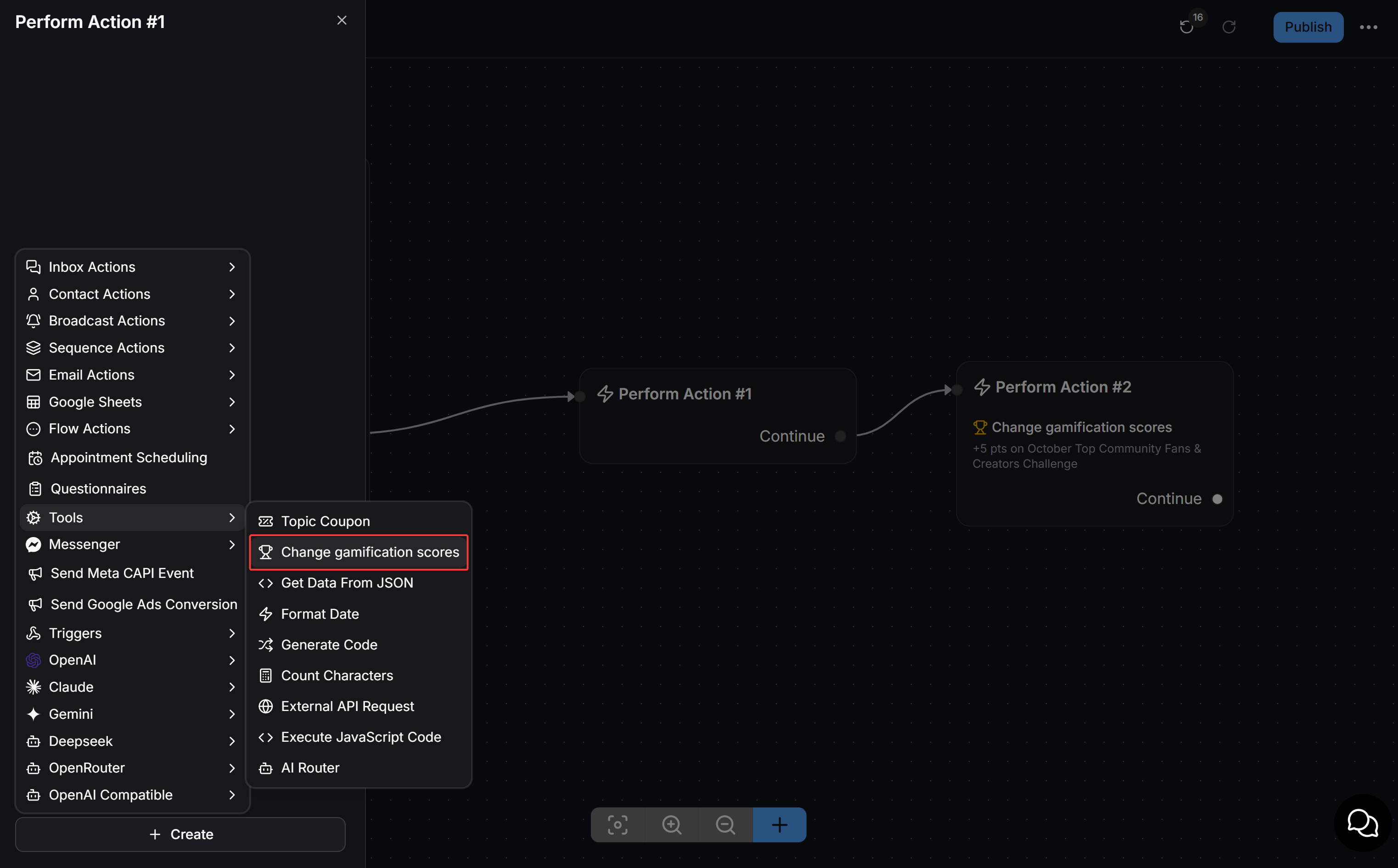
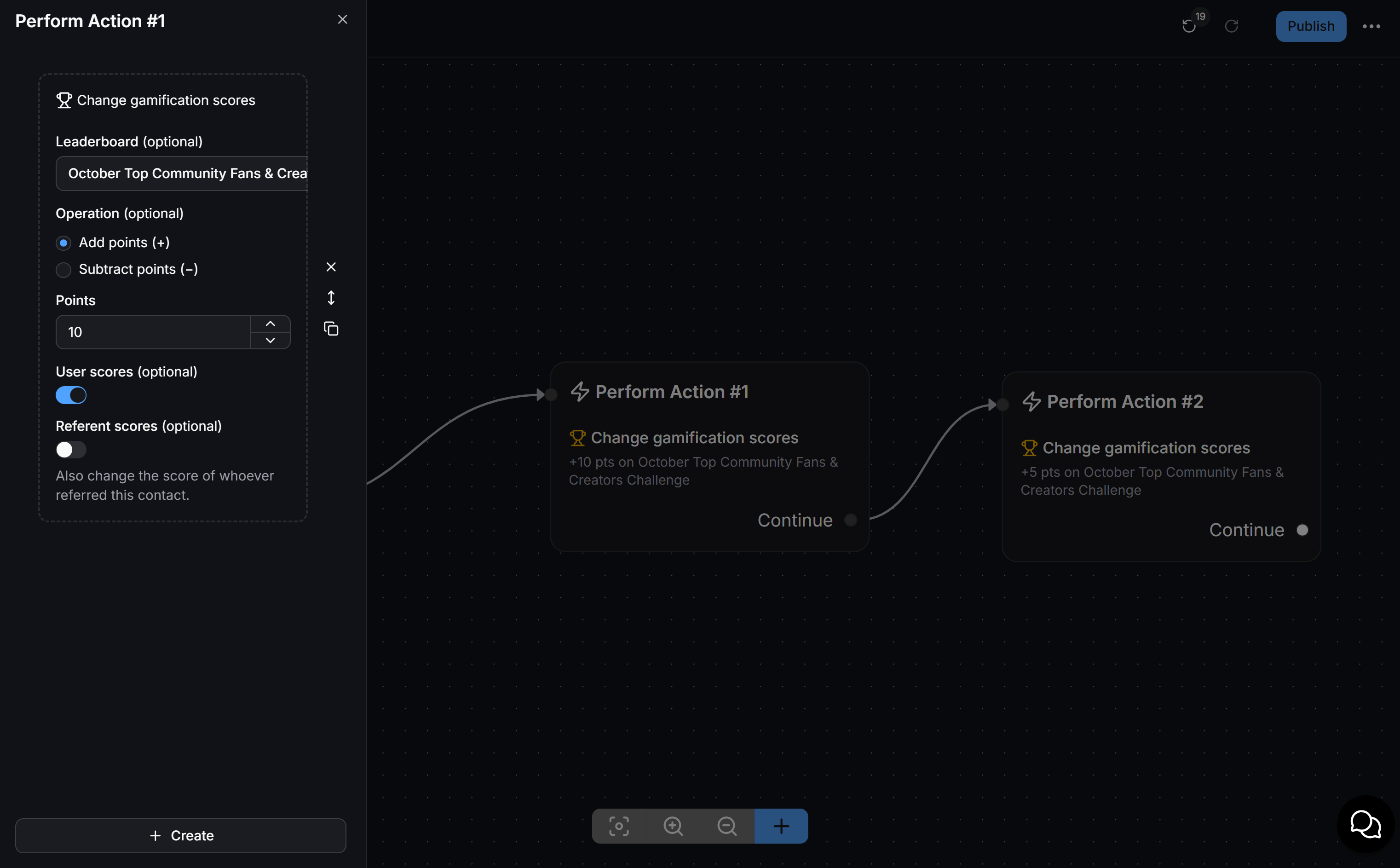
- Leaderboard: Select the target campaign.
- Operation:
- Add (+): Grant points when a user completes a desired flow step.
- Subtract (-): Deduct points when redeeming gifts, cancelling orders, or violating rules.
- Points: Enter the numerical point value.
- User scores: Toggle on to apply the change to the active contact chatting with the bot.
- Referent scores: Toggle on to also reward bonus points to the contact who referred this user (“Also change the score of whoever referred this contact”).
When a campaign is Paused or Ended, point modifications from flows are automatically blocked to maintain competitive integrity.
Condition Card for Score Thresholds
Use Leaderboard score attributes inside Condition cards to branch flows, deliver tiered rewards, or unlock VIP perks: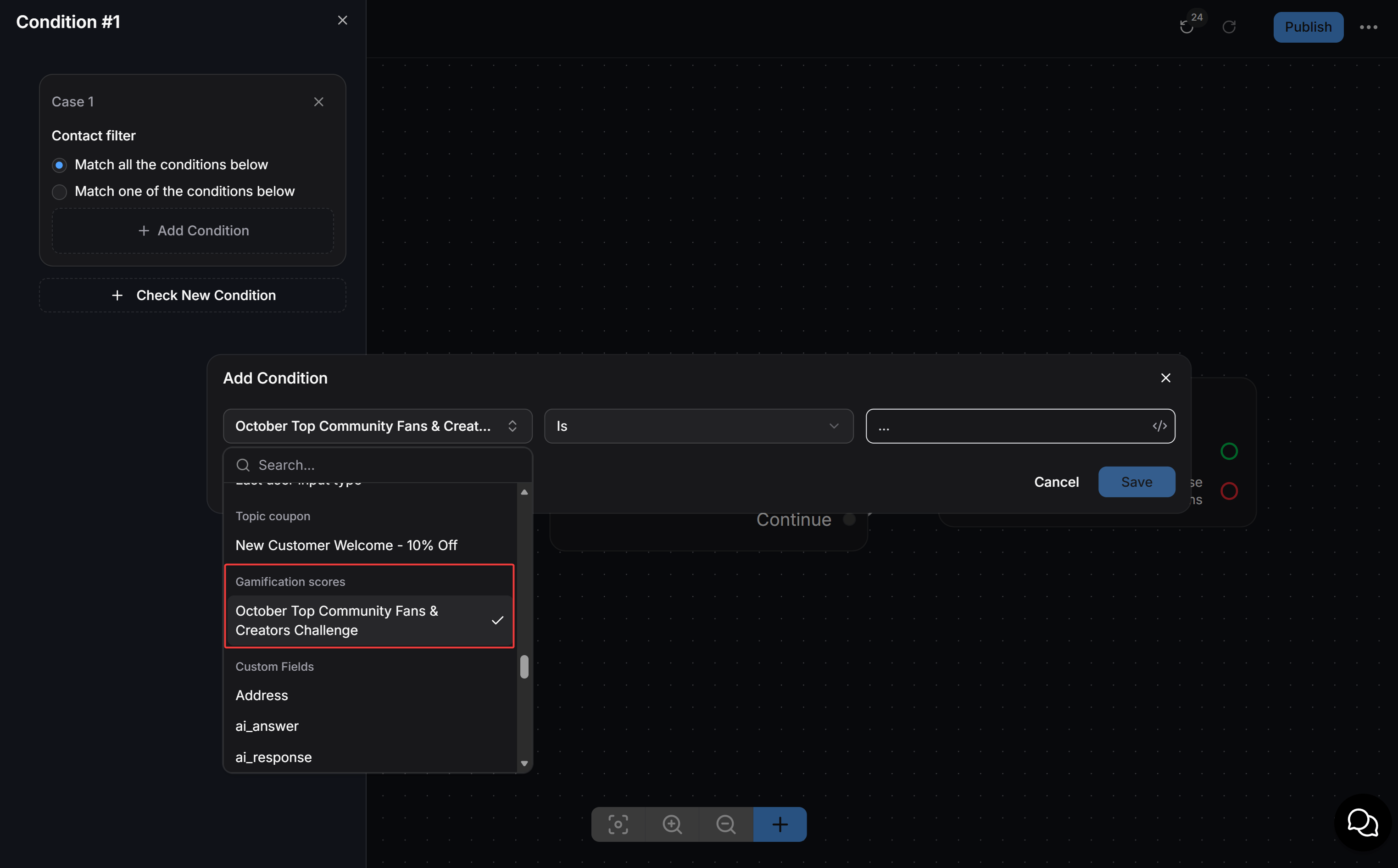
- In a Condition block, select Add New Condition.
- Scroll to the Gamification scores group and select your Leaderboard campaign.
- Choose one of five comparison operators:
- Is: Score exactly equals the target value.
- Less than: Score is strictly less than the target value.
- Less than or Equal to: Score is less than or equal to the target value.
- Greater than: Score is strictly greater than the target value.
- Greater than or Equal to: Score is greater than or equal to the target value.
- Enter the threshold value in the right input box.
- Connect the matching branch to message blocks delivering exclusive vouchers, discount coupons, or prize instructions.
Operational Best Practices
- Spam Prevention: Configure a minimum character count for post comments and set anti-spam intervals to discourage automated repetitive comments.
- Safe Campaign Closure: When a campaign concludes, review the participants list and audit log before automated rewards are sent. If verification is needed, pause the campaign instead of ending it immediately.
- Time Synchronization: Daily limits reset based on your configured UTC reset hour. Clearly communicate this reset time in campaign rules so players can plan their daily activities.