

Choice, Score, Noul) paired with mathematically calibrated confidence metrics. This enables instant intent classification, lead scoring, and True/False condition evaluation to route contacts to the right team, automated flow, or specialized AI Agent.
The Core Role of TypeSafe Jev in AI Router
Unlike traditional large language models designed for open-ended chat and content generation, Jev by TypeSafe is a next-generation System One model engineered specifically for structured decision-making:- Ultra-Fast Decision Latency: TypeSafe Jev evaluates context and returns a classification decision in milliseconds, routing conversations immediately without adding noticeable wait times for your contacts.
- Strictly Bounded Structured Outputs: Because the model evaluates predefined criteria rather than generating free-form sentences, it eliminates formatting errors and hallucinations when integrated into automated workflows.
- Calibrated Confidence Metrics (
ConfidenceandProbability): This is TypeSafe Jev’s biggest advantage. Beyond selecting the winning option, Jev calculates how certain it is about that decision, allowing ChatbotX to know precisely when to route automatically and when to fall back to a safe default path.
When Should You Use AI Router?
In your automation architecture, you can combine both AI Router (powered by TypeSafe Jev) and AI Agent to maximize operational efficiency. The table below highlights the core differences between the two tools:
AI Router supports two operating modes that can be used independently or together:
Global Router
Automatically evaluates inbound contact messages across your workspace (when no Keyword or Entry Point Link matches) to route conversations to the appropriate Flow, AI Agent, or Admin.
Flow Builder Action Step
Operates as an intelligent evaluation step inside an automated Flow, saving Jev’s decision metrics into Custom Fields and branching conversations via Condition blocks.
Setting Up an AI Router Connection
Before creating decision profiles, you need to connect ChatbotX to the TypeSafe Jev decision model provider (or a compatible gateway).1
Open the Integrations Settings
From the left navigation sidebar, go to Settings > select the Integrations tab, scroll down to the AI Router section, and click + Add AI Router connection.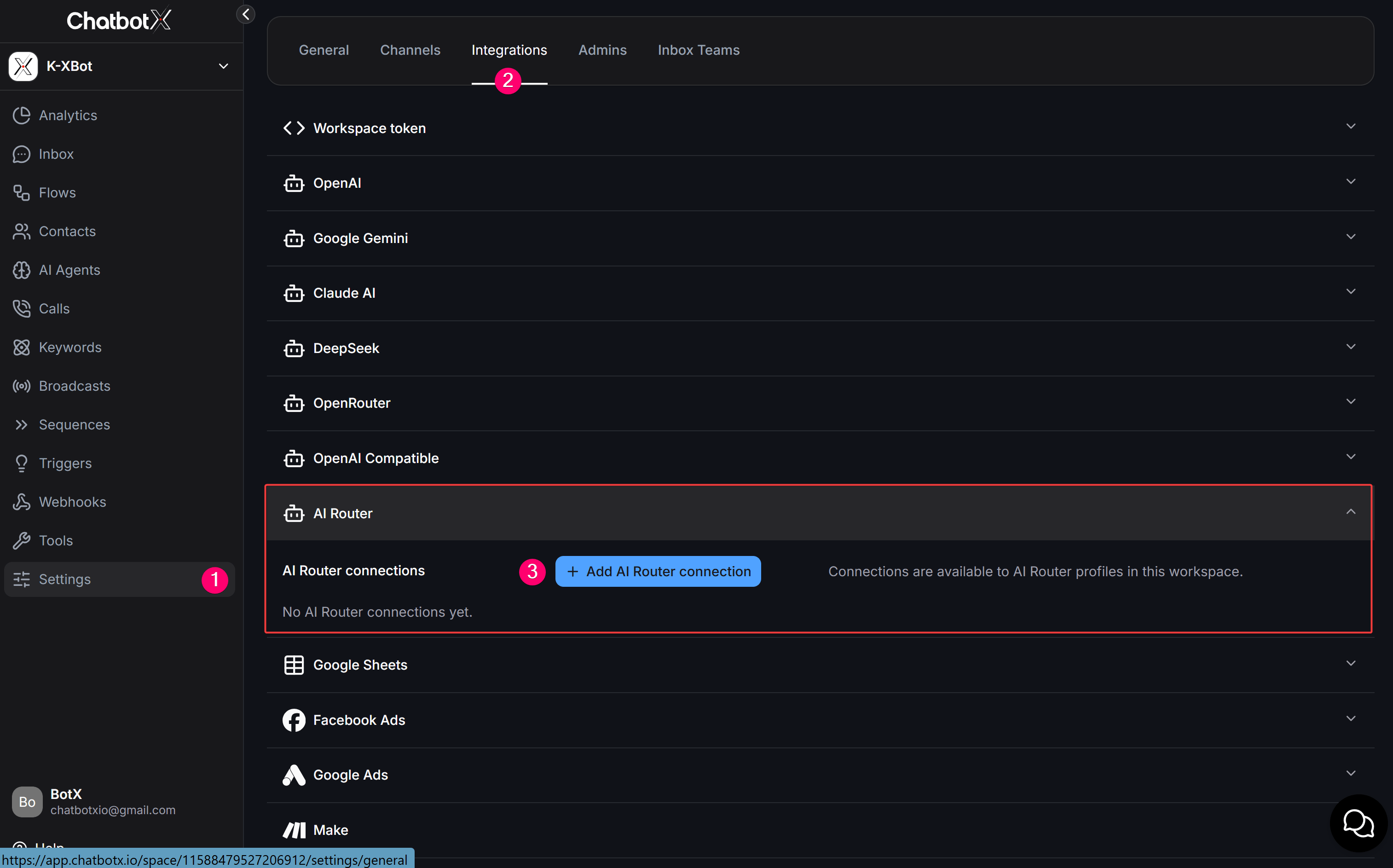
2
Enter TypeSafe Jev Provider and Model Details
In the Add AI Router connection modal, fill in the connection parameters for your provider: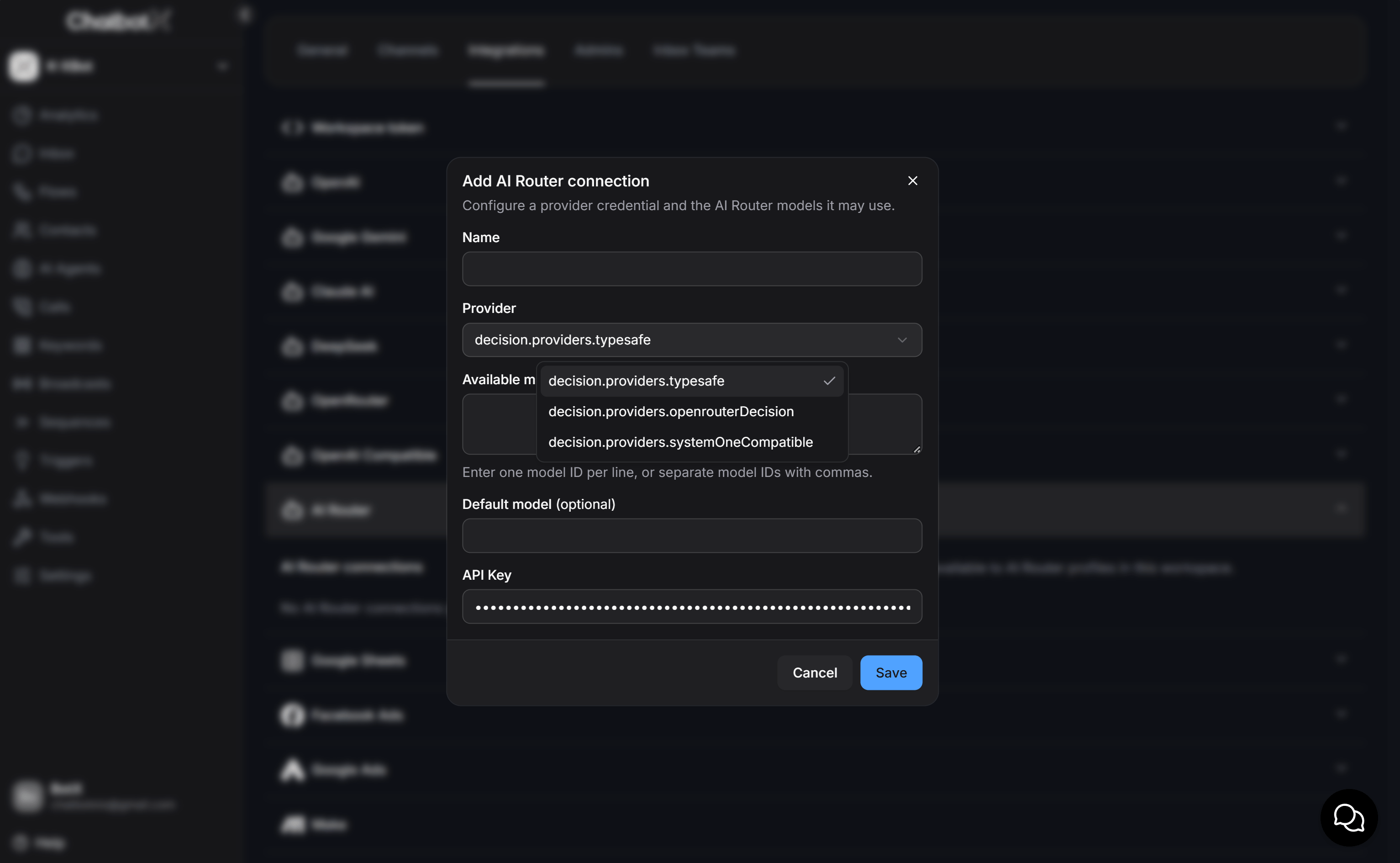
- Name: Enter a recognizable name for this connection so you can easily select it when configuring AI Router profiles.
- Provider: Select the connection protocol for the Jev model:
- TypeSafe: Direct connection to the native TypeSafe platform to run the Jev model with optimal speed and reliability (recommended).
- OpenRouter Decision: Connect to the Jev model through the OpenRouter Decisions API gateway.
- System One Compatible: Connect to a self-hosted server or third-party service compatible with TypeSafe’s System One specification (supports a custom endpoint URL).
- Available models: Enter the Jev model identifiers supported by your provider (use
jev-latestwhen connecting directly via TypeSafe, ortypesafe/jev-latestwhen connecting via OpenRouter Decision). - Default model: Select the default model (such as
jev-latest) to use for this connection from the models listed above. - API Key: Paste the secret API key issued by your TypeSafe or provider account.
3
Save and Test the Connection
Click Save to store the configuration, then run a connection test from the list to verify that your API key and Jev model respond properly before creating a profile.
Creating and Managing AI Router Profiles
Each AI Router profile represents a reusable decision rule evaluated by TypeSafe Jev, such as classifying customer purchase intent, assessing ticket urgency, or scoring lead qualification. You can create multiple profiles and reuse them across different flows.1
Access the AI Router Tool
From the main left sidebar, click Tools and select the AI Router card.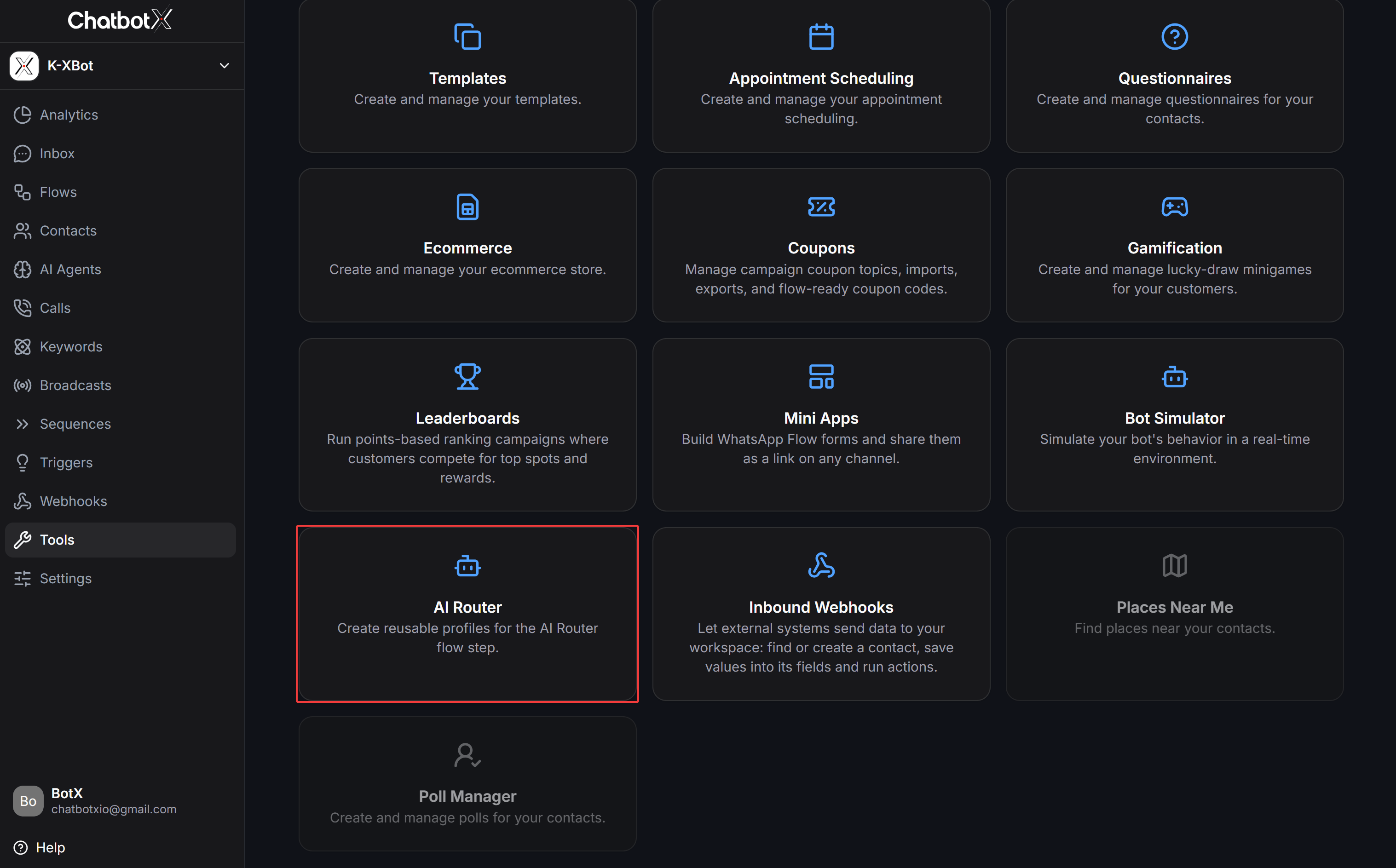
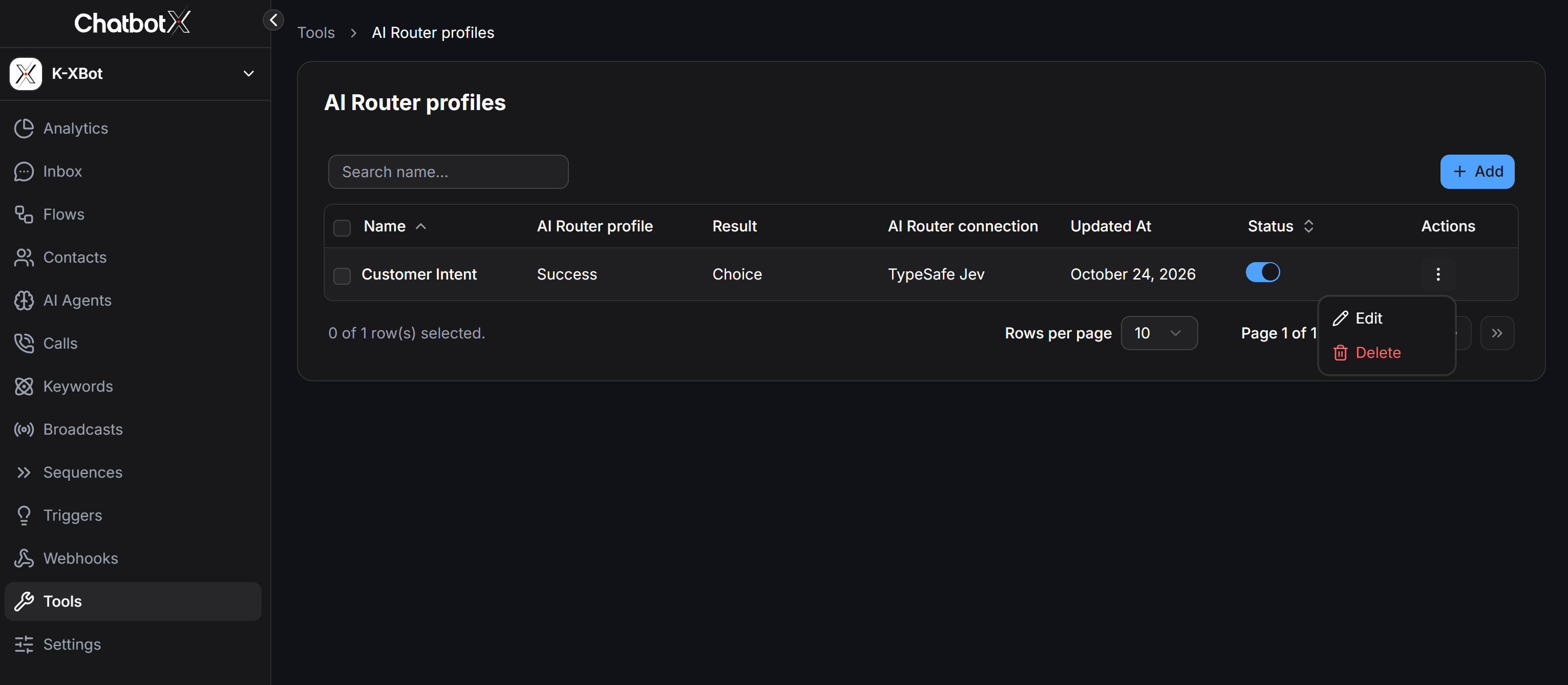
Choice, Score, Noul), active connection, toggle their Status, or click the three-dot icon under Actions to Edit or Delete a profile. Click + Add in the top-right corner to create a new profile.2
Configure General Settings, Question Type, and Confidence Thresholds
In the profile configuration modal, set up the top sections: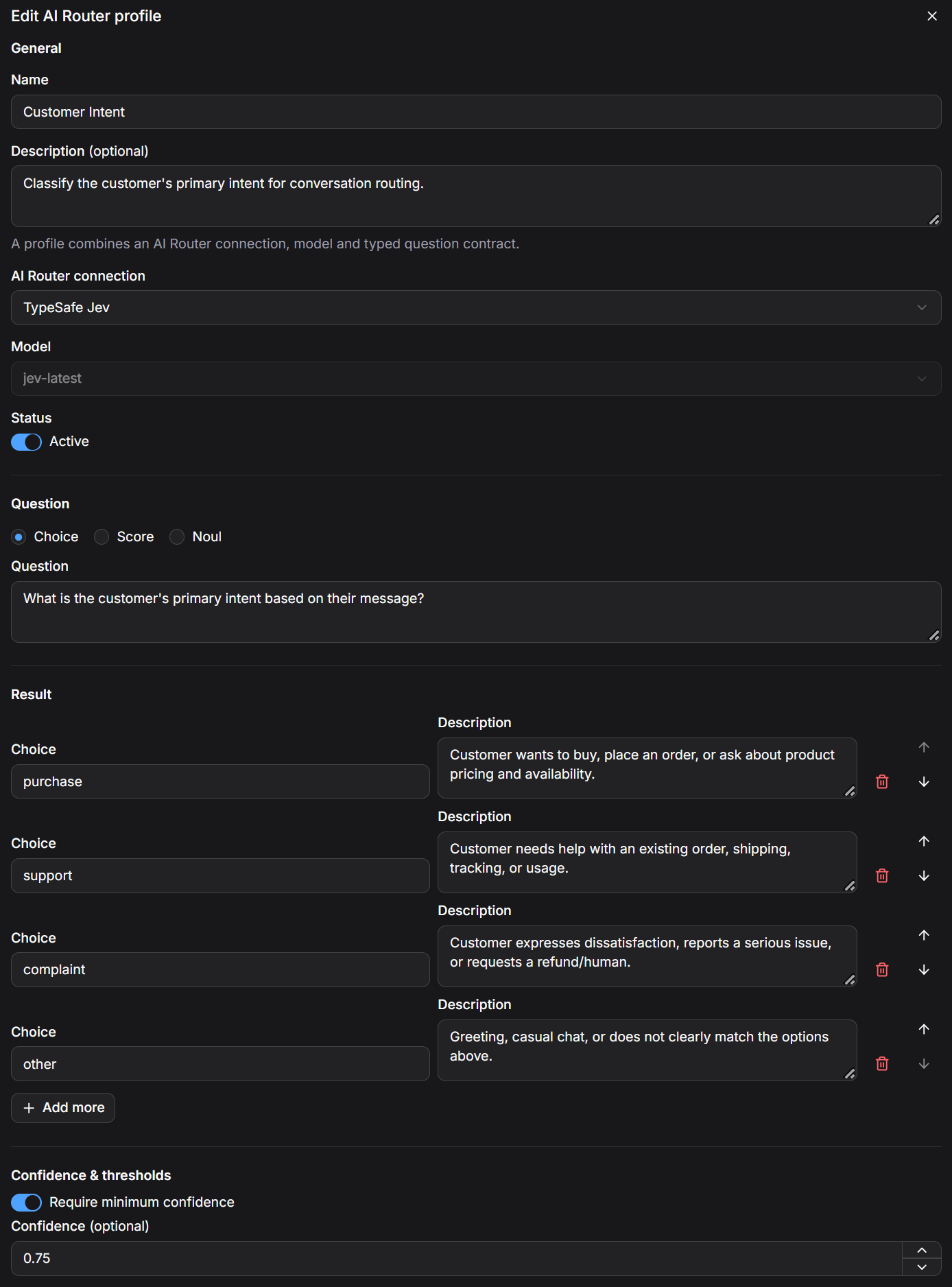
General Information
- Name: Enter a clear name identifying the profile.
- Description: Provide a brief summary of what this profile evaluates so your team understands its purpose.
- AI Router connection: Select the TypeSafe connection you configured in Integrations.
- Model: Choose the evaluation model (such as
jev-latest) for this profile. - Status: Toggle Active on to enable the profile for evaluation.
Question and Result Configuration
Under Question, choose one of the three decision structures supported by TypeSafe Jev and enter a clear evaluation question:When using the Choice decision type, always include a fallback option with a description covering general greetings or off-topic messages. This prevents the Jev model from forcing an inaccurate classification when a contact sends an ambiguous message.
Confidence and Thresholds
Under Confidence & thresholds, enable threshold controls to leverage TypeSafe Jev’s calibrated confidence scoring and ensure ChatbotX only acts when a decision meets your quality bar:- For Choice: Enable Require minimum confidence and enter a value between
0and1(typically0.70to0.80). - For Score: Set a score comparison rule (greater than, greater than or equal to, less than, or less than or equal to a target score).
- For Noul: Set a minimum true probability threshold (
0to1).
3
Configure Global Router and Advanced Field Mappings
Scroll down to the lower half of the profile modal to configure workspace-wide routing and custom field storage: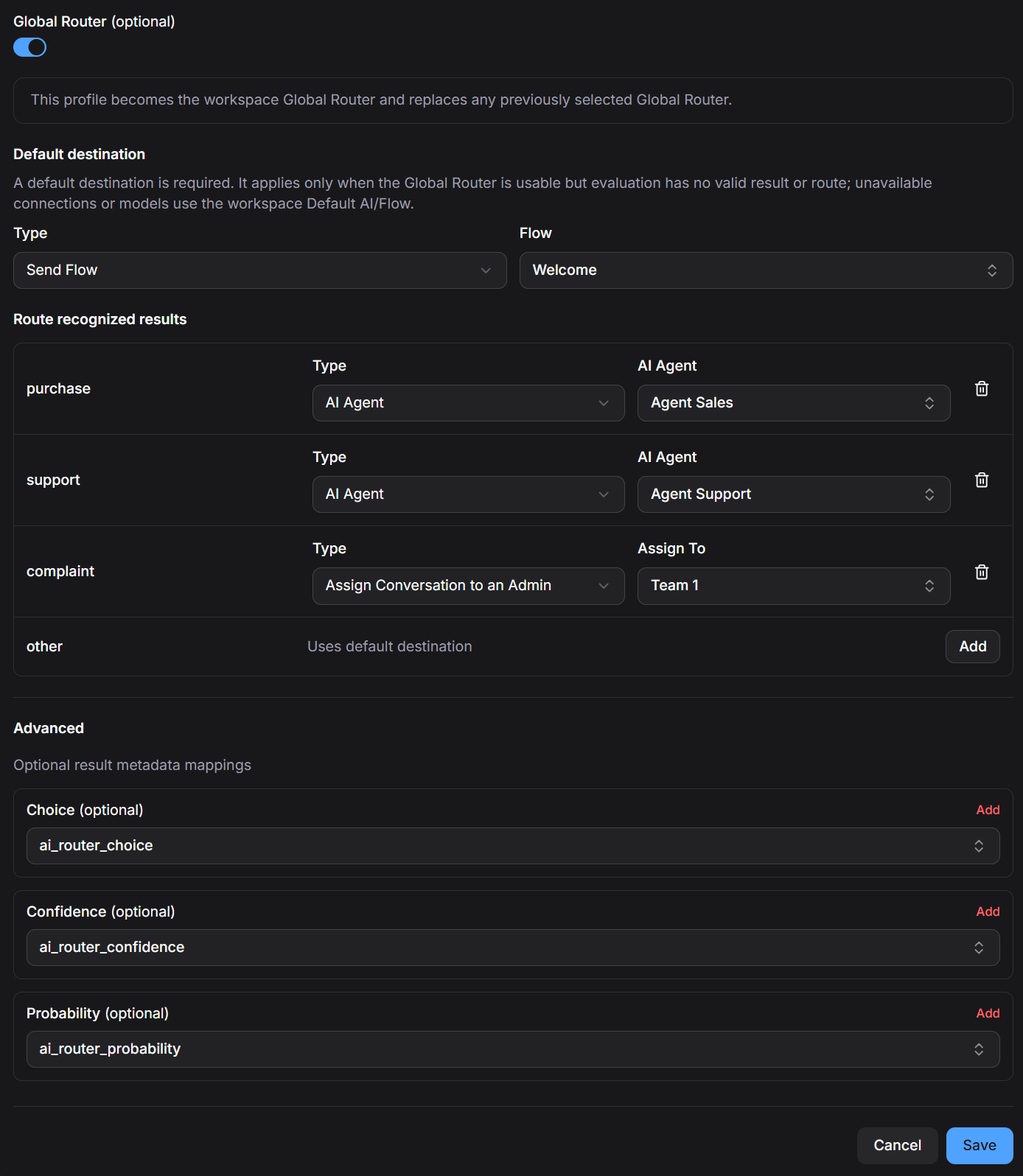
Global Router
When you enable Global Router (optional), this profile automatically uses the Jev model to evaluate new inbound messages from contacts whenever they do not match an active Keyword rule or Entry Point Link:- Default destination: Required when Global Router is enabled. This destination handles the conversation whenever Jev’s evaluation falls below your confidence threshold or matches an option set to
Uses default destination. - Route recognized results: Map each recognized outcome to a dedicated action:
- Send Flow: Trigger and send a specific automated Flow.
- AI Agent: Hand over the conversation to a specialized AI Agent.
- Assign Conversation to an Admin: Assign the conversation to a specific User or Team.
Only one active AI Router profile can have Global Router enabled per workspace at any given time to prevent conflicting inbound routing rules.
Advanced Metadata Mapping
Under Advanced, you can map the evaluation metrics returned by TypeSafe Jev into contact Custom Fields whenever Global Router runs:- Choice / Score / Probability: Saves the winning choice key (requires a
Textcustom field for Choice) or numeric score and probability (requires aNumbercustom field). - Confidence: Saves the decision confidence score from
0to1(requires aNumbercustom field). - Probability: Saves the winning option’s probability from
0to1(requires aNumbercustom field).
Using AI Router Inside an Automated Flow
In addition to workspace-wide Global Routing, you can place AI Router anywhere inside an automated Flow so TypeSafe Jev can evaluate contact responses and dynamically branch the conversation.1
Add the AI Router Action Step
Inside the Flow Builder canvas, create or select an action block, then navigate to Actions > Tools > AI Router.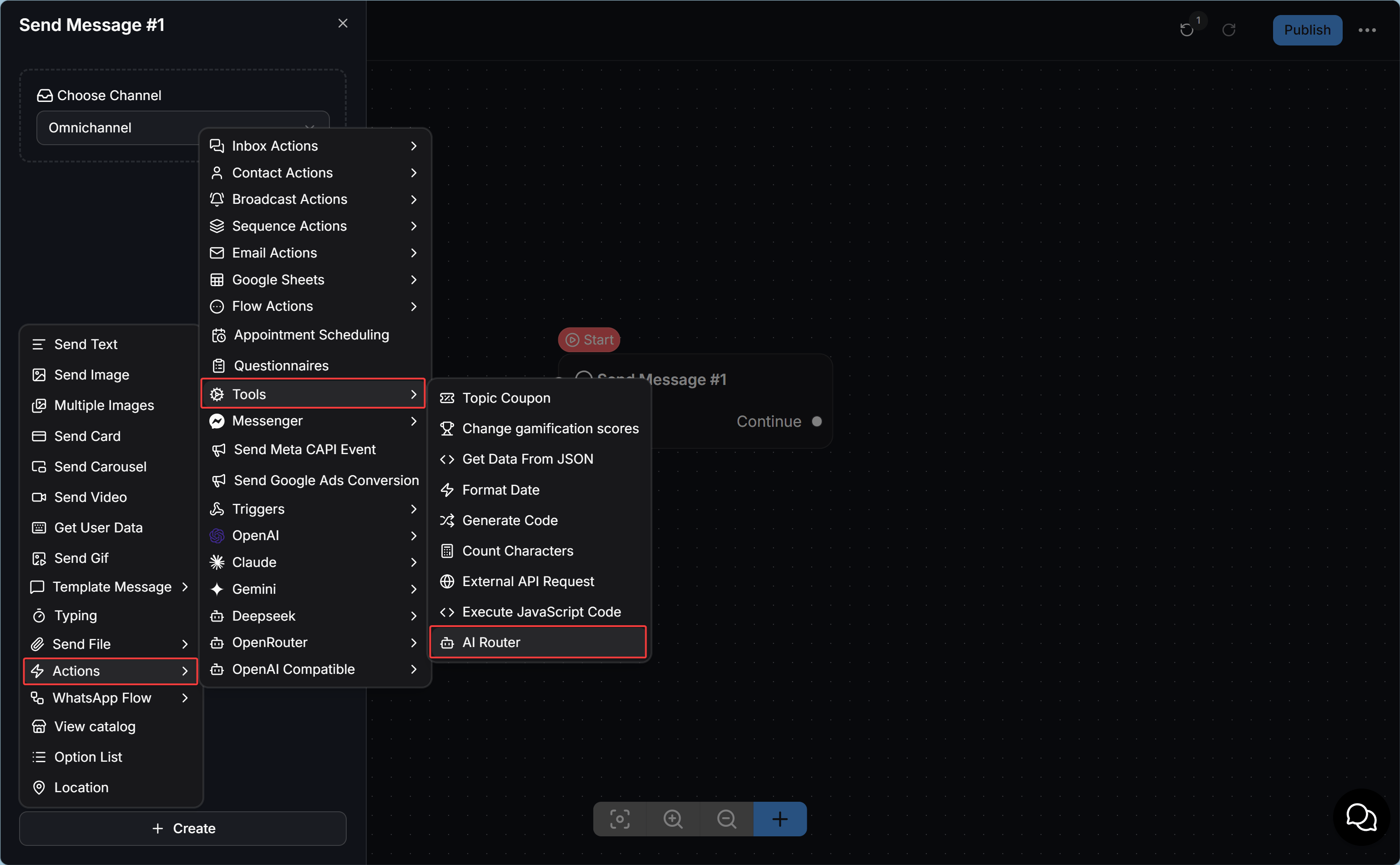
2
Configure Contact Context and Output Field Mappings
Click the AI Router step to open its configuration modal: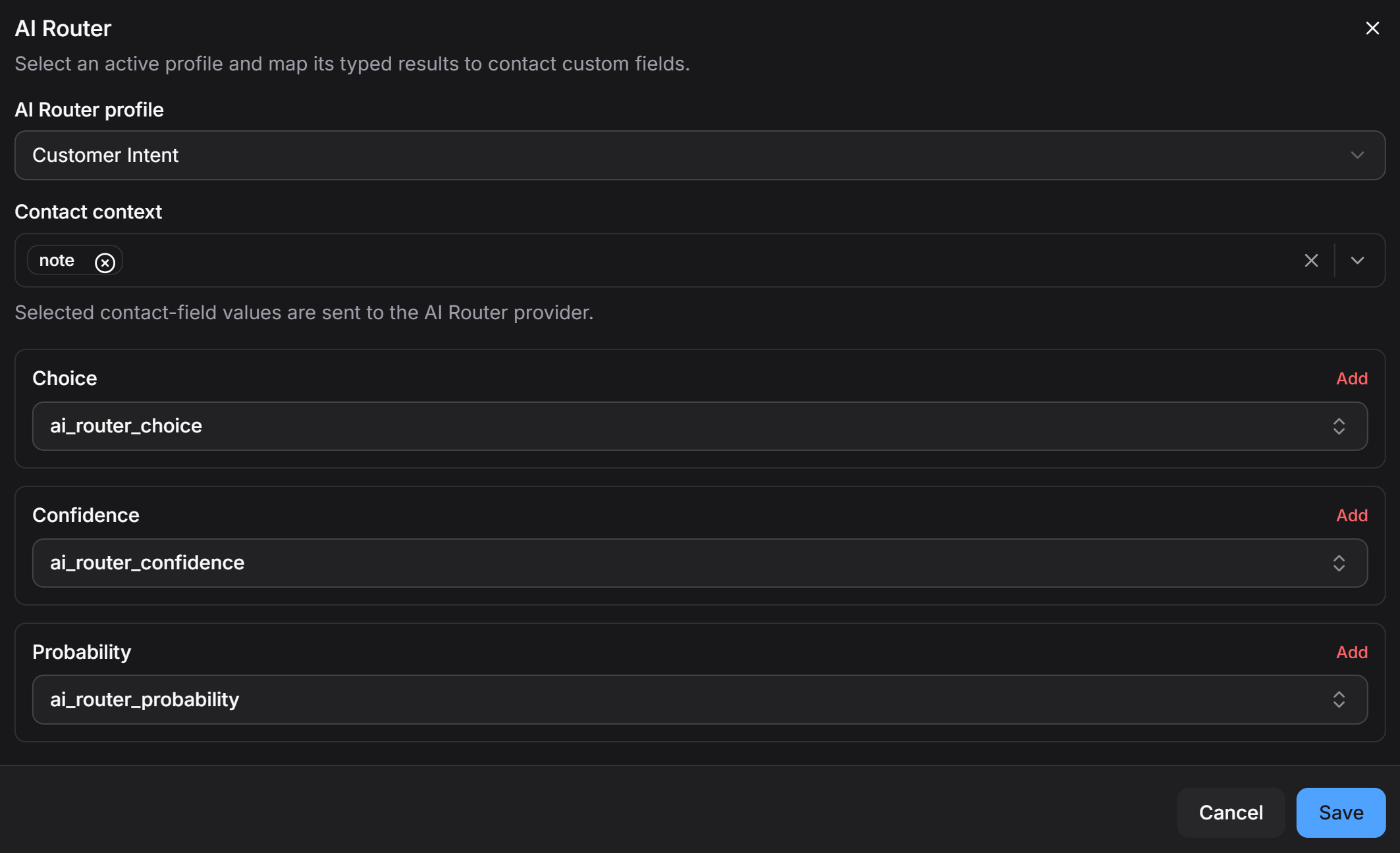
- AI Router profile: Select the active AI Router profile you want to evaluate at this step.
- Contact context: Select one or more Custom Fields containing the contact’s recent input or profile data (such as the custom field saved by a preceding data collection step). The Jev model combines these fields with conversation context to make an accurate decision.
- Output Field Mappings: Select the Custom Fields for
Choice,Confidence, andProbabilitywhere Jev’s evaluation results should be stored for downstream condition checks. Click Save when finished.
3
Connect Output States and Branch with a Condition Node
Once configured, the AI Router step exposes three output ports corresponding to its execution states: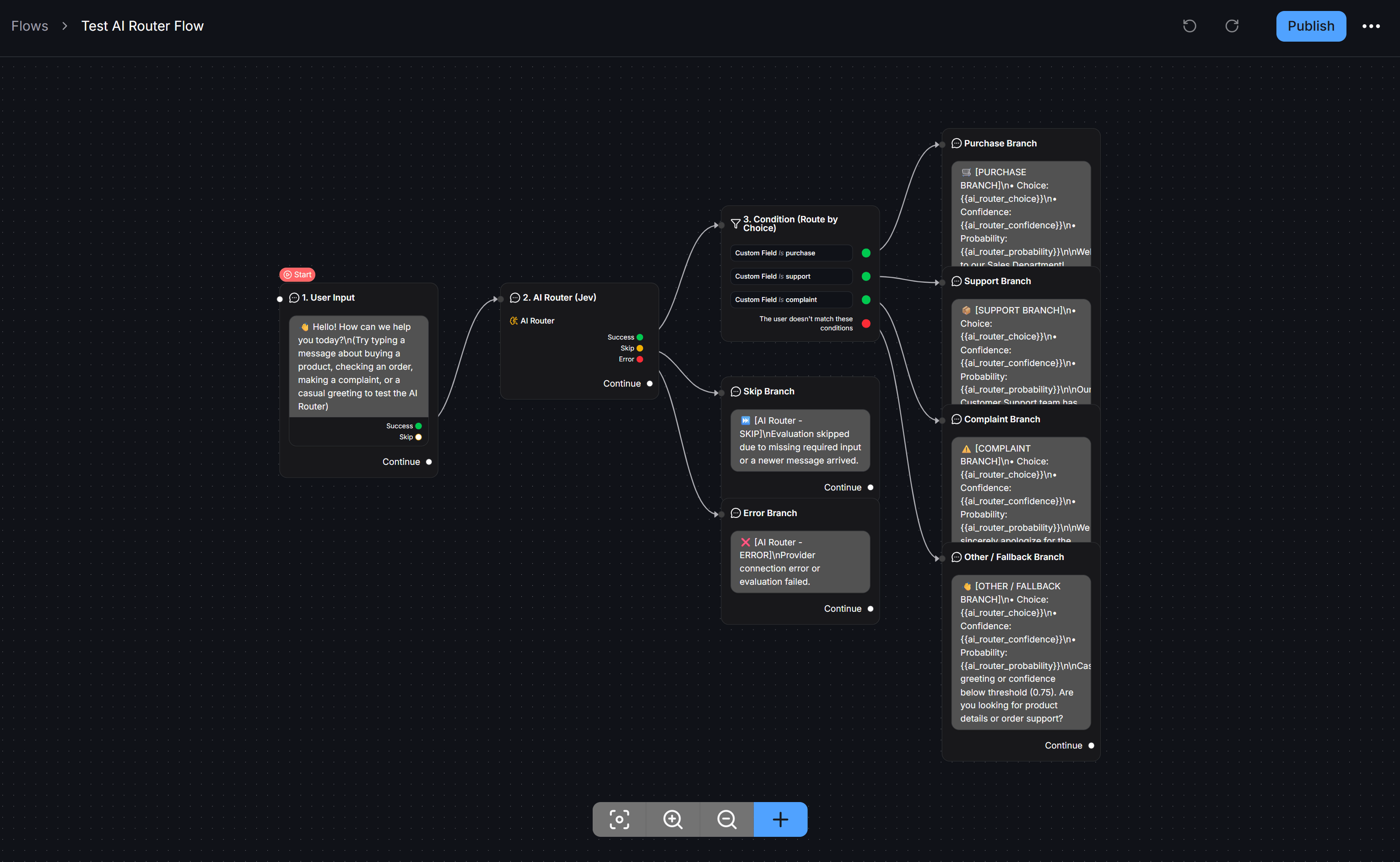
SuccessPort: Triggered when the Jev model completes the evaluation and the result meets the configured threshold. Connect this port to a Condition block to inspect the mapped Custom Field value and route the contact to the appropriate branch.SkipPort: Triggered when the selected profile is inactive, no input context is available, or the evaluation result falls below the minimum confidence threshold. Connect this port to a clarifying prompt asking the contact for more details.ErrorPort: Triggered if an external provider API error occurs (such as an invalid API key, rate limit, or network timeout). Connect this port to a safe fallback path such as human agent handover so the contact’s experience remains uninterrupted.
Understanding Confidence vs. Probability in TypeSafe Jev
When using the Choice decision type, TypeSafe Jev outputs two distinct metrics: Probability and Confidence. Understanding the distinction helps you configure reliable thresholds:Frequently Asked Questions
Why should I use TypeSafe's Jev model for AI Router?
Why should I use TypeSafe's Jev model for AI Router?
Jev (
jev-latest) is a purpose-built decision model developed by TypeSafe specifically to evaluate choices, ordered scales, and True/False criteria with millisecond latency and calibrated confidence scores. Using Jev avoids the high latency, verbose text generation, and formatting inconsistencies often encountered when using general-purpose chat models for routing.Can I enable Global Router on multiple AI Router profiles at the same time?
Can I enable Global Router on multiple AI Router profiles at the same time?
No. To ensure workspace-level inbound message routing remains predictable and conflict-free, only one active profile can have Global Router enabled at a time. However, you can create an unlimited number of AI Router profiles and use them as action steps across multiple Flows.
What happens when Jev's evaluation falls below the confidence threshold?
What happens when Jev's evaluation falls below the confidence threshold?
- In Global Router mode: The system bypasses individual result routes and sends the contact to the profile’s Default destination.
- In a Flow step: Execution follows the
Skipport and preserves existing values in your mapped Custom Fields without overwriting them with low-confidence data.
Why did my AI Router step take the Skip branch during testing?
Why did my AI Router step take the Skip branch during testing?
Check these three common causes:
- Missing input context: If you placed a data collection step right before the AI Router node, make sure the Custom Field storing that response is selected under Contact context in the AI Router step settings.
- Threshold set too high: Setting
Require minimum confidencetoo close to1.0(such as0.98) may cause brief but valid contact messages to be skipped. A threshold between0.70and0.80is recommended for most use cases. - Inactive profile: Verify in Tools > AI Router that the profile’s Status toggle is enabled.
How do I choose between Choice, Score, and Noul?
How do I choose between Choice, Score, and Noul?
- Choose Choice when routing conversations into distinct intent categories (such as Sales, Technical Support, Warranty, or Store Location).
- Choose Score when measuring intensity or qualification on an ordered scale (such as Lead Qualification from 1 to 5, or Customer Satisfaction).
- Choose Noul when verifying a single True or False condition (such as checking whether a contact is explicitly requesting a live human agent).