

Engaging Visual Wheel
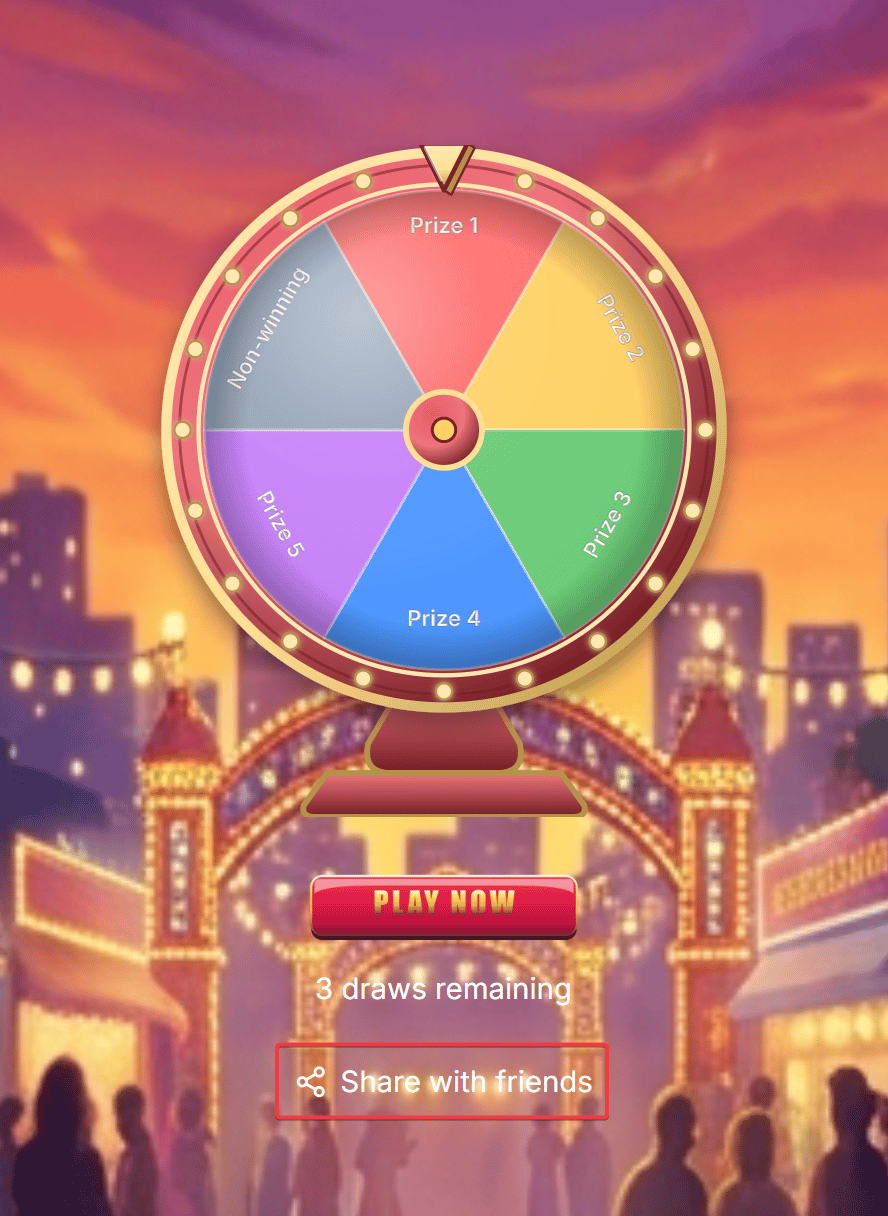
Vibrant circular wheel with smooth spinning physics, dynamic animations, and sound effects that keep contacts immersed.
Organic Viral Sharing
Automatically award extra spins when contacts invite friends and trigger custom welcome steps for referred users.
Automated Tagging & Attributes
Automatically tag openers, active players, and referred friends, while storing winning prize names into Custom Fields.
Probability & Budget Control
Maintain a balanced 100% total probability, limit prize inventory, and schedule daily spin resets.
Accessing Gamification
To get started, navigate to Tools from the left sidebar of ChatbotX and click the Gamification card: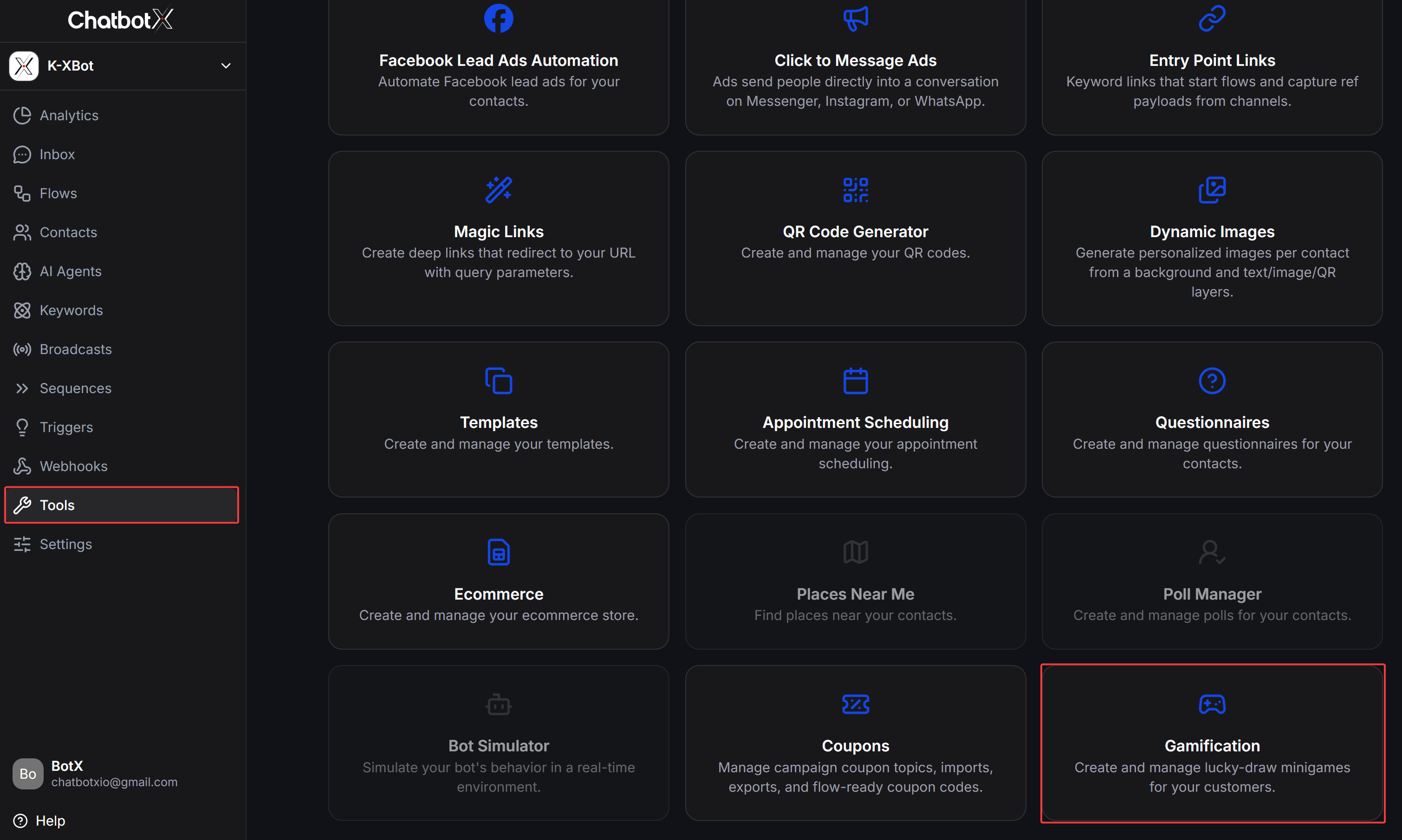
Minigame Dashboard (Game List)
The Gamification overview dashboard displays all created minigames alongside real-time campaign performance metrics: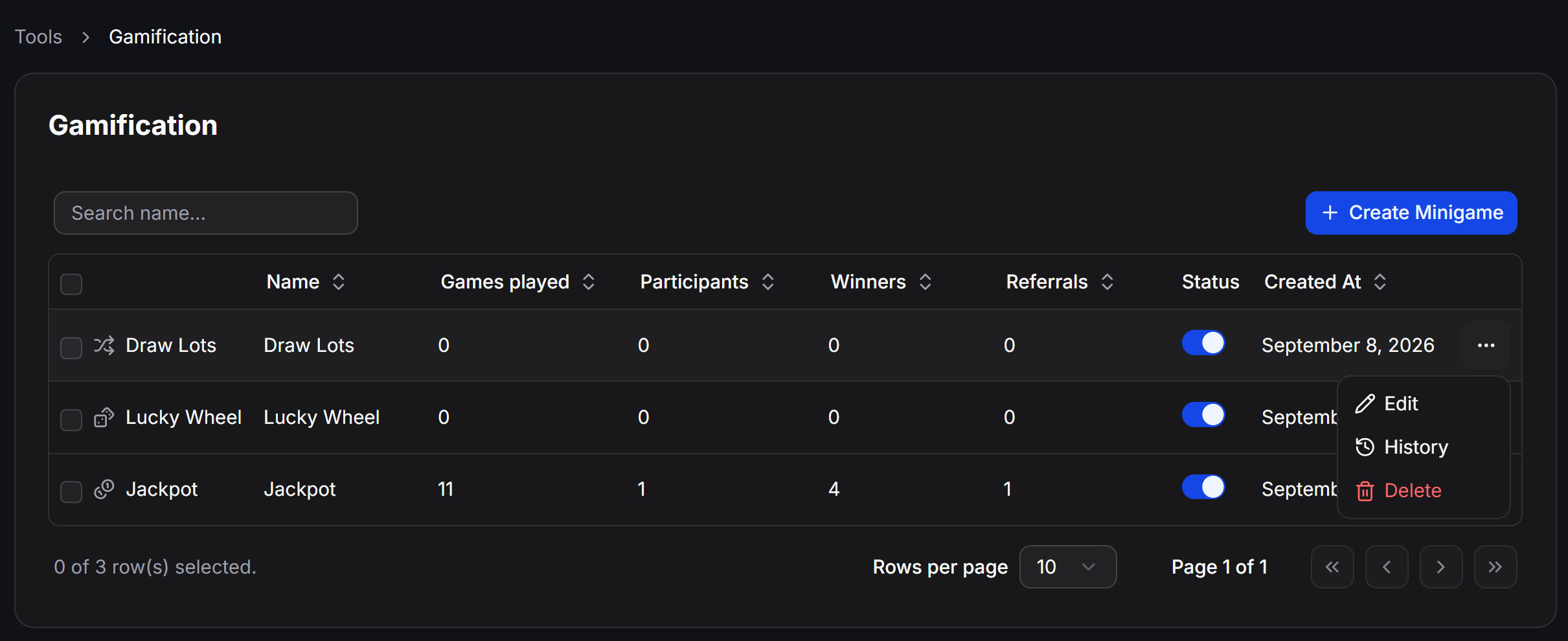
Understanding Dashboard Metrics
Actions Menu
Click the three dots (⋮) in the Actions column of any minigame to:
- Edit: Open the configuration editor.
- History: View the participant log and gameplay history.
- Delete: Remove the minigame from the system.
Creating a Lucky Wheel Minigame
On the Gamification page, click + Create Minigame in the top-right corner to open the minigame type selection modal: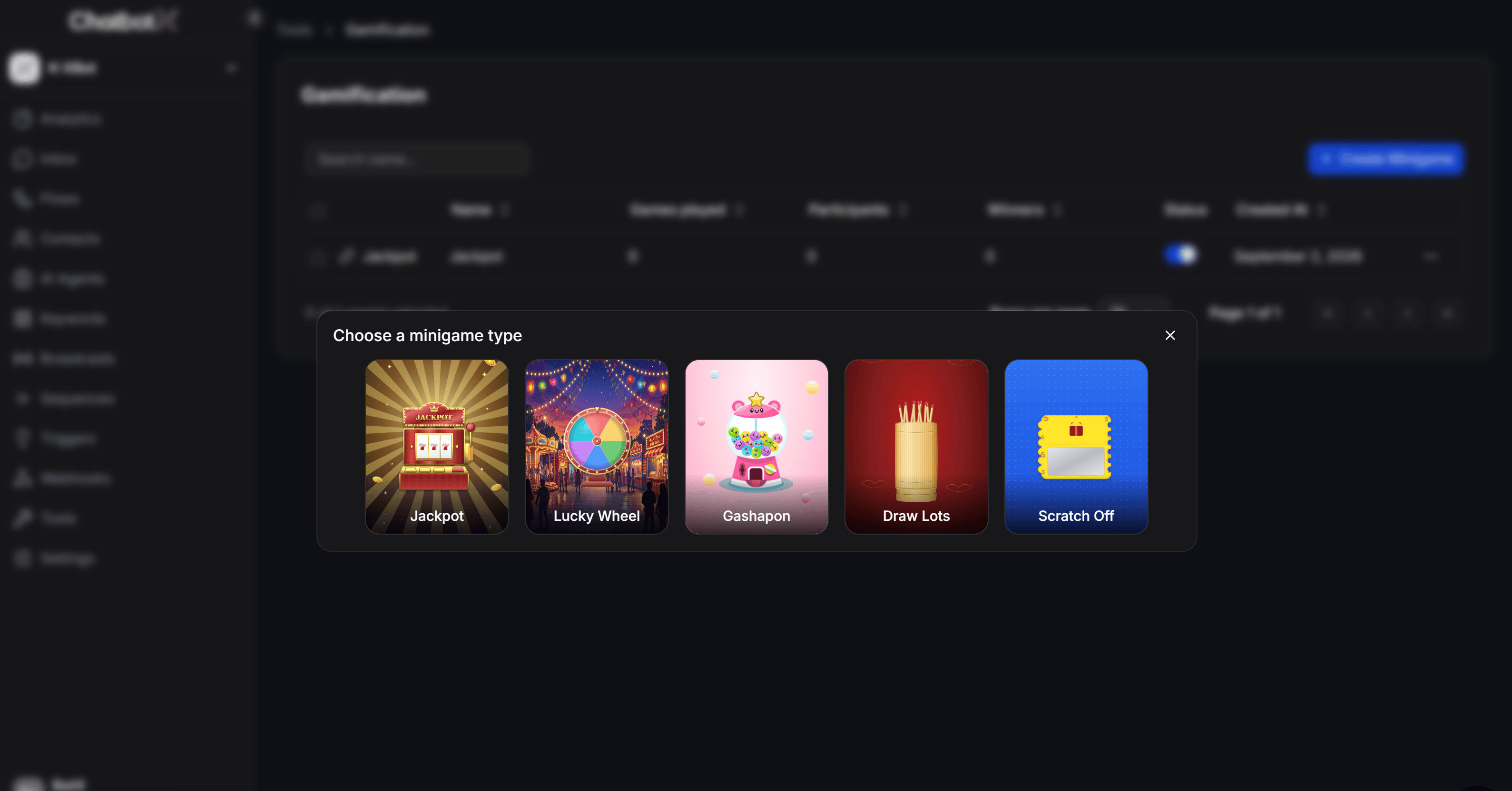
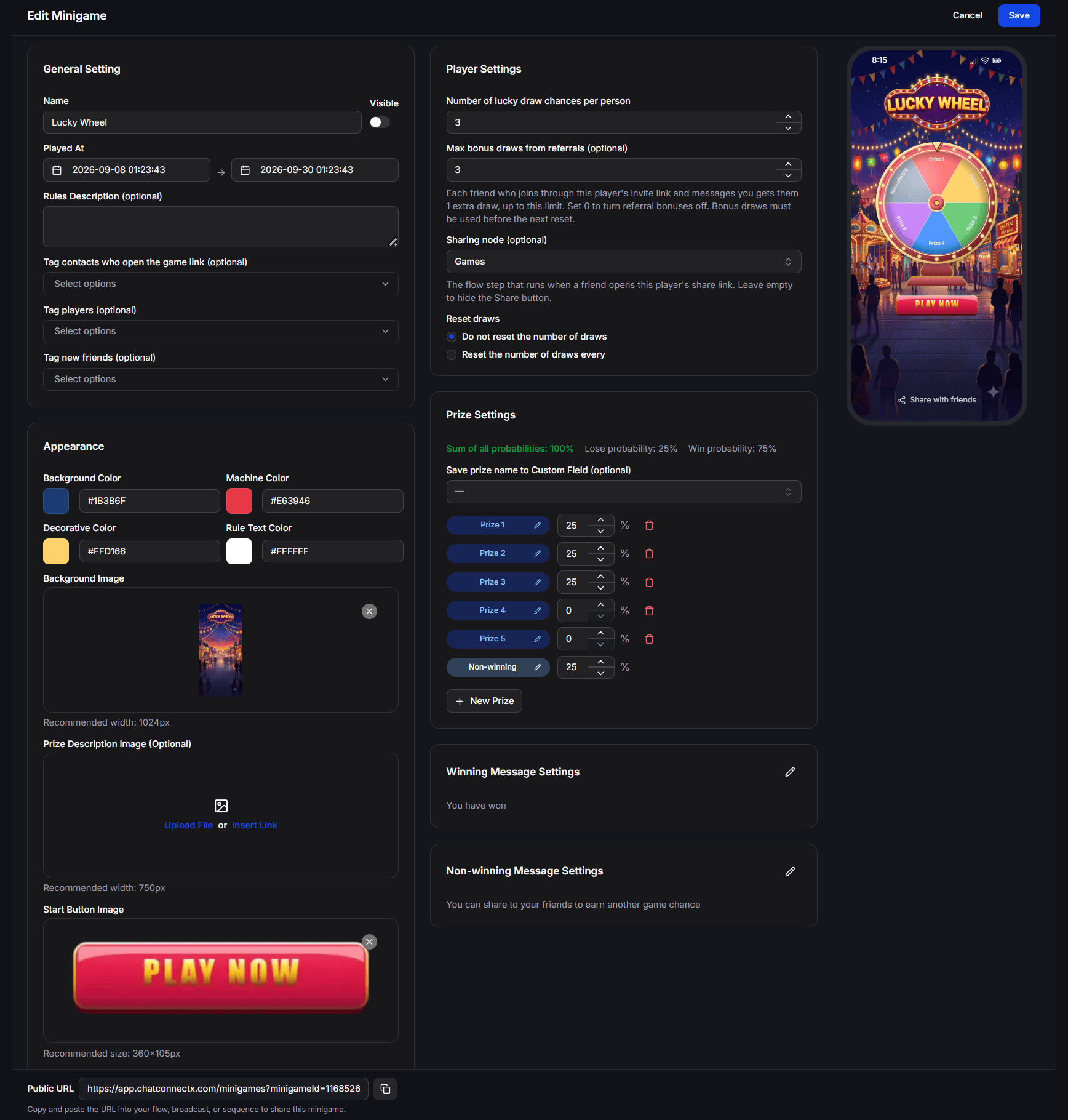
General Setting
Located in the left column, General Setting manages basic display options and automated tagging:- Name: Internal and customer-facing title of the game. The adjacent Visible toggle enables or hides the title banner at the top of the mobile Webview.
- Played At: Active campaign period (start and end date/time). Outside this window, contacts opening the link cannot spin the wheel.
- Rules Description (optional): Gameplay instructions (e.g., Spin the wheel to win exclusive vouchers and gifts. Invite friends to get up to 3 extra spins!). This text appears in the footer area of the mobile Webview.
- Tag contacts who open the game link (optional): Assign tags to contacts who open the game link, even if they leave without spinning. Useful for follow-up reminders.
- Tag players (optional): Assign tags to contacts who click the start button and complete a spin.
- Tag new friends (optional): Assign tags to newly referred contacts who joined through a friend’s share link.
Appearance
The Appearance section allows you to customize the color scheme and upload branded graphics for the wheel:Color Palette
- Background Color: The background color surrounding the mobile Webview (Hex code).
- Wheel Color: Outer rim and accent border color of the rotating wheel.
- Rule Text Color: Text color of the rules description displayed at the bottom.
Recommended Asset Dimensions
- Background Image: Main backdrop graphic. Recommended width is 1024px. Height scales automatically.
- Prize Description Image (Optional): Header promotional banner. Recommended width is 750px. You can Upload File or Insert Link.
- Start Button Image: Center spin button graphic with integrated pointer needle. Recommended dimensions are 400 x 400px.
12 o’clock pointer alignment: The center start button image (Start button image) also serves as the indicator needle. The pointer must be positioned in the exact center and facing straight upward (12 o’clock direction) to ensure accurate alignment with prize segments when the wheel stops.
Player Settings
Located in the middle column, Player Settings defines spin allowances, referral rewards, and reset schedules:Initial Draws
- Number of lucky draw chances per person: Base number of spins granted to each contact (default is 1).
Referral & Viral Sharing
- Max bonus draws from referrals (optional): Maximum extra spins a player can earn by sharing with friends.
- Each friend who clicks the invite link and messages your bot grants the original player 1 bonus draw, up to this limit.
- Set to 0 to disable referral bonus spins.
- Sharing node (optional): Select the specific Flow step (Node) that executes when a referred friend opens the link. If left empty, the Share button is hidden from the game screen.
Reset Draws
- Do not reset the number of draws: Contacts can only play their initial allowance plus any earned referral bonuses.
- Reset the number of draws every: Restores the default spin count periodically (e.g., reset every 1 day at 00:00).
Important reset policy: When a scheduled reset occurs (e.g., daily at 00:00), all unused bonus draws earned from referrals are also reset. Clarify this policy in your rules description to encourage same-day participation.
Prize Settings
The Prize Settings section controls rewards, odds calculations, and winner tracking:Probability Indicators
The system calculates total odds at the top of the section:- Sum of all probabilities: Total combined probability across all items (must equal exactly 100%).
- Win probability: Aggregate probability of all winning prizes.
- Lose probability: Probability of hitting the Non-winning outcome.
Storing Winning Results
- Save prize name to Custom Field (optional): Select a text Custom Field (e.g., Prize Name). When a contact wins a prize, its name is automatically saved to their profile for downstream messaging or segmentation.
Adding and Editing Prizes (Edit Prize)
Adjust probability percentages directly in the list, click the trash icon to delete, or click the pencil icon to open the Edit Prize modal: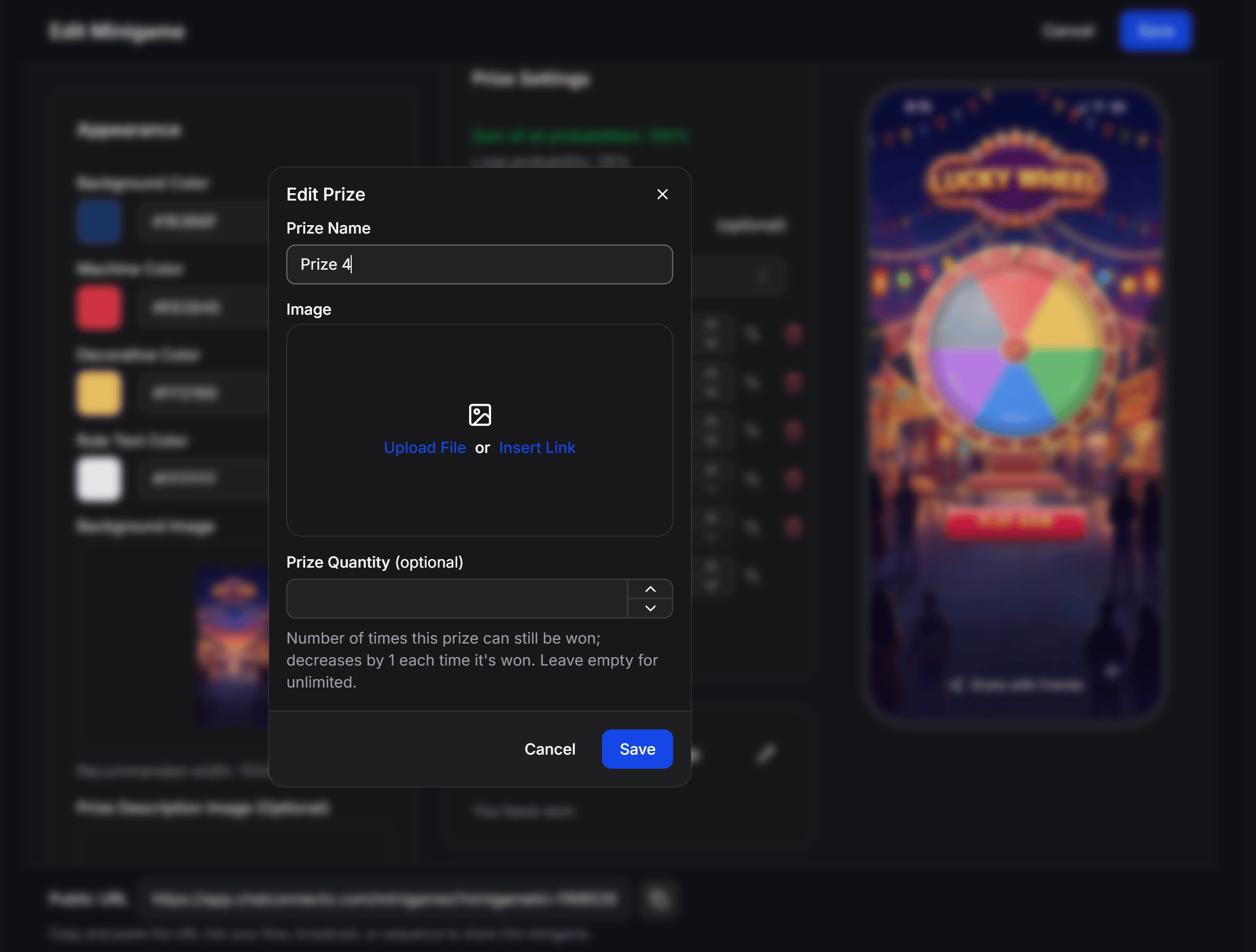
- Prize Name: Title of the prize displayed on the wheel segment (e.g., 20% Off Voucher, Thermos Bottle, Free Shipping).
- Image: Upload or paste an image URL representing the prize on the wheel.
- Prize Quantity (optional): Inventory limit. Each win decreases this counter by 1. When it reaches 0, the prize can no longer be won. Leave empty for unlimited winners.
Winning & Non-winning Message Settings
After the wheel stops, the Webview displays a result screen. Click the pencil icon next to Winning Message Settings or Non-winning Message Settings to configure these states:Winning Message Settings
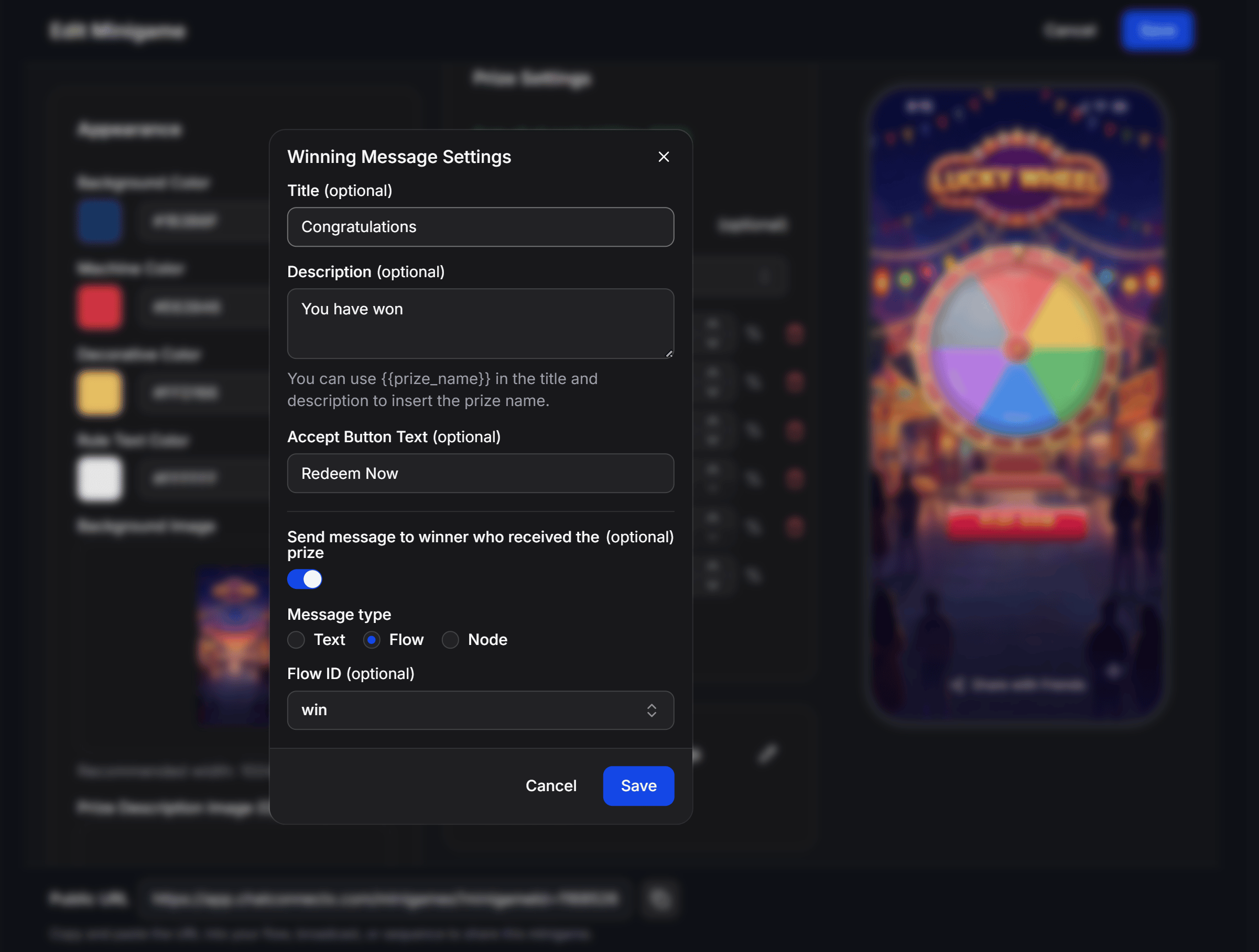
- Title (optional): Congratulations headline (e.g., Congratulations).
- Description (optional): Detailed winning text. Insert the
{{prize_name}}variable to dynamically display the prize won. - Accept Button Text (optional): CTA button text shown on the Webview (e.g., Redeem Now).
- Send message to winner who received the prize (optional): Enable to trigger an automated bot message immediately upon winning.
- Message type: Select from 3 delivery methods:
- Text: Sends a plain text confirmation.
- Flow: Triggers a complete automated sequence (select via Flow ID) to issue coupon codes or collect shipping addresses.
- Node: Navigates directly to a specific block within an existing flow.
- Message type: Select from 3 delivery methods:
Non-winning Message Settings
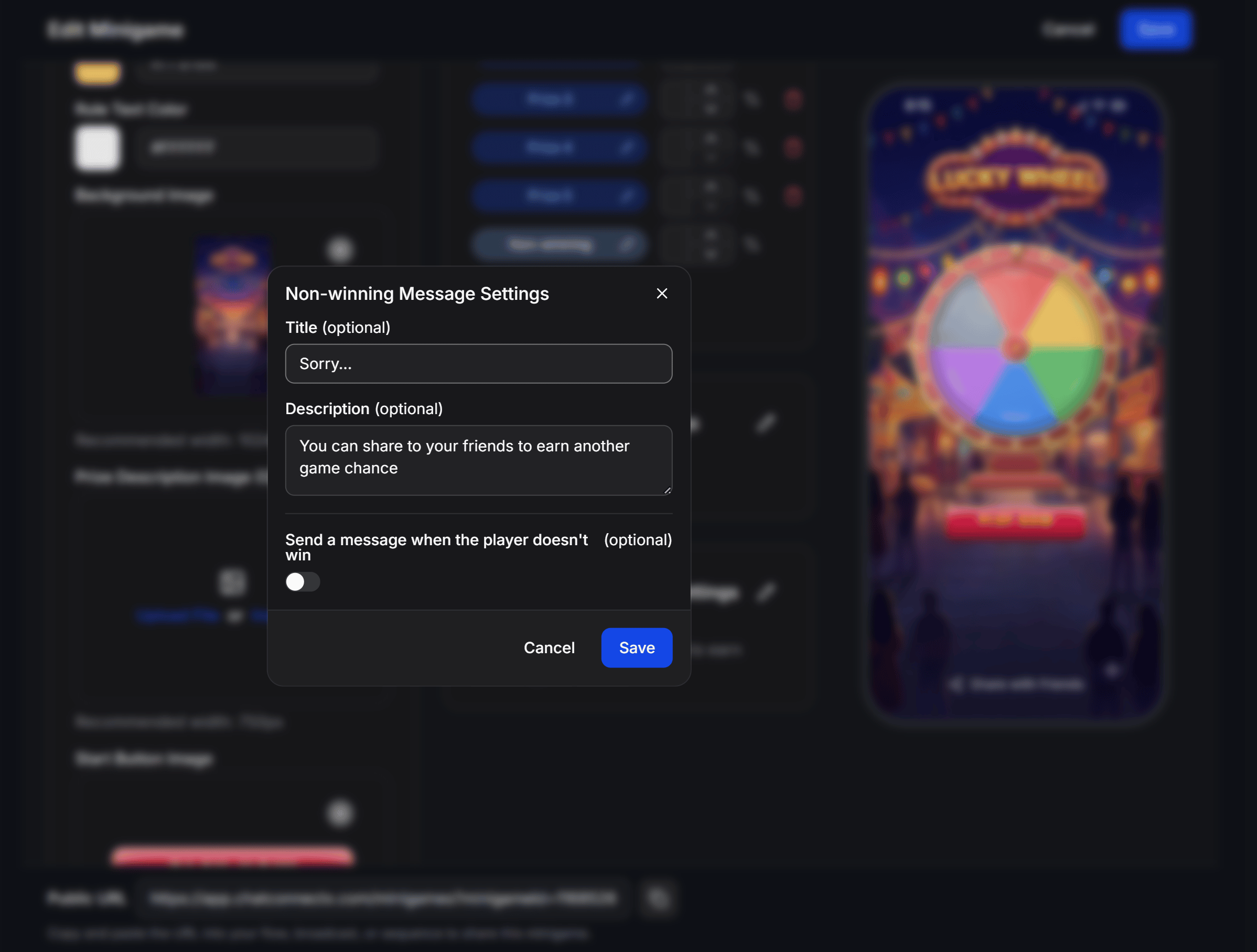
- Title (optional): Headline for non-winning spins (e.g., Better luck next time).
- Description (optional): Encouragement message prompting the user to share the game with friends for another chance.
- Send a message when the player doesn’t win (optional): Enable to deliver a consolation message or a participation discount code via the bot.
Tracking Gameplay History (History)
Switch to the History tab in the top navigation bar to inspect detailed engagement logs: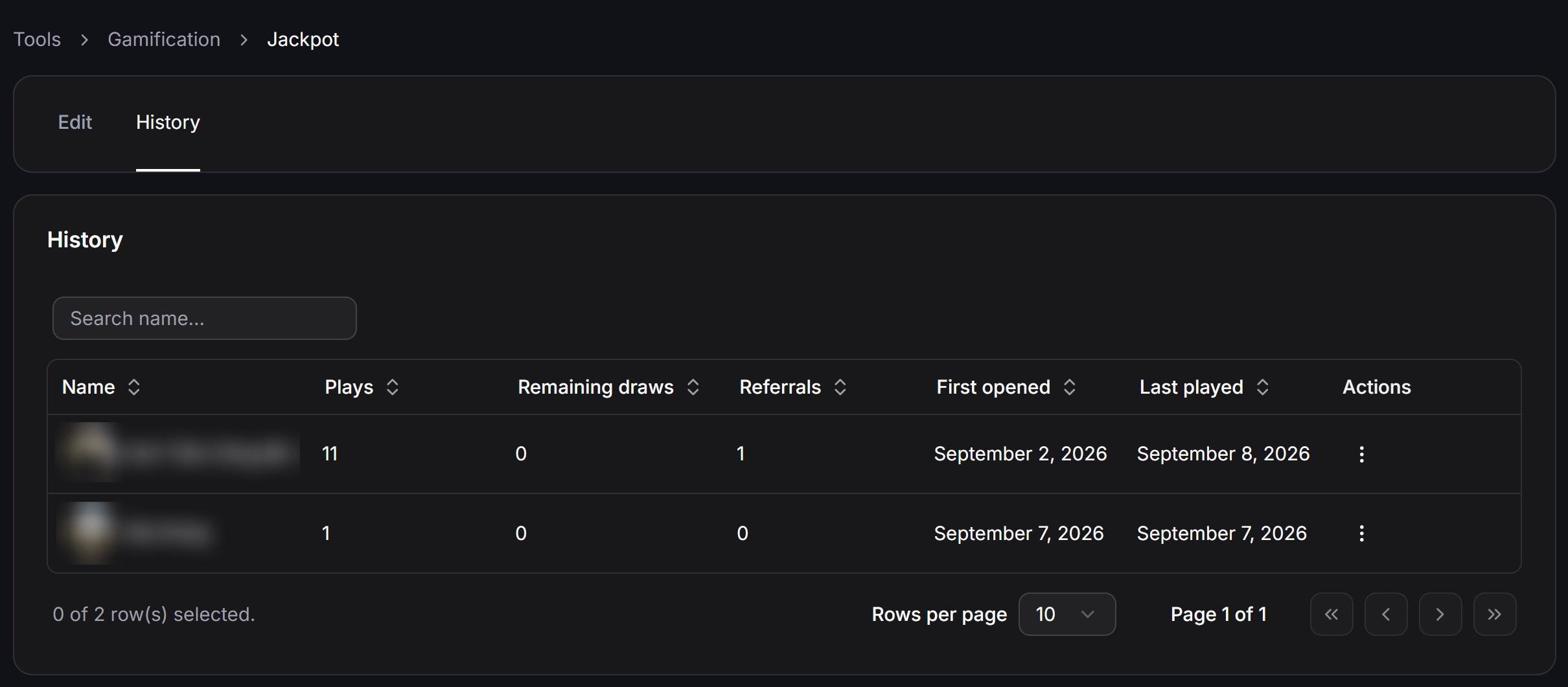
- Name: Contact avatar and profile name.
- Plays: Total spins executed by this contact.
- Remaining draws: Remaining unused spin balance.
- Referrals: Count of new friends who joined via this contact’s share link.
- First opened: Date and time the contact first loaded the minigame.
- Last played: Date and time of their most recent spin.
- Actions (⋮): Quick management actions for individual players.