

Branch Management
Store and categorize physical addresses, geographical coordinates (latitude and longitude), and branch names.
Smart Coordinate Paste
Quickly paste combined coordinates copied directly from Google Maps into the latitude field for automatic coordinate splitting.
Category Priority Ranking
Organize locations into functional categories with custom rank priorities to control which branch types get recommended.
Flow Automation on WhatsApp
Pair with the Get User Data block to detect customer coordinates and send native interactive WhatsApp map pins instantly.
Access Places Near Me
To access the Places Near Me tool:1
Open Tools
Click Tools in the left navigation sidebar.
2
Select Places Near Me
Click the Places Near Me card to open the management page.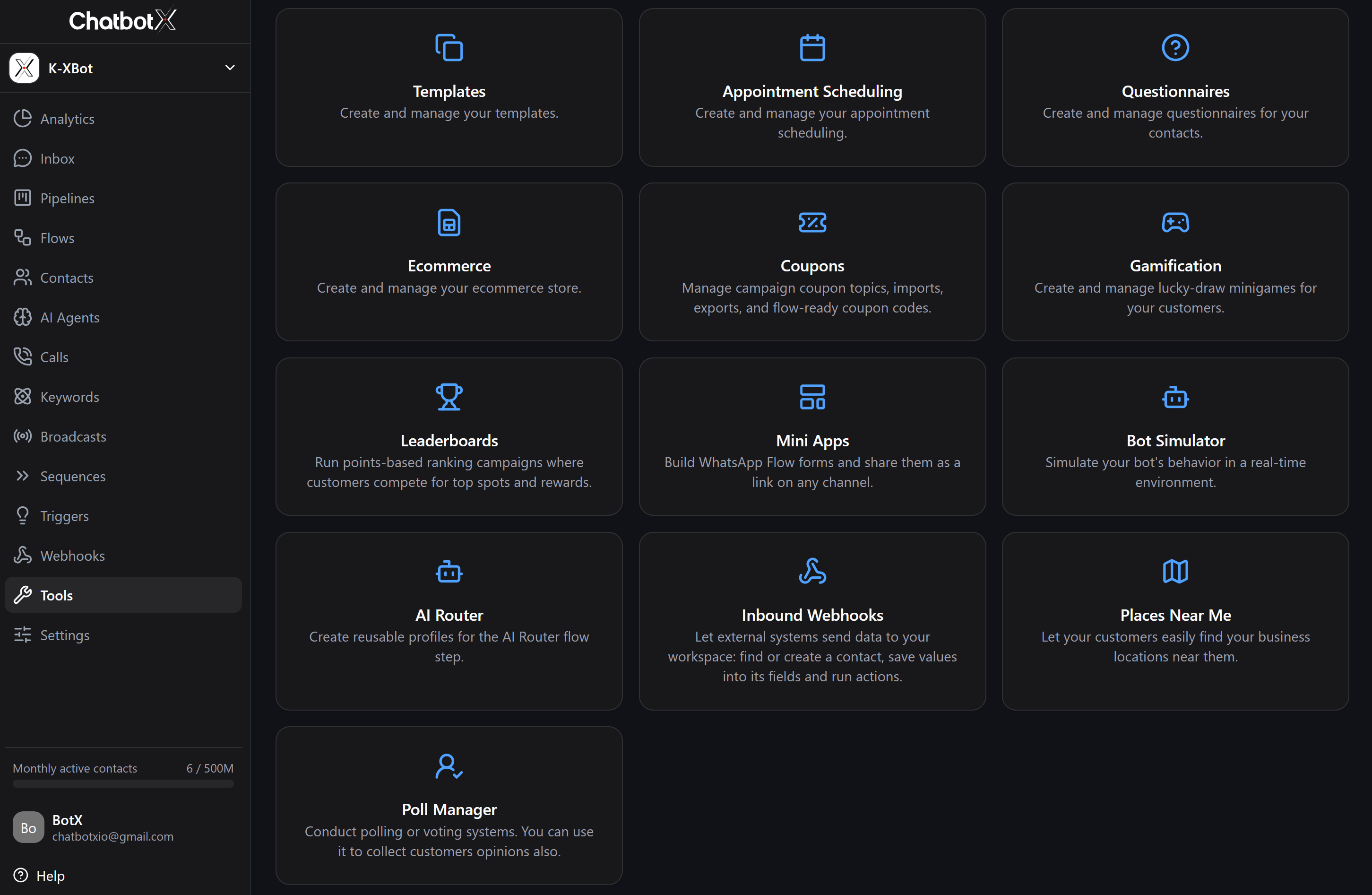
Manage locations
The Locations tab displays all your business locations along with their assigned category and coordinates: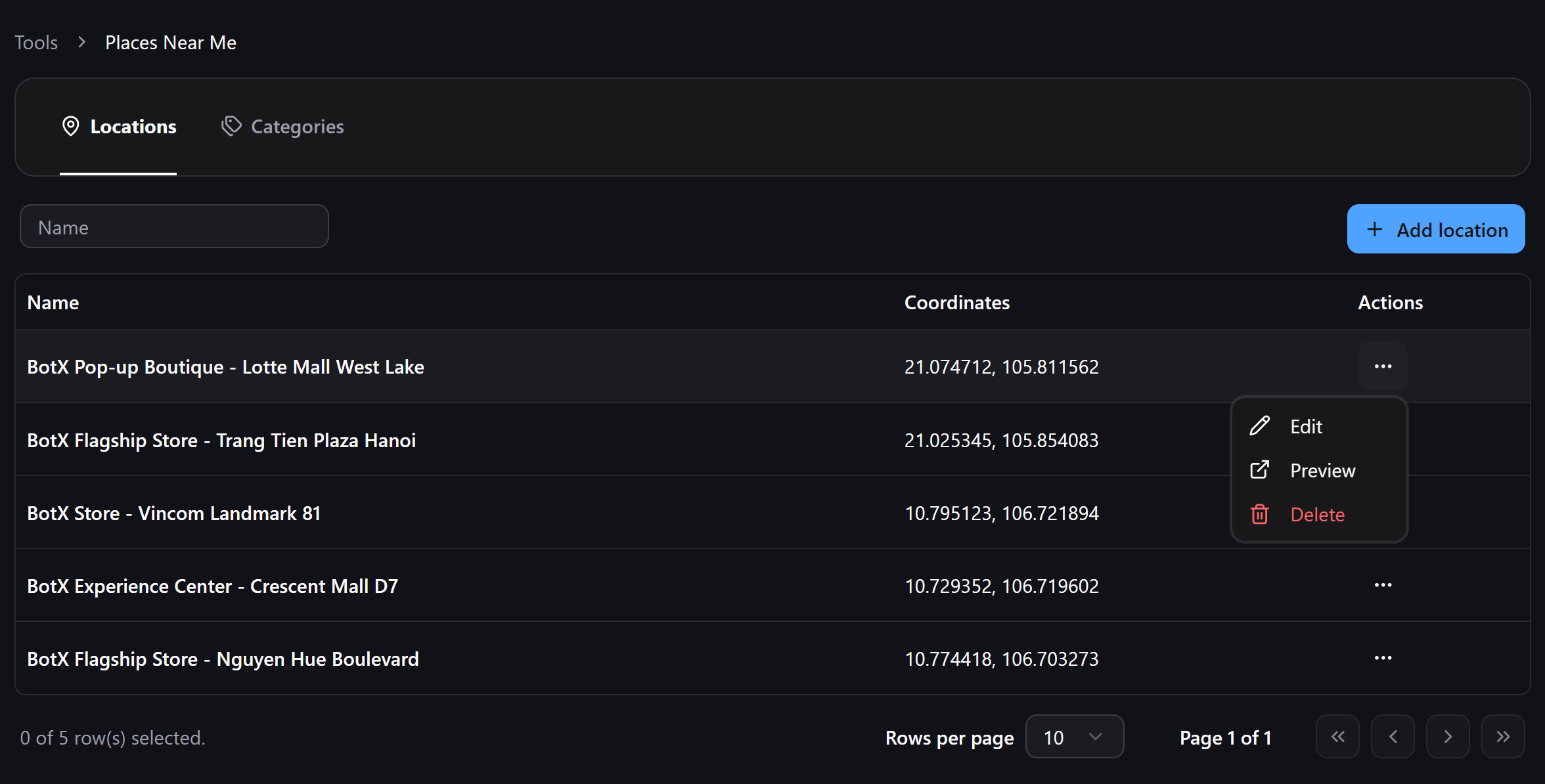
- Name: The name of the store or branch.
- Coordinates: The latitude and longitude of the location.
- Category: The assigned classification group.
- Edit: Update the location name, coordinates, or category.
- Preview: Open Google Maps in a new browser tab centered at the exact coordinates to verify the pin placement.
- Delete: Remove the location from your workspace.
Add a new location
Click the + Add location button at the top right of the Locations tab: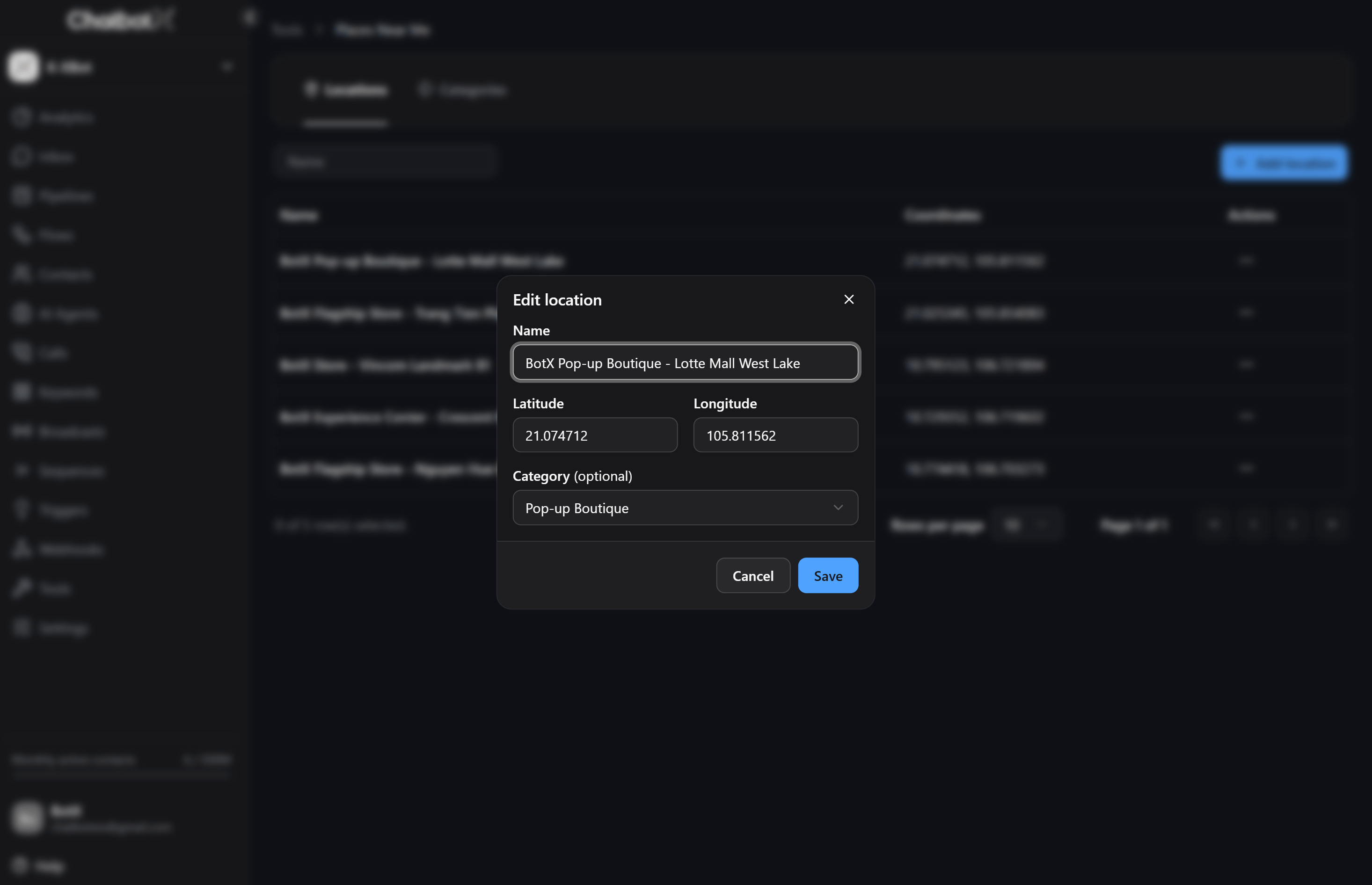
- Name: Enter the branch or store name (for example, Downtown Flagship Store or Westside Service Hub).
- Latitude and Longitude: Specify the geographical coordinates in decimal format.
- Category: Choose a category from the dropdown menu to classify this location.
Manage location categories
The Categories tab allows you to group locations by business function, such as Retail Stores, Cafes, Pick-up Points, or Support Centers: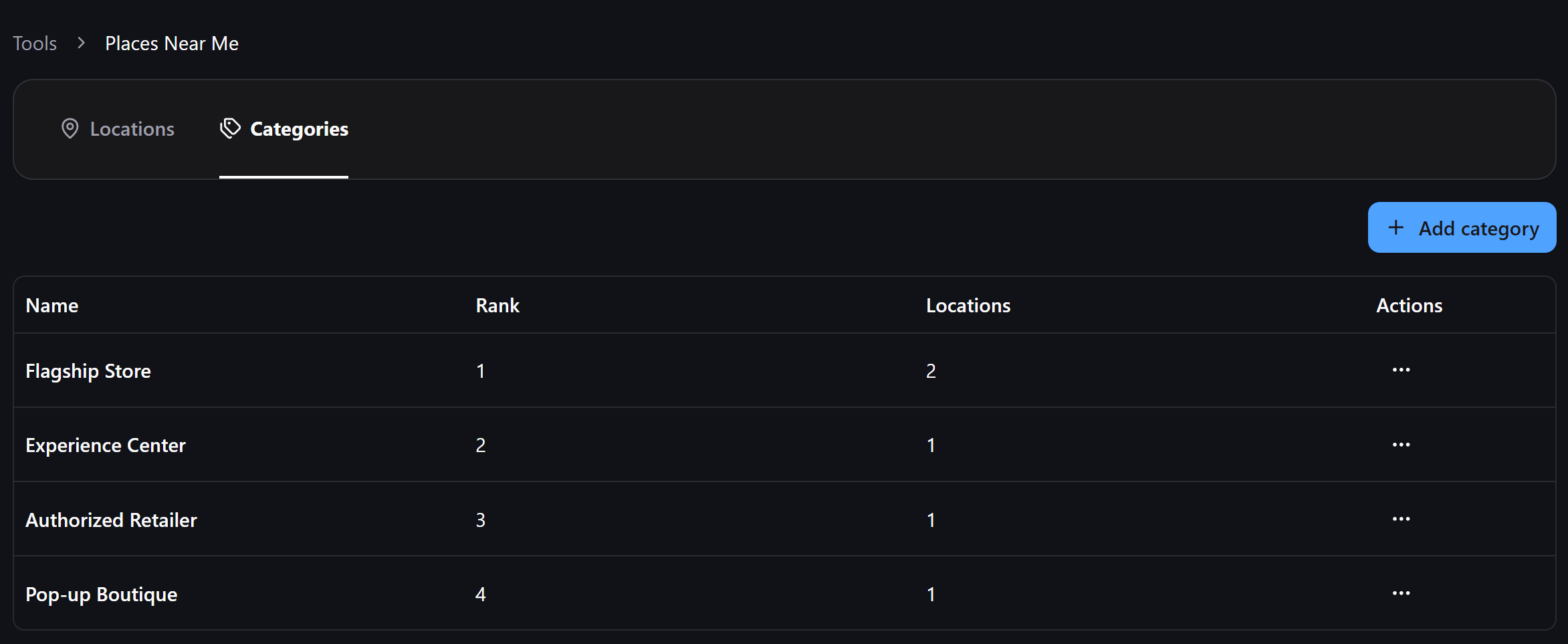
- Name: The category name.
- Rank: The priority rank assigned to this category (lower numerical values represent higher priority).
- Locations: The count of active locations assigned to this category.
Add a new category
Click the + Add category button: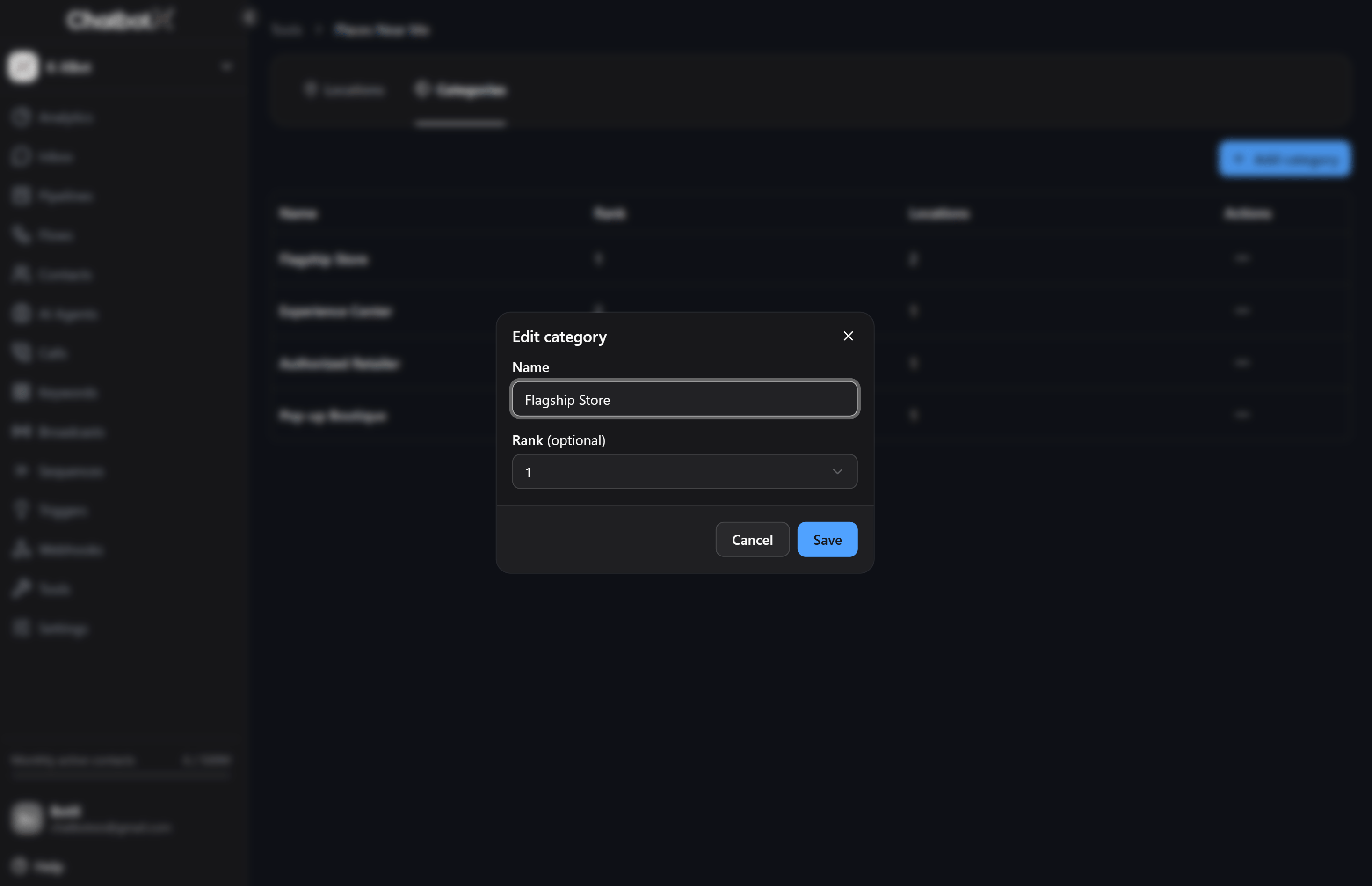
- Name: Enter the category title.
- Rank: Enter an integer value defining the priority rank (defaults to
10). When sorting and filtering locations in actions, lower numbers take precedence.
Configure Find Places Near Me in Flow Builder
You can use the Find places near me action inside Flow Builder to automatically route customers to their closest branch based on their live location.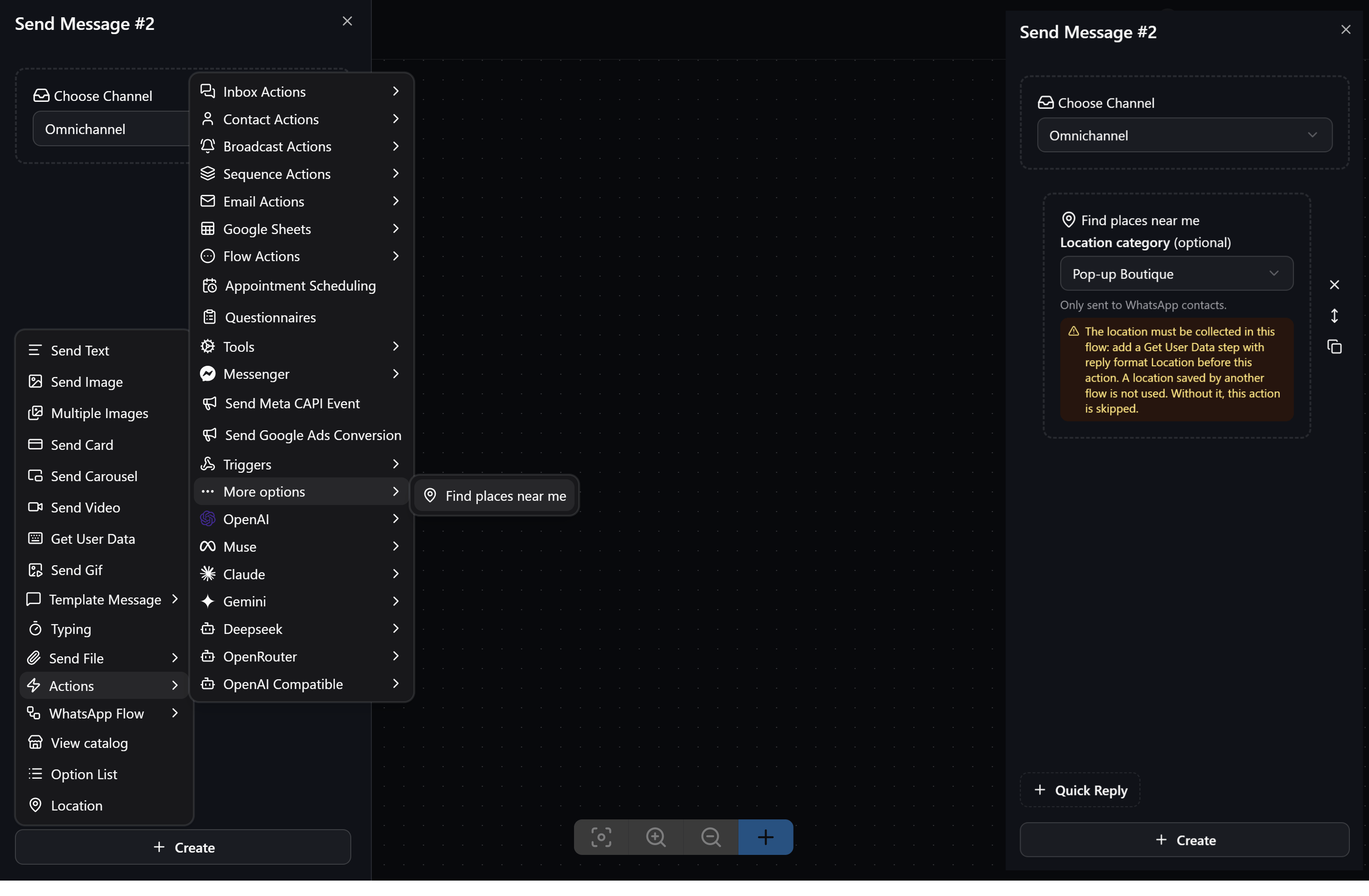
Flow prerequisites
Before calling the action, your flow must request and store the contact’s geographical location:- Add a Get User Data block in your flow prior to the action step.
- Set the Reply Format to Location.
- Choose a Contact Custom Field to store the incoming coordinates.
- When the user taps the location sharing button in chat, their latitude and longitude are recorded into the custom field.
Set up the action step
- In your flow, add a new Perform Action block.
- Expand the More options section and select Find places near me.
- Configure the following parameter:
- Location category: Select a specific category from the dropdown (such as Flagship Stores) to recommend only locations within that group, or select All locations to search across all branches.
- Connect the output to your subsequent flow messages or follow-up interactions.
WhatsApp native location delivery
The Find places near me action is optimized specifically for WhatsApp:- Haversine distance calculation: The system calculates the shortest geodesic distance between the customer’s shared location and every registered location within the selected category.
- Native WhatsApp map pin: ChatbotX automatically transmits a native WhatsApp location card containing the branch name, address details, and an interactive map pin that opens Google Maps or Apple Maps with one tap for instant navigation.
- Other messaging channels: The built-in native pin transmission is designed for WhatsApp contacts. For other channels (such as Messenger or Telegram), you can provide store directory links or use AI Agents to share branch addresses.