

- Accelerate Consultations and Sales: Connect voice-to-voice with potential buyers right when their interest is peak, resolving complex questions quickly.
- Centralized Communication: Manage both text messages and voice calls within a single, unified conversation thread per contact.
- Comprehensive Quality Assurance: Store call recordings, review timestamps in transcripts, and inspect AI summaries to understand customer needs.
- Intelligent Fallback Routing: Automatically steer callers to chatbot flows or capture callback requests outside business hours.
Configure Calling on WhatsApp Channel
To activate and configure calling settings for your WhatsApp phone number, follow these steps:1
Access WhatsApp Channel Settings
From the left navigation menu in ChatbotX, go to Settings and select the Channels tab. In the WhatsApp section, click the Manage button next to the phone number you wish to configure.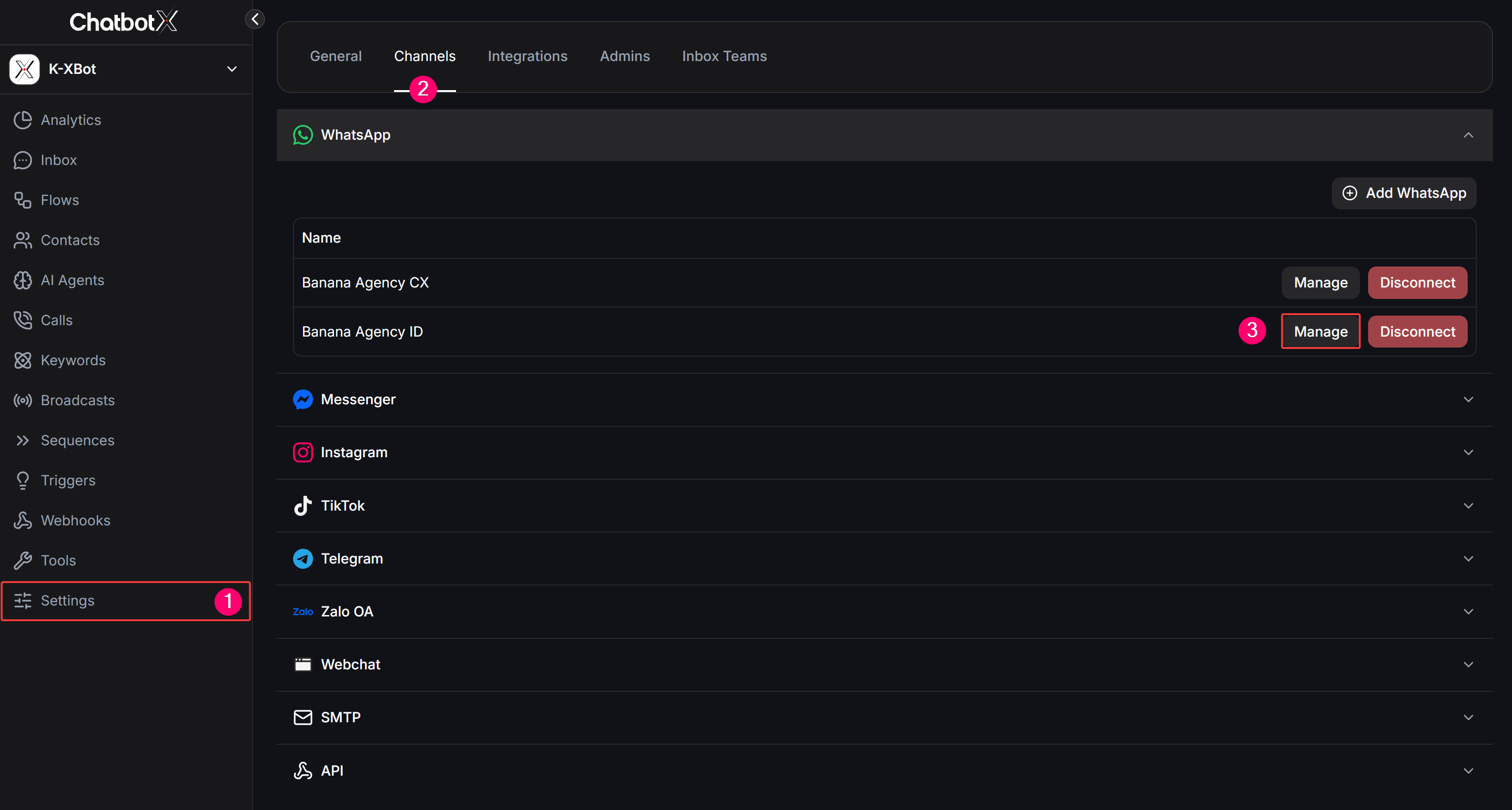
2
Enable Calling
In the channel management view, select the Calls tab. Switch the Enable calling toggle to the on (blue) position to activate calling capabilities for this number.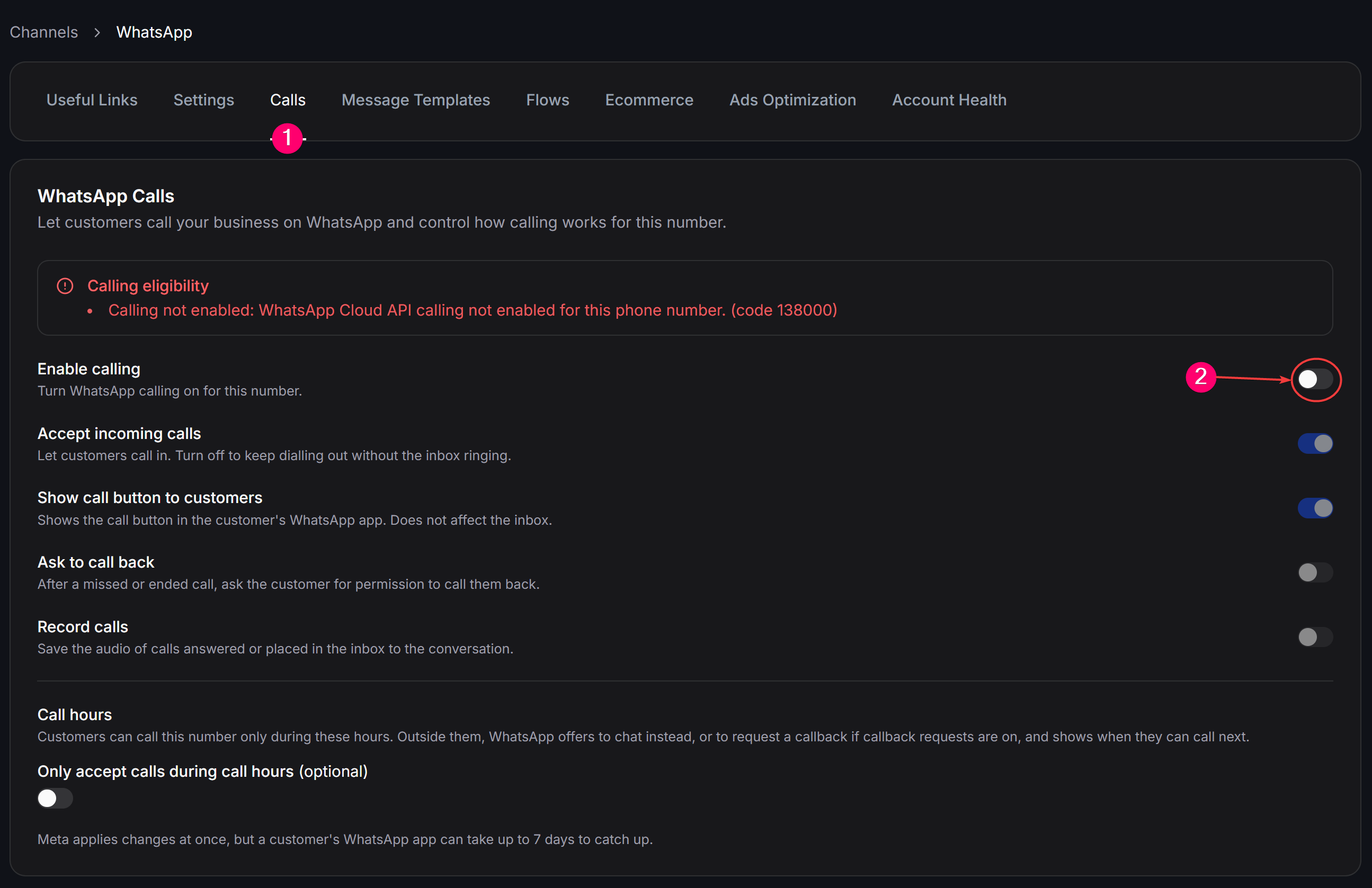
If your phone number is not yet eligible, a red notice will appear under Calling eligibility showing error code 138000. Once your account reaches Meta’s Tier 2 messaging threshold, this warning will automatically clear.
3
Configure Inbound Call Options
Once calling is enabled, configure your preferred operational settings:
- Accept incoming calls: Enable to let customers call your WhatsApp number. If turned off, agents can still make outbound calls from the Inbox, but inbound calls will not ring.
- Show call button to customers: Shows the voice call button in the customer’s WhatsApp profile and chat header.
- Ask to call back: Automatically sends a message asking for permission to call back after a missed call or when a call concludes.
- Record calls: Automatically saves the audio of calls answered or placed in the Inbox directly to the conversation.
4
Configure Recording Retention and Transcription
When Record calls is turned on, two advanced options appear: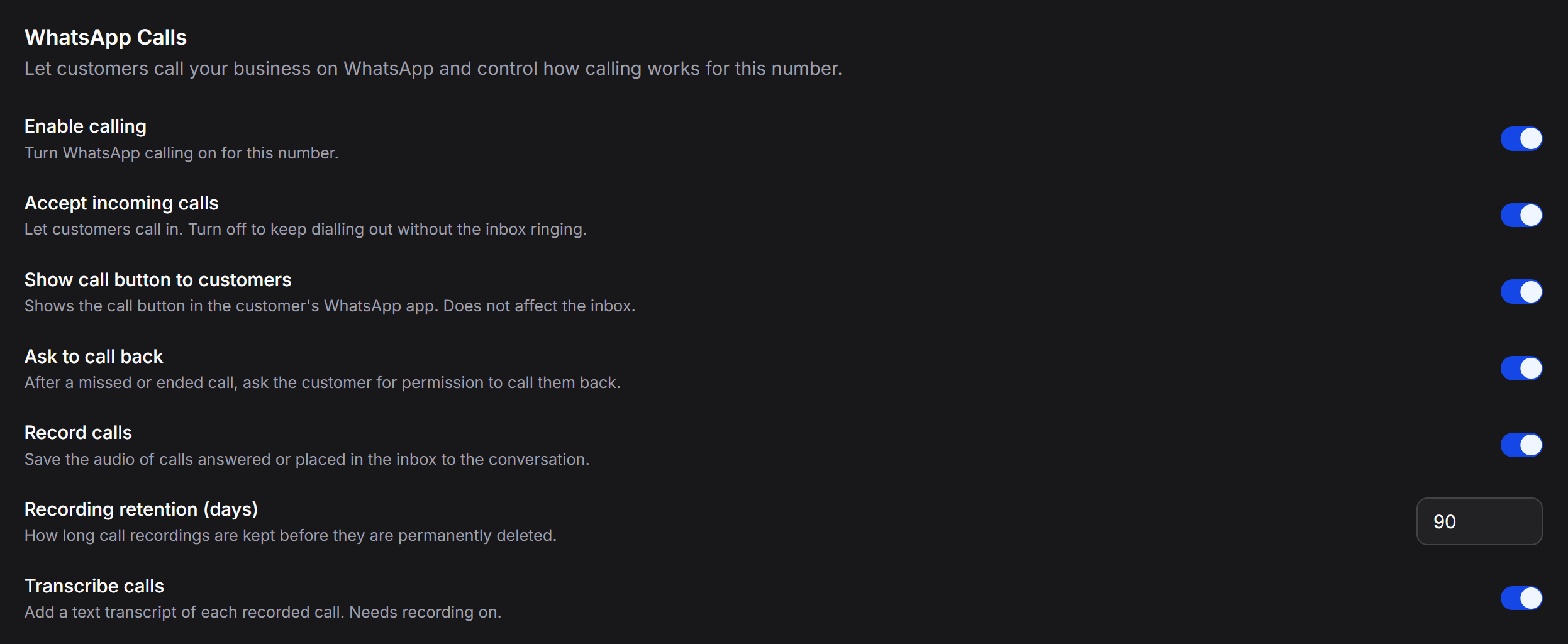
- Recording retention (days): Set how many days call recordings are stored (defaults to 90 days). After this period, audio files are permanently purged to optimize storage.
- Transcribe calls: Enables automated speech-to-text transcription of each recorded call. This option requires call recording to be enabled.
5
Set Up Call Hours and Working Schedule
The Call hours feature lets you define operational hours and control customer experiences when your team is away: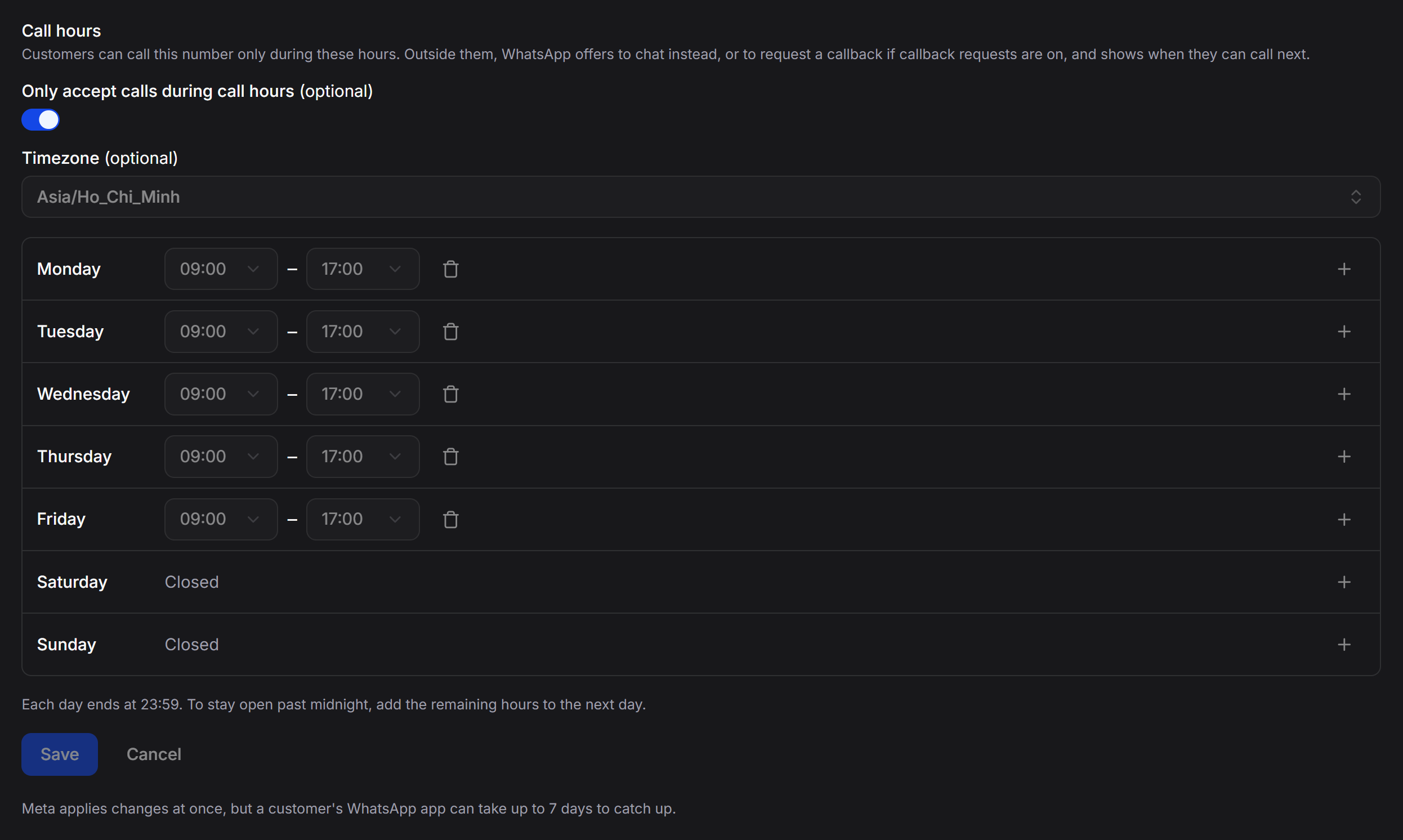 Click Save at the bottom to apply all changes.
- Turn on Only accept calls during call hours (optional) to activate the schedule.
- Timezone (optional): Select your company’s operating time zone (e.g., Asia/Ho_Chi_Minh).
- Weekly Schedule (Monday to Sunday):
- Specify open and close hours for each day (e.g., 09:00 to 17:00).
- Click the plus
+icon to add multiple shift intervals within a single day. - Mark weekend off-days as Closed.
- Each day ends at 23:59. To remain open past midnight, add remaining hours to the following day.
When customers call outside business hours, WhatsApp automatically suggests switching to text chat or submitting a callback request (if Ask to call back is enabled), and shows when the business will be open next.
Handle Calls Directly in the Inbox
Agents can receive inbound calls from customers or place outbound calls directly within the ChatbotX web Inbox using in-browser WebRTC audio streaming.Receive Inbound Calls from Customers (Incoming Call)
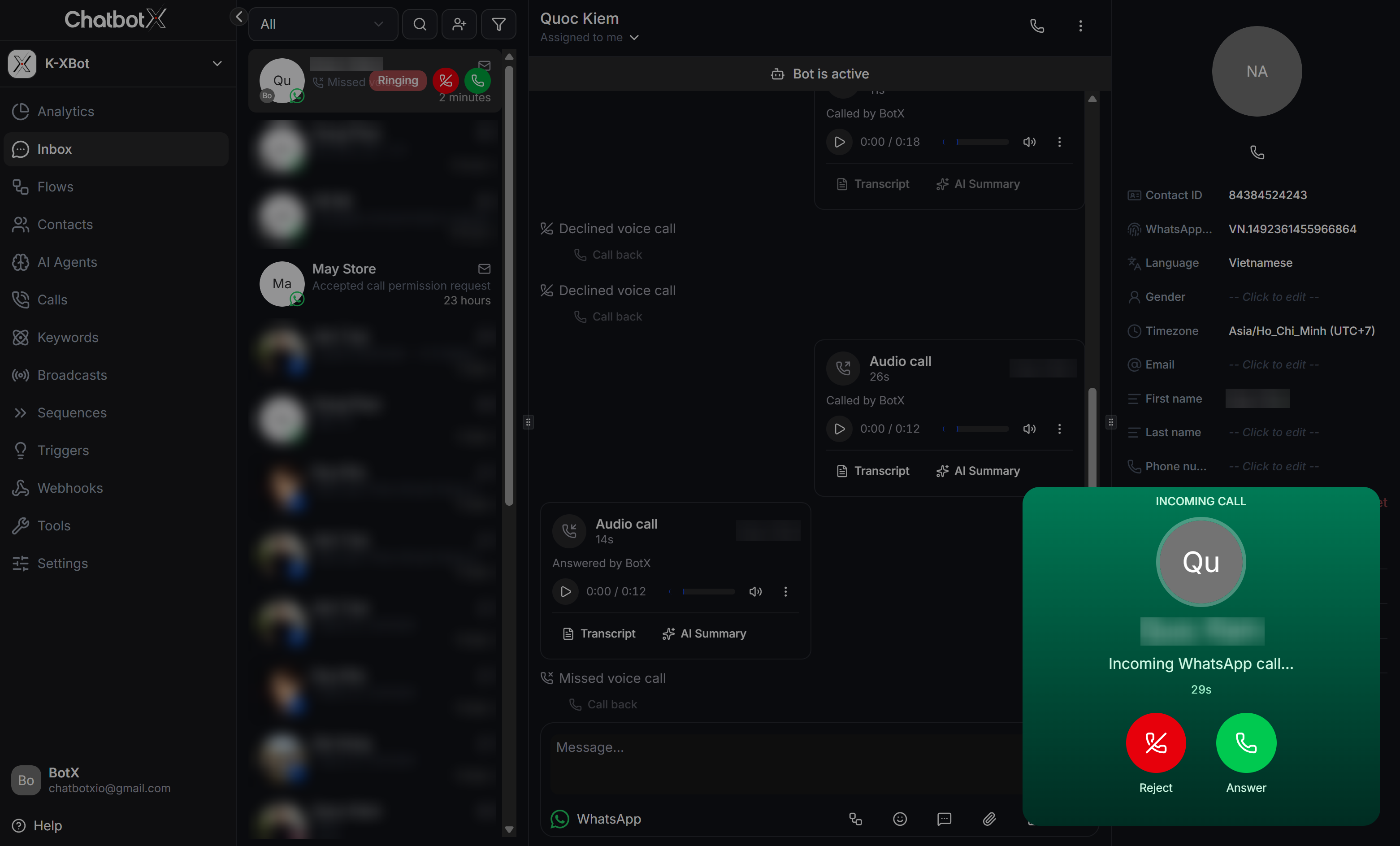
When a customer taps the call button in their WhatsApp mobile app, the call rings live in the ChatbotX Inbox in real time:- Notification in the Conversation List: A prominent red Ringing badge appears on the calling contact’s row, accompanied by two quick-action buttons: a green phone icon to answer the call and a red phone icon to reject it immediately.
- Floating Incoming Call Widget: A call widget surfaces in the bottom right corner showing INCOMING CALL, the contact name,
Incoming WhatsApp call..., and a live ringing timer. - Call Actions:
- Answer (green button): Connects the call instantly in your web browser and starts automatic call recording.
- Reject (red button): Declines the call when agents are unavailable or busy.
Request Call Permission
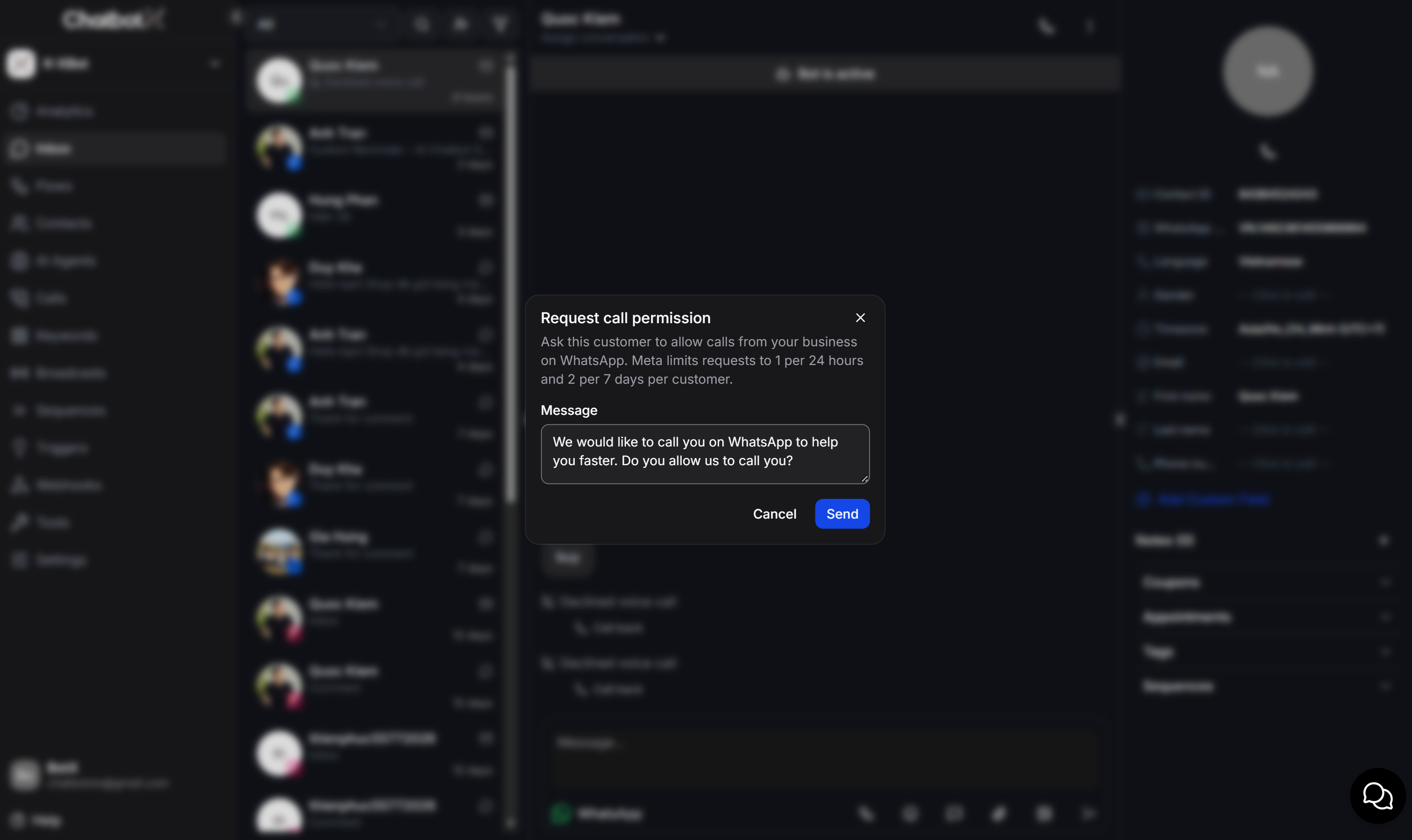
Before placing an outbound call to a WhatsApp user, agents must request permission per Meta’s policy:- In the Inbox, open the conversation with the WhatsApp contact you want to call.
- Click the phone call icon in the top right header of the chat panel.
- The Request call permission modal opens:
- Customize the message in the Message field to suit your communication context.
- Note Meta’s restriction: at most 1 request per 24 hours and 2 requests per 7 days per customer.
- Click Send to deliver the request to the customer.
Floating Call Widget and Live Call States
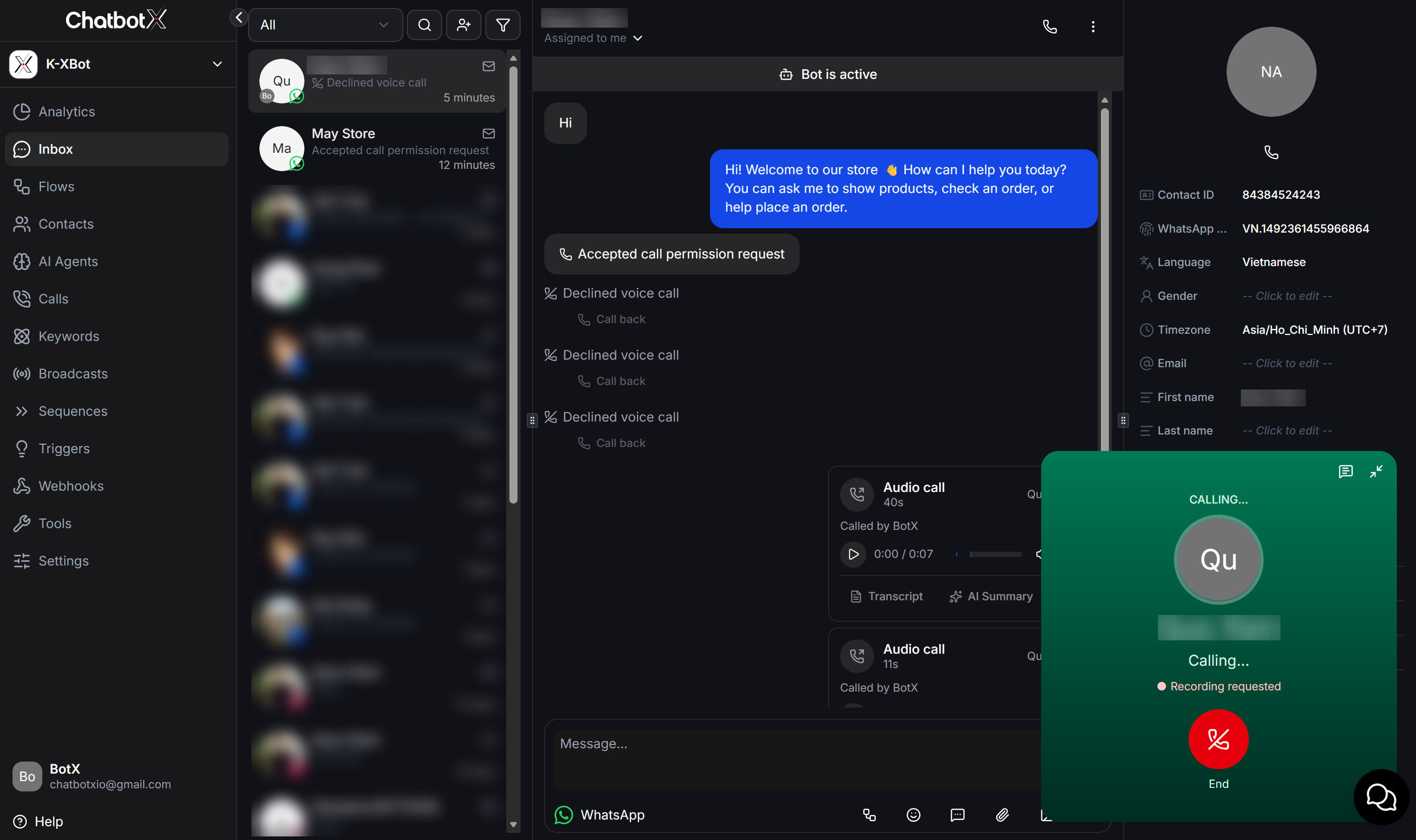
- Customer Approval: When the customer approves, the conversation displays
Accepted call permission request. The call button is now unlocked for outbound dialing. - Ringing State (Calling): A green floating call widget appears in the bottom right corner showing CALLING…, the contact name, and a
Recording requestedindicator. Click the red End button to cancel the call if needed.
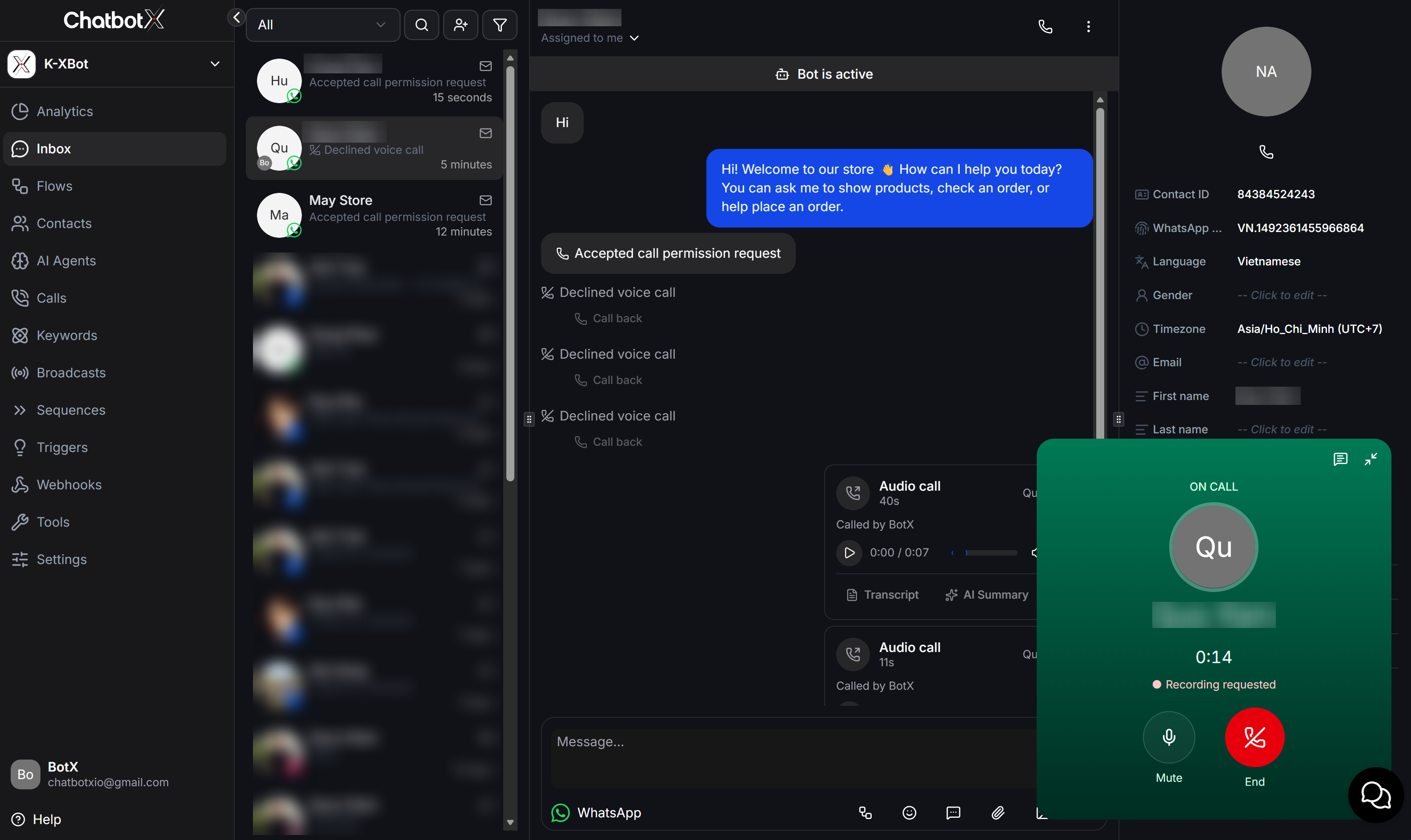
- Active Call State (On Call): Once the customer answers, the widget switches to ON CALL with a live call timer.
- Mute: Toggle microphone audio on or off.
- End: Disconnect and complete the call.
- Minimize and expand buttons at the top corner allow agents to navigate other customer chats while maintaining the active voice call.
- Declined Calls: If the customer is busy or declines, the chat displays
Declined voice callalong with a Call back action button.
Manage Recordings, Transcripts, and AI Summaries
Once a call ends, all call media and analytical data are synced immediately to the conversation thread:Listen to Recordings, Transcripts, and AI Summaries
An Audio call message card appears directly in the conversation thread displaying call duration and the agent name:- An embedded media player allows agents to play, pause, seek, and adjust playback volume.
- Two action buttons appear below the player: Transcript and AI Summary. Clicking either button opens the Call Information slide-over drawer from the right:
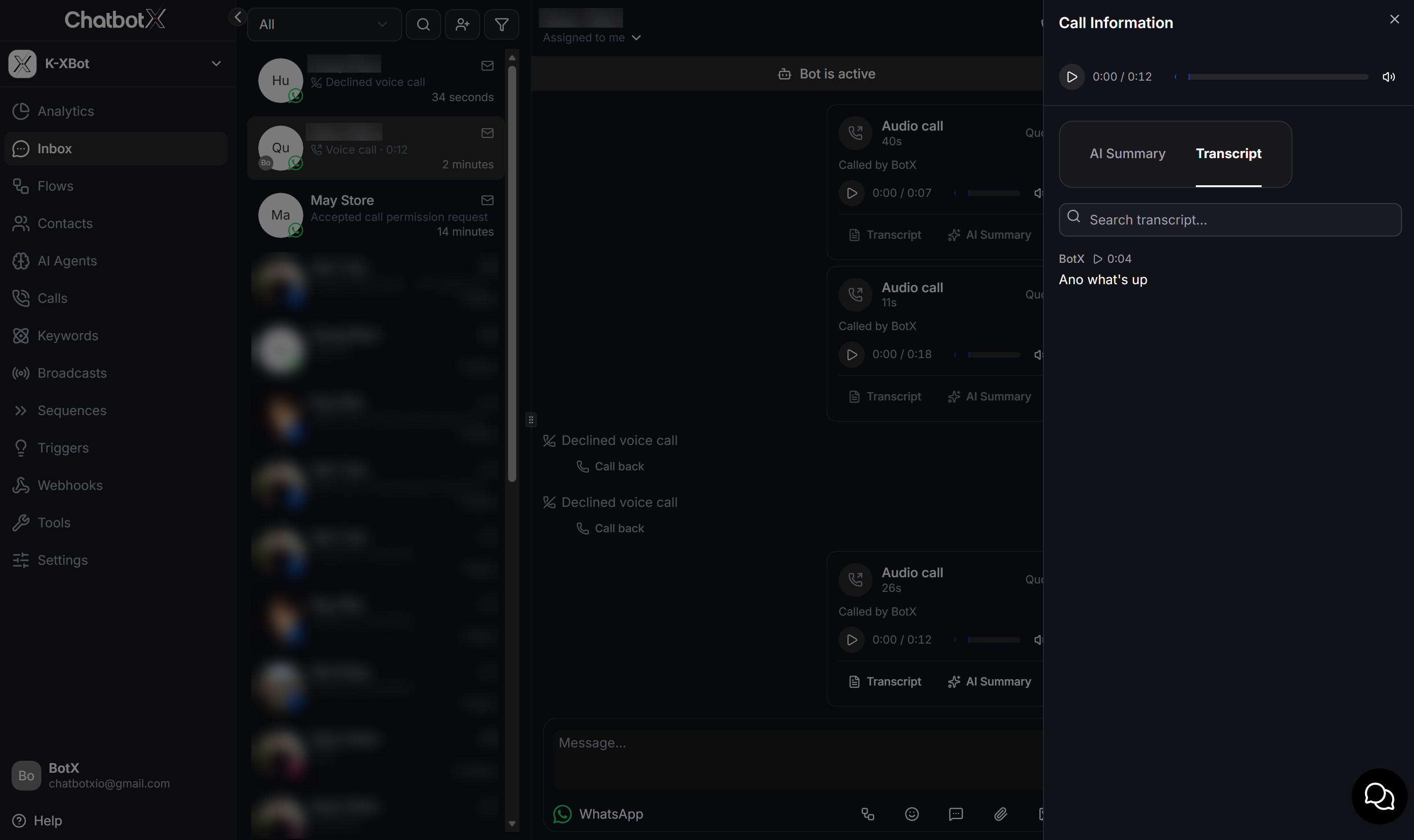
- Transcript Tab:
- Displays full dialogue transcribed into written text.
- Each statement is tagged with a timestamp and speaker attribution (agent or contact).
- Use the Search transcript… input to pinpoint specific keywords or topics discussed without listening through the entire audio.
- AI Summary Tab:
- AI automatically extracts core highlights, customer issues, resolutions discussed, and follow-up action items.
Workspace Call History Hub (Calls)
The Calls menu item on the main left sidebar serves as the Unified Call Management Hub for your entire workspace, aggregating calls across both WhatsApp Call and Messenger Call.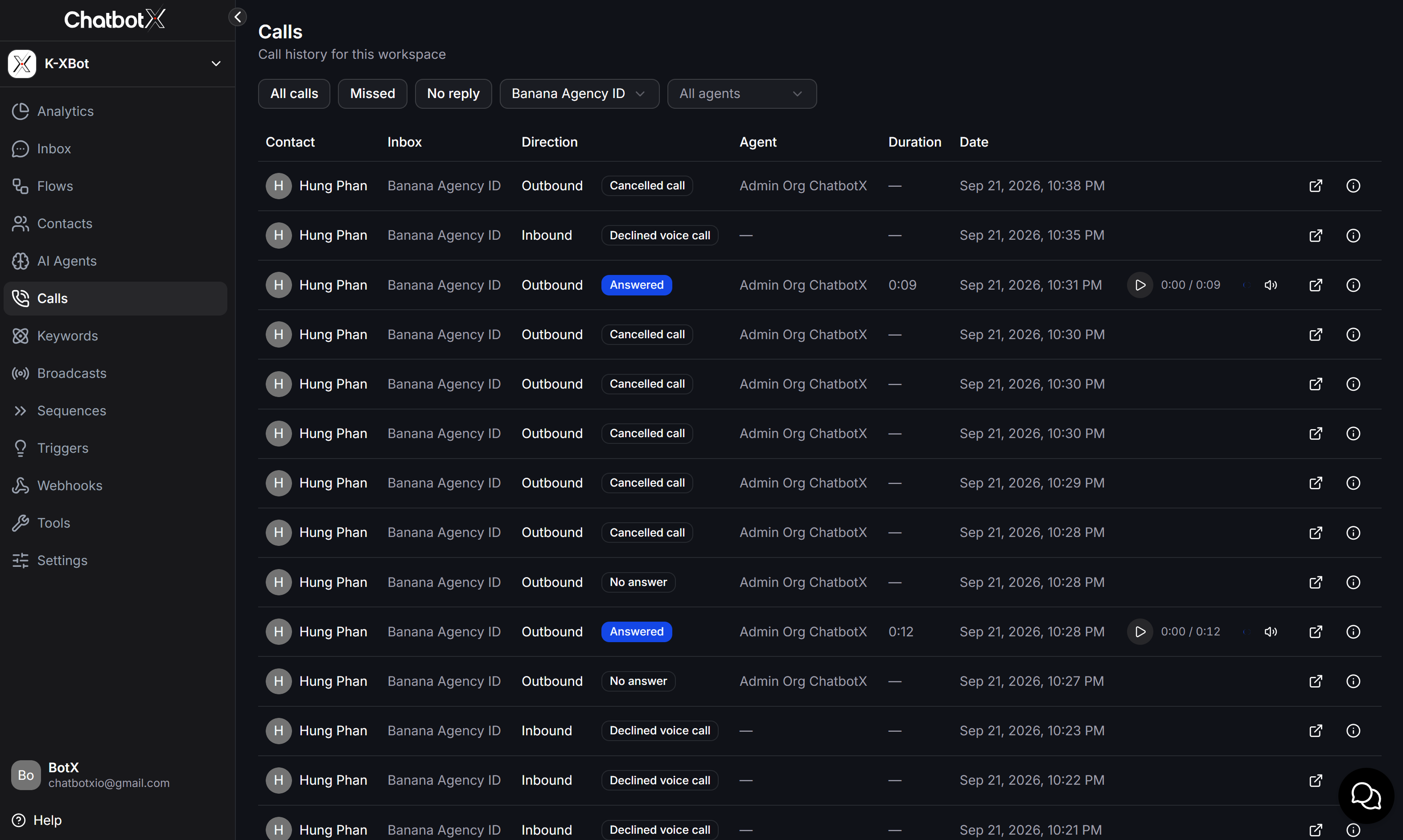
Smart Filters and Segmentations
The top toolbar offers comprehensive filtering capabilities:- Status Filters:
- All calls: Shows all workspace call logs.
- Missed: Filters inbound calls missed by agents for immediate follow-up.
- No reply: Filters outbound calls where customers did not pick up.
- Channel / Inbox Filter: Filter logs by individual WhatsApp numbers or connected Facebook pages.
- Agent Filter: Filter logs by specific agents to review individual performance.
Comprehensive Call Log Data
The call table provides structured operational data:- Contact: Customer avatar and name.
- Inbox: Name of the receiving channel/account.
- Direction & Status: Identifies
InboundorOutboundcalls alongside visual badges:- Answered (blue badge): Call successfully connected and completed.
- Declined voice call: Customer actively declined the call.
- Cancelled call: Call cancelled by agent before connection.
- No answer: Customer did not answer after ringing.
- Agent: Name of the agent who handled the call (displays a dash for missed/declined calls).
- Duration: Total call duration (e.g., 0:09, 0:12).
- Date: Exact date and timestamp.
- In-Line Audio Player: For
Answeredcalls, an audio player is embedded directly within the table row for instant playback. - Quick Actions:
- Click Open conversation (↗) to navigate straight into the contact’s chat in the Inbox.
- Click Info (ⓘ) to open the Call Information drawer for transcripts and AI summaries.