

Centralized Order Fulfillment
Search orders by buyer name, phone, or email, print packing slips, and update delivery stages in one place.
Ecommerce Flow Conditions
Branch conversational flows based on lifetime spend, order count, previously purchased items, or live cart status.
Real-Time Event Triggers
Automatically launch flows or tag contacts when items are added to cart, carts are abandoned, or order statuses change.
Visual Sales Analytics
Track lifetime revenue, hourly and daily order charts, and leaderboards for top-selling products and vendors.
Managing the Orders List
Open the Orders tab inside Ecommerce to view and manage all customer purchases across your connected messaging channels.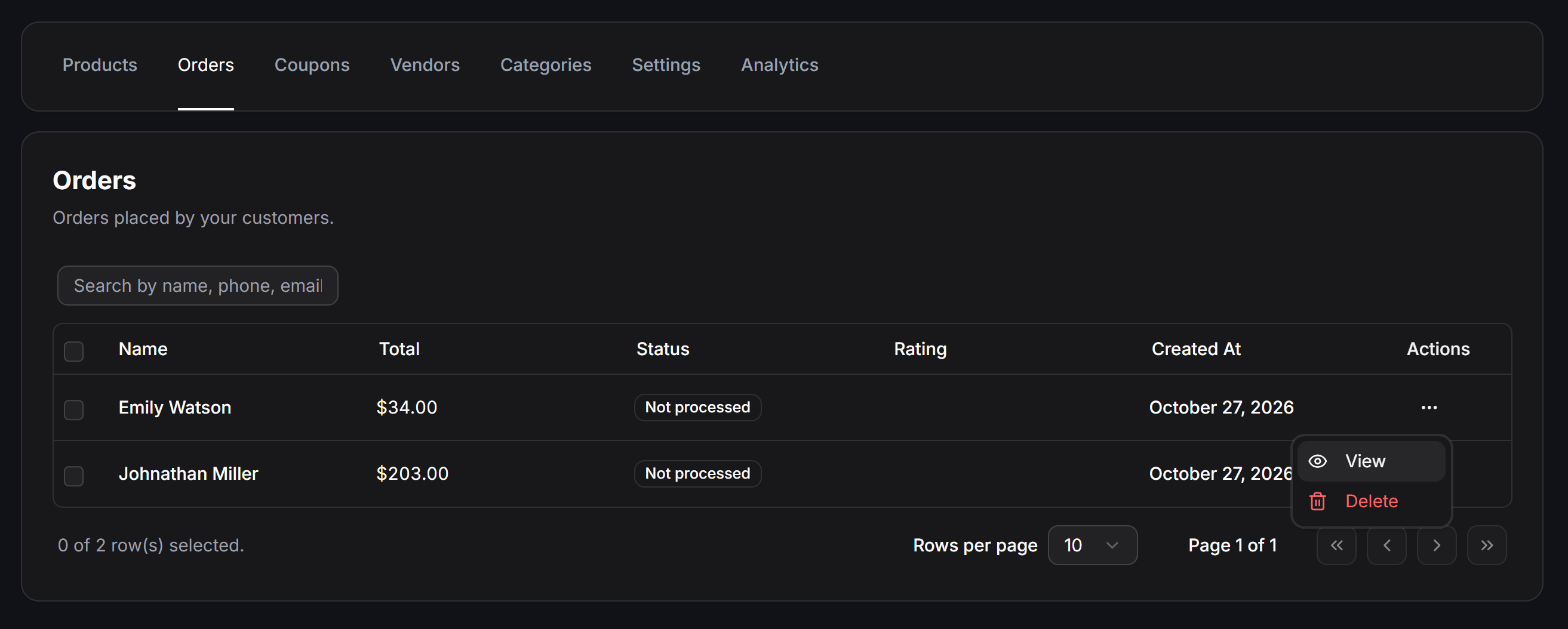
Order Lifecycle Statuses
Every order in ChatbotX progresses through the following standard statuses:- Not processed: Newly submitted order awaiting review and approval by an operator.
- Accepted: Order confirmed and queued for warehouse packing.
- Shipped: Parcel handed over to the delivery carrier.
- Concluded: Order successfully delivered and payment finalized.
- Cancelled: Order cancelled by an admin or upon buyer request.
Viewing and Processing an Order
Click Actions (…) on an order row and select View to open the full order details screen: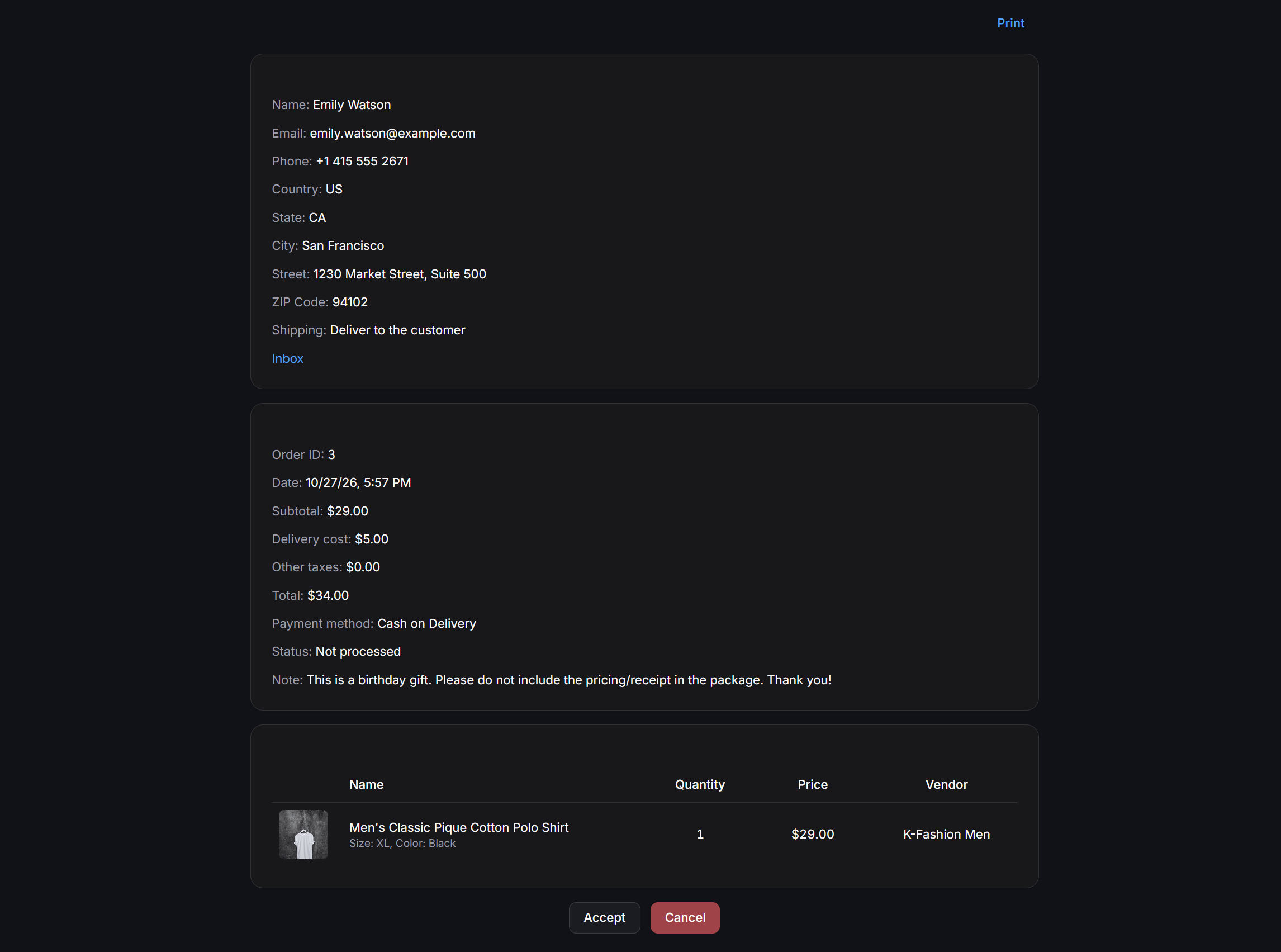
Recipient and Shipping Details
Displays the buyer’sName, Phone, Email, selected Shipping method, and full delivery Address submitted during checkout.
Payment Breakdown and Customer Notes
- Subtotal: Combined price of all ordered items before fees and discounts.
- Delivery: Shipping fee applied to the order.
- Discount: Total amount deducted by promotional coupons.
- Total: Final payable amount.
- Payment method: Selected payment option.
- Status: Current processing status of the order.
- Note: Special instructions left by the customer during checkout for packing or delivery staff.
Ordered Line Items
Lists each purchased product with its thumbnail image, product title, selected variant options,Quantity, unit Price, and Vendor.
Order Actions and Packing Slips
Use the action buttons at the top and bottom of the order details view to process the order:- Print: Generates a formatted packing slip ready for printing and attaching to the parcel.
- Accept: Approves the order and advances its status to
Accepted. - Cancel: Cancels the order and automatically restores the ordered quantities back to product inventory (when inventory tracking is enabled).
When Send notification when change cart status is enabled in General Settings, ChatbotX automatically sends a status update message to the buyer’s chat thread whenever an admin accepts, ships, concludes, or cancels their order.
Ecommerce Automation: Conditions and Triggers
ChatbotX connects live store activity with the Flow Builder and Triggers engine so you can automate remarketing, VIP segmentation, and order updates.Ecommerce Conditions in Flow Builder
Inside any flow Condition node, click + Add Condition and scroll to the Ecommerce group to branch conversations based on purchasing history or active cart contents: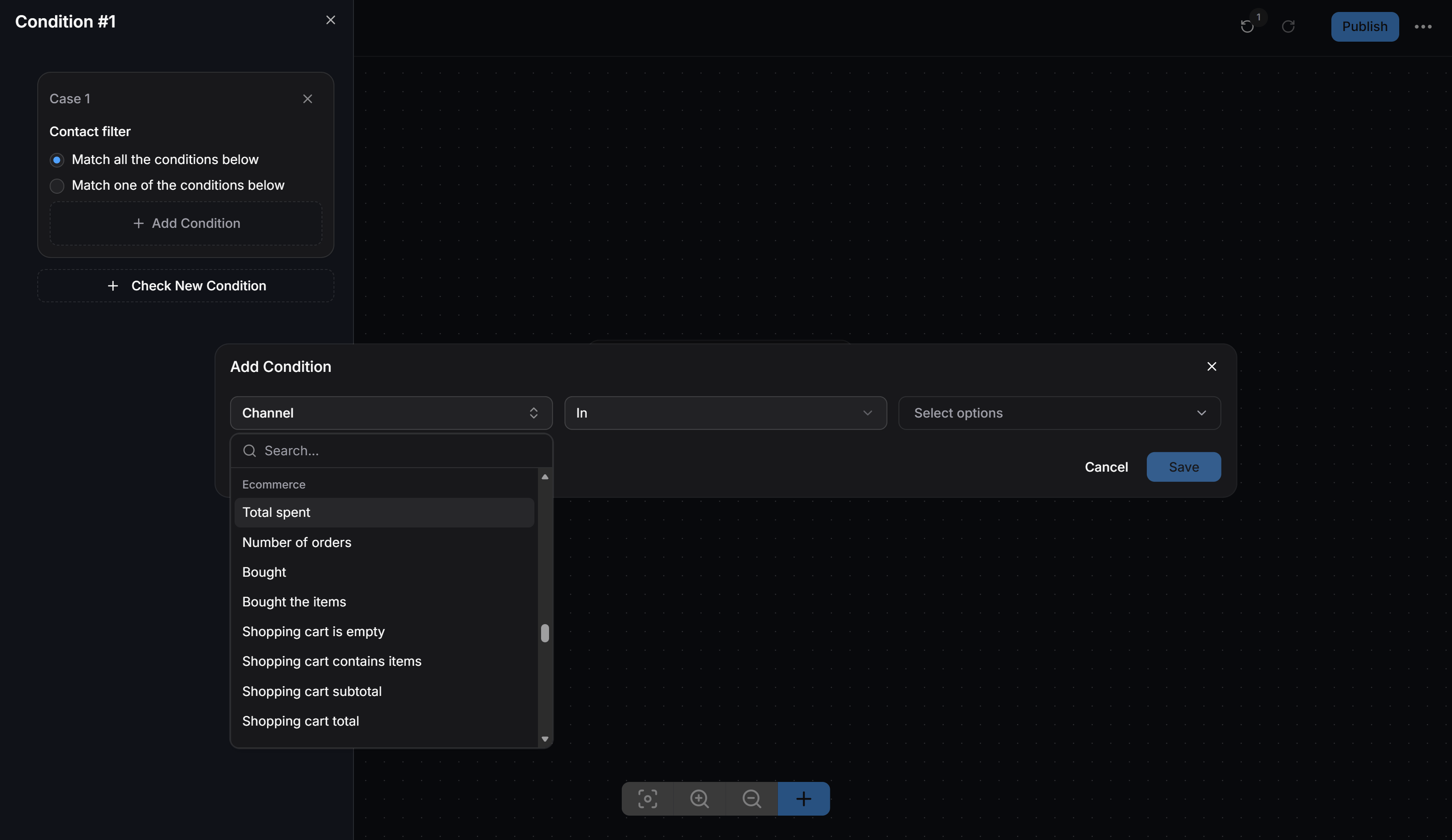
Ecommerce Event Triggers
From the main left sidebar in ChatbotX, select Triggers, click + Add Condition under When this happens, and scroll to the Ecommerce section to automate actions in response to live shopping events: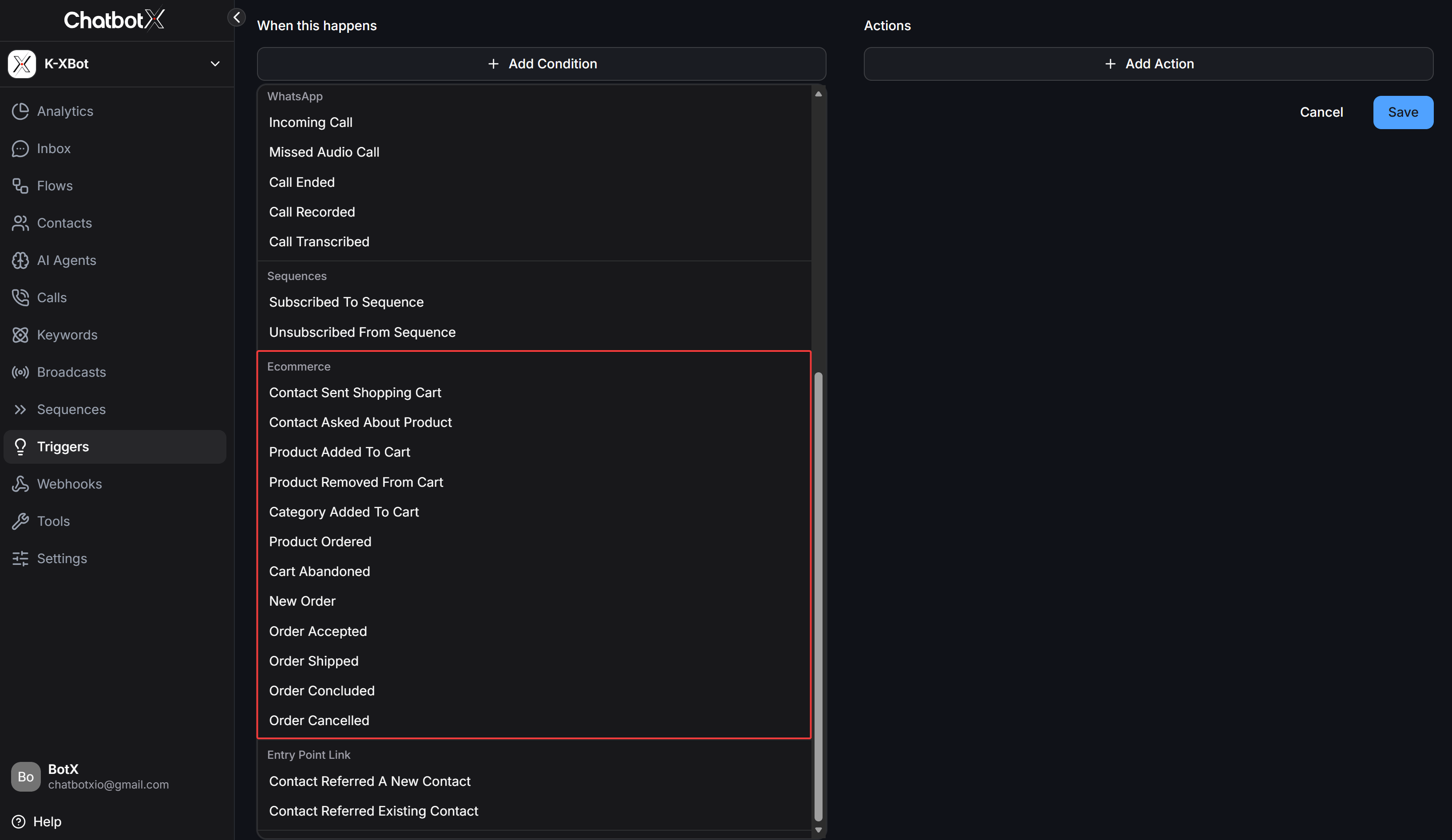
- Contact Sent Shopping Cart: Fires when a contact submits their shopping cart in chat.
- Contact Asked About Product: Fires when a contact sends an inquiry about a specific product.
- Product Added To Cart: Fires immediately when a shopper adds a product to their Webview cart.
- Product Removed From Cart: Fires when a shopper removes an item from their cart.
- Category Added To Cart: Fires when a shopper adds any item from a specific category to their cart.
- Product Ordered: Fires when a designated product is ordered.
- Cart Abandoned: Fires when a shopper leaves items in their cart past the configured abandoned cart delay.
- New Order: Fires immediately whenever a new order is placed.
- Order Accepted: Fires when an admin approves an order.
- Order Shipped: Fires when an order’s status changes to shipped.
- Order Concluded: Fires when an order is marked concluded, ideal for sending thank-you messages or review requests.
- Order Cancelled: Fires when an order is cancelled to follow up or offer assistance.
Sales Analytics and Performance Reports
Switch to the Analytics tab inside Ecommerce to monitor store revenue and product performance.Summary KPI Cards and Revenue Timeline
The upper section of the analytics dashboard provides a date range selector alongside 4 summary metric cards and the revenue chart: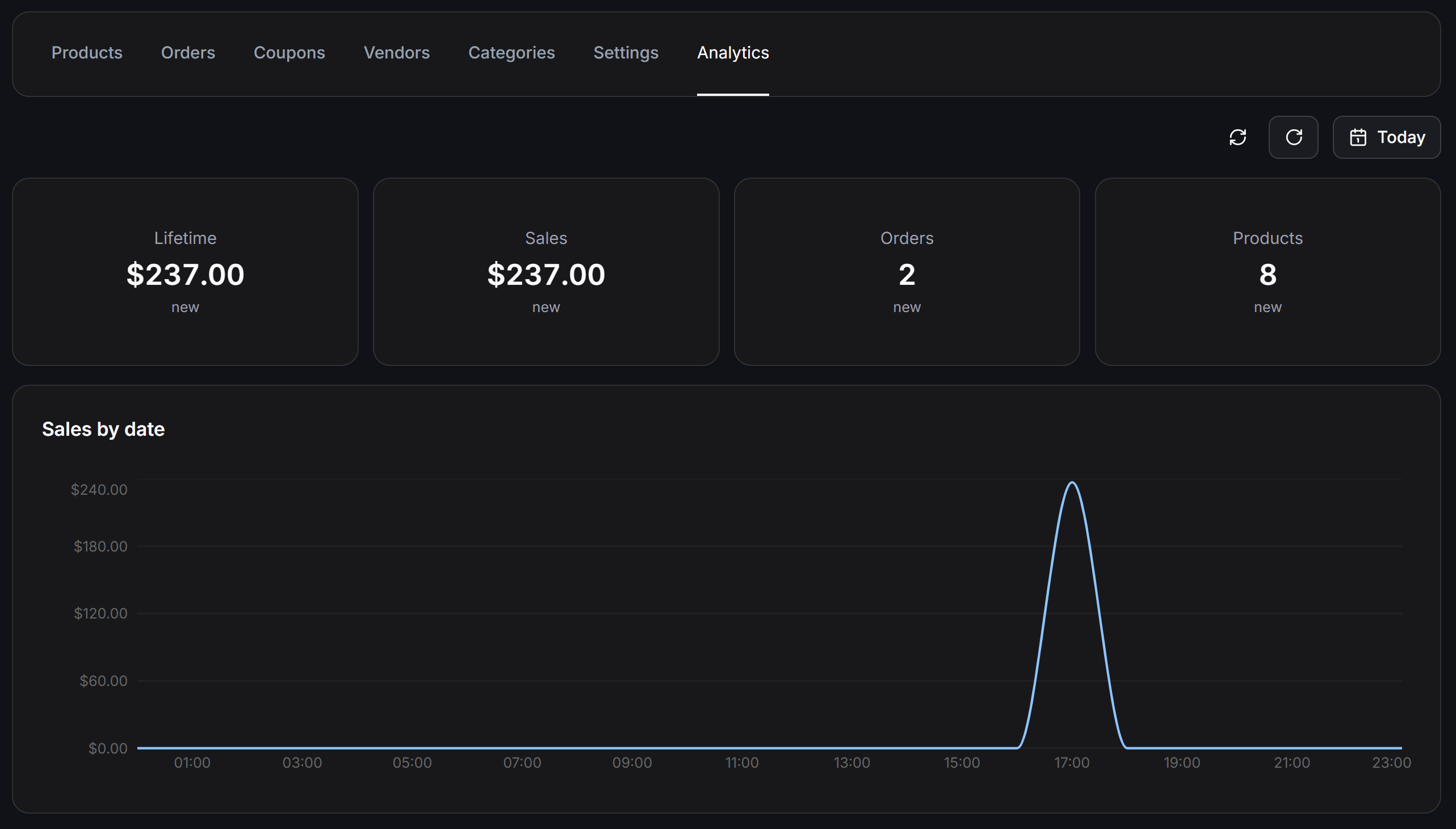
- Lifetime: Cumulative gross revenue generated across the store since launch (excluding cancelled orders).
- Sales: Total revenue recorded within the active date filter period.
- Orders: Total number of orders placed during the selected period.
- Products: Total count of products in the catalog or generating sales in the period.
- Sales by date: Line chart tracking revenue across hours of the day (when viewing a single day) or across calendar days. Use this chart to identify peak buying hours for scheduling broadcasts and staffing live agents.
Order Volume and Top Performers
Scroll down to the lower section of the Analytics tab to inspect order volume trends and rankings: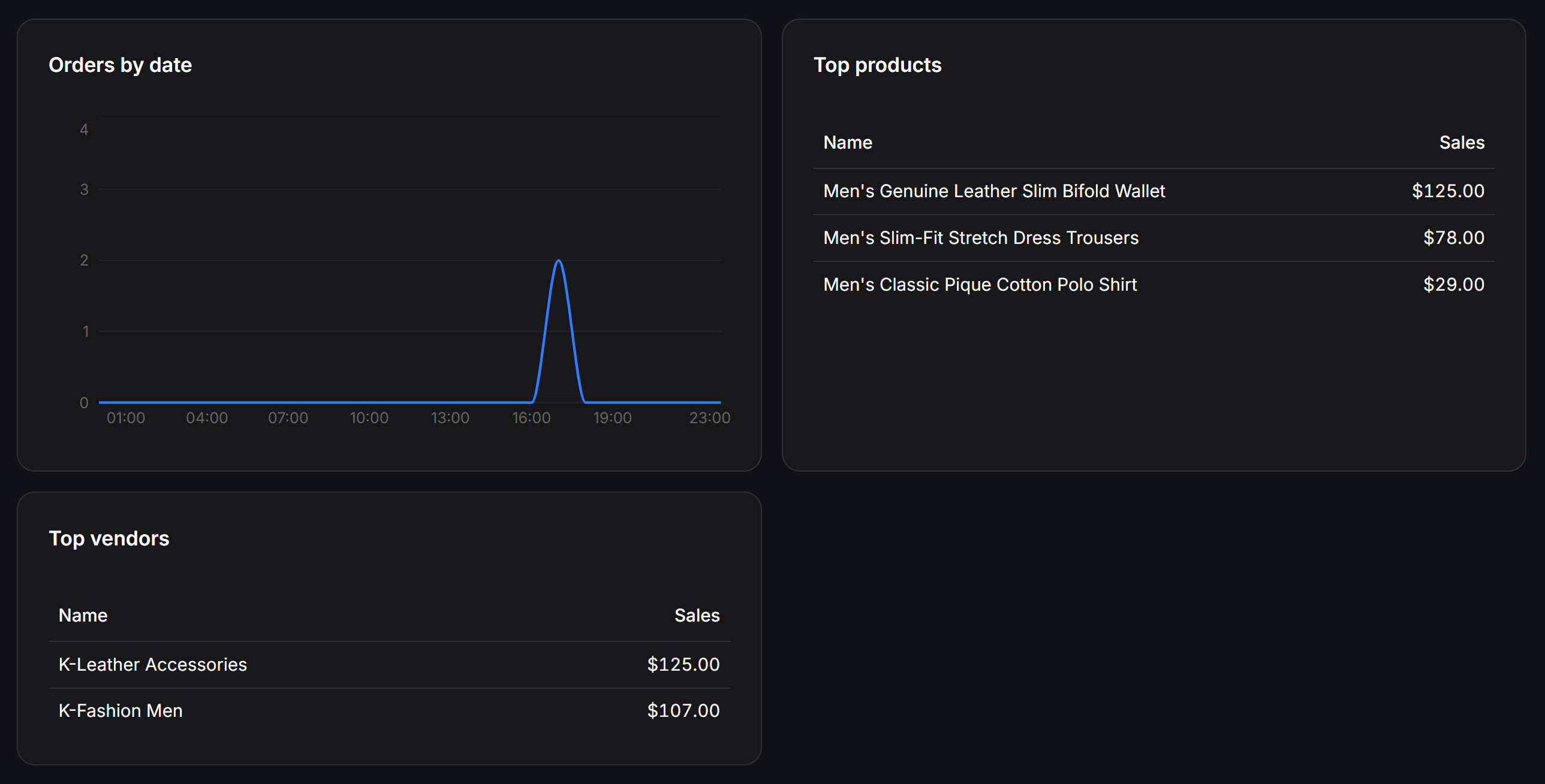
- Orders by date: Timeline chart plotting the number of orders placed across each time interval.
- Top products: Leaderboard ranking your best-selling products by revenue to guide inventory restocking and promotional campaigns.
- Top vendors: Leaderboard ranking brands and suppliers by total sales volume.