

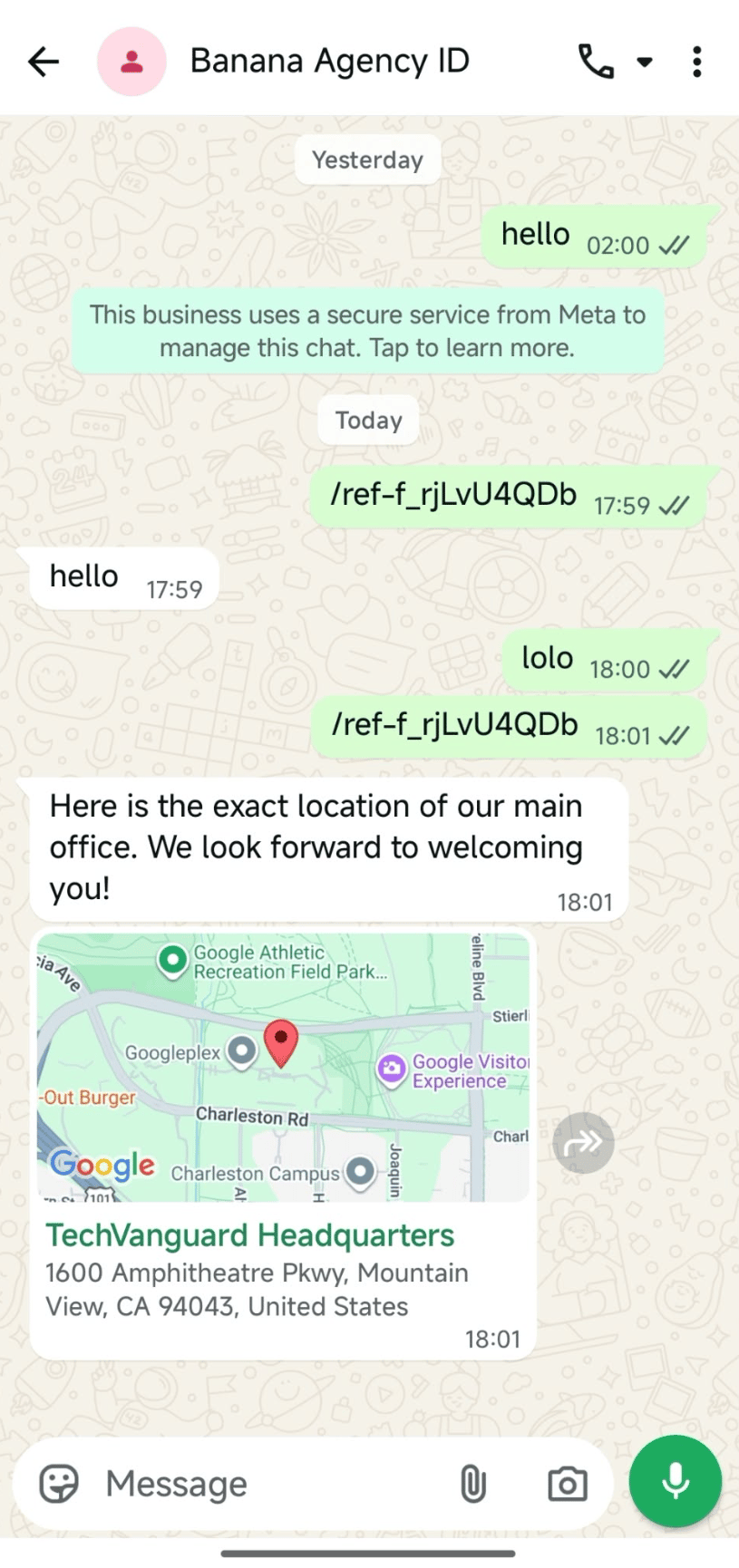
The dedicated Location Message content block is a native capability of the WhatsApp Business API and is specifically available for the WhatsApp channel inside the Flow Builder.
Location Message Structure
A WhatsApp location message consists of four primary properties:Step-by-Step Flow Builder Setup
Follow these steps to add a Location Message block to your WhatsApp automated flows:1
Select WhatsApp Channel in Send Message Block
In the Flow Builder, open the Send Message node you want to configure. Under Choose Channel at the top, select Whatsapp.
2
Add the Location Block
Click the + Add button beneath your message content. The list of supported WhatsApp message types will appear. Scroll to the bottom and click Location.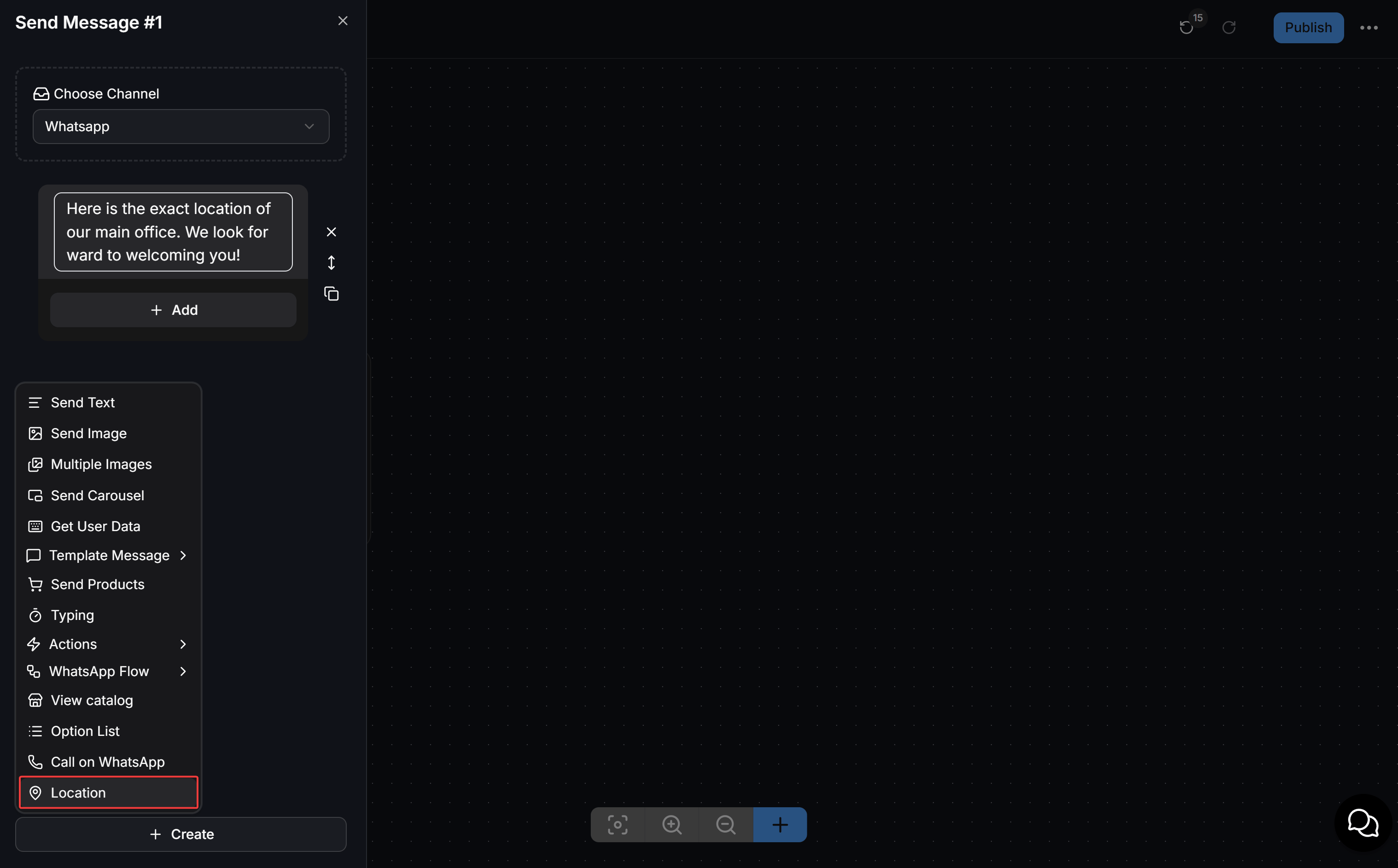
3
Enter Venue Details and GPS Coordinates
The Location configuration modal will pop up: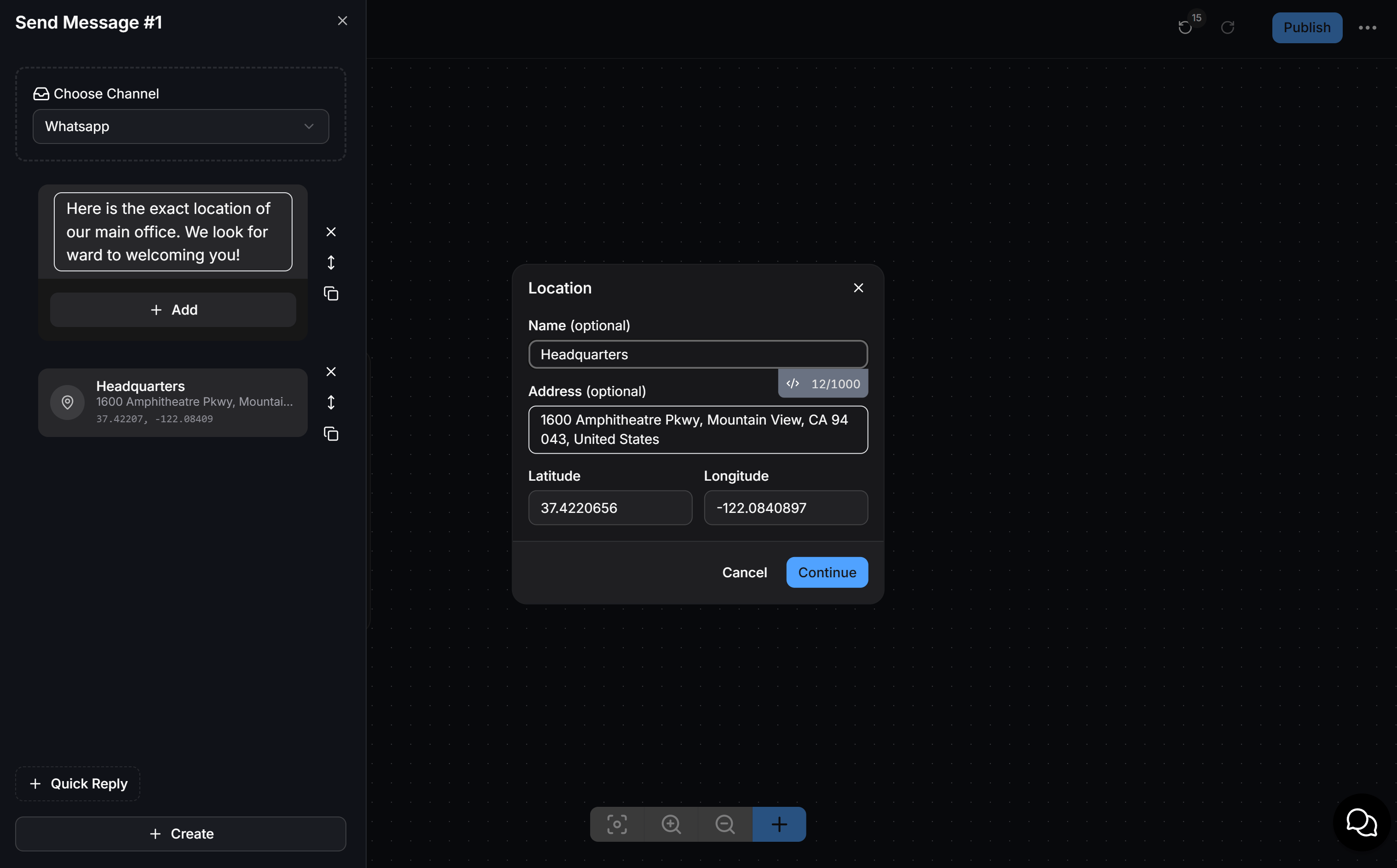
- Name (optional): Enter the place name or click the
</>icon to insert a Custom Field if you are dynamically personalizing store locations for each contact. - Address (optional): Enter the detailed physical address.
- Latitude: Enter the decimal latitude coordinate.
- Longitude: Enter the decimal longitude coordinate.
4
Publish Your Flow
Connect subsequent actions or conditions if needed, then click Publish in the top-right corner to deploy your flow live.
How to Get Exact GPS Coordinates from Google Maps
To retrieve precise latitude and longitude values:- Open Google Maps in your desktop browser.
- Search for your business, office, or event venue.
- Right-click directly on the red location marker.
- Click on the first row showing coordinate numbers (for example:
37.4220656, -122.0840897) to copy them to your clipboard:- The first number is Latitude:
37.4220656 - The second number is Longitude:
-122.0840897
- The first number is Latitude:
- Paste each value into its respective field inside ChatbotX.
Do not paste both numbers with a comma into a single input field. Latitude and Longitude must be entered separately.